Flutter Vignette — Boarding Pass
How to master the Boarding Pass Vignette (by gskinner team)…Hmmm
All in one Flutter resource: https://flatteredwithflutter.com/flutter-vignette/
Free AI web copilot to create summaries, insights and extended knowledge, download it at here
4243
Abstract
ntroduce a class called <b>FoldEntry</b>…</p><figure id="35d4"><img src="https://cdn-images-1.readmedium.com/v2/resize:fit:800/1*WntFLnfu_Rq-SwYkzr9PRg.png"><figcaption>FoldEntry class…</figcaption></figure><p id="b731">Parameters for Transform Widget :</p><ul><li><b>alignment</b> : Alignment of the origin <b>(Our case FractionalOffset.center)</b></li><li><b>transform</b> : Matrix to transform…</li><li><b>child</b> : Widget on which Transformation occurs</li></ul><blockquote id="f24d"><p>Note: For details about the number (3, 2, 0.001) refer <a href="https://readmedium.com/flutter-and-3d-5e3e63803133"><b>this</b></a><b>…..</b></p></blockquote><p id="cb2d">On the click of the card, we encapsulate the clicking as</p><figure id="6bc8"><img src="https://cdn-images-1.readmedium.com/v2/resize:fit:800/1*iNXr07Z7fl9a7EwPxAVnHA.png"><figcaption>Clicking of the card….</figcaption></figure><p id="179a">_getEntries() function comprises of the FoldEntry widgets….</p><div id="9c06"><pre>List<FoldEntry> <span class="hljs-title function_ invoke__">_getEntries</span>() { <span class="hljs-keyword">return</span> [ <span class="hljs-title function_ invoke__">FoldEntry</span>(<span class="hljs-attr">height</span>: <span class="hljs-number">160.0</span>, <span class="hljs-attr">front</span>: topCard), <span class="hljs-title function_ invoke__">FoldEntry</span>(<span class="hljs-attr">height</span>: <span class="hljs-number">160.0</span>, <span class="hljs-attr">front</span>: middleCard, <span class="hljs-attr">back</span>: frontCard), ]; }</pre></div><p id="bf10">For every back parameter, there will be a flip (3d)…. We have currently 2 items in the List<foldentry>, namely</foldentry></p><ul><li>Flight Summary (From where to where)</li><li>Flight Details (Gate, seat number etc) (flight_details.dart)</li></ul><figure id="551b"><img src="https://cdn-images-1.readmedium.com/v2/resize:fit:800/1*5s5beq09tcPRc8zaw8beNg.png"><figcaption>Step 2 : Flutter Vignette (Boarding Pass)</figcaption></figure><p id="7dfe"><b>isOpen</b> parameter is responsible for playing the animation (flight animation), when the <b>card is not clicked no animation</b> takes place, but once clicked flight animation triggers……</p><p id="955e"><b>FoldingTicket is a Stateful widget</b>, which adjusts the height of the card, i.e expand the child height when opened vs closed…It does that while playing some animation….</p><figure id="d9b4"><img src="https://cdn-images-1.readmedium.com/v2/resize:fit:800/1*T5RRSF1YBu-alLi5rJZ3TA.png"><figcaption>Step 2: FoldingTicket…..</figcaption></figure><p id="fa53">Here, <a href="https://tinyurl.com/remq3ms"><b>is the source code for Step 2…..</b></a></p><h2 id="4d18">Step 3:</h2><p id="e3d7">We include the third entry into the _getEntries function</p><div id="226c"><pre>List<FoldEntry> <span class="hljs-title function_ invoke__">_getEntries</span>() { <span class="hljs-keyword">return</span> [ <span class="hljs-title function_ invoke__">FoldEntry</span>(<span class="hljs-attr">height</span>: <span class="hljs-number">160.0</span>, <span class="hljs-attr">front</span>: topCard), <span class="hljs-title function_ invoke__">FoldEntry</span>(<span class="hljs-attr">height</span>: <span class="hljs-number">160.0</span>, <span class="hljs-attr">front</span>: middleCard, <span class="hljs-attr">back</span>: frontCard), <span class="hljs-title function_ invoke__">FoldEntry</span>(<span class="hljs-attr">height</span>: <span class="hljs-number">80.0</span>, <span class="hljs-attr">front</span>: bottomCard, <span class="hljs-attr">back</span>: backCard) ]; }</pre></div><p id="b810">This third entry is the barcode widget, (flight_barcode.dart). As the barcode widget only contains image, hence the height is 80.0</p><p id="6865">This step also includes the theming (see below),</p><figure id="0afa"><img src="https://cdn-images-1.readmedium.com/v2/resize:fit:800/1*FdpdYP16LXBdx-4KM7Jthw.png"><figcaption>Step 3: Flutter Vignette (Boarding Pass)</figcaption></figure><p id="ba60">Once the card is clicked, background and text color changes to incorporate as per the dark theme.</p><figure id="b569"><img src="https://cdn-images-1.readmedium.com/v2/resize:
Options
fit:800/1*i8QtOXYmj9b136wKj40rmw.png"><figcaption>Step 3 : Flutter Vignette (Boarding Pass)</figcaption></figure><div id="cd24"><pre><span class="hljs-class"><span class="hljs-keyword">enum</span> <span class="hljs-title">SummaryTheme</span> </span>{ dark, light }</pre></div><p id="9171">As the card is clicked, we set the theme and let the widget take care of the displaying (as per theme)…</p><figure id="8b53"><img src="https://cdn-images-1.readmedium.com/v2/resize:fit:800/1*u39c4JnyarfZfBoUkcjreQ.png"><figcaption>Step 3 : Theming…..</figcaption></figure><p id="a475">Here, <a href="https://tinyurl.com/wglzheo"><b>is the source code for step 3.</b></a></p><h2 id="a9d8">Step 4 :</h2><p id="9203">Till now, whenever the card was clicked, it displayed the animation or folding/unfolding, but if the card was in focus, it would certainly go out of the selection area…</p><p id="89b1">This step not only respects previous steps, but also makes sure that the card selected always remain in focus…</p><p id="29f1">Introducing <b>ScrollControllers</b>….</p><figure id="5c31"><img src="https://cdn-images-1.readmedium.com/v2/resize:fit:800/1*ncyPyd_xVs90X22ERSAStg.png"><figcaption>Step 4 : Scroll Controllers…..</figcaption></figure><p id="2c81">We can move to a particular position using ScrollController as</p><div id="5c19"><pre><span class="hljs-selector-tag">_controller</span><span class="hljs-selector-class">.animateTo</span>(<span class="hljs-string">'Offset in double'</span>, <span class="hljs-attribute">curve</span>: Curves.linear, <span class="hljs-attribute">duration</span>: Duration (<span class="hljs-attribute">milliseconds</span>: <span class="hljs-number">500</span>));</pre></div><h2 id="43c4">or</h2><div id="219e"><pre>_controller.jumpTo(<span class="hljs-symbol">'Offset</span> <span class="hljs-keyword">in</span> double');</pre></div><p id="46fa">For getting the offset in our case, some calculations were involved, but these calculations depend entirely on the params, which the programmer sets…</p><blockquote id="85b2"><p>Hence, no hard and fast rule….</p></blockquote><p id="3886">Articles related to Flutter Desktop:</p><div id="3b23" class="link-block"> <a href="https://readmedium.com/flutter-vignette-article-dark-mode-bbf72606a00"> <div> <div> <h2>Flutter Vignette — Article Dark Mode</h2> <div><h3>Article dark mode- flutter vignette by gskinner</h3></div> <div><p>medium.com</p></div> </div> <div> <div style="background-image: url(https://miro.readmedium.com/v2/resize:fit:320/1*D5arPqAYzbFistluQJpTzA.png)"></div> </div> </div> </a> </div><div id="7839" class="link-block"> <a href="https://readmedium.com/flutter-vignette-liquid-cards-3ae3bb72b5a1"> <div> <div> <h2>Flutter Vignette —Liquid Cards</h2> <div><h3>Liquid cards- flutter vignette by gskinner</h3></div> <div><p>medium.com</p></div> </div> <div> <div style="background-image: url(https://miro.readmedium.com/v2/resize:fit:320/1*peUGkrJ2wq0-FFgT-LVm5g.png)"></div> </div> </div> </a> </div><p id="f776"><a href="https://github.com/AseemWangoo/Experiments_with_Desktop/tree/develop"><b>Final source code, here….</b></a></p><figure id="bcbc"><img src="https://cdn-images-1.readmedium.com/v2/resize:fit:800/1*rpTl0ep9orbTrbRhvOmw-w.gif"><figcaption></figcaption></figure><div id="ee71" class="link-block"> <a href="https://www.twitter.com/FlutterComm"> <div> <div> <h2>Flutter Community</h2> <div><h3>The latest Tweets from Flutter Community (@FlutterComm). Follow to get notifications of new articles and packages from…</h3></div> <div><p>www.twitter.com</p></div> </div> <div> <div style="background-image: url(https://miro.readmedium.com/v2/resize:fit:320/0*u0_nGHSqeriPkKKC)"></div> </div> </div> </a> </div></article></body>
Flutter Vignette — Boarding Pass
How to master the Boarding Pass Vignette (by gskinner team)…Hmmm
All in one Flutter resource: https://flatteredwithflutter.com/flutter-vignette/
Other Vignettes :
For Flutter Interact ’19, Google challenged gskinner to showcase the Flutter framework’s capabilities to build beautiful apps.
What are we covering today…?
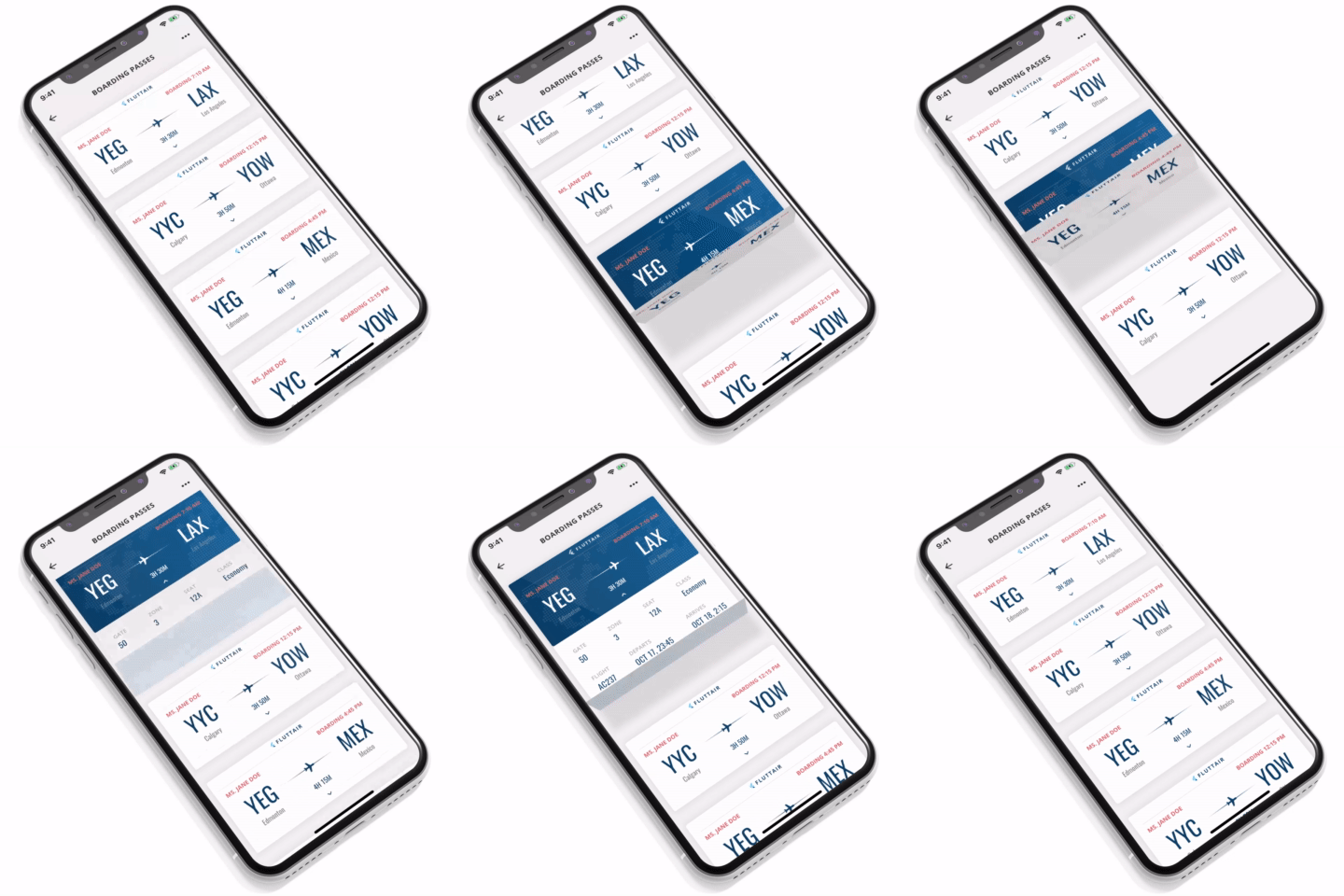
This tutorial is divided into 4 steps :

Data part is static and is taken from the original source code….
We replicate the data for 4 cards (static data)….

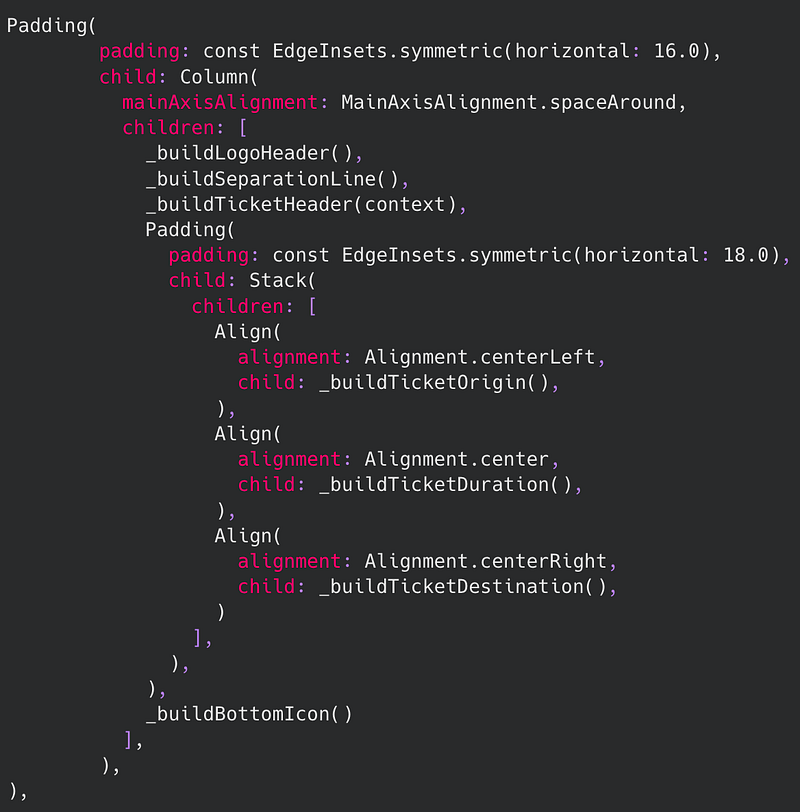
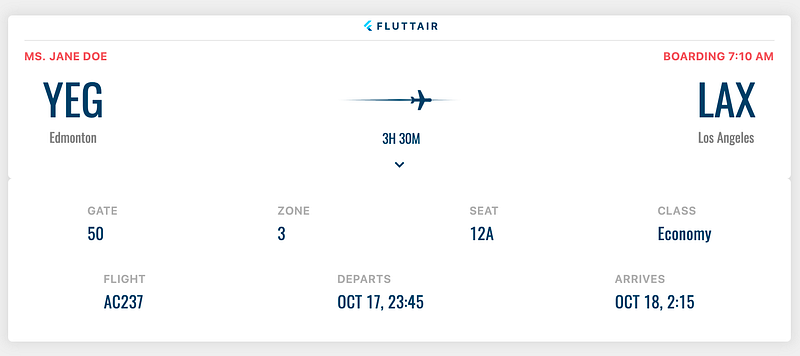
One card is a Column of

For the airplane, when a ticket is clicked, an animation gets triggered…
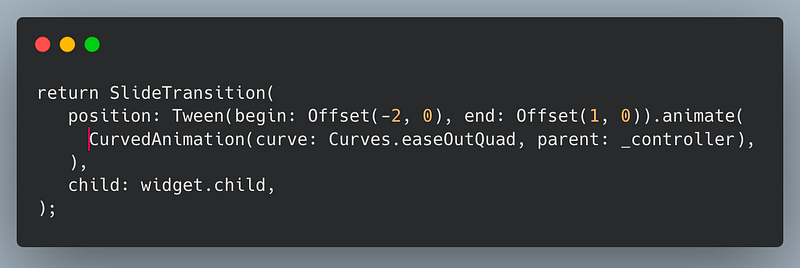
Basically, the flight slides from one position to another…
Here, is the Source Code for Step 1
We focus on the folding/unfolding of the card….
Introduce a class called FoldEntry…
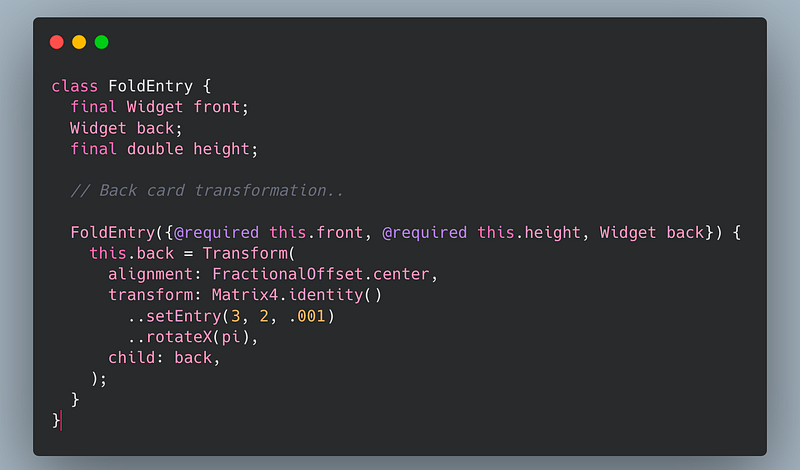
Parameters for Transform Widget :
Note: For details about the number (3, 2, 0.001) refer this…..
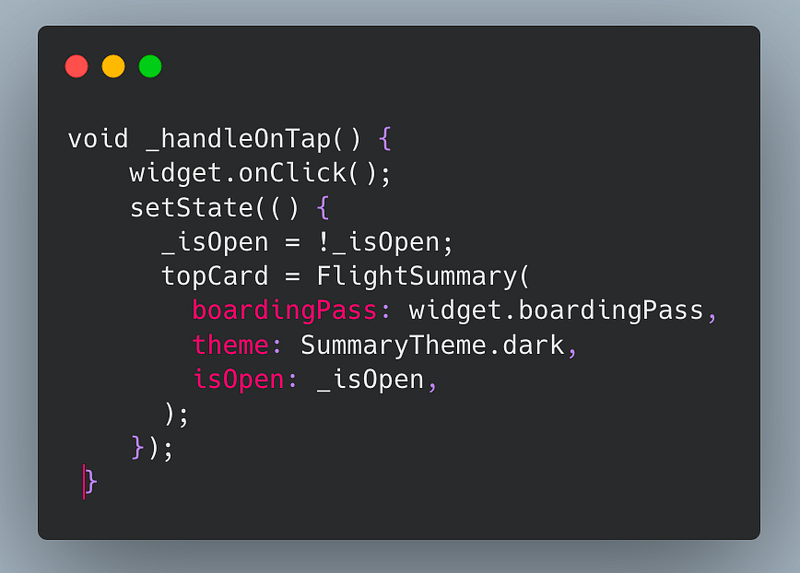
On the click of the card, we encapsulate the clicking as
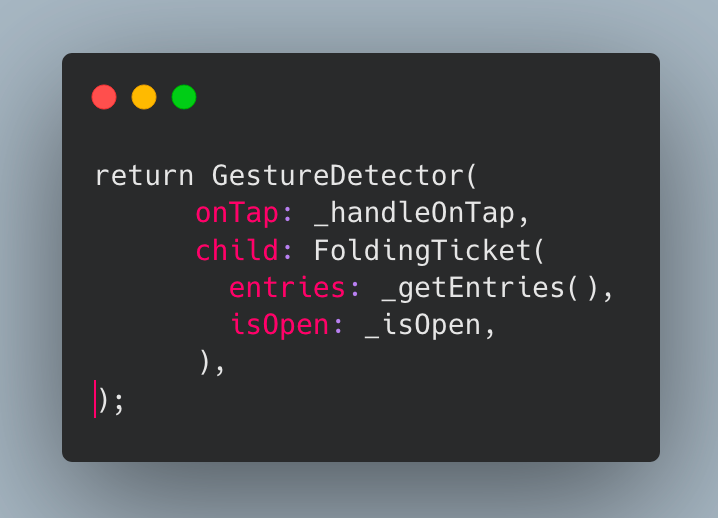
_getEntries() function comprises of the FoldEntry widgets….
List<FoldEntry> _getEntries() {
return [
FoldEntry(height: 160.0, front: topCard),
FoldEntry(height: 160.0, front: middleCard, back: frontCard),
];
}For every back parameter, there will be a flip (3d)…. We have currently 2 items in the List

isOpen parameter is responsible for playing the animation (flight animation), when the card is not clicked no animation takes place, but once clicked flight animation triggers……
FoldingTicket is a Stateful widget, which adjusts the height of the card, i.e expand the child height when opened vs closed…It does that while playing some animation….
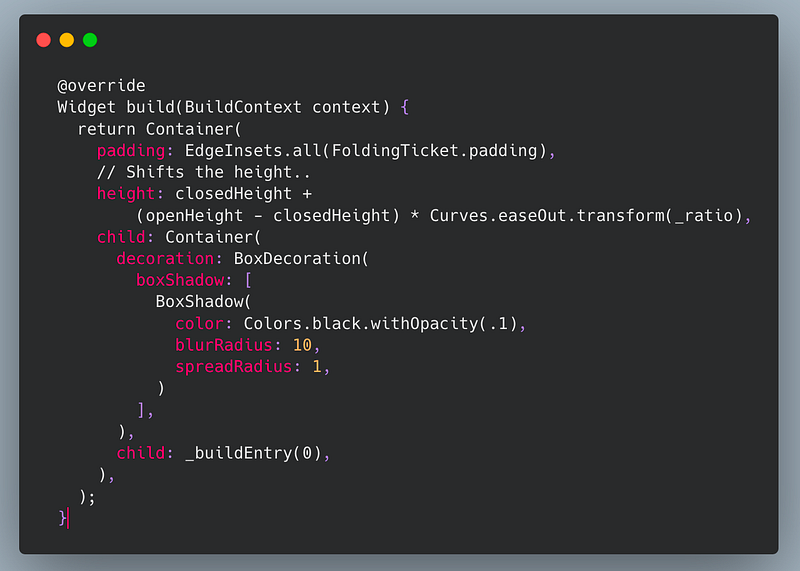
Here, is the source code for Step 2…..
We include the third entry into the _getEntries function
List<FoldEntry> _getEntries() {
return [
FoldEntry(height: 160.0, front: topCard),
FoldEntry(height: 160.0, front: middleCard, back: frontCard),
FoldEntry(height: 80.0, front: bottomCard, back: backCard)
];
}This third entry is the barcode widget, (flight_barcode.dart). As the barcode widget only contains image, hence the height is 80.0
This step also includes the theming (see below),
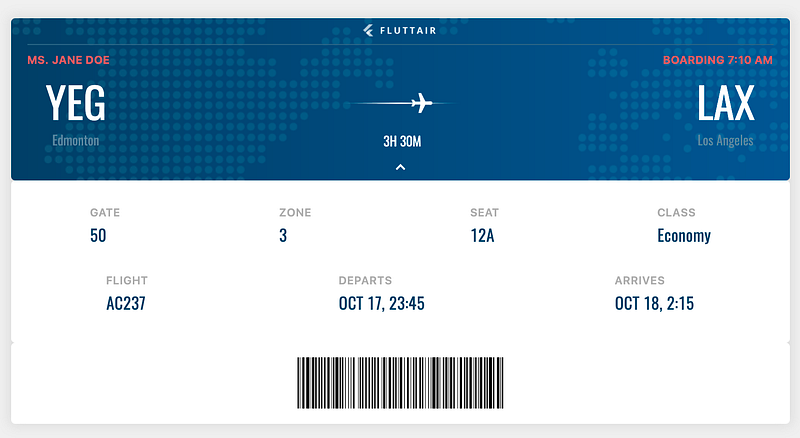
Once the card is clicked, background and text color changes to incorporate as per the dark theme.
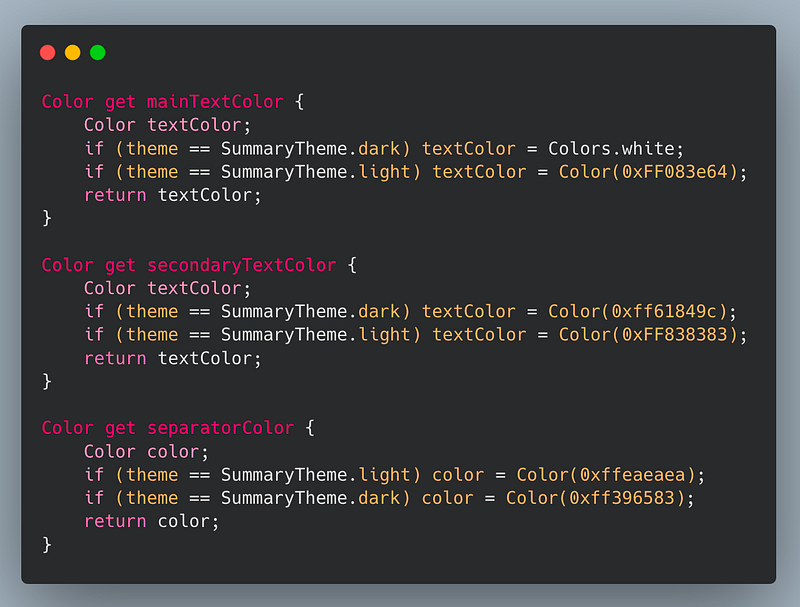
enum SummaryTheme { dark, light }As the card is clicked, we set the theme and let the widget take care of the displaying (as per theme)…
Here, is the source code for step 3.
Till now, whenever the card was clicked, it displayed the animation or folding/unfolding, but if the card was in focus, it would certainly go out of the selection area…
This step not only respects previous steps, but also makes sure that the card selected always remain in focus…
Introducing ScrollControllers….
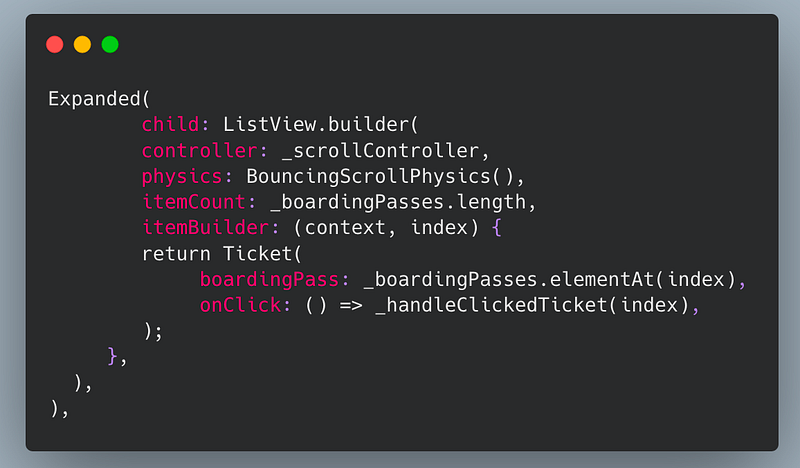
We can move to a particular position using ScrollController as
_controller.animateTo('Offset in double',
curve: Curves.linear, duration: Duration (milliseconds: 500));_controller.jumpTo('Offset in double');For getting the offset in our case, some calculations were involved, but these calculations depend entirely on the params, which the programmer sets…
Hence, no hard and fast rule….
Articles related to Flutter Desktop: