Flutter and 3D
Flutter and 3D
What if I want to display something in 3D ? Hmmm…
All in one Flutter resource: https://flatteredwithflutter.com/flutter-and-3d/
Free AI web copilot to create summaries, insights and extended knowledge, download it at here
3015
Abstract
formation occurs</li></ul><h2 id="611e">Transform Matrix…</h2><p id="6ad9">Transform takes a 3D <a href="https://en.wikipedia.org/wiki/Transformation_matrix">transformation matrix</a>, which is a <a href="https://docs.flutter.io/flutter/vector_math/Matrix4-class.html">Matrix4</a>.</p><h2 id="f413">Steps :</h2><ol><li>Create the matrix:</li></ol><p id="35a3">Start with an <a href="https://docs.flutter.io/flutter/vector_math/Matrix4/Matrix4.identity.html">identity matrix</a>, and apply transformations to it.</p><div id="2ca3"><pre>Matrix4.<span class="hljs-built_in">identity</span>()</pre></div><p id="cdde">2. Set the perspective:</p><p id="a220">According to an article from <a href="https://readmedium.com/perspective-on-flutter-6f832f4d912e">Flutter</a></p><blockquote id="65f2"><p><a href="https://en.wikipedia.org/wiki/Perspective_(graphical)">Perspective</a> makes objects that are farther away appear smaller. Setting row 3, column 2 of the matrix to 0.001 scales things down based on their distance.</p></blockquote><p id="e046">Now we know,</p><div id="31ec"><pre><span class="hljs-attribute">setEntry</span>(<span class="hljs-number">3</span>, <span class="hljs-number">2</span>, <span class="hljs-number">0</span>.<span class="hljs-number">0011</span>)</pre></div><blockquote id="0e88"><p>3 means the Row 3, 2 means the Column 2</p></blockquote><p id="5669">The number <b>0.0011 : is the perspective number…This number can only be achieved by playing around…</b></p><p id="3f62">For our case, 0.0011 <b>(fits fine)</b>…</p><p id="a6ec">3. Set the rotation / Tilting the axis….</p><div id="12e2"><pre><span class="hljs-built_in">..rotateX</span>(_offset.dy) <span class="hljs-built_in">..rotateY</span>(_offset.dx),</pre></div><p id="307c"><b>rotateX</b> and <b>rotateY</b> take in angle as parameters. For our case, we have defined as offset as :</p><div id="4a2d"><pre><span class="hljs-attribute">Offset</span> _offset = Offset(<span class="hljs-number">0</span>.<span class="hljs-number">3</span>, -<span class="hljs-number">0</span>.<span class="hljs-number">9</span>);</pre></div><p id="7f9a">Again, these values were achieved by playing around….</p><p id="adb5">4. Specify child : <b>RotationTransition</b> in our case</p><h2 id="e92a">RotationTransition….</h2><p id="e4db">As per the official Flutter documentation,</p><blockquote id="d078"><p>Animates the rotation of a widget.</p></blockquote><p id="39a5"><b>This is the child widget for our 3d transformation…</b></p><figure id="45f5"><img src="https://cdn-images-1.readmedium.com/v2/resize:fit:800/1*qUTX9ZoiBKhWKmY9s-1Hng.png"><figcaption>Flutter and 3D</figcaption></figure><p id="dcad">Parameters for RotationTransition Widget :</p><ul><li><b>turns</b> : animation (our case animation controller)</li><li><b>child</b> : Widget on which rotation occurs…</li></ul><blockquote id="0f38"><p>Note : As your turns need a controller, hence the widget should be a Stateful widget having animation controller….</p></blockquote><p id="e1e7">The
Options
image for the solar-system is rotated using the animation controller, also the animation is kept in repeat mode with the <b>duration of 50 seconds (for one animation cycle)….</b></p><p id="f8a7">How does the 3D effect looks like :</p><figure id="bba3"><img src="https://cdn-images-1.readmedium.com/v2/resize:fit:800/1*DPK5Yek8zH3OSB6l2WJ0pw.png"><figcaption>Flutter and 3D</figcaption></figure><h2 id="d6a9">Slowing down animations…</h2><p id="4307">This can be achieved using (<b>timeDilation</b>)</p><div id="c2a4"><pre><span class="hljs-attribute">timeDilation</span> <span class="hljs-operator">=</span> <span class="hljs-number">2.0</span><span class="hljs-comment">; // Will slow down animations by a factor of two</span></pre></div><p id="a399">This property is present inside the package</p><div id="ff4f"><pre><span class="hljs-keyword">import</span> <span class="hljs-string">'package:flutter/scheduler.dart'</span>;</pre></div><p id="80aa">Articles related to Flutter Desktop:</p><div id="ff3c" class="link-block"> <a href="https://readmedium.com/flutter-vignette-article-dark-mode-bbf72606a00"> <div> <div> <h2>Flutter Vignette — Article Dark Mode</h2> <div><h3>Article dark mode- flutter vignette by gskinner</h3></div> <div><p>medium.com</p></div> </div> <div> <div style="background-image: url(https://miro.readmedium.com/v2/resize:fit:320/1*D5arPqAYzbFistluQJpTzA.png)"></div> </div> </div> </a> </div><div id="eb70" class="link-block"> <a href="https://readmedium.com/flutter-desktop-plugin-ef8c19cd9ff"> <div> <div> <h2>Flutter Desktop Plugin</h2> <div><h3>Learn how to create a desktop plugin in flutter</h3></div> <div><p>medium.com</p></div> </div> <div> <div style="background-image: url(https://miro.readmedium.com/v2/resize:fit:320/1*Tbjp5m4vjRFXStH0h5GMUA.png)"></div> </div> </div> </a> </div><div id="a085" class="link-block"> <a href="https://readmedium.com/flutter-web-and-iframe-f26399aa1e2a"> <div> <div> <h2>Flutter web and iframe</h2> <div><h3>Know how to display iframe in flutter web</h3></div> <div><p>medium.com</p></div> </div> <div> <div style="background-image: url(https://miro.readmedium.com/v2/resize:fit:320/1*ynw5lCHgIORpjYmxVNQ7xA.png)"></div> </div> </div> </a> </div><p id="340a">Source Code for the tutorial <a href="https://github.com/AseemWangoo/Experiments_with_Desktop">here</a>…</p><figure id="857a"><img src="https://cdn-images-1.readmedium.com/v2/resize:fit:800/1*rpTl0ep9orbTrbRhvOmw-w.gif"><figcaption></figcaption></figure></article></body>
Flutter and 3D
What if I want to display something in 3D ? Hmmm…
All in one Flutter resource: https://flatteredwithflutter.com/flutter-and-3d/
The application created is for Flutter Desktop…In case you are new to it, we got you covered, follow the article here
This article lays focus on the following widgets :
As per the official Flutter documentation,
“A widget that applies a transformation before painting its child.”
This is an important widget if you aim for 3d transformation…
Our code using Transform Widget,
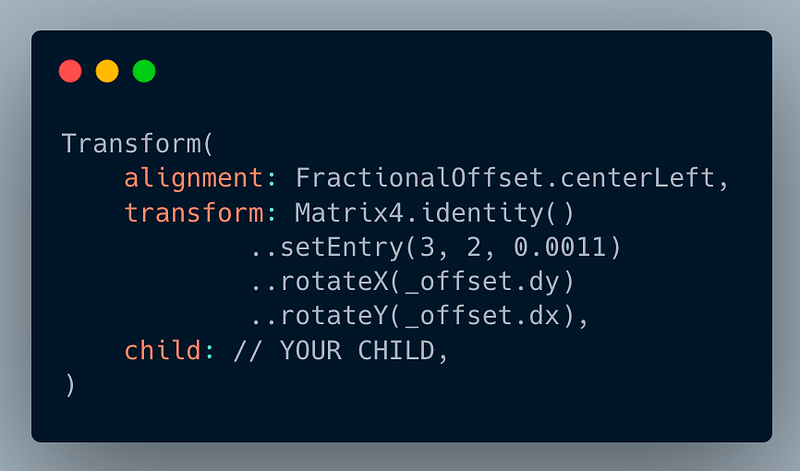
Parameters for Transform Widget :
Transform takes a 3D transformation matrix, which is a Matrix4.
Start with an identity matrix, and apply transformations to it.
Matrix4.identity()2. Set the perspective:
According to an article from Flutter
Perspective makes objects that are farther away appear smaller. Setting row 3, column 2 of the matrix to 0.001 scales things down based on their distance.
Now we know,
setEntry(3, 2, 0.0011)3 means the Row 3, 2 means the Column 2
The number 0.0011 : is the perspective number…This number can only be achieved by playing around…
For our case, 0.0011 (fits fine)…
3. Set the rotation / Tilting the axis….
..rotateX(_offset.dy)
..rotateY(_offset.dx),rotateX and rotateY take in angle as parameters. For our case, we have defined as offset as :
Offset _offset = Offset(0.3, -0.9);Again, these values were achieved by playing around….
4. Specify child : RotationTransition in our case
As per the official Flutter documentation,
Animates the rotation of a widget.
This is the child widget for our 3d transformation…
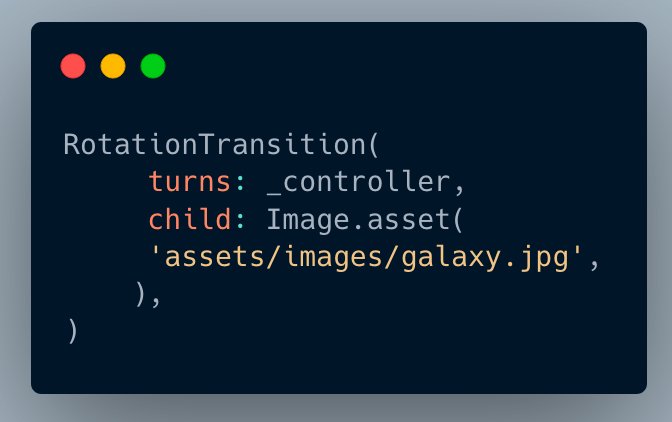
Parameters for RotationTransition Widget :
Note : As your turns need a controller, hence the widget should be a Stateful widget having animation controller….
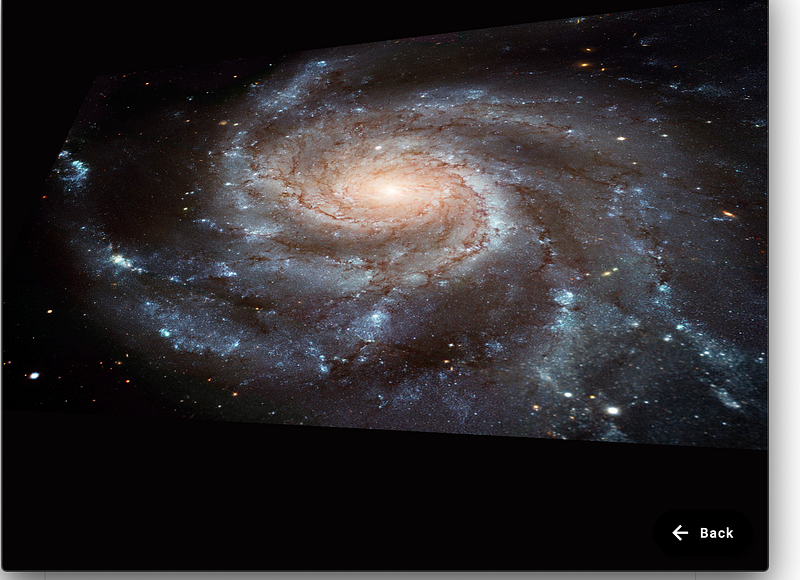
The image for the solar-system is rotated using the animation controller, also the animation is kept in repeat mode with the duration of 50 seconds (for one animation cycle)….
How does the 3D effect looks like :
This can be achieved using (timeDilation)
timeDilation = 2.0; // Will slow down animations by a factor of twoThis property is present inside the package
import 'package:flutter/scheduler.dart';Articles related to Flutter Desktop:
Source Code for the tutorial here…
