
10 Mac apps that can simplify your life
Is there such a thing as too many apps? Check out my top 10 for simplifying daily life.

How many are too many?
If you want me to click on your story, craft a heading which promises to tell me a different way to use an app I already have, or thrill me by talking about how your life is better because of one I’ve never seen before.
Apps — especially new ones — can represent the anticipation of possibility, of discovery, of a new way of looking at old ideas.
And so I will probably continue to gather them, try them on for size, and lovingly incubate their virtual potential for a time I’ll know only when it comes. Well organised digital clutter can be so much more comforting than its physical counterpart!
How many do you have, and do you use them all?
Consider the number of apps you have right now on your main computer and the subset of those you use in any given week. Does the ratio surprise you? Are you satisfied, puzzled, neutral, shocked, ambivalent? Whatever your reaction, ponder for a moment what it can teach you about your productivity habits and your propensity for making — or avoiding making — decisions.
If you have only the bare minimum of apps on your devices, I applaud you. I’m not you, I may never be you, but I admire your singlemindedness and your ability to be confident that what is working for you today, is enough.
These apps could simplify your life.
The criteria for my top 10: they must be used often, and must simplify my life more than those that didn’t make the list. Here they are, in no particular order. You’ll know when you’ve reached my favourite. There are no affiliate links in this story.
Bartender 3
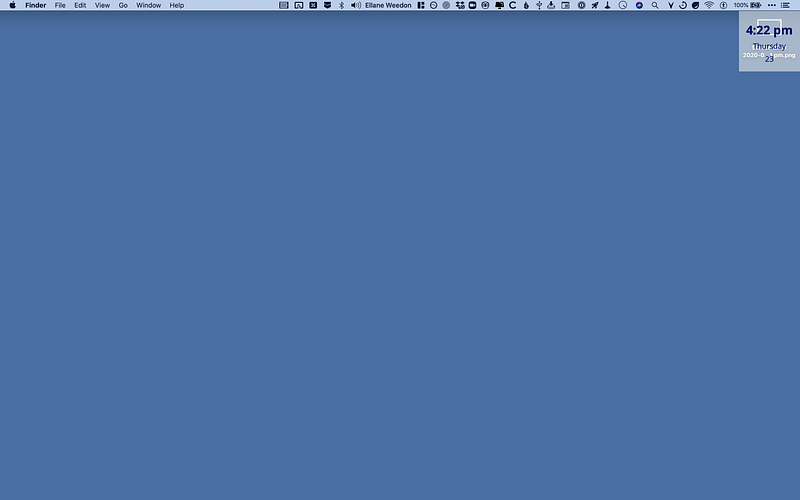
My desktop looks like this, and I love its peaceful nothingness.

Nothing is shouting for my attention. No files live on the desktop and very few visit; those that appear are there to intentionally alert me that something needs my attention, today, if not right now.
Bartender helps me keep it sparse; a distraction-free space for my brain to rest. Here’s the same desktop without Bartender, and with the addition of the first screenshot sitting just underneath Simple Floating Clock :
I’ve never liked how all those menu bar icons mentally tap on my consciousness, or how they are cut short by apps with menus that stretch across the screen. I tried Vanilla to solve this problem, but while I love how easy it is to use, it didn’t work for me. Vanilla, which works by overlaying screenshots of blank space on top of the icons you want to hide, is fine until you’re in an app with menus that extend into that space: you’ll find that those on the right get hidden beneath the screenshots.
Favourite feature: being able to show/hide all the icons with a keyboard shortcut.
Qlearly
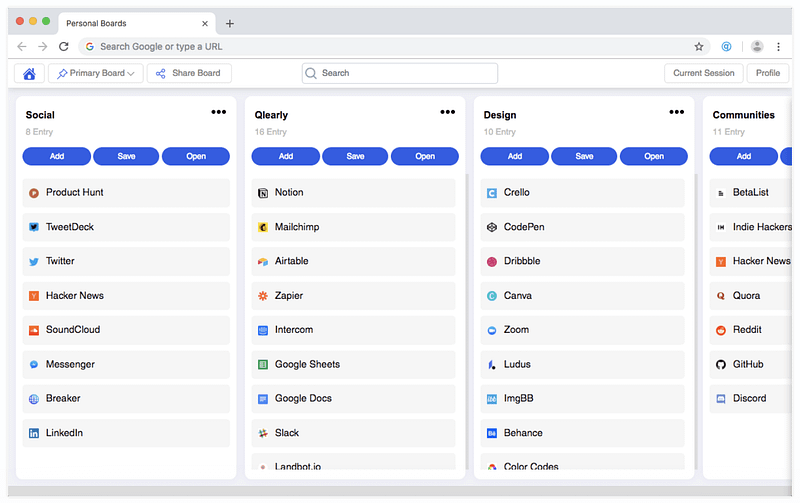
A neat little Chrome extension I use in Brave to show web bookmarks in columns. It’s free (unless you’re a power user), and is so helpful that I’ve set it as the open page for my browser.
I use a fair few web apps in my workflow as an educational publisher, and Qlearly makes sure I don’t forget what’s in my toolbox.
Favourite feature: the layout. I love seeing all the websites I use regularly categorised into columns. Being able to switch to a more minimalist workspace within Qlearly on the weekend provides a very welcome change of pace.
The Archive
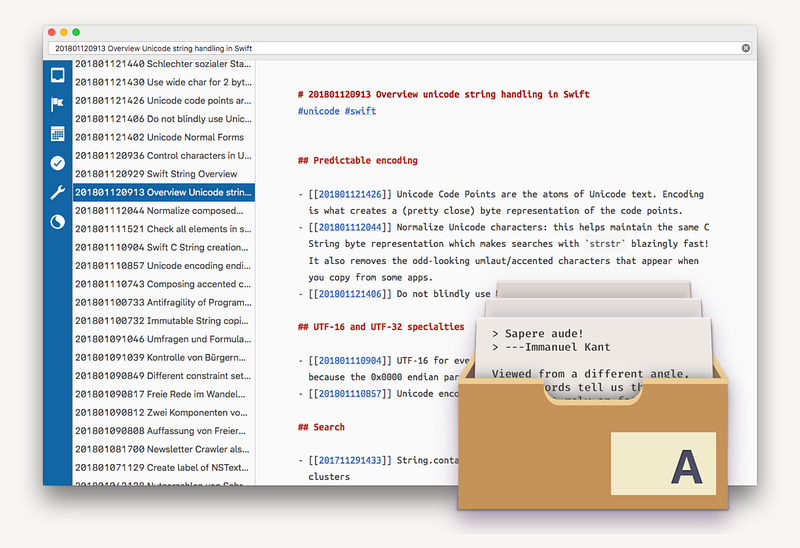
Organising my life in plain text has been one of the best things I’ve ever done, and it’s the reason I’ve been able to break free from the productivity p0rn trap. The Archive is more than capable of keeping track of all my text-based activities. It’s my task manager, Zettelkasten, drafts repository, and daily journal.
Like all plain text reading apps, it allows complete control over your data. Do you really want to give an app the power to lock away your brain with a key they could take away at any time? Plain text has been readable since the beginning of the computer age, and likely will be as long as they last. Future-proof is the name of the game here.
Favourite feature: Saved Search! It’s the one feature most other plain text apps are missing. Another great feature is being able to link to additional notes in the same folder (or create a new note) using [[double square brackets]].

Droplr
If you aren’t using a screengrab tool, your life is more complicated than it needs to be. I started with Cloudapp, an excellent tool, then switched to Droplr (4 stars to Cloudapp’s 5) when they ran a lifetime deal. Droplr’s markup feature works but needs improving. Check out Droplr’s other features, like screen recording. Cleanshot also looks like a great option if you don’t need all Droplr’s features.
Favourite feature: being able to share files by dragging them to the Droplr icon, and having a short URL on the clipboard within seconds ready to paste.
1Password
What’s that? You don’t have a password manager?? For the sake of your sanity and data security, please go and get one today. Trust me; you need this. I started using 1Password long before they became a subscription service and I’m happy to keep on with them now that I’m paying a tiny amount each month. Does what it says on the tin.
Favourite feature: auto password field detection while browsing, prompting me to store or update data. I’ve also heard good things about Dashlane.
SelfControl
A utility that is helping to retrain my muscle memory and keep me on task. Tell the app which websites you get distracted by, then enter your Mac password and the length of time you intend to focus. That’s it. None of those sites can be accessed until the time is up.
Favourite feature: restarting the computer won’t deactivate it, and neither will uninstalling.
Yoink
A simple drag and drop utility that holds files (any kind) until I’m ready to move/store/place them. Super easy to use, and it feels like having an extra pair of hands when mine are full. Also available for iOS.
Favourite feature: being able to drag files between Desktops.
Keyboard Maestro
These apps aren’t in any particular order, but if they were, this would be right near the top. Wearing a jewel-encrusted crown and holding a sceptre. Hyperbole aside, Keyboard Maestro is the app I use hundreds of times a day, without consciously thinking about it.
This week I (a non-coder! feeling proud) wrote a script that uses a hotkey to toggle my display to/from greyscale — another anti-distraction measure, and a topic that I’ll be writing about in detail soon.
I use Keyboard Maestro extensively for text expansion, and for cute productivity hacks like the text that now appears on my MacBook Pro’s screen every hour reminding me to do one small thing. Thanks to Jack Heimbigner for that concept which you can read more about in his story here.
Favourite feature: All of them. I love the control Keyboard Maestro gives me to automate repeated tasks. It’s a big time saver.
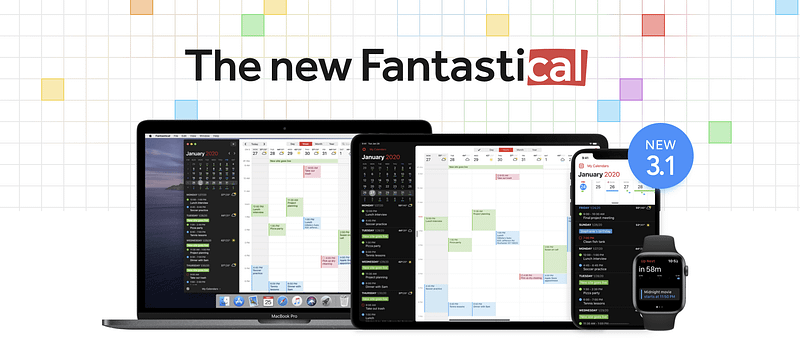
Fantastical
Any capable calendar app would do here — I’m trying, unsuccessfully at present, to be app-agnostic — but Fantastical is my current choice because of how well it handles natural language input. I don’t micromanage my day by time blocking every 15 minutes, but I do keep everything that’s time-based in there, with the appropriate alerts set so that I don’t miss anything.
For the record, I also have a family calendar that I made myself hanging in the kitchen, which I’m happy to keep in sync with its digital counterpart. It shows three months at a time due to a smart folding system and significant amounts of structural washi tape. When next year’s calendar (January–December) is finished, I’ll be giving it away on my educational publishing website, probably in October or November.
Favourite feature: natural language input. And it looks pretty.
LaunchBar
I only use a fraction of this utility’s capabilities, so the free version is all I need. I even like the way they invite non-paying users to take a break now and then by creating a delay before it does what you’re asking — or you can drop some cash to get where you want to go instantly.
Command + spacebar (plus the first few letters of the target app or file) is my go-to for opening everything that doesn’t warrant a Keyboard Maestro trigger.
Favourite feature: its simplicity. LaunchBar takes care of the navigation, leaving my brain free to ponder the destination. Automaticity at its finest.
Please don’t download these apps
…thinking that they’ll work for you the same way they work for me. Maybe they will if our workflows and thinking processes are similar, but perhaps they won’t if your needs are different. Try them on for size if you like — they might be just what you need.
I’m feeling somewhat hypocritical at the moment for even trying to convince you not to download apps you don’t need because I know what I’ll be doing next time I read an article mentioning apps I haven’t already checked out!
…Like this one from Michael McWatters.
Here’s 10 more
I use at least several times a week, if not daily, which, while helpful, didn’t make the list above.
- Affinity Publisher — InDesign replacement
- Affinity Designer — Illustrator replacement
- PDF Squeezer — read more about this in my story on reducing PDF andIMG sizes with no tech know-how.
- PDF Expert — Acrobat Pro replacement
- Carbon Copy Cloner — bootable backup
- Obsidian — plain text awesomeness. Alternative to Roam Research.
- NightOwl — dark mode toggle
- Toothfairy — easily connect multiple Bluetooth accessories
- Simple Floating Clock — because I like seeing the time (bigger) while I work
- History Search — easily search the text of any website you’ve visited
Go simplify your Mac—whatever that looks like for you.
To paraphrase Francis Bacon,
Apps are great servants, but poor masters.
What makes an app a good one? Apps are tools, so they have to do a job for you that you couldn’t do as easily, by yourself. I hope you’ve discovered at least one thing from this story that will help to simplify your life, so that you can have more room for what you value most.


