Simple, No-Cost Ways to Reduce PDF and IMG File Sizes
Save disk space and make it easier to email attachments
Today I’m going to tell you about something that took me years to master: how to effectively reduce the size of PDF and image files without tech know-how. If you have a different way of working that’s free, or close to it, please comment and let me know.
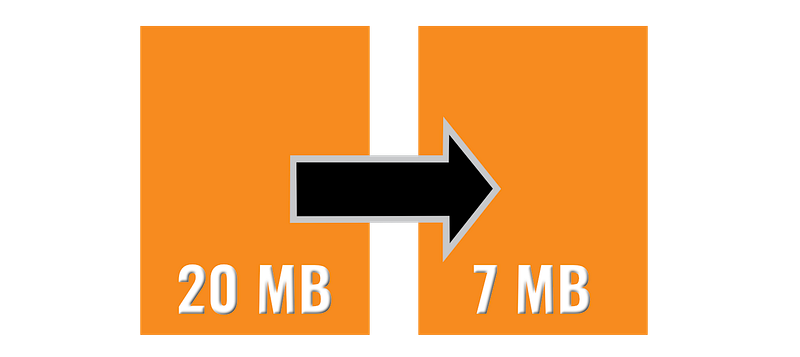
Why reduce file sizes?
I work with PDF and image files on a daily basis, and often need to email or upload these files for my day job as an educational publisher.
In the past it was a challenge to keep the sizes of graphics-heavy files from blowing out to hundreds of MB. Not a nice experience for the end consumer, and not great for website speed. That’s about to change.
I know what it’s like to buy a PDF or image file and find on download that it’s way bigger than expected — not a pleasant surprise when hard disk space is limited — so I set out to discover how to make the files I sell as small as possible while still maintaining image quality. I’m sure you already know that attaching large image or PDF files to emails and clogging up people’s inboxes is not a great way to impress your friends.
For reference, I’m one of a growing number of graphics professionals who have moved away from Adobe products. After decades of using InDesign, Illustrator, Acrobat and Photoshop as my bread and butter, I’m now a happy camper in the Affinity Designer/Publisher/Photo range, with PDF Expert rounding out the workhorse apps I use most.
Sharp shrinking doesn’t need to cost a packet
It’s true that both Acrobat and PDF Expert can optimise files, but the in-built tool doesn’t always go far enough or give enough control. Both Photoshop and Affinity Designer/Photo can reduce the resolution and therefore the size of images, but don’t try to use those images.
And what about people who don’t want to drop several hundred dollars on pro tools — there must be free or cheap alternatives, right?
Right!
Here’s the toolbox 🧰
You might be thinking there’s a single best solution to the PDF and image optimisation game, but that’s not the case; not for me, anyway. Sometimes one solution works better than another depending on the file. Here are the tools I use (no affiliate links; I just really like them):
ilovepdf.com | iloveimg.com
Test ilovepdf against PDF Squeezer to see which provides the best resolution for your files.
This website offers a free service which may be all you’ll ever need when dealing with PDF and image files. There’s not much it can’t do, and you might find that with their services you might never need to purchase a pro PDF app. I use this site so much for compression that I’ve created a global keyboard shortcut to get there in a flash.
Bear in mind that depending on the type of file you’re dealing with you might get a better result resolution-wise with one of the options listed below.

PDF Squeezer Mac app
Best for PDF files over 10 MB
A deceptively simple app that’s my first port of call when needing to reduce the size of large PDF documents. It’s not the cheapest app in the store, but there’s a free trial and in my opinion, the asking price is totally worth it. The biggest file I’ve reduced with PDF Squeezer was originally 345 MB, and the end product was just over 90 MB. That’s a pretty impressive reduction.

Short Pixel
Great for all JPG reduction, but best for PDF files under 10 MB
Short Pixel is an online service that can compress 100 PDFs or images a month for free, as long as each file is 10 MB or less. This restriction is removed with a paid plan (monthly, or purchase credits), but I’ve found they don’t do very well with super large PDF files. You can choose from Lossy, Lossless, or Glossy compression. Lossy is usually good enough for my needs, but photographers will want to use one of the other two settings. I have Short Pixel connected to my website as a plugin, so images are automatically compressed in the background.
Image Reduction Tips ✅
- Always Save As! Don’t replace the original PDF or image on export in case you aren’t satisfied with what your chosen tool spits out and want to try a different setting.
- PDF Squeezer is best for large files
- Short Pixel is best for files under 10 MB
- If your image or PDF is still too large to email even after using these tools, you can easily email people a link using the free WeTransfer service.
Bonus Tip: Keep a How-to List
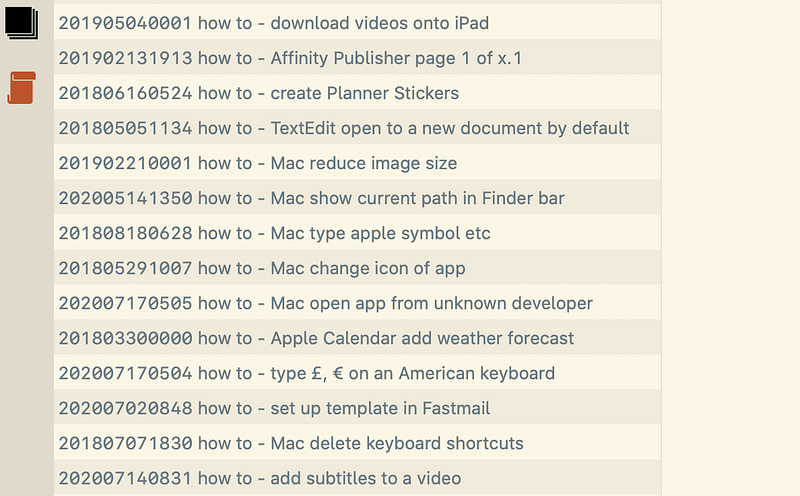
One of the biggest parts of my plain text knowledge base is the “how-to” section. Every time I find out how to do something that I’ll probably have to do again—like reducing file sizes—I record what the problem was and how it I solved it.
I highly recommend you do the same, whether it’s a technical skill (like the topic of this article), or something mundane (like how to change the water filter you only need to think about every 12 months). On paper, or digital — just record it in a way you’ll be able to find it again in less than 5 seconds.