
10 iPhone Apps That Can Simplify Your Life
The aspiring minimalist app-addict’s guide to a simpler iPhone and iPad
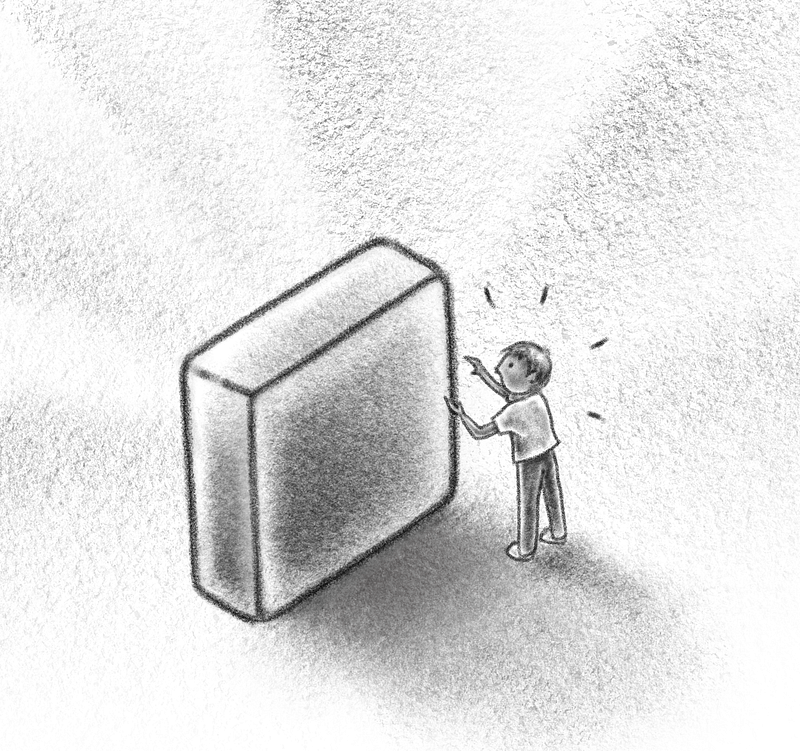
In 2010, when my son got his first iPod at age 13, he spent hours learning how it worked and trying to convince me to let him download apps.
“Why ever do you need so many programs?” I asked. “Surely two or three are enough.”
“Wait, Mum! You don’t get it!” He replied with some desperation. “They’re all different. They do different things!”
“You’ll get square eyes”, I told him dismissively, unconsciously mirroring my own mother. “Who on earth can type on that teeny tiny keyboard? It’s ridiculous”, I scoffed. “Can’t you feel your brain turning to mush? This is looking like an addiction!”
“But Muuum!”
“Choose two games. Thirty minutes a day, once your homework’s done. That’ll do you.”
Years passed and this same child is now a well-balanced adult (thankfully), always happy to remind me of that conversation when he sees me on any of my three iOS devices—which is often.
Yes, I now get it.
The cognitive dissonance of being an app-addicted minimalist
I didn’t buy my own iOS device until the iPhone 4 came out. It didn’t take long for me to go through my own stage of app-addiction, blithely believing that the more I had, the easier life would be. All that power, in the palm of my hand! Heady stuff.
While I still download and evaluate many interesting apps, I’m a ruthless curator now.
Ok, I’m trying to be ruthless and often not succeeding, but it’s the direction of travel that counts.
Truth be told, I type out lists of the apps on my phone before purging the ones I don’t use at least once a week, to keep track of what’s in my potential toolkit.
Organised digital clutter is my favourite kind! Because it isn’t really clutter. Or so I tell myself.
My iPhone is a pocket computer and camera that can also make phone calls. Along with my iPad, it’s an integral part of my personal and professional life.
To make the top 10 list, each app listed below has to either be uniquely useful in a mobile environment and/or form a bridge between my iOS devices and my Mac.
Drafts
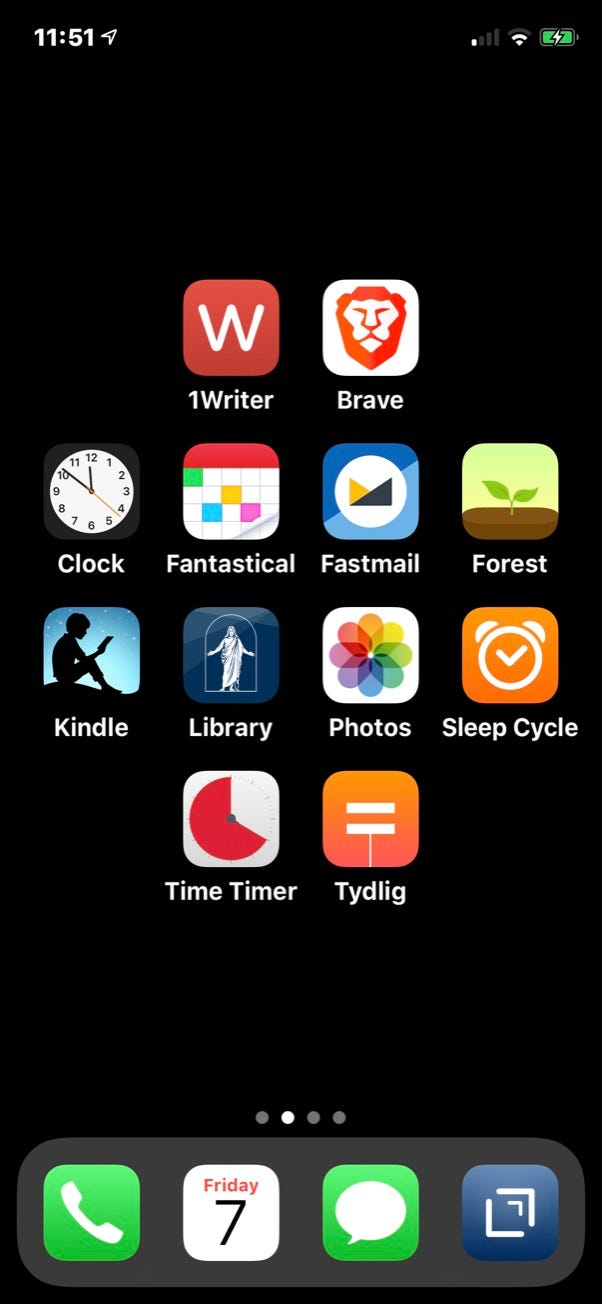
The home screen on my iPhone is a good indicator of my current priorities, but to earn a place in the limited real estate of the dock is high praise indeed.
Drafts is where I start writing almost everything on my iPhone and iPad. It’s the bridge between my mobile devices and my Mac, speeding up the processes of entering new tasks into my plain text productivity system and adding notes to my Zettelkasten. Speech-to-text in Drafts is extraordinarily accurate.
It’s true that I moved from Adobe to Affinity because I much prefer one-off purchases where there’s a choice, but it’s also true that I knocked on Drafts’ door asking them to take my money.
My most used Actions in Drafts prepend daily notes into my monthly Captain’s Log, add atomic Zettelkasten notes, and add tasks to my plain text system in either high or normal priority. That’s right, I don’t use a dedicated task management app.
I’ve recently started using Drafts on the Mac, though most of my plain text management there takes place in The Archive.
Favourite features: one-touch text entry, actions.
1Writer
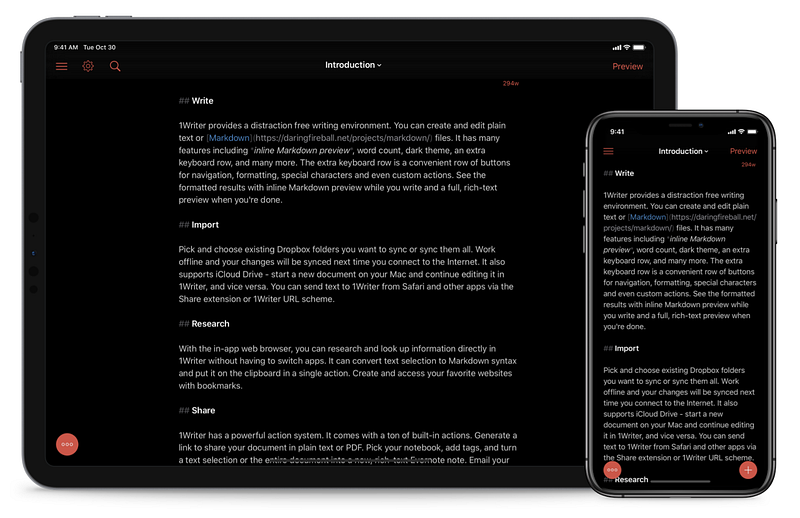
There’s a growing list of apps that can read folders of plain text files, and I’ve tried most if not all of them. Editorial has recently been replaced as my markdown editor of choice by 1Writer, because it’s the closest app to The Archive that I’ve found on iOS. I use it for general writing, task management, and my Zettelkasten.
If you’re aware of a good plain text editor for iOS that has supports tags, markdown, hyperlinks to other files in the same folder and has a robust search function that allows you to save said searches, I’d like to know about it.
Favourite features: excellent Markdown support, tags, hyperlinks.
Scanner Pro
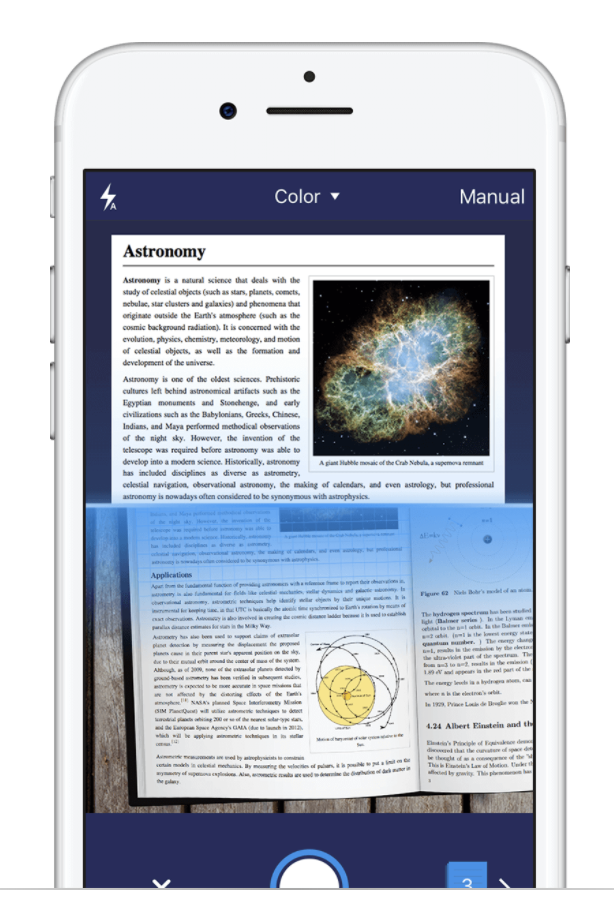
Scanner Pro helps me to reduce the amount of paper in my possession. It integrates seamlessly with PDF Expert for more advanced multi-page document mark up and manipulation, and it has an inbuilt folder storage system for easy retrieval of scans. Workflows are available to automate things like storage of receipts.
I’ve used it to help me finally remove the physical versions of –
- well-loved cards and letters from people I care about, including some who have passed
- works of art, writing and cards from my children
- instruction booklets not readily available online
- my own sketches that I may or may not need to refer to again some day
Favourite features: OCR, auto straightening and image cleanup.
Kindle
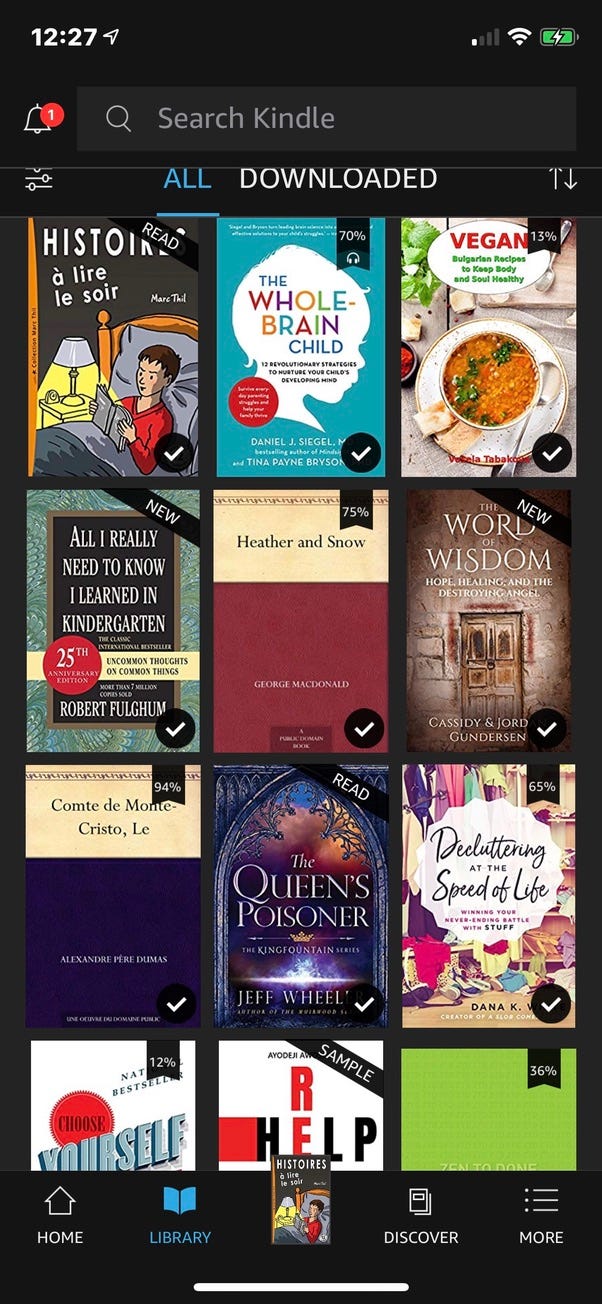
I read a lot and appreciate not having to store millions of physical books on my bookshelves at home and in my bag when travelling. Digital will never replace the delicious feel of a real book (especially my vintage copy of Little Dorrit), and the subtle feel of knowing how far through a tome you are by the left-right weight balance, yet digital has massive advantages and I love it for those.
Start with free classics if you aren’t yet ready to drop some cash: Martin Chuzzlewit and Mr. Pecksniff are waiting to make your acquaintance.
If you’re up for an epic read, check out Jeff Wheeler’s Kingfountain series—it’s being made into a tv series, and I always recommend reading the books first.
Favourite features: highlighting key passages, searching within a book.
GoodNotes
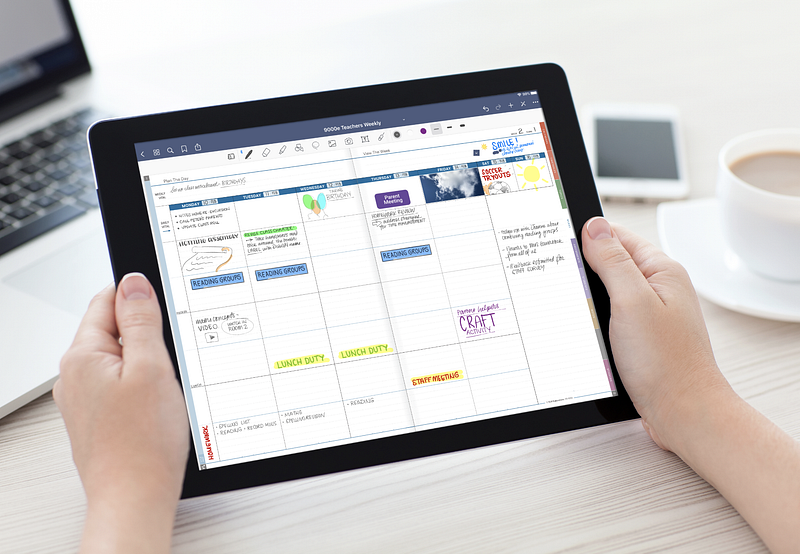
I teach online classes to teenagers four days a week via Zoom using my MacBook Pro and 12.9 inch iPad. Exported PDFs of Keynote presentations go into GoodNotes on the iPad, giving enormous flexibility and creative input as I can draw and write directly onto the slides as discussions progress.
Dr David MacDonald, a musician and professor who uses the iPad, Apple TV and GoodNotes together to teach his students, recently appeared on the Mac Power Users podcast. I picked up a lot of useful tips there.
I’ve used GoodNotes in the past for my personal handwritten planner, and I’ve created an interactive planner for teachers that works beautifully in GoodNotes. If digital stickers are your thing, there are plenty on Etsy formatted for GoodNotes.
There are features of Notability that I miss when using GoodNotes, like the ability to select and rotate objects without an additional step and the draw and hold function to create straight lines, but I keep coming back to GoodNotes as it works better for the things I do most.
Favourite features: Smooth writing experience, and its ability to read my handwriting and turn it into digital text.
Tydlig
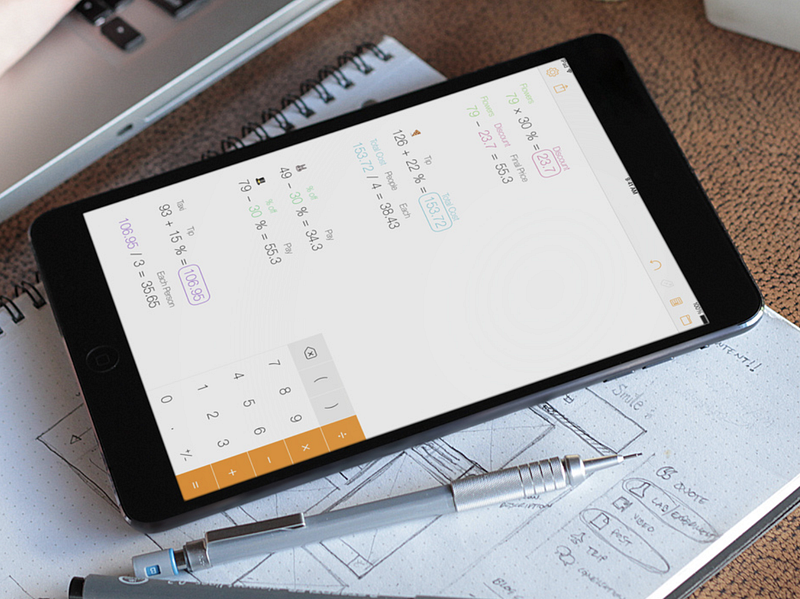
A variation on the standard calculator app that is both pleasant to look at and delightful to use. It opens with a free form canvas and has a left-hand mode. Numbers can be dragged around and labelled with text to help you see a fuller picture. Includes graphing and linked numbers.
Favourite features: being able to see every step of my calculations, and the share function so I can send lists of calculations to others.
AnyList
This has been our family’s shopping list for several years now, though it’s equally capable as a list keeper for almost anything. I also use it for packing lists. It learns what we buy and what category each item is in, ordering items by type.
Auto-complete makes it very fast to create new lists, and you can configure it to use a single or double tap to cross off items as you buy them. My husband often does the shopping, and I love that I can stay home and add items to the list while he’s in the shop, knowing that it’s updating in real time.
We use the free version of the app, but I’ve been tempted for some time now to pay the reasonable yearly fee for the item photo feature. We’ve done without it all this time, but that doesn’t stop me from wanting it.
AnyList has what looks like a good recipe clipper and organiser, but I love Paprika and am not tempted to look elsewhere.
Favourite features: Instant syncing of shared lists, saved lists of commonly bought items.
Documents
Documents is an immensely useful app deviously made free by Readdle: they know it will be a gateway into their other excellent offerings, including PDF Expert. Apple’s own Files app is built on a similar premise, but Documents can do more, like reading Word and Excel documents and opening zip files. The Files app is accessible inside Documents.
I use Documents to
- access PDF piano sheet music books
- download files via the in-built browser
- send documents to PDF Expert for annotating
- send videos from my Mac to my iOS devices
Favourite features: direct connection with my Mac via a web portal, download manager.

The Clocks
The large display of Clocks is something Apple should incorporate into their Clock app; I can’t think why they didn’t. It has an alarm function, but I prefer Apple’s Clock app for that.
When there’s no clock in the room I’m teaching in (over Zoom, these days), I set up my smaller iPad at the other end of the room with big white numbers so the time is always there at a glance. They also have an analog display, but I prefer digital as it’s easier to read at a distance.
When travelling I use Clocks on my iPhone and change the display to red so it doesn’t disturb my sleep.
Favourite features: big numbers with no additional fussy details, screen automatically stays on even when my device is set to sleep after x minutes.
Due
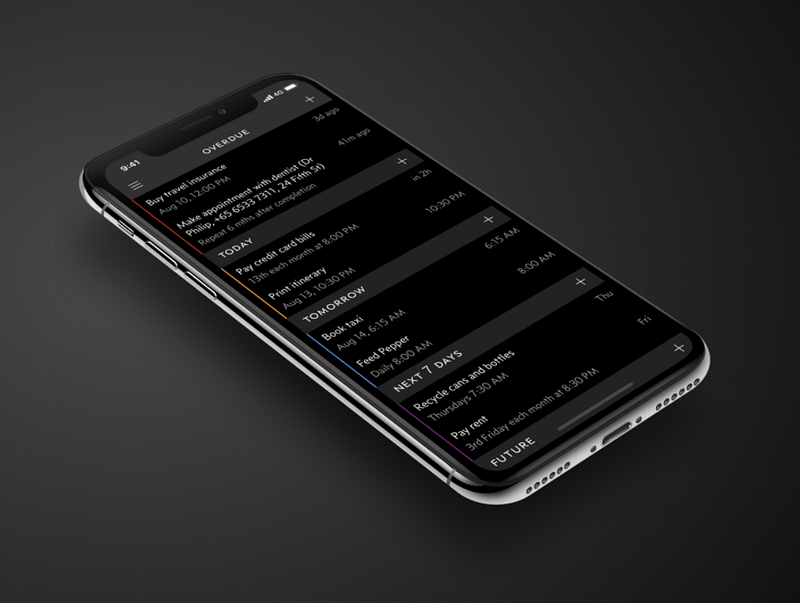
This little app makes the list because I need nagging about some things. When Reminders aren’t enough, I enter tasks into Due. It will keep nagging me throughout the day, and then again tomorrow if I don’t swipe the task as done.
You can turn the alert sound on, or just have the text interrupt you on the screen. I hate being interrupted; push notifications are the first thing I make sure are switched off in any new app or device, so when Due interrupts me I know it’s something I need to take care of.
I only use Due for things it would hurt more to forget than it does to be nagged about. Think birthdays, assignments for an up-coming meeting.
Favourite features: adding reminders with Siri, setting recurring reminders.
Will these apps simplify your life?
I hope so, but your needs may be different so do your research before diving in.
10 more I use (almost) every day that didn’t make the list above
1. Paprika — Recipe organisation. Premium priced app sold separately on iPhone, iPad and Mac, and totally worth it. 2. Snapseed — free photo editor for when Affinity Photo is overkill 3. Forest — keeps me off my phone when I should be working. I’m not a gamer, but I don’t like the thought of destroying an adorable tiny tree. 4. Concepts — when Affinity Designer for iPad is more than I need. The sketches for my Medium stories are done in Concepts. Love the infinite canvas. 5. Sleep Cycle — I’ve used the free version since 2018 to track how well I sleep, and to find out when I snore and for how long. Useful info for a long-term insomniac, and credible evidence when defending myself against false accusations of impersonating a steam train/foley artist. 6. FastMail — I ditched Gmail a few years ago and haven’t looked back since. The FastMail app is better than anything else I’ve used even without considering the security benefits. 7. Calendars 5 — I tend to swap back and forth between Calendars 5 and Fantastical. Both are good. 8. Ultralingua — I’m learning French, but I like this app for more than the French–English dictionary; it also contains an English dictionary and Thesaurus. 9. Time Timer — visual timer. Great for timed work periods; watch the pie disappear instead of performing mental calculations everytime I glance up to see how long to go. Also brilliant for toddlers and special needs children. 10. Scratch Photos — the best auto photo background remover I’ve found. Adds colour or leaves your item on a transparent background.
Takeaway
Remember: apps are tools, you are not. Make sure you’re the one using the app and not the other way round.
I’m a sucker for new apps, there’s no denying it, so I feel qualified to give both of us this advice: if it isn’t simplifying your life in the first week, delete it. If that feels hard to do, document the following: its name, what you hoped it would do for you, and why you deleted it. See? easier now.
To paraphrase William Morris,
Have no app on your device that you do not know to be useful (right now) or believe to be beautiful (in its simplicity).