
Discover New Artistic Styles with Midjourney
Part 3: Explore the styles
This story is part of the “The Styles in Midjourney” series.
As we learned in Part 2, Style Tuners have a fixed set of visual (or style) directions (16, 32, 64, and 128). Each visual direction can result in one of three outcomes: moving left (L), moving right (R), or staying put (neither).
These are the artistic directions from which we can select and create new styles for future jobs.
The Style Tuner is so powerful that we can create 256 ready-to-use styles with a 128-Tuner.
Furthermore, you can mix and blend Style Codes to create even more exotic, personalized styles.
In the past, discovering a new style required more steps and effort.
New styles are discovered by changing the prompt (for example, by adding style-related keywords), using the --style raw or --niji 5 -style parameters, or by repeatedly clicking the reroll button — hoping the bot would surprise us with something we have not seen before.
(Advanced users can also use the --chaos parameter to increase the image grid’s variations, but more on that in another story.)
But, aside from the abovementioned methods, are there other ways to explore and discover new artistic styles?
This story is part of the “The Styles in Midjourney” series, in which I will explain how Styles and Style Tuner work in Midjourney.
If you’re new to Style Tuner, you should start here.
Other stories in the series can be found by following the links below.
The Styles in Midjourney
Part 3: Explore the styles << you are reading this story in the series
Part 5: Template Tuning Method
Part 6: Adjust a style
Part 7: Practical tips related to styles
Part 3: Explore the styles’ goal is to outline the various approaches to experimenting with new artistic styles in Midjourney.
TL;DR
- In Midjourney, there are several ways to explore and discover new artistic styles. Before the Style Tuner feature, creating new styles required rerolling the image grids or using parameters (
--style raw,--niji 5 --style,--chaos, and--weird). - Style Tuner is, without a doubt, the most potent style generator. By creating three types of Tuners: Default and Raw Modes of Midjourney Tuners, and Niji·journey Tuner, you can create 768 ready-to-use Style Codes with a single prompt.
- A Tuner is a valuable tool for discovering different interpretations of an artistic concept, such as the various sub-styles of an Art Movement.
- You can also discover new artistic styles without using a Tuner by using (1)
--style randomparameters, (2)--style raw-randomparameters, (3)--niji --style randomparameters, (4) combining and weighing Style Codes, (5) creating Style Codes with the Style Sliders.
Part 3: Explore the styles
- Reroll and hope for the best
- How about Vrolls? Can they create new styles?
- Style Tuner is a powerful style generator
- Explore new styles without a Style Tuner
- How do you quickly explore a variety of random styles?
- How do you quickly explore different styles in RAW mode?
- What about random Niji styles?
- Combining several Style Codes to create a new style
- Creating Style Codes using Style Sliders
Reroll and hope for the best
Rerolling is the same as running the /imagine command again for the same prompt.
The problem with repeatedly clicking the reroll button is that the generated images are still more or less in the same style.
But occasionally, the bot may surprise you with unexpected new styles.
If no --style parameter is specified, the bot will automatically generate images using the house style, assuming we will like the images most users want.
Interestingly, the default house style (popular and trending) is assumed to be similar to the Visual Direction 1 Left (1L). In its opposite direction, the Visual Direction 1R is assumed to be similar to the --weird parameters, which are unusual and… strange.
Although neither assumption has been proven, the default house style appears consistently similar to 1L.
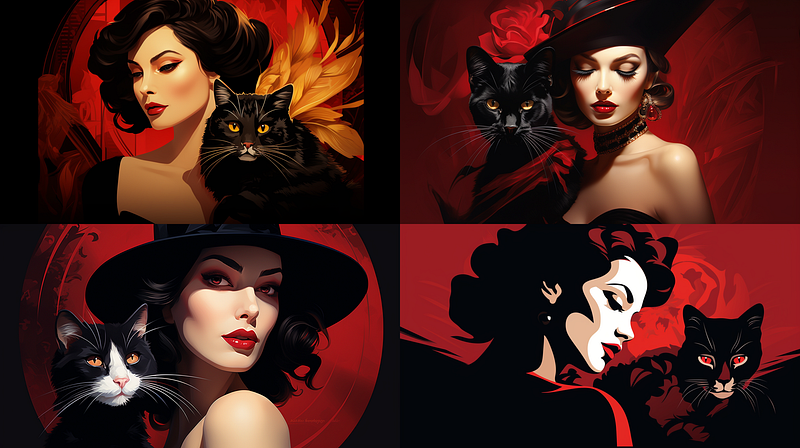
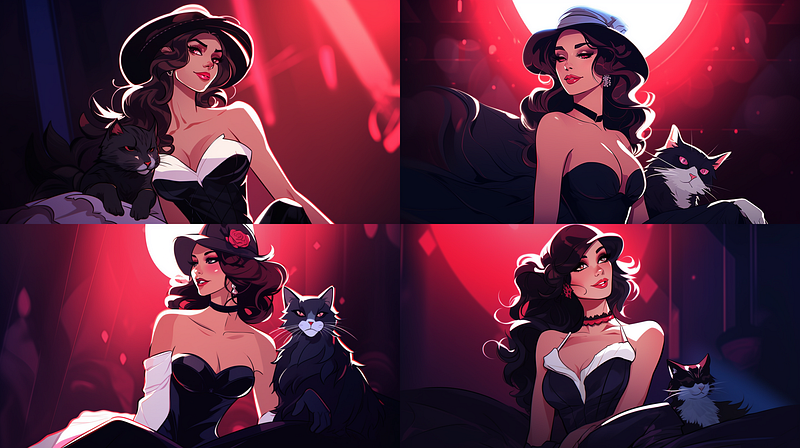
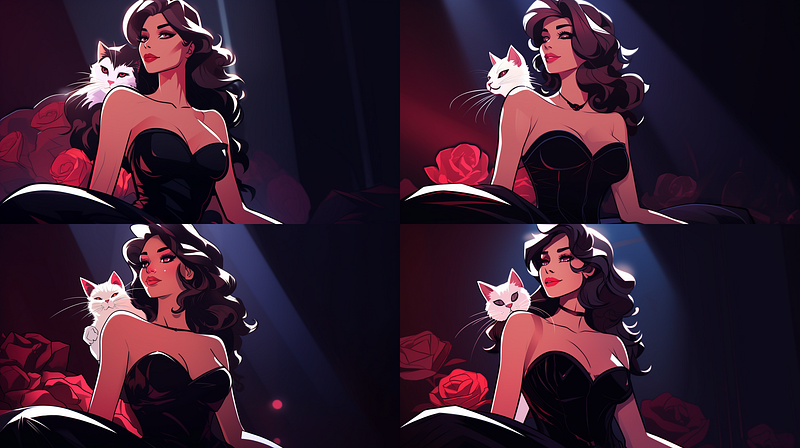
Example 1: Midjourney’s default house style resembles Visual Direction 1L.
Prompt: /imagine prompt: a realistic illustration of a lady and a cat in the style of moulin rouge, art deco, glamorous, stylish --ar 16:9
128-Tuner: https://tuner.midjourney.com/R2EgzOg
The artistic style of Image Grid 1 (default house style without a Tuner) and Image Grid 2 (Visual Direction 1L) is strikingly similar.
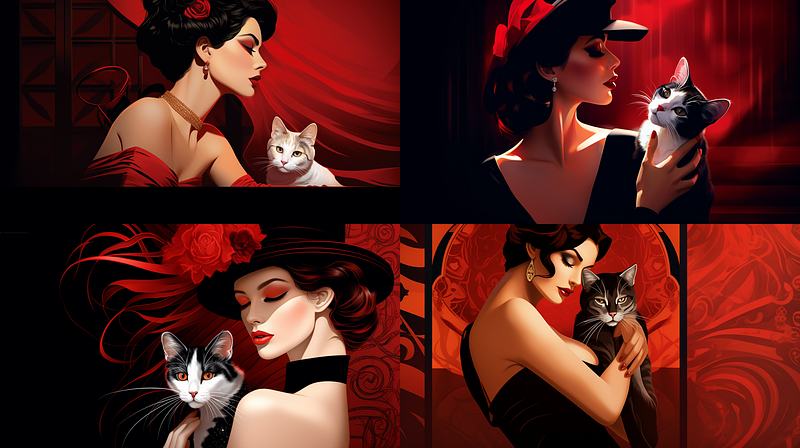
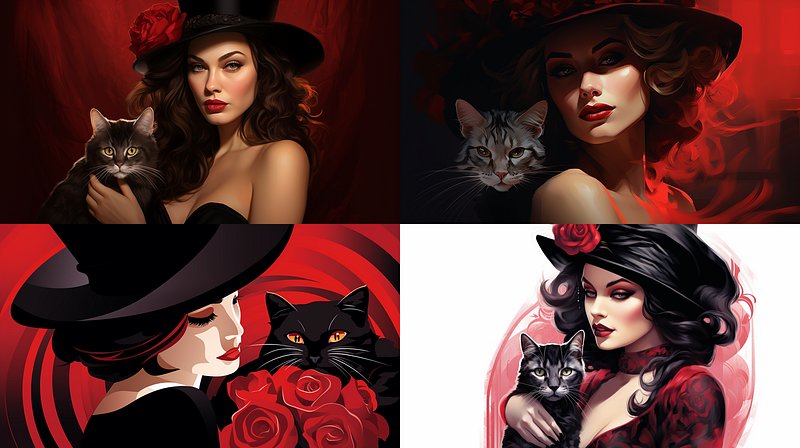
Example 2: The /imagine job frequently surprises us with new styles.
After several rerolls of the same prompt with the default house style, an unexpected new style was generated.
(Even on the first run, the bot occasionally generates image grids with varying artistic styles.)
Image 4 below has a white background that is a distinct style from all the other images in the grid.
How about Vrolls? Can they create new styles?
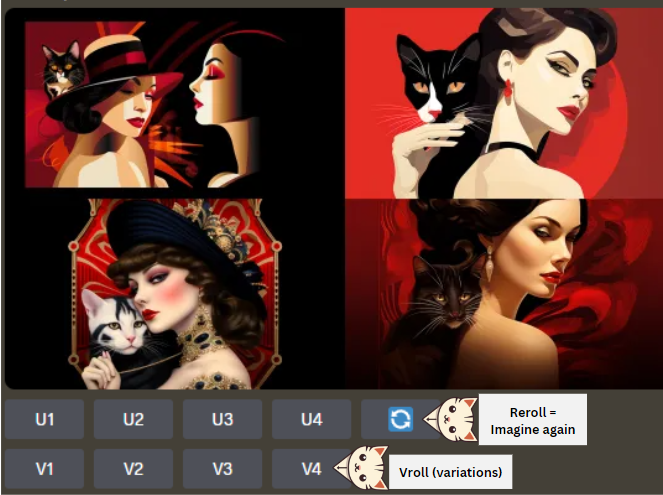
Short answer: No, they cannot create a new style.
Long answer: Vrolls (V1, V2, V3, and V4) generate new images by referencing the parent image. As a result, rather than creating a new image, they will retain the artistic style of the parent image.
With the /remix mode enabled, the generated image grids retain the artistic style of the parent image in both [High Variation Mode] and [Low Variation Mode] settings.
Vary (Strong) and Vary (Subtle) options have similar effects.
Vrolls, Vary (Strong), and Vary (Subtle)’s ability to keep the parent image’s artistic style is a valuable feature that will be discussed in detail in Part 6: Adjust a style.
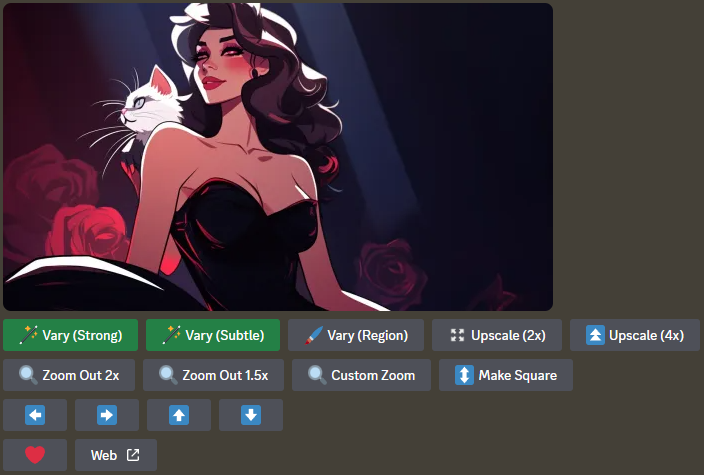
Examples: Vrolls (variations), Vary (Strong), and Vary (Subtle) retain the parent image’s artistic style.
Prompt: /imagine prompt: a realistic illustration of a lady and a cat in the style of moulin rouge, art deco, glamorous, stylish --ar 16:9 --style 8YBr3PEou
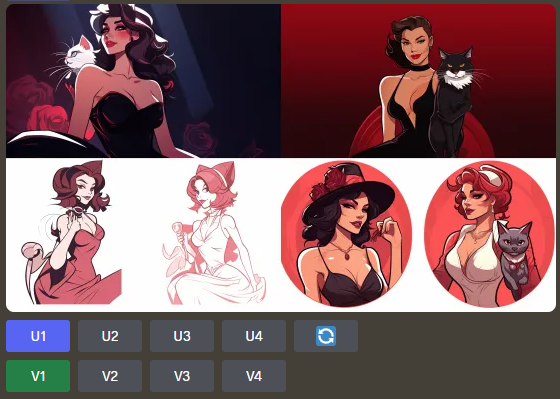
Regardless of the High/Low variation modes, the results of the Vrolls (clicking on the V1 button) retain the artistic style of the parent image.
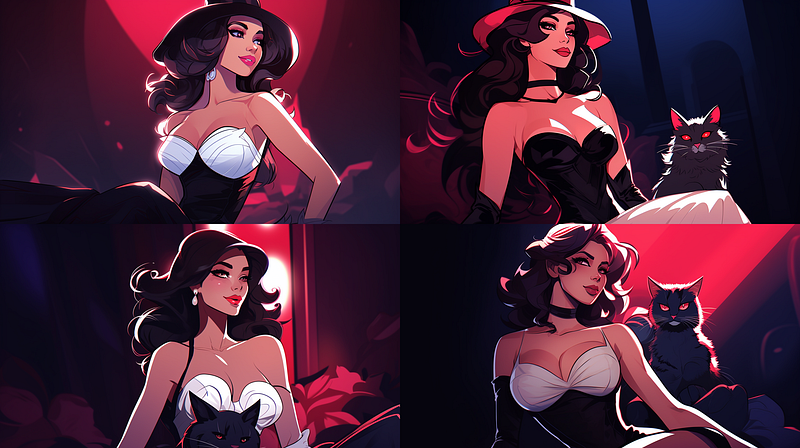
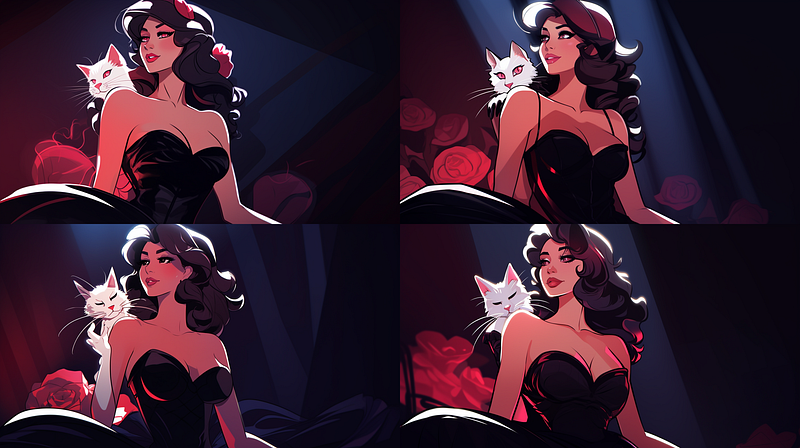
Clicking on U1 upscales the image and gives access to Vary (Strong) and Vary (Subtle) options. The parent image’s style is also retained in the generated images.
Style Tuner is a powerful style generator
Style Tuner is, without a doubt, the best tool for exploring and discovering new artistic styles right now.
In contrast to the unpredictability of /imagine jobs for churning out a new style, Style Tuner displays up to 256 ready-to-use Style Codes and infinite combinations of unique artistic styles.
With a prompt, you can make three types of Style Tuners: (a) Default Mode Midjourney Style Tuner (b) Raw Mode Midjourney Style Tuner © Niji·journey Style Tuner (there is no Default/Raw Mode option)
You will have 768 ready-to-use Style Codes for a prompt if you create all three types of 128-Tuner! (128 style directions x 2 directions per style x 3 different types Tuners = 768)
Multiple visual interpretations for an artistic concept
Style Tuner is a handy tool for discovering the various interpretations of an artistic concept that would be difficult to achieve using other methods.
Take, for example, the Art Nouveau.
Within the broader Art Nouveau movement, there are several sub-styles: the Vienna Succession, led by Gustav Klimt and others, which emphasized cleaner lines and geometric forms; French Art Nouveau, which is characterized by elegant, undulating lines and organic forms; Belgian Art Nouveau, which featured dynamic, curving lines and plant-like motifs, and many others. Furthermore, each artist approaches and interprets the Art Nouveau style uniquely.
So, what should the bot create when someone asks for an image in the Art Nouveau style? What sub-styles should it refer to create that image? Does the user know the term to describe a particular style of Art Nouveau? How many sub-styles should the bot consider in an image grid?
Ideally, it would be fantastic if the bot could display all the possible artistic sub-styles of Art Nouveau in a Tuner.
But no. At the moment, this is not possible.
Instead, the bot will show us the artistic styles influenced by the 128 visual dimensions in a Tuner.
Among the styles are various interpretations of Art Nouveau by the bot. Other styles are visibly influenced by Art Nouveau but distinct from the artworks created during that time period. Also, some artistic styles are novel and have no written descriptions. They might not even be related to the Art Nouveau movement.
We will get a sample of all of those styles.
We can mix and blend styles with the Tuner to further expand the creative possibilities.
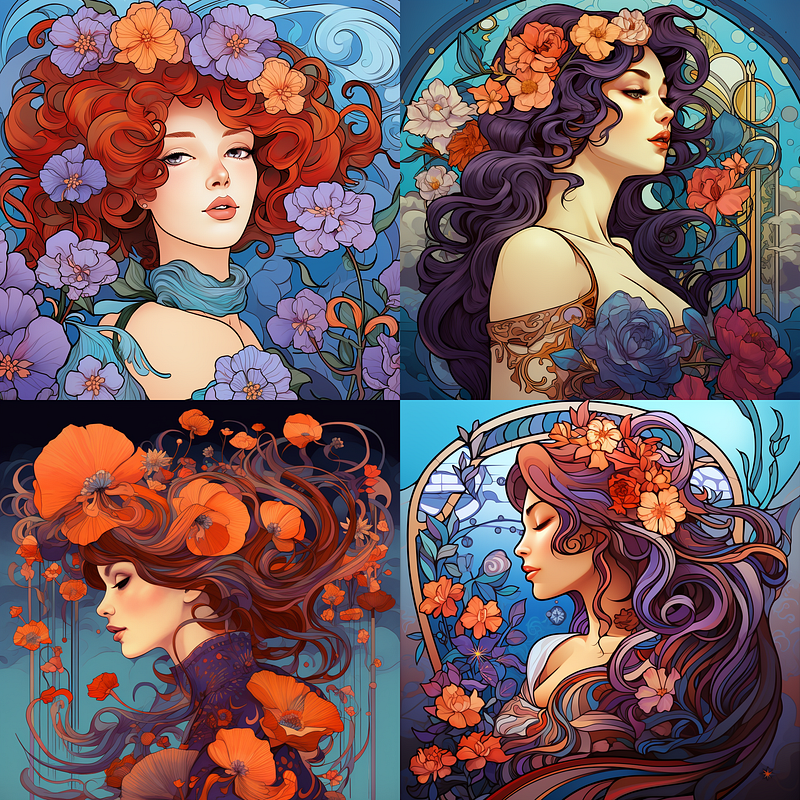
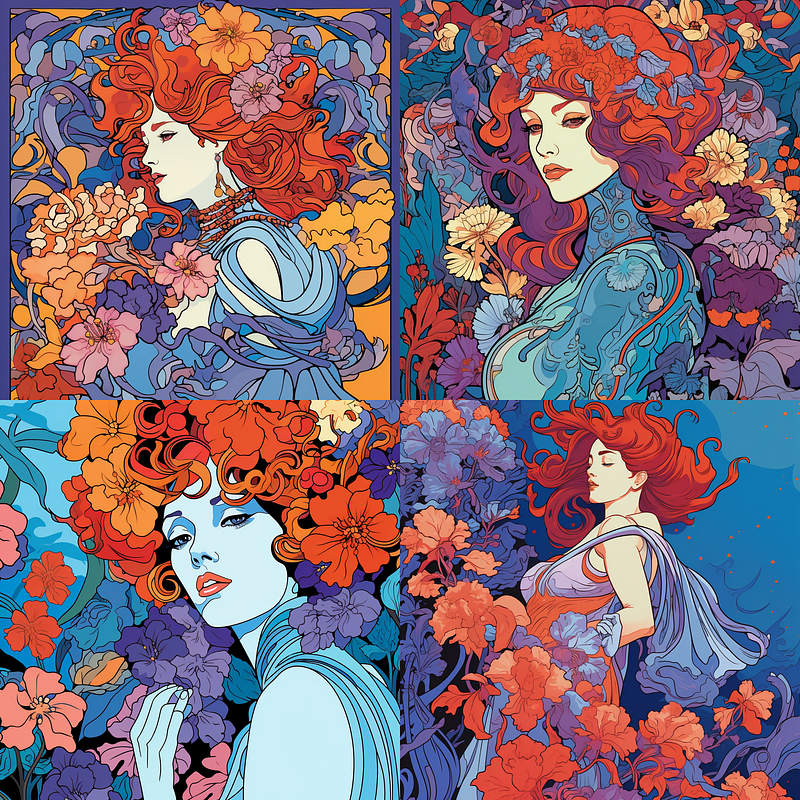
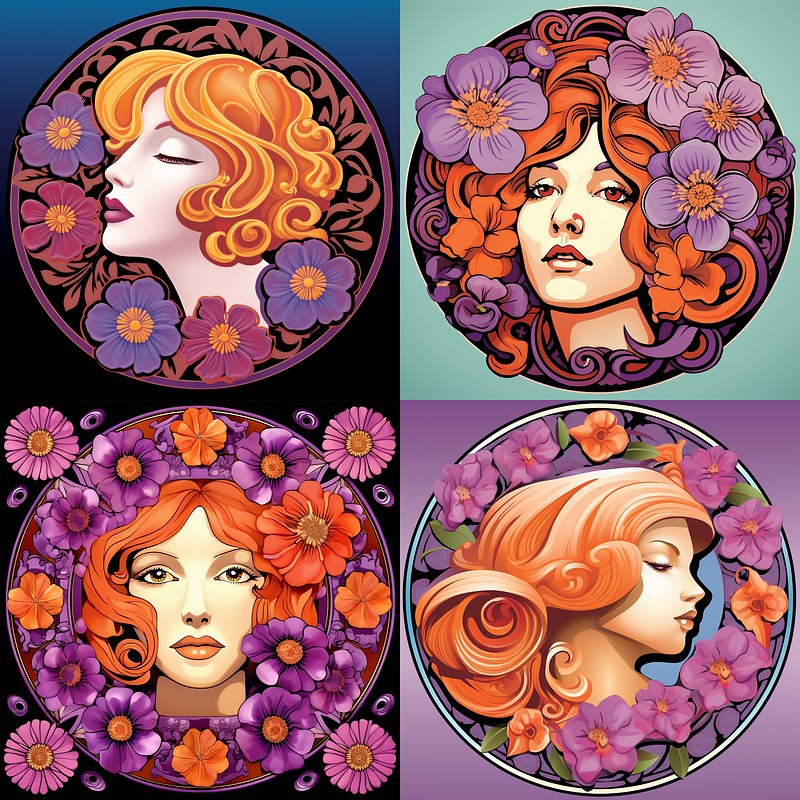
Example: Various interpretations of the Art Nouveau style
Prompt: /imagine prompt: an illustration of flowers and a lady in the style of Art Nouveau, violet, aqua, orang red
Tuner: https://tuner.midjourney.com/I6HJ1f2
The image grid below represents the Midjourney bot’s default interpretation of Art Nouveau.
We can give the bot more room to express its interpretation of the Art Nouveau artistic concept by using a 128-Tuner.
Here are two variant Art Nouveau styles that were not expressed in the above default house style.
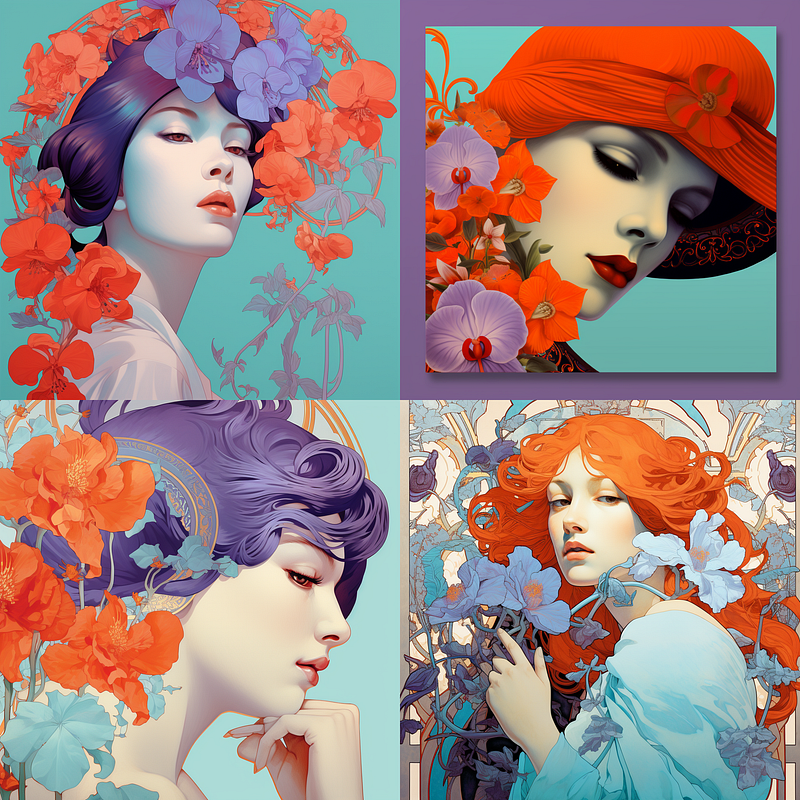
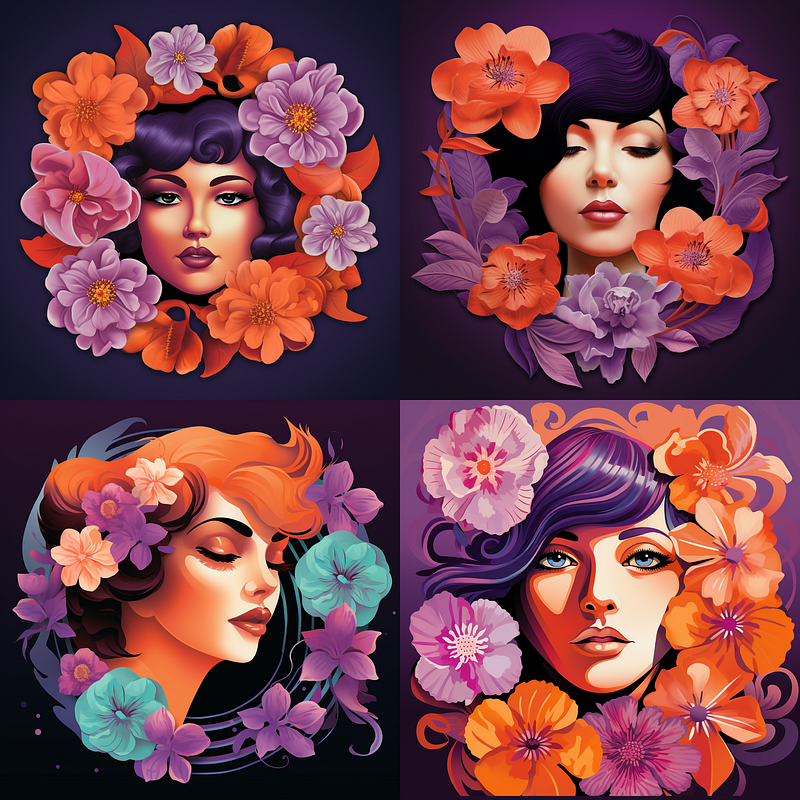
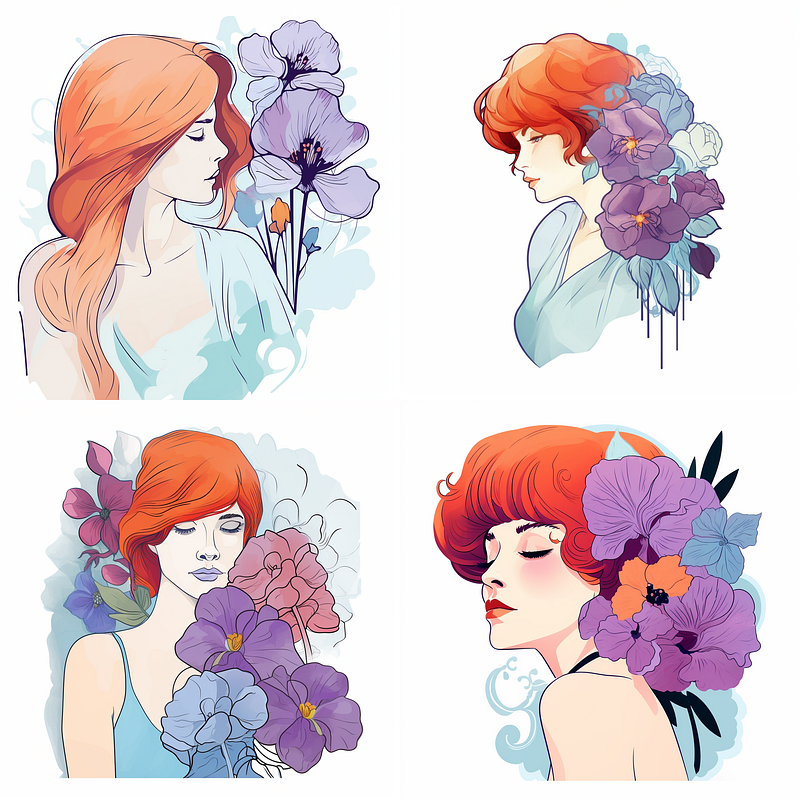
The Style Tuner goes even further, inventing new styles that deviate significantly from Art Nouveau.
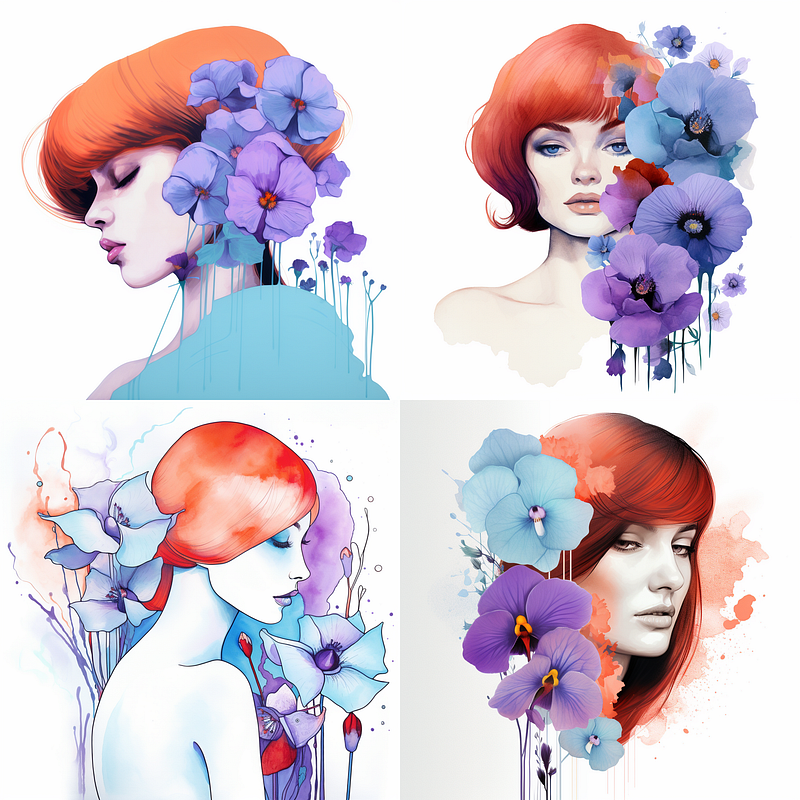
Using the same prompt, we can create a “less processed look” for the images using Raw Mode in another 128-Tuner for the same 122L and 117R selections.
Raw Mode Tuner: https://tuner.midjourney.com/Z3J8l9Y
Explore new styles without a Style Tuner
If all you need is a different look or style for the generated image, try the --style random parameter.
The random parameter generates a style different from the default house style and applies it to your image.
It can generate infinite styles one at a time in /relax mode without needing a Style Tuner.
-style random has the following formats:
(1) --style random
(2) --style random-[number of possible visual directions]
(3) --style random-[number of possible visual directions]-[selection percentage]
The bot will convert the random parameter into a Style Code automatically.
Format (1) is easy to use. Just add that parameter at the end of a prompt. The bot will use the default 32 Style Directions. It is the same as writing --style random-32
Format (2) and (3) need additional input from users to set up.
The Style Tuner rows represent the number of visual directions available: 16, 32, 64, or 128.
Unlike the Style Tuner, where you can choose between left and right sample images, “random” only allows you to specify the percentage of visual directions you want to select or activate.
Specifying the exact visual direction, like 117R or 122L, is impossible because the --style random parameter is a random style generator. You have no idea which directions the bot will choose.
To select the number of visual directions in the play, enter 100%, 50%, or any percentage you want.
--style random-128–100 indicates that all 128 visual directions have been selected or activated.
--style random-128–5 indicates that 5% of the 128 visual directions are selected or activated.
--style random-16–5 will generate an error message (probably because 5% of 16 is less than one visual direction? 16 x 5% = 0.8). Changing it to 10% (--style random-16–10) will fix the issue.
When many visual directions are selected, such as 128, the bot will explore a larger pool of possible styles. It’s similar to using the /tune command and select 128 Style Directions.
Selecting fewer visual directions, such as 16, means the bot can only explore a smaller pool of possible styles.
Activating 100% of the visual directions means you have chosen to blend all styles into a Style Code. If you consecutively repeat the same setup (activating 100% visual directions), the output will likely be similar.
Suppose you only activate 5% of the selected visual directions and re-run the prompt twice. In that case, the output is more likely to produce images with more noticeable differences because only a subset of styles are blended each time the random parameter is executed.
Example 1: Quick style exploration with the --style random parameter
Prompt A: /imagine prompt: a photo of a chubby cat
Prompt B: /imagine prompt: a photo of a chubby cat --style random
Prompt C: /imagine prompt: a photo of a chubby cat --style random-16
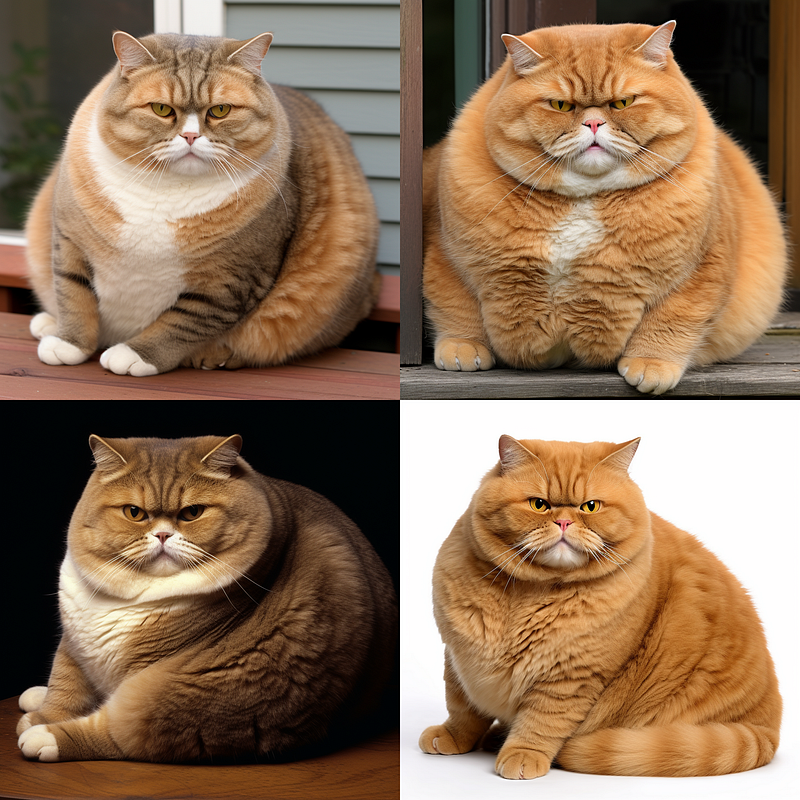
Prompt D: /imagine prompt: a photo of a chubby cat --style random-128–50
Prompt E: /imagine prompt: a photo of a chubby cat --style random-128–5
Prompt A is the default Midjourney house style.
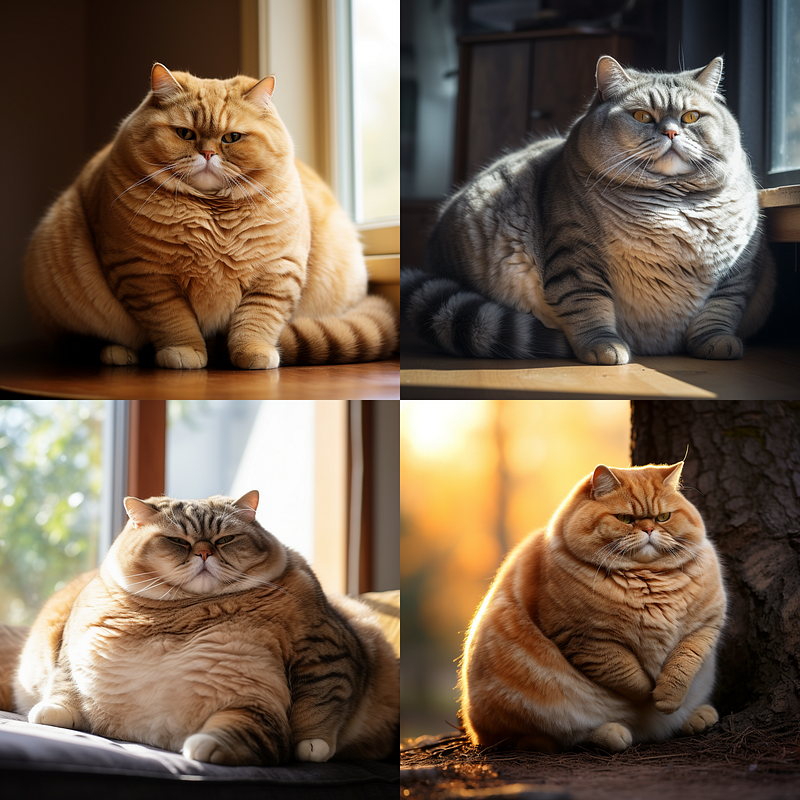
Prompt B is the same as --style random-32. Prompt C is similar, but this time only 16 styles are activated.
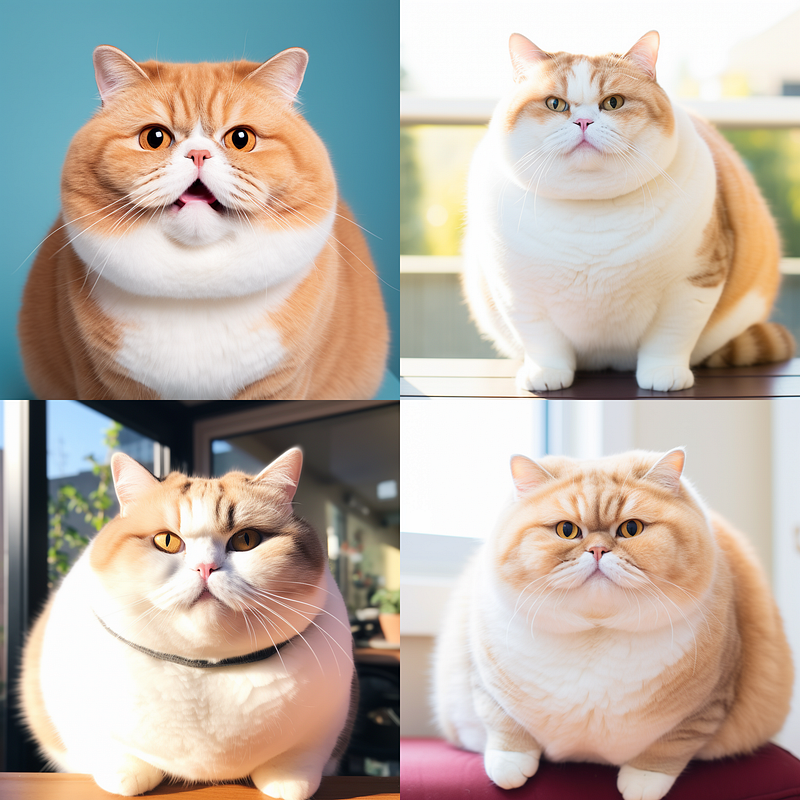
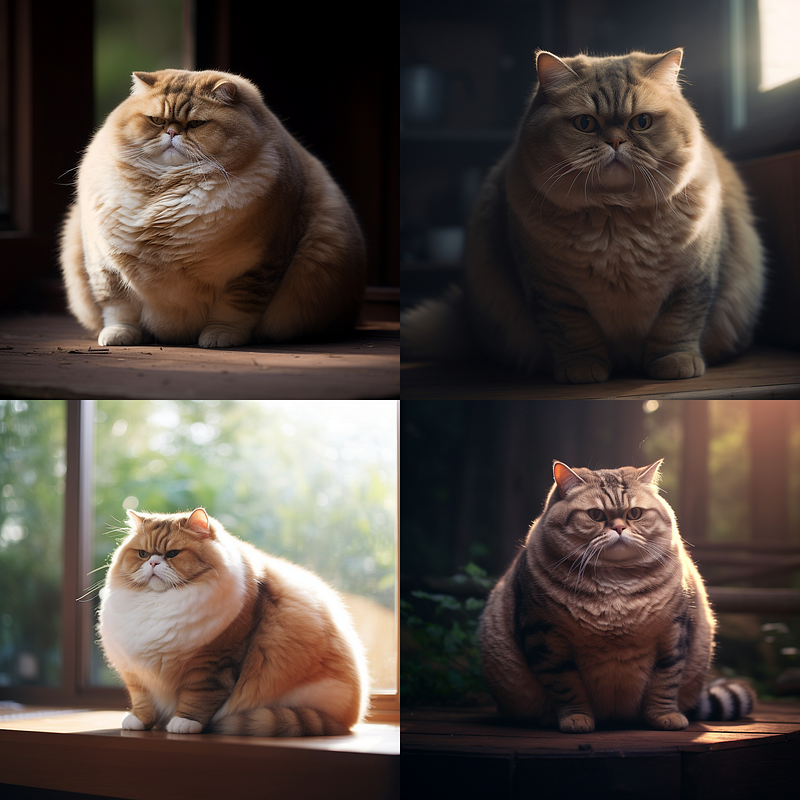
Prompts D and E activate and explore 50% and 5% of 128 visual directions, respectively.
Prompt E, with a 5% visual direction selection, produces a more exotic style than a higher percentage.
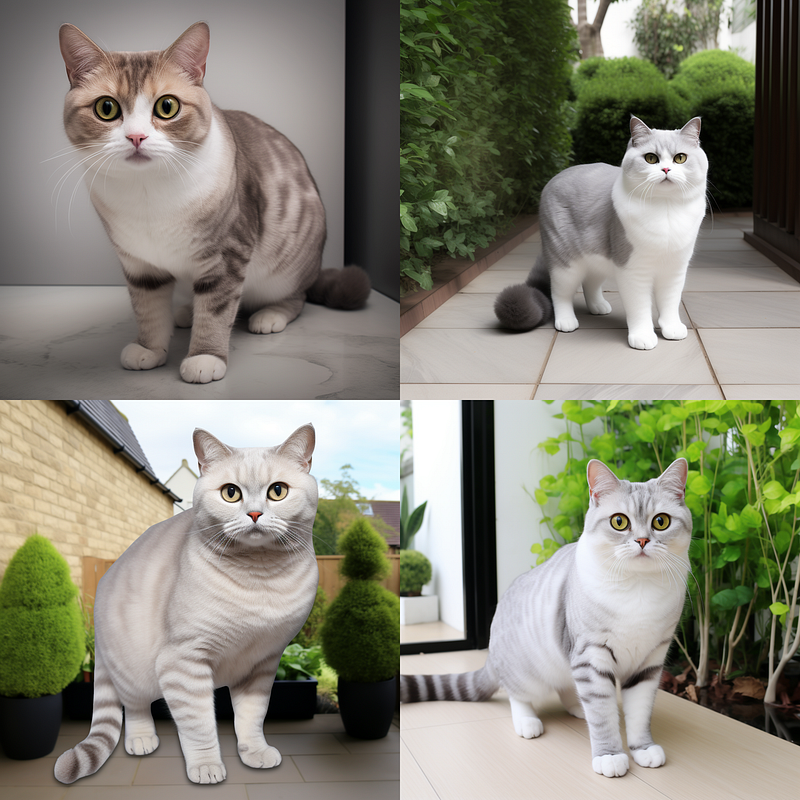
(Meanwhile, my cat has grown tired of me staring at other cats. Sorry, guys, I’ll be right back…)
How do you quickly explore a variety of random styles?
There are only a few ways to accomplish this.
These methods only work in /fast mode.
(1) Use the repeat parameter (--r) to run the prompt repeatedly with the --style random parameter.
(2) Use a permutation prompt to generate variations of a prompt with a single /imagine command.
(3) Test the effect of the applied style with the --stylize (--s) parameter.
Your subscription tier determines the number of repeats that the bot can perform. It is 2–4 for Basic, 2–10 for Standard, and 2–40 for Pro and Mega subscribers.
Part 6: Stylize will discuss the --stylize parameter in depth. As a result, I will not cover it in this story.
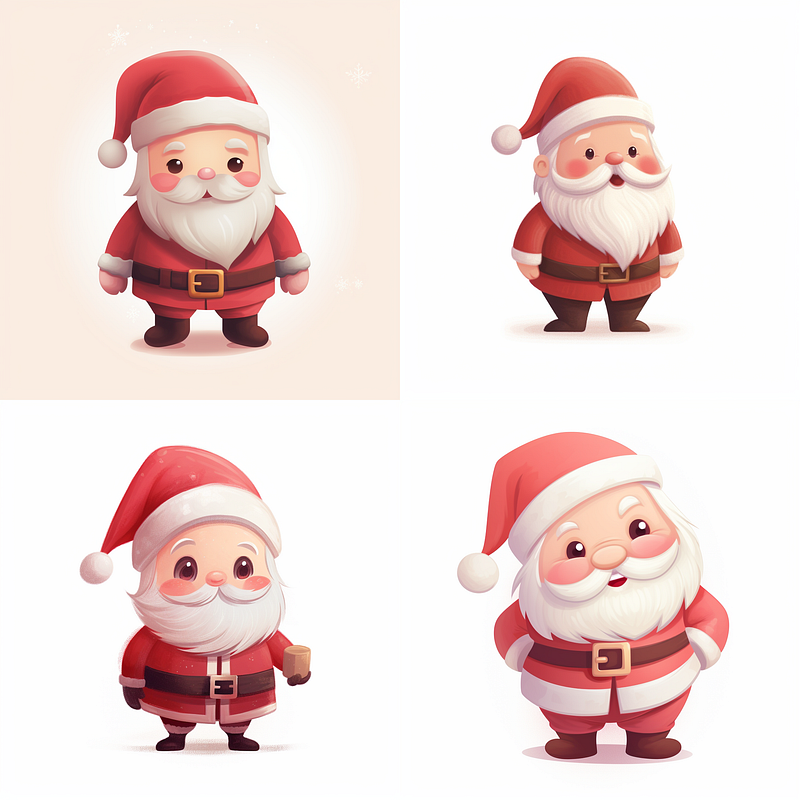
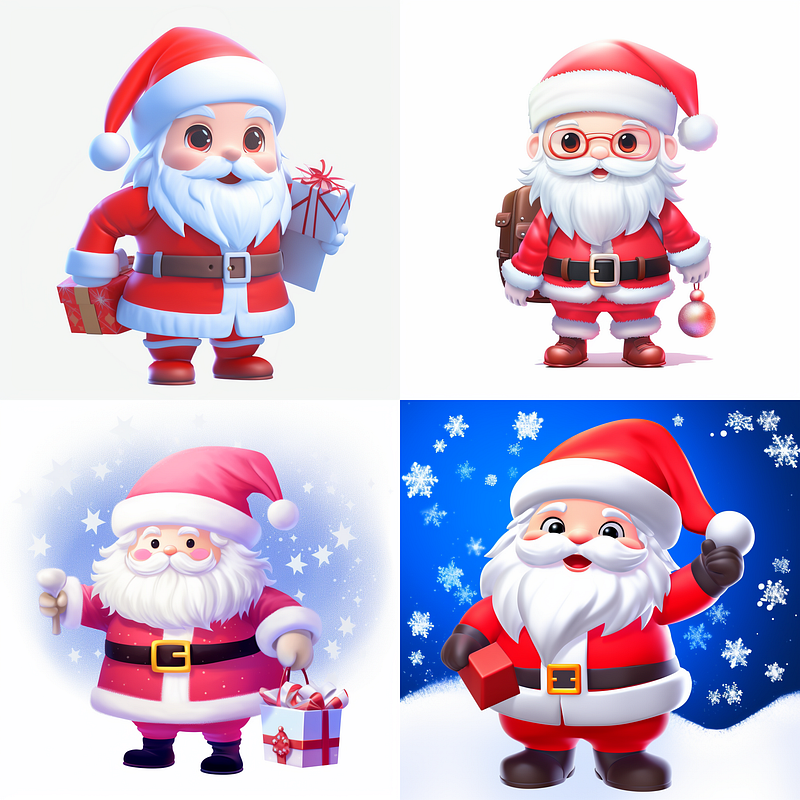
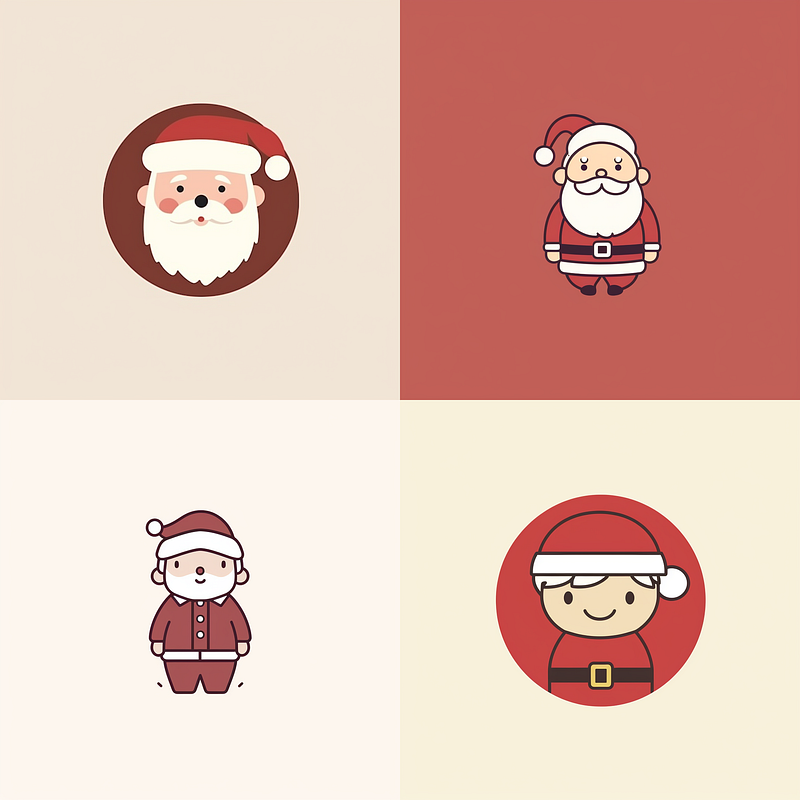
Examples:
Prompt A: /imagine prompt: an illustration of a cute mini Santa --style random-64–50
Prompt B: /imagine prompt: an illustration of a cute mini Santa --style random-64–50 --r 2
Prompt C: /imagine prompt: an illustration of a cute mini Santa --style random-64–25 --s {50, 100}
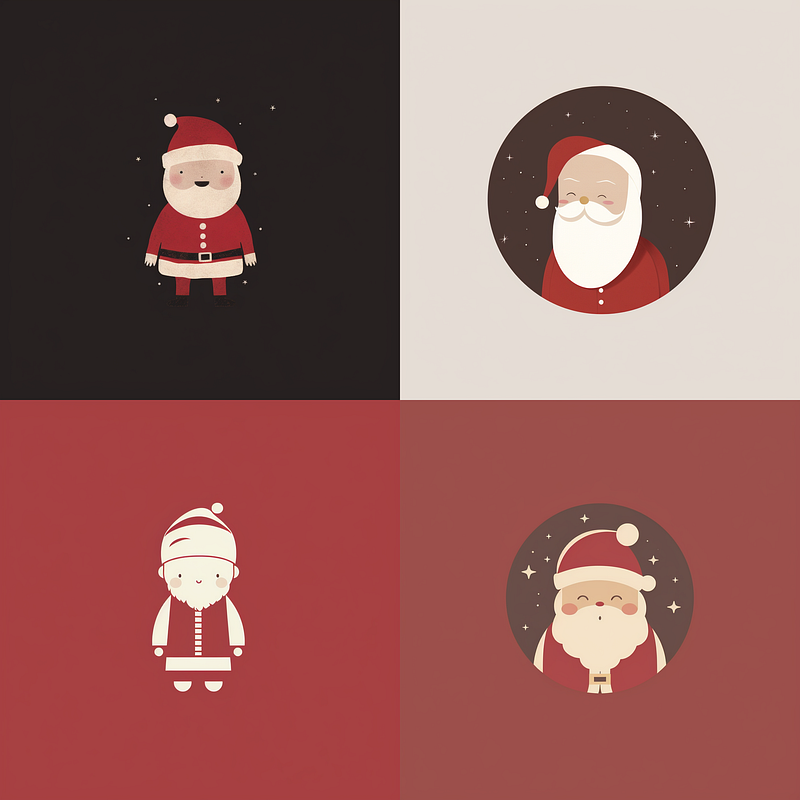
The --r parameter created two image grids with different styles. But I only show one as an example.
Similarly, the permutation prompt created two image grids. But only one is shown as an example.
How do you quickly explore different styles in RAW mode?
It’s simple: use the --style raw parameter.
The --style raw has the following formats:
(1) --style raw-random
(2) --style raw-random-[number of possible visual directions]
(3) --style raw-random-[number of possible visual directions]-[selection percentage]
(4) --style raw-[Style Code]
In short, they have the same formats as --style random formats, but you add the word “raw” between the hyphens to make --style raw-random.
You can also directly append a Style Code --style raw- to generate the image in RAW mode. This is especially useful for switching between Default and Raw modes and determining the preferable style.
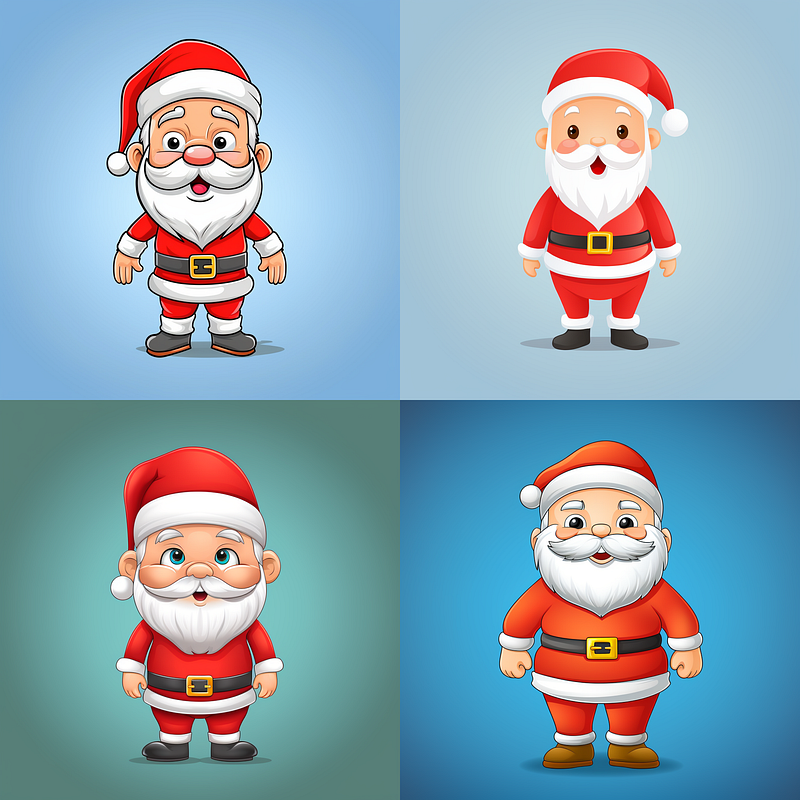
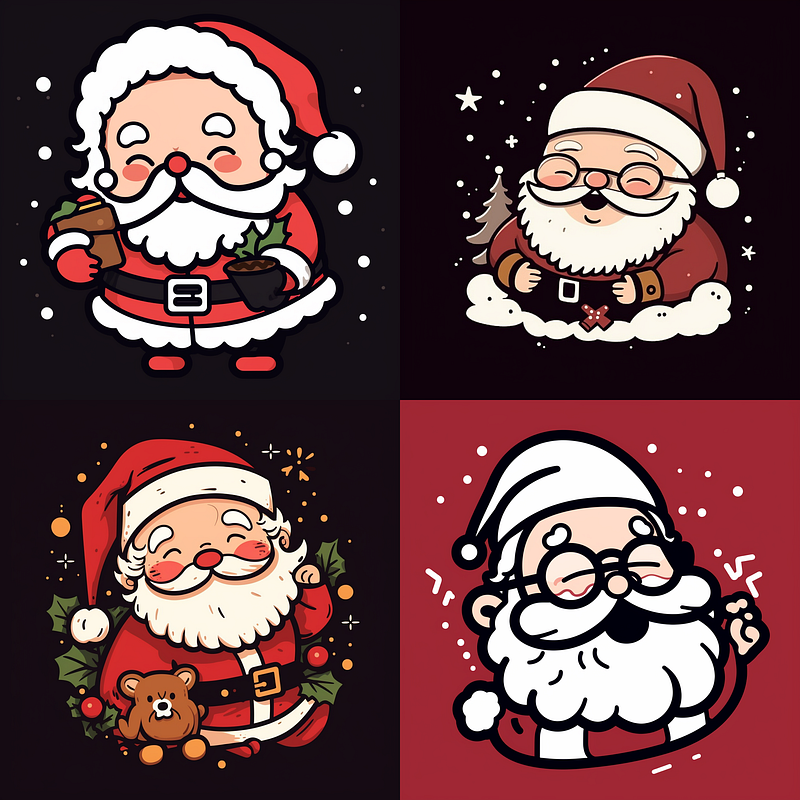
Examples:
Prompt A: /imagine prompt: an illustration of a cute mini Santa --style raw-random
Prompt B: /imagine prompt: an illustration of a cute mini Santa --style raw-random-64–50
Prompt C: /imagine prompt: an illustration of a cute mini Santa --style raw-2DokkuDUrfMNSlx5cCxHVijzN
What about random Niji styles?
Yes, it is possible.
The format is similar to --style random, except that the --niji is added at the beginning, resulting in --niji --style random.
Here is the list for absolute clarity for random Niji styles:
(1) --niji --style random
(2) --niji --style random-[number of possible visual directions]
(3) --niji --style random-[number of possible visual directions]-[selection percentage]
(4) --niji --style [Style Code]
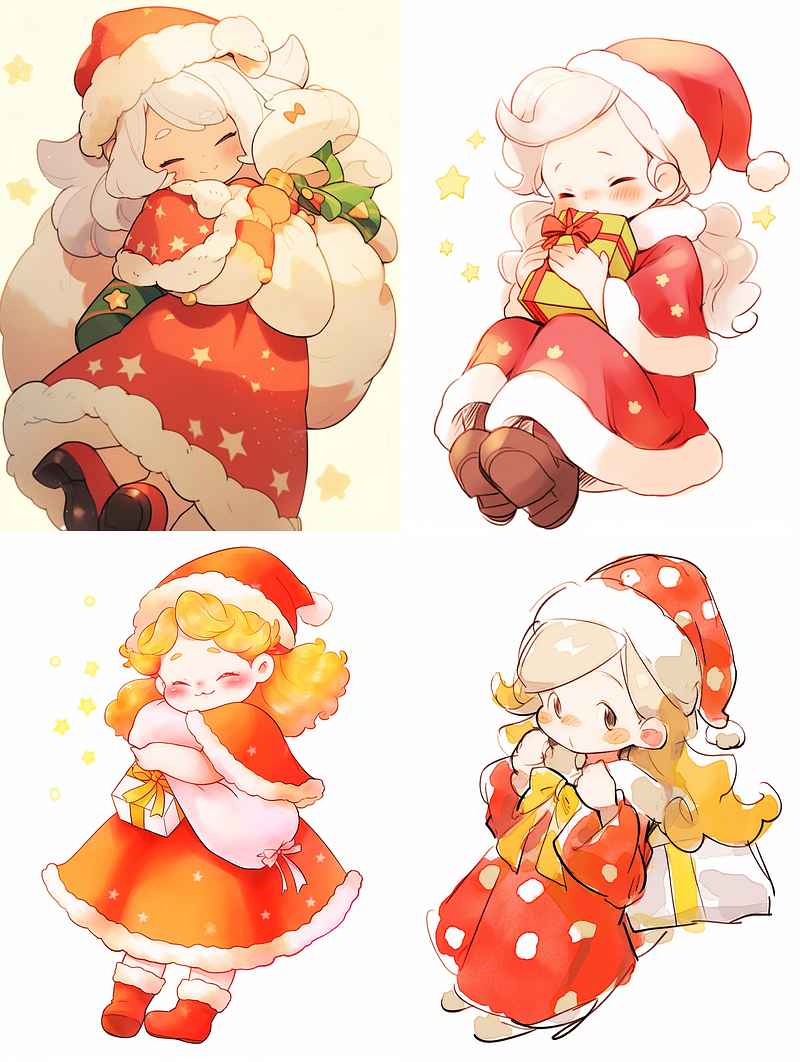
Examples:
Prompt A: /imagine prompt: an illustration of a cute mini Santa --niji --style random
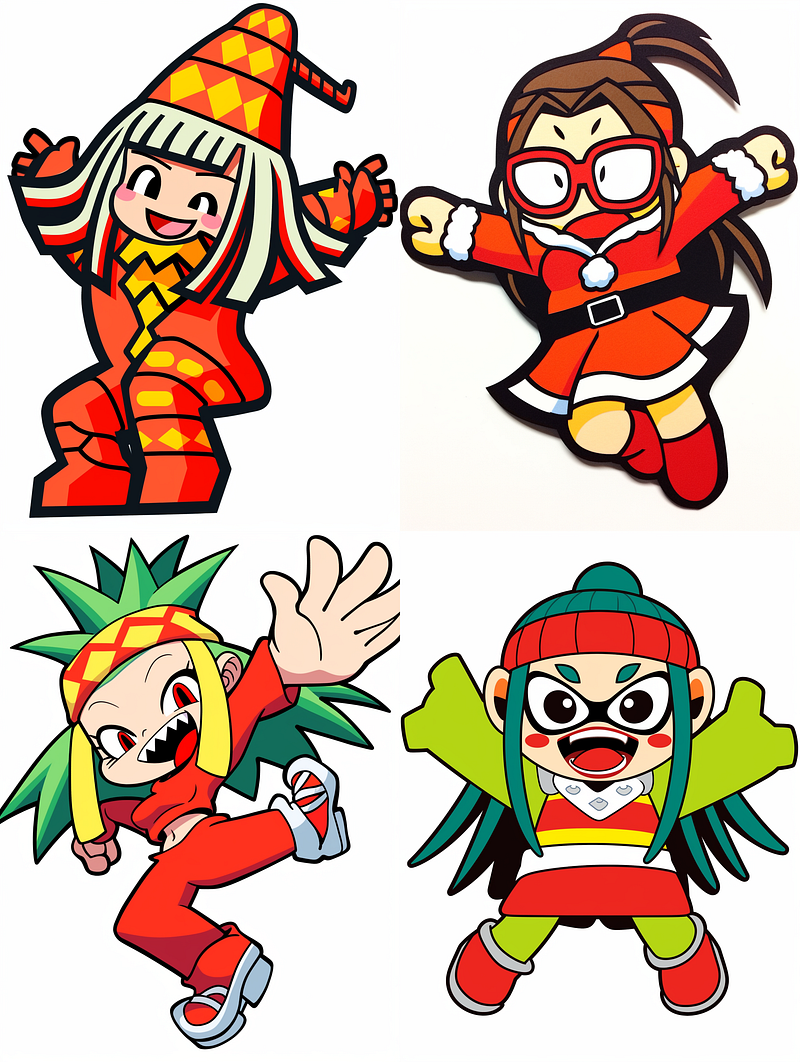
Prompt B: /imagine prompt: an illustration of a cute mini Santa --niji --style random-64–50
Combining several Style Codes to create a new style
Combining or blending different style codes is called “chaining styles, linking styles, or stacking styles.”
(1) When you have all of the Style Codes and want to combine them
--style CodeA-CodeB-CodeC
(2) When you have a collection of Style Codes and want to add some randomness to the style
--style CodeA-random-CodeB
--style CodeA-raw-CodeB
(3) To give more weight to a Style Code, repeat the code
--style CodeA-CodeA-CodeA-CodeB
A Style Code cannot be “negatively” weighted.
Examples:
128-Tuner: https://tuner.midjourney.com/R2EgzOg
Prompt A: /imagine prompt: a realistic illustration of a lady and a cat in the style of moulin rouge, art deco, glamorous, stylish --ar 16:9 --style tuuoI7tjMpgxrm6pc8GFeKJcJ6wWj1ToG2
Code A: tuuoI7tjMpgxrm6pc8GFeKJcJ6wWj1ToG2
Prompt B: /imagine prompt: a realistic illustration of a lady and a cat in the style of moulin rouge, art deco, glamorous, stylish --ar 16:9 --style 4hqpAp5fS1FoQYcVELgbZ8MyQxWKC3D7Oom
Code B: 4hqpAp5fS1FoQYcVELgbZ8MyQxWKC3D7Oom
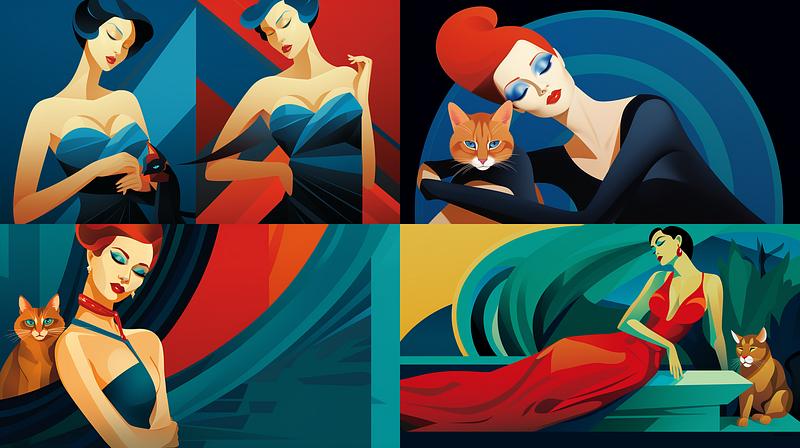
tuuoI7tjMpgxrm6pc8GFeKJcJ6wWj1ToG2.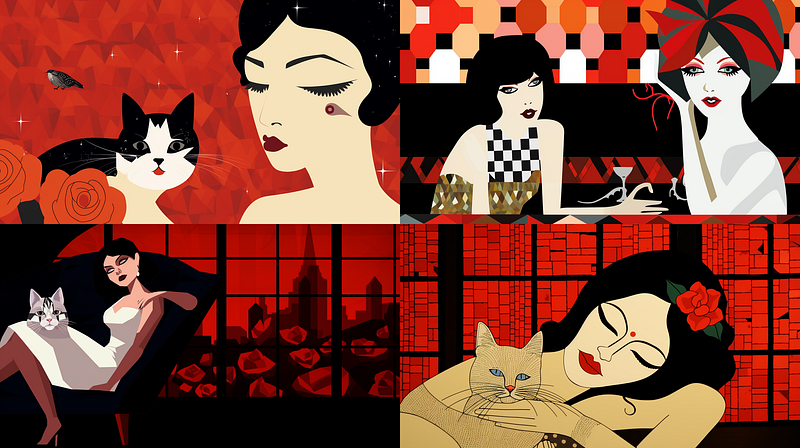
4hqpAp5fS1FoQYcVELgbZ8MyQxWKC3D7OomCombining Style Code A and B.
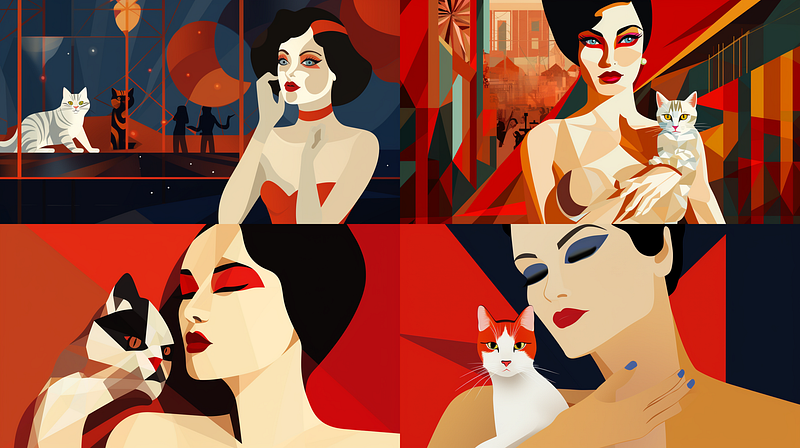
Prompt C: /imagine prompt: a realistic illustration of a lady and a cat in the style of moulin rouge, art deco, glamorous, stylish --ar 16:9 --style tuuoI7tjMpgxrm6pc8GFeKJcJ6wWj1ToG2–4hqpAp5fS1FoQYcVELgbZ8MyQxWKC3D7Oom
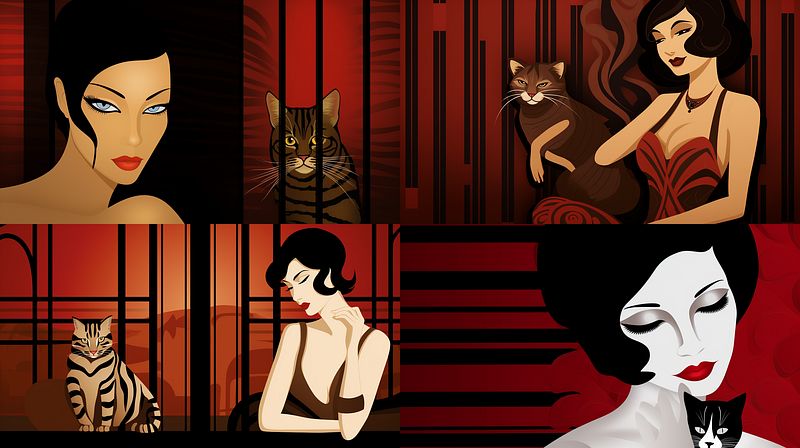
Prompt D (add “random” in the style): /imagine prompt: a realistic illustration of a lady and a cat in the style of moulin rouge, art deco, glamorous, stylish --ar 16:9 --style tuuoI7tjMpgxrm6pc8GFeKJcJ6wWj1ToG2-random-4hqpAp5fS1FoQYcVELgbZ8MyQxWKC3D7Oom
Create Style Codes Using Style Sliders
If you have a general idea of the vibe, mood, or theme you want to achieve, consider using the Style Sliders to generate Style Codes and plugging them into a prompt to create images based on those artistic concepts.
Style Sliders is a sophisticated online tool for generating Style Codes without relying on the /tune command to create a Style Tuner.
For example, to create a colorful image, use the Style Sliders to find the visual directions associated with the word “colorful” and generate the Style Code accordingly.
The steps are as follows:
- Go to the Style Sliders website: Midjourney Style Sliders (kaetemi.be)
- Use CTRL-F to search for keywords related to your artistic concept, vibe, mood, or theme.
- Locate the Visual Direction(s) associated with the keyword and move the slider to the left or right.
- Copy the generated Style Code and use it on a prompt with the
--styleparameter.
Example: Create a Style Code based on known characteristics of a Visual Direction
Targeted artistic concept: A colorful image.
Your search keyword: Colorful
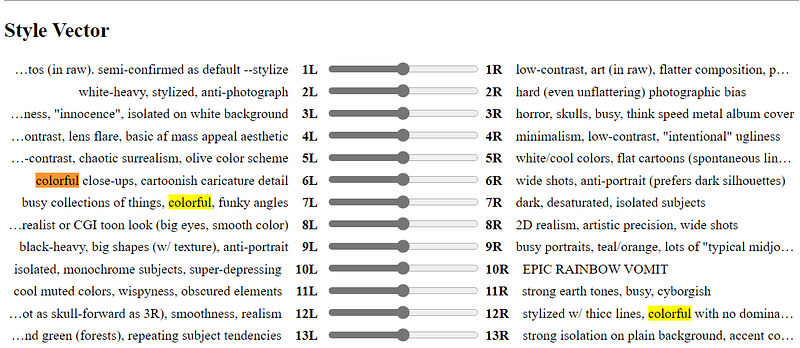
Several Visual Directions include the word “colorful.” Read their descriptions and choose one (or more) visual directions most similar to the artistic concept you are looking for.
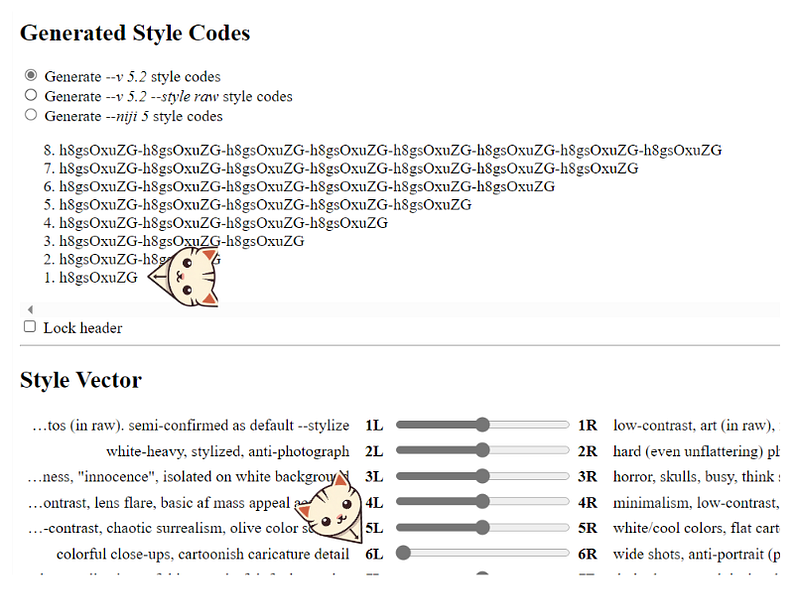
Assuming you are satisfied with Visual Direction 6L, proceed to create a Style Code. Using the --style parameter, apply the generated Style Code.
The artistic style of the generated image is similar to that of the Visual Dimension 6L (colorful close-ups, cartoonish caricature detail), as described in the Style Sliders.
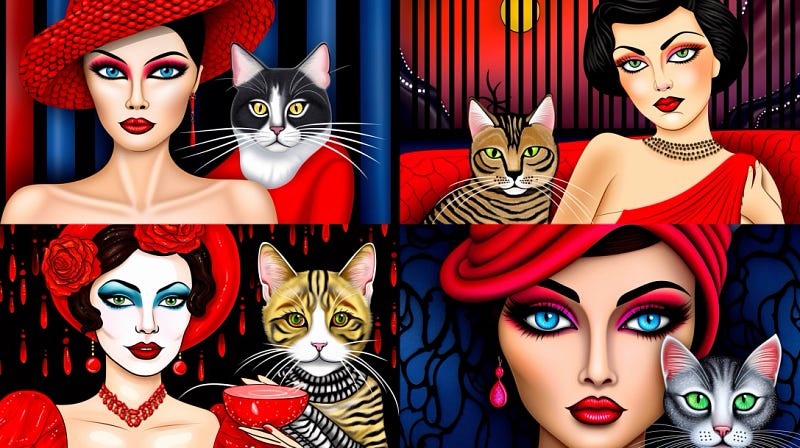
The Style Sliders’ strength is their simplicity, as they do not require the user to create a Tuner to generate Style Codes.
However, unlike a Tuner, which shows the effects of Style Codes, you cannot see how the image will look using a Style Code generated by the Style Sliders. You must try it out using /imagine to see its effect.
Related stories
Conclusion
In Midjourney, you can explore and discover new artistic styles by:
- Creating or using three types of Tuners: Default and Raw Modes of Midjourney Tuners, and Niji·journey Tuner
- Reroll the image grids created by
/imagine - Use
--style raw,--niji 5 --style,--chaos, and--weirdparameters - Use the random parameters that include
--style random,--style raw-random,--niji --style random - Combining and weighing Style Codes
- Creating Style Codes with the Style Sliders
- Mix the Style Codes with “random” or “raw” keywords
- You can quickly explore a variety of random styles with the help of
--repeatand--stylizeparameters and by creating a permutation prompt.
I hope you like this story!
Please give me a clap or leave a positive comment to let Medium’s algorithm know that this story is helpful and has contributed to its platform’s success.
Please share the Friend Link with your friends, family, and fans to give them free access to this story.
Your support inspires me to create higher-quality content in the future!
Never miss a story. Follow me on Medium for updates, stories, and tips about Midjourney.
Sign up here for a free email alert when I post a new story.


