
Midjourney: How to use the Style Tuner to develop your aesthetic style
Everyone is now an artist
Get a free email alert when a new story is published.
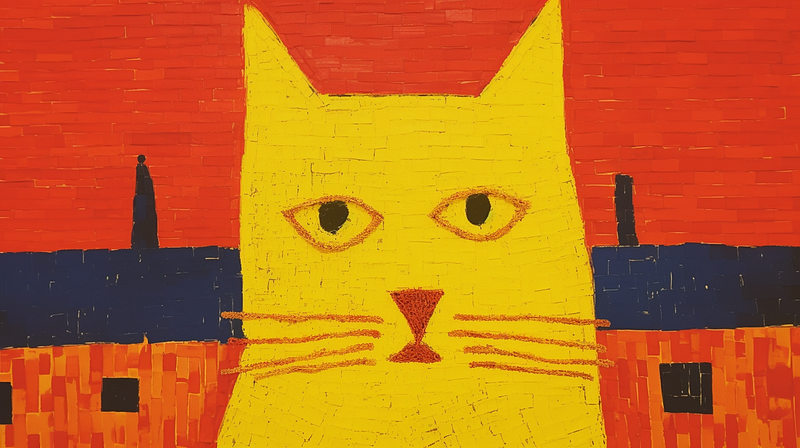
Midjourney has just released an awesome new feature called Style Tuner.
Forget the Upscalers and the new website for a moment; for me, this is a major release since Vary (Region) inpainting.
Read the official guide here: https://docs.midjourney.com/docs/style-tuner
What is a Style Tuner?
- It allows you to develop your own aesthetic style in Midjourney.
- It will explore the billions of styles available in Midjourney.
- It has a new command
/tunethat generates a URL link to the Style Tuner web page. - The
/tunecommand will consume Fast Hours even in/relaxmode. - The
/tunecommand in Discord does not create an image. It will only create a link to the Style Tuner web page. - A Style Tuner web page acts as a visual template for you to create your own style (personalized style) and customize the look of your images.
- The Style Tuner page’s function is to generate a reusable style code that you can use to create images with similar styles.
- Take a look at an example of a Style Tuner page: https://tuner.midjourney.com/h2zR7GW
- To personalize your style, select images from 16, 32, 64, or 128 pairs of images or a grid of images. Your selections will influence and contribute to the generated style code.
- By saving the URL to the Style Tuner page, you can return to it and generate new style codes by selecting a new set of images.
- The creation of the Style Tuner page will consume your Fast Hours. Indeed, it will consume A LOT OF your Fast Hours. Beware!
- You can use the Style Tuner page created by other users. Using the Style Tuner page to generate a style code will not cost you Fast Hours.
- You can share your Style Tuner page and style code with other users.
What isn’t the Style Tuner?
- It is not intended for post-production editing, such as inpainting, outpainting, and upscaling.
- However, you can use these features after you’ve created an image with the style code.
- You can also apply a style code to another prompt — but the result varies.
How to Use the Style Tuner
- Type
/tune, then add a prompt. - Choose how many Style Directions you want to generate. One style direction generates two image grids, so 16 Style Directions create 32 (16 x 2) image grids.
- Select “Default mode” or “Raw mode” (if you’re unsure, choose Default)
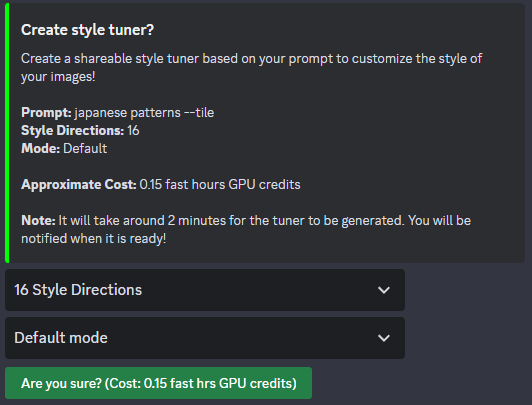
- When you click the “Submit” button, the cost of Fast Hours will be displayed. To confirm, click the “Are you sure?” button.
- Wait for the bot to send you a Direct Message when the process is complete. It may take a few minutes. A URL link will be created to the custom Style Tuner web page.
- Go to the Style Tuner page and choose the styles you want to personalize. Choose 5–10 styles, but any number will do.
- Look at the bottom of the page for the generated style code.
- To generate images with the same style, copy and paste the style code or the entire prompt with the style code into Discord.
- To apply the style code, use the
--styleparameter and add the style code. For example--style StyleCode
Demonstration
- Let’s create a Style Tuner page for Japanese tile patterns.
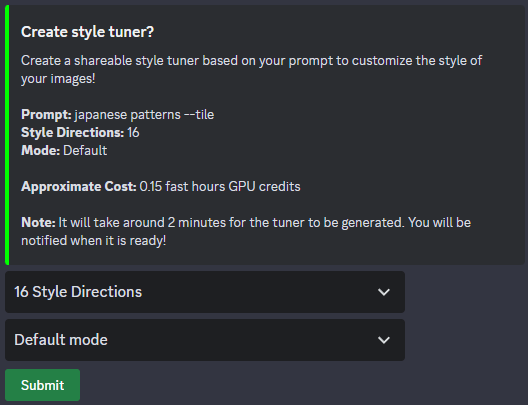
- The cost to generate the Style direction is: 16 (0.15 Fast Hours), 32 (0.3), 64 (0.6), 128 (1.2)
- The cost is the same for “Raw Mode.”
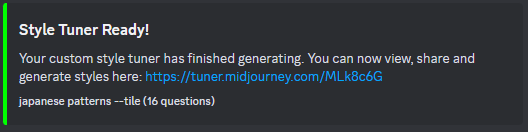
- The created Style Tuner page: https://tuner.midjourney.com/MLk8c6G
- The default layout includes rows of image grids. Select only the images that you strongly like. If you accidentally click on the wrong image, click the square in the middle of the row to deselect it.
- The generated style code will be displayed at the bottom of the page.
- You can change the selection mode (compare two styles at once or pick your favorite from a large grid) by clicking on the respective icons at the bottom of the page. Copy and paste the prompt and style code to create a new image with the same style in Discord.
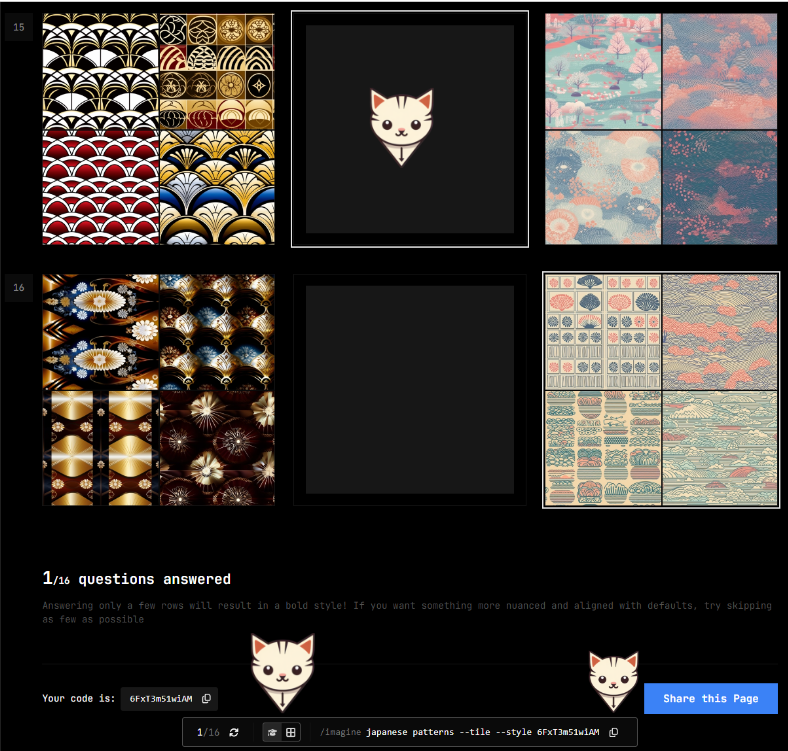
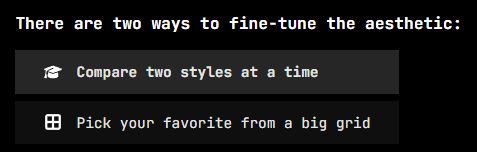
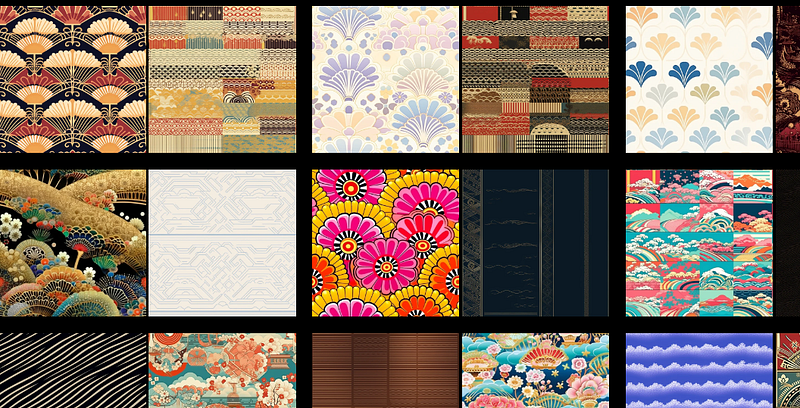
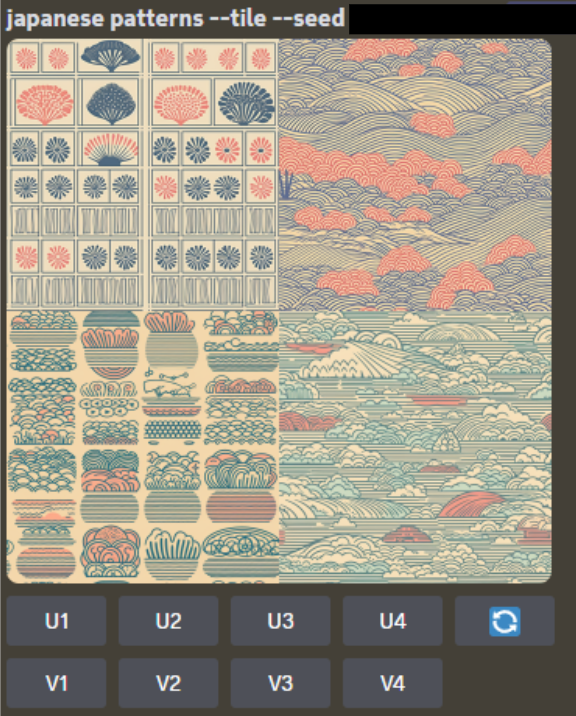
- Here’s the result of my selection and the generated style code for the Japanese pattern.
- The style code is: yVUYWgE0Wk
- Use the
--styleparameter to use the style code - The full prompt is:
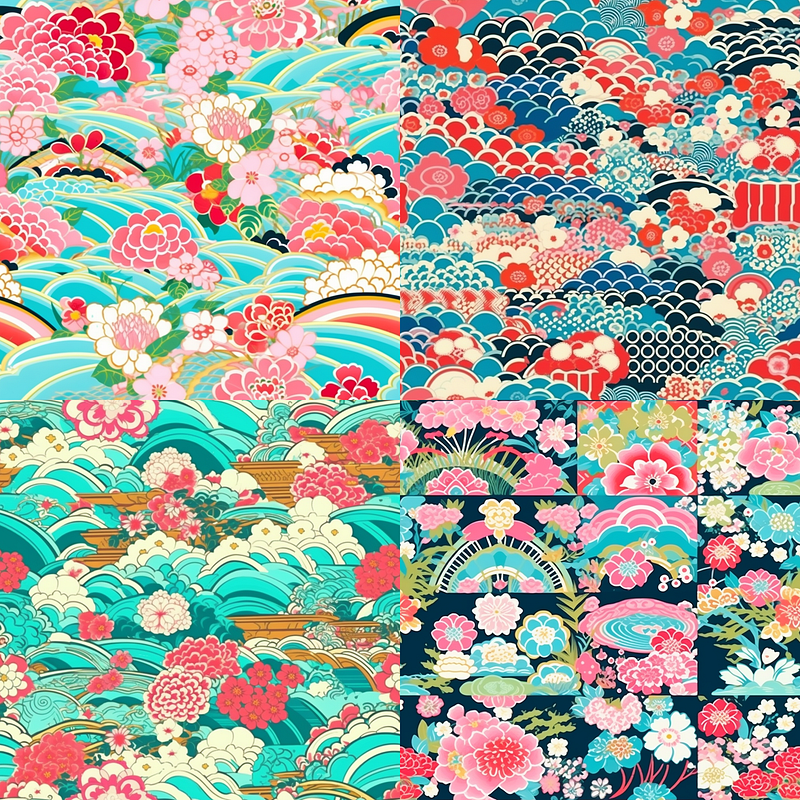
/imagine prompt: japanese patterns --tile --style yVUYWgE0Wk - The generated tile is seamless.
Returning to the Style Tuner page with the Style Code
- The style code, whether created by other users or yourself, is the key to returning to the Style Tuner page.
- Replace “StyleCodeHere” with the style code in the URL template below.
https://tuner.midjourney.com/code/StyleCodeHere
- In our example above, the style code is yVUYWgE0Wk. Therefore, to return to the Style Tuner page, edit the URL template and use this link: https://tuner.midjourney.com/code/yVUYWgE0Wk
- Returning to the Style Tuner page is a powerful feature because it allows you to develop the style using the Style Tuner pages created by other users. You can also see the original prompt used when creating that style.
Importing a Style Tuner-generated image into Discord
- Assume one of the images on the Style Tuner page catches your eye. You want that image for outpainting/inpainting/upscaling. How do you add that image to Discord?
- Here are the steps:
- Select the “Pick your favorite from a big grid” option from the fine-tune aesthetic menu.
- Right-click the image you want to import into Discord. Select “Open image in new tab.” Note that an image represents an image grid in the “big grid” layout.
- In the new tab, the Job ID is in the URL’s middle. As an example, the Job ID for https://cdn.midjourney.com/ad34f5ee-xxxx-4f17-xxxx-42492e0a4e27/0_0_640_N.webp?method=shortest is ad34f5ee-xxxx-4f17-xxxx-42492e0a4e27.
- Type
/showand paste the Job ID into Discord. - The image, along with its Seed number, will then be retrieved and imported into Discord.
It serves no purpose to recreate a Style Tuner page with the same prompt
- Creating a Style Tuner is expensive, so think carefully before doing so.
- The lowest 16 Style Direction will still cost you 0.15 Fast Hours.
- I reran the Style Tuner with the same prompt, and the generated styles are similar. Therefore, it is pointless to recreate the Style Tuner for an identical prompt.
- To clarify, the generated images differ, but the styles are highly similar.
- I did not repeat the experiment because it was expensive. (Also, hey, Medium didn’t pay that much to run expensive experiments!)
- Let me know in the comments if you think otherwise!
What happens when you use Style Tuner with a prompt that has a specific style?
- The prompt does not inform the resulting styles in any way.
- The prompt is only responsible for the sample images displayed in the Style Tuner.
- The
--stylewill influence image composition, coherency, medium, mood, subject, and many other things. - When the prompt you apply the style code has its own aesthetic, it will blend or compete with the
--stylecode.
An example:
- Creating an illustration of a cat using a well-known artistic style:
/imagine prompt: a cat in the style of Vincent van Gogh --ar 16:9
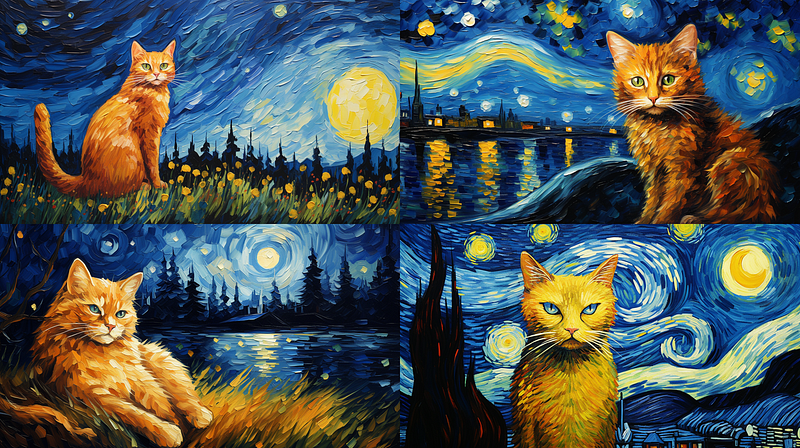
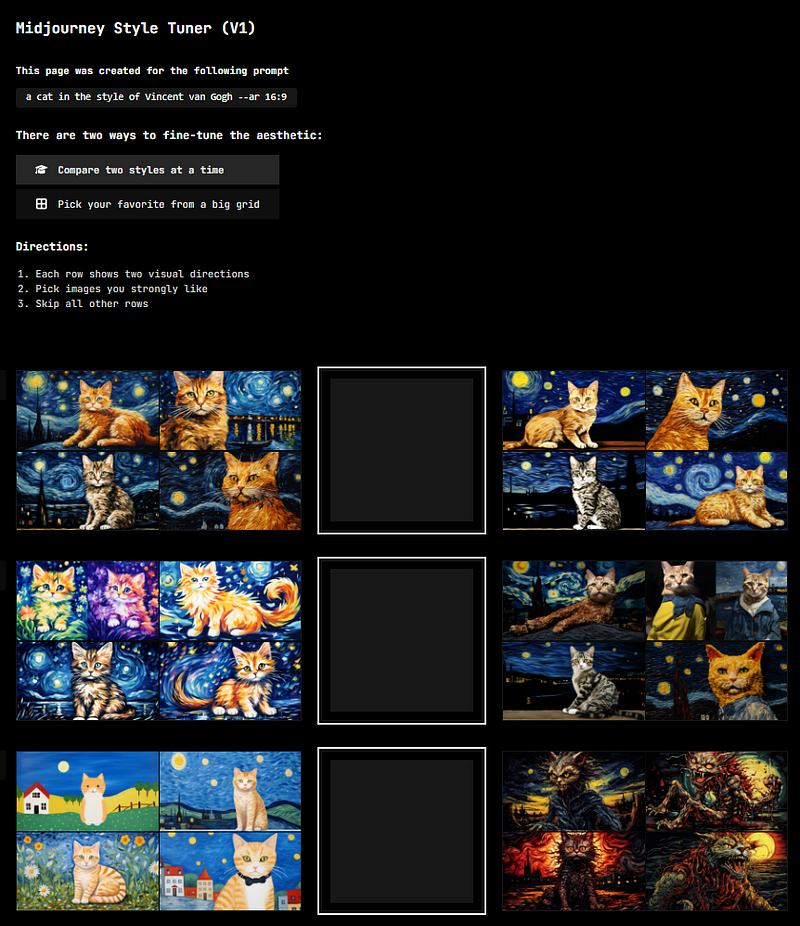
- Using the same prompt to create a Style Tuner page will create images reflecting the Vincent van Gogh style and many other styles.
- You can see the created Style Tuner page: https://tuner.midjourney.com/F8tYpAr
- The new styles are blended with the Vincent van Gogh styles.
Other aspects of Style Tuner
Style Tuner has many features, such as blending, raw mode, random code, adjustment with --stylize parameters, and so on. These will be addressed in subsequent stories.
So, stay tuned!
Related stories
Conclusion
- The new Style Tuner allows you to create your own aesthetic style in Midjourney.
- The new
/tunecommand creates a URL link to the Style Tuner page. - The Style Tuner page is a visual template that allows you to explore the styles in Midjourney and create your personalized style.
- You can share the generated Style Tuner page and style code(s) with others.
- The cost of creating a Style Tuner page is high. You can save your Fast Hours by using the Style Tuner page created by others.
- There is no point in rerunning the
/tunecommand for the same prompt. - When your prompt has its own aesthetic, the Style Tuner’s resulting styles will blend or compete with it.
I hope you like this story!
Please give me a clap or leave a positive comment to let Medium’s algorithm know that this story is helpful and has contributed to its platform’s success.
Your support inspires me to create higher-quality content in the future!
Never miss a story. Follow me on Medium for updates, stories, and tips about Midjourney.
Sign up here for a free email alert when I post a new story.


