
Another Three CSS Text Effects from Command-Line
Create article header images from your terminal
Introduction
In the last two articles, I introduced 10 text effects you can create from your terminal. Images are suitable for your blog articles, email, presentations, and other purposes. In this article, you will find 3 more text effects you can create from your command line.
Installation
macOS/Linux Homebrew:
$ brew tap shinokada/teffects
$ brew install teffects
Using Awesome package manager:
$ awesome install shinokada/teffectsOr you can download the repo to your bin directory.
Covfete
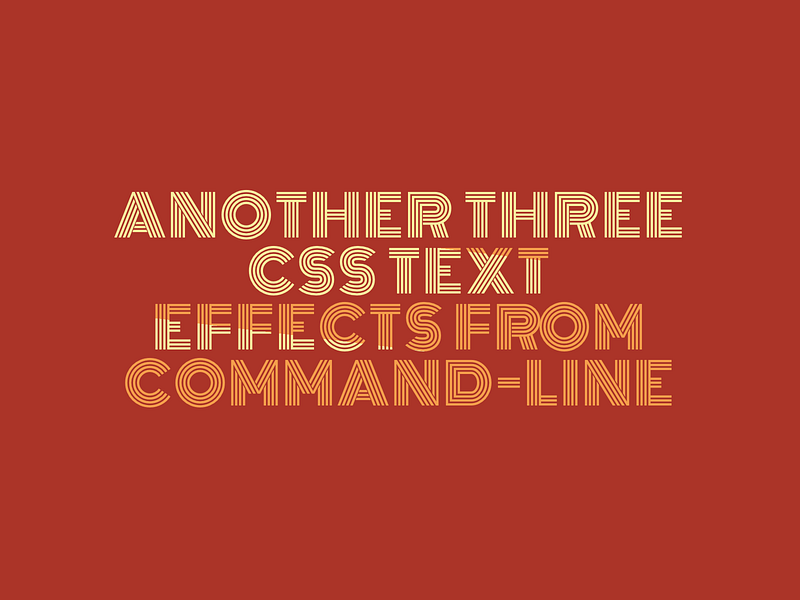
This is one of my favorites. Covfete is inspired by Stephanie’s Background clipping covfete. It creates lined texts with a linear gradient on them.
You can change the text by using the -t option. Enclose texts by quotes as you see below.
$ teffects covfete -t "Medium Article Title"
Options
The -s number option changes the font size. Font size is set in vw unit. You can change the background color by specifying a color or hexadecimal with the -b option. Enclose the hexadecimal code with quotes. The image created has the default dimensions of 1600px by 1200px and you can change them by using the -w numberand -e numberoptions.
$ teffects covfete -h
Usage: teffects covfete [options] [arguments]
Covfete texts.
All parameters accepts --param value and --param=value form.OPTIONS DESCRIPTION
-b, --bcolor BCOLOR Background color. Enclose with quotes. Default: #ab3428
-c, --color COLOR Font color. Enclose with quotes. Default: #f49e4c
-e, --height HEIGHT Image height. Default: 1200px.
-d, --dir OUTPUT_DIR Output directory. Use an absolute path without a trailing slash. Default: teffects/outputs directory.
-p, --padding PADDING Container padding. Default: 100px. e.g. 50px 100px.
-s, --size SIZE Font-size. Use a number without a unit. Default: 15vw.
-t, --text TEXT Your text to print.
-w, --width WIDTH Image width. Use a number without px. Default: 1600px..
-h, --helpExamples
The following example creates a PNG image with the dimensions of 1450px by 600px, purple for background color, and cream for the font color.
$ teffects covfete -t "Medium Article Title" -w 1450 -b "#a429aa" -c "#a69ff4" -e 600
Shadow
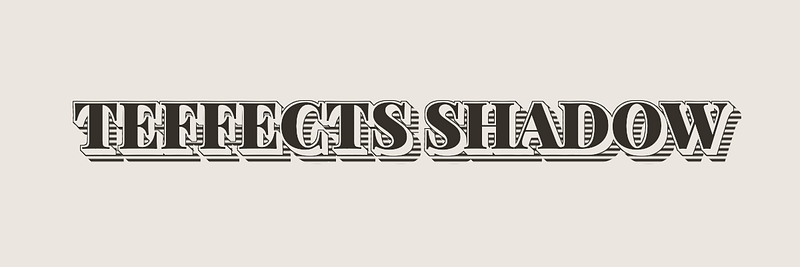
Shadow is inspired by Code School’s Styling Text with SVG (Second Shadow). It creates a PNG image with shadows behind the characters. The width and height are fixed to 1200 by 400px. It is suitable for one line with three to four words.
Options
You can change the background color using the -b option. Use a color name or hexadecimal code. Enclose the hexadecimal code with quotes, like -b "#eee". The default font size is 10 vw, but you can change it by using the -s option. Change the text using the -t option and enclosing it with quotes if you have more than one word.
$ teffects shadow -h
Usage: teffects shadow [options] [arguments]
Creates shadow styling texts. Limited to max 3-4 words. Width and height are fixed to 1200x400.
All parameters accepts --param value and --param=value form.OPTIONS DESCRIPTION
-l, --lower text-transform:lowercase
-b, --bcolor BCOLOR Background color. Enclose with quotes. Default: #ebe7e0
-d, --dir OUTPUT_DIR Output directory. Use an absolute path without a trailing slash. Default: teffects/outputs directory.
-s, --size SIZE Font-size. Use a number without a unit. Default: 10vw
-t, --text TEXT Your text to print. Default: Teffects SVG
-h, --helpExamples
The following code changes the background color, text, and font size.
$ teffects shadow -t "Teffects shadow" -b yellow -s 6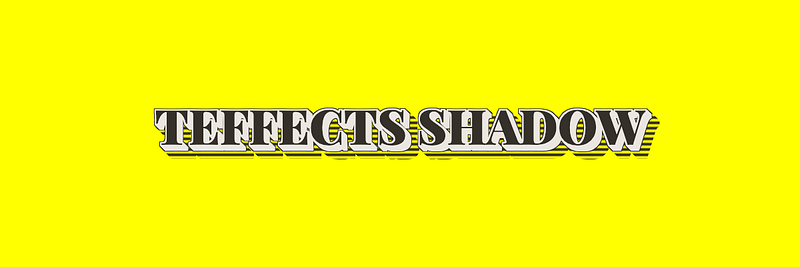
Pinchy
Pinchy is inspired by Bennett Feely’s Pinchy Type with CSS text-shadow. It creates a PNG image with interesting text-shadow and repeating linear gradient lines in the background. You can change the font size with the -s numberoption. The font size unit is in vw.

Options
You can change the alignment using the -aoption. The default alignment is center. The default size is 1600px by1200px and you can change them using the -w and -e options.
$ teffects pinchy -h
Usage: teffects pinchy [options] [arguments]Usage: teffects pinchy [options] [arguments]
Creates pinchy texts.
All parameters accepts --param value and --param=value form.OPTIONS DESCRIPTION
-a, --align ALIGN Text alignment. Default: center.
-t, --text TEXT Your text to print.
-d, --dir OUTPUT_DIR Output directory. Use an absolute path without a trailing slash. Default: teffects/outputs directory.
-p, --padding PADDING Container padding. Default: 100px. e.g. 50px 100px.
-s, --size SIZE Font-size. Use a number without a unit. Default: 10vw.
-w, --width WIDTH Image width. Use a number without px. Default: 1600px.
-e, --height HEIGHT Image height. Default: 1200px.
-h, --helpExamples
The following code creates a PNG image with the dimension of 1700px by 800px. The image is created in the Downloads directory.
$ teffects pinchy -t "Heading creater for programming articles" -e 800 -w 1700 -d ~/Downloads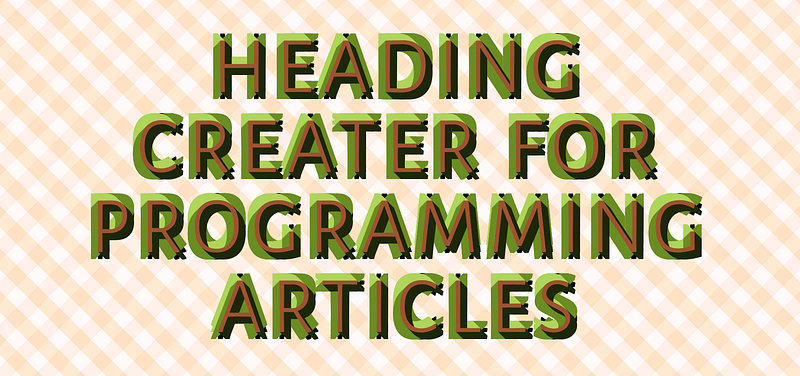
Conclusion
You can install Teffects with Homebrew and Awesome Package manager. A Debian's package is coming soon. Keep in touch choosing one of the following.
Get full access to every story on Medium by becoming a member.
