IMAGE GENERATION , MIDJOURNEY
An advanced guide to writing prompts for Midjourney ( text-to-image)
A detailed ‘cheat sheet’ and some keywords for improving image output by using better prompts
One liner on midjourney ?
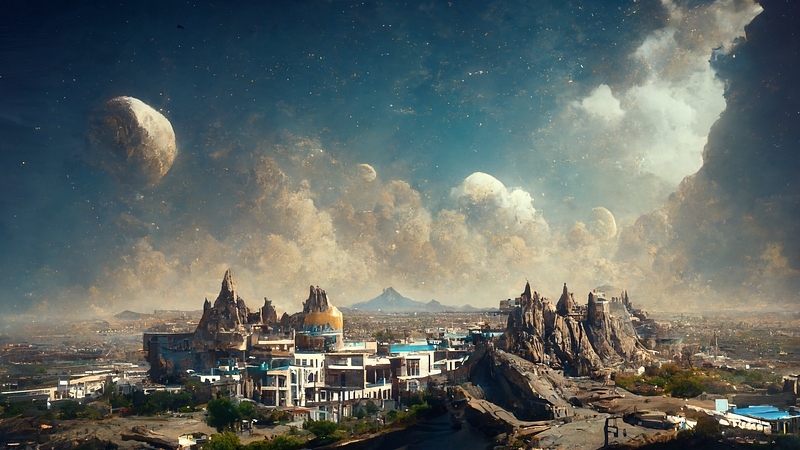
For those of you who haven’t heard about midjourney yet, here is a one line introduction : Midjourney is a text-to-image generation app similar to OpenAI’s DALLE-2 and Stable Diffusion’s DreamStudio , which uses tons of images (around 650+ million) found on the internet — to generate stunning images based on the text prompt provided. It is now in the beta phase — but is adding more features every week .. and the future is yet to be imagined ! ( Currently their AI engine is on v3 )
Raw prompt text
Anyone who has used the midjourney app knows that the more descriptive you are in your text, the more vibrant and unique the output will be. Users generally use raw and direct prompts like : ‘a cowboy wearing a tuxedo on the moon’ , would generate something like this :
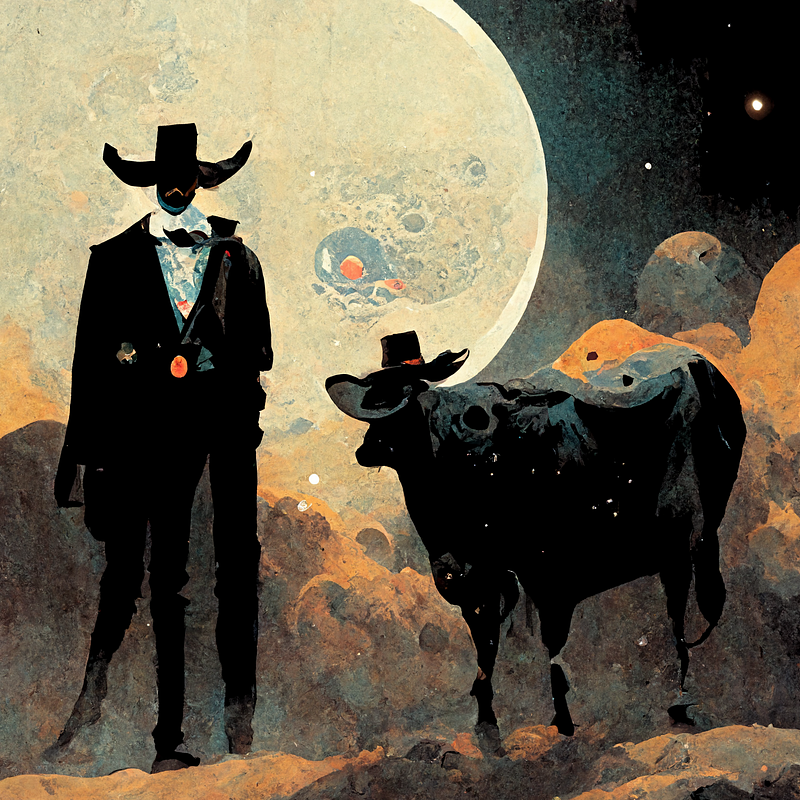
But there are more options than just the plain raw prompt text to create predictable and consistent image outputs !
Now getting directly on to advanced options list for text-prompts !
Here are some of the ways you can generate variations in images and some of the advanced settings for the same : (details on each of these settings follows the list)
- Providing keywords — ‘style’
- stylize
- chaos
- Resolution
- Aspect ratio
- passing an image as a prompt as URL
- applying weights to the image prompts
- weights to the word prompts
- filtering out words
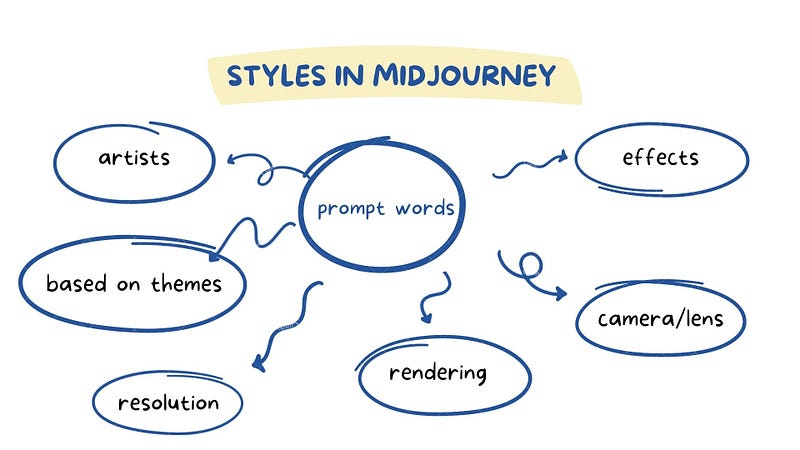
In a nutshell, your style is affected by the keywords of your choice — and you can specify what kind of styles you choose to go for — A broad classification of the style types are shown in this figure —
- Style — keyword
providing a set of supporting prompt keywords associated with “styles” can create different outputs based on what kind of style you opt to choose. Here are some of the keywords and sub-types based on the artform/design/artist/ genre you might want to choose as styles :
- using design/genre as style
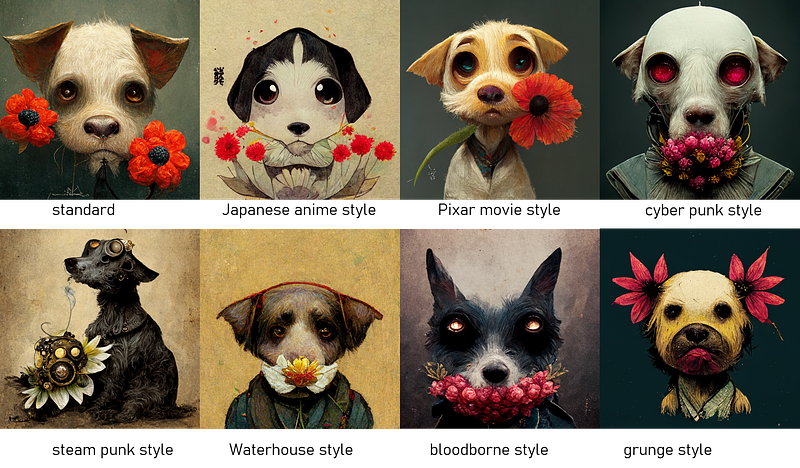
- using artist name as style
You can also specify the artist as your style output . Some samples to the same prompt are shown below
/imagine horse galloping at sunset painting Andy Warhol style
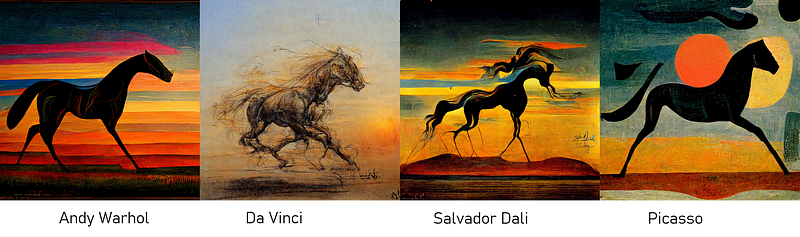
- using the rendering/ lighting properties as style
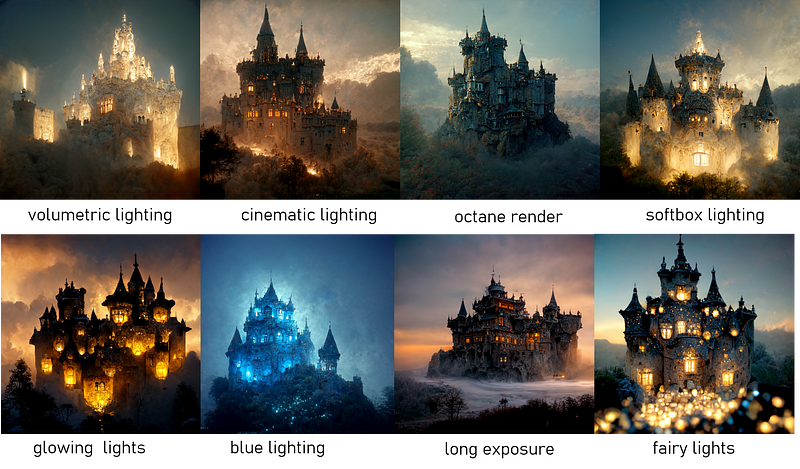
2. stylize the output
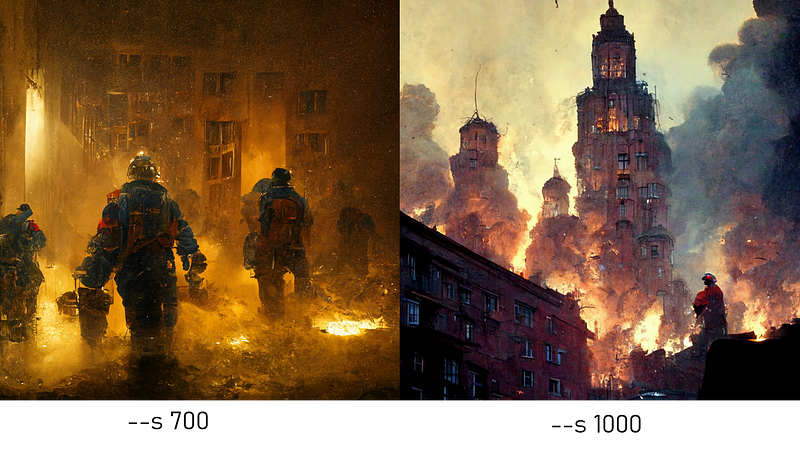
You can add the setting--s <some number>( denoting style )
The following images are from the same prompts — with low and high stylize option.
/imagine firefighters --s 600
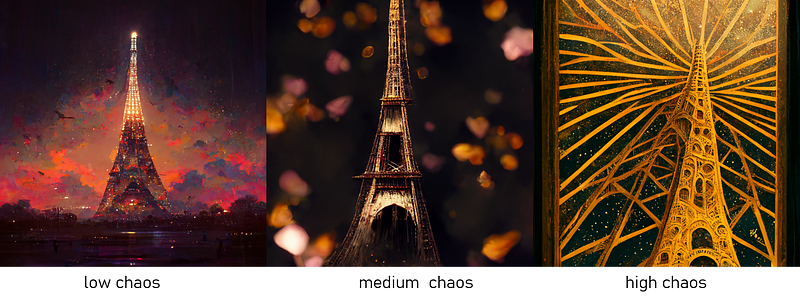
3. chaos — Increase the abstraction
Takes a number from 0 to 100 to increase or decrease the level of abstraction in the subject
/imagine Eiffel tower --chaos 60
4. Resolution
To specify the output resolution, you can use some of the usual keywords like 8K , 4K , photorealistic , ultra photoreal , ultra detailed, intricate details etc
Or you can go with the standard settings for predictable outputs hd and quality / --q are two such settings
/imagine red rose flower --hd
/imagine red rose flower --quality 5
5. Aspect ratio
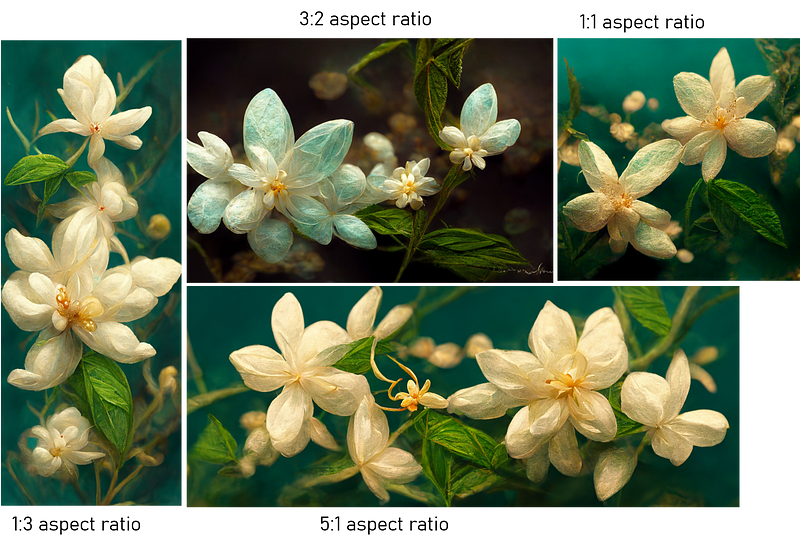
You can specify ratio of the width:length of your output image. This is called the aspect ratio. The default output is a square image (1:1 aspect ratio). But if you want a more cinematic view — or you just want to make a wall paper for your laptop, you can change the aspect ratio
/imagine jasmine in the wild flower --ar 4:3
If you want to specify a custom image size , use the following example
/imagine jasmine in the wild flower --w 600 --h 300
👉 You cannot specify your custom aspect ratios — but can specify some of the standard ratios and some non-standard too ! ( Here are some examples)
6. Image as a prompt
If you want to get some outputs similar to an image style , ( when you want to get consistent outputs ) across multiple images, pass a URL of the image
/imagine http://www.imgur.com/Im3424.jpg box full of chocolates
The image generated will take cues from both the seed image ( from the URL you passed ) and also the text prompts.
👉 You can give multiple images as prompts
👉 You can specify weights to the images ( see the next point )
7. Weights to Image prompt
If you want your output to be looking more like your prompt image ( see the previous point), give a higher weightage to that image (keyword : --iw <number>) .
/imagine http://www.imgur.com/ks34f24.jpg chocolates --iw:4
8. Weights to text prompt
/imagine wild animals tiger::2 zebra::4 lions::1.5
9. Filtering out words from your image
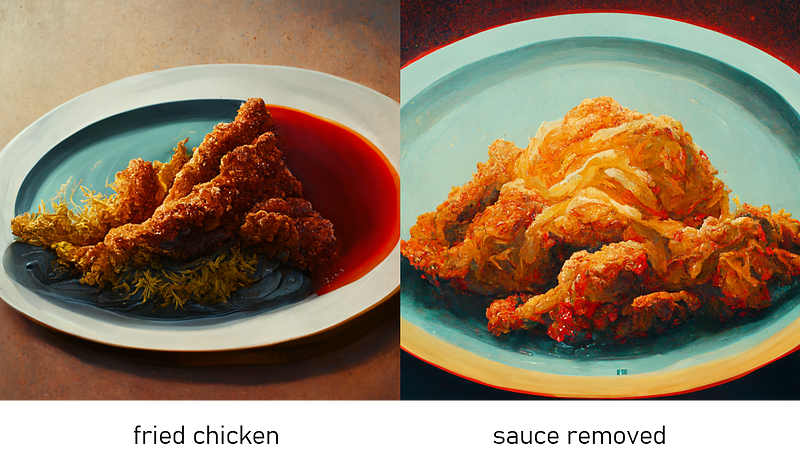
Use the --no keyword to discard any unwanted subjects popping in your
/imagine KFC fried chicken --no sauce
10. Finally, some interesting keywords you can try to use
* Sony Alpha α7, ISO1900, Leica M, = to specify any lens type or camera type * photorealistic , ultra photoreal , ultra detailed, intricate details, = to specify some possible details and a realistic look and less of artistic * unreal = to specify an unreal engine feel* volumetric light , cinematic lighting = to specify some lighting conditionsIn Summary
We talked about how you can get some degree of control on the kind of images you can get as output to your midjourney experiments . But its not quite done yet . There is a lot of room the good folks at Midjourney have left for your imagination and experimentation. Good luck with trying out different prompts and having fun with your creations.
Related Reference :
The Creativity of Text-to-Image Generation JONAS OPPENLAENDER, University of Jyväskylä, Finland https://arxiv.org/pdf/2206.02904.pdf
To experiment with some text prompts, here is an article with some extra-ordinary images generated by Midjourney — some sample images and corresponding text prompts to begin with.
Interested in similar topics ? Here are some links —
If you are interested in the use of AI in images/ graphics and design , here are some of my related articles —
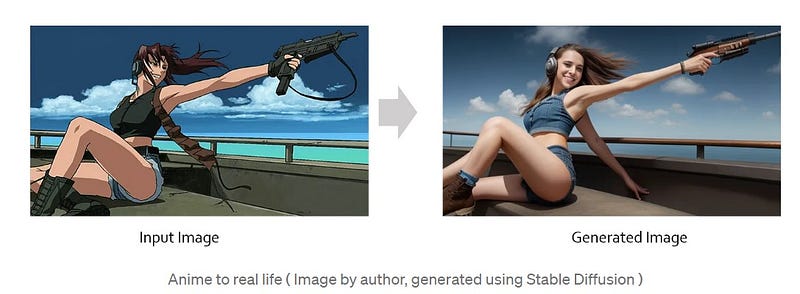
Have a look at a sample output, generated using ControlNets ..
2. Midjourney V5 is out . Find out whats new in v5 !
3. ChatGPT 4 !
Here are 10 great use-cases for a Machine Learning Engineer … and In case you would like to get the most comprehensive list of ChatGPT4 plugins, here it is !
4. Emulating Human pose in your output images using PoseMyArt
If you want to create certain desired human poses which you want to specify, read this article which will help you use ControlNets + PoseMyArt + Stable Diffusion to give very fine tuned control over your creations.
5. How to fix bad face generations in midjourney. ( using GFPGAN )
6. Are you following the craze about chatGPT ? 10 things a programmer can do with chatGPT.
7. lama-clean : An advanced Open Source Watermark remover
Coming Next ( watch this space … )
- How to create interesting prompts in OpenAI’s DALL.E 2 !