
7 Hidden Features You Didn’t Know your iPhone Already Had
Boost your iOS experience with these hidden features
It’s true people boast their iPhone possession in their peer groups. Most don’t even slap a hard case for it. Risky. And some use cases that leave a hole for the Apple logo to breathe.
Similarly, most of my Apple-newbie pals limit their iPhones to calls, internet, and boasts. They realise it too late they haven’t yet used dozens of amazing features Apple has hidden just beneath the surface.
Here are 10 of those amayyzing features they’ve learnt lately, and couldn’t stop using.
#1. Save milliseconds while you type a url 🌐
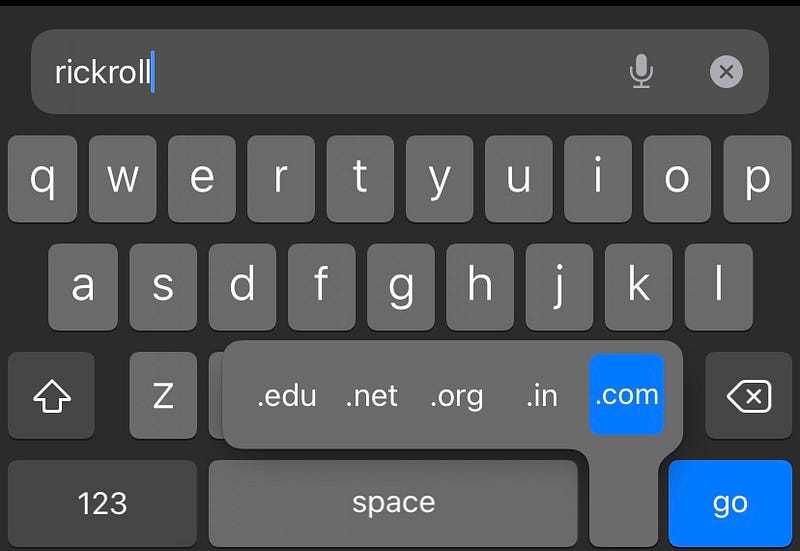
Typing .com takes a second for me. For experienced chatters, it would take half of that. For programmers, it would take still half of that.
However, it’s always good when we save time, anywhere. So lets make typing url suffixes faster, at least.
Next time after you type a domain name, just tap and hold on .
#2. Where is the signal good? 🗼
It happens when you visit a relative’s house, a new house, or a hotel room — and you don’t get enough signal to call or use internet. Heck. It’s annoying.
And then you furiously wander all the place to arrive at the best signal. But wait, here’s an iPhone-exclusive pal you can take along for your next wander.
Call *3001#12345#*
Don’t worry. No one will pick it up and ask, “Who’s this?”. I assure.
This pops up a hidden tool (caller FTMInternal-4) out of nowhere. Now go to:
Menu < Serving Cell Info (below RAT) < And find RSRP score.
FYI: RSRP — Reference Signal Received Power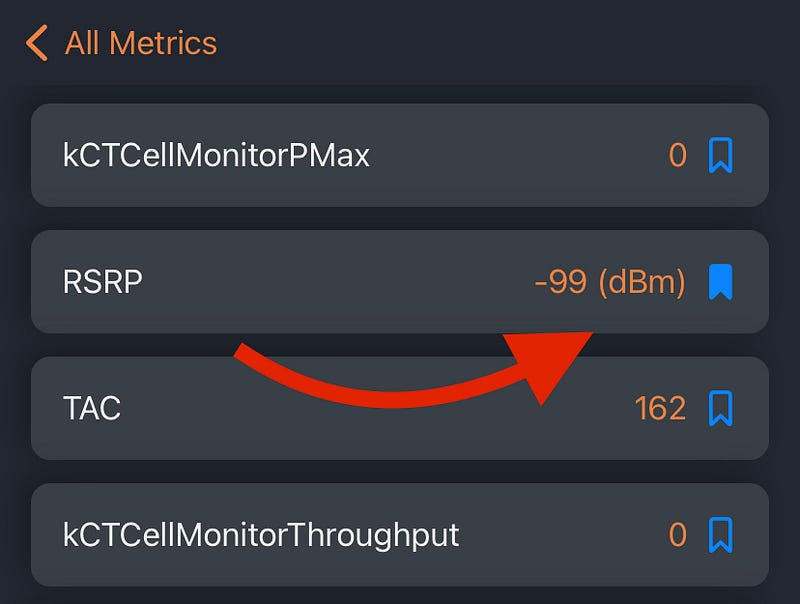
QUICK TIP: You can consider bookmarking it to bring it to the main dashboard for future comfort.A score of -51 indicates best signal, and -105 says no signal. Mine is -99 dBm now, which’s pretty much okay for drafting this article.
Happy wandering!
#3. Close multiple apps at once
I’ve fallen in love with iPhone’s multi-finger touch support. As I mentioned in my previous articles, you can drag and drop text, photos, and whatnot across apps using two fingers.
Now let’s level up the game. Not two. Not three. But four fingers at a time.
Disclaimer: Works only if your fingers are small enough, or if your iPhone is pro max enough. Else, try with lesser fingers. It works too.If you’re a multitasker who keeps dozens of apps open all the time, it sometimes feels satisfying to empty the app switcher to a clean slate.
But, did you know you can close multiple apps at a single go, rather than swiping up once for every app?
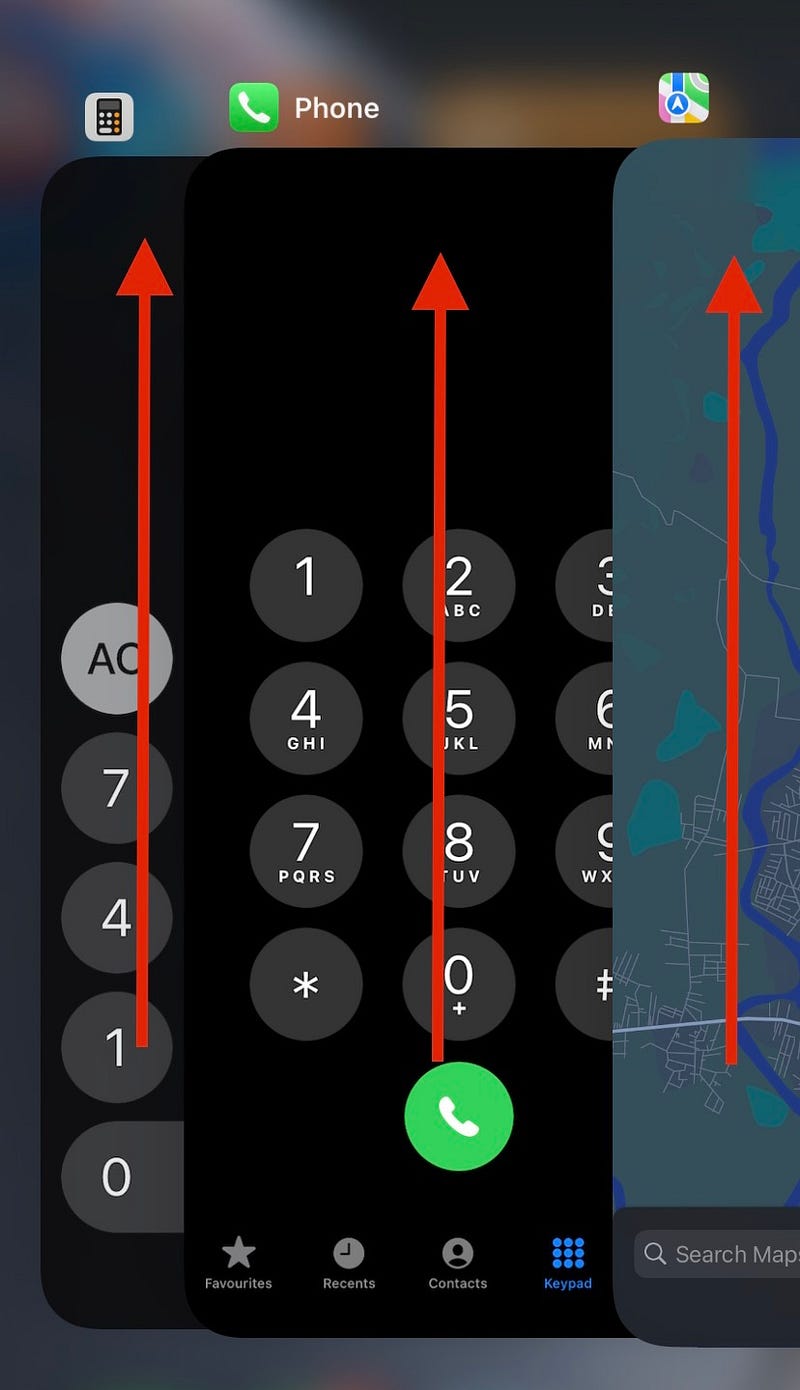
To do this, place your fingers gently on as many apps as possible (for me, three fingers on XR), and swipe all of them up! Keep doing it till all apps are closed.
And now your RAM’s got shiny clean.
#4. Where’s backspace in Calculator? 🔙
I once had to clear a 12-digit number in the default calculator due to a mistype my trembling fingers made. And I had to start the calculation all over again.
I’m sure you’ve been in my place before. The default calculator lacks a backspace button. And I thought Apple’s punishing us for being erroneous.
But gosh! I should have known this trick that day. Why does Apple bury nifty features so deep?
From now, if you ever need a backspace in your calculations, just swipe right or left on the number screen, and the last digit gets erased off.
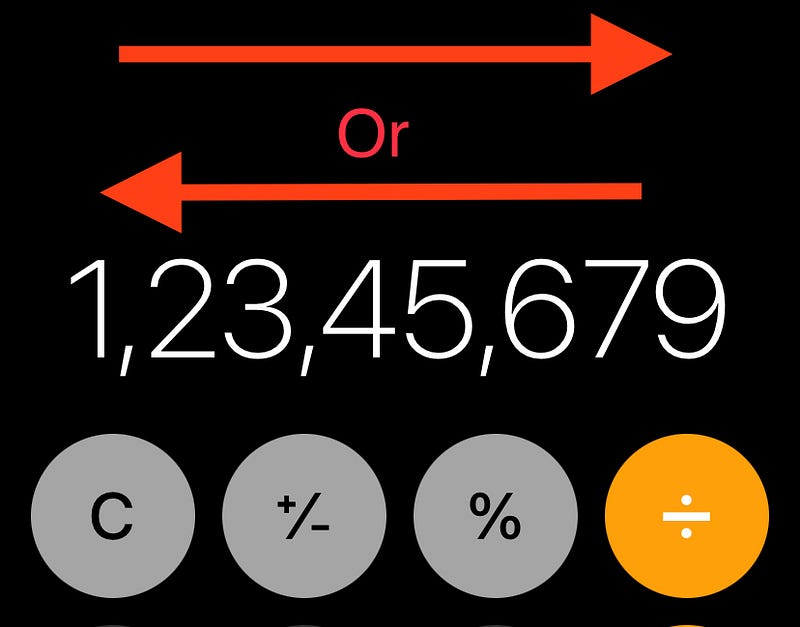
And hey! Now you can safely uninstall the third-party calculators you’ve installed for backspace.
Bonus tip:
To unleash all the superpowers of Calculator app, use it in landscape mode.
#5. Send more emphatic messages 🥹
Simple text wasn’t able to convey our actual emotions to the other person. Then, emojis arrived. And then, this amazing iMessage-exclusive feature has arrived.
With this, you can change the “weight” of a message.
Ex: Make a message invisible, gentle, loud, or slam it hard on the other guy’s screen
To do this, after you type your message, tap and hold the blue ⬆️ icon to get the options. Choose one and tap the arrow icon to send it.
Bonus feature:
In the same screen, swipe to Screen to find message effects like Echo, Confetti, Love, Celebrations etc.
#6. Find relevant emojis faster 🧐
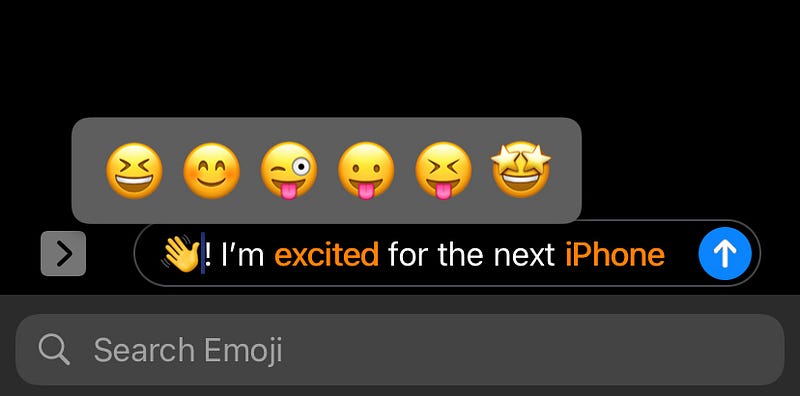
This is iMessage-exclusive too — but Apple must consider supporting it iOS-wide with iOS 16, hopefully.
After you type an iMessage, click the 😃 icon to open emojis. Now see if some words in your text get orange-d. Tap on them to find relevant emoji suggestions that replace the word when you choose one.
#7. Share screenshots faster 🔺
The only way most people use to share screenshots is: Trigger screenshot, click on it (bottom-left corner) and click share icon (top-right corner).
But let me reduce it by a step.

After you take a screenshot, tap and hold on it for a while, and leave it (don’t drag). This will open up the share prompt. And you already know how to share.
Also, you can embed it in notes, iMessage, or mail it by dragging and dropping it in the appropriate place. — Hold it with a finger and open the preferred app with another finger.
Bonus feature:
Swipe it left to let it go away faster.
Conclusion:
If you’ve observed well, simply tapping and holding on buttons has unveiled many hidden features. Just by doing that (as a hobby), I’ve discovered many such things on my own.
Next time you’re free, try this everywhere on iOS and I’m sure you’ll discover many features you haven’t used before.
If you liked this story, you might also like:
Get notified via email whenever I publish. Join 60+ others!
Not a Medium member yet? To get unlimited access to all stories on Medium, Sign up now!
(It’s an affiliate link so I receive a portion of your payment, with zero extra cost for you.)


