
Two Practical Ways To Lock Apps On Your iPhone
Subtly funny — But they still work
As Apple hasn’t yet provided a way to lock apps with Face ID or passcode, we have no other way, except for the secret path in Shortcuts.
Many people I’ve seen underestimate the power of the Shortcuts app. They treat it on par with the Stocks or Measure app which they never use but still can’t uninstall.
However, Shortcuts such a useful app that makes all your time-hogging tasks faster and automated. And if you aren’t using it, you’re missing something great.
With the same app, I’ve figured out two ways to prevent other people from accessing vital apps. (Thanks to iReviews)
It all started when my pals asked for my iPhone saying they needed to talk to someone — but got to secretly know my semester GPA which I didn’t reveal. Ohh god! They knew it.
And the next semester, they weren’t able to. <Evil Smile>
Here’s what I did.
#1. Switch app immediately
This is a simple, but a robust way that never allows anyone to use a preselected app.
To do this,
- Go to
Shortcuts app < Automation 🕰 < Click on +. - Click on
Create Personal Automation < App - Choose the app(s) you want others to stay away from, and click
Next. - Click on
+ Add Action, search forOpen App, click on it. - Choose a non-vital app (like Calculator). This app will open up whenever someone opens the vital app.
- Click
Next, uncheckAsk Before Running, and clickDone.
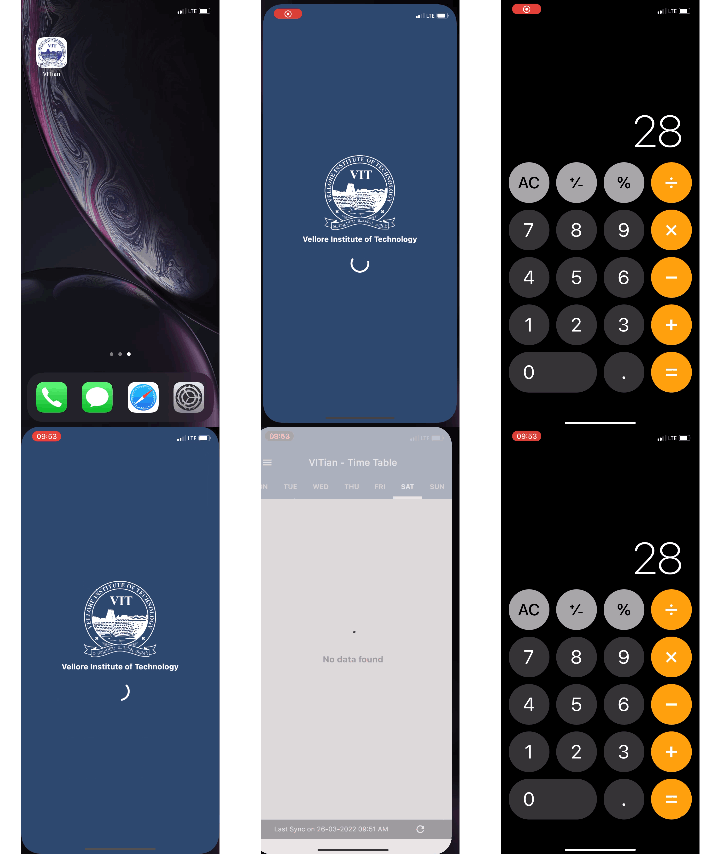
Ta da! It’s done! Here’s what happens now whenever someone repeatedly tries to open the vital app.
Gifs by the author
#2. Lock app with Face ID or Passcode
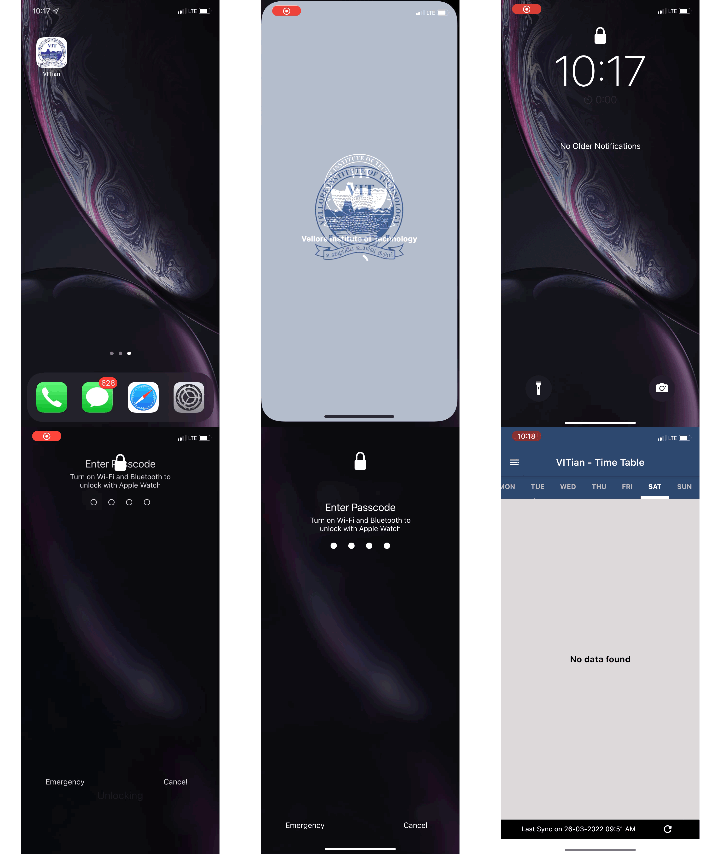
This locks the iPhone whenever someone opens the preselected app. And the app works only after you unlock it.
For this,
- Open
Clock app ⏰ < Timer ⏱. - Click on
When Timer Ends, selectStop Playingat the bottom, and click onSet. - Close the app.
- Now, open
Shortcuts app < Automation 🕰 < Click on +. - Click on
Create Personal Automation < App - Choose the app(s) you want to lock, and click
Next. - Click on
+ Add Action, search forStart Timer, and set it to 1 second. - Click
Next, uncheckAsk Before Running, and clickDone.
Now, as soon as someone opens the vital app, here’s what happens.
Conclusion
This is just a glimpse of what Shortcuts can do that the native iOS settings can’t do.
If you want more, you can visit the gallery in Shortcuts app, which have hundreds of automations tailored just for you. They never failed to amaze me.
If you liked this story, you might also like:
Get notified via email whenever I publish. Join 50+ others!
Not a Medium member yet? To get unlimited access to all stories on Medium, Sign up now!
(It’s an affiliate link so I receive a portion of your payment, with zero extra cost for you.)


