
7 Features Of Apple Notes That Would Never Let You Ditch It
Seemingly simple, yet great functionality
I lately discovered my pals have been uninstalling the default notes app from their iPhones, and using third-party note-taking apps, claiming they’re better.
However, that’s only because those apps advertised their features a lot. Thus they make the simple-looking Apple’s default notes app appear comparatively inferior. So,
Let me tell you 7 hidden features in the Apple Notes app so you may consider giving it a second chance, if you’ve uninstalled it too.
#1. You don’t need to open Apple Notes app at all
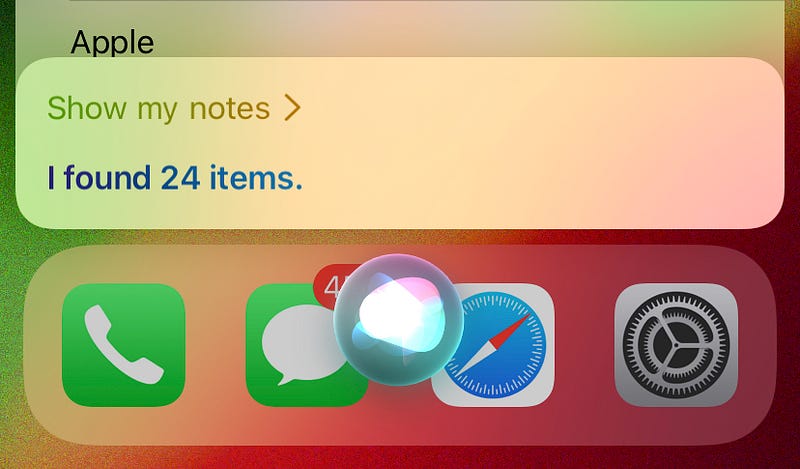
If you ever need to open a note in Apple notes, you don’t need to go to Home Screen → find the Notes app → and then open a note. That’s a long process.
Just say, “Hey Siri! Show my notes.” And all your notes appear on the screen at once, even without opening the app.
Try it now!
#2. Create a note with Siri
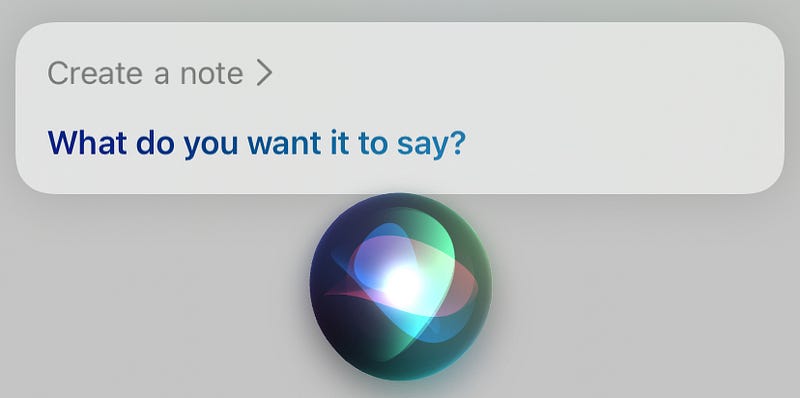
While Siri behaves reticent with third-party apps, it effortlessly integrates with Apple’s own apps.
Next time when a great idea hits your mind, don’t wait. Say, “Hey Siri! Create a note.” And tell it your idea.
Don’t worry. Siri keeps secrets.
#3. Add a notes shortcut in Control Centre 🎚
Creating a little shortcut for frequently used apps in the Control Centre helps you not open the app everytime you need it.
To add Apple notes shortcut in Control Centre, Go to: Settings ⚙️ < Control Centre 🎚 < Click on ➕ beside Notes 🗒 . Done? Now,
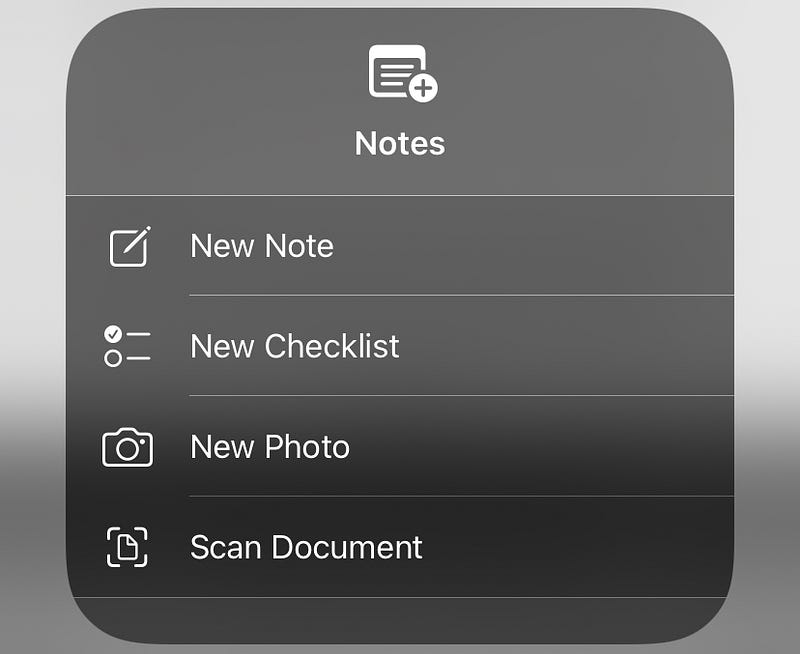
Click on the shortcut anytime you want to create a new text note. Or, if you want to start with more options, just click and hold on it.
#4. Folders, Tags, and Smart Folders
Folders 📂
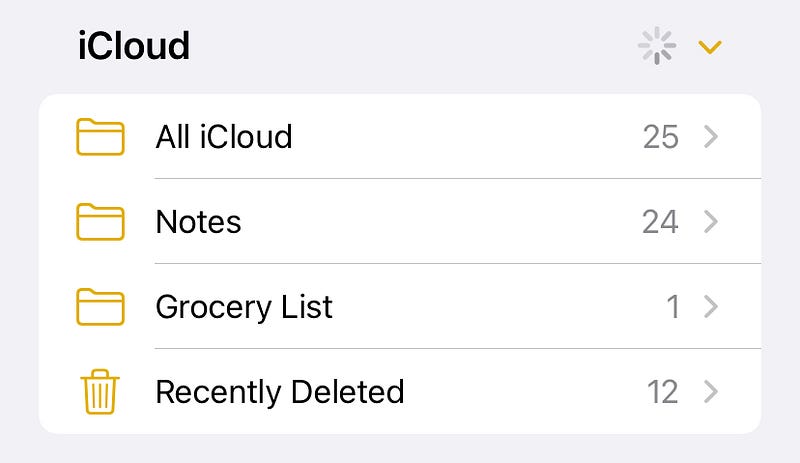
Folders make it easy to organise things — not only on our desktops, but also in our note-apps.
Apple Notes enables you to create folders and add notes into them, so they’ll be better organised, than a random mess of notes here and there.
You can also pin important notes at the top.
Tags #️⃣

Hashtags have become a vital part of our entertainment. For example, if you’re interested in pets, you simply search for #pets on Instagram to view all the posts on them. Right? They help us easily classify things.
Same way, if you put hashtags like #groceries anywhere in the related notes, they’ll all appear when you search for the hashtag.
Smart Folders 🗂
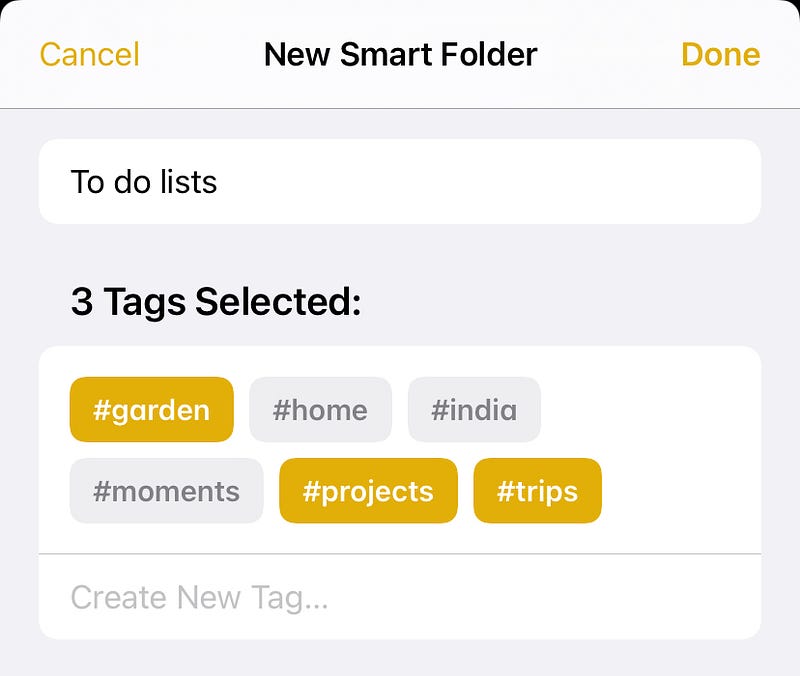
When you create a Smart Folder, you’re prompted to attach one or more hashtags to it. And then all the notes having at least one of those hashtags will be added into the Smart Folder.
Thereby, better organisability.
#5. Add quick notes from Mac 👨💻
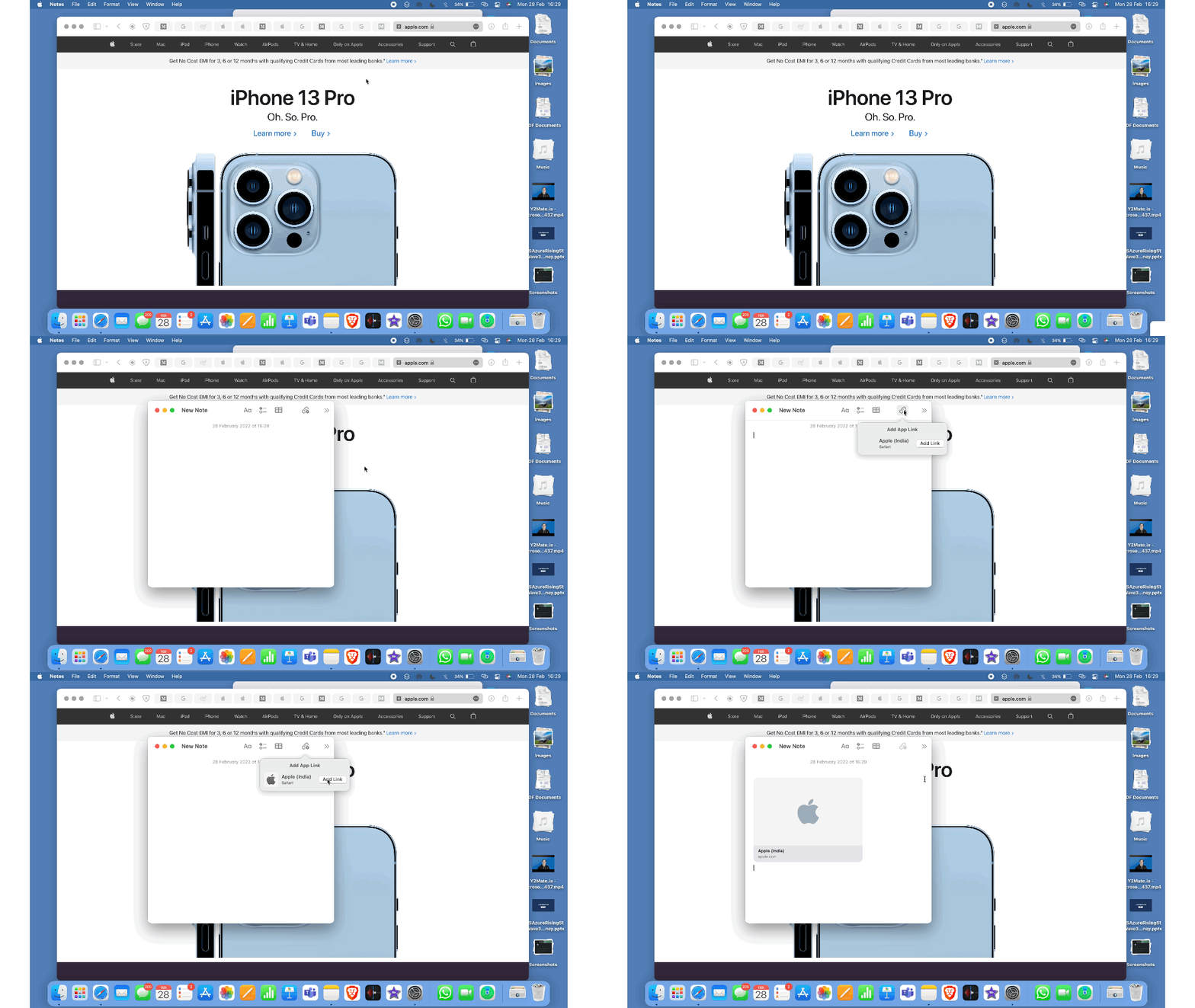
Do you own a Mac? Is it on macOS Monterey? Then get the mouse pointer to the bottom-right corner of the screen, and see if something peeps up. Click on it, and it’s the quick note feature.
Anytime you need to jot down something quickly, just do that. Or else, you can also use fn 🌐 + Q shortcut for it.
If you’d like to move the quick note feature to some other corner, go to Settings ⚙️ < Desktop & Screen Saver < Screen Saver < Hot Corners and do it there.
#6. Take handwritten notes
If you have an Apple Pencil, or if you’re okay with your fingers, handwritten notes could be the best way to take notes.
Apple has hidden a magic here too.
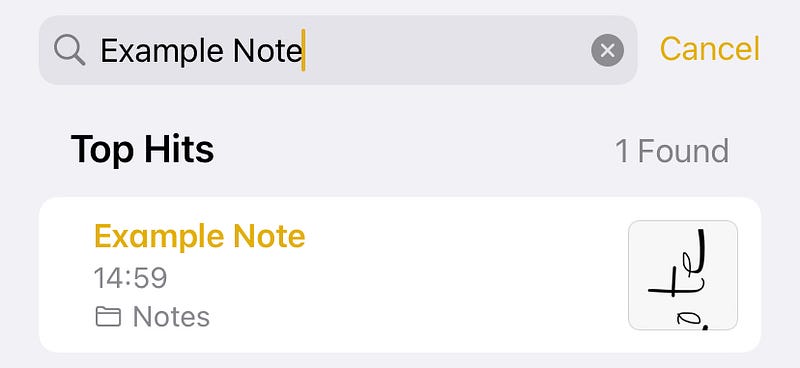
After you take it down, your handwritten note undergoes OCR (Optical Character Recognition) completely offline, so your iPhone could understand what you’ve written.
So from next time, you’ll be able to search, yes search for the note.
#7. Collaborate
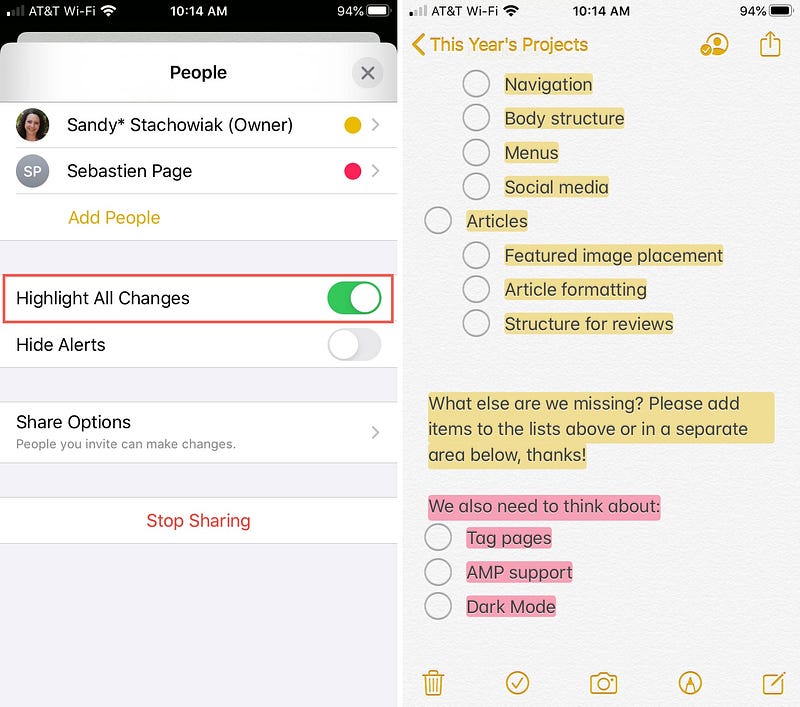
My pals have got obsessed with Google Docs. Every time I say we’d collaborate for a project report, they send me a G Docs link.
I ask, “Why don’t we simply use Apple notes for the job?” Because,
Apple Notes enables collaboration with people. All you need is to send links or directly add people with Apple IDs. Here are some features of collaboration that might awe you.
You can
- choose to make a note editable or read-only.
- view the activity of a collaborator and all the edit-history along with dates.
- mention a collaborator — just type somewhere @ followed by their name. This will also notify them.
- also collaborate on a folder.
- stop collaboration, add, or remove people anytime.
#8. Bonus hidden feature:
Automatically move checked items to bottom
If you’re a frequent shopper who finds it difficult to find checklist-ed things that are not purchased yet, you’ll greatly appreciate this feature.
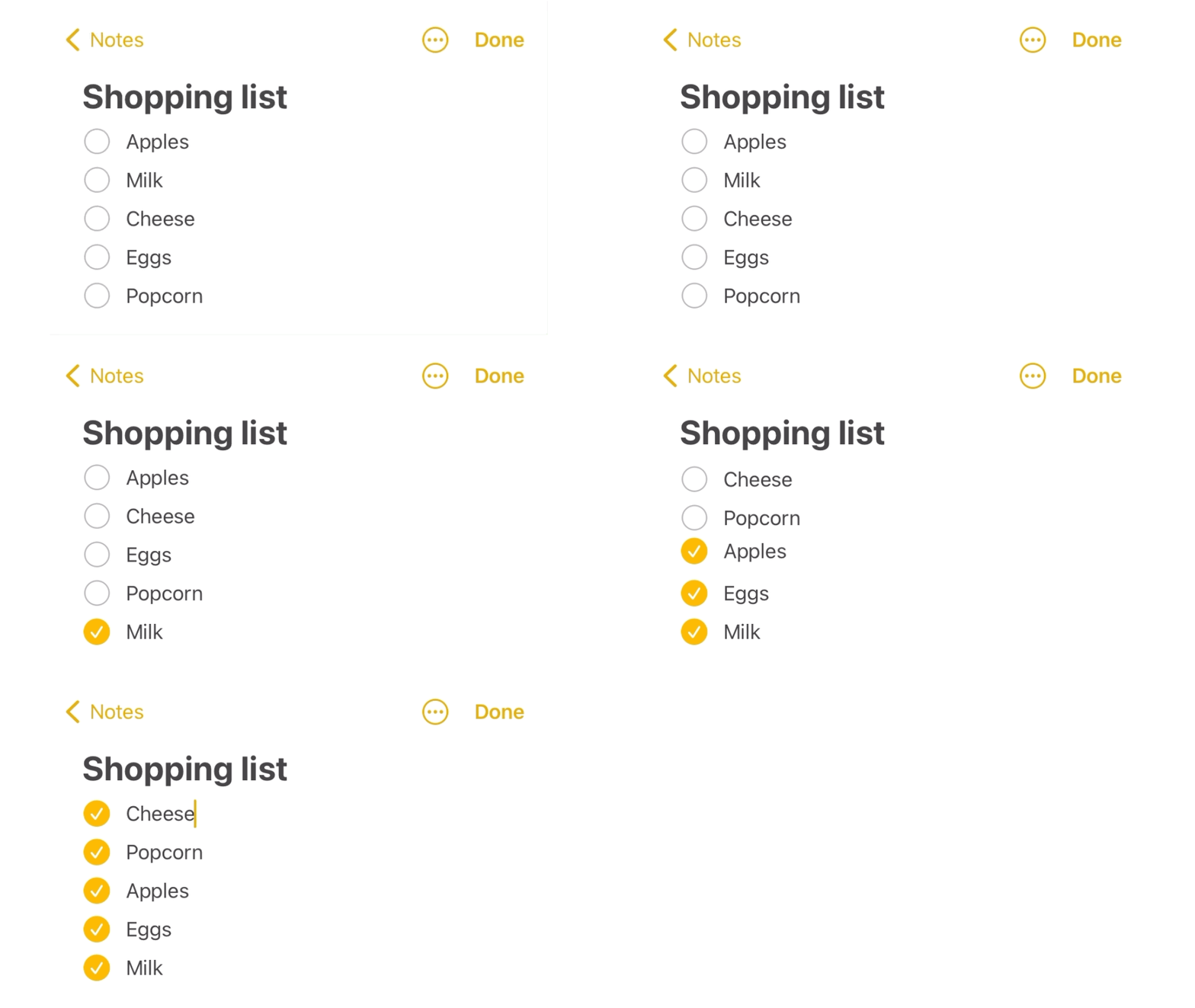
This hidden feature automatically moves checked items to bottom of the list, so unchecked items always stay bubbled up. In turn, making your shopping experience easier and faster.
To use this, go to Settings ⚙️ < Notes 📝 < Sort Ticked Items , and check Automatically . Happy shopping!
Conclusion
Every Apple-owned app has myriads of hidden features that we aren’t still using. I’m sure about that. Isn’t Apple Notes the perfect example for it?
However, the only drawback is that there’s no Notes app on the Apple Watch, which makes it difficult for me to dictate notes when my iPhone isn’t nearby. I hope Apple supports it in the upcoming WatchOS 9.
If you liked this story, you might also like:
Get notified via email whenever I publish. Join 40+ others!
Not a Medium member yet? To get unlimited access to all stories on Medium, Sign up now!
(It’s an affiliate link so I receive a portion of your payment, with zero extra cost for you.)


