
10 Minutes to Organise Your Mac Laptop and Keep it Clean
These 5 Easy Actions Will Make Your Mac Clean and Set Up for Productive Work
People often forget to remove old files and keep everything in the folders, which leads to a mess on the desktop, folders, browser, etc.
The following steps will help you make your workspace look good and clean, and you can focus on your work and other essential things.
Dock Organisation

Often, I see people keep too many applications in their docks. Sometimes, it may even be 20–30 apps. It sounds like a mess.
Dock is a bar that allows quick access to your favorite applications. It’s good to keep 5–10 apps to keep it clean.
To quickly open other applications, use the following shortcut, Command–Space, and then write the app’s name and click the Return button.
Additionally, by default, you can see recent apps in your Dock. I wouldn’t like it because it leads to a mess again. Open the following settings.
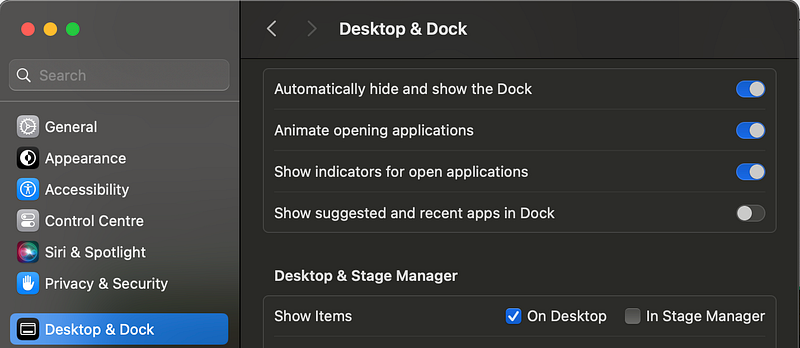
In the Desktop & Dock tab, select Show suggested and recent apps in Dock. After this, all recent apps will disappear from your Dock.
In these settings, you can also change the size and animation of your Dock.
Desktop Organisation
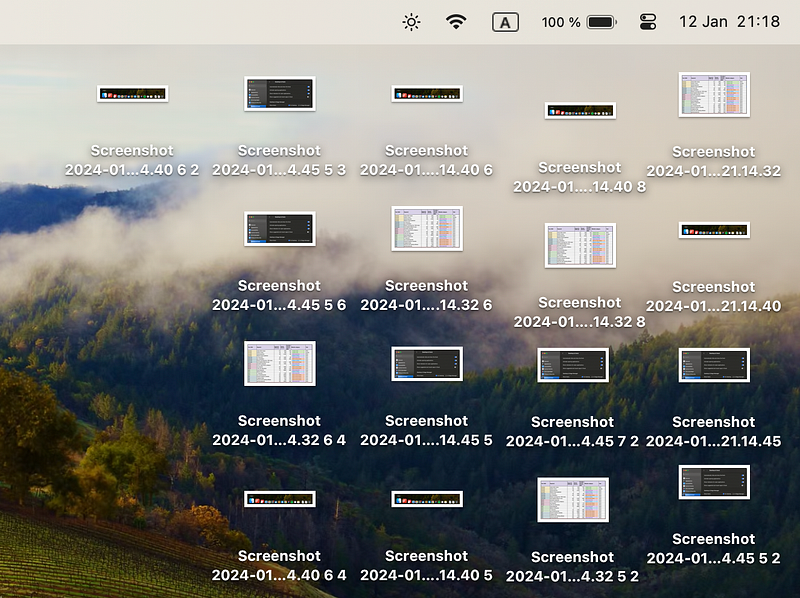
Another thing I often see on many laptops is screenshots and other files that never disappear.
Here, you have two options. The first one is to manually remove all files you don’t need anymore and create folders for them.
Another option for lazy people is to take the following action.
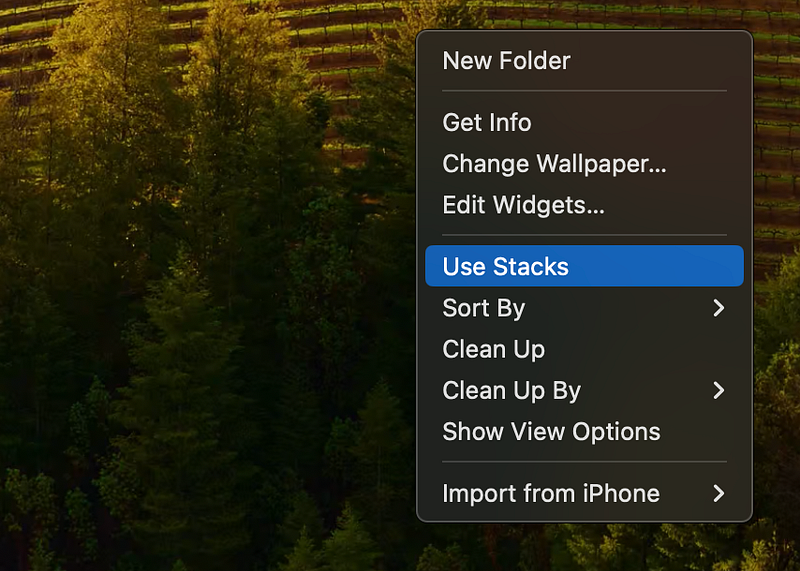
Right-click on your Desktop and then click on Use Stacks and Clean Up. After this, you will have the following look at your Desktop.
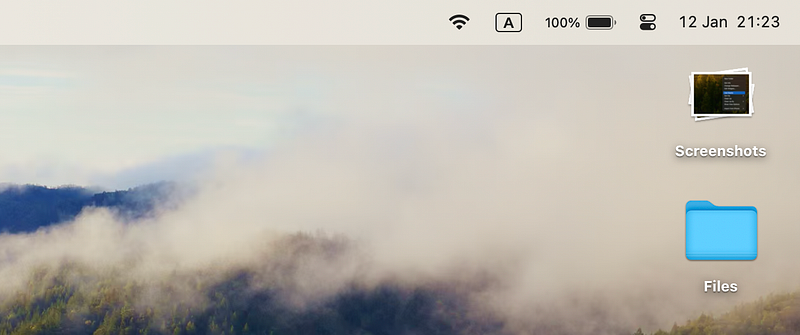
You see, now it looks much cleaner than before!
Finder Organisation
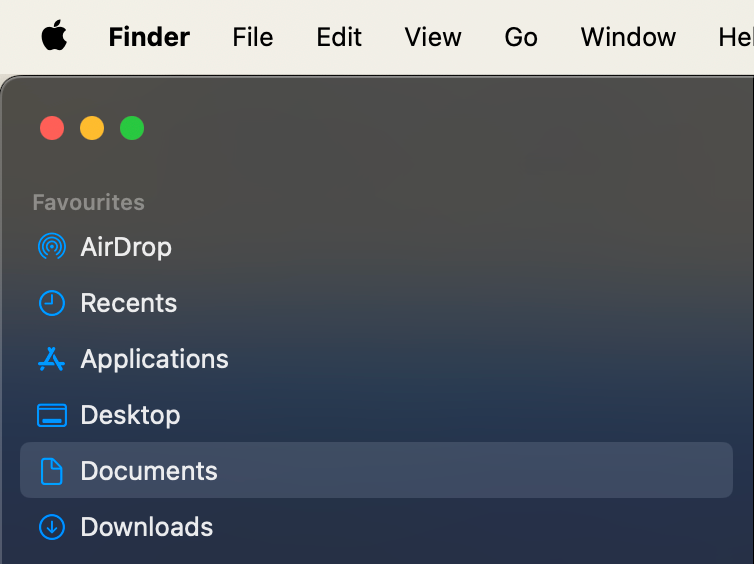
The best way to organize all your files is to keep them in folders. Mac OS has default folders that you can see in the left bar of the Finder app:
- Application
- Desktop
- Documents
- Downloads
The first action is to remove all unnecessary files and programs. Open the Applications folder and look through all the apps you have. If you see some apps you have installed previously and now don’t use, remove them by dragging them to the Trash in the Dock.
Then go to the Downloads folder and look through all your files. Usually, we have gigabytes of different files stored in this folder. Find the files you need and move them to the Documents folder. All other files are better to remove.
The desktop folder should be clean as well. If you still need to work on this folder, go to the previous section of this article: I have written a helpful guide for you on the organization Desktop there.
The latest folder is Documents. Here, you keep almost all of the files from your Mac device. Try to create a clear structure of your file system and organize all files in the best way, saving them by categories:
- Work
- Study
- Photos
- Projects
Launchpad Organisation
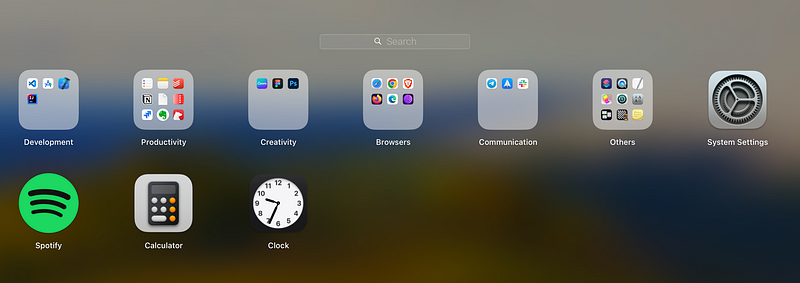
The launch pad is where you can see all folders and apps on your Mac. Usually, people have a mess here as well.
My strategy here is the next:
- Keep similar programs in separate folders
- Often used apps are kept just in Launchpad
- All other apps move to the Others folder
I’ve seen another good approach on my friend’s laptop. He uses several screens for Launchpad to keep different programs on different screens.
You can use any approach that is better for you. But as I’ve tried both, the cleaner and less space it takes, the better it’s for the user.
Browser Organisation
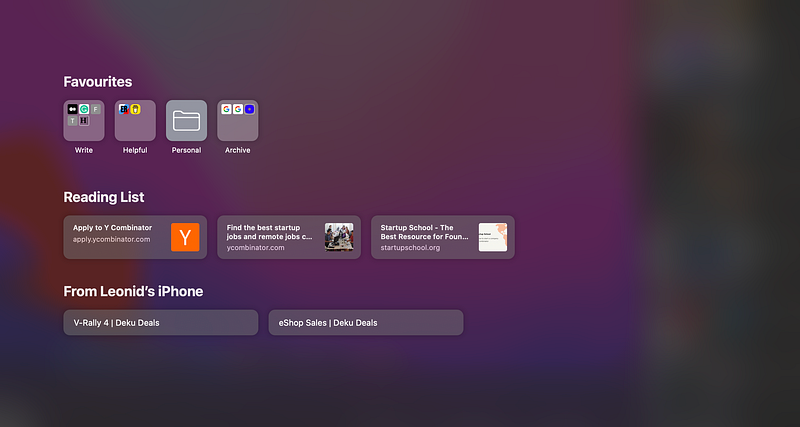
It depends on the browser, but the primary approach is the same. All browsers have a home page with folders and favorite tabs.
For Safari, you have the following options. First, you need to turn off sections you don’t need. It’s easy to do by clicking on the button in the bottom-right corner.
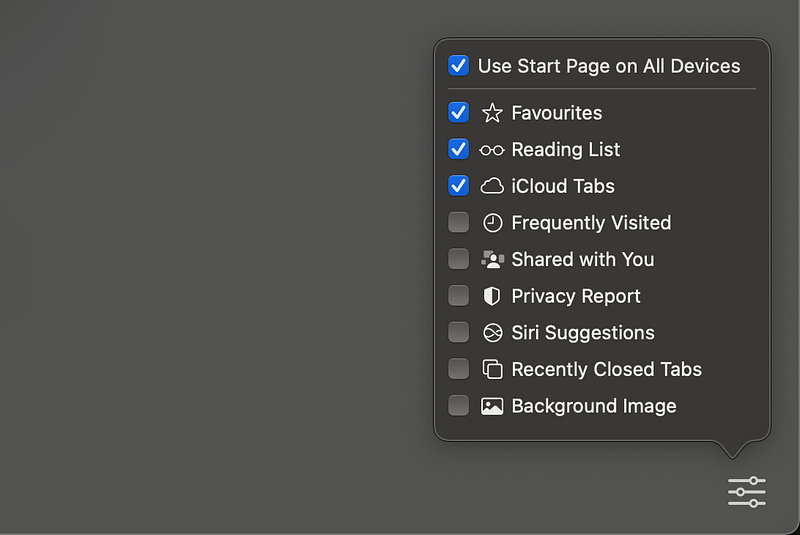
Here, you can see all possible sections on your start page. I use Favourites, Reading List, and iCloud Tabs to see what’s opened on my other Apple devices.
You can add other sections that you like from here as well.
After this, it’s good to organize your favorite tabs by folder. It’s easy to do by clicking the top-left button and selecting their bookmarks.
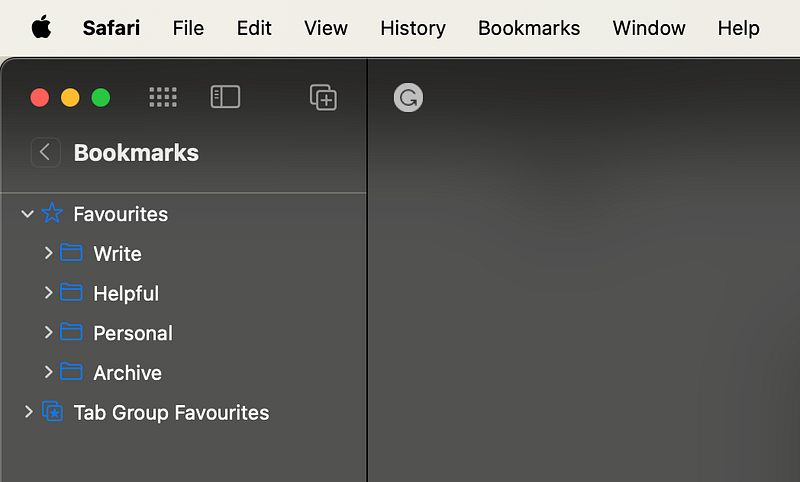
Here, you can add, remove, and rename folders and links. Then, you can add, remove, and rename files in these folders. It is accessible in the same way as in the Finder app.
Summary
Your laptop is the workspace where everything should be in a clean order. Refrain from overloading your head trying to find important information among all the other files, links, tabs, etc.
Use this guide to clear your workspace and have a laptop ready for work without anything else that will take your time and energy instead of pushing you to productive work.


