
When You Can’t Connect to pfSense or the Internet
Methodically troubleshooting things that could go wrong
~~~~~~~~~~~~~~~~~~~~~~~~~~~~~~~~~~~~~~~~~~~~~~~~~~~~~~~
⚙️ Check out my series on Automating Cybersecurity Metrics | Code.
🔒 Related Stories: Network Security | pfSense | Cybersecurity
💻 Free Content on Jobs in Cybersecurity | ✉️ Sign up for the Email List
~~~~~~~~~~~~~~~~~~~~~~~~~~~~~~~~~~~~~~~~~~~~~~~~~~~~~~~
I spent far too long on a simple dumb thing today so of course I’m going to write about it. It’s a good idea to test out and configure these options before you need them…I had some issues with newer devices but luckily had an older one hanging around.
Here’s the thing. Sometimes you can’t log into pfSense at all and you don’t know why. There are a myriad of things that may be causing that problem and you have to take a methodical approach to stepping through all the possible things that might be causing it.
Restoring from a backup
Did you just change something?
Ding! Ding! Ding!
We have a winner. Likely the change you just made caused the problem.
In this case, the best thing to do is restore a prior configuration.
If you have access to the administrative UI you can restore a prior configuration from there.
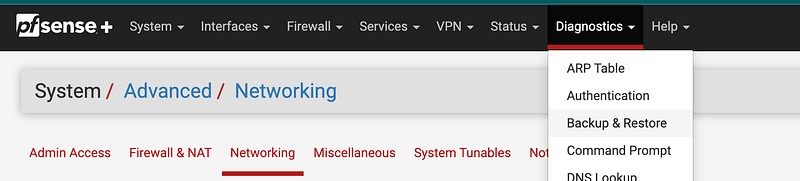
Navigate to: Diagnostics > Backup & Restore
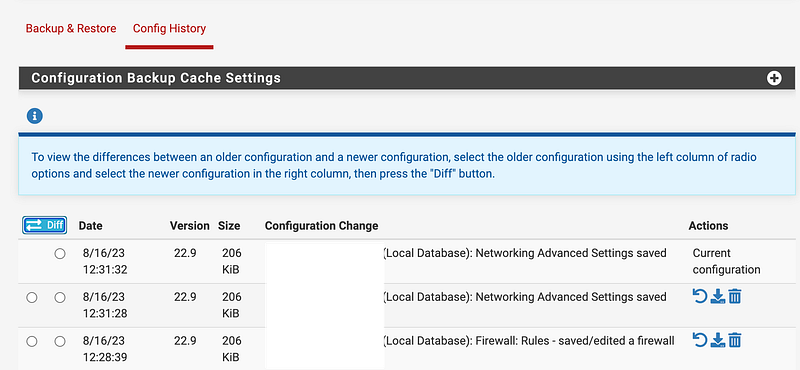
Click on Config History.
Here can see a list of changes and the related configurations. You can restore a configuration, download a configuration, or delete a configuration. You can also see who made what changes.
But what if you cannot get to the console? How can you fix the problem? In that case you’re going to need to directly connect to the device that is hosting pfSense via a cable that allows you to get to the pfSense terminal widow.
If you decided to use open source to try to host pfSense you’re on your own. If you purchased a device from Netgate I can help. I wrote this summary post for connecting via a Mac as I find the instructions a bit wordy but I always forget the commands to execute — so I put them right at the top of the post.
Now here’s the interesting thing. I followed those instructions on a different laptop today than I normally use for this purpose and I couldn’t install the necessary drivers. Luckily I had an older laptop configured for this type of connection and I think that laptop is going to say right there in my network cabinet for future use.
Once you get into the terminal window interface you get a list of options, one of which is to restore from a prior configuration.
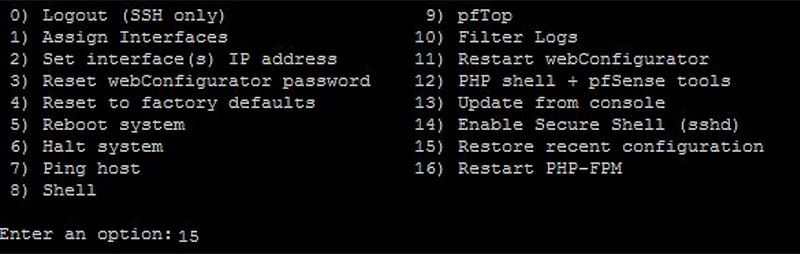
Enter the number 15 and Press Enter.
Next you’ll have the option to list all the backups.
Then you can choose the option to restore a prior configuration.
Enter the number you want to restore and press enter.
Wait for the process to complete. Then test whatever you were testing that was failing.
When you didn’t change anything
In my case, I didn’t change anything. I just woke up in the morning and my system didn’t work. Now at some point last night, some lightning struck and our power went off momentarily. I have surge protectors but who knows. Maybe something happened.
The other thing is, someone could have been DDOSing my firewall causing it to go down for a while, or maybe they were trying to hack into it. Or maybe my ISP made a change. Or maybe Suricata logs filled up the device and it croaked.
I haven’t looked at all the logs yet but something happened that made the console inaccessible to me. Without getting into the console, I couldn’t see the problem. So now why?
Well, first of all I wanted to make sure it wasn’t a problem with my ISP. They have this tool on their web site that tells you if anything is down in your area so I checked that, and Down Detector.
I did not find any problems there. So the next thing I did was to recycle all my equipment. You should probably gracefully shut everything down to avoid problems, but yeah, I cut the power. I then let everything start back up. I didn’t wait very long though. Maybe 10 seconds.
That didn’t solve the problem so the next thing I did was to plug my computer directly into the modem. That proved to me that my ISP was up because then I could get to the Internet with my laptop connected directly to the ISP.
I saw some issues with disk space so I cleared out a few files using the command line option (8) in the list above. I navigated to the logs and delete some of the older ones. I am not sure if that was really the problem. I still couldn’t get back to the web GUI.
Then I restored a prior configuration on the command line.
At this point, I could get to the pfSense console again. However, I could still not get to the Internet.
I took a look at the Suricata alerts and firewall logs to see if something was erroneously blocked and could not find any problems.
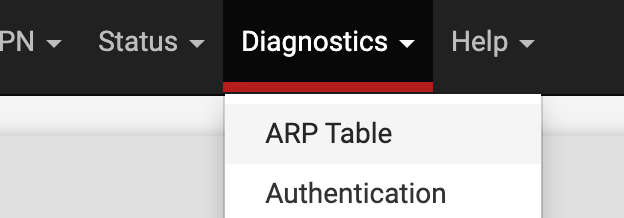
I cleared the ARP cache, you know, just in case. :-D
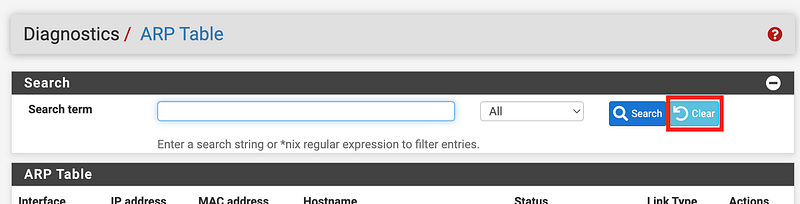
What I noticed, while looking at the configuration earlier, is that my WAN was not getting an IP address from the ISP. I also saw that my IP address when I logged in with a computer was different.
Here’s the thing. Some ISPs tie your IP address to a specific MAC address. Your laptop has a different MAC address than your pfSense device. The MAC address is really associated with the ethernet card used to connect to the Internet. I wrote about MAC addresses in network packets here.
So now my modem connected to the ISP has an IP address that is associated with the MAC address of my laptop and my pfSense device can’t get on the Internet because the MAC address is not the one the ISP is expecting.
To clear this up turned out to be very simple in the end. Once I figured out the problem, I simply unplugged the modem for about 30 seconds — much longer than I did originally when I simply turned the device on and off. After doing so, the ISP figured out that I was plugging in a different device behind the modem and everything worked again. I also got back the IP address originally assigned to the pfSense.
At least I think that is what solved the problem. In the middle of all this I had to take a consulting call and walk the dog. When I got back I recycled the modem and things worked again. So unless my ISP was doing something wonky that’s what solved the problem.
One other thing I noticed is that an update for my Netgate firmware was available. When updating devices there is the software that runs on the device that needs to get updated. There’s also something called firmware which is the software used to interact with the hardware provided by the manufacturer. You need to update both.
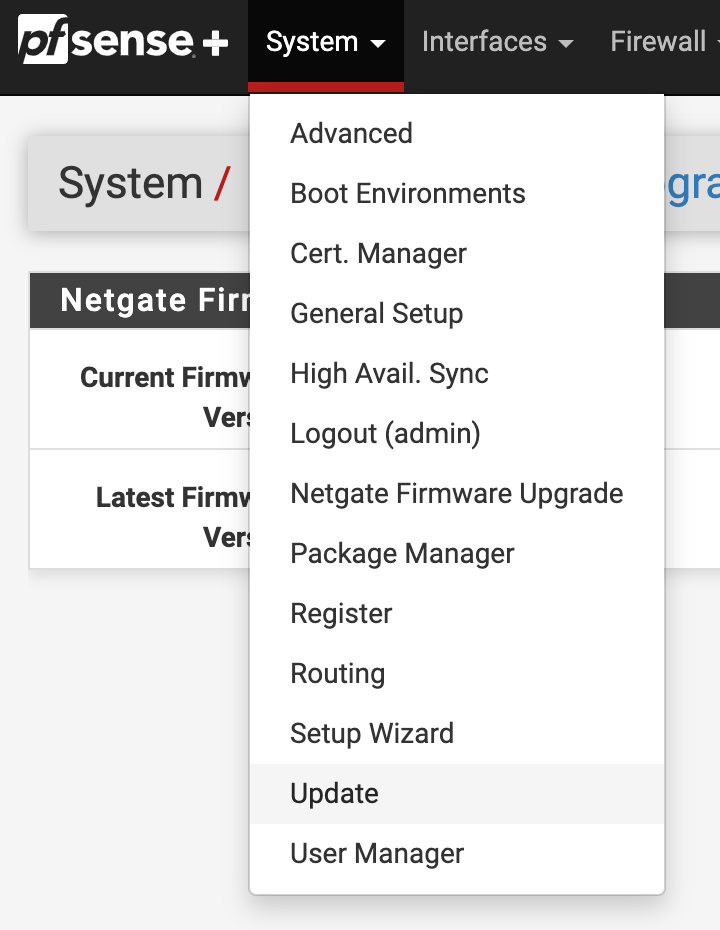
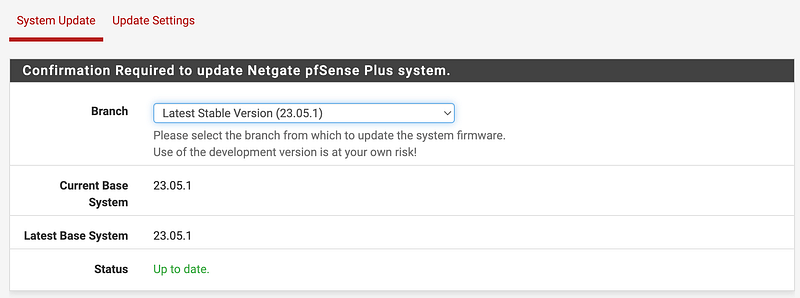
In pfSense you can navigate to System > Update to update the pfSense software:
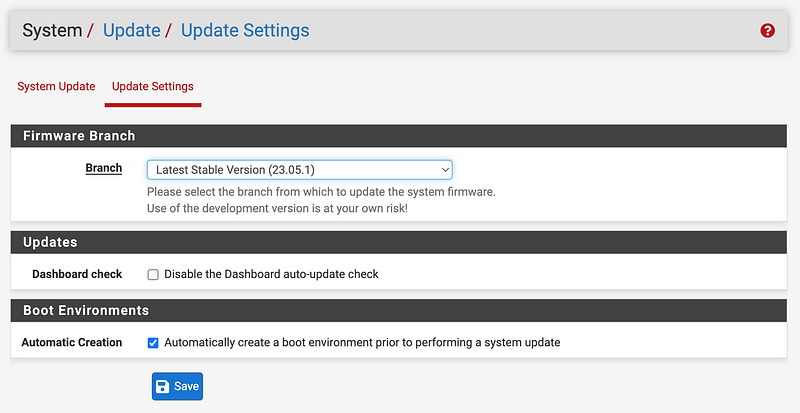
If you click up Update Settings you can control whether your system automatically updates or only when you specify.
To update the Netgate firmware, navigate to System > Netgate Firmware Upgrade.
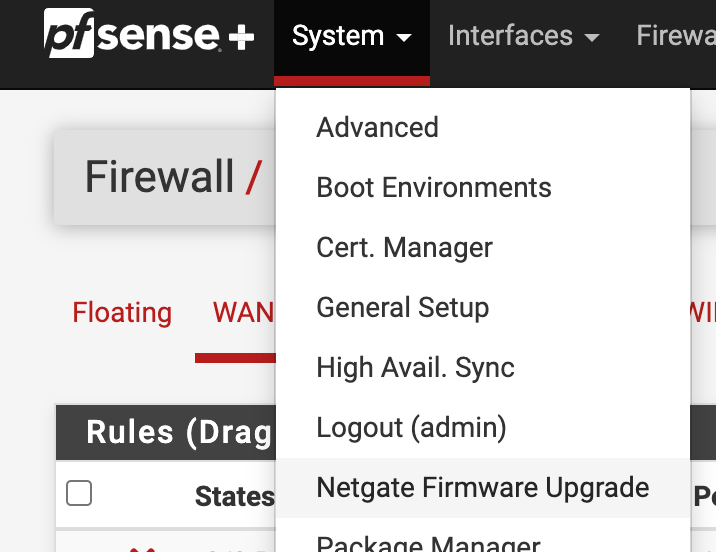
Follow the instructions, which in my case included waiting for the update, reboot, and then unplugging the device and plugging it back in again.
Follow for updates.
Teri Radichel | © 2nd Sight Lab 2023
About Teri Radichel:
~~~~~~~~~~~~~~~~~~~~
⭐️ Author: Cybersecurity Books
⭐️ Presentations: Presentations by Teri Radichel
⭐️ Recognition: SANS Award, AWS Security Hero, IANS Faculty
⭐️ Certifications: SANS ~ GSE 240
⭐️ Education: BA Business, Master of Software Engineering, Master of Infosec
⭐️ Company: Penetration Tests, Assessments, Phone Consulting ~ 2nd Sight Lab
Need Help With Cybersecurity, Cloud, or Application Security?
~~~~~~~~~~~~~~~~~~~~~~~~~~~~~~~~~~~~~~~~~~~~~~~~~~~~~~~~~~~~~
🔒 Request a penetration test or security assessment
🔒 Schedule a consulting call
🔒 Cybersecurity Speaker for PresentationFollow for more stories like this:
~~~~~~~~~~~~~~~~~~~~~~~~~~~~~~~~~~~~~~~~~~~~~~~~~~~~~~~~~~~~~
❤️ Sign Up my Medium Email List
❤️ Twitter: @teriradichel
❤️ LinkedIn: https://www.linkedin.com/in/teriradichel
❤️ Mastodon: @teriradichel@infosec.exchange
❤️ Facebook: 2nd Sight Lab
❤️ YouTube: @2ndsightlab