
Connect to pfSense Console on a Netgate Device from a Mac
Because I always forget and the instructions are wordy
One of my posts on pfSense and Netgate and Network Security and OS and IoT Security.
Free Content on Jobs in Cybersecurity | Sign up for the Email List
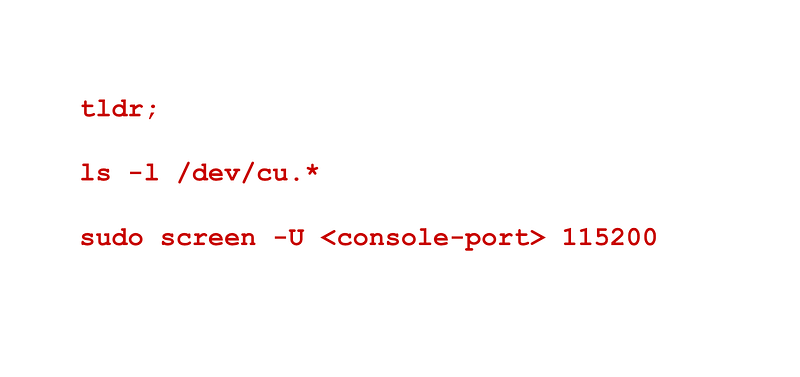
Sometimes you can’t connect remotely to a PFSense device for whatever reason. Maybe you locked yourself out of the admin console. That’s why I recommend connecting to the console when you are trying to make changes to your admin IP or port or change firewall access to your PFSense admin site.
You can plug a cable directly into the device and connect that way from the connected computer rather than over a network. That eliminates one source of connection problems: The network.
Install the driver.
From the documentation for a 3100: Install a Silicon Labs CP210x USB-to-UART Bridge
Plug in the USB cable.
My device came with a cable that has USB on one side and the proper connector for the 3100 on the other side. The documentation for a 3100 says: A regular USB Type A on one side and a USB-Mini-B (5-pin) on the other. The cable that came with another model is different.
Find the device (on a Mac):
Run the following command. Note that I did NOT install the driver on this laptop so it is not showing below.
ls -l /dev/cu.*
The documentation says the driver starts with this prefix:
/dev/cu.usbserial-<id>Run a screen command to connect
You can run a screen command like this, where <console-port> would be cu.usbserial-<id> (the value you found running the above command). Note that in the past, this value looked different. I think in the it used to have “UART” in the name. I don’t know if it changed because my device, the operating system, or the firewall changed.
sudo screen -U <console-port> 115200Once you login the terminal, you may simply see a blank screen. Just hit enter and you should see some output. You may have to login.
Troubleshooting connections
On an older device I seemed to get corrupted output. Then I tried to exit and reconnect but I got errors. I figured out that’s because even after killing the terminal window the connection is still there. The message says the device is “busy.” Supposedly you can use control-a to exit gracefully. That did not work for me. I simply rebooted the machine to terminate the connection and start over.
If the screen is blank double check the cable is plugged in properly. No really. Check. I checked one connection multiple times but I had two devices sitting next to each other. I didn’t realize that I was checking to see if a cable was plugged in both to my laptop and the device. They were. It’s just that I had a different cable plugged into each end. Oops.
Also, some people said a bad cable caused the problem.
Set a password
Tip: While you’re in there — you can set a password on the local console access on your device. Just remember what it is because at least for me, I only access the console once in a blue moon. You’ll want to be able to get in if and when you need it.
Follow for updates.
Teri Radichel | © 2nd Sight Lab 2023
The best way to support this blog is to sign up for the email list and clap for stories you like. That also helps me determine what stories people like and what to write about more often. Other ways to follow and support are listed below. Thank you!
About Teri Radichel:
~~~~~~~~~~~~~~~~~~~~
Author: Cybersecurity for Executives in the Age of Cloud
Presentations: Presentations by Teri Radichel
Recognition: SANS Difference Makers Award, AWS Security Hero, IANS Faculty
Certifications: SANS
Education: BA Business, Master of Software Engineering, Master of Infosec
Company: Cloud Penetration Tests, Assessments, Training ~ 2nd Sight Lab
Like this story? Use the options below to help me write more!
~~~~~~~~~~~~~~~~~~~~~~~~~~~~~~~~~~~~~~~~~~~~~~~~~~~~~~~~~~~~~
❤️ Clap
❤️ Referrals
❤️ Medium: Teri Radichel
❤️ Email List: Teri Radichel
❤️ Twitter: @teriradichel
❤️ Mastodon: @[email protected]
❤️ Facebook: 2nd Sight Lab
❤️ YouTube: @2ndsightlab
❤️ Buy a Book: Teri Radichel on Amazon
❤️ Request a penetration test, assessment, or training
via LinkedIn: Teri Radichel
❤️ Schedule a consulting call with me through IANS ResearchMy Cybersecurity Book: Cybersecurity for Executives in the Age of Cloud



