avatarTeri Radichel

Free AI web copilot to create summaries, insights and extended knowledge, download it at here

1963

Abstract

GA…</h3></div> <div><p>docs.netgate.com</p></div> </div> <div> <div style="background-image: url(https://miro.readmedium.com/v2/resize:fit:320/)"></div> </div> </div> </a> </div><p id="5e48">Before you change the port, <b>create a firewall rule to allow traffic to that port from the appropriate interface.</b> For example, you plugin a cable directly from your laptop to a specific port on the firewall device. That port is associated with an interface when you navigate to <b>Interfaces > Assignments</b> in PFSense. Perhaps you have named one of your interfaces associate with a port your ADMIN_NET. You can create a rule that allows the ADMIN_NET to access the IP address on which you access the firewall on a specific port number.</p><p id="b048"><b>Disallow traffic to that port on any interfaces that should not be able to access the management interface</b>. (e.g. the WAN interface or traffic coming from the Internet.)</p><p id="6bb5">Next, click the <b>gear icon of the anti-lockout rule</b> at the top of the firewall rules for the management interface.</p><figure id="9eca"><img src="https://cdn-images-1.readmedium.com/v2/resize:fit:800/1*pA8gQYnBlD6XuDSrCtTugg.png"><figcaption></figcaption></figure><p id="f0e6">Change the port for the management UI.</p><figure id="f5a5"><img src="https://cdn-images-1.readmedium.com/v2/resize:fit:800/1*UTHBrN_5K6RjZYahoSpTpw.png"><figcaption></figcaption></figure><p id="6b81">If you want to change the IP address with which the anti-lockout rule is associated you have a couple of options. One is to go through the start up wizard again.</p><p id="7c9c">Under the first top menu item click the start wizard option in the list.</p><figure id="c170"><img src="https://cdn-images-1.readmedium.com/v2/resize:fit:800/1*eDb-zzIM-OiRYRT_yb-M_w.png"><figcaption></figcaption></figure><p id="85ff">Go through the

Options

wizard and change the IP address for the device.</p><p id="b73f">Now you should be able to navigate to the PFSense firewall on the IP and PORT you selected with a URL like this:</p><p id="5814"><a href="https://[IP]:[PORT]">https://[IP]:[PORT]</a></p><p id="f240">If you disabled https (not recommended) you would use http instead of https.</p><p id="6ecb">Follow for updates.</p><p id="4a3a">Teri Radichel | <i>© <a href="https://2ndsightlab.com/?source=post_page---------------------------">2nd Sight Lab</a> 2023</i></p><div id="8b5f"><pre><span class="hljs-section">About Teri Radichel:

⭐️ Author: Cybersecurity Books
⭐️ Presentations: Presentations by Teri Radichel
⭐️ Recognition: SANS Award, AWS Security Hero, IANS Faculty
⭐️ Certifications: SANS ~ GSE 240
⭐️ Education: BA Business, Master of Software Engineering, Master of Infosec
⭐️ Company: Penetration Tests, Assessments, Phone Consulting ~ 2nd Sight Lab</pre></div><div id="caae"><pre><span class="hljs-section">Need Help With Cybersecurity, Cloud, or Application Security?
~~~~~~~~~~~~~~~~~~~~~~~~~~~~~~~~~~~~~~~~~~~~~~~~~~~~~~~~~~~~~</span>
🔒 Request a penetration test or security assessment
🔒 Schedule a consulting call
🔒 Cybersecurity Speaker for Presentation</pre></div><div id="5a42"><pre>Follow <span class="hljs-keyword">for</span> more stories like <span class="hljs-keyword">this</span>:

❤️ Sign Up my Medium Email List ❤️ Twitter: <span class="hljs-meta">@teriradichel</span> ❤️ LinkedIn: https:<span class="hljs-comment">//www.linkedin.com/in/teriradichel</span> ❤️ Mastodon: <span class="hljs-meta">@teriradichel</span><span class="hljs-meta">@infosec</span>.exchange ❤️ Facebook: 2nd Sight Lab ❤️ YouTube: @2ndsightlab</pre></div><figure id="faf5"><img src="https://cdn-images-1.readmedium.com/v2/resize:fit:800/0*H9Ew1KCl-29nZiPR.jpeg"><figcaption></figcaption></figure></article></body>

Changing the Admin Port and IP on PFSense

Set up the console on a different port so you can create rules specifically for that port

One of my posts on PFSense, Netgate, and Network Security

Free Content on Jobs in Cybersecurity | Sign up for the Email List

When you set up PFSense you might want to change the admin port PFSense uses. That way you can lock down the administrative IP and port to specific administrative interface, for example. It’s not a good idea to expose the administrative interface to the Internet. If you want to login remotely, login first to a VPN and possibly a bastion host. Then restrict access to the administrative console to the private network associated with either or both of those resources.

Here’s how you can change the port associated with the administrative interface.

Login via the console while testing. That way if you lock yourself out you can restore a prior version easily. This is the documentaiton for PFSesnse but you may have more device specific information if you purchased a Netgate appliance.

Before you change the port, create a firewall rule to allow traffic to that port from the appropriate interface. For example, you plugin a cable directly from your laptop to a specific port on the firewall device. That port is associated with an interface when you navigate to Interfaces > Assignments in PFSense. Perhaps you have named one of your interfaces associate with a port your ADMIN_NET. You can create a rule that allows the ADMIN_NET to access the IP address on which you access the firewall on a specific port number.

Disallow traffic to that port on any interfaces that should not be able to access the management interface. (e.g. the WAN interface or traffic coming from the Internet.)

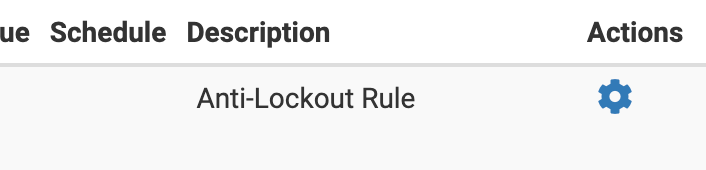
Next, click the gear icon of the anti-lockout rule at the top of the firewall rules for the management interface.
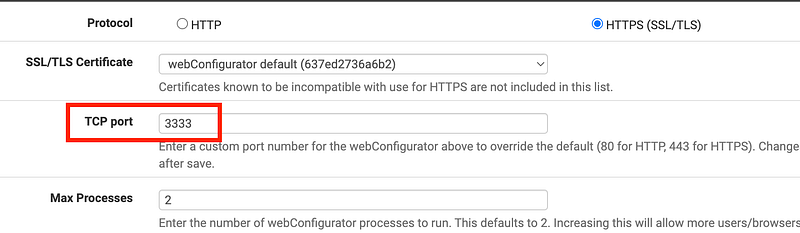
Change the port for the management UI.
If you want to change the IP address with which the anti-lockout rule is associated you have a couple of options. One is to go through the start up wizard again.

Under the first top menu item click the start wizard option in the list.
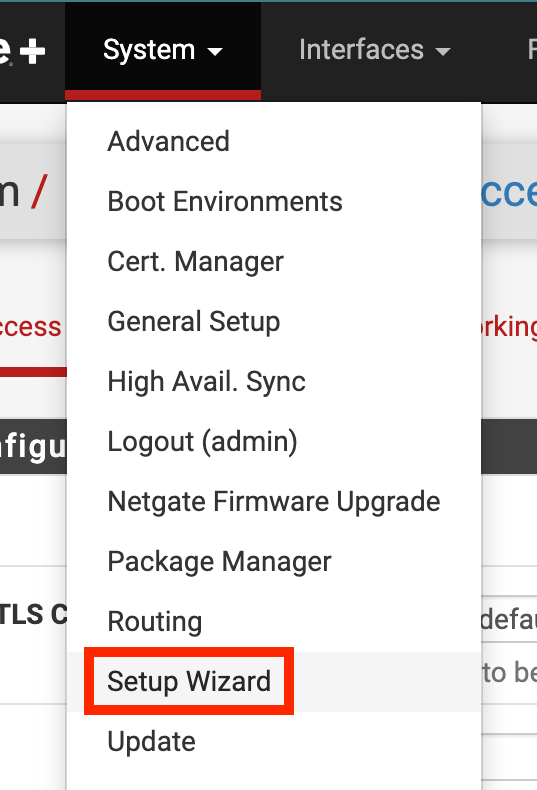
Go through the wizard and change the IP address for the device.

Now you should be able to navigate to the PFSense firewall on the IP and PORT you selected with a URL like this:

https://[IP]:[PORT]

If you disabled https (not recommended) you would use http instead of https.

Follow for updates.

Teri Radichel | © 2nd Sight Lab 2023

About Teri Radichel:
~~~~~~~~~~~~~~~~~~~~
⭐️ Author: Cybersecurity Books
⭐️ Presentations: Presentations by Teri Radichel
⭐️ Recognition: SANS Award, AWS Security Hero, IANS Faculty
⭐️ Certifications: SANS ~ GSE 240
⭐️ Education: BA Business, Master of Software Engineering, Master of Infosec
⭐️ Company: Penetration Tests, Assessments, Phone Consulting ~ 2nd Sight Lab
Need Help With Cybersecurity, Cloud, or Application Security?
~~~~~~~~~~~~~~~~~~~~~~~~~~~~~~~~~~~~~~~~~~~~~~~~~~~~~~~~~~~~~
🔒 Request a penetration test or security assessment
🔒 Schedule a consulting call
🔒 Cybersecurity Speaker for Presentation
Follow for more stories like this:
~~~~~~~~~~~~~~~~~~~~~~~~~~~~~~~~~~~~~~~~~~~~~~~~~~~~~~~~~~~~~ 
❤️ Sign Up my Medium Email List
❤️ Twitter: @teriradichel
❤️ LinkedIn: https://www.linkedin.com/in/teriradichel
❤️ Mastodon: @teriradichel@infosec.exchange
❤️ Facebook: 2nd Sight Lab
❤️ YouTube: @2ndsightlab

Pfsense
Admin
Port
Network Security
Netgate
Recommended from ReadMedium