
Web Scraping Basics — Scraping a Betting Site in 10 Minutes
In this 10-minute tutorial, I’ll show you how to scrape websites with Python even if you don’t code at all.

Before learning Python, I always had a problem when starting a new project — there wasn’t any data available! Actually, there was, but it wasn’t exactly the data I needed. One of those projects was betting on sports. I needed as much data as possible to increase my chances of winning. Now, I know that you don’t need to be an expert in Python to scrape websites and get that valuable data. In this tutorial, I’ll give you a step-by-step guide that would teach you the necessary stuff to scrape your favorite website from scratch.
Keep in mind that you can even make extra money by scraping a betting site as I explained in the article How to Make Money From Web Scraping Without Selling Data, so let’s start!
What is Web Scraping?
Web scraping is used to collect information from websites. To do so, we use software that simulates human Web surfing to collect the information we want.
In this tutorial, we’ll be scraping the betting site ‘Tipico’ (link in the code below). We’ll get all the betting odds available for any sport. After you learn the basics of web scraping, you’ll be able to scrape most websites you know.
Legal disclaimer: Massive scraping of websites causes high traffic and could burden them. If you are accessing websites, you should always consider their terms of service and check the ‘robots.txt’ file to know how the site should be crawled. Moreover, I do not promote gambling, no matter what kind of betting it is.
What Do You Need to Scrape a Web?
- Selenium: It’s used for automating web applications. It allows you to open a browser and perform tasks as a human being would, such as: clicking buttons and searching for specific information on websites. You don’t need previous knowledge of Selenium. You’ll learn everything here from scratch!
- Python: To follow this tutorial, you don’t need to be an expert in Python. You at least need to know how
forloops,ifconditions and lists work in Python. If you don’t know them yet, don’t worry, I’ll explain to you how they work before we use them.
Before we start, make sure you have Python3.x installed on your computer. If so, let’s start with the tutorial by setting up Selenium!
Setting up Selenium
- Install Selenium: Run the following command in your command prompt or terminal
pip install selenium - Download the Driver. We need this to allow Selenium to interact with the browser. Check your Google Chrome version and download the right Chromedriver here (you need to download the Chromedriver file again when the Google Chrome browser is automatically updated). If necessary, unzip the driver and remember the path you’re leaving the Chromedriver file.
Note 1: This is a basic project that covers pre-match games. However, surebets are frequently found in live games. The tutorial to scrape live odds is available in the article below. That being said, scraping live odds is a bit harder than pre-match odds, so please make sure you understand all the code explained in this tutorial first.
Note 2: I built a profitable betting tool with Python’s Selenium and Pandas. In the article below I show the full code and explain how I did it.
Time to Code
I’ll guide you through each line of the code we need to write to scrape the betting site. You can find the full code at the end of this article.
In case you already followed this tutorial and suddenly the code stopped working, below you can find some updates I made to the code because of some changes made to the website.
Update March 10th, 2021: I added some lines of code to adapt the tutorial to changes made on the website.
Update April 22nd, 2021: 1)Apparently it’s not possible to access the website from some countries. If that’s the case use a VPN and connect to some country in Europe (TunnelBear works good for me and it’s free)
2)The website made some major changes to the live and prematch section, so to keep the tutorial useful, we’ll use those sections with the old structure.
To go to those sections, check the panel on the left side and locate the “top sports” section, and then check the league(s) you wish to scrape. After that, you’ll get a link that we’re going to use to scrape the website. In this tutorial, I’ll use the link got after checking the Spanish League (written in the code below). However, feel free to check the box of any league you want and replace it in the web variable showed in the code below.
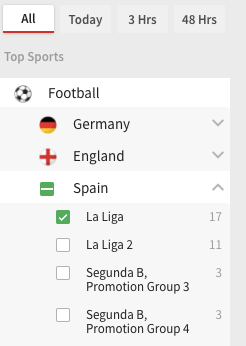
Every line of code changed is specified in the full code (end of this article) and is working by April 22nd, 2021.
Update October 20th, 2021: If the code stops working, please let me know in the comment section. If that’s the case, I’d need some time to update the code, so, in the meantime, you can learn Selenium by watching my step-by-step tutorial. In the tutorial below, I solve a different project from scratch.
That being said, let’s start with this tutorial!
We’ll see a lot of functions and methods frequently used in Selenium. To memorize all of them, check the web scraping cheat sheet I created.
Import Selenium
To start using selenium, write the code below in your Python editor. Also, import the time library (we’ll use it to make explicit waits later)
Writing our First Selenium Python Test
Let’s start by defining the variables web and path. The first is the betting site URL, while the second refers to the path where you left the ChromeDriver downloaded in step 2.
In this example, I’m going to scrape the Spanish League, however, you can check the box of the league you want to obtain the link to paste in the web variable.
Now we need to set a driver instance that will help us navigate through the website — we called it driver. We do this by writing the first line of the following code.
Once the driver instance is set, we open the betting website using the driver.get command. Run the code and you’ll see that the browser opens automatically:
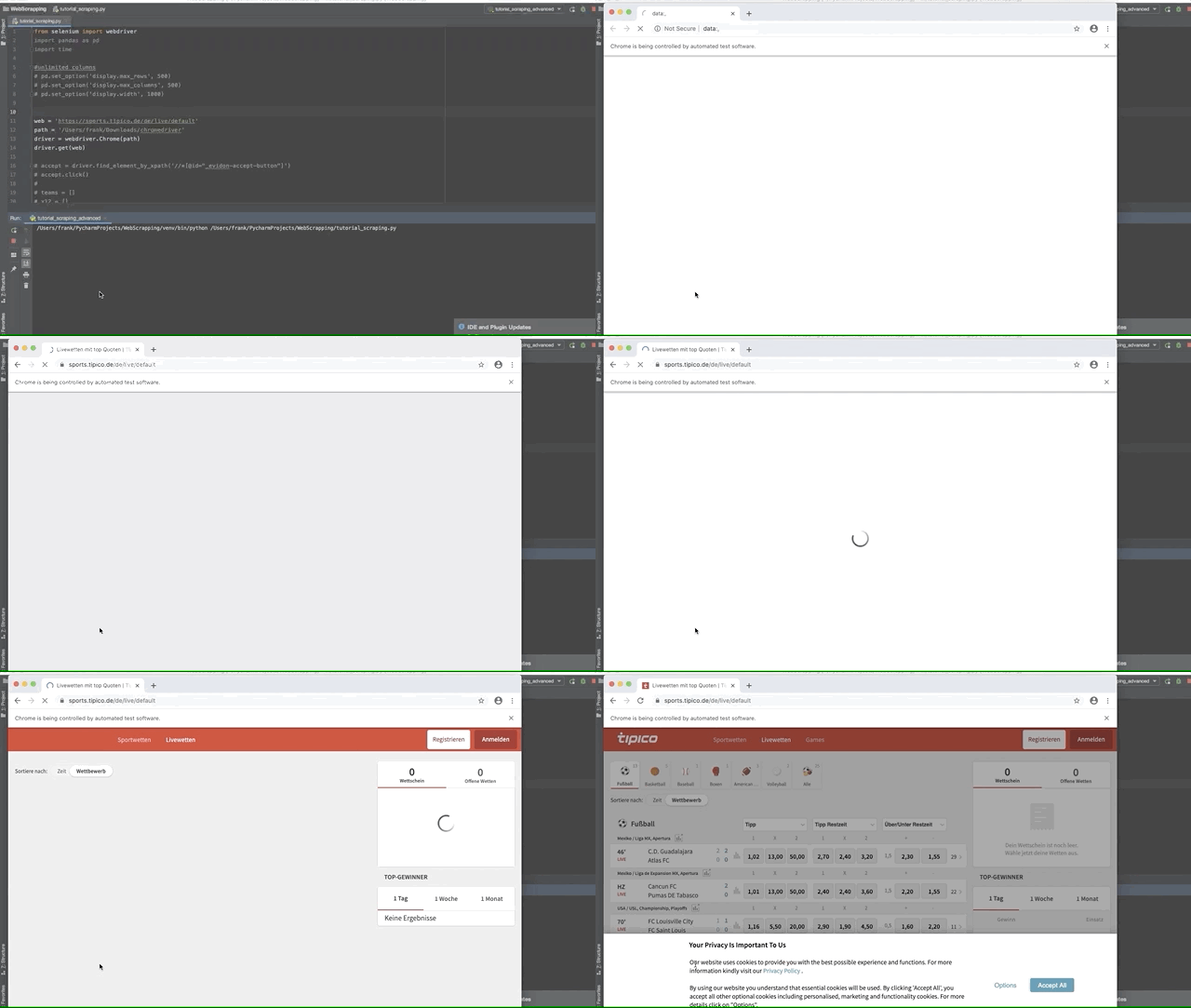
Let’s do our first interaction on the website through Selenium.
Make ChromeDriver click a button
As you can see above, every time the betting site is opened, a popup will show up. We need to get rid of the popup to start scraping the website. We have to make Selenium click the popup accept button every time the website is opened. To do so, we write this code.
Breaking down the code:
time.sleep(5)is an explicit wait that makes Selenium wait for 5 seconds. Only after this, the next line of code is executed.acceptis the variable name we created for the ‘accept’ button we want to click ondriver.find_element_by_xpath()helps us find an element within the website. We only need to give the XPath of that element. It’s very simple to find XPath in Chrome. To find the XPath of the ‘accept’ button, do the following:
- Open Google Chrome and go to the betting site.
- Right-click on any space and select ‘Inspect.’ After doing this, you’ll see the ChromeDeveloper Tool that includes the code behind the website.
- To find the element’s code, click on the ‘mouse cursor icon’ on the left. Then hover on the ‘accept’ button and click on it to find the code behind it. After clicking, you’ll notice that there is a code highlighted in the ChromeDeveloper Tool. Right-click on it and click on copy, then select ‘copy XPath.’
Steps 2 and 3 should look like this:
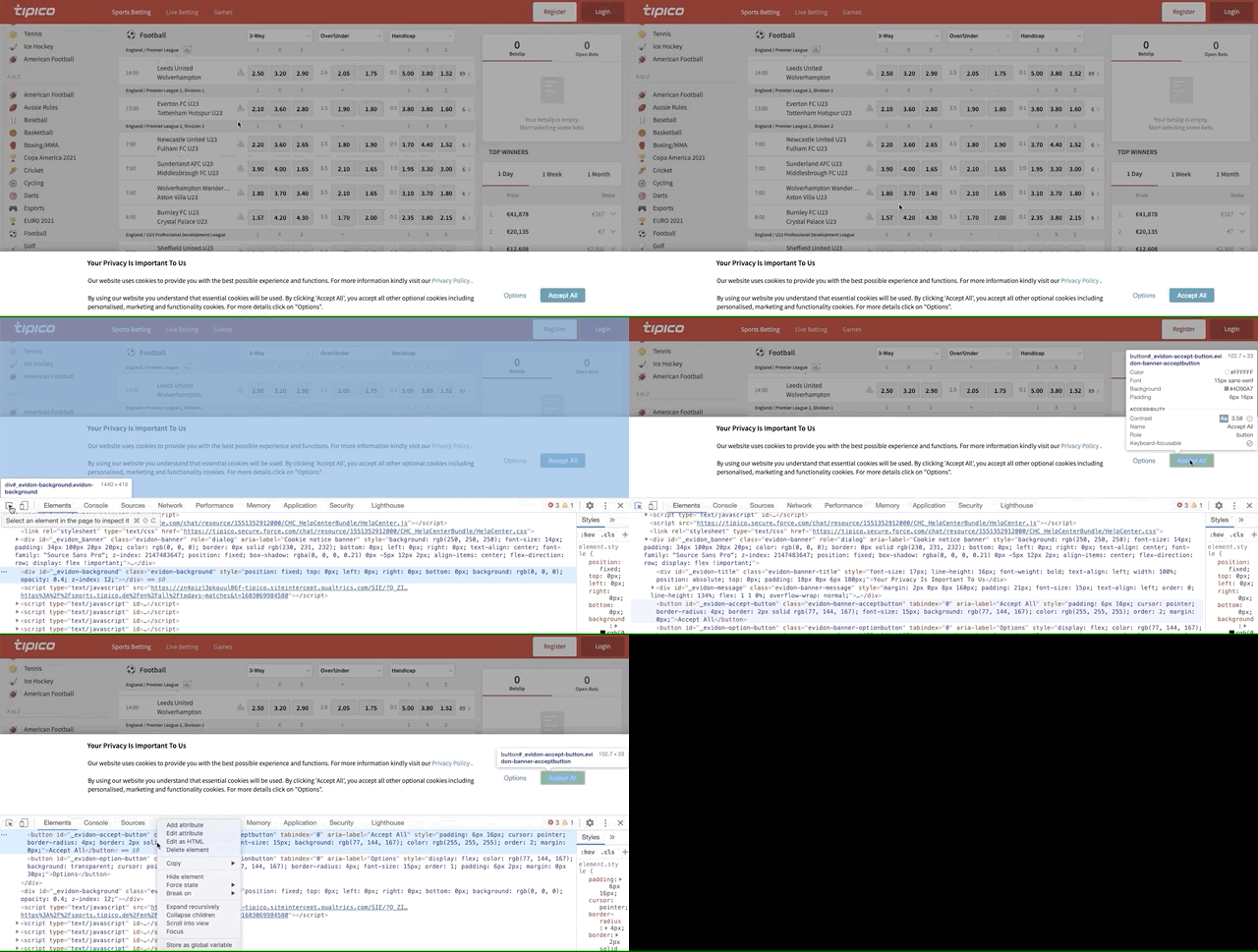
Copy and paste the XPath inside parentheses in driver.find_element_by_xpath(). With this, Selenium identified where’s the ‘accept’ button.
accept.click()tells Selenium that we want to click on the ‘accept’ button when we open the website
Now everything is ready to start scraping the betting site.
Scheme for Scraping the Website
Before we write the code to scrape the website, let me explain to you in simple words what we’re going to do. The following are the elements we’re going to use to scrap this website:
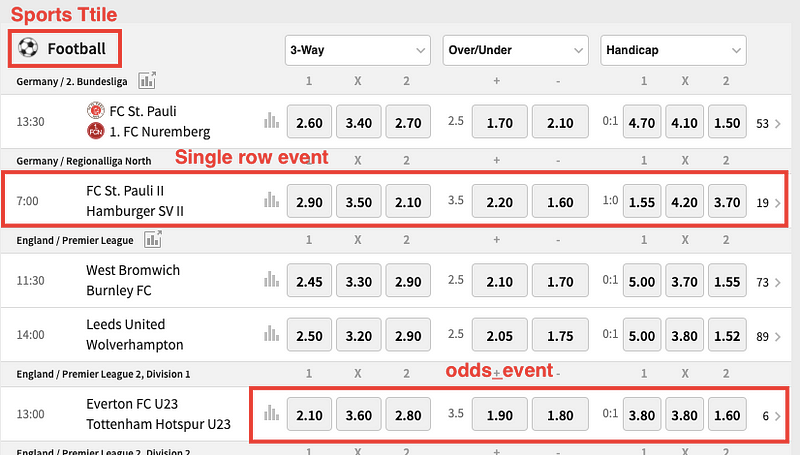
- Sports title: Represents the sports section. The website has many sports available, but we’ll focus only on football to make things simple. The code we’re going to write will help you scrape any sport, though.
- Single-row event: Events with only one row. Live events may have 2 rows, but we’ll focus on upcoming games
- odds_event: Represents the odds available within a row. Each row has 1 ‘odds_event’ and each ‘odds_event’ has 3 boxes ‘3-way,’ ‘Over/Under’ and ‘Handicap.’
That being said, let’s build our web scraper!
Building the Web Scraper
Initialize your storage
We’re going to use empty lists [] to store all data we’ll scrape.
Select only upcoming matches
The website contains live and upcoming matches; however, to make things simple, we’ll only extract odds from upcoming matches. We select the upcoming matches box with the following code.
Looking for ‘sports titles’
As we saw in the picture above, we need first to look for the sports’ names. To make Selenium find all sports’ titles, we write the following code:
Breaking down the code:
sport_titlerepresents the sport name of each section.driver.find_elements_by_class_name()helps us find an element within the website. We only need to give the ‘class name’ of that element. Keep in mind that.find_elementwill give us a single element, but.find_elementswill give us elements inside a list. We’ll loop through this list a bit later, but first, let’s find the class name of the sport title. Do this to find the code behind the ‘football’ title:
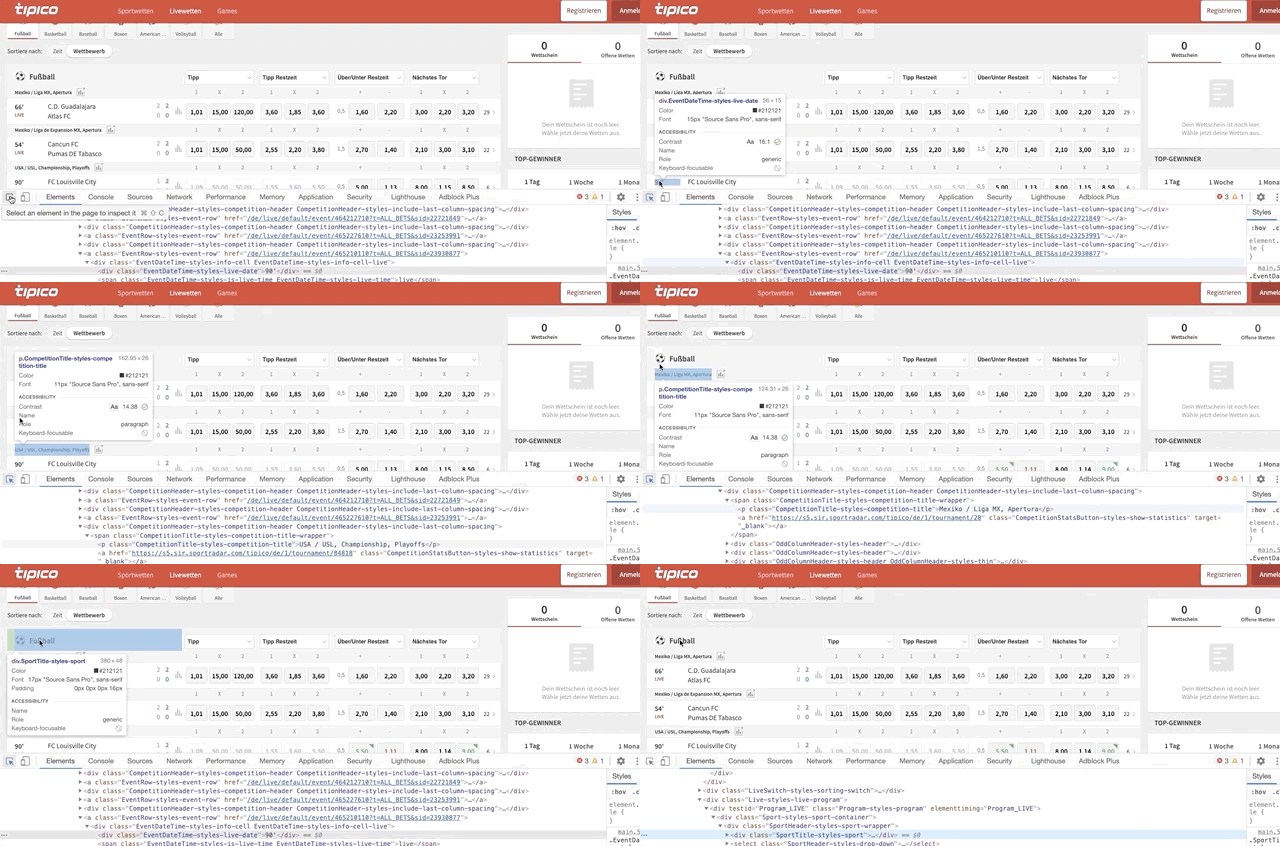
After you clicked on ‘Football’, check the code that is highlighted. It looks something like this: <div class=”SportTitle-styles-sport”. We only need to copy and paste the class name ‘SportTitle-styles-sport’ inside driver.find_elements_by_class_name()
So far, you learned how to use .find_element_by_class_name() , .find_element_by_xpath() and .click()with Selenium. Before diving more into Selenium, make sure you know how to usefor loops and if conditions. If you know them, you can skip this section. If not, here’s a refresher:
Refresher on ‘for' loops + ‘if’ statement and lists
Let’s imagine we have a list of the following football teams ‘Barcelona,’ ‘Madrid’ and ‘Sevilla.’ If we want to loop through this list, we write the following
Breaking down the code:
teams_exampleis the name of the list of teams we createdfor team in teams_exampleis looping through each team in the listprint(team)is executed once for each team in our ‘teams_example’ list
If we run this code, we obtain this:
Barcelona
Madrid
Sevilla
When we use the if statement. We’re telling Python ‘only continue when this condition is True’ To do so, we have to add the if condition:
If we run this code, we only obtain ‘Barcelona’ because we told Python ‘only print when the team is Barcelona’
BarcelonaGreat! You know for loops and if statements. Let’s continue with the tutorial!
Selecting only ‘football’
The class name ‘SportTitle-styles-sport’ gave us all the sports available on the website. As we discussed before, we’ll be extracting data from football matches only. We select only the football section with the following code.
Breaking down the code:
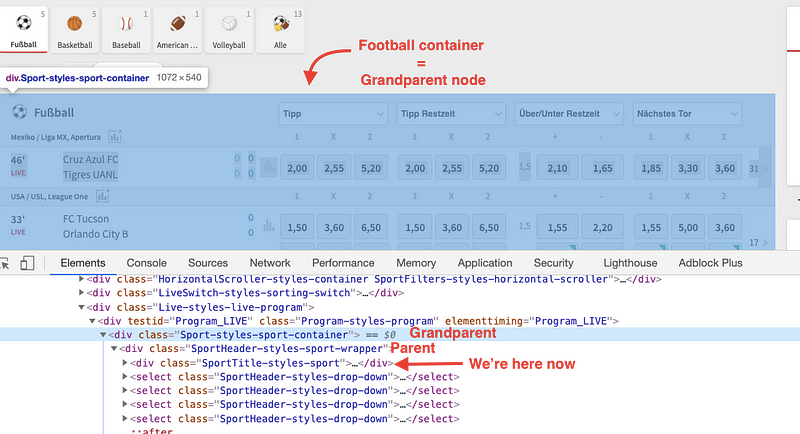
sportrepresents each sport name in thesport_tiltevariable.textgives us the text attribute of a variable. By comparingsport_title.textwith the name of the sport (football), we make sure we’ll only get data from the football section.sport.find_element_by_xpath(‘./..’)helps us find an element with Xpath within a sports section (in this case, football section). The‘./’locates where we’re right now, in this case, we’re in ‘sport_title’ (see picture below). If we write‘./..’within parentheses, we obtain the ‘parent node’ ofsports_title. We do this twice to get the ‘grandparent.’ We need thisgrandparentvariable to limit the scrape only to the football section.
Looking for single row events
We need to find the ‘single row events.’ To do so, write this:
Breaking down the code:
single_row_eventsrepresents each event. Usually, each event has 1 rowgrandparent.find_elements_by_class_name()helps us find all the football matches/events within the ‘grandparent’ node (in this case football section). To find the code behind a match do this:
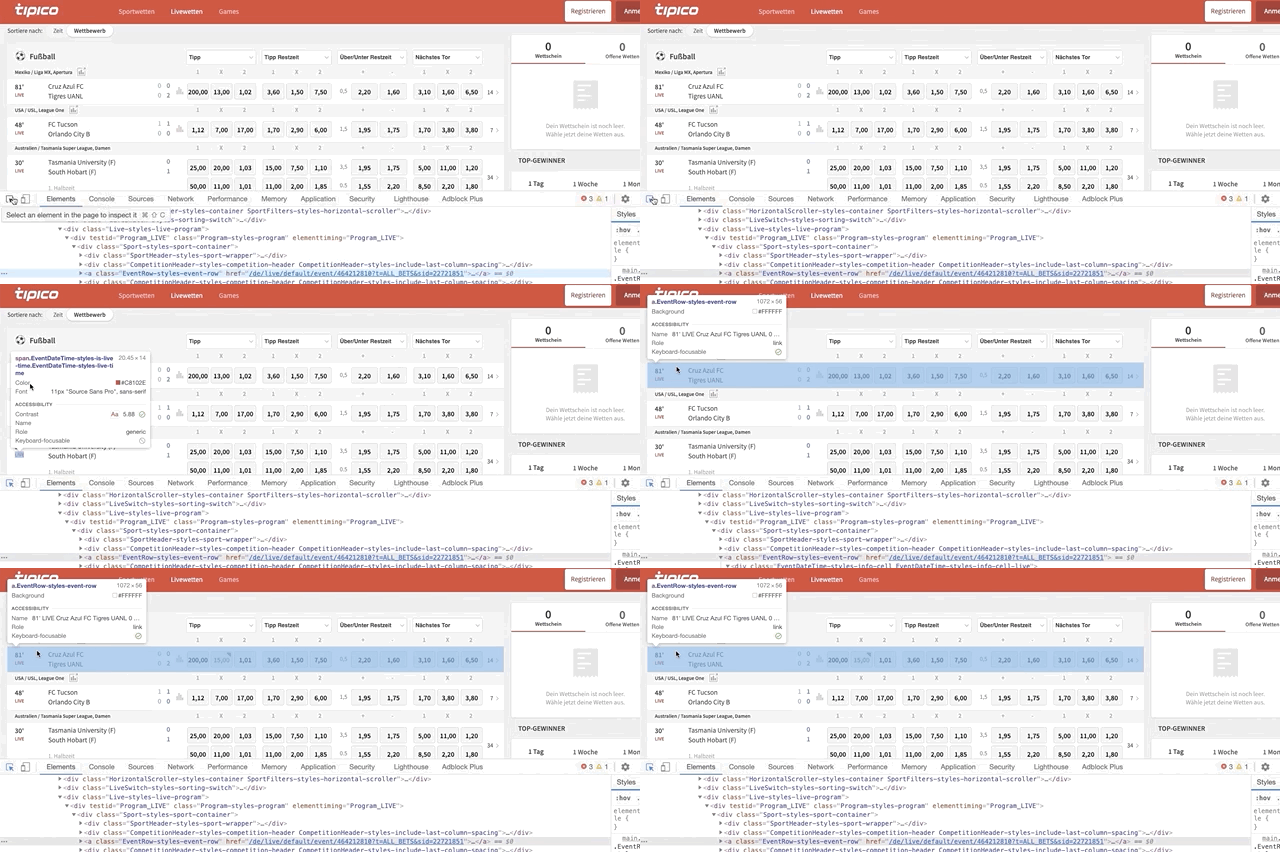
Once the code is highlighted, look for the class name. It should be named ‘EventRow-styles-event-row’
Getting data: Team names and ‘odd_events’
To obtain the team names and locate where the odds are (odd_events), we have to write the following code:
Breaking down the code:
for match in single_row_eventsloops through all the matches inside the ‘single_row_events’ listodd_eventsrepresent each event with odds availablematch.find_elements_by_class_name(‘EventOddGroup-styles-odd-groups’)helps us find all the ‘odds_event’ within every match. To find the code behind the ‘odds box’ do this:
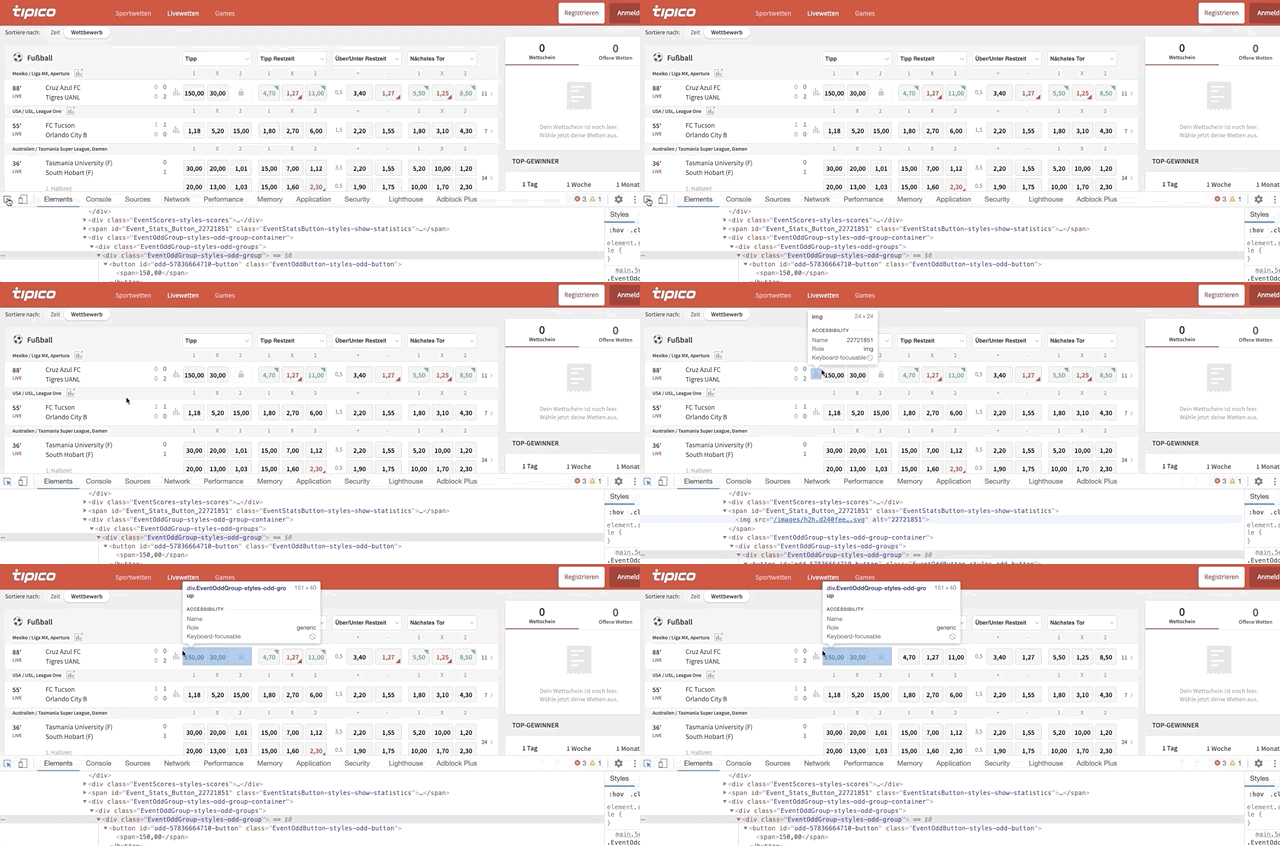
Once the code is highlighted, look for the class name. It should be named ‘EventOddGroup-styles-odd-groups’
for team in match.find_elements_by_class_name(‘EventTeams-styles-titles’)loops through the elements with class name ‘EventTeams-styles-titles'within the ‘match’ node. Matches have 2 teams (home and away team); we’ll be looping through them. To find the code behind ‘team names’ do this:
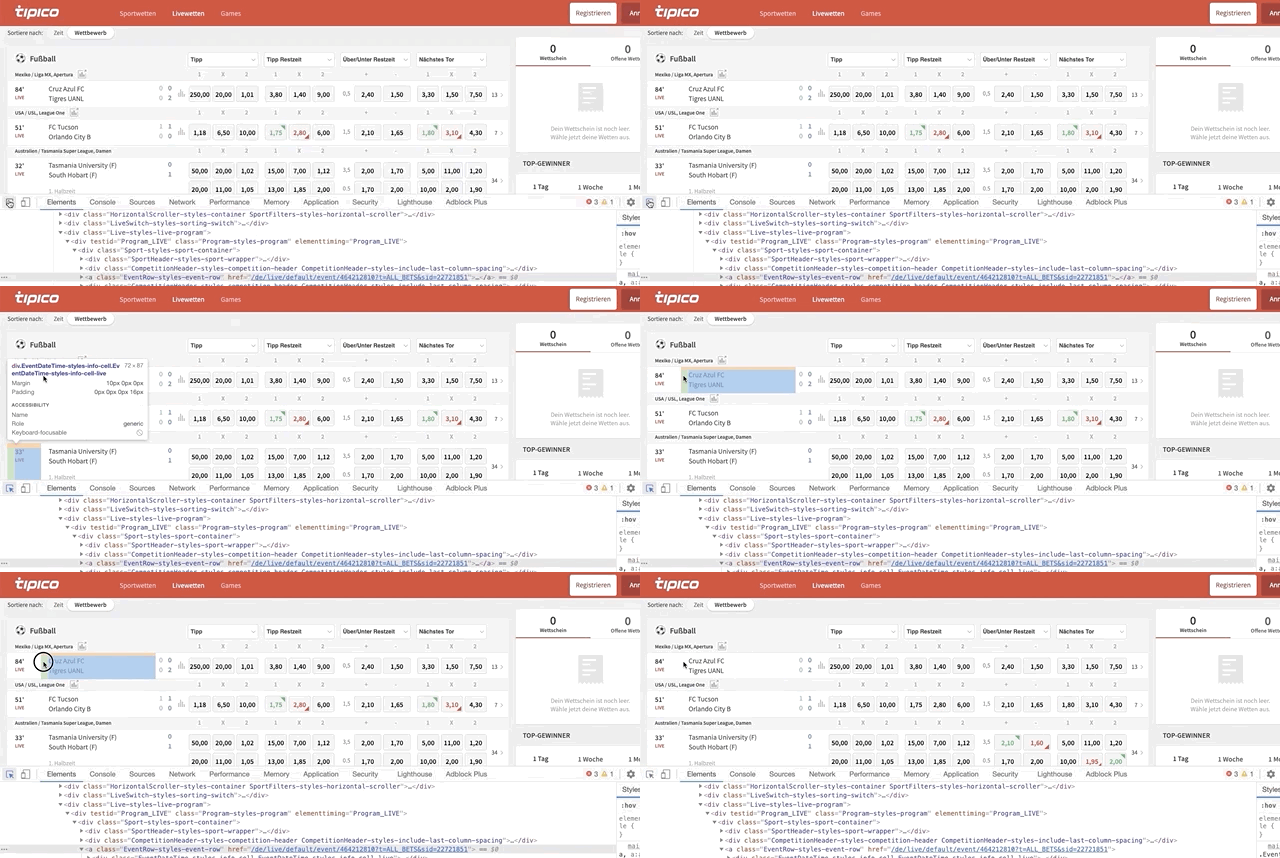
Once the code is highlighted, look for the class name. Although the class name highlighted is ‘EventTeams-styles-event-teams EventTeams-styles-additional-margin’, you shouldn’t pick this one because it’ll give you the names of two rows (team names + ‘half time’) in case you’re scraping live games. Instead, pick the class name below that says ‘EventTeams-styles-titles’
team.textgets the text attribute inside the team elementteams.append(team.text)stores the team names on theteamslist we created in the beginning
Getting data: The odds
You already located where ‘odd_events’ are. Now it’s time to get the 3-way odds (1x2). To do so, write:
Breaking down the code:
for odd_event in odds_eventsloops over the ’n’ matches on the website.enumerate(odd_events)counts the number of elements in theodd_eventslist while looping. That is, it counts the ‘odds boxes’ from left to right starting with the number ‘0.’for n, box in enumerate(odds_events)loops through all ‘odds boxes’ inside a match. As I showed you before, there are 3 boxes: ‘3-way,’ ‘Over/Under’ and ‘Handicap.’ We’re going after ‘3-way,’ this time.rowsrepresents the number of rows within the odd boxes. Remember they could have 2 rows if you’re scraping live matches.box.find_elements_by_xpath(‘.//*’)gives the child nodes inside each ‘odds box’. This gives a list with 1 row (when scraping upcoming matches) or 2 rows (when scraping live matches)n==0means ‘only take values from the first box’ which is the ‘3-way’ box (1x2)rows[0]tells Python ‘only pick the first row on each odds box.’ With this, we ignored the second row in case you’re scraping live matches.x12.append(rows[0].text)stores the ‘3-way’ odds to thex12list which we created at the beginningdriver.quit()closes the browser
Congratulations! You just scraped your first website
Final Step
The final step of this tutorial is to automate the Python script, so you can run it daily, weekly or at specific times. Here’s a tutorial on how to automate Python scripts on Mac and Windows in 3 simple steps.
If you’d like to scrape websites without getting blocked, check this article:
Full Code
There are different options to see and manipulate the data you got. You can use CSV libraries to export the information you got to Excel, but I prefer to create a dictionary from the lists we have and use Pandas. The full code we wrote plus a couple of lines extra to export it to Pandas is the following:
Would you like to know more about how to beat the bookies? If so, check the articles below.
Final thoughts
This is the basics of web scraping. With this, you can scrape most data on websites. However, to scrape ‘dynamic’ data like those found in live matches would require a bit more knowledge on Selenium. Let me know if you want the second part of this tutorial to learn to scrape more ‘dynamic’ data.


