
Top 50 Free and Freemium Mac Apps From 2021!
This year, I have written over 70 articles about Mac apps. They have helped me transform my digital life. I am happy living in a world where I can use a Mac and worry less about becoming productive in life.
Nothing in my life has been as transformative as Macs, and I owe that to the genius of Tim Cook and Steve Jobs. In this story, I will feature 50 Mac apps that are hugely beneficial for us.
At the end of this story, I will feature three Mac stories I have written that I am proud to have published in Medium, and I feel they are helpful for our readers here.
What counts as a great app is the one that don’t ask too many permissions (being privacy-friendly) and have a balance between great functionality and a usable user interface.
I hope you enjoy reading this long list of apps and hopefully bookmark it as a reference for the future.
1. Numi Calculator
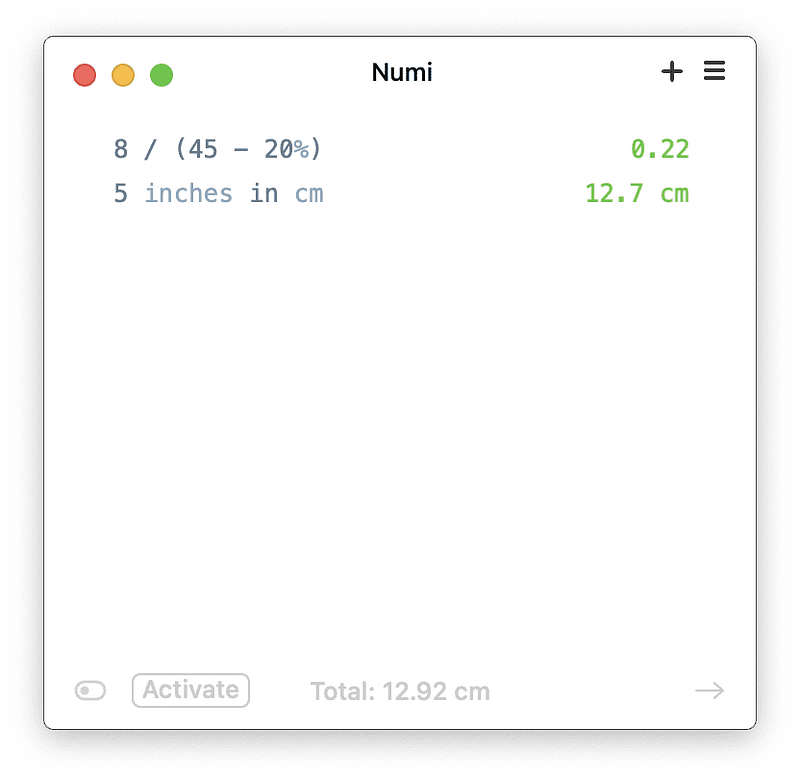
I love when apps use NLP (natural language processing) to process your requests. This small but mighty calculator can understand your requests using common language, although it is not all rainbows and unicorns. You will come across some issues; mine was the app not recognizing complex phrases containing multiple operations.
I will say it does meet your primary basic needs, and I love it for that.
🔐 Privacy: Data is not yet provided
💳 Price: $19.99
☑️ Compatibility: 💻 Mac
🧩 Design: Aesthetically pleasing
⭐️ Rating: Not available
🔗 Download: Website
🌐 Research: GitHub
2. Book Track
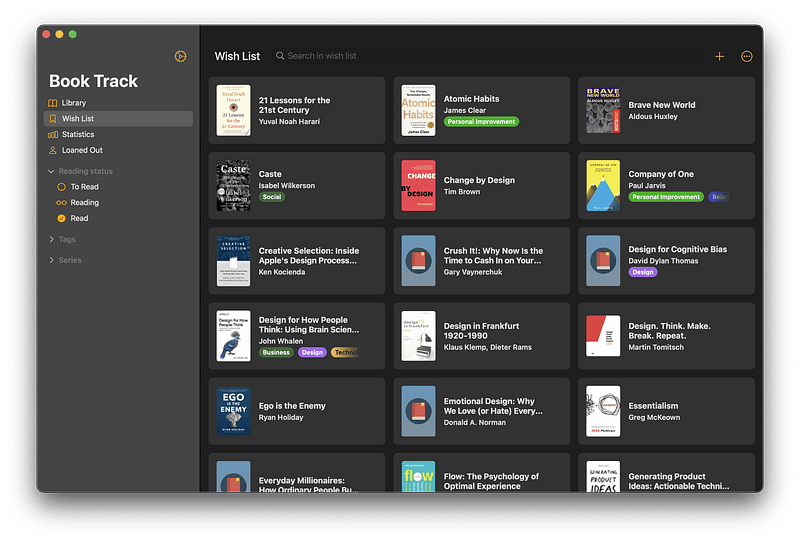
Keeping track of the books you are reading and the ones you want to read is difficult if you don’t have a system. I used to use a spreadsheet for it, but managing a spreadsheet is not a great experience. I wanted something personal, customizable, and simple, and this app has been working flawlessly.
BookTrack is a great app if you want to manage your library. The iPad app follows apple’s design guidelines, which is another plus one if you are an iPad user.
🔐 Privacy: No data collection
💳 Price: $5.99
☑️ Compatibility: 📱iPhone, 📱iPad, 💻 Mac
🧩 Design: Decent looking
🔗 Download: AppStore
🌐 Research: Website
3. Binaural
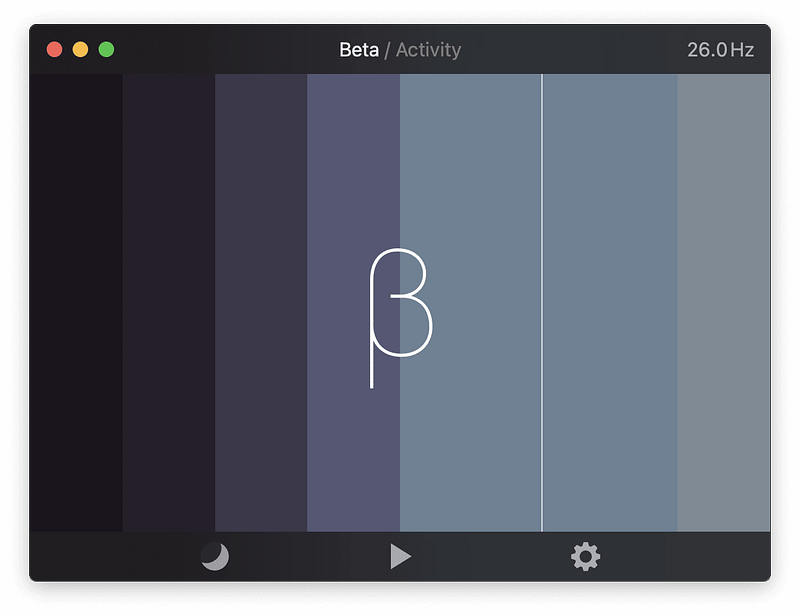
The science of listening to brainwave sounds is not solid, but forming a habit of listening to them every day can reduce your anxiety, stress levels, and negative mental states. I listen to binaural beats every day, and for me, it works. This app is terrific. The design is super minimal and straightforward. It requires almost no learning, and in my opinion, should be used with headphones for the best result.
🔐 Privacy: No personal data collection
💳 Price: $2.99
☑️ Compatibility: ⌚️Apple Watch, 📱iPhone,📱iPad, 💻 Mac
🧩 Design: Decent looking
⭐️ Rating: 4.5 out of 5 (361 ratings)
🔗 Download: AppStore
🌐 Research: Website
4. GameTrack
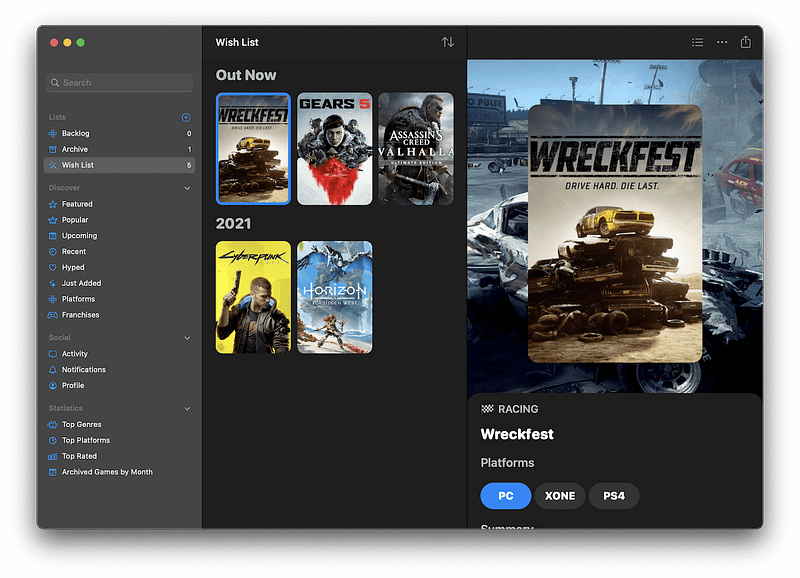
If you are into gaming, I recommend installing GameTrack. I usually watch trailers of upcoming video games, and I get this feeling that I am going to play them, but forget because I haven’t written it anywhere, and more importantly, I don’t know when the game will exactly release. With the help of GameTrack, all of that is automatic. All I need to do is enter a few games I want to play, and it will do the rest.
🔐 Privacy: Collects personal data
💳 Price: Subscription with different plans
☑️ Compatibility: 📱iPhone, 📱iPad, 💻 Mac
🧩 Design: Decent looking
⭐️ Rating: 4.5 out of 5 (706 ratings)
🔗 Download: AppStore
🌐 Research: Website
5. Tomato 2
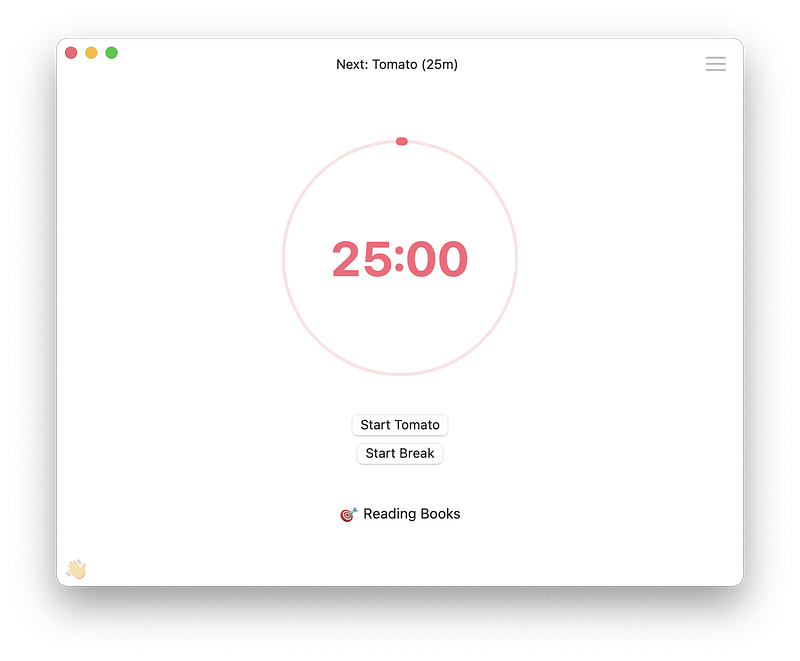
I get in the zone of writing when I dedicate 25 minutes of my time. That is how I stay on top of my tasks, and it works great. What is the secret? Blocking distractions; It is essential. This app does both. Alongside a fantastic timer, you can pay a small in-app purchase to unlock a feature where the app restricts you from visiting distracting websites.
🔐 Privacy: No personal data collection
💳 Price: $4.99
☑️ Compatibility: 💻 Mac
🧩 Design: Decent looking
⭐️ Rating: Not available
🔗 Download: AppStore
🌐 Research: Website
6. NordPass
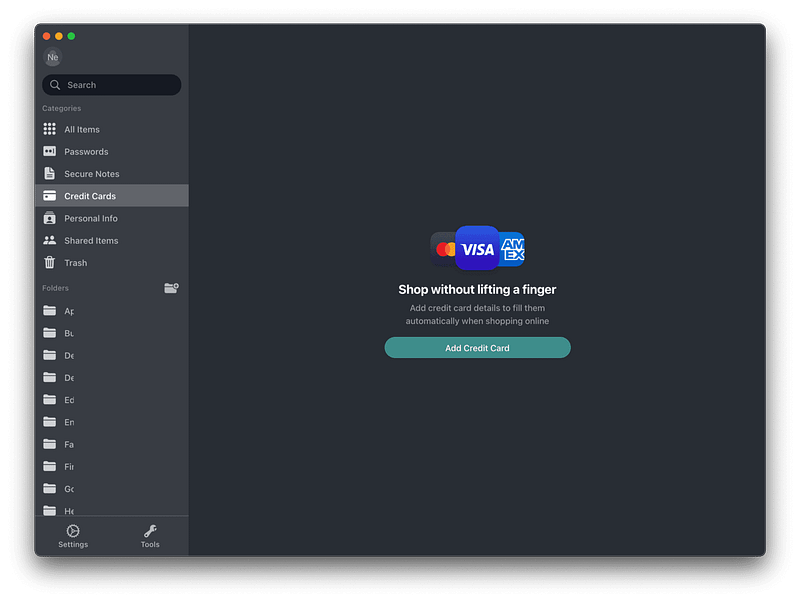
There are tons of password management apps out there. But, unfortunately, not many of them provide a beautiful user interface. An interface in which everything is simply, and neatly organized.
I’m introducing NordPass, not because of its gorgeous user interface but the ease of use and how easy it is to find your way around the app. All you’ll need to do is create folders, then let the app organize your passwords in different sections.
If you are looking for a cheap way to manage your passwords, and protect your online privacy with more tools embedded into it, then give NordPass a try.
🔐 Privacy: Collects personal data
💳 Price: Subscription $4.99 per month
☑️ Compatibility: 📱iPhone, 📱iPad, 💻 Mac
🧩 Design: Displeasing
⭐️ Rating: Not available
🔗 Download: Website
🌐 Research: Website
7. Vectornator
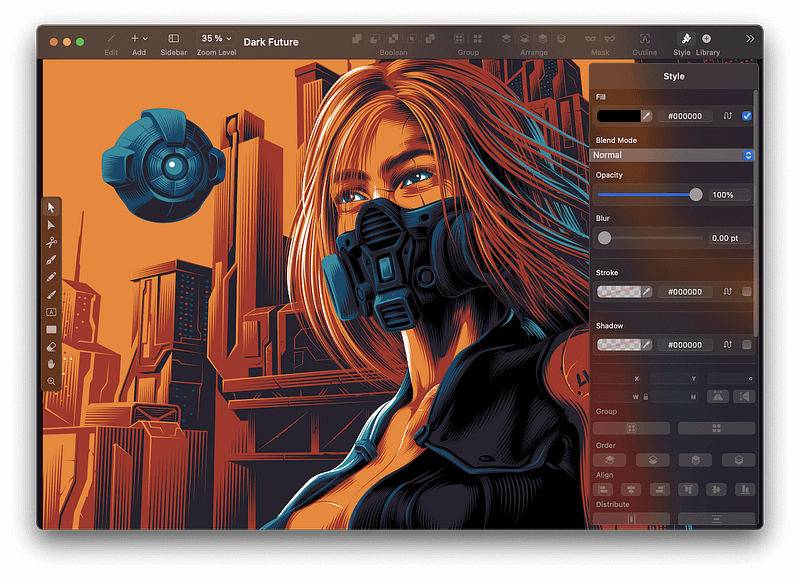
I don’t usually come across a great app with a wonderful set of features while being totally free, but this time, I got lucky. One of the perks of being in the Apple ecosystem is finding polished, very well-made apps. This app is one of them.
The Vectornator is an illustration app that is widely known in the design industry. Not only it looks modern and beautiful, but also works without bugs (or at least I haven’t found one since using it).
The great thing about Vectornator is its active development and the team behind the app. They keep the app up-to-date with many great new features.
If you want to start a business, run a YouTube channel, or create a publication within Medium, you are going to need your own design files. A great way to make your own designs is with the help of the Vectornator app.
🔐 Privacy: Some personal data collection
💳 Price: Free!
☑️ Compatibility: 📱iPhone, 📱iPad, 💻 Mac
🧩 Design: Aesthetically pleasing
🔗 Download: AppStore
🌐 Research: Website
8. Pocket Casts
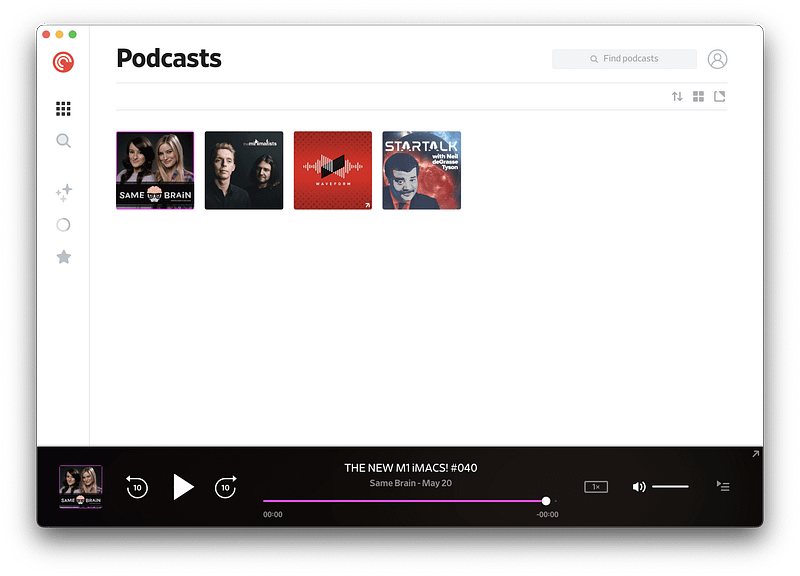
I’m a fan of podcasts. I listen to podcasts while writing and designing. One of the issues I had with the default Podcast app on the Mac and iPhone was the lack of specific functionalities. I wanted to trim silences, so I didn’t waste time when the host is not talking. I wanted a customizable app with multiple app icons and beautiful user interface.
Pocket Casts has a beautiful user interface. You are going to love how simple it is to find any podcast because the app has made navigation super simple.
It is available on almost all platforms, but I wouldn’t count the desktop version since it looks and behaves like a website. Overall, it is great and does the job very well.
🔐 Privacy: No personal data collection
💳 Price: Subscription $1.94 per month
☑️ Compatibility: ⌚️Apple Watch, 📱iPhone,📱iPad, 💻 Mac
🧩 Design: Decent looking
🔗 Download: AppStore
🌐 Research: Website
9. Encrypto
One of the perks of living in the 21st century is seeing the fast progress of technology and its effects on our lives. However, one of the worst things about it, is its effect on privacy.
We are still immature in knowing what to do and how to handle customer data. When it comes to privacy, we don’t think logically and that is why many of us, in fact, most people need to be aware of data encryption and the practices of privacy.
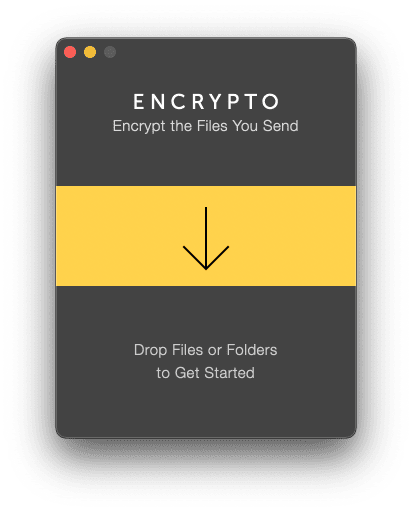
It is essential knowing how to encrypt and protect our most important files. Encrypto is a free app that helps you protect your files. Simply drag the file you want to encrypt and set a password. Let the app do its job, and after it’s finished, it will prompt a window asking you where to save the encrypted version.
🔐 Privacy: No personal data collection
💳 Price: Free!
☑️ Compatibility: 💻 Mac
🧩 Design: Decent looking
🔗 Download: AppStore
🌐 Research: Website
10. Mactracker
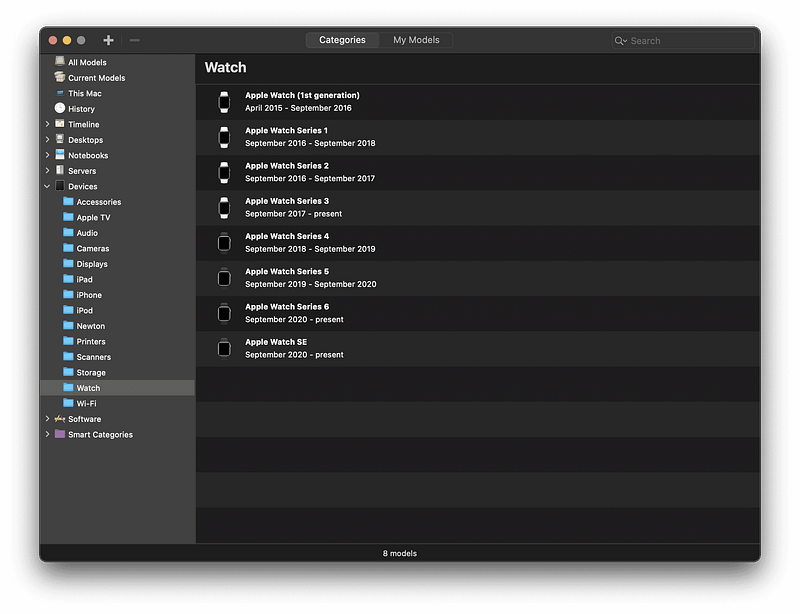
One of the best Mac apps that keeps itself up-to-date for each new Apple product is MacTracker. It runs fast, and is a relatively lightweight app. It features all Apple products and gives you detailed information about their specifications and some links for further research.
If you are looking to purchase an Apple product, or if you are researching an Apple device, then use MackTracker as it will help you save so much time searching the web.
🔐 Privacy: No data collection
💳 Price: Free!
☑️ Compatibility: 📱iPhone, 📱iPad, 💻 Mac
🧩 Design: Decent looking
🔗 Download: AppStore
🌐 Research: Website
11. Blackmagic Disk Speed Test
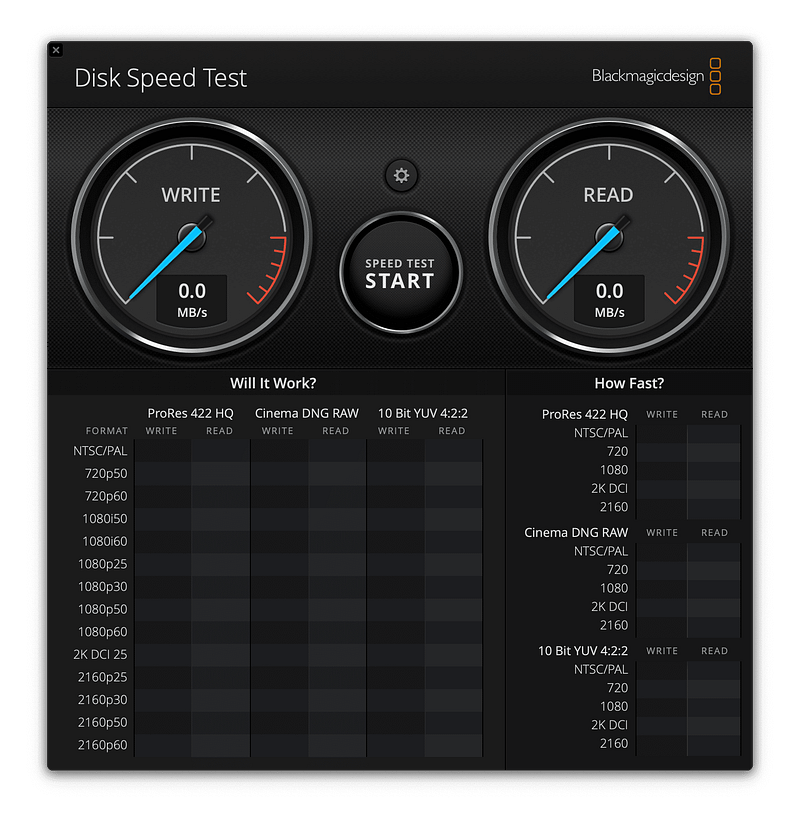
The benefit of using a fast storage is not solely the quick file transfer speed. It extends to random file access and the overall performance of that drive. Whether you have purchased an external hard drive or you want to test the SSD on your Mac, the Speed Test is for you.
Blackmagic Disk Speed Test is one of the few industry-leading apps to benchmark storage devices. The app works really well, and I haven’t seen any crash or inaccurate results.
🔐 Privacy: Data is not yet provided
💳 Price: Free!
☑️ Compatibility: 💻 Mac
🧩 Design: Decent looking
🔗 Download: AppStore
🌐 Research: Website
12. NightOwl
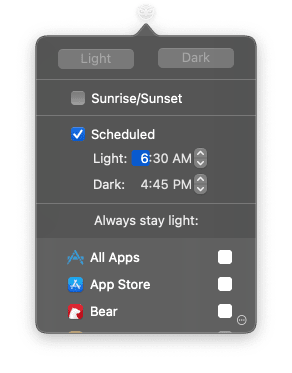
The introduction of dark mode has been great. I love using apps in nighttime when I don’t have to endure the painful white light. Many apps have adapted nighttime mode which I love, but the problem is their implementation. Some apps have not done an impressive job with the dark mode and simply reversed their color profiles.
The problem with a not good-looking dark mode is the difficulty your eyes have to deal with when you are reading any text. To help solve that problem, I use an app called NightOwl which basically takes control of the dark and light mode settings and allows you to force an app into a specific mode.
This way, while writing, my eyes will have a better time adjusting to the monitor.
🔐 Privacy: Some personal data collection
💳 Price: Free!
☑️ Compatibility: 💻 Mac
🧩 Design: Displeasing
🔗 Download: Not Found
🌐 Research: Website
13. Amphetamine
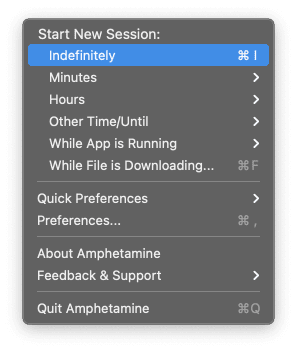
There are many moments when I have to leave my Mac for a quick task, and return to use it again. By default, the computer locks itself and dims the screen into the sleep mode. Having to type the password every time you try to use the Mac is tedious.
An app that help me stop the Mac from going into the sleep mode is Amphetamine. It is a highly customizable, free app that works as you would expect it to work. Simply allow some permission and let the app do its job.
The Amphetamine has saved me tons of hours from having to re-enter the login password.
🔐 Privacy: No personal data collection
💳 Price: Free!
☑️ Compatibility: 💻 Mac
🧩 Design: Displeasing
🔗 Download: AppStore
🌐 Research: Not Found
14. Raycast
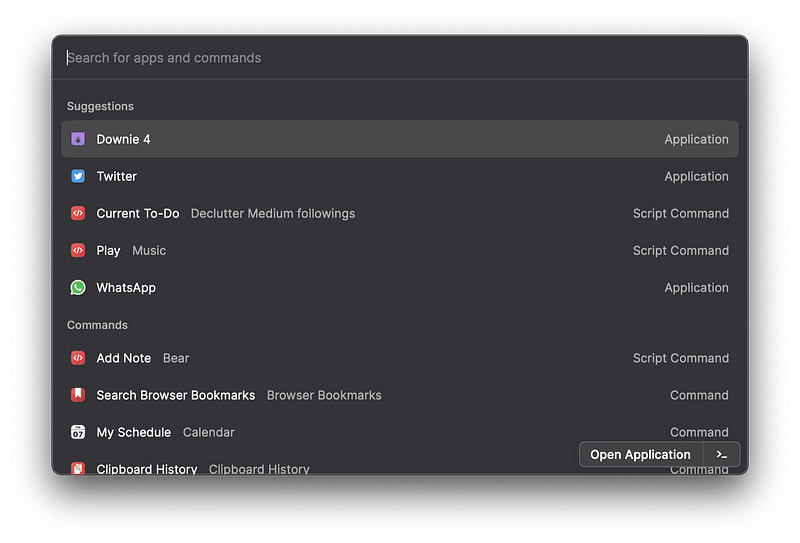
We are used to pressing the CMD + Space shortcut to access the Spotlight search. It is a utility where you’ll be able to access your files, open apps, convert some units and some other functionalities.
What if you wanted to do more? What if your use case would extend to perform certain functionalities for a specific app? That is where Raycast comes into play.
Raycast is a fantastic small utility that will replace your Spotlight search (If you do some adjustments of course) and help you do a lot with your Mac.
Some of the most used functionalities for this app are:
- Ability to play, pause, and manage your songs on Apple Music without having to open the app using the simple
PlayandPausecommands. - Quickly add a task to the Things 3 app by typing the single command of
Create Task - Easily create calendar event to the Fantastical app by commanding the app to
Create event [query]and let it do it all for you. - Say a word, phrase, sentence or an entire paragraph with the
Saycommand. - Navigate and search your contacts without opening the Contacts app.
- Start or stop the Do Not Disturb with a short command.
- Do system-level commands like restarting your Mac or something simple like increasing the volume.
- Search the web
- Start a zoom session
- So much more
If you are looking for a modern way to use your Mac by reducing the number of clicks and operations then give Raycast a try. You are going to love it.
🔐 Privacy: Collects personal data
💳 Price: Free!
☑️ Compatibility: 💻 Mac
🧩 Design: Aesthetically pleasing
🔗 Download: Not available on the AppStore
🌐 Research: Website
15. Shareful
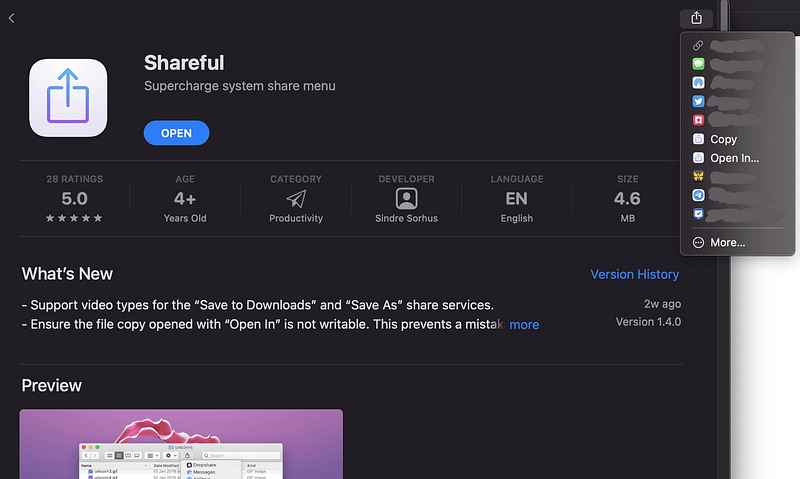
Every so often we demand features from Apple that are not yet implemented. That is when we turn over to third-party apps that alleviate our pains with certain use cases in the operating system. What do I mean by those use cases?
Suppose you are in an app that is showing you a photo, and you prefer not to take a screenshot to capture that image. What do you do? Well… if the app offers the option, you can save the image, but if it doesn’t, you can use Shareful which allows you to use the share extension and save the image to your Downloads folder.
The functionality of Shareful doesn’t limit only to downloading the image. It can also help you copy the link to a file into your clipboard. Moreover, you can open the shared file in any app which is extremely useful and has saved me a lot of time.
🔐 Privacy: No personal data collection
💳 Price: Free!
☑️ Compatibility: 💻 Mac
🧩 Design: Decent looking
🔗 Download: AppStore
🌐 Research: Website
16. ImageOptim
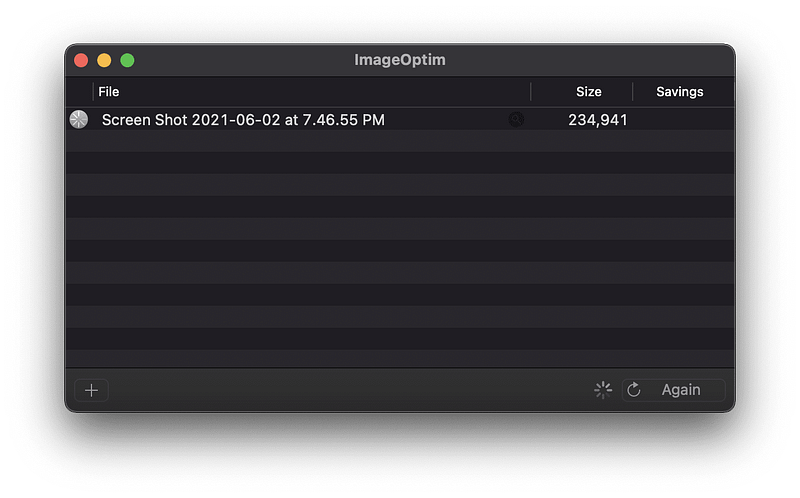
Usually, when you see a photo on the web, it is compressed and uploaded in a format that is compatible with most browsers. To compress an image means reducing some characteristics in that file, whether it is reduction in resolution or other methods to get a file with smaller size.
The use case of having a compressed image file varies from service to service, but in most cases, the process is either done online or by an expensive app on your Mac. What if there was a way to easily reduce image file size without risking your privacy or purchasing an expensive software?
That is where ImageOptim comes to the rescue. With this app, all you have to do is to drag and drop the image into the ImageOptim and let it process and compress the image. Usually (depending on your hardware) the finalized version of your image with reduced file size will be available in 10 to 15 seconds. Having said that, larger image files take longer to compress.
If you want a free app that compresses your images, then give ImageOptim a chance.
🔐 Privacy: Data is not yet provided
💳 Price: Free!
☑️ Compatibility: 💻 Mac
🧩 Design: Displeasing
🔗 Download: Not available on the AppStore
🌐 Research: Website
17. Wondershare Filmora X
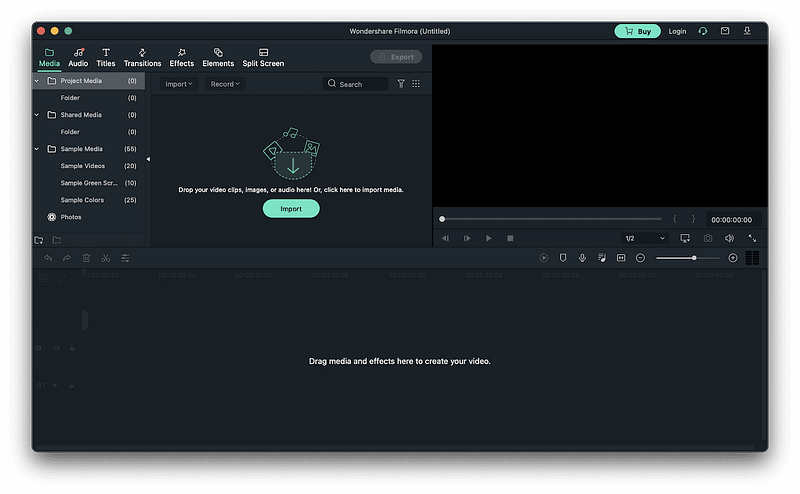
Going on a vacation and capturing photos and recording videos of your friends. Those memories would last much longer if they are in a video format. However, editing videos seems like a difficult job unless you learn some fundamentals and get an app.
The apps currently available for the Mac either offer basic functionality, or the ones that help you do a lot more are super expensive. That is why I’m introducing the Filmora X by Wondershare.
Using this app does require a slight learning curve, but once you are used to the controls, you have the whole world to benefit from. The app offers advance tools to control the colors, add effects, change transitions and much more.
If you are looking for an inexpensive option that requires a little learning then give Filmora X a try.
🔐 Privacy: Some personal data collection
💳 Price: Subscription $44.99 per year
☑️ Compatibility: 💻 Mac
🧩 Design: Aesthetically pleasing
🔗 Download: Not available on the AppStore
🌐 Research: Website
18. Giphy Capture
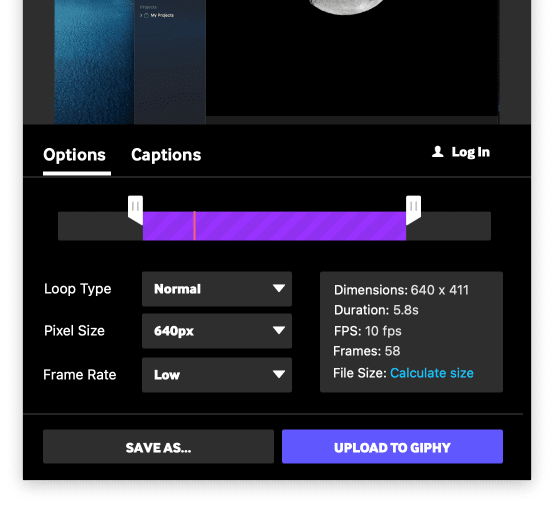
There have been moments when I wanted to share a tutorial with someone to help them learn how to achieve a specific task on their Mac. I have always used the default screen recorder and captured a video of my Mac. It is all great until you realize your finalized video exceeds 50 MB.
To alleviate the file size issue, I have used the Giphy Capture which helps me record my screen, and then convert it into a GIF file. This way my file size is much smaller and requires less internet bandwidth to upload.
If you are looking for a straight-to-the-point kind of app that will help you record your screen and export the video as a GIF file then give this app a try.
🔐 Privacy: Collects personal data
💳 Price: Free!
☑️ Compatibility: 💻 Mac
🧩 Design: Displeasing
🔗 Download: AppStore
🌐 Research: Website
19. Shapr3D
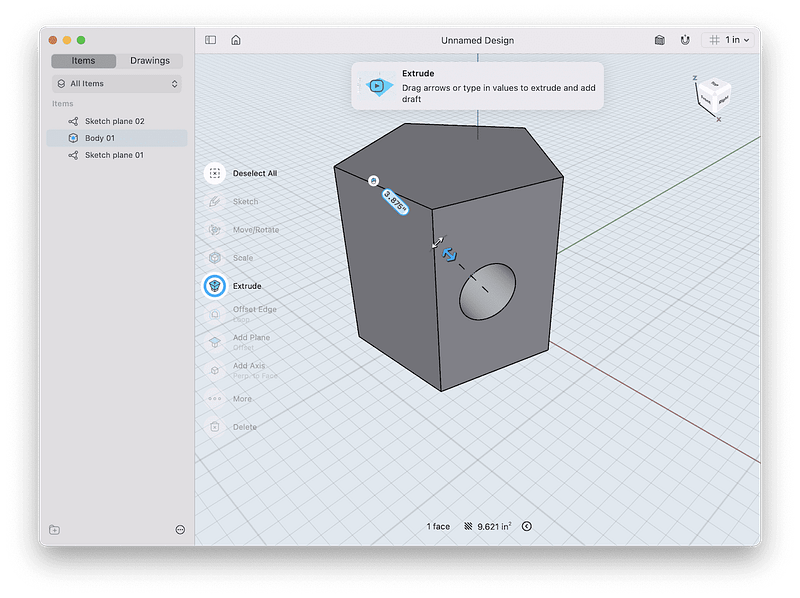
Designing a 3D shape or a building used to require complex softwares which needed hundreds of hours of learning and dealing with apps that couldn’t make use of your Mac’s hardware potential. Things have changed now and the app I’m introducing in this story will blow your mind.
The Shapr3D is a fantastic Computer-Aided Design CAD tool that has transformed the traditional software with better and newer UX implementations. If you are a design student (whether that is in the field of architecture, product design, mechanical engineering) and you own a Mac, then don’t miss out on Shapr3D.
It is a wonderful app with great support for people who use mouse and keyboard to interact with. The app has simple, short tutorials that won’t take your time and offers the essential functionalities with simplicity.
If you own an iPad with an Apple Pencil, don’t miss out this app on iPadOS as it works so well on the large display of iPad. I have mentioned this app in my other article which is linked below.
🔐 Privacy: Collects personal data
💳 Price: Subscription $239.99 per year
☑️ Compatibility: 📱iPad, 💻 Mac
🧩 Design: Aesthetically pleasing
🔗 Download: AppStore
🌐 Research: Website
20. Crouton
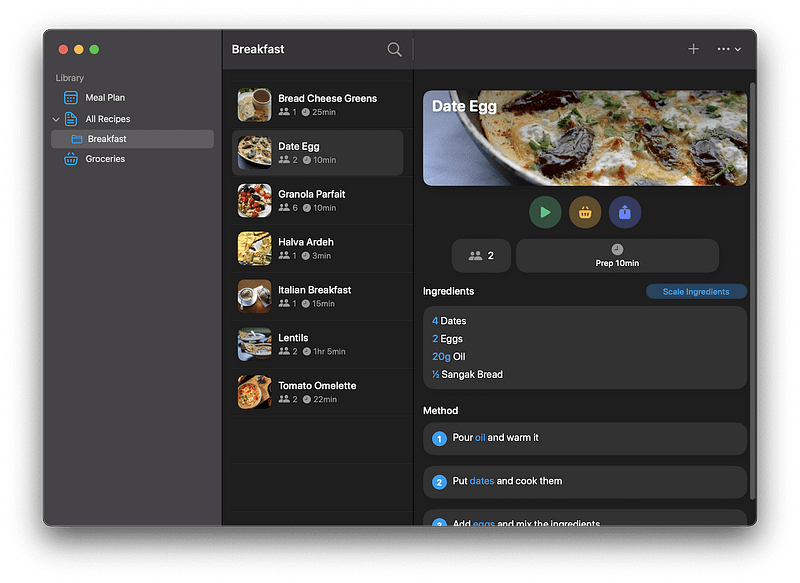
Keeping a list of recipes on your notepad might not be a good idea as it is not designed to with context in mind. The point of owning a recipe is to have a reference for the time you need something to cook, or you are looking to remember certain ingredients.
The Crouton is a fantastic app that has a dedicated design for this use case. Some functionalities of this app are:
- Store recipes from images or websites
- Recipe detection from websites
- Shopping list based on the ingredients
- Plan and schedule your meals for the days ahead
- Scan recipe ingredients from cookbooks
If you are looking for a digital book for your recipes in the form of a great app then don’t miss out the Crouton.
🔐 Privacy: No personal data collection
💳 Price: Multiple In-App Purchases
☑️ Compatibility: 📱iPhone, 📱iPad, 💻 Mac
🧩 Design: Aesthetically pleasing
🔗 Download: AppStore
🌐 Research: Website
21. Apple Developer
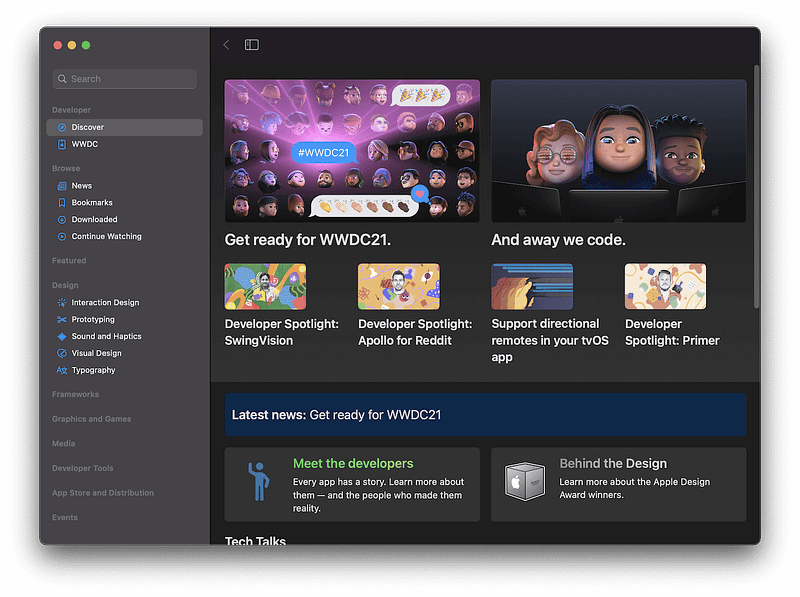
Every year, we get to experience the worldwide developer conference from Apple. It is in my opinion the most exciting time of the year (aside from Christmas of course) and I get super excited about the upcoming features of iOS, iPadOS, macOS, and other softwares.
As a designer, I get so much benefit not only from the main event which introduces the most notable features of the upcoming software update, but also the designer and developer sessions. Solely from WWDC, I have learned so much about creating a great user experience for users who rely on accessibility features.
If you are interested in not only the main event, but also the coding and design sessions then install this app on all your Apple devices. It will help you read the news and easily find all the sessions.
🔐 Privacy: Collects personal data
💳 Price: Free!
☑️ Compatibility: 📱iPhone, 📱iPad, 💻 Mac, 📺 Apple TV
🧩 Design: Aesthetically pleasing
🔗 Download: AppStore
🌐 Research: Website
22. QLVideo
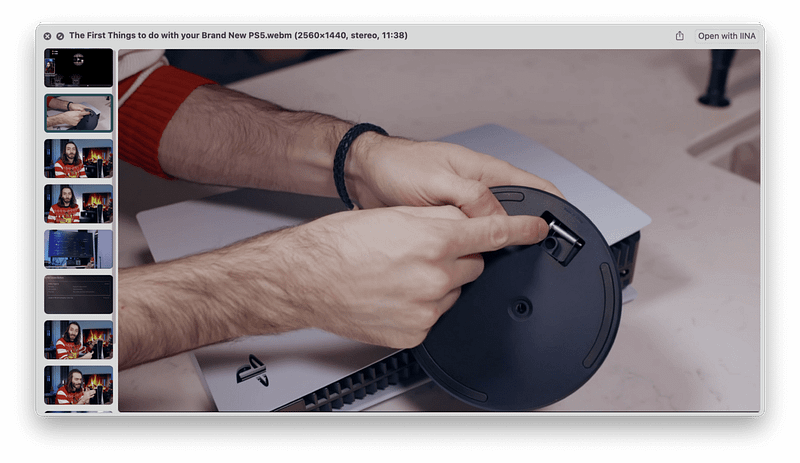
One of the reasons why I prefer macOS to other operating systems is a feature called QuickLook. Using the force touch on the trackpad or the space key on your keyboard, you can preview almost (almost) any file. It can be a PDF file, or an MP4 video. No matter the size, it works flawlessly.
What if we could extend the support of QuickLook to even more files? Imagine getting a preview of an MKV or an AVI video file. That would be extremely useful, and QLVideo is an app or rather a supplemental app that will help you get a preview of some file formats that are uncommon.
🔐 Privacy: Data is not yet provided
💳 Price: Free!
☑️ Compatibility: 💻 Mac
🧩 Design: Decent looking
🔗 Download: Not available on the AppStore
🌐 Research: Website
23. Rectangle
Many people don’t switch to macOS for simple features that exist on Microsoft Windows. One of them is the ability to snap a window into different sections on your monitor. As a user who seeks productivity, it would be a great addition to your user experience, having the window snapping feature on your Mac.
Rectangle is a free app that provides window snapping with ease. You can simply drag a window to the left or right side of the screen and drop it to have more screen available to increase your productivity.
You can also use keyboard shortcuts to place windows on any corner of the screen. Rectangle is a small utility app that shows on your Menubar, which can be hidden if you prefer a cleaner look for your operating system.
🔐 Privacy: No data collection
💳 Price: Free!
☑️ Compatibility: 💻 Mac
🧩 Design: Decent looking
🔗 Download: Not available on the AppStore
🌐 Research: Website
24. Pock
I don’t own a MacBook Pro with TouchBar. However, that shouldn’t stop me from introducing apps that might bring more customizability to those who own better MacBooks.
I came across Pock some time ago, and it seems to be very promising. Here are some of the great features of Pock:
- Widget that put all your Dock in the Touch Bar and hide it on your desktop to bring more immersive experience.
- Now playing widget that allows you to control the music you are listening to.
- Status widget to show battery, Wi-Fi, and other system icons for more information.
- An ESC button.
- Weather and control center widgets.
🔐 Privacy: Some personal data collection
💳 Price: Free!
☑️ Compatibility: 💻 Mac
🧩 Design: Decent looking
🔗 Download: Not available on the AppStore
🌐 Research: Website
25. Silicon Info
Ever since I upgraded my MacBook Pro 2016 to a Mac Mini M1, I have been amazed at the performance of Apple Silicon. Apps launch near-instantly and don’t use much memory. Everything is smooth, and overall, the experience of using your Mac is highly elevated. I love it.
What I don’t love about Apple Silicon is its semi-slow process of transitioning apps from x86 codes to ARM. Despite the robust Rosetta 2 layer that translates x86 to arm binaries, I still deal with many apps that haven’t released their native ARM-compatible Mac version.
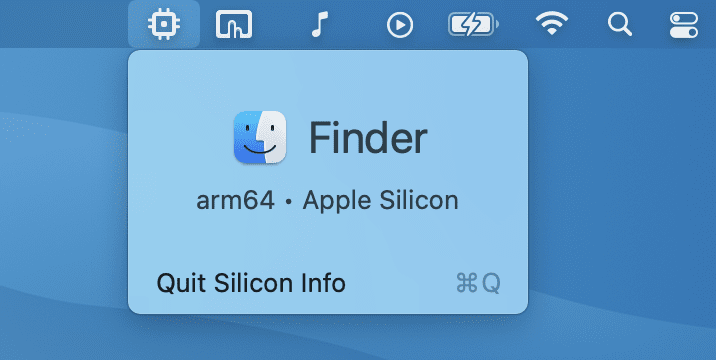
Interestingly, with the help of a petit utility app called Silicon Info which resides in the menu bar, I can see if an app I’m using on my M1 Mac is compatible with Apple Silicon or Intel.
Using Silicon Info, I was able to find out many Intel apps and refer to their websites for downloading their Apple Silicon version. The advantage is an immense change in performance and power consumption.
If you own an Apple Silicon Mac, this app could be beneficial for you.
🔐 Privacy: No data collection
💳 Price: Free!
☑️ Compatibility: 💻 Mac
🧩 Design: Displeasing
⭐️ Rating: Insufficient data
🔗 Download: AppStore
🌐 Research: GitHub
26. Motrix
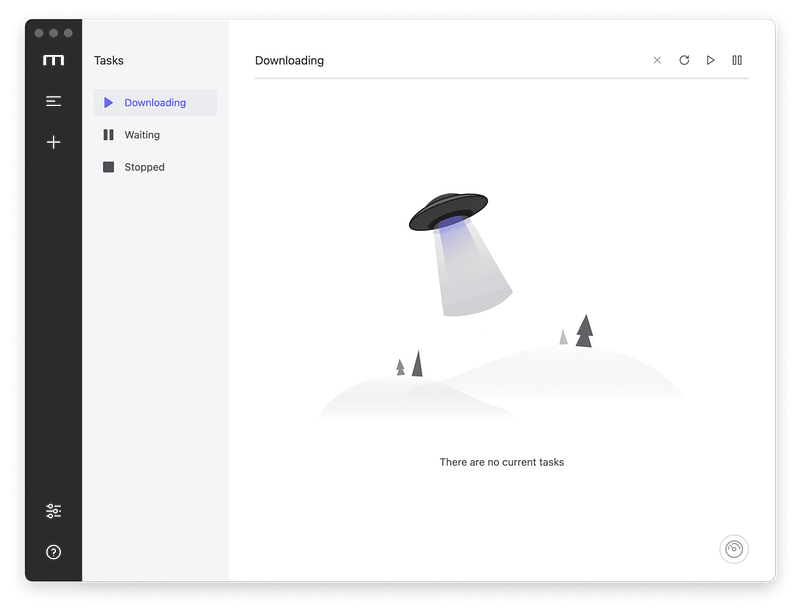
When it comes to downloading files from the web, the default Safari browser is fine for small files. However, sometimes, we download large files such as a Linux distro or a 4K HDR video which could easily take more than 4 GBs of space, and Safari isn’t capable enough for them.
Sure, Safari could be useful for downloading large files, but it only provides a decent experience if your internet connection is fast. Unfortunately, having fast internet is not possible for many, and they need to manage their time and observe their data limit from their ISP.
Motrix is a minimal, good-looking download manager that bring many useful features. You can download torrent files, split your downloads to 64 threads, and get a dynamic graphical progress indicator to understand how your download has progressed so far.
🔐 Privacy: Data is not yet provided
💳 Price: Free!
☑️ Compatibility: 💻 Mac
🧩 Design: Decent looking
⭐️ Rating: Not available
🔗 Download: Website
🌐 Research: GitHub
27. Museeks
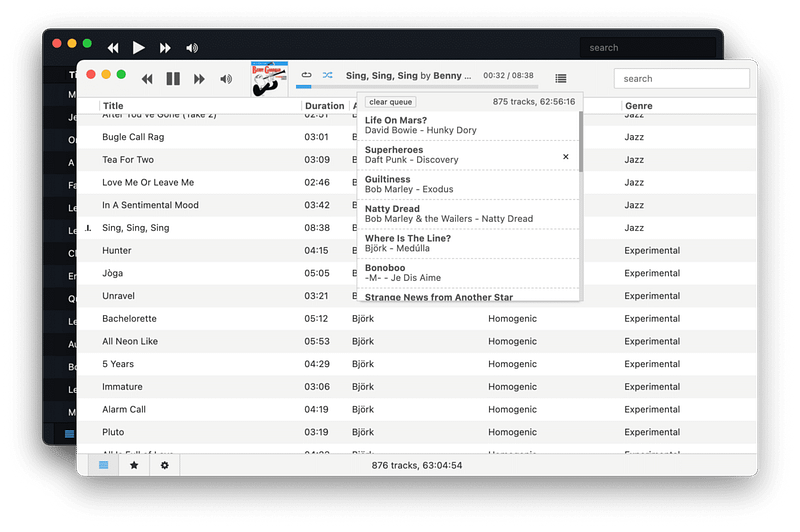
When Mr. Jobs introduced the iPod and the iTunes store, many people had the right to own their music by purchasing them directly from the store. Now, unfortunately, you don’t own your music. Instead, services like Apple Music, Spotify, or Pandora keep you in their debt. Still, some people possess an extensive library of local music files and want to play their songs locally.
macOS comes with an app named QuickTime which allows you to play many media files, but it has a relatively classic interface design and is not really up to today’s design standards.
Introducing Museeks, a simple, minimal app that allows you to create your own playlists and manually add your music library to play anytime you desire. The app doesn’t offer much in user interface design, but it provides enough functionality to satisfy you.
Museeks can import .m3u playlists and adapt its interface to dark mode.
🔐 Privacy: Collects personal data
💳 Price: Free!
☑️ Compatibility: 💻 Mac
🧩 Design: Displeasing
⭐️ Rating: Not available
🔗 Download: Website
🌐 Research: GitHub
28. Subtitler
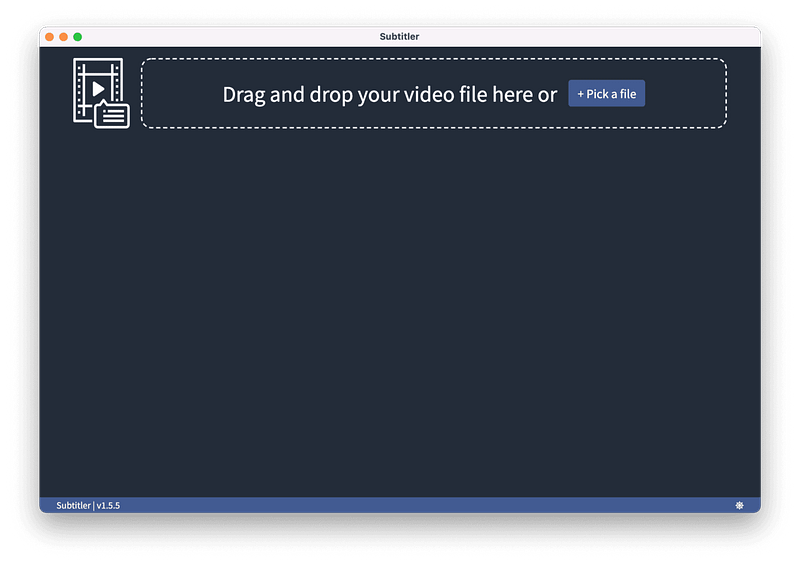
Like the previous app where you could play your music locally, some people own movies as local files and watch them on their Mac. However, for many non-English speakers, the problem with watching a local film, tv show, or documentary is not having the subtitle file.
Subtitler is a simple utility that allows you to drag the movie file you want to watch and receive its subtitle in almost any language. Simply click on the subtitle file and have it downloaded to your computer.
Once the subtitle is downloaded, you can watch it with a media player, which I’ll introduce one later in this story.
🔐 Privacy: Collects personal data
💳 Price: Free!
☑️ Compatibility: 💻 Mac
🧩 Design: Displeasing
⭐️ Rating: Not available
🔗 Download: Website
🌐 Research: GitHub
29. The Unarchiver
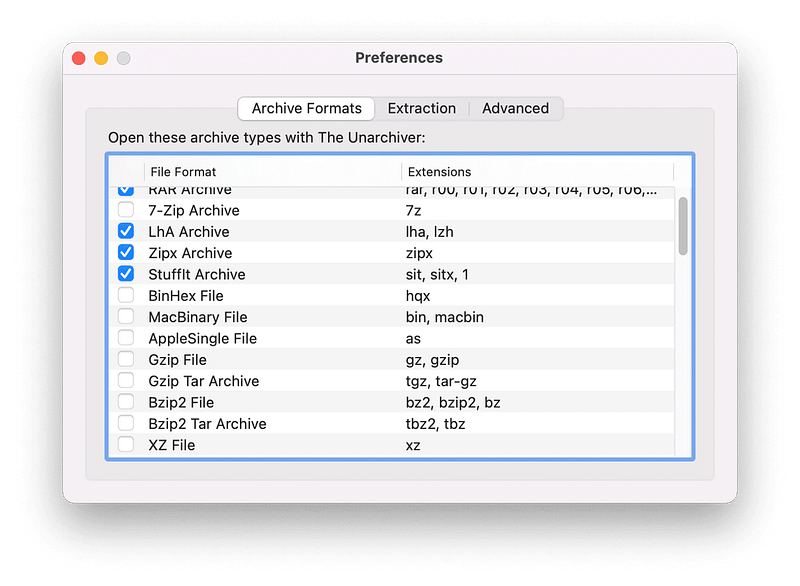
One of the best free utilities to work with compressed files on the Mac is the Unarchiver. It is a free app that updates almost 2 to three times a year and supports many compression formats.
There is little configuration to do for making it the default app to uncompress and compress your files. Once that is done, you won’t even notice how well The Unarchiver works.
🔐 Privacy: No personal data collection
💳 Price: Free!
☑️ Compatibility: 💻 Mac
🧩 Design: Displeasing
⭐️ Rating: Insufficient data
🔗 Download: AppStore
🌐 Research: Website
30. IINA
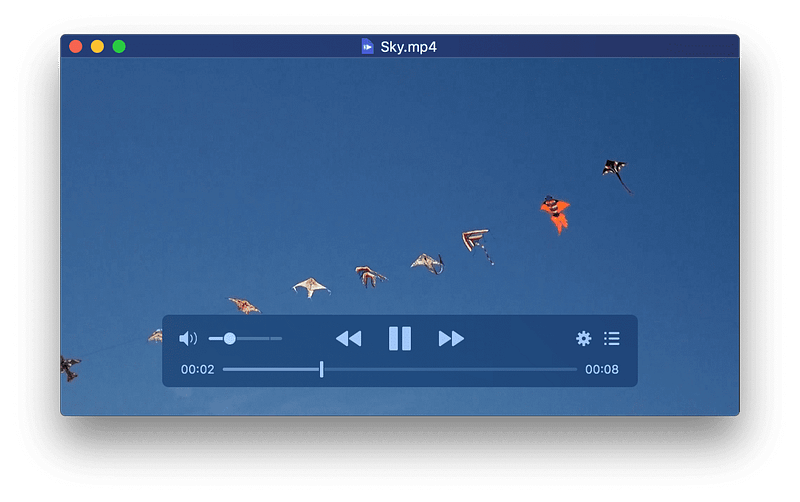
One of the best native-looking media players for Mac is IINA. It is a light app and natively works with Apple Silicon. In addition, it has a great set of features that make this an incredible player.
For one, the picture-in-picture feature is excellent for watching a podcast and wanting to attend to your work simultaneously. Also, there is the trackpad and gesture support for changing the media playback.
IINA supports dark mode and brings some additional playback control to MacBooks with a touch bar. Perhaps, one underrated feature is playing online videos from streaming sources and YouTube, which not many have mentioned about this app.
If you are looking for an advanced video player that looks Mac-like, then give IINA a try. It is an app worth owning on any Mac.
🔐 Privacy: Data is not yet provided
💳 Price: Free!
☑️ Compatibility: 💻 Mac
🧩 Design: Aesthetically pleasing
⭐️ Rating: Not available
🔗 Download: Website
🌐 Research: GitHub
31. PS Remote Play

Do you ever wish you could play PlayStation games when you are not out and about? If you own a PlayStation 4 or a PlayStation 5, you can install the PS Remote Play app and use your Mac wherever you are to connect and play games remotely.
The app is not perfect, but it works, and all it requires is a fast internet connection. I recommend a stable connection that gives at least 40MBs of download and upload speed. In addition, to receive a higher-quality picture, you will need an internet connection with better bandwidth.
To test it out, I used my PlayStation 5, which is connected to the router using a LAN cable and enabled remote play in the PlayStation OS. Then, I set up the app on my Mac and connected it to the console in a matter of seconds.
I was able to pair my old PlayStation 4 DualShock controller with my MacBook Pro and play any game remotely using my Mac. The experience can sometimes be buggy, but overall, it is a feasible solution.
🔐 Privacy: Data is not yet provided
💳 Price: Free!
☑️ Compatibility: 📱iPhone, 📱iPad, 💻 Mac
🧩 Design: Displeasing
🔗 Download: Website
🌐 Research: Website
32. NetNewsWire
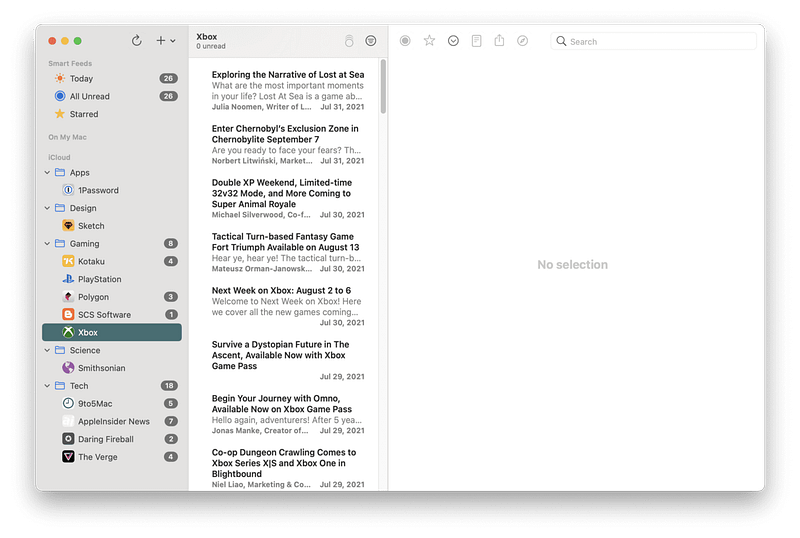
Being on track with the latest articles and news from your favorite websites can be a hassle. Especially if you don’t know your way around bookmarks and your browser is chrome. That is why many professionals recommend RSS readers.
These simple apps basically find an XML file containing all the latest articles from a specific website and bring you a clean, readable, and enjoyable experience. One of the great RSS readers for the Apple platform is the NetNewsWire.
It is free and open-source, which sounds suitable for many folks who want to manage their finances as best as possible. Still, many open-source and “free” apps come with downsides. One of them is the lack of a good UI/UX design.
NetNewsWire does not look bad; it works, but if you are looking for a more enjoyable experience, make sure to check the App Store for paid options.
This app is excellent for those who support open-source projects and want to contribute to the progress of free apps.
🔐 Privacy: Some personal data collection
💳 Price: Free!
☑️ Compatibility: 📱iPhone, 📱iPad, 💻 Mac
🧩 Design: Decent looking
🔗 Download: Website
🌐 Research: Website
33. TinkerTool
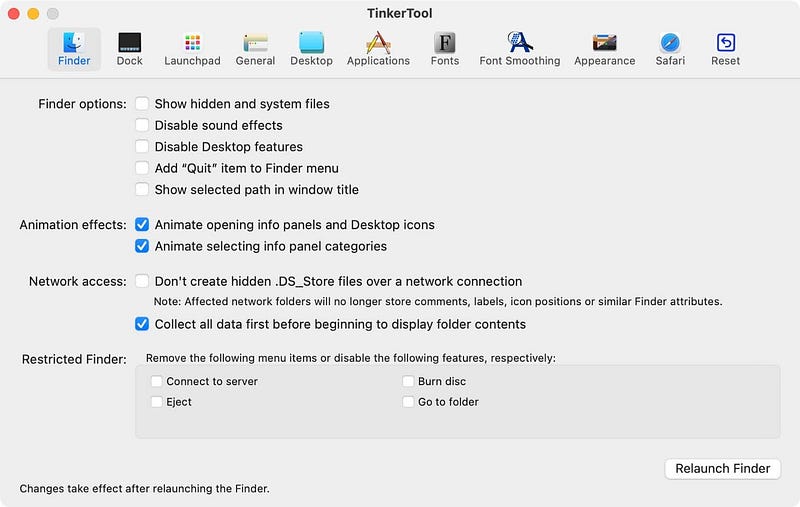
TinkerTool is a macOS utility app specialized in customizing many features of the operating system. We see many tweaks throughout the internet for altering different aspects of the interface, and many require running commands in the terminal app. With the help of TinkerTool, you can access the customization options by category with a decent user interface.
Just a disclaimer that before making massive changes, make sure to thoroughly read what each change does, as reverting some options can be difficult.
🔐 Privacy: Data is not yet provided
💳 Price: Free!
☑️ Compatibility: 💻 Mac
🧩 Design: Displeasing
🔗 Download: Website
🌐 Research: Website
34. Cloud Battery
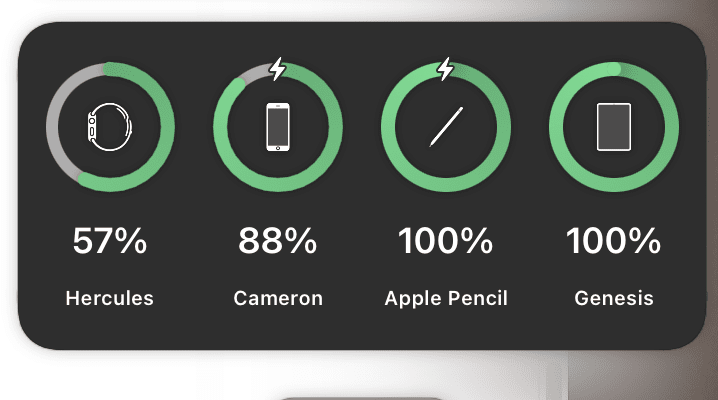
I, amongst many users from Reddit, have long asked Apple to update the battery widget for Mac, iOS, and iPadOS to include the battery status of all Apple devices.
So far, there is no official support from Apple; there might be battery optimization reasons behind the lack of implementation of such a feature. However, that does not stop developers from making our dream a reality. That is why, in this story, I’m introducing a fantastic app called Cloud Battery. It brings its own widget into your Mac and shows the battery status of all your Apple devices.
I personally use this app to monitor the battery for my iPad, Apple Pencil, AirPods, iPhone, and Apple Watch. Cloud Battery is not super stable, and it does not constantly update itself, but it works, and I’m glad to have paid $3 to support their developer.
🔐 Privacy: No personal data collection
💳 Price: Free!
☑️ Compatibility: ⌚️Apple Watch, 📱iPhone,📱iPad, 💻 Mac
🧩 Design: Displeasing
🔗 Download: AppStore
🌐 Research: Website
35. AnyDesk
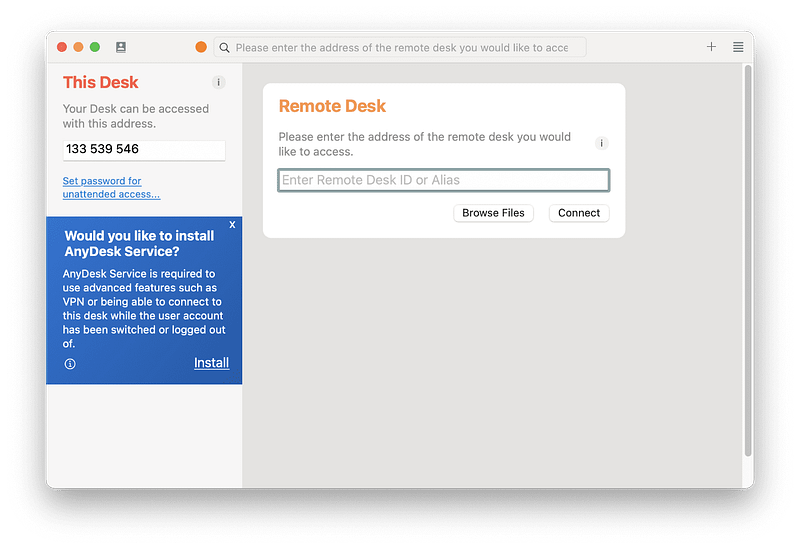
Whenever someone asks me for help with their computer, I send them a link to AnyDesk and tell them to install it. Once installed, I can remotely connect to their computer and help fix their machine. I am not a computer technician, but I can imagine an expert using the same app for their job as it is almost free and works very well.
Personally, I have used AnyDesk to help my friends and family. I also get help from my friends who are network administrators and let them configure my networking equipment.
If you are looking for a simple way to get or send help, make sure to give AnyDesk a chance. It is an incredible app.
🔐 Privacy: Collects personal data
💳 Price: Subscription $9.90 per month
☑️ Compatibility: 💻 Mac
🧩 Design: Displeasing
🔗 Download: Website
🌐 Research: Website
36. Grammarly
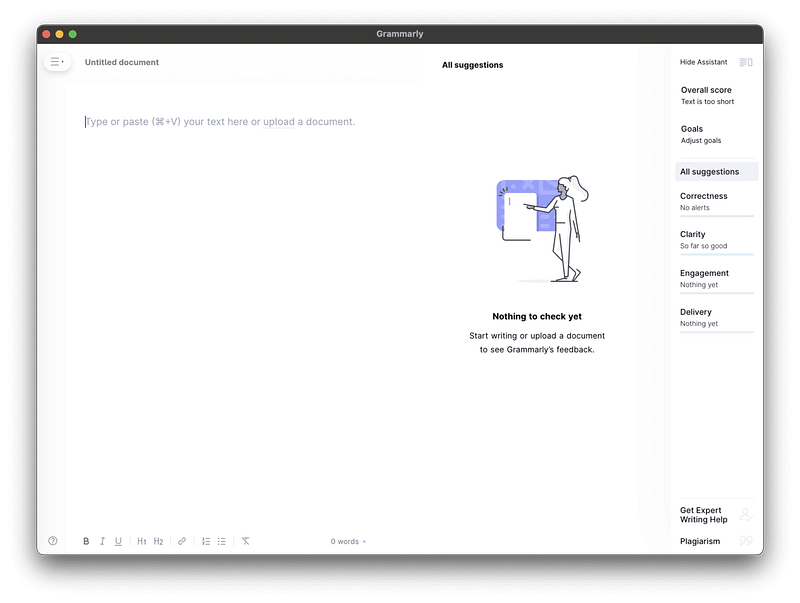
This app is sort of a cheat for those who are not good with their English language, but it is necessary to send a message to someone literate in English.
I had my IELTS and GRE test over five years ago, and despite years of studying English, I still make mistakes with grammar and put a few typos in my writings. I love the English language, but I don’t like to embarrass myself once I write something important in English.
Not only does it reveal your writing mistakes, but it can also analyze the tone and different characteristics of your writings. I’m not gonna lie, I had used Grammarly when I started this blog, and it helped me a lot. Still, to progress and have my own way of writing, I decided to manually review my work.
If your use case requires precise grammar and tonality, then give this app a try. You are going to enjoy what it offers. Just don’t forget your own unique voice while writing.
🔐 Privacy: Collects personal data
💳 Price: Subscription $12 per month
☑️ Compatibility: 📱iPhone, 📱iPad, 💻 Mac
🧩 Design: Displeasing
🔗 Download: Website
🌐 Research: Website
37. Dashword
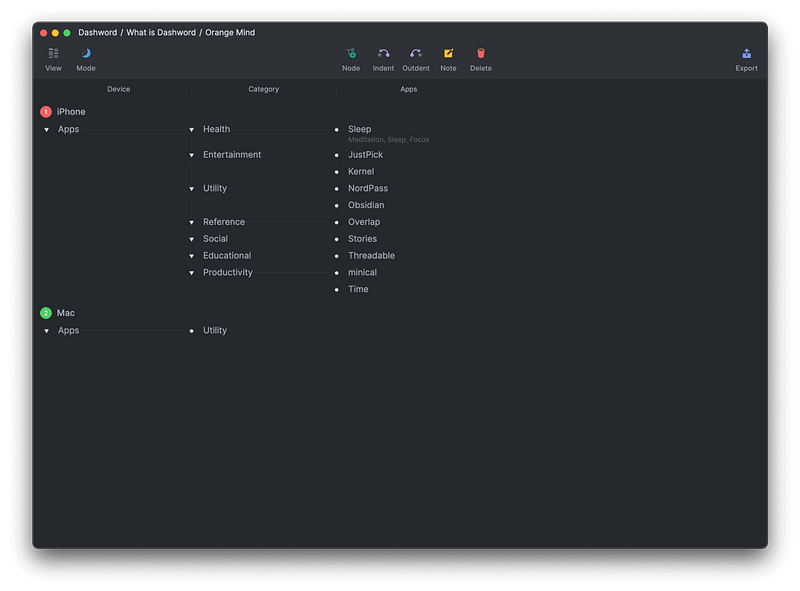
Hierarchal organization — two words I will use to describe Dashword. Despite being very new to the market, it does an excellent job delivering the very basics of organizing your thoughts into an organized entity in which you’ll be able to progress your ideas in a fun, intuitive way.
Being so new, it lacks critical functions such as search, yet, I still find some features enjoyable to use. That is why I log all the apps I introduced in my blogs in Dashword.
If you are looking for a new way to expand your thoughts, give Dashword a try.
🔐 Privacy: No data collection
💳 Price: Free!
☑️ Compatibility: 💻 Mac
🧩 Design: Aesthetically pleasing
⭐️ Rating: Insufficient data
🔗 Download: AppStore
🌐 Research: Website
38. Accents
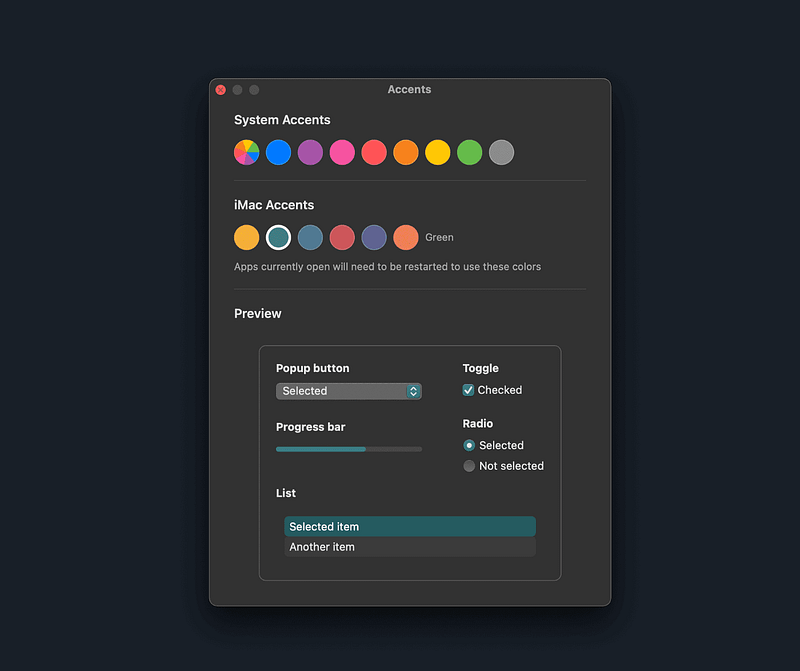
If you are a fan of the new (2021) iMacs and love their color accent, then this app is for you. Depending on the color of the iMac you purchase, your macOS will adapt its accent color to match the device.
I have always always loved the green accent color on the M1 iMac and wanted to have it as the accent color on my MacBook Pro. Now, with the help of Accents, a new app that offers all colors for your Mac, I can do that. If you like to experience more unique, better user interface colors, then give this app a try.
🔐 Privacy: Data is not yet provided
💳 Price: Free!
☑️ Compatibility: 💻 Mac
🧩 Design: Decent looking
⭐️ Rating: Not available
🔗 Download: Website
🌐 Research: Website
39. MinimalClock

The default macOS screen savers are great. They are don’t take a toll on your battery life and won’t make your processor bleed. As much as like the default ones, I’m not a person who gets used to seeing the same thing every day. I like change and what better change than a minimal screen saver?
The MinimalClock is a zen-like screen saver that only shows the current time in a lightweight typeface, and that is basically all I have to say about it since it is that simple.
🔐 Privacy: Data is not yet provided
💳 Price: Free!
☑️ Compatibility: 💻 Mac
🧩 Design: Aesthetically pleasing
⭐️ Rating: Not available
🔗 Download: Website
🌐 Research: Website
40. Transmission
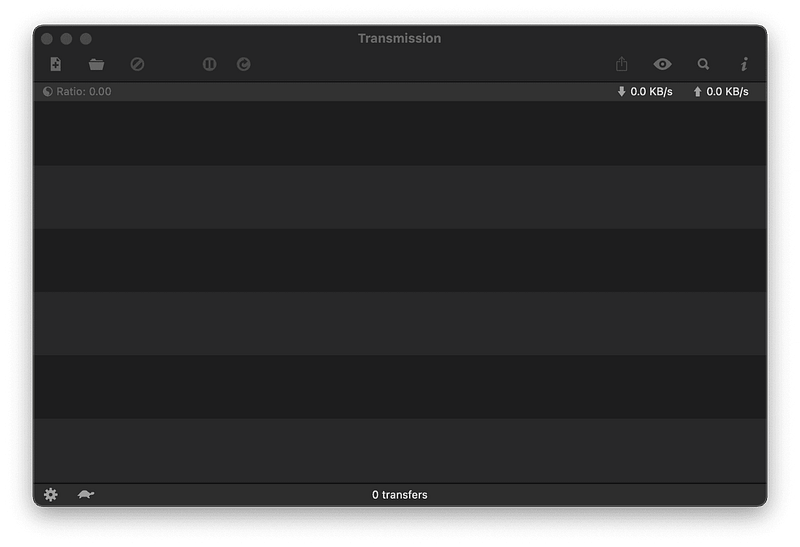
Transmission is the only freeware torrent app I have found for macOS that works really well. The app is designed like a default macOS app and doesn’t push the processor or take much memory to run.
All you’ll need is the magnet file and open it using Transmission. Then, your torrent download will start without any hassle. The user experience is fine, but the app could use a redesign for the new design language of Mac.
Overall, it is the best, free, minimal torrent client for mac.
🔐 Privacy: No data collection
💳 Price: Free!
☑️ Compatibility: 💻 Mac
🧩 Design: Displeasing
⭐️ Rating: Not available
🔗 Download: Website
🌐 Research: Website
41. Iconset
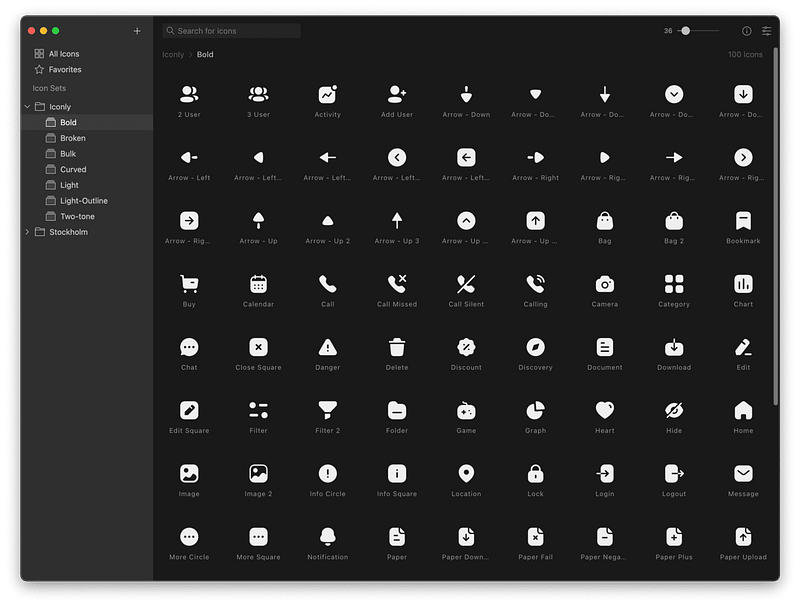
Whether you are a designer who needs an app to manage icon packs or you are a student who need icons for their next presentation, Iconset will answer your needs.
Simply navigate to their website and download the app alongside some of your desired icons. The great thing about Iconset is its last update where they made the app native for Apple Silicon, so the performance will be top-notch.
If you are looking for a free app that could easily manage your icons, give Iconset a try.
🔐 Privacy: Data is not yet provided
💳 Price: Free!
☑️ Compatibility: 💻 Mac
🧩 Design: Decent looking
⭐️ Rating: Not available
🔗 Download: Website
🌐 Research: Website
42. Overlap
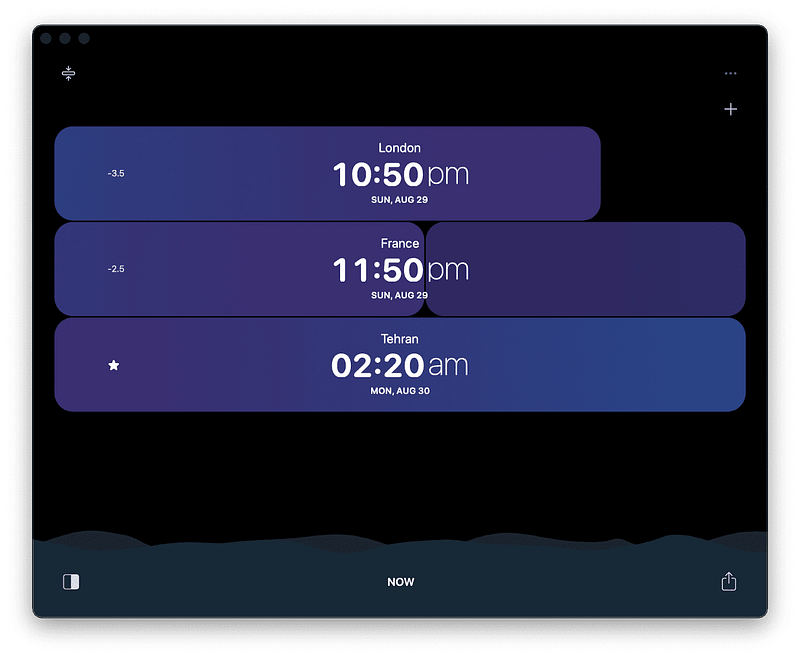
Many people have friends and family who live in different time zones. Keeping contact with your dear ones shouldn’t be difficult because of this. That is why I am introducing Overlap. A gorgeous app designed with a great user experience.
Using the app is easy, and all it requires is to add the city you like to track. The app is filled with feedbacks, whether they are audible or visual. It does a seemingly simple job appear facile. Lastly, a great feature is that you can also scroll the timeline to see the time difference before and ahead of you.
If you are one of those people who like to be in touch with their friends and loved ones, then give this app a try. You are going to enjoy its interface.
🔐 Privacy: No personal data collection
💳 Price: Free!
☑️ Compatibility: 📱iPhone, 📱iPad, 💻 Mac
🧩 Design: Aesthetically pleasing
⭐️ Rating: 4.6 out of 5 (191 ratings)
🔗 Download: AppStore
🌐 Research: Website
43. PDF Archiver
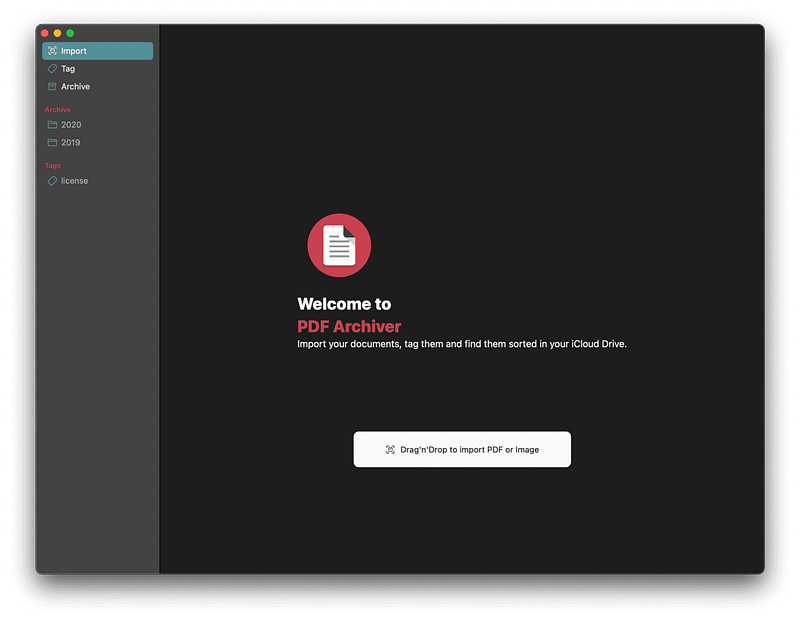
Going paperless has never gotten easier than now. The immense number of apps that you can use to convert from a paper-full life to a paperless one has made our job as a concerning citizen easier than ever.
One of the apps that does a great job of storing your documents (whether they are in PDF or image format) into a structured, searchable place is PDF Archiver.
PDF Archiver allows you to create folders and assign tags for each one of your PDF or image files. It will then use its OCR technology to make the text within them searchable.
If you want to organize your documents in a straightforward approach, then give this app a try.
🔐 Privacy: No personal data collection
💳 Price: Subscription $1.99 per month
☑️ Compatibility: 📱iPhone, 📱iPad, 💻 Mac
🧩 Design: Displeasing
⭐️ Rating: Insufficient data
🔗 Download: AppStore
🌐 Research: Website
44. Aerial
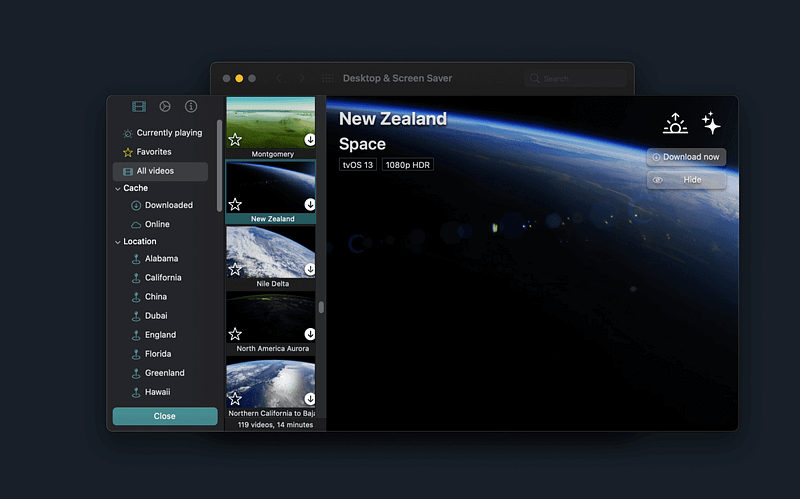
Apple TV is a great entertainment device. It offers excellent apps and a fantastic interface to make your TV more colorful. One of the perks of having an Apple TV is its screen savers; They are phenomenal.
The screen savers on the Apple TV (depending on your model) are 4K HDR in Dolby format, and they brighten up your living room. But, what if you could experience the same screen savers on your Mac?
That is what Aerial does, and it does that very well. In addition, it offers plenty of Apple TV screen savers that run on your Mac when you are not using it. The only downside? It requires a good GPU as some Macs might struggle with displaying the screen savers in high-resolution quality.
If you like to observe the beauties of this earth on your monitor, then give Aerial a try. It is going to please your eyes.
🔐 Privacy: Data is not yet provided
💳 Price: Free!
☑️ Compatibility: 💻 Mac
🧩 Design: Displeasing
⭐️ Rating: Not available
🔗 Download: Website
🌐 Research: Website
45. Zavala
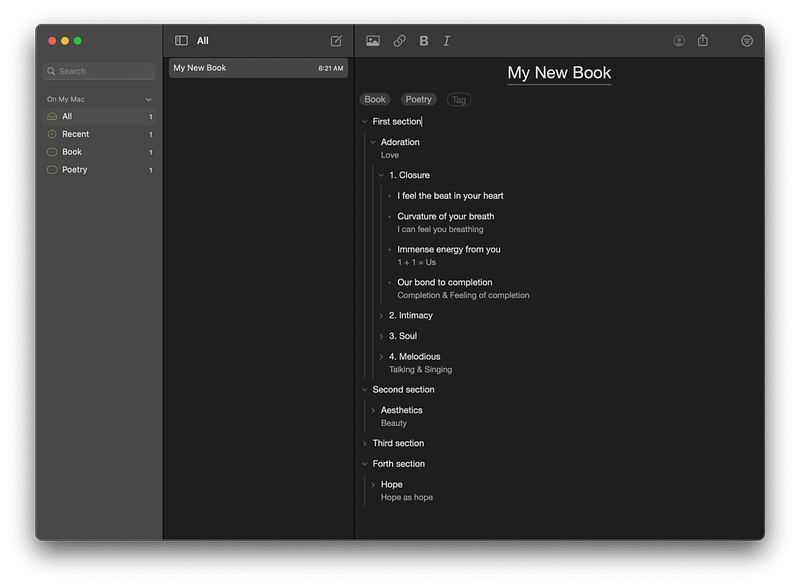
Organizing is most apparent in our daily lives through how we set up our belongings. Sometimes, our thoughts and ideas are so scattered around our minds that we miss many great opportunities to use them. For those times, we need a tool to organize them in a structured way.
Zavala is an outlining tool that allows you to organize your thoughts in a hierarchal way. I used it to structure my book’s chapters, and it works super well. Zavala supports OPML file format, and it syncs your documents using iCloud.
There are many great features in Zavala, and I encourage you to look at their AppStore page to learn about them.
🔐 Privacy: No data collection
💳 Price: Free!
☑️ Compatibility: 📱iPhone, 📱iPad, 💻 Mac
🧩 Design: Decent looking
⭐️ Rating: Insufficient data
🔗 Download: AppStore
🌐 Research: Website
46. MacYTDL
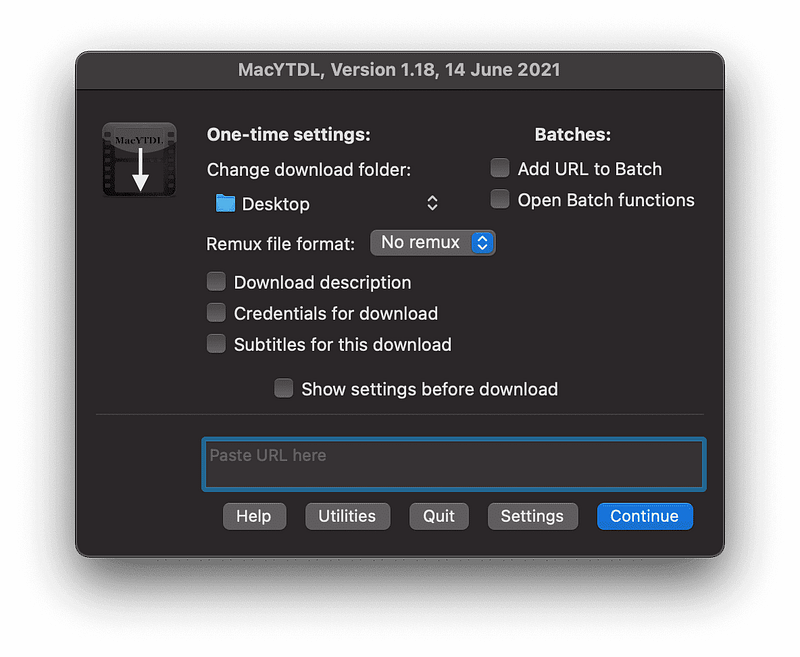
No matter what browser or extension you use to improve your watching experience on YouTube, it will never feel as buttery smooth as it is to simply play that video as a local file on your Mac.
MacYTDL is a utility that allows you to download YouTube videos for free without much hassle. Furthermore, it will enable many configurations to curate the app and get the best experience for you.
MacYTDL lacks a proper user experience design but provides a great set of options to improve its functionality. If you have come across free YouTube downloader applications, let us know in the response section.
🔐 Privacy: Data is not yet provided
💳 Price: Free!
☑️ Compatibility: 💻 Mac
🧩 Design: Displeasing
⭐️ Rating: Not available
🔗 Download: GitHub
🌐 Research: Website
47. Pika
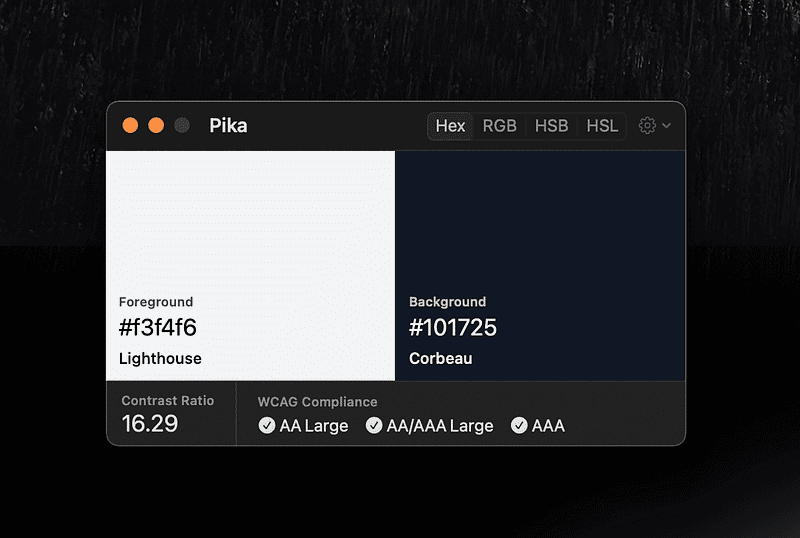
In your design process, you often want to be accurate in picking colors that meet WCAG compliance. That basically means a proper choice of identifiable colors that don’t bring any readability difficulty for users.
Pika is a free app that has a simple user interface alongside an incredible set of features. For example, you can easily adjust a keyboard shortcut to invoke Pika and pick the color on your screen.
If you are looking for a useful utility to help you meet accessibility standards, then give Pika a chance.
🔐 Privacy: Data is not yet provided
💳 Price: Free!
☑️ Compatibility: 💻 Mac
🧩 Design: Aesthetically pleasing
⭐️ Rating: Not available
🔗 Download: Website
🌐 Research: Website
48. Hush
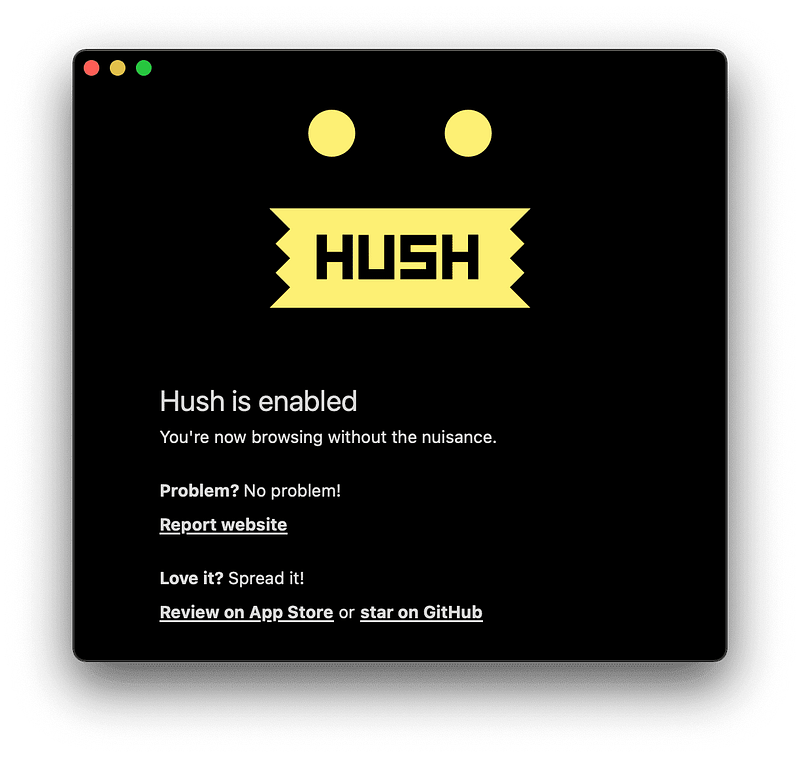
If you are using Safari to surf the web, I strongly recommend Hush. It is a free extension that removes privacy-invasive tracking and messages that force you to accept website cookies.
Hush doesn’t impact your memory, and it does not slow your browsing experience. In addition, websites look cleaner and more minimal after enabling the extension.
🔐 Privacy: No data collection
💳 Price: Free!
☑️ Compatibility: 📱iPhone, 📱iPad, 💻 Mac
🧩 Design: Decent looking
⭐️ Rating: 4.8 out of 5 (139 ratings)
🔗 Download: AppStore
🌐 Research: Website
49. Paste — Clipboard Manager
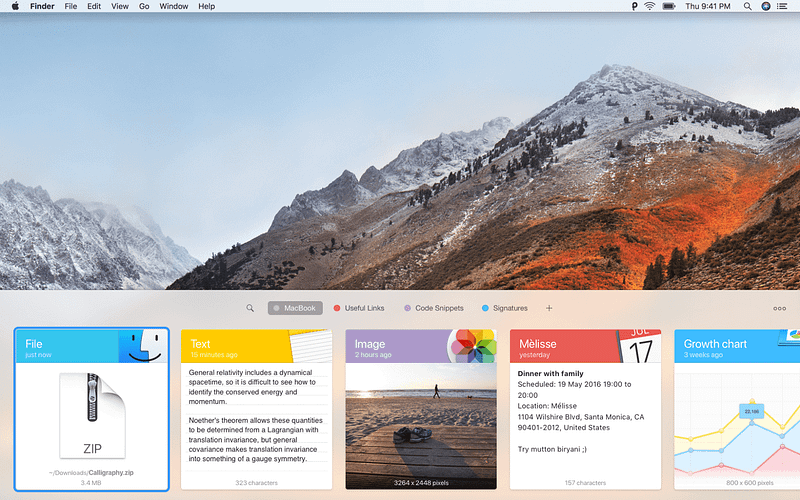
To many users, it is imperative to be able to access their clipboard history. There are situations when you use your iPhone and want to access your previous clipboard history to retrieve something.
There are plenty of use cases for accessing your clipboard history, and that is why I’m introducing Paste. Paste is a well-designed app that allows you to access your clipboard history on your Mac and other devices. Whether you own an iPhone or an iPad. The app is available to all of them.
Personally, accessing my clipboard history from a Mac Mini at home to my Macbook Pro at work is necessary, and this app does it all.
🔐 Privacy: Collects personal data
💳 Price: Subscription $14.99 per year
☑️ Compatibility: 📱iPhone, 📱iPad, 💻 Mac
🧩 Design: Aesthetically pleasing
⭐️ Rating: 4.5 out of 5 (3423 ratings)
🔗 Download: AppStore
🌐 Research: Website
50. Bear
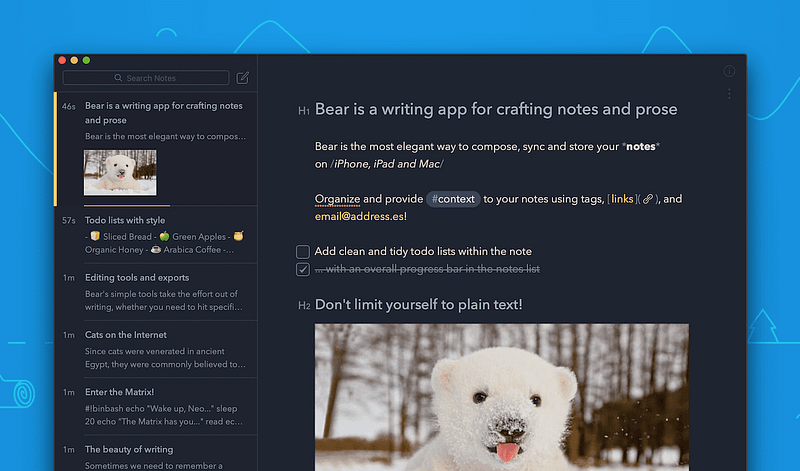
One of the most beautiful note-taking apps with intense focus on minimalism. The Bear app is phenomenal. The best thing about Bear is its performance. It opens super quick and over years of using it, I haven’t seen any lags or performance issues.
Anytime I want to quickly write down something on my Mac, I use bear. It allows me to create tasks within notes which is plenty helpful for online classes or tutorials from YouTube.
Some wonderful features are:
- Great tagging system to organize your notes
- Markdown support for quick text edit
- Protect notes with TouchID/FaceID and Password
- Great Safari extension to grab text, image, other things from web
- Ability to archive notes
- Integration with Spotlight Search
If you are looking for an all-in-one solution for note-taking needs, then Bear is a great choice.
🔐 Privacy: No personal data collection
💳 Price: Subscription $1.49 per month
☑️ Compatibility: ⌚️Apple Watch, 📱iPhone,📱iPad, 💻 Mac
🧩 Design: Aesthetically pleasing
🔗 Download: AppStore
🌐 Research: Website
Thank you for reading this story. It took me quite some time to edit and prepare all the materials for it. If you have any recommendations, whether that is apps, feedback, or a single comment, let me know in the response section, and I will get back to you as soon as I can.
I would appreciate it if you support me by becoming a Medium member using the link below:
Here are more stories you might enjoy reading:


