avatarClark

Free AI web copilot to create summaries, insights and extended knowledge, download it at here

4274

Abstract

e nature of an app requires your location, and the developer explicitly requests it in a clear language, then only when it necessitates, it is ok to grant location permission.”</p><p id="2125">This way, you have a mindset on whether an app must use location services or not. So, the question is: How does one figure out if the developer has asked for location services in a clear term?</p><p id="ce93">The answer is different from app to app. Most apps use the macOS permission system to ask for your location, and some do this without your explicit consent.</p><p id="e95c">To understand if an app uses telemetry services for acquiring your data, you need to check the privacy policy section on their website. If the app is available through the AppStore, make sure it has been updated at least three times within the last six months, and check their permission access in the same AppStore window.</p><p id="7c02">You can inspect and disable the location access of each app with the steps below:</p><ol><li>Click on the  icon on the top left section of your Mac</li><li>Click on the <b>System Preferences</b></li><li>Click on <b>Security & Privacy</b></li><li>Click on <b>Privacy</b></li><li>Click on <b>Location Services</b></li><li>Enable the <b>checkbox</b> at <b>the left section</b> of each app to <b>disable</b> or enable their access (If the button is not working, make sure to unlock the settings by clicking on the lock button at the bottom of the window)</li></ol><h1 id="1825">4. Disable Analytics & Improvements</h1><figure id="06a8"><img src="https://cdn-images-1.readmedium.com/v2/resize:fit:800/1*xz8HUsa4WngP65j7sJYnIg.png"><figcaption>Screenshot of the Analytics & Improvements section in System Preferences on macOS Monterey</figcaption></figure><p id="d331">Many companies collect your diagnostics and private data without your explicit consent. While setting up your computer, you must click on agree on Privacy Terms to set up and start your system. Macs are, fortunately, a little bit different.</p><p id="b1b9">Reading Apple’s explanation for <a href="https://support.apple.com/guide/mac-help/share-analytics-information-mac-apple-mh27990/mac">Analytics and Improvements for macOS</a>, I was almost convinced to leave the options enabled until I read the following statement:</p><blockquote id="8387"><p>Usage information (for example, data about how you use Apple and third-party software, hardware, and services) — Source: <a href="https://support.apple.com/guide/mac-help/share-analytics-information-mac-apple-mh27990/mac">Share analytics information from your Mac with apple</a></p></blockquote><p id="fa27">It says Apple collects information about third-party software, hardware, and services on your machine. So, in simple terms: they know what apps, accessories, and services you run on your Mac. Although, in my research, I couldn’t figure out what Apple meant by usage information, if you, the fantastic reader, have information about this, please enlighten us in the response section.</p><p id="1155">That being said, you can opt-out of sharing your Mac’s analytics with Apple, and here is how to do so.</p><ol><li>Click on the  icon on the top left section of your Mac</li><li>Click on the <b>System Preferences</b></li><li>Click on <b>Security and Privacy</b></li><li>Click on <b>Privacy</b></li><li>Click on <b>Location Services</b></li><li>Scroll down and click on <b>Analytics & Improvements</b></li><li>Uncheck the <b>Share Mac Analytics</b> option (If the button is not working, make sure to unlock the settings by clicking on the lock button at the bottom of the window)</li></ol><h1 id="542b">5. Disable Apple Advertising</h1><figure id="c7d2"><img src="https://cdn-images-1.readmedium.com/v2/resize:fit:800/1*A6GqeY2JlTmQGktZtOaDcg.png"><figcaption>Screenshot of the Apple Advertising section in System Preferences on macOS Monterey</figcaption></figure><p id="429a">One of the most annoying privacy invasions in the 21st century is how different companies track our activity across various services and apps. They share your data with other companies for their profit, and not many people seem to be standing up to defend their rights. We are fortunate to be Mac users and ask the operating system to stop shari

Options

ng our digital identifier between apps and different services.</p><p id="3de2">By default, macOS generates a unique ID for you so advertisers can track you across apps. Hence, targeted advertisements. The good news is that we can utterly opt-out of these settings, and it is effortless to do so.</p><ol><li>Click on the  icon on the top left section of your Mac</li><li>Click on the <b>System Preferences</b></li><li>Click on <b>Security and Privacy</b></li><li>Click on <b>Location Services</b></li><li>Scroll down and click on <b>Apple Advertising</b></li><li>Uncheck the <b>Limit Ad Tracking</b> option (If the button is not working, make sure to unlock the settings by clicking on the lock button at the bottom of the window)</li></ol><p id="078a">Thank you for reading this story. I hope it brings awareness to as many Mac users as possible. My goal in writing stories like this is to bring clarity in the mind of Mac users to know what and how their devices handle privacy, ultimately providing solutions to become more protective of their data.</p><p id="5319">I would love to hear your comments, tips, and tutorials about improving Mac’s privacy in the response section. If you share one, I will include them with your username in the next related articles.</p><p id="7f47">If you enjoyed reading this story, let me know by giving a few claps and sharing it on social media. In addition, I will appreciate your comments about the content of my blog and if there are more things you want me to write.</p><p id="f3ac">I would appreciate it if you support me by becoming a Medium member using the link below:</p><div id="2c53" class="link-block"> <a href="https://cercinus.medium.com/membership"> <div> <div> <h2>Join Medium with my referral link - Nima Sakhtemani</h2> <div><h3>As a Medium member, a portion of your membership fee goes to writers you read, and you get full access to every story…</h3></div> <div><p>cercinus.medium.com</p></div> </div> <div> <div style="background-image: url(https://miro.readmedium.com/v2/resize:fit:320/0*Oqdg2ImK_HXtK30D)"></div> </div> </div> </a> </div><p id="0904">Here are more stories you might find interesting to read.</p><div id="b4ba" class="link-block"> <a href="https://readmedium.com/here-is-what-you-should-do-for-digital-minimalism-on-mac-720c80651949"> <div> <div> <h2>Here Is What You Should Do For Digital Minimalism On Mac</h2> <div><h3>It’s time to strip everything down</h3></div> <div><p>medium.com</p></div> </div> <div> <div style="background-image: url(https://miro.readmedium.com/v2/resize:fit:320/1*U2PO62HMefOYbAMCKIXLuQ.jpeg)"></div> </div> </div> </a> </div><div id="3155" class="link-block"> <a href="https://readmedium.com/5-apps-for-privacy-security-70b1d04fd390"> <div> <div> <h2>5 Apps for Privacy & Security</h2> <div><h3>Five applications to improve your privacy, manage your security logins, block trackers around the web, and a place…</h3></div> <div><p>medium.com</p></div> </div> <div> <div style="background-image: url(https://miro.readmedium.com/v2/resize:fit:320/0*0gxV2uniLjev51ON)"></div> </div> </div> </a> </div><div id="7df0" class="link-block"> <a href="https://readmedium.com/digital-minimalism-guide-for-social-apps-e92e4896884"> <div> <div> <h2>Digital Minimalism Guide For Social Apps</h2> <div><h3>a minimalism guide on how to take back your time from some social apps.</h3></div> <div><p>medium.com</p></div> </div> <div> <div style="background-image: url(https://miro.readmedium.com/v2/resize:fit:320/1*7R3uaJVNyBUscWIbdXrLug.jpeg)"></div> </div> </div> </a> </div></article></body>

5 Privacy Settings to Change on Your Mac
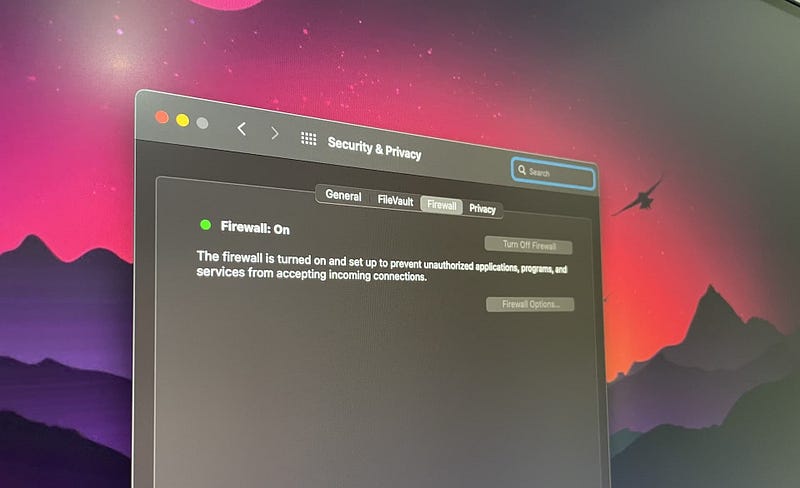
Screenshot of the Security & Privacy window on macOS Monterey

We all know how difficult it is to stay safe and protect our privacy in the digital world. As days pass, more and more companies bring new and updated products which feature great tools, but most of them invade our privacy.

I believe one day, society will shake to its core of how benevolent dictatorships abused their power to invade the most fundamental rights of any human being.

The amount of data most companies have over us is terrifying. It necessitates a series of actions to ensure everyone is aware of using their devices without leaking information about themselves.

I will help you improve your privacy by changing five settings on your Mac. This story is written at the time of Apple’s release of macOS Monterey.

1. Turn on Firewall
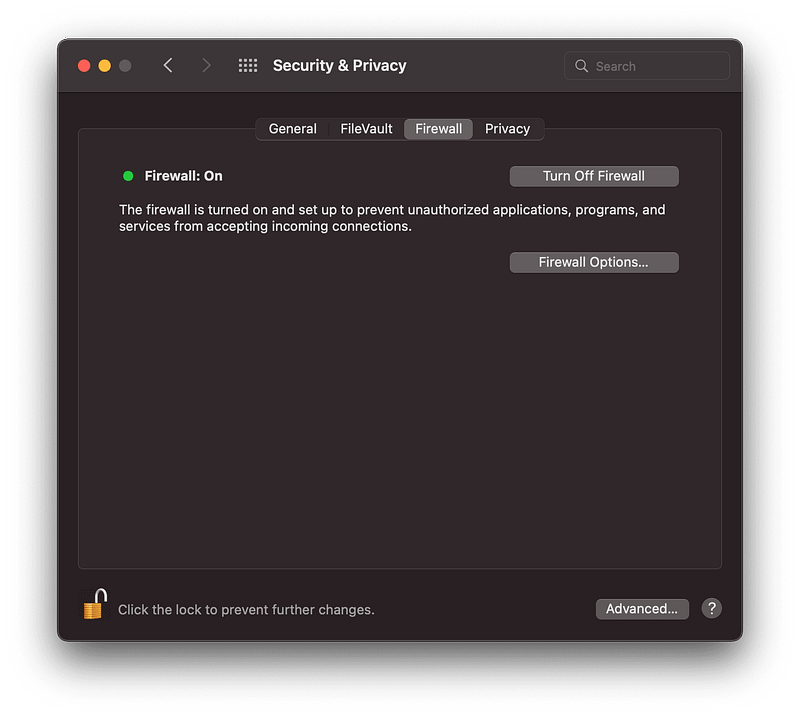
Screenshot of the Firewall section in System Preferences on macOS Monterey

A firewall can protect your Mac from unwanted contact initiated by other computers when you’re connected to the internet or a network. — Source: Apple

It is imperative to turn on firewall as soon as you buy a Mac. However, if you have reinstalled the operating system or got a new Mac, be aware that it is not enabled by default. The good news is that turning on the firewall is effortless. Here is how you can do it:

  1. Click on the  icon on the top left section of your Mac
  2. Click on the System Preferences
  3. Click on Security and Privacy
  4. Click on Firewall
  5. Click on Turn On Firewall (If the button is not working, make sure to unlock the settings by clicking on the lock button at the bottom of the window)

Something so simple and essential makes me question why it isn’t enabled by default.

2. Turn on FileVault
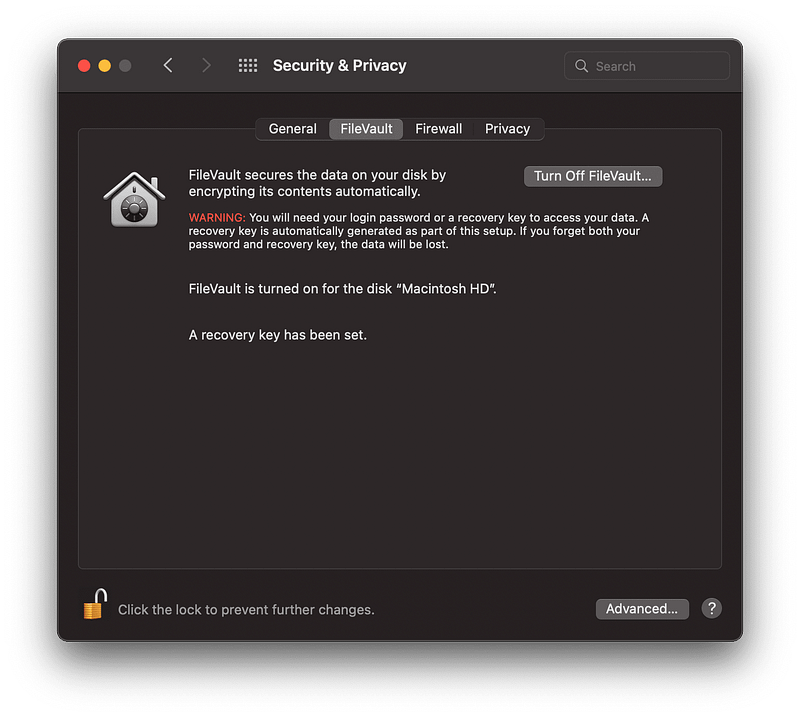
Screenshot of the FileVault section in System Preferences on macOS Monterey

By default, the startup disk on your Mac’s SSD is not encrypted. Therefore, if your Mac gets stolen, someone could access the content of your drive if the FileVault is not enabled.

Encryption by default can take a toll on your performance, but with the new technologies in most Macs, it wouldn’t make a noticeable change. If you own a Mac from 2016 or newer, enabling FileVault won’t noticeably affect your performance. Having said that, if you own an older Mac, the performance hit is obvious yet worth the extra security.

Here is how you can enable FileVault on your Mac:

  1. Click on the  icon on the top left section of your Mac
  2. Click on the System Preferences
  3. Click on Security and Privacy
  4. Click on FileVault
  5. Click on Turn On FileVault (If the button is not working, make sure to unlock the settings by clicking on the lock button at the bottom of the window)

3. Check Location Setting for Each App
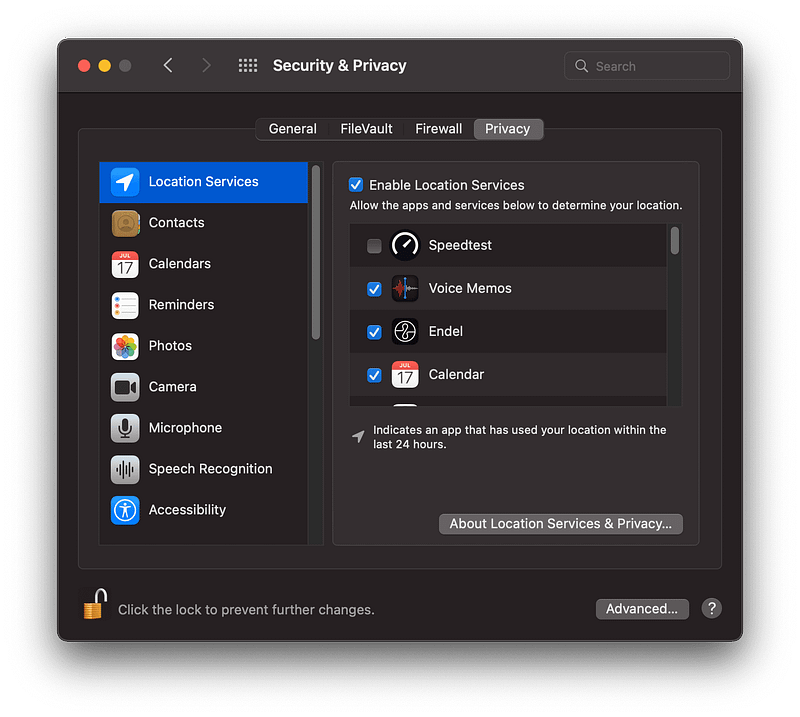
Screenshot of the Location Services section in System Preferences on macOS Monterey

Many people aren’t aware that many apps on their Mac regularly check their location to adjust their services. Sometimes these adjustments are purely for the functionalities sake; the rest, privacy-invasive.

Here is my rule to figure out whether an app needs to access location services or not:

“ If the nature of an app requires your location, and the developer explicitly requests it in a clear language, then only when it necessitates, it is ok to grant location permission.”

This way, you have a mindset on whether an app must use location services or not. So, the question is: How does one figure out if the developer has asked for location services in a clear term?

The answer is different from app to app. Most apps use the macOS permission system to ask for your location, and some do this without your explicit consent.

To understand if an app uses telemetry services for acquiring your data, you need to check the privacy policy section on their website. If the app is available through the AppStore, make sure it has been updated at least three times within the last six months, and check their permission access in the same AppStore window.

You can inspect and disable the location access of each app with the steps below:

  1. Click on the  icon on the top left section of your Mac
  2. Click on the System Preferences
  3. Click on Security & Privacy
  4. Click on Privacy
  5. Click on Location Services
  6. Enable the checkbox at the left section of each app to disable or enable their access (If the button is not working, make sure to unlock the settings by clicking on the lock button at the bottom of the window)

4. Disable Analytics & Improvements
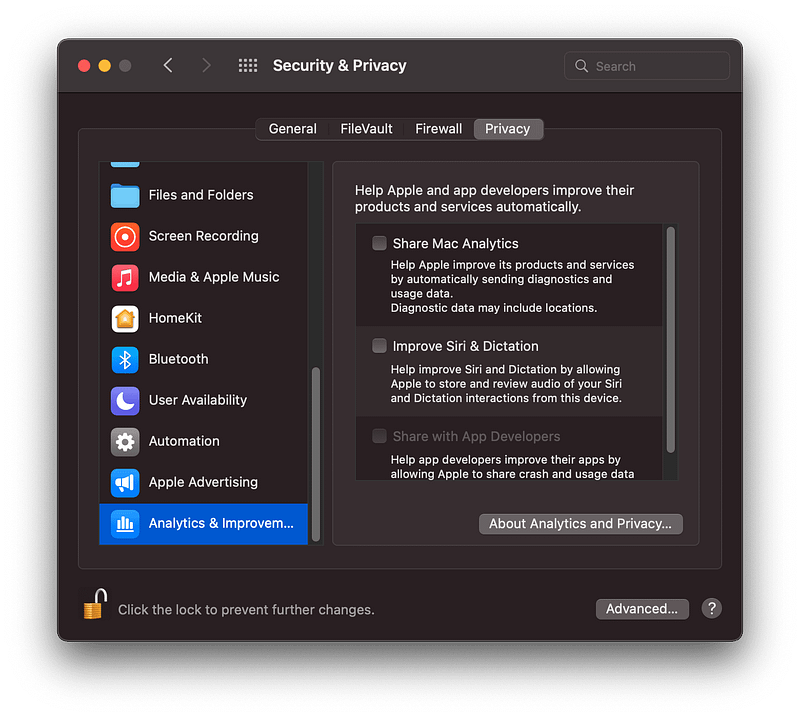
Screenshot of the Analytics & Improvements section in System Preferences on macOS Monterey

Many companies collect your diagnostics and private data without your explicit consent. While setting up your computer, you must click on agree on Privacy Terms to set up and start your system. Macs are, fortunately, a little bit different.

Reading Apple’s explanation for Analytics and Improvements for macOS, I was almost convinced to leave the options enabled until I read the following statement:

Usage information (for example, data about how you use Apple and third-party software, hardware, and services) — Source: Share analytics information from your Mac with apple

It says Apple collects information about third-party software, hardware, and services on your machine. So, in simple terms: they know what apps, accessories, and services you run on your Mac. Although, in my research, I couldn’t figure out what Apple meant by usage information, if you, the fantastic reader, have information about this, please enlighten us in the response section.

That being said, you can opt-out of sharing your Mac’s analytics with Apple, and here is how to do so.

  1. Click on the  icon on the top left section of your Mac
  2. Click on the System Preferences
  3. Click on Security and Privacy
  4. Click on Privacy
  5. Click on Location Services
  6. Scroll down and click on Analytics & Improvements
  7. Uncheck the Share Mac Analytics option (If the button is not working, make sure to unlock the settings by clicking on the lock button at the bottom of the window)

5. Disable Apple Advertising
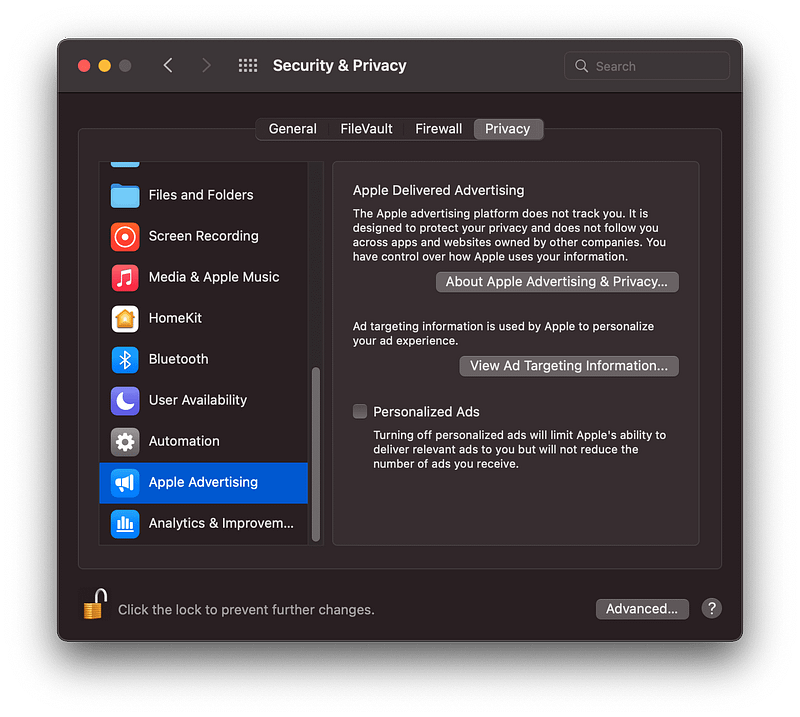
Screenshot of the Apple Advertising section in System Preferences on macOS Monterey

One of the most annoying privacy invasions in the 21st century is how different companies track our activity across various services and apps. They share your data with other companies for their profit, and not many people seem to be standing up to defend their rights. We are fortunate to be Mac users and ask the operating system to stop sharing our digital identifier between apps and different services.

By default, macOS generates a unique ID for you so advertisers can track you across apps. Hence, targeted advertisements. The good news is that we can utterly opt-out of these settings, and it is effortless to do so.

  1. Click on the  icon on the top left section of your Mac
  2. Click on the System Preferences
  3. Click on Security and Privacy
  4. Click on Location Services
  5. Scroll down and click on Apple Advertising
  6. Uncheck the Limit Ad Tracking option (If the button is not working, make sure to unlock the settings by clicking on the lock button at the bottom of the window)

Thank you for reading this story. I hope it brings awareness to as many Mac users as possible. My goal in writing stories like this is to bring clarity in the mind of Mac users to know what and how their devices handle privacy, ultimately providing solutions to become more protective of their data.

I would love to hear your comments, tips, and tutorials about improving Mac’s privacy in the response section. If you share one, I will include them with your username in the next related articles.

If you enjoyed reading this story, let me know by giving a few claps and sharing it on social media. In addition, I will appreciate your comments about the content of my blog and if there are more things you want me to write.

I would appreciate it if you support me by becoming a Medium member using the link below:

Here are more stories you might find interesting to read.

Apple
Mac
Tech
Technology
Privacy
Recommended from ReadMedium