
Digital Minimalism Guide For Social Apps
Humans are social animals. We crave connection — partnership, a way to dispart from isolation. Sometimes, our lives get busy. Not that being busy is inherently wrong; the problem arises when we replace meaningful actions with clutter — especially those that bring a false sense of connection.
This story will tackle the digital clutter that takes away our attention by sending out alerts that ruthlessly invade the most valuable asset in life: our time.
Analysis Of Top Social Apps On AppStore
We will analyze the use cases of some most used social apps and figure out if they are necessary to own, then offer solutions on how to reduce the usage time.
Facebook Products

Messenger and WhatsApp are two products that are widely used across the world. The experience of using Facebook Messenger is vastly better than WhatsApp. Interestingly, they are both owned by Facebook, and one of them is surprisingly annoying to use.
We will learn how to get rid of message clutter on WhatsApp in this story.
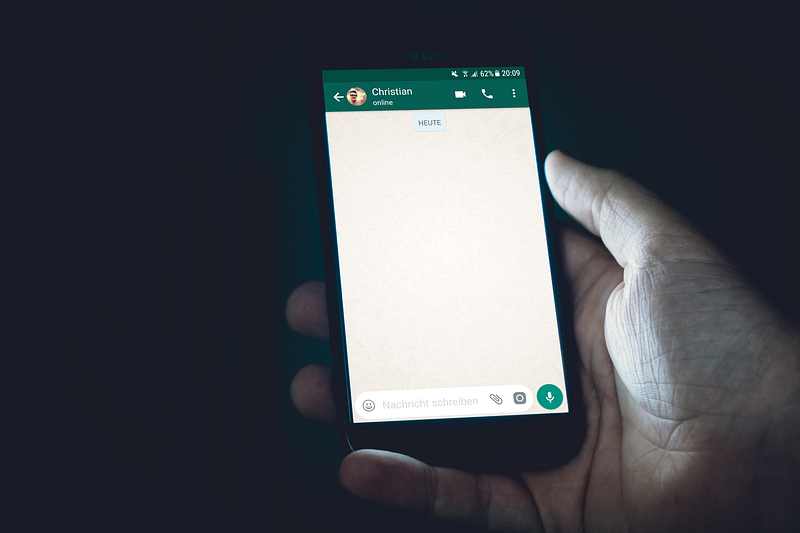
As much as I (to put it nicely) “dislike” WhatsApp, it is an essential app since everybody has it. There is nothing much we could do as long as Halo Effect makes people use it.
Most of the clutter we get from any messenger app is the number of conversations saved within them. To reduce the clutter is to get rid of old conversations by either archiving them or deleting them altogether.
Here is how to archive a chat on WhatsApp:
On the Chats screen, find the conversation you want to Archive
Swipe Left
Tap on the Archive button
Here is how to delete a chat on WhatsApp:
On the Chats screen, find the conversation you want to Delete
Swipe Left
Tap the three dot button
tap on the Delete Chat button
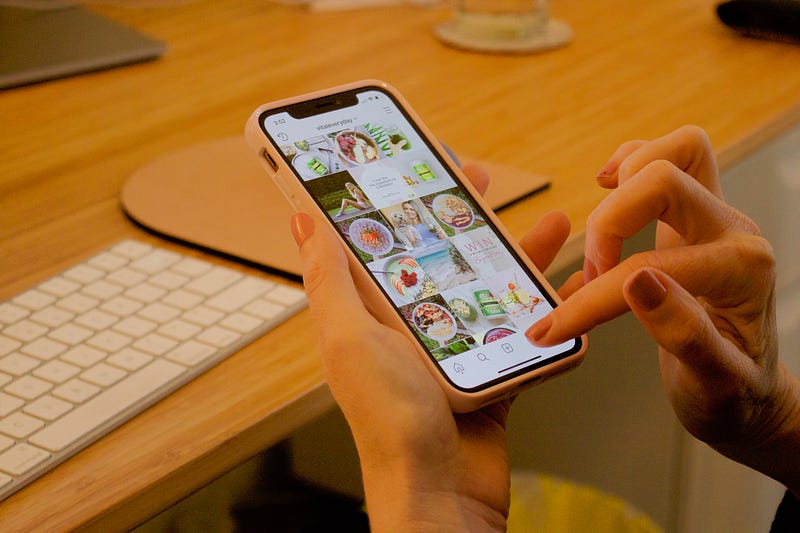
I have a semi-harsh judgment for Instagram. With the current policies, and moderation, I don’t think it is a safe app to use daily; Not that Instagram is inherently dangerous, but it can be a destructive weapon for society once its content is exclusively targeted at each individual.
More than we realize, much time is wasted scrolling through the feed and in the explore section. It is as if there is an end to it.
The app is made to be addictive, and that is what we are going to tackle in this story. To reduce the amount of time we spend on this platform. We need to make use of the features available on our iPhones.
At the time of writing this story, the latest official (non-beta) update running on iPhones is the iOS 14. The great thing about it is a feature called Screen Time. Simply restrain your app usage with the Screen Time settings, and you will find yourself capable of increasing your focus on what matters most.
Here is how you can restrict Instagram usage from the Screen Time feature on iOS 14:
Open the Settings app on your iPhone
Tap on the Screen Time section
Tap on the App Limits option
Make sure the App Limits toggle is switched on
At the bottom of the list, tap on the Add Limit button
From the list of categories, tap on the Social option
Select the Instagram app
On the top right of the screen, tap on Next
Adjust the amount of time you would like to allow yourself to use it
Tap on Add
iOS will automatically track how long you have used Instagram and stop you from using it once you have passed your limit.
Features such as Screen Time are why I believe in Apple. I love how they care about our health.
I can’t imagine a world without Google products. I don’t love them, nor do I hate them. Google’s privacy policies are wrong, but the benefits we get from their services are immense.
In this part of the story, we are going to analyze Google Duo. It is widely used amongst people in various industries, and these tips will hopefully offer some peace of mind.
Google Duo
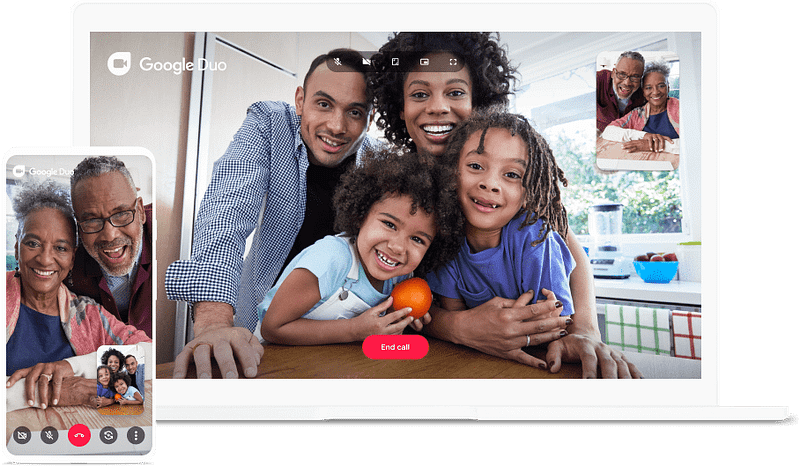
The hype around FaceTime and Apple’s blue bubbles while messaging made many people consider switching to Apples’ products. I remember how competitive Google used to be with their alternative solutions at lower (and sometimes relatively free) prices. That is when Google Duo made a lot of noise.
I don’t think many people use Google Duo at this time, but many of my friends and family who own Android phones use it. It is actually a rather lovely little app with its weird user experience.
Here are some tips to make sure your privacy is managed better.
Disable Knock Knock
The first time I used Google Duo, I realized my face is streamed live without accepting the call. I cringed. I mean, I was used to preparing myself for a call before someone accepts, and now… others have to see me smiling to the camera before a call? That is weird. That is why I have disabled it, even though it is a unique feature of the app.
Here is how you can do the same:
Tap the three-dot button at the top right of the screen
Tap on Settings
Choose Knock Knock
At the bottom of the screen, turn off Knock Knock by switching the toggle off.
Disable Captions for messages
For people with disabilities, this might be a good feature, but in terms of privacy? It will be a nightmare. Imagine willingly allowing Google to transcribe your voice over their network.
Here is the app’s description for this feature: “Send audio content to Google to be transcribed, but not stored.
What a mess! I personally would have kept this toggle on, but seeing the phrase “not stored” makes me question the privacy policies regarding such features with Google.
Here is how you can disable this feature:
Tap the three-dot button at the top right of the screen
Tap on Settings
Disable the toggle for Captions for messages
Manage Notifications
The amount of alerts we get on our iPhones is out of control! We are kept busy by corporations finding any opportunity to ask for our attention to either sell us an advertisement or abuse our data. However, we can stop most of their efforts. This section will tell you which settings to disable in Google Duo to get fewer notifications.
By default, Google Duo has enabled five different types of notifications:
- Getting notified when a new feature or update comes for the app
- Get an alert when one of your contacts has joined the app
- Receive notifications for special events
- A reminder of unseen messages
- A reminder of calls that didn’t connect
Besides the 4th and the 5th item, you won’t need to receive any notifications as they clutter your lock screen and hinder the experience of using your iPhone.
Here is how you can disable them:
Tap the three-dot button at the top right of the screen
Tap on Settings
Choose Notifications
Disable the toggle for any notification you don’t want to receive
An Important Question To Answer
- How can we overcome our desire to stay connected all the time?
As talked about at the beginning of this story, we are social animals, and we crave socializing with each other. It is one of the reasons why we have become the most powerful species on the planet. But, unfortunately, many people lost physical connection during the pandemic, and there was literally nothing to do other than staying connected with apps and social media.
Now that most of us are vaccinated, we can start again. First, however, it requires us to look away from our screens and seek genuine companionship with friends and family.
Most importantly, we need to redefine what we consider a meaningful relationship.
If you enjoyed reading this story, let me know in the response section, and I will write more editions by including more apps.
Thank you for reading this story. If you have enjoyed it, give it a few claps and let me know your comments and feedbacks in the response section.
Here are some other stories you might find helpful.


