
Stop Designing Like It’s 1999: Use Canva AI Features That Will Blow Your Mind
Discover how Canvas AI features can revolutionize your designs, and make you productive.
In my previous posts, I’ve shared some insane tips and tricks on how to make the most out of Google and Email. And today, I want to introduce you to another game-changer in the digital world: Canva.
Now, you might think that you already know all there is to know about Canva. After all, it’s a popular design application that allows users to create graphics, presentations, Instagram posts, logos, resumes, and more. But let me tell you, there’s so much more to Canva than meets the eye.
In fact, there are a ton of the latest features(including the AI ones) that even the most seasoned Canva users may not be aware of. And that’s where this post comes in — I’m here to share with you some of the lesser-known Canva hacks that can take your designs to the next level.
So buckle up and get ready to learn about the tips and tricks that can make your Canva designs stand out from the rest.
Excited, let’s start.
- Create a Website
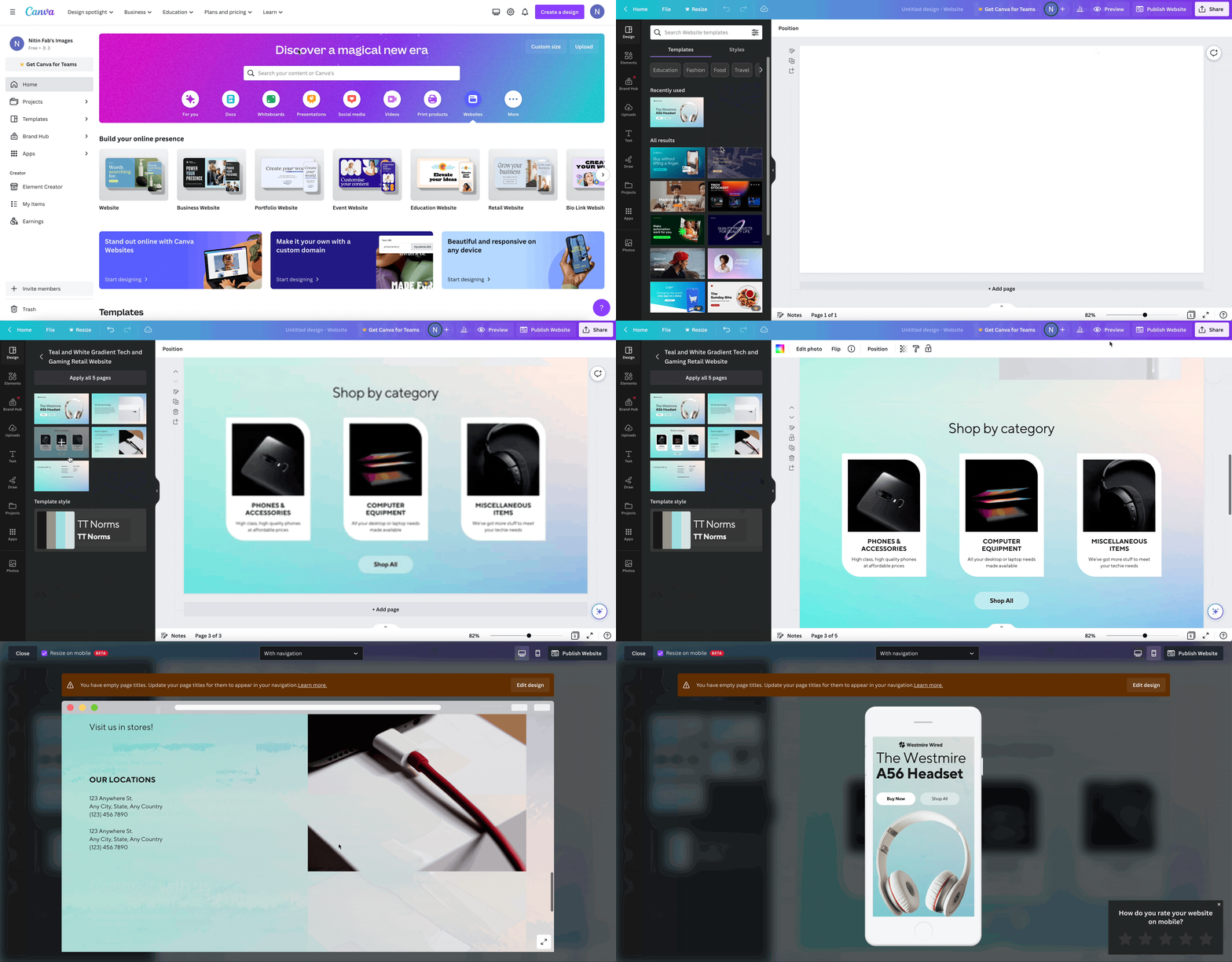
We all know how Canva has evolved from a simple design tool to a one-stop shop for all your creative needs. And yes, that includes website creation!
Yes, you read it right. With the help of Canva, you can create a website within seconds.
Want to give it a try, go to your Canva account, click on the website banner, or search website. Select the template you want, and then preview or publish it.
With a Canva subdomain, you can publish it for free, or use your own custom domain.
2. Draw
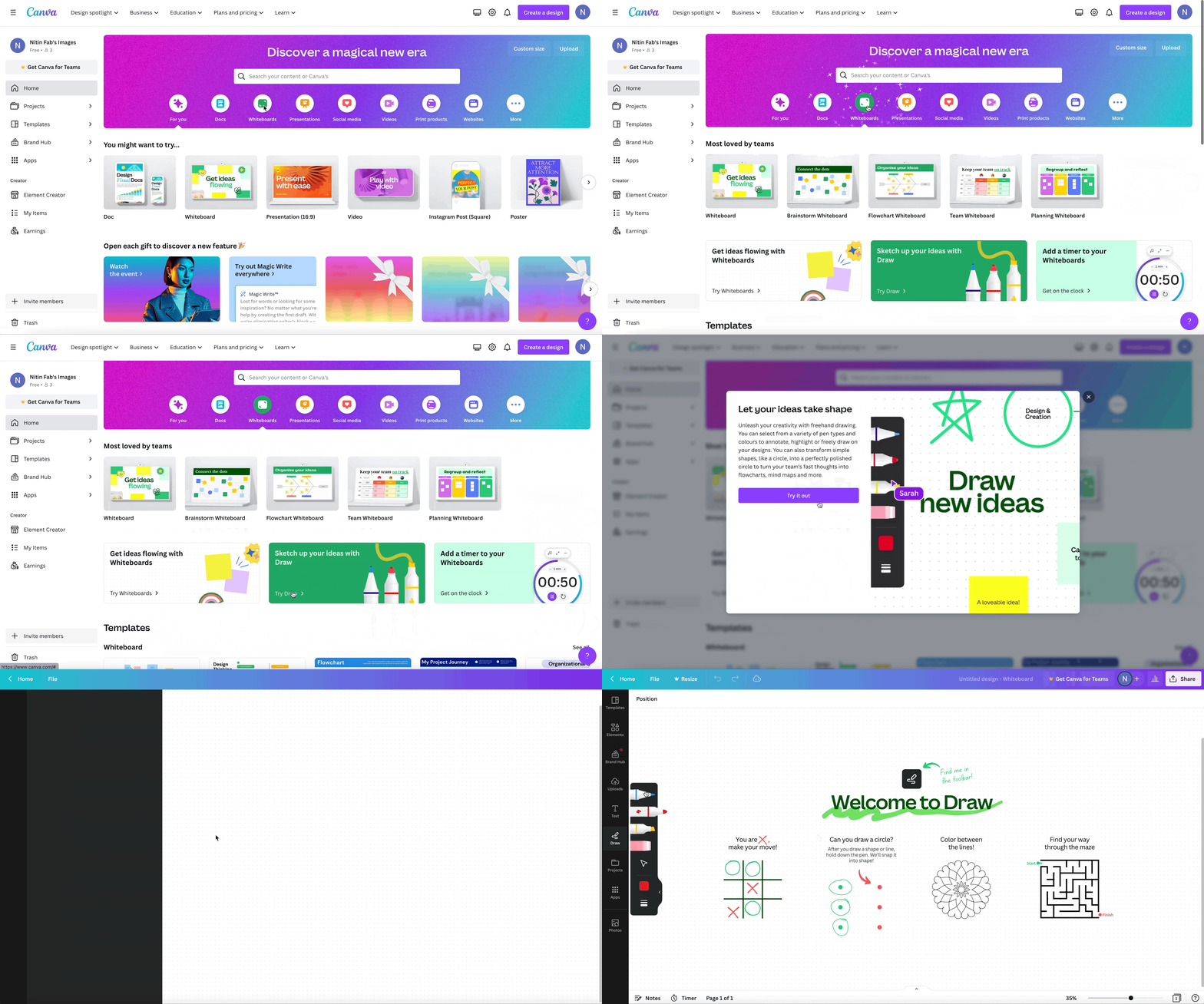
Have you heard of Canva’s newest feature, Draw? It’s an addition to the Canva platform and it’s designed to take your designs to the next level.
Similar to Figma’s Figjam, Draw allows you to add personalized drawings and graphics to your designs, making them truly unique and eye-catching. With Draw, you can unleash your creativity and sketch up your ideas right within the Canva platform.
Whether you’re designing a logo, creating a presentation, or working on a social media post, Draw gives you the tools you need to make your designs stand out from the crowd.
I have to say, as someone who’s been using Figjam, I was really impressed by the productivity boost that Draw provides.
Give it a try and see for yourself how it can elevate your designs to new heights!
3. Translate
The Covid-19 pandemic has brought about significant changes in the way people work. With more individuals opting to work from home or pursue side hustles, freelancing has become a popular career choice.
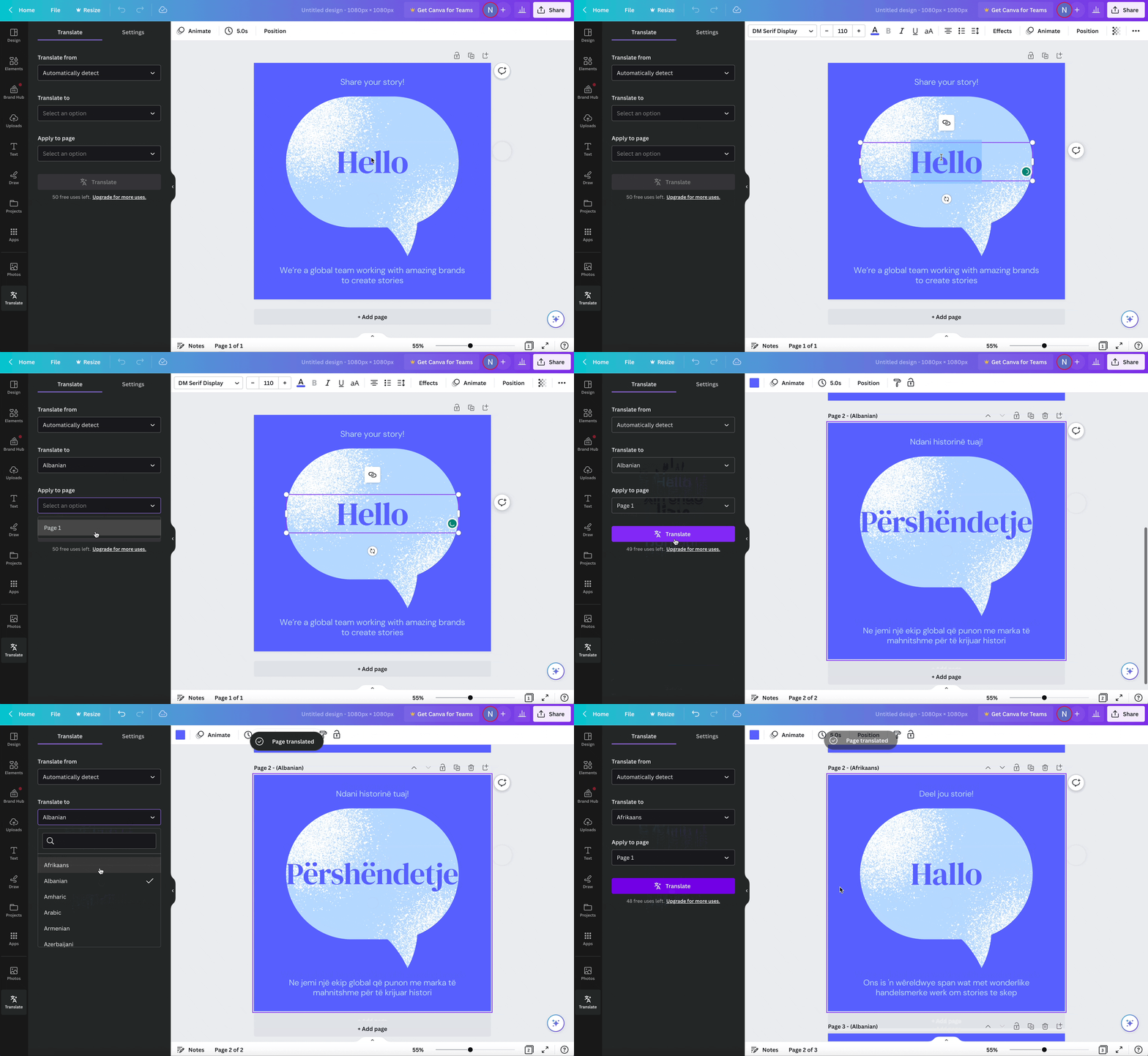
As a freelancer or content creator, you may find yourself working with clients from different parts of the world. To help bridge the language barrier, Canva has introduced a new feature called “Translate.”
This new feature allows you to translate your presentations and other designs into several languages without any difficulty. You can even use the auto-translate function to speed up the process.
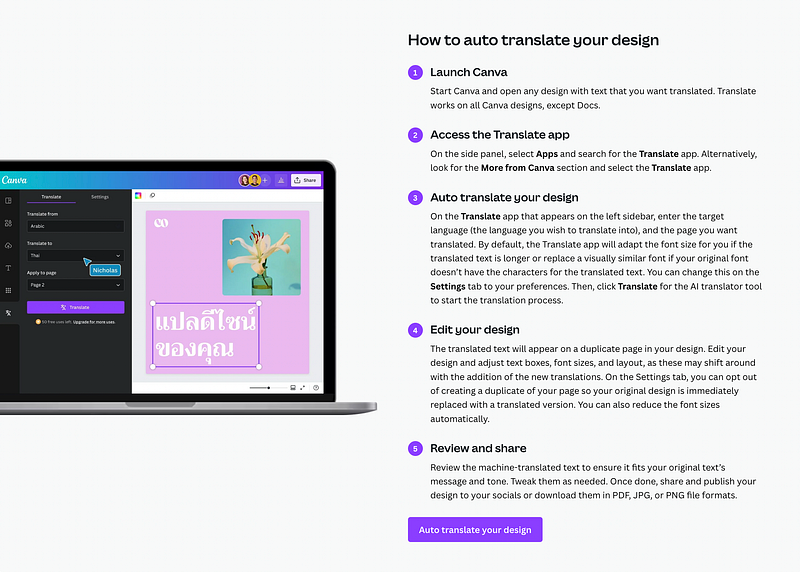
Currently, you can translate any of your Canva files, except for Canva Docs.
With this new feature, language is no longer a barrier to your creativity and communication with clients from around the world.
4. Animate
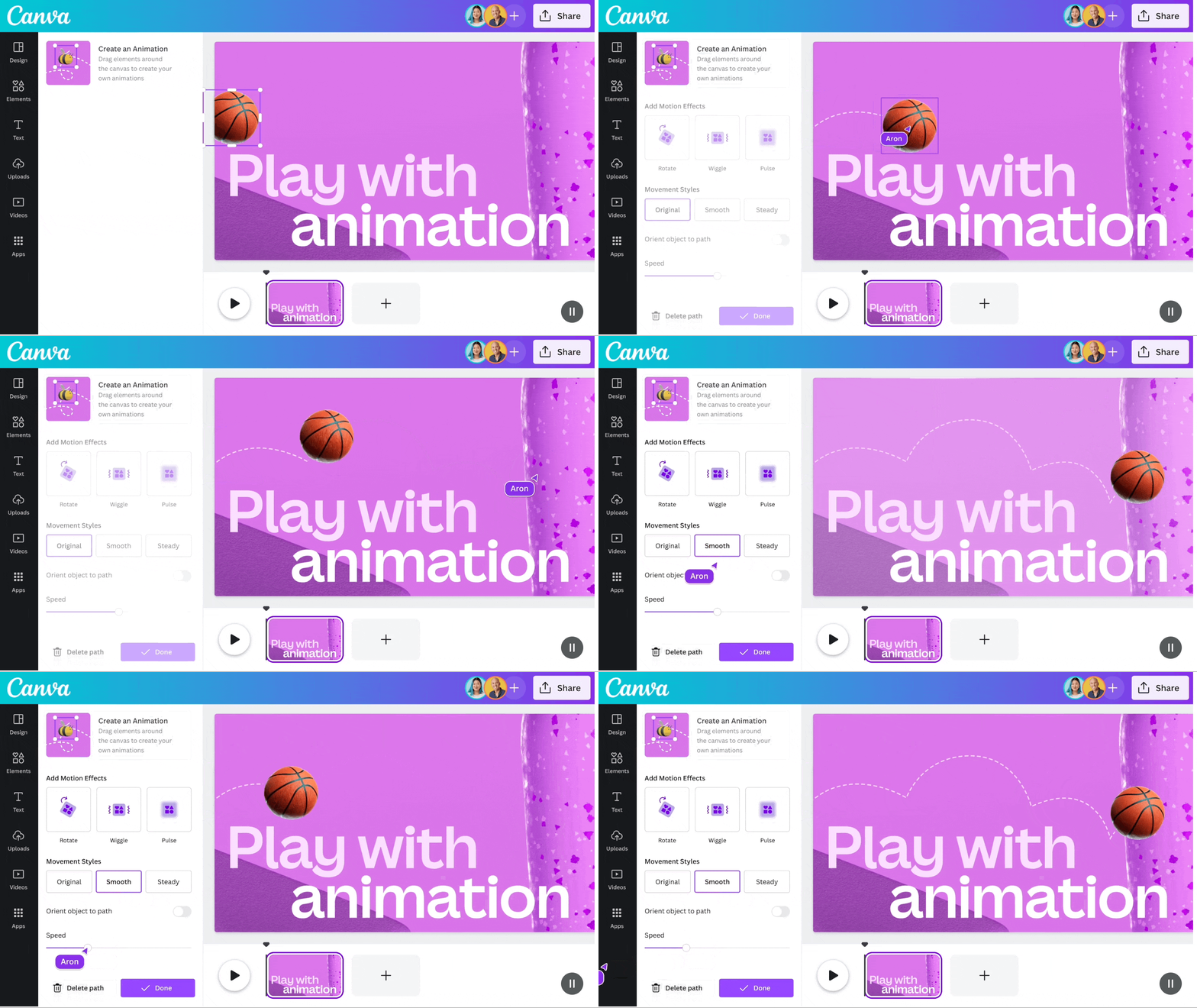
We know that if we want to succeed, we have to provide quality work. The same applies when creating a video, whether it’s for YouTube, a project, or a job. You need to make it captivating and impressive, leaving a lasting impression on the viewer.
One way to achieve this is by animating objects, which typically require high-quality video software that can be expensive. However, there is an alternative.
You can use Canva to animate your videos. Simply draw the path you want your animation to take, speed it up or slow it down as desired, and sit back and watch the magic happen.
5. Magic Write in Canva Doc
Since I am a content creator, I use Google Docs a lot.
It’s simple to use, and I can collaborate with anyone by just adding their email or making it open to everyone. It’s simple yet effective, but Canva has a Canva Doc that is also fairly simple but has a lot more features.
First of all, you can easily add designs you have created in Canva. Plus, there’s one more feature: Magic Write.
According to Canva, Magic Write is an AI-enabled writing assistant that empowers anyone to effortlessly and quickly create written content.
You can use it for social posts, business plans, websites, blogs, poems, journaling, creative writing, and so much more. It can generate sentences, paragraphs, lists, outlines, and more based on the text prompt you to enter.
If you want to give it a try, go to your Canva account, select the Doc from the banner, click the “+ Add magic” button, and select Magic Write. Then, you can write whatever you want.
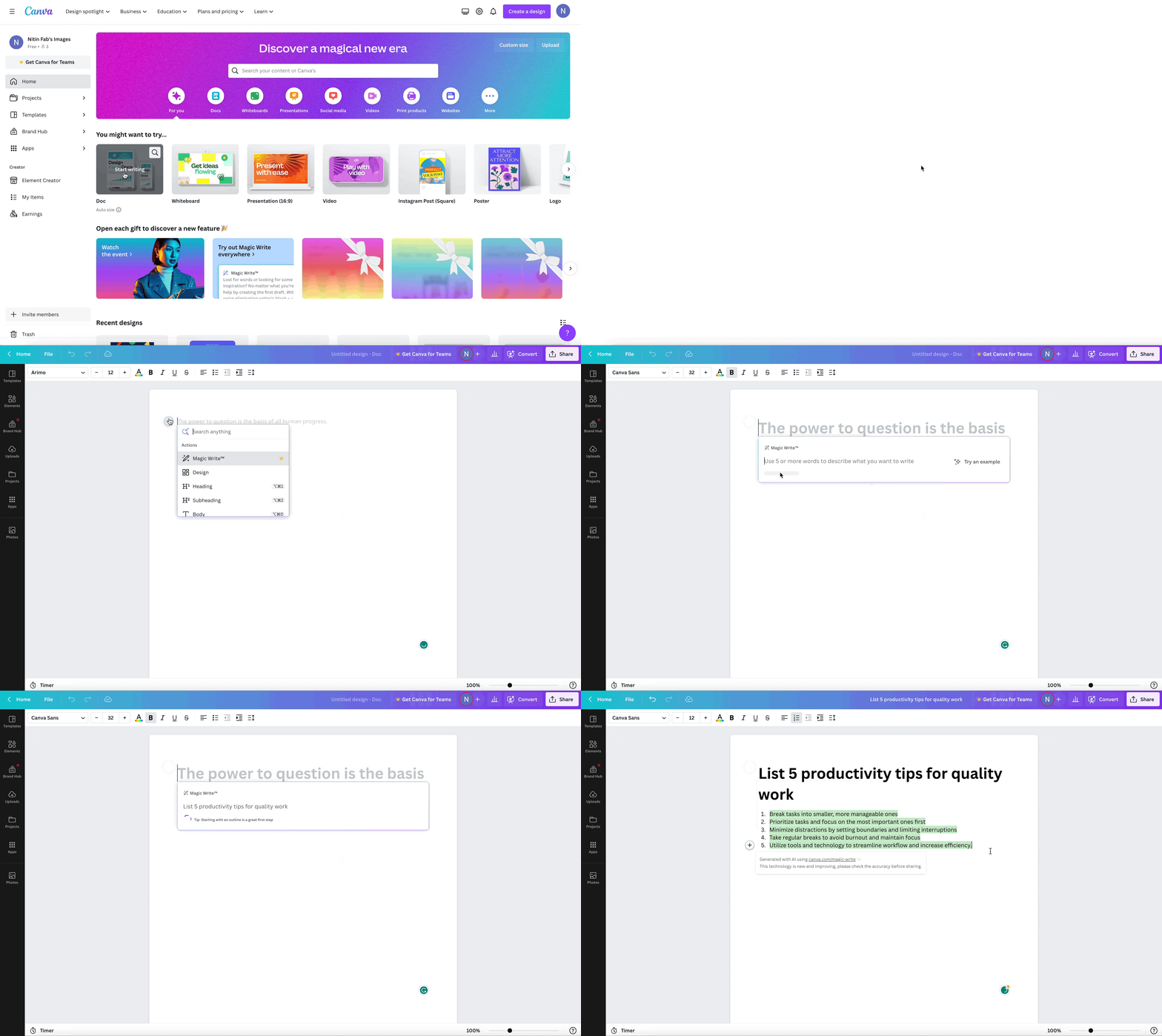
As you can see, I have written 5 productivity tips, and it was written it. The content turned out better than I expected.
It’s pretty impressive, isn’t it?
6. Magic Design, Magic Eraser, and Magic Edit
Canva has integrated several AI features in addition to Magic Write, which provides users with more ways to customize their designs. Let’s take a closer look at these features.
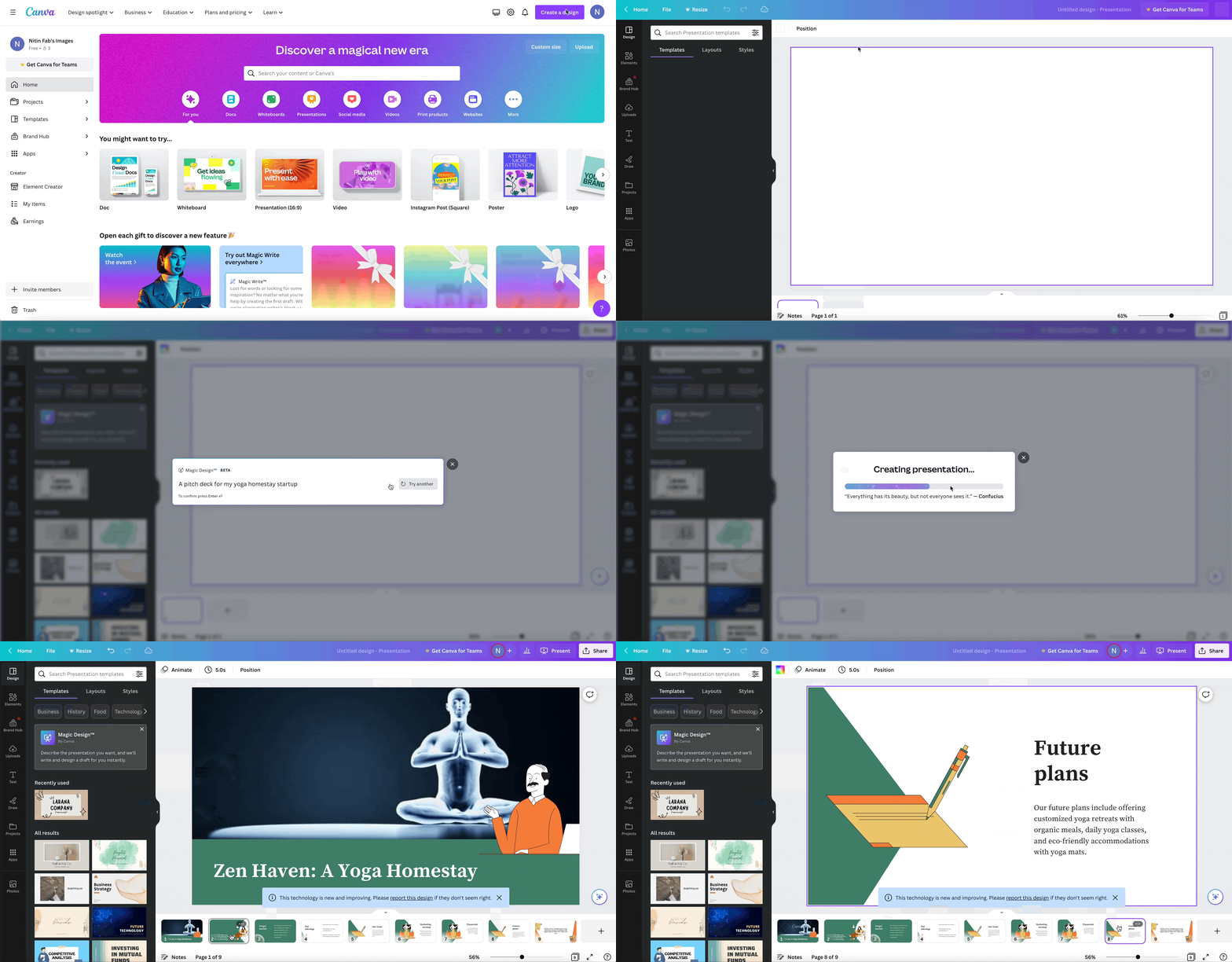
The first feature is called “Magic Design,” which allows you to create a unique presentation based on a prompt you provide.
To use this feature, simply log into your Canva account, click “Create a Design,” select “Presentation,” and then click “Magic Design.” The tool will then generate a customized presentation for you based on the prompt you provided, ensuring that your presentation is tailored to your specific needs.
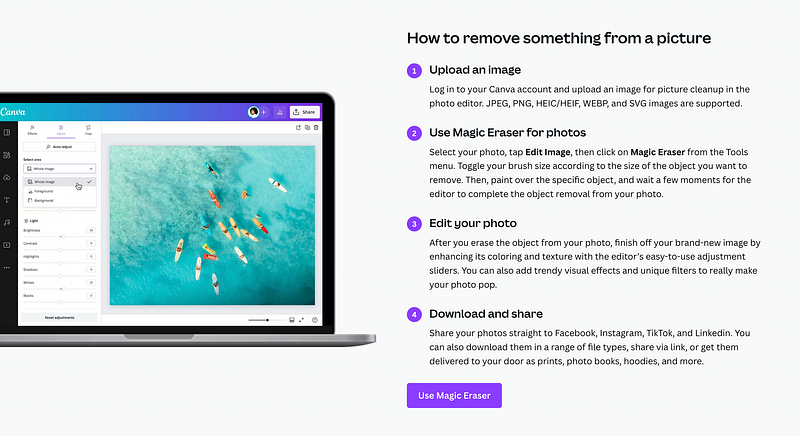
Another useful feature is the Magic Eraser, which enables you to quickly remove unwanted elements from your images.
To use this feature, select the image you wish to edit, choose “Magic Eraser,” and then delete the element you want to remove. The element will instantly disappear from your photo, leaving you with a cleaner, more polished image.
Lastly, the AI feature worth mentioning is the Magic Edit tool, which allows you to effortlessly add or modify elements in your designs.
To use this tool, click on the “Magic Edit” button and select “Add an Object” to create a new object by selecting the element you desire.
If you want to replace an existing object, select the “Replace Object” option and choose the object you want to replace before selecting the new object you want to use.
7. Text to Image
I think Canva is stepping up its game by adding AI functionality to the app.
As we have seen before, Canva has introduced features like Magic Write, Magic Design, Magic Eraser, and Magic Edit. Now, Canva also allows users to generate Text to Images within the app.
Previously, we accessed Canvas features directly through the app, but there’s an additional option you can try. You can search on Google for the feature, then access it through the link provided as shown below.
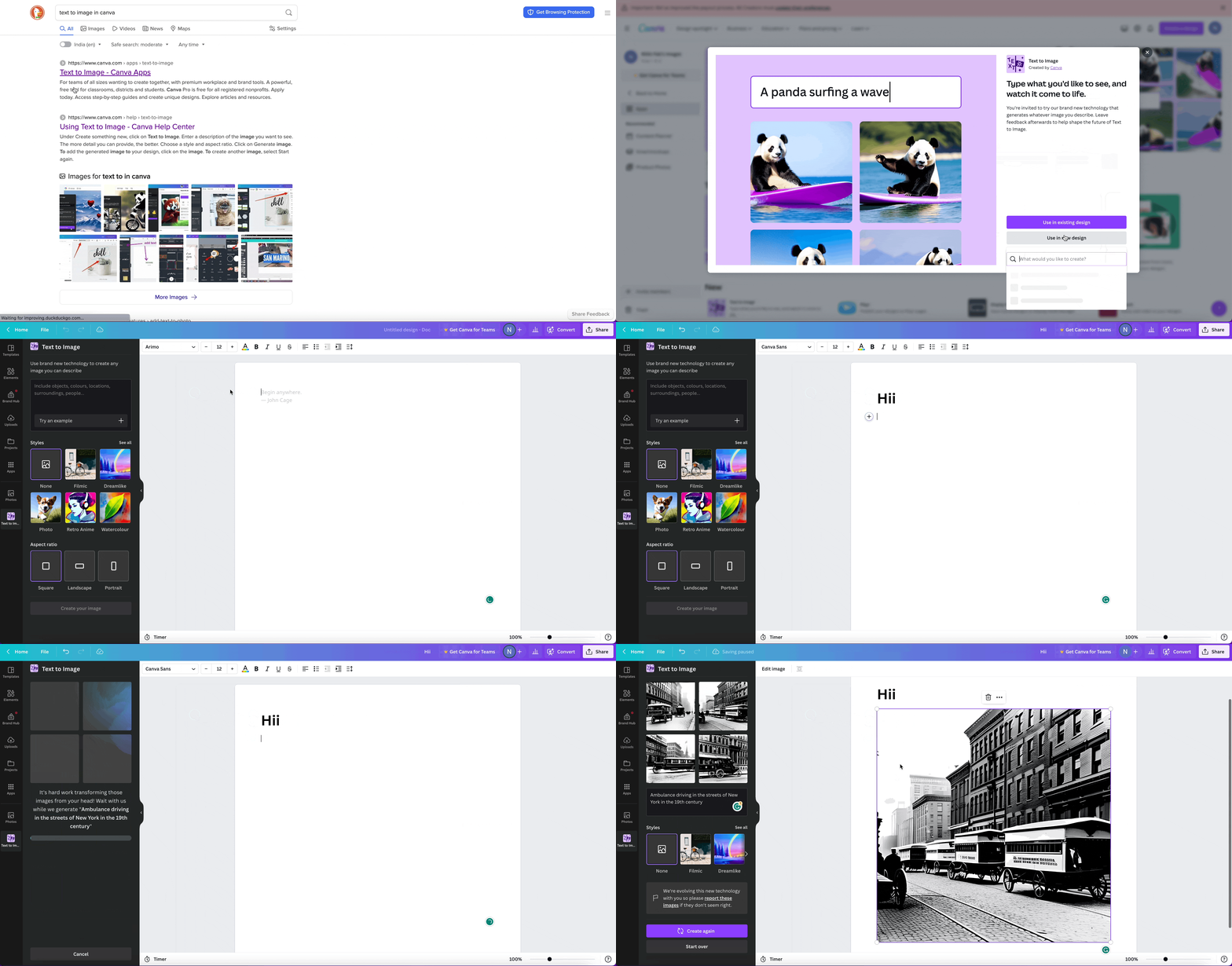
As you can see, I wrote a prompt and based on that, it has made some images that I can use. Even, I can customize it further.
Hope you like it.
That’s it — thanks.
Consider becoming a Medium member if you appreciate reading stories like this and want to help me as a writer. It costs $5 per month and gives you unlimited access to Medium content. I’ll get a little commission if you sign up via my link.


