
8 Email Tricks That Will Give You an Unfair Advantage Over Others in 2023
I bet that most of you don’t know most of these tricks.
In the past, I have written a post about the best way to use Google, which received several thousand of views. I’d like to continue this trend by talking about another similar topic, which is using email effectively.
Most of us use email on a regular basis, yet many of us may be unaware of the best practices for utilizing it.
The typical process for sending an email involves writing the mail and clicking the send button, which will deliver the message to the intended recipients. However, this may not always be the most efficient or effective approach.
In this post, I will delve deep into the various strategies and techniques for using email more effectively. This will include a discussion of the best practices for organizing and managing your inbox, and effective communication techniques that can help to improve your email workflow.
In short, the goal of this post is to help readers understand the best approach to using email in order to improve productivity, communication, and efficiency.
Let’s start.
1. Undo an Email After It’s Been Sent
As a busy individual, I have to complete a large number of tasks on a daily basis, and this can make it difficult to spend a significant amount of time writing emails. I understand that many others may face similar time constraints.
And that’s the reason, my process for writing emails is to quickly write the subject, add the content, attach any necessary documents, and then hit the send button. I know that many others may have a similar approach, but the downside of this method is that it can lead to mistakes such as typos or sending the wrong message.
And now you want to modify it, but you can’t, and you’re frustrated.
No more, from now. You can simply undo the post that you just sent.
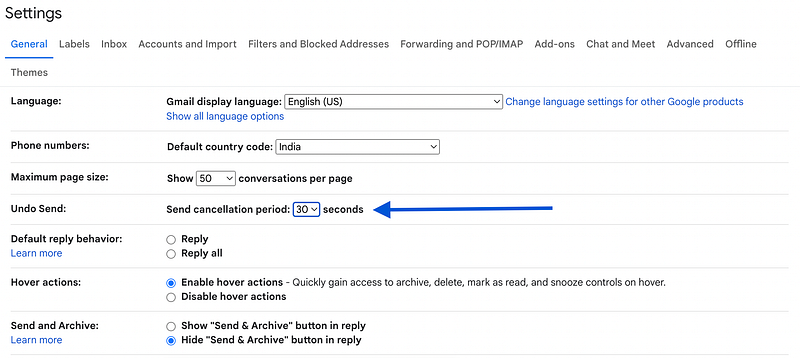
For that, you have to modify some settings. Here is how:
- Click on the Setting icon (top right)
- Settings => General
- Toggle on ‘Undo Send”
- Choose 30 secs
That’s it, now you undo an email after it’s been sent.
2. Send an Email at a Later Time
When it comes to performing tasks and sending emails, timing is everything. As a working individual, it is critical to ensure that your job is finished on time, which includes sending emails to others.
However, there may be occasions when you are on vacation or just do not have the time to send an email. This is where being able to schedule emails for later use comes in handy.
You may compose your email, attach any relevant documents, and schedule it to be sent at a certain day and time using this feature. This helps you to guarantee that your emails are delivered at the best possible times, even if you are unavailable.
Additionally, scheduling your emails also helps you to prioritize your time, by allowing you to focus on important tasks first, and schedule emails to be sent when you have more time.
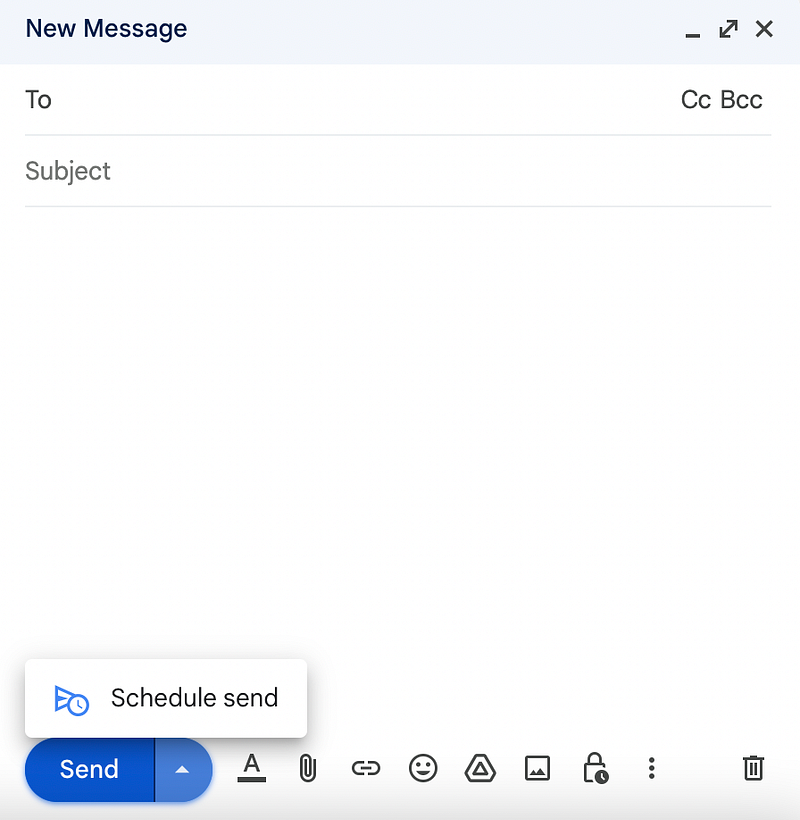
Here’s how you can do exactly that:
- Compose a new email, and write the content
- Click the down arrow next to ‘Send’
- Choose ‘Schedule Send’
- Pick the date + time you want
That’s it, now you can enjoy your vacation.
3. Reuse Pre-written Responses
Are you tired of typing out the same replies over and over again? With the use of email templates, you no longer have to. This feature can be easily enabled in your email settings by navigating to “Advanced” and selecting “Enable templates.”
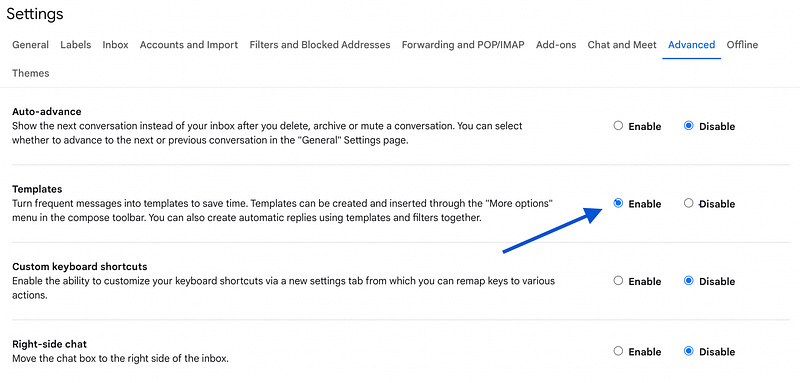
Once the feature is enabled, you can begin drafting your email as usual.
When you are finished, click the three dots located at the bottom of the email, and select “Templates => Save draft as template” This will save the email message as a template that can be used again in the future.
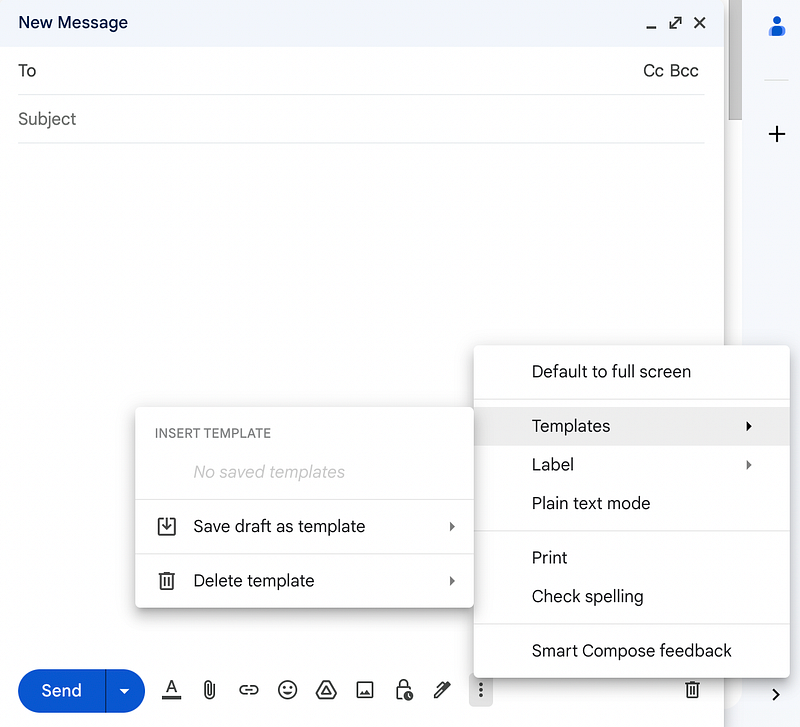
With email templates, you can save time and effort by reusing pre-written responses for common queries or situations, rather than typing out the same information repeatedly. This feature is especially useful for individuals who often send similar emails, such as customer service representatives or salespeople.
In short, email templates are a great way to save time and effort by reusing pre-written responses. It can be easily enabled in settings, and the next time you need to send a similar email, you can use the template to save yourself time.
4. Master the Art of Searching for Messages
Are you in need of finding an old message? The search function in your email app can make this task quick and easy. By typing into the search box specific keywords, you can narrow down your search results to find the desired message.
Here are some of the search terms that you can use:
- “from:x” or “to:x” for searching for messages from or to a specific person. Here x means email address like this “from:([email protected]) to:([email protected])”
- “size:x” for searching for large emails. Here x means size is KB or MB like smaller:1M
- “has:attachment” for searching for emails with attachments
You can also combine these search terms to fine-tune your search even further. For example, you can use “from:x after:x has:attachment” to search for messages from a specific person sent after a certain date that have attachments.
You may also search precisely by clicking the icon on the right side.

And it will pop up a section from where you can search easily.
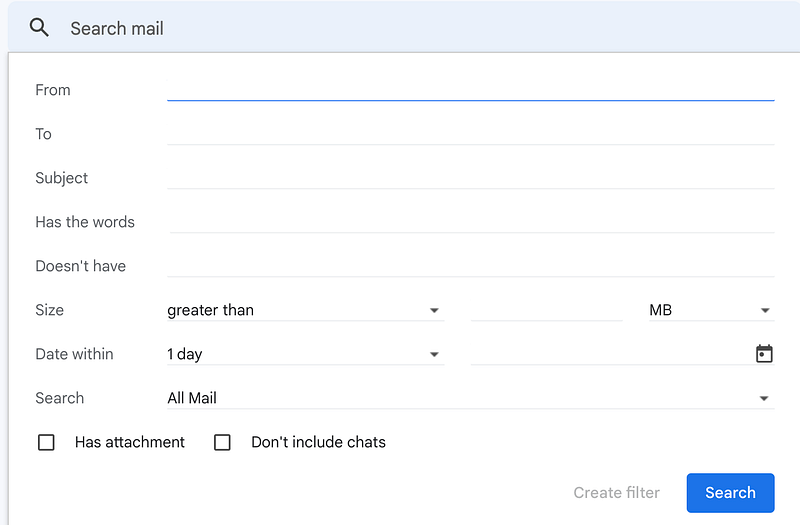
In short, the search function in your email app can make it easy to find old messages. By using specific keywords, you can narrow down your search results and find the desired message in no time. Combining these terms can also help you to fine-tune your search even further.
5. Say Goodbye to Annoying Email Conversations
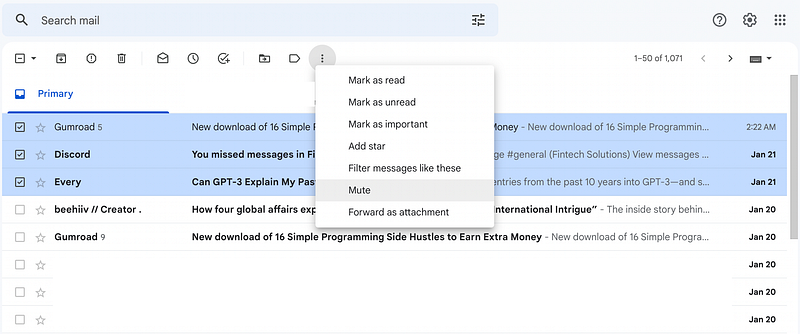
Are you in an email thread where everyone keeps using “reply all” and it’s becoming a distraction? There is a solution, you can mute the thread. This feature allows you to stop receiving notifications for new replies in the thread, without having to unsubscribe or stop receiving emails from the sender.
Here’s how to mute an email thread:
- Open the inbox where all your mails are present.
- Select the mail that you want to mute. You can see the checkbox on the left side, click it.
- Then click the three dots located at the top of the email
- Select “Mute”.
Once you have muted an email thread, any future replies will be automatically archived, so you will not be interrupted by notifications. However, you can still find the thread by searching for it, if needed.
Muting an email thread can be a helpful tool to use when you are in a thread that has become a distraction, but you still need to be aware of the content. It allows you to keep the thread, but without constant notifications.
6. Use Keyboard Shortcuts for Emailing
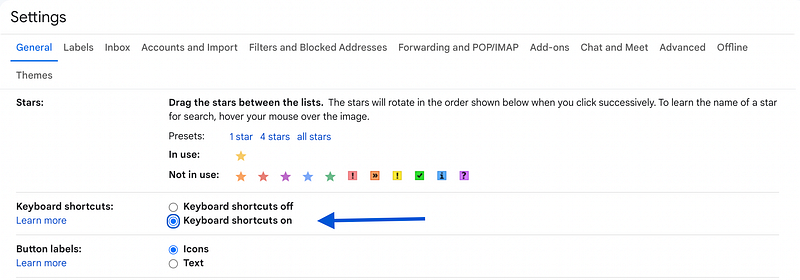
Keyboard shortcuts are a great way to save time and increase productivity when working on your computer. Instead of constantly moving your cursor around your desktop, you can use keyboard shortcuts to perform a variety of tasks such as adding a cc, formatting text, inserting links, and much more.
To enable keyboard shortcuts in your email client, navigate to the settings and select “General.” From there, you can turn on “Keyboard shortcuts.”
Once the keyboard shortcuts are enabled, you can start learning your favorite shortcuts. Some popular shortcuts include “Ctrl + C” to copy, “Ctrl + V” to paste, “Ctrl + B” to bold text, “Ctrl + I” to italicize text, and “Ctrl + K” to insert a link.
Learning keyboard shortcuts can take some time, but once you are familiar with them, you will be able to perform tasks much faster than using your cursor alone.
In short, using keyboard shortcuts can save you time and increase productivity when working on your computer. By enabling keyboard shortcuts in your email app, you can perform a variety of tasks quickly and easily. Take the time to learn your favorite shortcuts, and you will soon find yourself working more efficiently.
7. Put Your Emails on Snooze
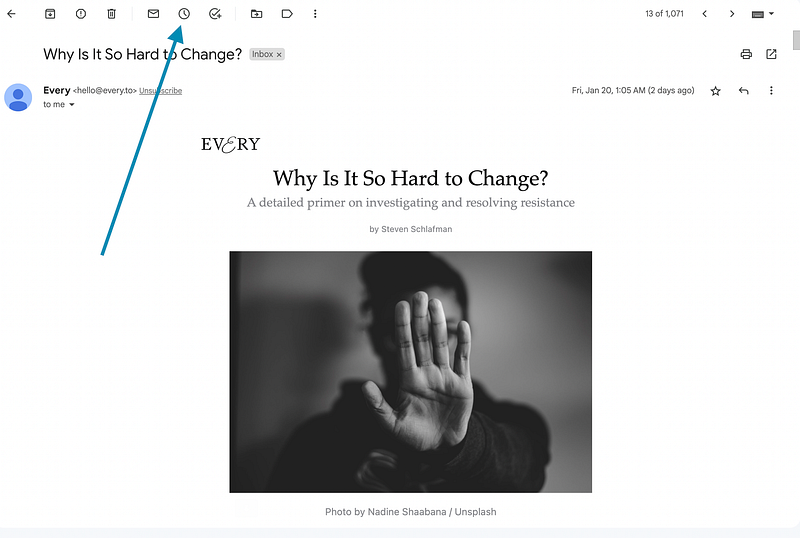
Do you have an email that you don’t need to deal with right now, but you don’t want to forget about it? Setting a reminder for later is a great way to manage your inbox and ensure that you don’t miss important emails.
Here’s how to set a reminder for an email:
- Open a mail that you want to snooze.
- Click on the clock icon located at the top of the page.
- Choose how long you want to snooze the email for, whether it’s an hour, tomorrow, or next week or you can choose a custom time.
By snoozing the email, you’re temporarily removing it from your inbox and it will reappear at the specified time, so you can deal with it then. This allows you to focus on the most important emails in your inbox and avoid getting overwhelmed.
Setting a reminder for later is a great way to manage your inbox and ensure that you don’t miss important emails. By snoozing an email, you’re temporarily removing it from your inbox and it will reappear at the specified time, allowing you to focus on the most important emails in your inbox and avoid getting overwhelmed.
8. Use Gmail API
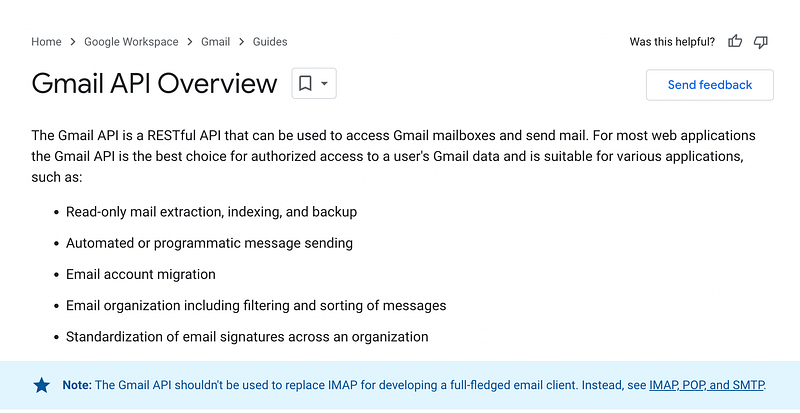
Are you a programmer looking for a way to automate and streamline your email tasks? The Gmail developer team has developed the Gmail API, which allows programmers to access Gmail mailboxes and send mail using a variety of programming languages such as JavaScript, Node.js, Python, Java, and Go.
The Gmail API can be used for a variety of tasks, including:
- Read-only mail extraction, indexing, and backup
- Automated or programmatic message sending
- Email account migration
- Email organization, including filtering and sorting of messages
- Standardization of email signatures across an organization
The Gmail API also comes with a quick start guide to help you get started, and as you gain more experience, you can explore different ways to automate your email tasks.
By automating email processes, you can save time and enhance efficiency.
Hope you like it.
That’s it — thanks.
Consider becoming a Medium member if you appreciate reading stories like this and want to help me as a writer. It costs $5 per month and gives you unlimited access to Medium content. I’ll get a little commission if you sign up via my link.


