
Standardize Angular UI and Layouts by Sharing Libraries on NPM
Introduction
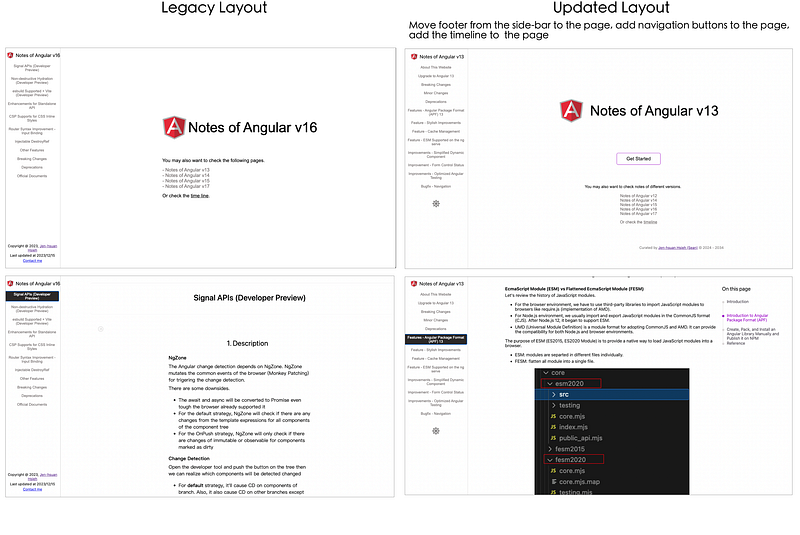
When creating a series of websites, the consistency of UI components, services, and styles between these websites is extremely important for the user experience.
For example, the problem for maintaining a series of website is we don’t always have time to apply all new layouts or UI components to different projects.
Moving the common files to a public library can not only keep the consistency but can also reduce our efforts to maintain multiple applications individually. Additionally, it’ll be helpful to standardize the look of the product from the same team or the same company.
Agenda
- Create a New Angular Library
- Publish the Library to NPM
- Introduction to Angular Package Format (APF)
Create a New Angular Library
Create a new library in the project
1. Execute the following command to create a new Angular library in the existing working space.
ng generate library documentation-ui2. Update the package.json
scripts": {
    ...,
    "build-library": "ng build "documentation-ui"",
    "pack-library": "cd dist/documentation-ui && npm pack",
    "install-library": "npm install ./dist/documentation-ui/documentation-ui-0.0.1.tgz",
    ...
3. Create a new module for the library
cd projects/documentation-ui/src/lib
ng g m documentation-ui
Move existing code to the library and expose them
1. Move the existing component into the module.
projects/documentation-ui/src/lib/documentation-ui/theme: move thetheme.component.ts,theme.service.ts,theme.domain.tswe created from the previous article to this pathprojects/documentation-ui/src/styles/theme: move the_index.scssfile to this path
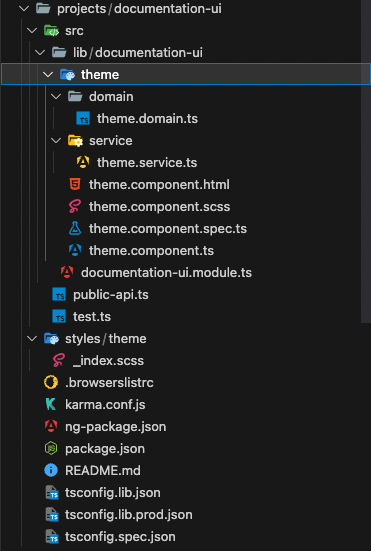
2. Update the documentation-ui.module.ts and expose the component
We also have to import the third-party dependencies in the module (e.g., FontAwesomeModule).
3. Update the projects/documentation-ui/public-api.ts
4. Update the projects/documentation-ui/ng-package.json to add the assets
Build, pack, install, and use the library locally
Go back to the root folder of the host application.
1. Build, pack, and install the library.
It will generate the dist/documentation-ui/documentation-ui-0.0.1.tgz.
npm run build-library
npm run pack-library
npm run install-library
2. Update the app.module.ts to import the built package
3. Now we can use exported SCSS files in the project.
Import the scss file in the styles.scss.
@import "../node_modules/angular-documentation-ui/styles/theme/index";4. Now we can use exported services in the project
5. Now we can use exported components in the project
Publish the Library to NPM
After installing and testing the library locally, we could publish our packages to npm publicly.
- Update
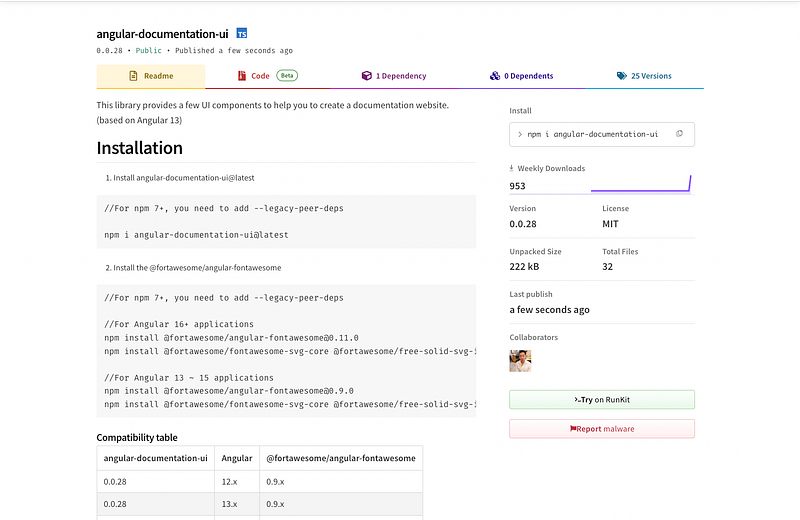
projects/documentation-ui/readme.md: add instructions of the installation, usage, or compatibility table for users.
2. Update projects/documentation-ui/package.json
- name, version, license, keywords: the information will be displayed on the npm package page
- peerDependencies: packages required by this library but they won’t be packed into this library (npm 7+ will help to install them, but npm 6 or early versions won’t)
- dependencies: packages required by this library and they will be packed into this library
3. Login to npm
npm login
4. Publish the package to npm
npm publish dist/documentation-ui/documentation-ui-0.0.1.tgz --access public
5. Check the package page to make sure there are still any confusing information
6. Install the Library from NPM and the adoptions
Even if the testing locally works fine, it’s still something unexpected when installing the published library in applications with different Angular versions.
The common root cause is from the depended third-party libraries. Move them from dependencies to peerDependencies to prevent fixing depended third-party libraries into our library’s package.
Introduction to Angular Package Format (APF)
APF enables a package to work seamlessly under most common scenarios. The APF can be compatible to TypeScript modules, CommonJS modules, ESM, and etc.
The purpose of ESM (ES2015, ES2020 Module) is to provide a native way to load JavaScript modules into a browser. There are two common formats of files.
- ESM: modules are separated in different files individually.
- FESM: flatten all module into a single file.
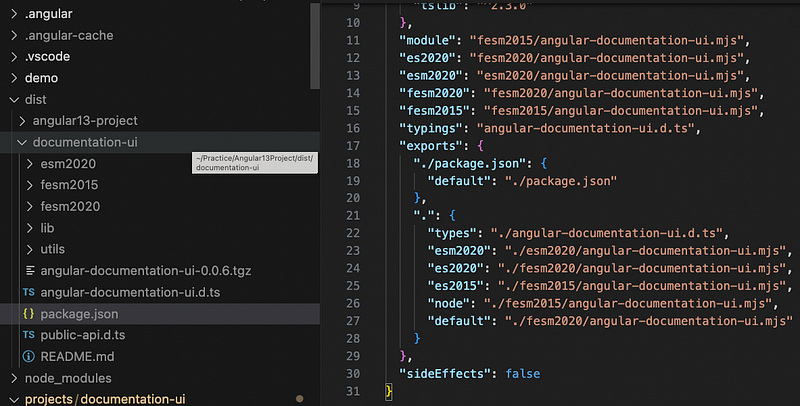
After packing the package, check the file structure under the dist/documentation-ui and the dist/documentation-ui/package.json . There are multiple exported JavaScript module formats.
- types: .d.ts files are used by TypeScript
- esm2020: unflattened ES2022 module
- es2020: flattened ES2022 module
- es2015: flattened ES2015 module
- node: flattened ES2015 module (Node.js 12+ supports ESM)
- default: flattened ES2022 module
Reference
- 安裝 NPM 套件時使用 — legacy-peer-deps 解決套件相依性問題
- Building a Library in Angular 11 with Dependencies
- Create an angular library and publish it on Npm
- npm依赖管理peerDependencies
- The Basics of Package.json in Node.js and npm
Summary
Thanks for your patient. I am Sean. I work as a software engineer.
This article is my note. Please feel free to give me advice if any mistakes. I am looking forward to your feedback.
- The Facebook page for articles
- The latest side project: Daily Learning


