avatarKalpan Shah

Free AI web copilot to create summaries, insights and extended knowledge, download it at here

5261

Abstract

div> </div> <div> <div style="background-image: url(https://miro.readmedium.com/v2/resize:fit:320/0*GBeLUla8l4gJMtur)"></div> </div> </div> </a> </div><p id="ff2b">Jupyter notebook for ETL with this dataset</p><div id="5a55" class="link-block"> <a href="https://github.com/developershomes/SparkETL/blob/main/Chapter4/chapter4-dataset1.ipynb"> <div> <div> <h2>SparkETL/chapter4-dataset1.ipynb at main · developershomes/SparkETL</h2> <div><h3>You can't perform that action at this time. You signed in with another tab or window. You signed out in another tab or…</h3></div> <div><p>github.com</p></div> </div> <div> <div style="background-image: url(https://miro.readmedium.com/v2/resize:fit:320/0*B11_2__DMnYI60Uo)"></div> </div> </div> </a> </div><h1 id="7660">Install required spark libraries & Start Spark Session</h1><p id="7b11">With our Spark instance, we already have AWS S3 bucket packages installed. So, we will not require to specify externally. You can check Jars files from /opt/spark/jars location</p><figure id="f23d"><img src="https://cdn-images-1.readmedium.com/v2/resize:fit:800/0*Ze8ngY2YdNK_hZVp"><figcaption>AWS Spark Packages or Jar files (Image by Author)</figcaption></figure><p id="f303">If you want to use the same package you can use the Maven repo link and pass it in the config file.</p><p id="e706"><a href="https://mvnrepository.com/artifact/com.amazonaws/aws-java-sdk-s3/1.12.425">https://mvnrepository.com/artifact/com.amazonaws/aws-java-sdk-s3/1.12.425</a></p><figure id="bf09"><img src="https://cdn-images-1.readmedium.com/v2/resize:fit:800/0*CZvhft_0tvgY8GQ4"><figcaption>Maven Repo for AWS S3 bucket (Image by Author)</figcaption></figure><p id="00ca">AWS JAVA sdk bundle</p><p id="ced6"><a href="https://mvnrepository.com/artifact/com.amazonaws/aws-java-sdk-bundle/">https://mvnrepository.com/artifact/com.amazonaws/aws-java-sdk-bundle/</a></p><p id="2c10">With this configuration, we will start the spark session. Here, we are using a Public AWS S3 bucket and we will not have credentials for that so we will pass configuration. (If we are not using a public S3 bucket, in that case, we need to pass a key for accessing the S3 bucket, but with config, we are saying that this is a public bucket and there will be no key passed to access bucket)</p><blockquote id="02bc"><p><i>“fs.s3a.aws.credentials.provider”:”org.apache.hadoop.fs.s3a.AnonymousAWSCredentialsProvider”</i></p></blockquote><div id="32dc"><pre>spark = SparkSession.builder.appName(<span class="hljs-string">"chapter4"</span>)
.config(<span class="hljs-string">"fs.s3a.aws.credentials.provider"</span>, <span class="hljs-string">"org.apache.hadoop.fs.s3a.AnonymousAWSCredentialsProvider"</span>)
.getOrCreate() sqlContext = SparkSession(spark) <span class="hljs-comment">#Dont Show warning only error</span> spark.sparkContext.setLogLevel(<span class="hljs-string">"ERROR"</span>)</pre></div><figure id="51de"><img src="https://cdn-images-1.readmedium.com/v2/resize:fit:800/0*W3Pk54FjNHCFg2Ka"><figcaption>Starting Spark Application with AWS S3 Packages and configurations (Image by Author)</figcaption></figure><h1 id="34f7">Create a connection with the AWS S3 bucket</h1><p id="fe57">Before creating a connection from Spark. We will install the AWS S3 client and explore data into the S3 bucket so we will have an understanding of the data. From the web download and install CLI for AWS. after that execute the below commands</p><div id="fc89"><pre>aws s3 ls --no-sign-request s3://ookla-open-data/parquet/performance/ aws s3 ls --no-sign-request s3://ookla-open-data/parquet/performance/type=fixed/ aws s3 ls --no-sign-request s3://ookla-open-data/parquet/performance/type=fixed/year=2019/ aws s3 ls --no-sign-request s3://ookla-open-data/parquet/performance/type=fixed/year=2019/quarter=1/ aws s3 ls --no-sign-request s3://ookla-open-data/parquet/performance/type=fixed/year=2019/quarter=1/2019-01-01_performance_fixed_tiles.parquet</pre></div><figure id="e9fb"><img src="https://cdn-images-1.readmedium.com/v2/resize:fit:800/0*v6WSOig9WHs6xuFB"><figcaption>Exploring S3 bucket from AWS CLI (Image by Author)</figcaption></figure><p id="dcb1">As per above in the performance folder, there are fixed and mobile data and in that, we have every year's quarter-wise data available. We can also directly pass fixed folders from Spark and it can read data from all of the underlying folders.</p><p id="653a">But here each file is a very big file so we will try with one file. To check file size or if you want to download files locally, we use the command below.</p><div id="43d3"><pre>aws s3 <span class="hljs-built_in">cp</span> --no-sign-request s3://ookla-open-data/parquet/performance/type=fixed/year=2019/quarter=1/2019-01-01_performance_fixed_tiles.parquet sample.parquet</pre></div><figure id="e68c"><img src="https://cdn-images-1.readmedium.com/v2/resize:fit:800/0*1ZEStkN4OJplJtEv"><figcaption>Copying files from S3 to local folder using AWS CLI (Image by Author)</figcap

Options

tion></figure><p id="c3c2">Each file is more than 200 MB.</p><p id="64d2">We will use the below command to create a connection with the S3 bucket</p><div id="4f61"><pre>df = spark.read.parquet(<span class="hljs-string">"s3a://ookla-open-data/parquet/performance/type=fixed/year=2019/quarter=1/2019-01-01_performance_fixed_tiles.parquet"</span>)</pre></div><p id="b526">Now, we have data in a data frame, so we can print schema and can also view sample data.</p><div id="fe97"><pre>df.printSchema()</pre></div><figure id="005c"><img src="https://cdn-images-1.readmedium.com/v2/resize:fit:800/0*JE_eYsTHBlV_eMOg"><figcaption>Checking Schema of the data frame (Image by Author)</figcaption></figure><div id="7bfc"><pre>df.show()</pre></div><figure id="04e2"><img src="https://cdn-images-1.readmedium.com/v2/resize:fit:800/0*HXyOS3qeJRVCYYON"><figcaption>Checking data of data frame (Image by Author)</figcaption></figure><h1 id="775a">Transform data</h1><p id="f885">We will create a HIVE table/view from the data frame. So that we can write Spark SQL and can do all the transformations.</p><div id="1a98"><pre><span class="hljs-built_in">print</span>(<span class="hljs-string">'Register the DataFrame as a SQL temporary view: source'</span>) df.createOrReplaceTempView(<span class="hljs-string">'tempSource'</span>)</pre></div><div id="ec85"><pre><span class="hljs-function"><span class="hljs-title">print</span><span class="hljs-params">(<span class="hljs-string">'Displaying top 10 rows: '</span>)</span></span> <span class="hljs-function"><span class="hljs-title">display</span><span class="hljs-params">(spark.sql(<span class="hljs-string">'SELECT * FROM tempSource LIMIT 10'</span>)</span></span>)</pre></div><div id="bf73"><pre><span class="hljs-keyword">new</span><span class="hljs-type">df</span> = spark.sql(<span class="hljs-string">'SELECT * FROM tempSource LIMIT 1000'</span>)</pre></div><figure id="c842"><img src="https://cdn-images-1.readmedium.com/v2/resize:fit:800/0*ty2JU_P7sZuIwKWR"><figcaption>Creating HIVE table and writing Spark SQL (Image by Author)</figcaption></figure><h1 id="677d">Write data into a parquet file</h1><div id="79f9"><pre>newdf.<span class="hljs-built_in">write</span>.<span class="hljs-built_in">format</span>(<span class="hljs-string">"parquet"</span>).option(<span class="hljs-string">"compression"</span>,<span class="hljs-string">"snappy"</span>).save(<span class="hljs-string">"parquetdata"</span>,mode=<span class="hljs-string">'append'</span>)</pre></div><figure id="9c9b"><img src="https://cdn-images-1.readmedium.com/v2/resize:fit:800/0*PST8H2zZ_TeiilfK"><figcaption>Writing data to Parquet format (Image by Author)</figcaption></figure><p id="ca6b">It will create folders and parquet files.</p><figure id="98c6"><img src="https://cdn-images-1.readmedium.com/v2/resize:fit:800/0*Wabdfd0yB8OyDcm7"><figcaption>Parquet files created on the File server (Image by Author)</figcaption></figure><h1 id="2ed6">Write data into a CSV file</h1><div id="8c01"><pre>newdf.<span class="hljs-built_in">write</span>.<span class="hljs-built_in">format</span>(<span class="hljs-string">"csv"</span>).option(<span class="hljs-string">"header"</span>,<span class="hljs-string">"true"</span>).save(<span class="hljs-string">"csvdata"</span>,mode=<span class="hljs-string">'append'</span>)</pre></div><figure id="c117"><img src="https://cdn-images-1.readmedium.com/v2/resize:fit:800/0*l35pb6qpcpMjVNaL"><figcaption>CSV file on the file server (Image by Author)</figcaption></figure><h1 id="c49f">Conclusion:</h1><p id="0513">Once we set the config of the AWS S3 bucket, using “spark.read” we can read files from there, and using “spark.write” we can write files there.</p><h1 id="18b2">Learning and references:</h1><ol><li><a href="https://aws.amazon.com/s3/">https://aws.amazon.com/s3/</a> -> S3 bucket guide from AWS</li><li><a href="https://mvnrepository.com/">https://mvnrepository.com/</a> -> Maven repo for Spark Libraries</li><li><a href="https://registry.opendata.aws/">https://registry.opendata.aws/</a> -> AWS Open Data registry</li></ol><h1 id="136e">Video explanation:</h1> <figure id="bdb4"> <div> <div> <img class="ratio" src="http://placehold.it/16x9"> <iframe class="" src="https://cdn.embedly.com/widgets/media.html?src=https%3A%2F%2Fwww.youtube.com%2Fembed%2F6SRrYBiBl9I%3Ffeature%3Doembed&amp;display_name=YouTube&amp;url=https%3A%2F%2Fwww.youtube.com%2Fwatch%3Fv%3D6SRrYBiBl9I&amp;image=https%3A%2F%2Fi.ytimg.com%2Fvi%2F6SRrYBiBl9I%2Fhqdefault.jpg&amp;key=a19fcc184b9711e1b4764040d3dc5c07&amp;type=text%2Fhtml&amp;schema=youtube" allowfullscreen="" frameborder="0" height="480" width="640"> </div> </div> </figure></iframe></div></div></figure><p id="3941">In the next video, we will do Spark ETL with HIVE.</p><figure id="659b"><img src="https://cdn-images-1.readmedium.com/v2/resize:fit:800/0*uGCWAIQ3xyD0a1Hr.png"><figcaption></figcaption></figure><h2 id="8367">👋 If you find this helpful, please click the clap 👏 button below a few times to show your support for the author 👇</h2><h2 id="bd0d">🚀Join FAUN Developer Community & Get Similar Stories in your Inbox Each Week</h2></article></body>

Spark ETL Chapter 4 with Cloud data lakes (AWS S3 bucket)

Previous blog/Context:

In the earlier blog, we discussed Spark ETL with Cloud data lakes (Azure blob and Azure Data Lake services). Please find below blog post for more details.

Introduction:

In this blog, we will discuss Spark ETL with Cloud data lakes and we will be doing Spark ETL with AWS S3 bucket. We will use a public S3 bucket and we will understand how to do ETL with it.
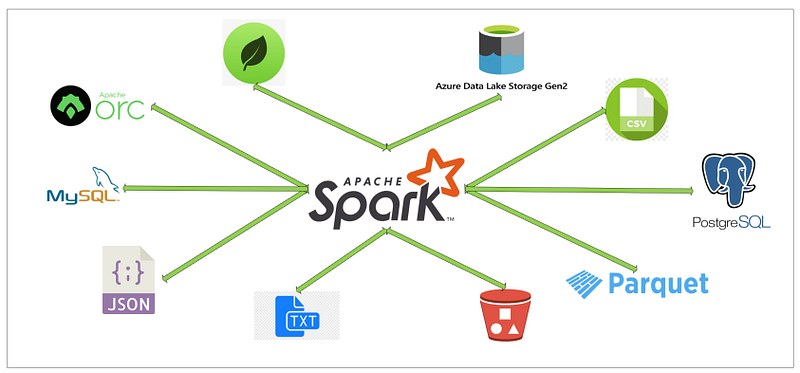
Spark ETL with different Data sources (Image by Author)

We will perform below Spark ETL

  • Install required spark libraries
  • Create a connection with the AWS S3 bucket
  • Read data from the S3 bucket and store it in a data frame
  • Transform data
  • write data into a parquet file
  • write data into a CSV file

First, clone below GitHub repo, where we have all the required sample files and solution

If you don’t have a setup for Spark instance follow the earlier blog for setting up Data Engineering tools in your system. (Data Engineering suite will setup Spark, MySQL, PostgreSQL, and MongoDB in your system) In that Spark instance, we already have packages installed for AWS S3 buckets.

Public AWS S3 bucket

We are going to access the Public AWS S3 bucket from Spark. As a part of the Registry of Open Data on AWS, there are different types of data publicly available for learning purposes.
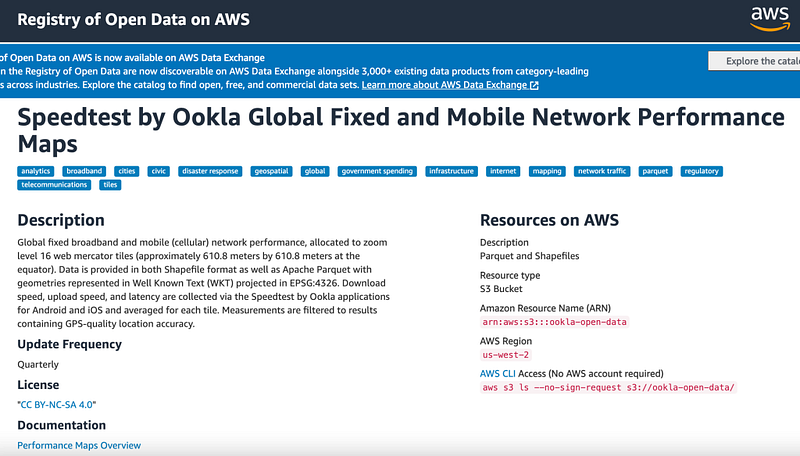
Registry of Open Data on AWS (Image captured by Author)

Link for AWS S3 Buckets (AWS Open Data)

There are many AWS S3 public buckets available, few with huge amounts of data and few with less amount of data. (And also in CSV, Parquet format)

Here, in the blog below I am explaining a huge dataset with a video using a small dataset (500KB) of data.

Dataset (Used in the video)

Jupyter notebook for ETL with this dataset

Install required spark libraries & Start Spark Session

With our Spark instance, we already have AWS S3 bucket packages installed. So, we will not require to specify externally. You can check Jars files from /opt/spark/jars location

AWS Spark Packages or Jar files (Image by Author)

If you want to use the same package you can use the Maven repo link and pass it in the config file.

https://mvnrepository.com/artifact/com.amazonaws/aws-java-sdk-s3/1.12.425
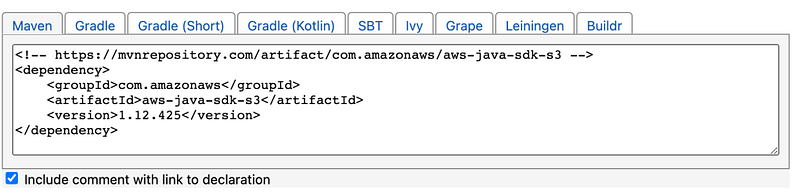
Maven Repo for AWS S3 bucket (Image by Author)

AWS JAVA sdk bundle

https://mvnrepository.com/artifact/com.amazonaws/aws-java-sdk-bundle/

With this configuration, we will start the spark session. Here, we are using a Public AWS S3 bucket and we will not have credentials for that so we will pass configuration. (If we are not using a public S3 bucket, in that case, we need to pass a key for accessing the S3 bucket, but with config, we are saying that this is a public bucket and there will be no key passed to access bucket)

“fs.s3a.aws.credentials.provider”:”org.apache.hadoop.fs.s3a.AnonymousAWSCredentialsProvider”

spark = SparkSession.builder.appName("chapter4")\
       .config("fs.s3a.aws.credentials.provider", "org.apache.hadoop.fs.s3a.AnonymousAWSCredentialsProvider") \
       .getOrCreate()
sqlContext = SparkSession(spark)
#Dont Show warning only error
spark.sparkContext.setLogLevel("ERROR")
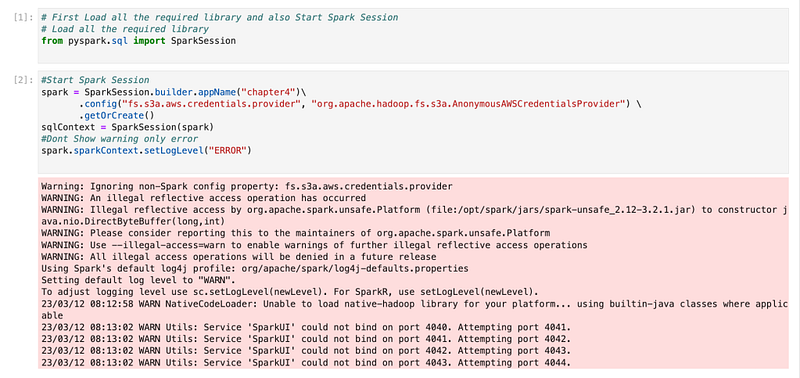
Starting Spark Application with AWS S3 Packages and configurations (Image by Author)

Create a connection with the AWS S3 bucket

Before creating a connection from Spark. We will install the AWS S3 client and explore data into the S3 bucket so we will have an understanding of the data. From the web download and install CLI for AWS. after that execute the below commands

aws s3 ls --no-sign-request s3://ookla-open-data/parquet/performance/
aws s3 ls --no-sign-request s3://ookla-open-data/parquet/performance/type=fixed/
aws s3 ls --no-sign-request s3://ookla-open-data/parquet/performance/type=fixed/year=2019/
aws s3 ls --no-sign-request s3://ookla-open-data/parquet/performance/type=fixed/year=2019/quarter=1/
aws s3 ls --no-sign-request s3://ookla-open-data/parquet/performance/type=fixed/year=2019/quarter=1/2019-01-01_performance_fixed_tiles.parquet
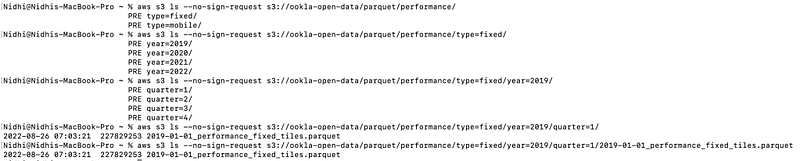
Exploring S3 bucket from AWS CLI (Image by Author)

As per above in the performance folder, there are fixed and mobile data and in that, we have every year's quarter-wise data available. We can also directly pass fixed folders from Spark and it can read data from all of the underlying folders.

But here each file is a very big file so we will try with one file. To check file size or if you want to download files locally, we use the command below.

aws s3 cp --no-sign-request s3://ookla-open-data/parquet/performance/type=fixed/year=2019/quarter=1/2019-01-01_performance_fixed_tiles.parquet sample.parquet

Copying files from S3 to local folder using AWS CLI (Image by Author)

Each file is more than 200 MB.

We will use the below command to create a connection with the S3 bucket

df = spark.read.parquet("s3a://ookla-open-data/parquet/performance/type=fixed/year=2019/quarter=1/2019-01-01_performance_fixed_tiles.parquet")

Now, we have data in a data frame, so we can print schema and can also view sample data.

df.printSchema()
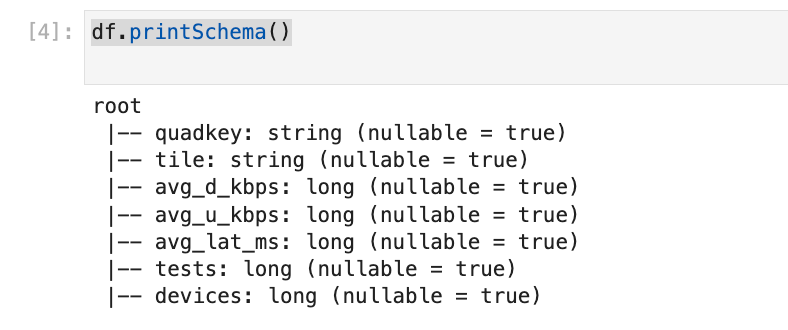
Checking Schema of the data frame (Image by Author)
df.show()
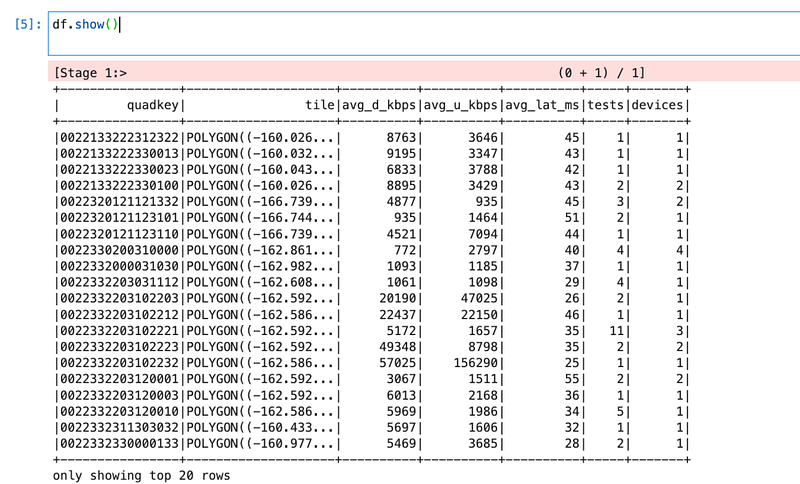
Checking data of data frame (Image by Author)

Transform data

We will create a HIVE table/view from the data frame. So that we can write Spark SQL and can do all the transformations.

print('Register the DataFrame as a SQL temporary view: source')
df.createOrReplaceTempView('tempSource')
print('Displaying top 10 rows: ')
display(spark.sql('SELECT * FROM tempSource LIMIT 10'))
newdf = spark.sql('SELECT * FROM tempSource LIMIT 1000')
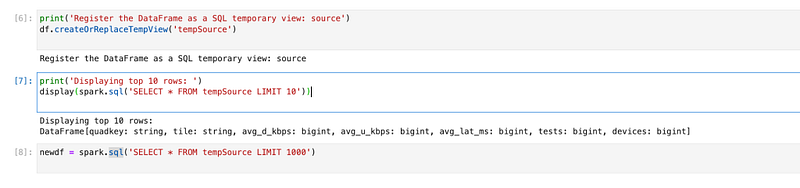
Creating HIVE table and writing Spark SQL (Image by Author)

Write data into a parquet file

newdf.write.format("parquet").option("compression","snappy").save("parquetdata",mode='append')

Writing data to Parquet format (Image by Author)

It will create folders and parquet files.
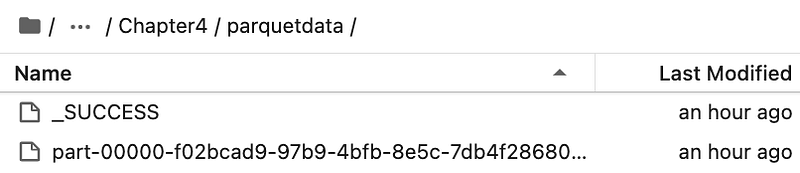
Parquet files created on the File server (Image by Author)

Write data into a CSV file

newdf.write.format("csv").option("header","true").save("csvdata",mode='append')
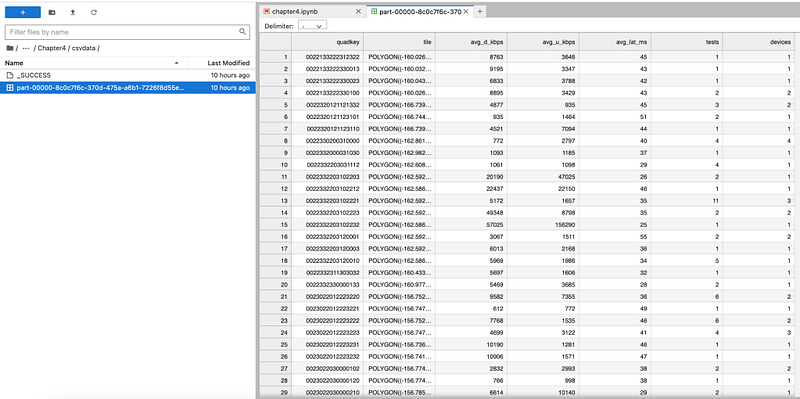
CSV file on the file server (Image by Author)

Conclusion:

Once we set the config of the AWS S3 bucket, using “spark.read” we can read files from there, and using “spark.write” we can write files there.

Learning and references:

  1. https://aws.amazon.com/s3/ -> S3 bucket guide from AWS
  2. https://mvnrepository.com/ -> Maven repo for Spark Libraries
  3. https://registry.opendata.aws/ -> AWS Open Data registry

Video explanation:

In the next video, we will do Spark ETL with HIVE.

👋 If you find this helpful, please click the clap 👏 button below a few times to show your support for the author 👇

🚀Join FAUN Developer Community & Get Similar Stories in your Inbox Each Week

Spark
Pyspark
Aws S3
Etl
Databricks
Recommended from ReadMedium