avatarKalpan Shah

Free AI web copilot to create summaries, insights and extended knowledge, download it at here

1939

Abstract

osed port for accessing it</li><li>For PostgreSQL, the exposed port for accessing it</li></ul><figure id="2771"><img src="https://cdn-images-1.readmedium.com/v2/resize:fit:800/0*vtXvmEuoZ9aiokIw"><figcaption>image by Author</figcaption></figure><p id="37fc">The next step is to create an image and start the container, for that use the below command</p><div id="e5fb"><pre>docker-compose up <span class="hljs-attr">--build</span></pre></div><figure id="c726"><img src="https://cdn-images-1.readmedium.com/v2/resize:fit:800/0*to711qor9gvnw0To"><figcaption>image by Author</figcaption></figure><p id="c9a2">Once docker images are created and containers are up, we can see that below</p><div id="4c7e"><pre>docker-compose ps</pre></div><figure id="9a0a"><img src="https://cdn-images-1.readmedium.com/v2/resize:fit:800/0*RPC4m4iY8LTOdMye"><figcaption>image by Author</figcaption></figure><p id="78eb">We can see all the containers up and also can see all the exposed ports with them.</p><p id="a782">We can also check it from the docker desktop.</p><figure id="7525"><img src="https://cdn-images-1.readmedium.com/v2/resize:fit:800/0*Ah8pYGj-POU12GJf"><figcaption>image by Author</figcaption></figure><p id="2e09">The next step is to check whether all the tools are configured and installed correctly or not.</p><h1 id="361c">Spark</h1><p id="932b">We can go inside the container and can check if the spark is properly configured or not</p><figure id="23a6"><img src="https://cdn-images-1.readmedium.com/v2/resize:fit:800/0*4vAy_vOdiY4K9oas"><figcaption>image by Author</figcaption></figure><p id="fd96">We can also check by Jupyter Notebook.</p><p id="45d0"><a href="http://127.0.0.1:8888">http://127.0.0.1:8888</a></p><figure id="7499"><img src="https://cdn-images-1.readmedium.com/v2/resize:fit:800/0*AnnXYlfNynv-esat"><figcaption>image by Author</figcaption></figure><p id="089c">Once we start the Spark session, it will provide a link for

Options

checking</p><figure id="550d"><img src="https://cdn-images-1.readmedium.com/v2/resize:fit:800/0*Jc0tL65_StaiNFvS"><figcaption>image by Author</figcaption></figure><h1 id="f37b">MongoDB</h1><p id="8b13">Used Mongo Compass to connect MongoDB and it is connected successfully, and we can see collections.</p><figure id="66e4"><img src="https://cdn-images-1.readmedium.com/v2/resize:fit:800/0*NEw6ykq16Q5cSjvy"><figcaption>image by Author</figcaption></figure><h1 id="4200">MySQL</h1><p id="6d16">We can connect MySQL using MySQL Workbench.</p><figure id="2167"><img src="https://cdn-images-1.readmedium.com/v2/resize:fit:800/0*w7D6vSJoQFveLc0X"><figcaption>image by Author</figcaption></figure><h1 id="760c">PostgreSQL</h1><p id="7435">We can connect to the PostgreSQL server also. We can use the pgAdmin or VS code database plugin to check that.</p><figure id="0ed1"><img src="https://cdn-images-1.readmedium.com/v2/resize:fit:800/0*kgvq1S6ZFztOiXz3"><figcaption>image by Author</figcaption></figure><p id="a7c6">We now have all the required tools installed in our system. From our next blog, we will start learning Data Engineering concepts and start</p><p id="a72d">Please also find below the video which provides more explanation on this.</p> <figure id="af59"> <div> <div> <img class="ratio" src="http://placehold.it/16x9"> <iframe class="" src="https://cdn.embedly.com/widgets/media.html?src=https%3A%2F%2Fwww.youtube.com%2Fembed%2FFT2lM7d3EQI%3Ffeature%3Doembed&amp;display_name=YouTube&amp;url=https%3A%2F%2Fwww.youtube.com%2Fwatch%3Fv%3DFT2lM7d3EQI&amp;image=https%3A%2F%2Fi.ytimg.com%2Fvi%2FFT2lM7d3EQI%2Fhqdefault.jpg&amp;key=a19fcc184b9711e1b4764040d3dc5c07&amp;type=text%2Fhtml&amp;schema=youtube" allowfullscreen="" frameborder="0" height="480" width="640"> </div> </div> </figure></iframe></div></div></figure></article></body>

Data Engineering Tool Suite

Introduction

In this blog post, we are setting up Data Engineering tools set on our local environment using docker. For the Data Engineering tool suite, for now, we are considering the below tools on the initial level. In the coming future, we will update our docker files and add more tools.

  • Apache Spark
  • Jupyter Lab
  • Package for Delta Lake
  • Package for AWS S3 ( s3a:// )
  • Package for Google Cloud Storage ( gs:// )
  • Package for Azure Blob Storage ( wasbs:// )
  • Package for Azure Data lake generation 1 ( adls:// )
  • Package for Azure Data lake generation 2 ( abfss:// )
  • Snowflake
  • Hadoop cloud magic committer for AWS
  • PostgreSQL
  • MySQL
  • MongoDB

Use below GitHub Repo, clone it on your local system

https://github.com/shahkalpan/DataEngineeringSuite

Deploying Tool Suite using Docker

Once you clone GitHub Repo, you will see the files below.
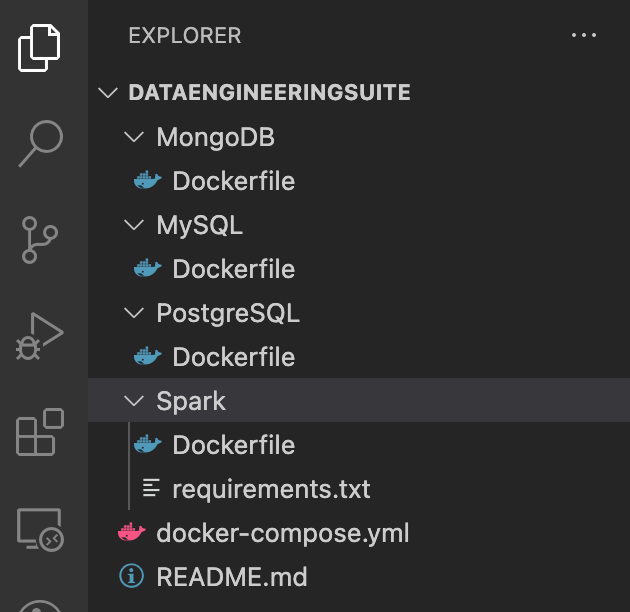
image by Author

And configuration in a docker-compose file is as below

  • You can change passwords for all MongoDB, PostgreSQL, and MySQL.
  • We have exposed all the required ports so that we can easily access it from our laptop
  • For Spark, we have exposed the port for Jupyter lab and all the spark job UI
  • For MySQL, we have exposed a port for accessing the database
  • For MongoDB, the exposed port for accessing it
  • For PostgreSQL, the exposed port for accessing it
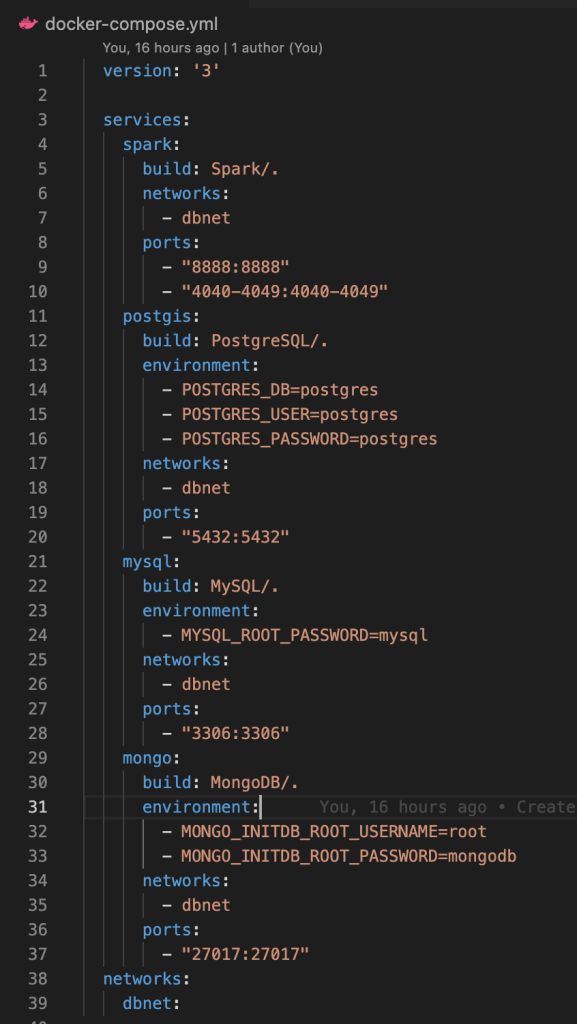
image by Author

The next step is to create an image and start the container, for that use the below command

docker-compose up --build
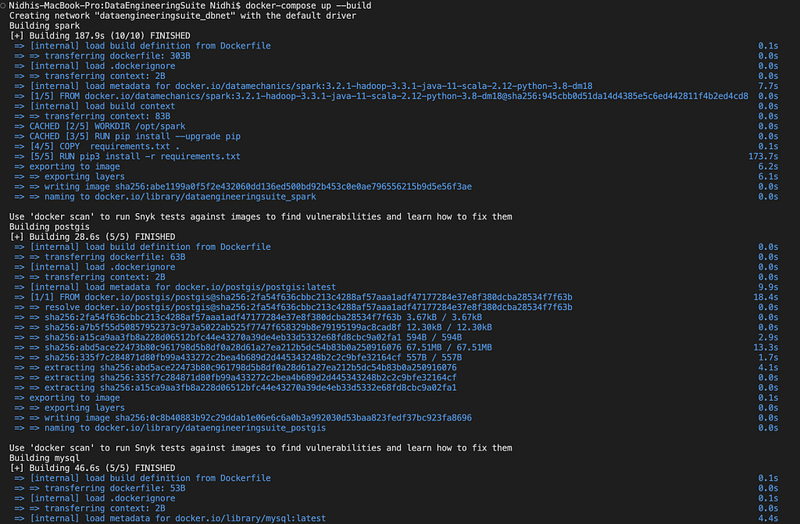
image by Author

Once docker images are created and containers are up, we can see that below

docker-compose ps
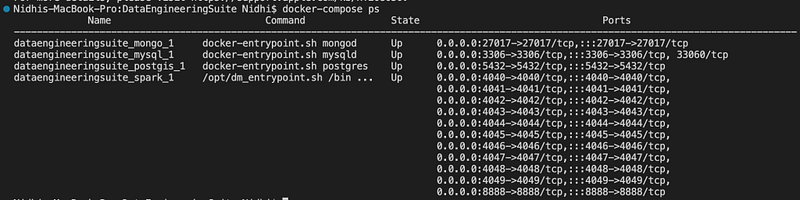
image by Author

We can see all the containers up and also can see all the exposed ports with them.

We can also check it from the docker desktop.
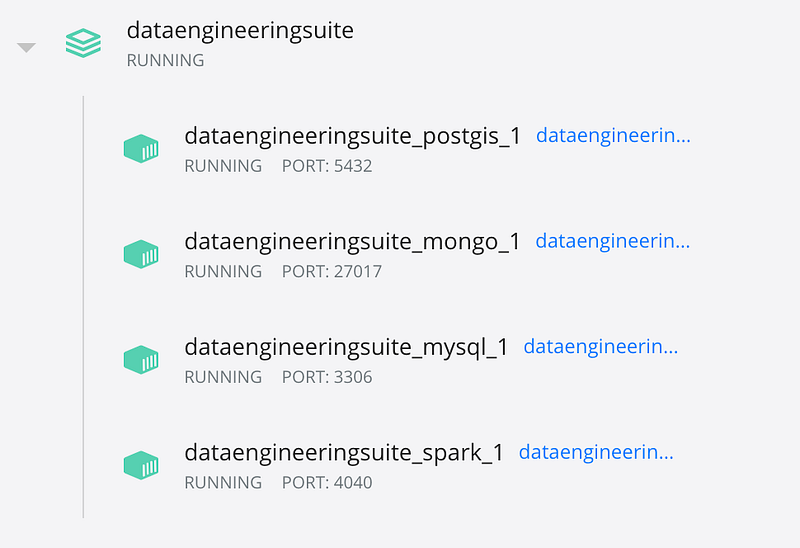
image by Author

The next step is to check whether all the tools are configured and installed correctly or not.

Spark

We can go inside the container and can check if the spark is properly configured or not
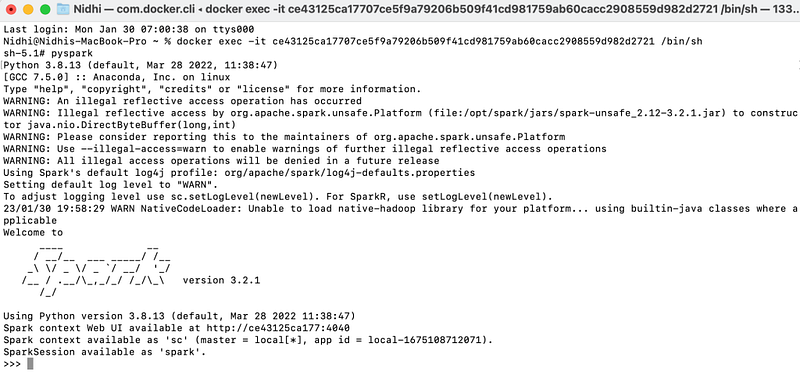
image by Author

We can also check by Jupyter Notebook.
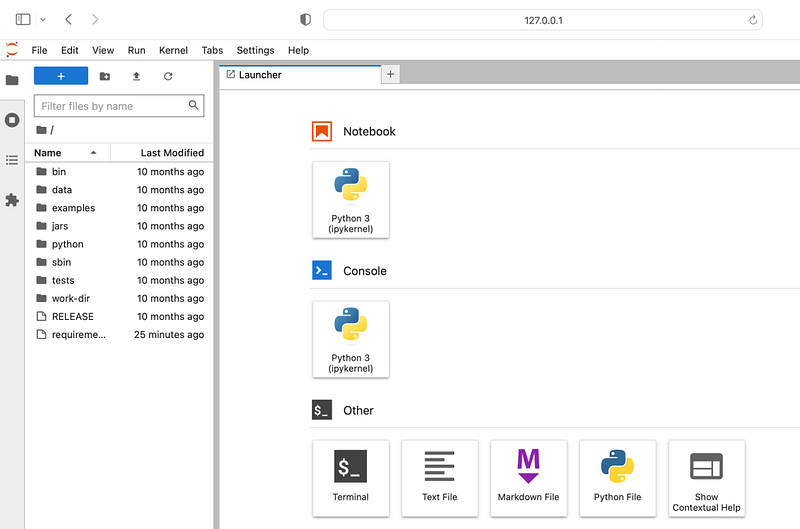
http://127.0.0.1:8888

image by Author

Once we start the Spark session, it will provide a link for checking
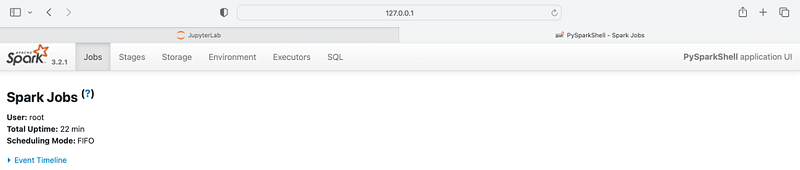
image by Author

MongoDB

Used Mongo Compass to connect MongoDB and it is connected successfully, and we can see collections.
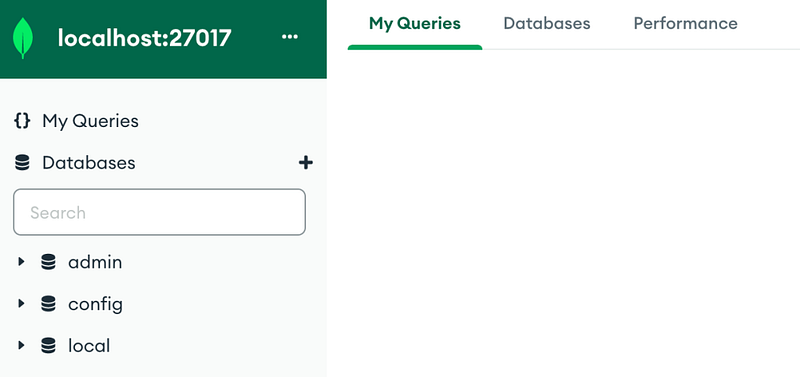
image by Author

MySQL

We can connect MySQL using MySQL Workbench.
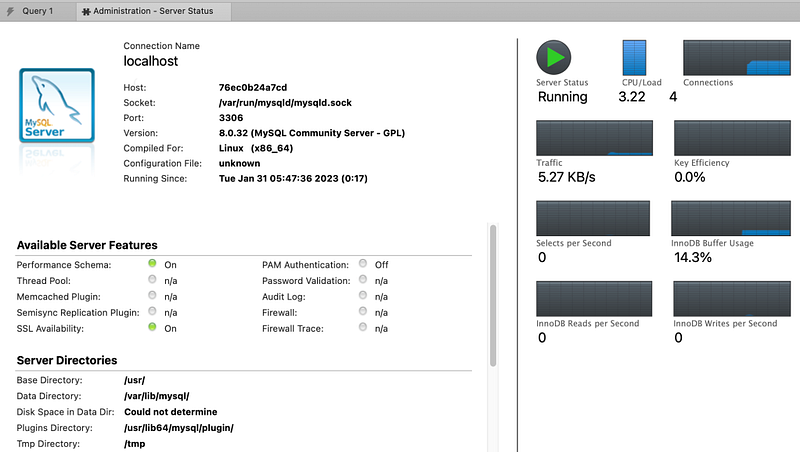
image by Author

PostgreSQL

We can connect to the PostgreSQL server also. We can use the pgAdmin or VS code database plugin to check that.
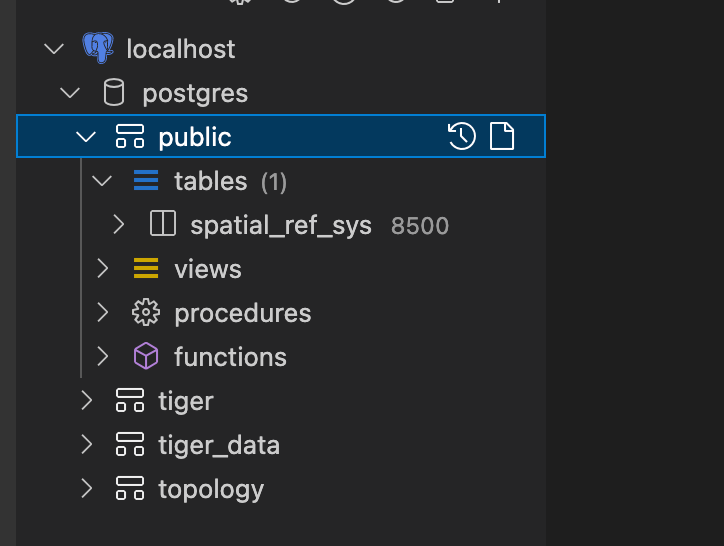
image by Author

We now have all the required tools installed in our system. From our next blog, we will start learning Data Engineering concepts and start

Please also find below the video which provides more explanation on this.

Spark
Postgresql
Pyspark
Data Engineering
Data Engineering Tools
Recommended from ReadMedium