
Setting Up Playwright in a GitLab CI Pipeline

In this guide, we’ll cover how to integrate Playwright testing into a GitLab CI pipeline. Playwright is a powerful framework for browser automation, making it ideal for UI testing.
Prerequisites
Since this article is based on the following articles, please read the following articles first.
config gitlab-ci.yml
The mirror used is provided by playwright:mcr.microsoft.com/playwright:v1.45.1-jammy
cache:
  key: "$CI_COMMIT_REF_SLUG"
  paths:
    - node_modules/
    - .npm/
    - .cache/ms-playwright # 缓存 Playwright 浏览器

stages:
  - test

# 测试阶段
playwright_tests:
  stage: test
  image: mcr.microsoft.com/playwright:v1.45.1-jammy
  script:
    - npm config set registry https://registry.npmmirror.com
    - npm install --verbose
    - npx playwright install --with-deps
    - npm run start &
    - sleep 60
    - npm run test
  tags:
    - docker
Parameter Description:
- npm config set registry https://registry.npmmirror.com: This is the mirror source for China. Other countries do not need to set this step
- sleep 60: It is the time to wait for antd to start the application. You need to run the test after the startup is successful. The actual production environment should build dist (html file), and then build the dist webpage and port through nginx. Playwright then accesses the corresponding website and port. However, the interface here uses the mock api enabled in the npm run start environment, so wait for 60s here. It is recommended to use nginx for real devops.
Triggering a job
First, you need to change the image that the job runs to the image provided by playwright: mcr.microsoft.com/playwright:v1.45.1-jammy, and modify the root directory: gitlab-runner/config/config.toml
concurrent = 1
check_interval = 0
shutdown_timeout = 0

[session_server]
  session_timeout = 1800

[[runners]]
  name = "docker-runner"
  url = "http://10.66.16.77/"
  id = 1
  token = "srZrQE5p4rbZp3yzrcSA"
  token_obtained_at = 2024-10-11T02:54:54Z
  token_expires_at = 0001-01-01T00:00:00Z
  executor = "docker"
  [runners.custom_build_dir]
  [runners.cache]
    MaxUploadedArchiveSize = 0
    [runners.cache.s3]
    [runners.cache.gcs]
    [runners.cache.azure]
  [runners.docker]
    tls_verify = false
-    image = "ruby:2.7"
+    image = "mcr.microsoft.com/playwright:v1.45.1-jammy"
    privileged = false
    disable_entrypoint_overwrite = false
    oom_kill_disable = false
    disable_cache = false
    volumes = ["/cache"]
    shm_size = 0
    network_mtu = 0
    pull_policy = "if-not-present"
Submit the code after modification to trigger the job
 git add .
 git commit -m "test: ui"
 git push
v1.45.1-jammy is about 2G. You need to wait for a while for the first run, and then check the job output to verify whether it is successful.
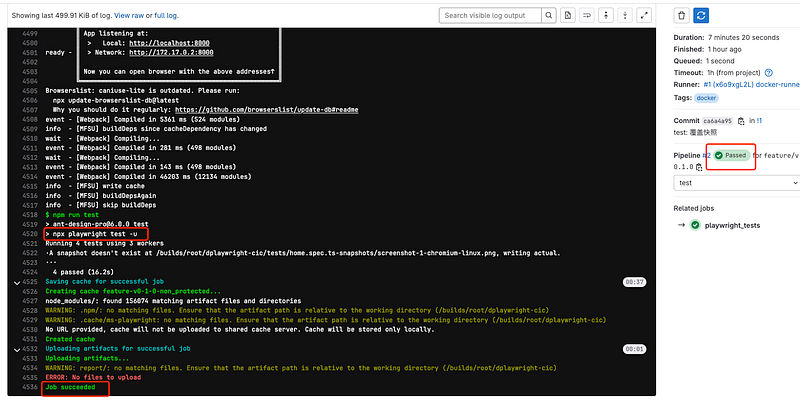
Merge checks: Pipelines must succeed
In actual development, we need to set all merges to require Pipeline succeed, so as to avoid merging wrong code. You need to set it in the project: Settings -> Merge requests -> Merge checks: Check: Pipelines must succeed
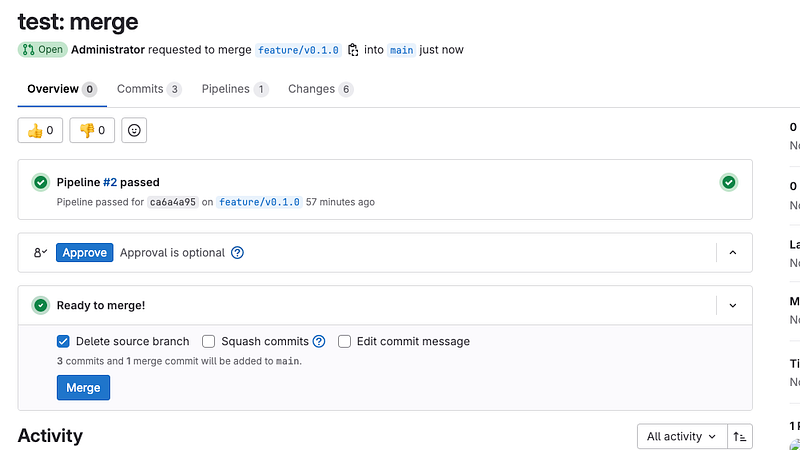
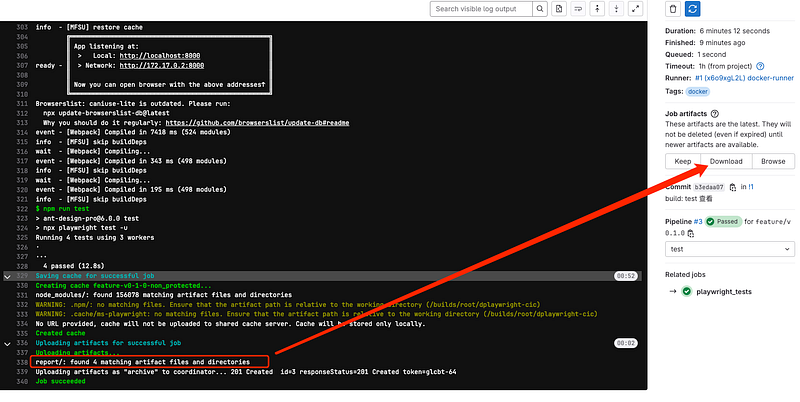
Download job for test report
Sometimes you need to view the specific test cases after running in cicd. In this case, you need to set playwright to generate an export report.
// playwright.config.ts
import { defineConfig, devices } from '@playwright/test';

export default defineConfig({
    testDir: './tests',
    fullyParallel: true,
    retries: 1,
+   reporter: [['html', { outputFolder: 'report' }]],
    use: {
        baseURL: 'http://localhost:3000',
    },
    projects: [
        {
            name: 'setup',
            testMatch: /auth\.setup\.ts/,
        },
        {
            name: 'chromium',
            use: {
                ...devices['Desktop Chrome'],
                storageState: 'playwright/.auth/user.json'
            },
            dependencies: ['setup'],
        },
    ],
});
Artifacts also need to be configured in .gitlab-ci.yml
cache:
  key: "$CI_COMMIT_REF_SLUG"
  paths:
    - node_modules/
    - .npm/
    - .cache/ms-playwright # 缓存 Playwright 浏览器

stages:
  - test

# 测试阶段
playwright_tests:
  stage: test
  image: mcr.microsoft.com/playwright:v1.45.1-jammy
  script:
    - npm config set registry https://registry.npmmirror.com
    - npm install --verbose
    - npx playwright install --with-deps
    - npm run start &
    - sleep 60
    - npm run test
  tags:
    - docker
+  artifacts:
+    paths:
+      - report/ # 保留 Playwright 测试报告
+    expire_in: 1 week
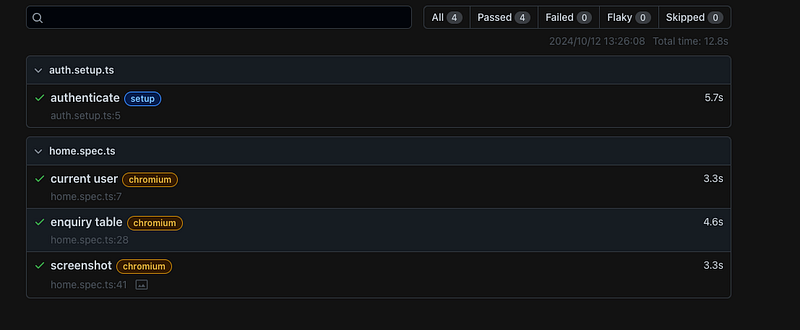
In this way, the runner will search for the report file in the root directory. After the run is completed, you can click Download to view the specific test case.
Download the compressed file and open it to view the page
Conclusion
By integrating Playwright into your GitLab CI pipeline, you can automate your UI testing workflow effectively. This setup leverages Playwright’s official Docker image (mcr.microsoft.com/playwright:v1.45.1-jammy), ensuring all necessary dependencies are handled seamlessly. The caching mechanism speeds up subsequent pipeline runs, while artifacts allow you to preserve and analyze test reports.
In real-world scenarios, it’s recommended to build the project and serve it through Nginx for more reliable testing. Additionally, enabling merge checks in GitLab ensures only code that passes the pipeline can be merged, helping maintain code quality across your project.
With this pipeline, you’ll have a robust UI testing solution that scales easily and fits into any modern CI/CD setup.


