
Setting Up GitLab and GitLab Runner with Docker: A Complete Guide
we’ll walk through setting up GitLab and GitLab Runner using Docker. This will enable a simple CI/CD pipeline where a commit will trigger a job that echoes a message, ensuring everything is set up correctly.

Prerequisites
Before getting started, ensure you have the following installed on your machine:
- Docker and Docker Compose installed on your system.
- Basic understanding of GitLab
1. Configure docker-compose.yml
Create a project name: cicd-test, create: docker-compose.yml in the root directory, configure gitlab and gitlab-runner through docker-compose, and the corresponding configuration
version: "3"

services:
  gitlab:
    image: gitlab/gitlab-ce:latest
    container_name: gitlab
    hostname: 'yourIP'
    ports:
      - "80:80"
      - "443:443"
      - "222:22"
    volumes:
      - ./gitlab/config:/etc/gitlab
      - ./gitlab/logs:/var/log/gitlab
      - ./gitlab/data:/var/opt/gitlab
    environment:
      GITLAB_OMNIBUS_CONFIG: |
        external_url 'http://yourIP'
        gitlab_rails['gitlab_shell_ssh_port'] = 22
    networks:
      - gitlab-network

  gitlab-runner:
    image: gitlab/gitlab-runner:latest
    container_name: gitlab-runner
    restart: always
    volumes:
      - ./gitlab-runner/config:/etc/gitlab-runner
      - /var/run/docker.sock:/var/run/docker.sock
    depends_on:
      - gitlab
    networks:
      - gitlab-network

networks:
  gitlab-network:
    name: gitlab-network
Parameter description:
- hostname: can be a domain name or an IP address. Since this is a local case, I use the IP address of the current host computer: yourIP (configured according to the IP address of your own computer)
- Port 80 is exposed in gitlab, and the gitlab web page can be accessed through http://localhost/
- volumes will map the configuration files in gitlab and gitlab-runner to the gitlab and gitlab-runner files in the root directory
2. Get register information
Gitlab and gitlab-runner need to be registered and associated before running cicd. First, start docker-compose in the root directory.
docker-compose up -d
-dIt runs in the background. Since gitlab has many dependencies, it takes a long time to start. You need to wait for a while. After gitlab starts successfully, you can access http://localhost/

Login information:
- Username: root (assigned by gitlab by default)
- password: You need to find it in the gitlab configuration file in the project root directory: gitlab -> config -> initial_root_password:

Copy Password Log in to gitlab, visit http://localhost/admin/runners , click the button to view the registration pop-up information, and copy the Registration token

Enter the command in the terminal to enter docker and register the runner in the gitlab-runner container
mdeMacBook-Pro:~ lph$ docker exec -it gitlab-runner gitlab-runner register
Runtime platform                                    arch=amd64 os=linux pid=18 revision=b92ee590 version=17.4.0
Running in system-mode.

Enter the GitLab instance URL (for example, https://gitlab.com/):YourIP
Enter the registration token: YourCopyRegistrationToken
Enter a description for the runner:
[741647ab5347]: docker-runner
Enter tags for the runner (comma-separated):
docker
Enter optional maintenance note for the runner:
Free-form maintainer notes about this runner
WARNING: Support for registration tokens and runner parameters in the 'register' command has been deprecated in GitLab Runner 15.6 and will be replaced with support for authentication tokens. For more information, see https://docs.gitlab.com/ee/ci/runners/new_creation_workflow
Registering runner... succeeded                     runner=SRhXXgvu
Enter an executor: shell, parallels, virtualbox, docker-windows, docker+machine, kubernetes, instance, custom, ssh, docker, docker-autoscaler:
docker
Enter the default Docker image (for example, ruby:2.7):
ruby:2.7
Runner registered successfully. Feel free to start it, but if it's running already the config should be automatically reloaded!

Configuration (with the authentication token) was saved in "/etc/gitlab-runner/config.toml"
The input parameters are:
- GitLab instance URL: YourIP (this is your IP address, which corresponds to gitlab -> external_url in docker-compose.yml)
- registration token: YourCopyRegistrationToken (the RegistrationToken copied after logging into gitlab)
- a description for the runner: docker-runner (a description of the runner, which can be customized)
- tags for the runner (comma-separated): docker (this tag will be used to match when running the job, and the gitlab-ci.yml file you set later needs to set specific tags)
job:
  tags:
- docker- optional maintenance note for the runner: Free-form maintainer notes about this runner (a description of the runner, which can be customized)
- Enter an executor: shell, parallels, virtualbox, docker-windows, docker+machine, kubernetes, instance, custom, ssh, docker, docker-autoscaler: docker (Entering docker means that the run job will run in docker)
- Enter the default Docker image (for example, ruby:2.7): ruby:2.7 (Select default)
Here is a run job environment that needs to be roughly understood:
- The local docker container gitlab-runner is installed
- When running a job, the corresponding image is run through the built-in docker of gitlab-runner
Then the run job (CICD) is actually executed in the Docker-in-Docker environment
Another thing to understand is that you can register multiple gitlab-runners. It is recommended that each job needs to have clear tags so that the runner can correspond to the specific job and improve the running efficiency. Therefore, it is best not to set Runners to: Run untagged jobs
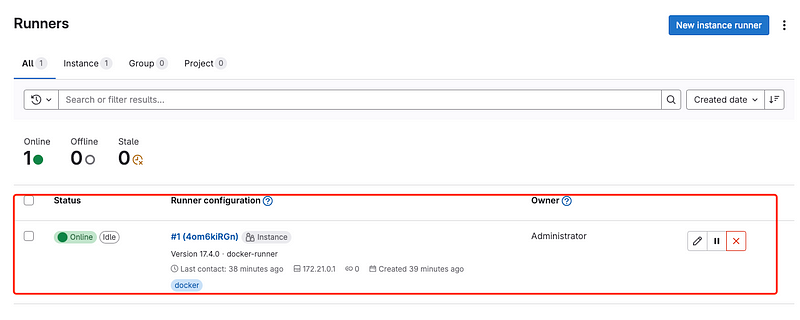
After successful registration, visit the gitlab page: http://localhost/admin/runners to see the registered Runner information
3. Gitlab creates a project
Visit: http://localhost/projects/new#blank_project to create a project cicd-test

After successful creation, in order to facilitate code submission, add Add SSH Key here , the mac key is in ~/.ssh/id_rsa.pub
git clone the cicd-test project created
git clone git@yourIP:root/cicd-test.git
4. Trigger the runner
Add remote cicd-test reference to the local cicd-test project
git remote add origin git@yourIP:root/cicd-test.git
.gitlab-ci.ymlCreate a configuration file in the project root directory
stages:
  - build
  - test

build_job:
  stage: build
  script:
    - echo "Building the project..."
  tags:
    - docker

test_job:
  stage: test
  script:
    - echo "Running tests..."
  tags:
    - docker
git commit submits the code, triggering tags to run the job for docker runner, and you can see that the operation is successful and the script is output
git add .
git commit -m "Set up CI/CD pipeline"
git push origin master
After pushing, the CI/CD jobs will start running on the GitLab Runner. You can view the output on the GitLab web interface under the “CI/CD” section.


5. Optimizing Runner and Job Performance
Every time you run a job, ruby:2.7 will be pulled again. Subsequent jobs will use the cached image. Here you need to set gitlab-runner/config/config.toml in the root directory
concurrent = 1
check_interval = 0
shutdown_timeout = 0

[session_server]
  session_timeout = 1800

[[runners]]
  name = "docker-runner"
  url = "yourIP"
  id = 1
  token = "srZrQE5p4rbZp3yzrcSA"
  token_obtained_at = 2024-10-11T02:54:54Z
  token_expires_at = 0001-01-01T00:00:00Z
  executor = "docker"
  [runners.custom_build_dir]
  [runners.cache]
    MaxUploadedArchiveSize = 0
    [runners.cache.s3]
    [runners.cache.gcs]
    [runners.cache.azure]
  [runners.docker]
    tls_verify = false
    image = "ruby:2.7"
    privileged = false
    disable_entrypoint_overwrite = false
    oom_kill_disable = false
    disable_cache = false
    volumes = ["/cache"]
    shm_size = 0
    network_mtu = 0
+   pull_policy = "if-not-present"
This ensures that Docker will only pull the image if it’s not already present locally.
6 .Troubleshooting
- In .gitlab-ci.yml, you need to specify tags corresponding to different runners, so that you can run the corresponding jobs accurately and avoid waiting in line.
- When running a job, it gets stuck and is eventually killed. This may be due to insufficient memory. You can increase the docker memory resources by allocating them under Settings -> Resources -> Advanced. Allocate CPUs, Memory, Swap, and Virtual disk limit according to the situation.
Conclusion
You’ve successfully set up GitLab and GitLab Runner using Docker and created a basic CI/CD pipeline. This setup can be expanded to handle more complex jobs, builds, and tests.


