
Re-encrypting an EC2 Instance With Your Own CMK
ACM.215 changing default encryption to CMK encryption on EBS Volumes
~~~~~~~~~~~~~~~~~~~~~~~~~~~~~~~~~~~~~~~~~~~~~~~~~~~~~~~~~~~
⚙️ Check out my series on Automating Cybersecurity Metrics. The Code.
🔒 Related Stories: AWS Security | Encryption | Cybersecurity
💻 Free Content on Jobs in Cybersecurity | ✉️ Sign up for the Email List
~~~~~~~~~~~~~~~~~~~~~~~~~~~~~~~~~~~~~~~~~~~~~~~~~~~~~~~~~~~
In the last post we did some troubleshooting trying to launch a shared AMI.
As I showed you in a prior post, when sharing an encrypted AMI it was encrypted with an AWS managed key when I recreated a new image in another account. In this post I need to change the Amazon Machine Image (AMI) I shared from another account to use a new encryption key.
When I shared and migrated my AMI to my account I never selected a KMS key. When I ran the EC2 instance and created my own image, the result was an AMI encrypted with an AWS-managed key.
What that means, as I’ve explained before, is that anyone with full KMS encryption in your account can decrypt that resource. You can’t control the key policy of an AWS managed key, or the rotation schedule. I covered why you want to control the policy in many other posts.
The other problem is that you cannot share the AMI to another account if it is encrypted with an AWS-managed key. I need to share the AMI I use for penetration tests with multiple accounts and I can’t do it if the AMI is encrypted with the AWS key.
The question is, how can I create an AMI and encrypt the disks with my own KMS key?
If we are manually deploying an instance in the AWS console, then there’s one setting I didn’t use when I shared the AMI. Encryption occurs on storage.
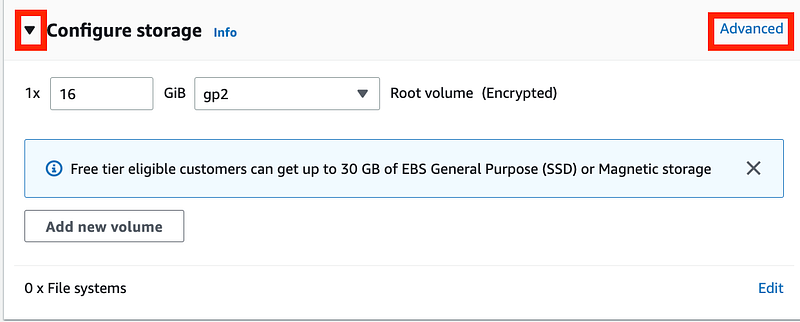
When you are creating an AMI, expand the storage options using the down arrow shown below. The click Advanced.
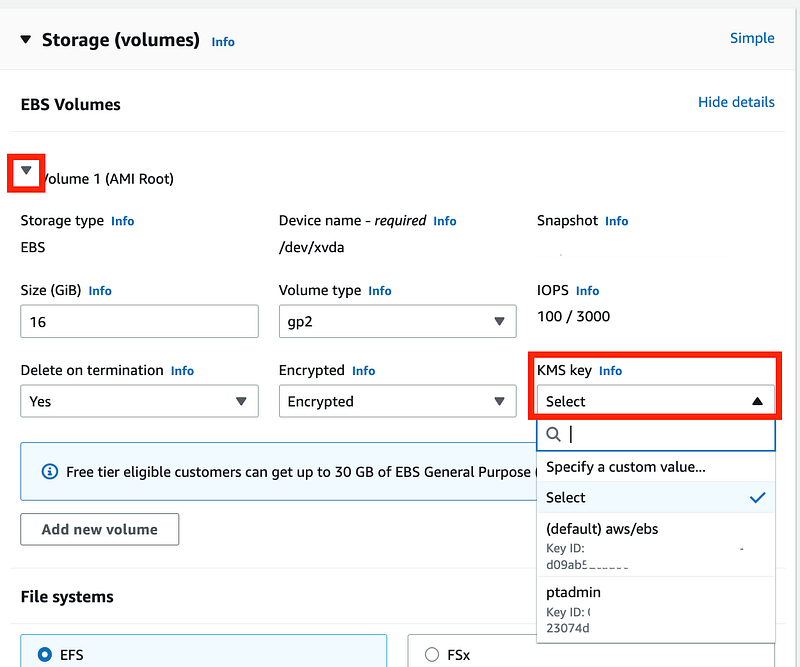
Click the down arrow next to the volume. Then you can select a KMS key.
I have many other posts explaining how to create a KMS key and code in the GitHub repo. Here are a couple.
When you launch an instance with those settings, then you can create an image that will be encrypted with the specified customer managed key in your account. You can verify which key is used as explained in this prior post.
You can get more details on the topic in this AWS documentation post:
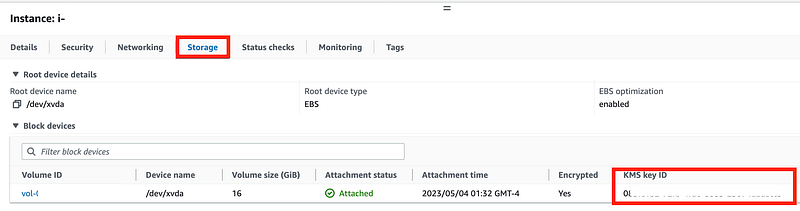
Validate that the key ID matches your KMS key. Navigate to the KMS console and look at the key ID. then lick on your new instance, then the storage tab, and compare the value to the KMS key ID. Make sure they match.
Follow for updates.
Teri Radichel | © 2nd Sight Lab 2023
The best way to support this blog is to sign up for the email list and clap for stories you like. That also helps me determine what stories people like and what to write about more often. Other ways to follow and support are listed below. Thank you!
About Teri Radichel:
~~~~~~~~~~~~~~~~~~~~
Author: Cybersecurity for Executives in the Age of Cloud
Presentations: Presentations by Teri Radichel
Recognition: SANS Difference Makers Award, AWS Security Hero, IANS Faculty
Certifications: SANS
Education: BA Business, Master of Software Engineering, Master of Infosec
Company: Cloud Penetration Tests, Assessments, Training ~ 2nd Sight Lab
Like this story? Use the options below to help me write more!
~~~~~~~~~~~~~~~~~~~~~~~~~~~~~~~~~~~~~~~~~~~~~~~~~~~~~~~~~~~~~
❤️ Clap
❤️ Referrals
❤️ Medium: Teri Radichel
❤️ Email List: Teri Radichel
❤️ Twitter: @teriradichel
❤️ Mastodon: @[email protected]
❤️ Facebook: 2nd Sight Lab
❤️ YouTube: @2ndsightlab
❤️ Buy a Book: Teri Radichel on Amazon
❤️ Request a penetration test, assessment, or training
via LinkedIn: Teri Radichel
❤️ Schedule a consulting call with me through IANS ResearchMy Cybersecurity Book: Cybersecurity for Executives in the Age of Cloud
