
Manually Migrate an AMI to a New Account
ACM.213 Sharing an Amazon Machine Image (AMI) you created with an account external to your organization
Part of my series on Automating Cybersecurity Metrics. The Code.
Free Content on Jobs in Cybersecurity | Sign up for the Email List
In the last post I explained how I broke something and why. Validation was not working properly. A reminder to periodically check that your general code works properly and how it can break everything when you change it.
Now as I mentioned, I’m moving away from CloudShell. Some at AWS seem to be promoting CloudShell as an alternative to long term credentials. However, that is not a good alternative at the moment for the reasons I wrote about in this post.
People throwing out credentials saying, well they get compromised so we shouldn’t use them, create bigger attack vectors than the ones we started with in some cases.
CloudShell lacks the ability to maintain many of the controls I’ve written about in this blog series. Not to mention it is buggy at the moment. I’m sure they will fix that. It’s good in a pinch but not a secure long term solution.
Trying to get people to use AWS SSO instead of the AWS CLI with MFA breaks down due to similar logical inconsistencies. Simply solving one problem — no more long term credentials, YAY — introduces a whole other set of attack vectors, which I think are worse.
That’s why I’ve been showing you how to use the AWS with MFA in recent posts like this one:
AMIs with built in tools
Due to the myriad of problems in my last post, I’m going to show you how to manually migrate an AMI to a new account.
Here’s my scenario. I’m working in an EC2 instance in another AWS account and I don’t want to lose what I have in there. I just want to get it into the new account. I also have an AMI built with a number of tools I commonly use on pentests and building out AWS resources. I want to get that over to the new environment. This is another thing you can’t get from CloudShell as nicely — a hardened, secure image with all your tools built in.
Resources for Cloud Security Training
This is also the method I used to share my labs with people in my classes. I never thought that learning in a controlled environment that doesn’t work exactly how the cloud works was a good idea. Emulating the cloud — is not the cloud. USBs are sketchy and we tell everyone not to plug in USBs so why would you give me one in a security class? My method was to tell people how to create a free account and share an AMI to that account. If other classes start doing that now — why not come to the source for your cloud security training instead?
By the way, I am teaching online, only to organizations, not individuals. I can teach through IANS if you are a customer and can arrange with them to pay me up front. And classes with LABS are EXPENSIVE (but not as expensive as other places). Why? Because they are hard to get right due the need for a full software development lifecycle (SDLC) with proper testing and I refuse to put out a messed up lab that doesn’t work. When it doesn’t, I fix them after class for students.
I have much more cost effective options without in class labs where you can learn just about as much and not spend a lot of money to sit around around in class doing things you could do outside of class without an instructor present.
Sharing an AMI to an external account
I build that AMI (Amazon Machine Image) fresh from source periodically but before I can build it from source I need a whole bunch of other things set up, so right now I’m just going to move the image with the tools I need over so I can use it.
- Get the account number where you want to move the image
- Log into the account with the EC2 instance you want to move.
- On the EC2 dashboard, click the Instance you want to move
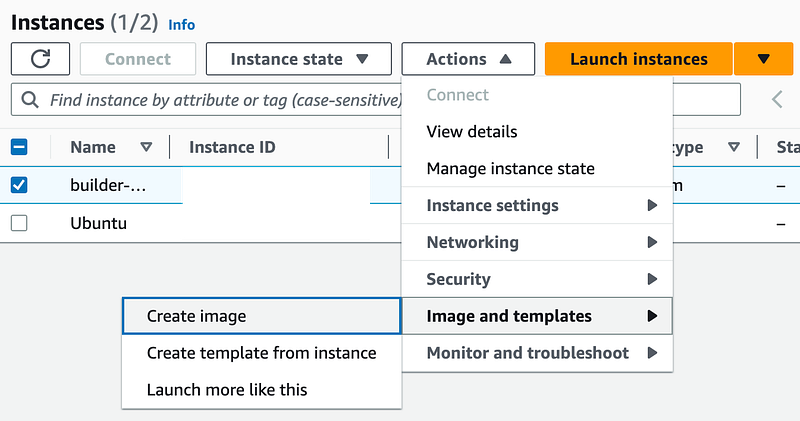
- Click Actions > Image and templates > Create image
- Enter a name and description
- Notice that I cannot change the Encrypted Setting.
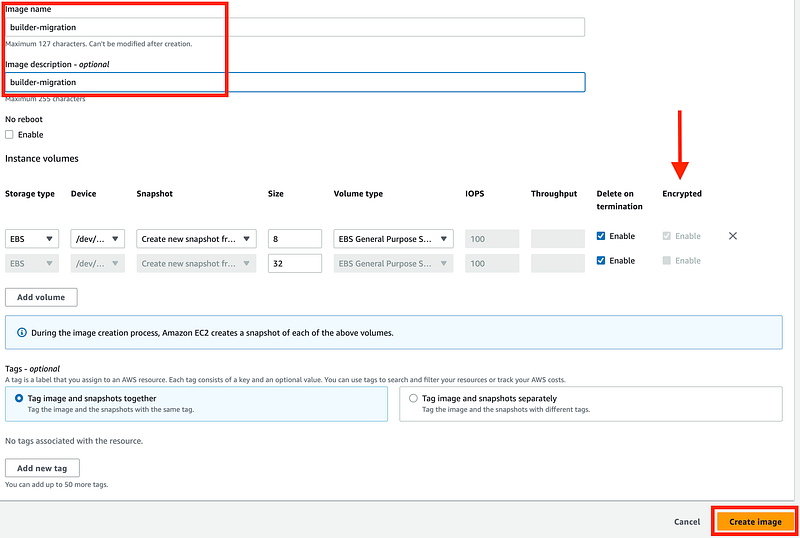
Because the AMI used to create this instance is encrypted, the Image I created from it will be encrypted. For someone else to start an instance from this AMI they will need access to the KMS key. I cannot create an unencrypted image from an encrypted image. Therefore if I want to move this to a new account, I need to have a key in that account to encrypt the image. That’s why I was trying to create a KMS key in the last post. More on that to follow.
- Click Create Image.
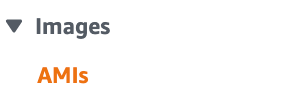
- Click AMIs (under Images) in the left menu.
- Look for the image with your AMI name and Status pending.
- You may need to refresh the screen.

- Notice the details in the columns — the owner is the current account ID
- The visibility is Private (as it generally should always be.)
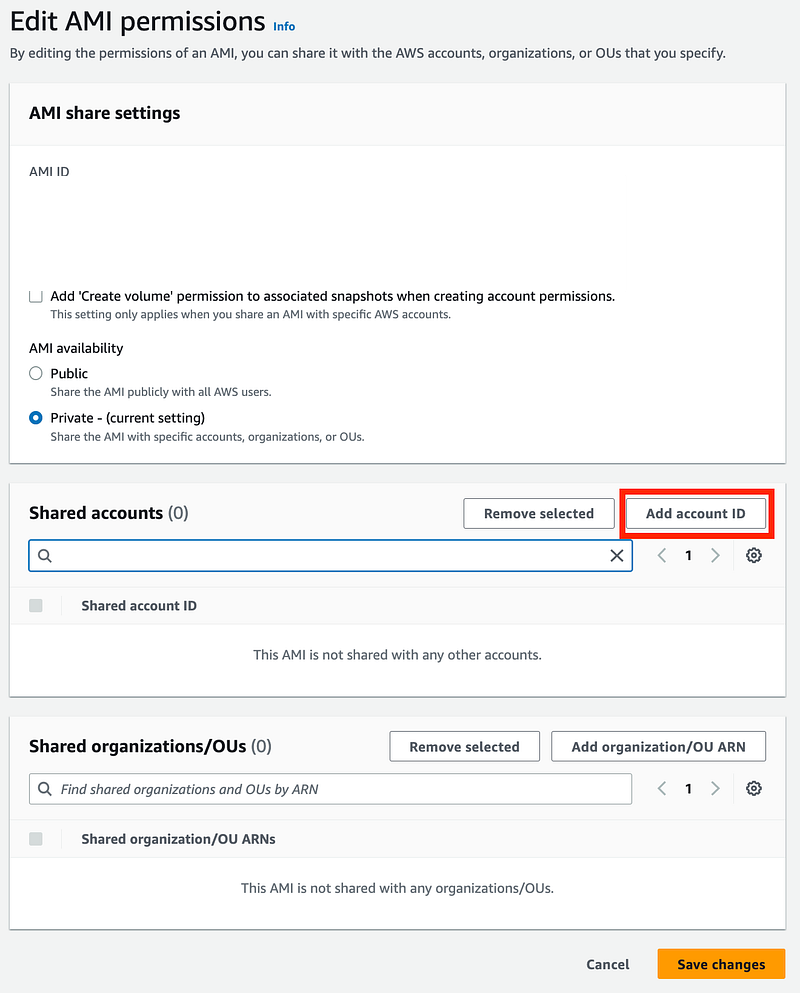
- Click on the AMI. Choose Edit AMI Permissions.
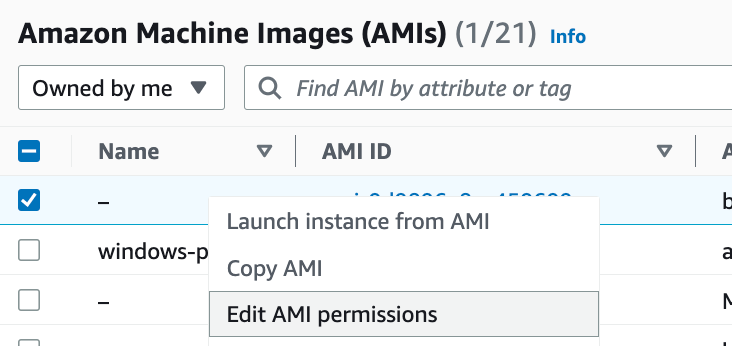
- In the middle of the screen, click Add account ID.
- Enter the account number with which you want to share the Image.
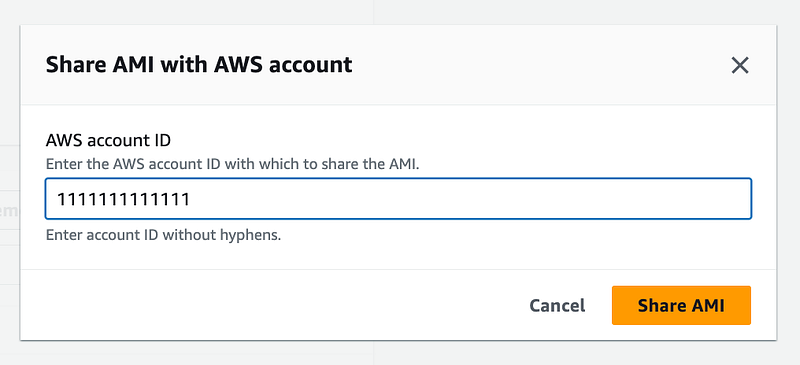
- Click Share AMI.
- Click Save Changes.
- Click on Storage
- Notice that for this image, I have two block devices (disks, essentially).
- Each one is encrypted with a different KMS key.
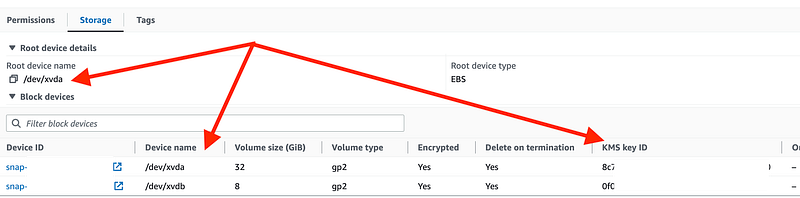
- In order to access the data in the other account I need to allow the other account to use the KMS key.
- Navigate to KMS.
- Edit the key policy to add the following statement, replacing [AccountId] with the remote account where the AMI is shared.
        {
            "Sid": "Allow new sandbox account to use of the key",
            "Effect": "Allow",
            "Principal": {
                "AWS": "arn:aws:iam::xxxxxxxxxxxx:root"
            },
            "Action": [
                "kms:Encrypt",
                "kms:Decrypt",
                "kms:ReEncrypt*",
                "kms:GenerateDataKey*",
                "kms:DescribeKey",
                "kms:CreateGrant",
                "kms:ListGrants",
                "kms:RevokeGrant"
            ],
            "Resource": "*"
},- The above statement should work since my user in the other account is an administrator. Otherwise, you may need to grant permissions to a specific User or Role.
Note: refer to my post on EC2 encryption above for a more minimal policy and service restrictions. This is for a temporary move for a key that is going away shortly.
- In my case I need to do this for both keys.
Use the AMI in the other account
- Login to the Sandbox account.
- Navigate to the EC2 dashboard and click AMIs in the left menu.
- If the region where the AMI exists is not enabled in the new account you will need to allow access in that region.
- Make sure you are in the same region from which the AMI was shared.
- Choose Private images and you should see your AMI.
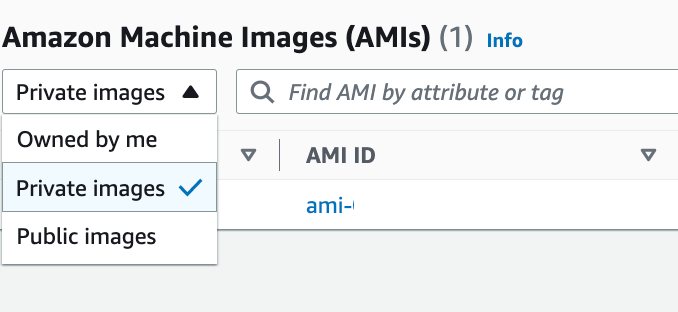
- Notice the owner is still the remote account ID.
- Check the box next to the Ami and choose Launch instance from AMI.

Now I’m going to presume you know something about launching images at this point and not explain every detail. Please do restrict the network to your own IP not the entire Internet. I used the default VPC for now.
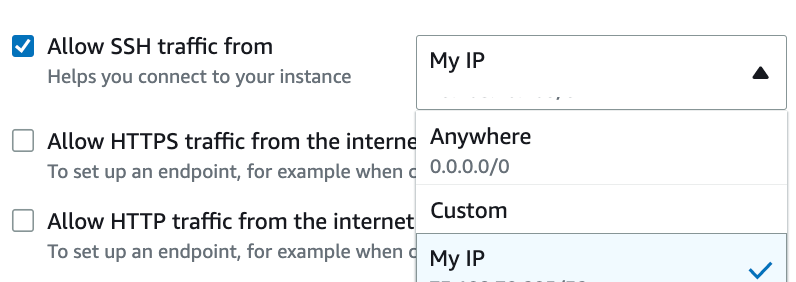
- Configure and then click Launch instance.
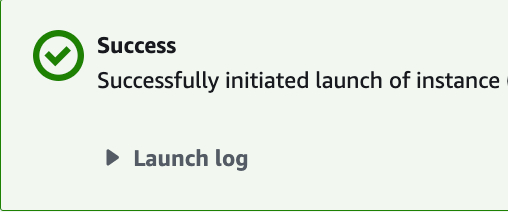
- Return to the EC2 dashboard and list of instances.
- Take a look at the storage tab for the instance.
- Note that the disks are encrypted — but with a different key.**
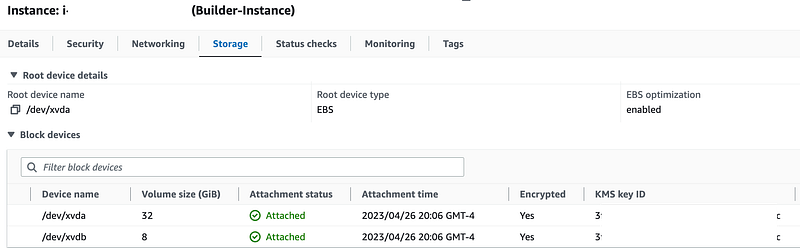
** If you follow the steps I just took, you will end up with an encrypted AMI in the new account. You cannot move an encrypted AMI to an unencrypted AMI. However, what is that encryption key? If you take a look at the key and compare it to the list of keys in your KMS dashboard you will see that it is an AWS Managed encryption key. I’ll show you how to fix that in an upcoming post.
Connect to the instance
- Double check your networking to ensure you have access to connect to the instance. I explained network ing in prior posts.
- Click on the instance.
- Click Actions > Connect and log into the instance via whatever means you configured.
Create an image of the instance you own
After verifying that you can successfully log into the instance, repeat the steps above to create an instance that you own.
- Click on the image.
- Actions > Image and templates > Create Image
- Navigate to the list of images. You should now see two images with different account ids — one of which is the target account.
Now that I’ve transferred over the AMI and created an instance I can use that to continue building out my new account structure instead of using AWS CloudShell.
I’ll show you how to troubleshoot some issues you might have in the next post and how to change this AMI over to your own customer managed KMS key in the post after that. The we’ll automate all this by adding a few lines of code to our existing codebase.
Follow for updates.
Teri Radichel | © 2nd Sight Lab 2023
The best way to support this blog is to sign up for the email list and clap for stories you like. That also helps me determine what stories people like and what to write about more often. Other ways to follow and support are listed below. Thank you!
About Teri Radichel:
~~~~~~~~~~~~~~~~~~~~
Author: Cybersecurity for Executives in the Age of Cloud
Presentations: Presentations by Teri Radichel
Recognition: SANS Difference Makers Award, AWS Security Hero, IANS Faculty
Certifications: SANS
Education: BA Business, Master of Software Engineering, Master of Infosec
Company: Cloud Penetration Tests, Assessments, Training ~ 2nd Sight Lab
Like this story? Use the options below to help me write more!
~~~~~~~~~~~~~~~~~~~~~~~~~~~~~~~~~~~~~~~~~~~~~~~~~~~~~~~~~~~~~
❤️ Clap
❤️ Referrals
❤️ Medium: Teri Radichel
❤️ Email List: Teri Radichel
❤️ Twitter: @teriradichel
❤️ Mastodon: @[email protected]
❤️ Facebook: 2nd Sight Lab
❤️ YouTube: @2ndsightlab
❤️ Buy a Book: Teri Radichel on Amazon
❤️ Request a penetration test, assessment, or training
via LinkedIn: Teri Radichel
❤️ Schedule a consulting call with me through IANS ResearchMy Cybersecurity Book: Cybersecurity for Executives in the Age of Cloud



