
XRDP for RDP on Ubuntu ~ AWS ARM EC2 Instance
Experimenting with Ubuntu on AWS ARM EC2
~~~~~~~~~~~~~~~~~~~~~~~~~~~~~~~~~~~~~~~~~~~~~~~~~~~~~~~~~~~
⚙️ Check out my series on Automating Cybersecurity Metrics. The Code.
🔒 Related Stories: Ubuntu | OS and IoT Security | AWS Security
💻 Free Content on Jobs in Cybersecurity | ✉️ Sign up for the Email List
~~~~~~~~~~~~~~~~~~~~~~~~~~~~~~~~~~~~~~~~~~~~~~~~~~~~~~~~~~
A random post on something I decided try tonight.
First, I want to say that I really like the AWS EC2 redesign. Very clean and helps you get it done.
I was just testing out Ubuntu on AWS because Windows is so slow and expensive on AWS that I’m hoping to use Ubuntu as an alternative I use Windows for very limited use cases.
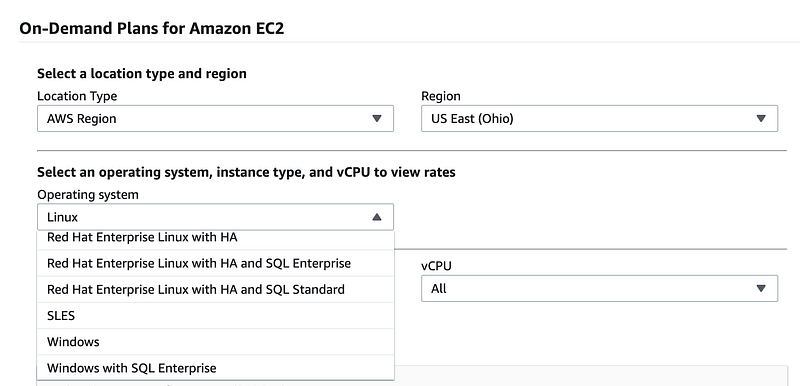
I was considering using an Ubuntu Amazon Workspace, which was just recently announced, but the EC2 instance options are generally more flexible and cost-effective. That said, I can’t seem to find the Ubuntu pricing on the EC2 pricing page:
Also AWS Workspace requires ports I don’t have open on my firewall right now and I don’t want to deal with that.
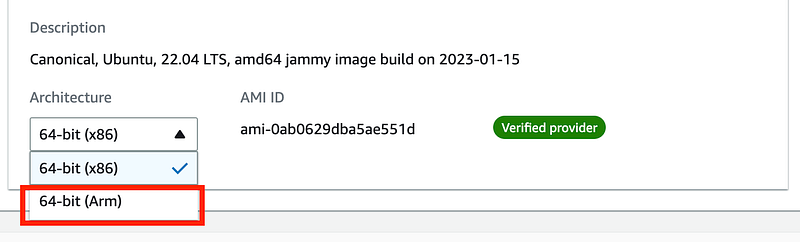
I chose an Arm instance.
I wrote a lot of information about AWS KMS keys and how to use them in this series:
Then I found this page which explains the process pretty simply. I am just going to summarize the commands and add a few notes. I do not enter my credentials into random popups in the OS by third-party components, by the way.
I incorporated a few things from this page:
I also perform an update on xfce4 after installing and it appeared to get some additional updates.
#switch to root
sudo su
#change to root home directory
cd -
#change the ubuntu password - make it strong!
passwd ubuntu
[type your new password for the ubuntu user at the prompt]

#to get these to work I had to open port 80 for a Canonical IP
#also some AWS IP addresses. Not listing them here because the addresses
#may be different in your region. It's best to be very specific when
#getting updates.
sudo apt-get update
sudo apt-get upgrade

sudo apt-get install xrdp

#This is the GUI. I did a bit of research below.
#It may be ok but you might want to do some additional analysis.
sudo apt-get install xfce4
sudo apt-get install xfce4-terminal

sudo apt-get update
sudo apt-get upgrade

#review the contents of teh startwm.sh file
cat /etc/xrdp/startwm.sh

# this command attempts to print two lines in the above file,
# but the lines appear in random places when I tried it
# you definitely should not run it more than once
sed -i.bak '/fi/a #xrdp multiple users configuration \n xfce4-session \n' /etc/xrdp/startwm.sh

# you may want to edit the above file instead: /etc/xrdp/startwm.sh
# add the next two lines:

#xrdp multiple users configuration
xfce4-session

#The above command starts the GUI, so if you login to Ubutu
#and only have a terminal you can type that command to get
#a GUI

#now I'm not sure of the security implications of that line above or if it
#is really neccessary. Do your own research before adding it.

#not neccessary. port is already open, which is curious.
#sudo ufw allow 3389/tcp

/etc/init.d/xrdp restart

#one post also suggested you should run this command
echo xfce4-session >~/.xsession

#see below for the issues I had next and what I did about them.
Is this secure enough to use?
I took a look at he vulnerabilities in Xfce compared to Gnome:
I looked for some information on Xfce and it’s history:
Looks like it is the default desktop for Kali Linux:
That could be comforting or scary depending on your point of view.
I later figured out that out of the box xrdp is using the default “snakeoil” Debian certificates. You may want to change those.
More on that in this post where I was troubleshooting some connection issues:
Note that you should review and understand the configuration options in the ini file.
Next I tried to connect via RDP and I got a black screen. I ended up rebooting my instance. Then when I logged back in I got a message saying more updates exist so I installed them.
Then I tried to login with RDP again and once again I got a terminal window only in the RDP session.
I installed Xrdp again and it said Xrdp was already installed.
I restarted Xrdp again and then finally I got a GUI.
Then I tried to browser the web and got this error that says the default web browser failed to start.
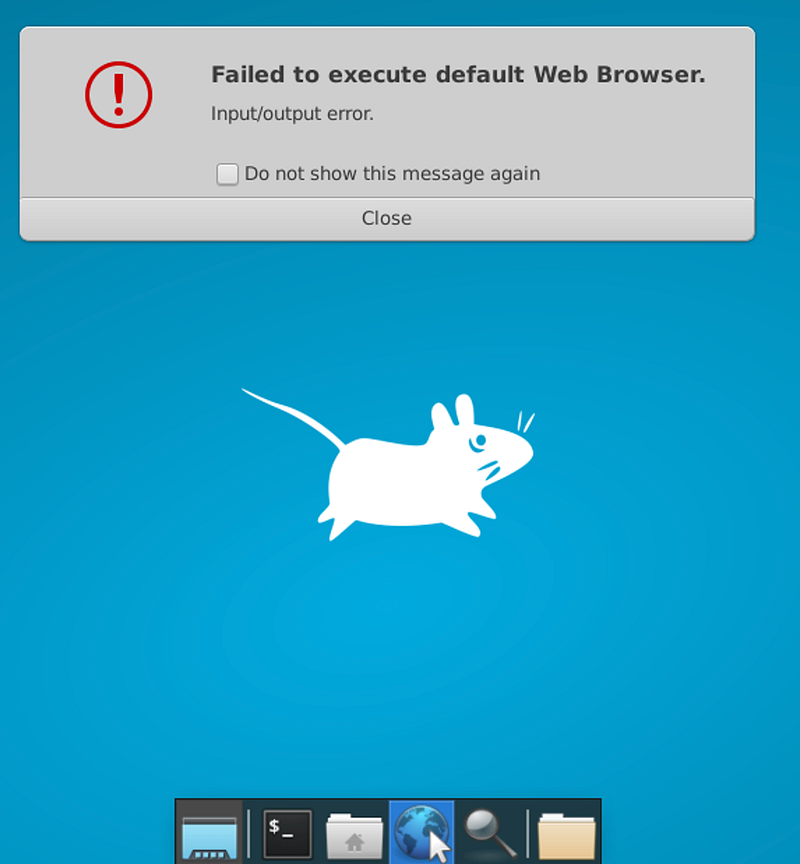
Terminal not working with xfce4 update
Note that at some point I switched from xfce to xfce4 an my link to the terminal on the bottom task bar above failed to work.
I fixed it as follows — not that if you go through all the steps first, I could have just edited the existing launcher and I inadvertently removed some things from my toolbar in the process.
Searching in application finder for terminals I found the following and the Xfce Terminal worked.
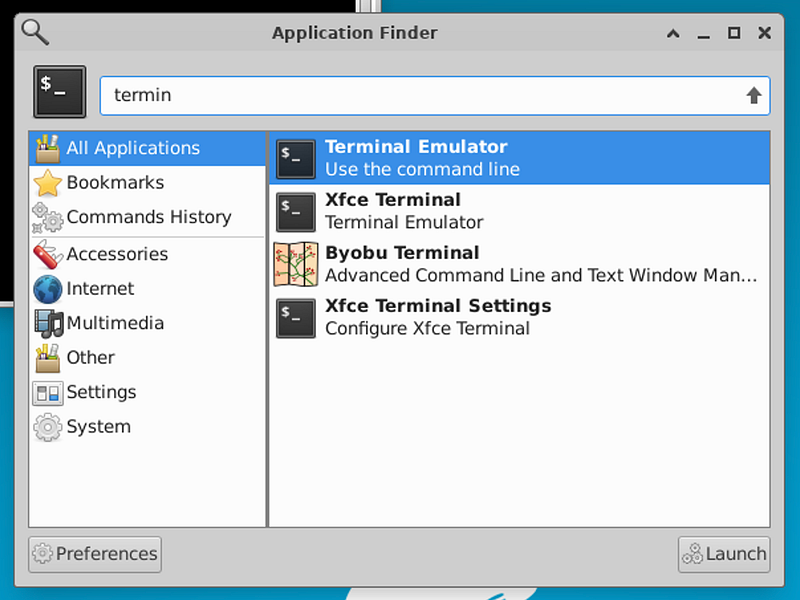
I removed the non-working terminal:
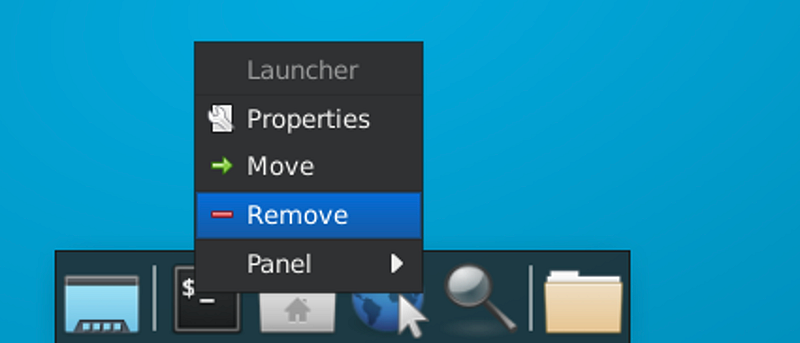
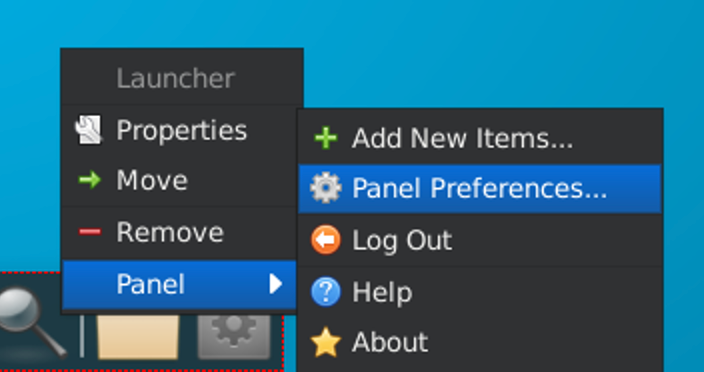
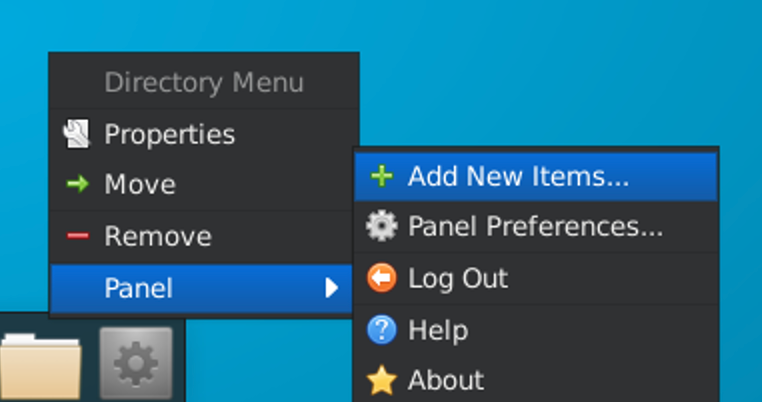
To add the new terminal: Right click > Panel > Panel Preferences
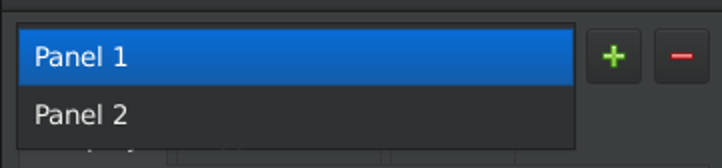
Choose the panel you want to update.
Click the Add button at the bottom.
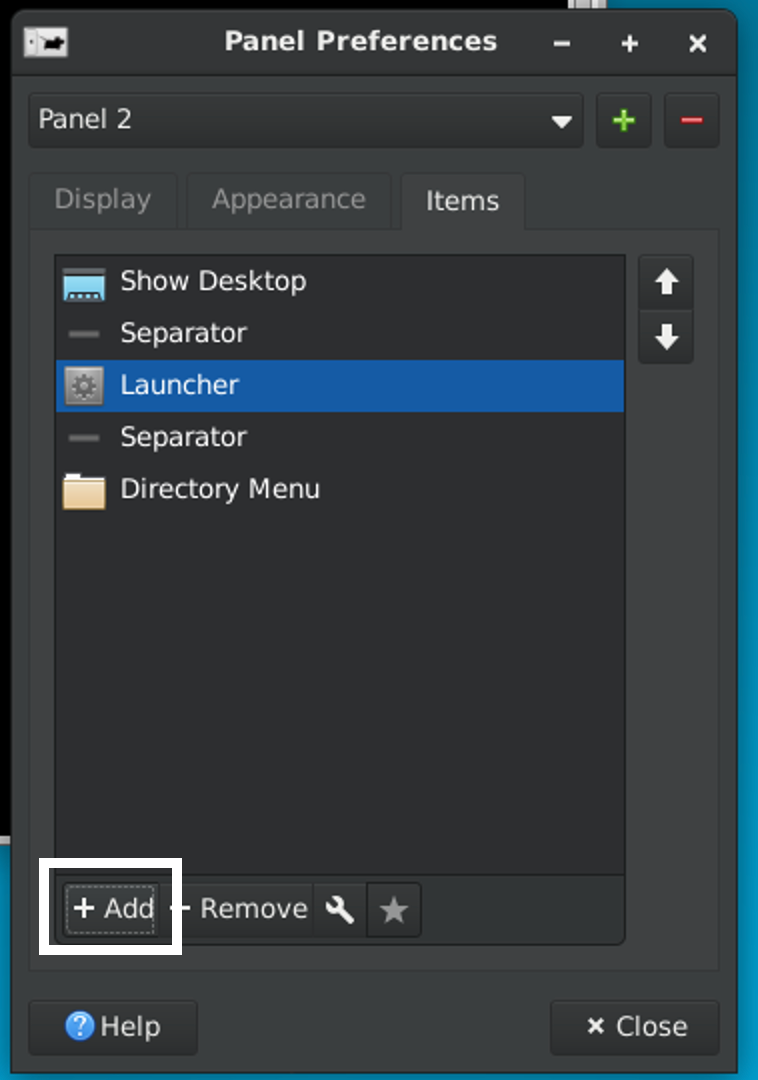
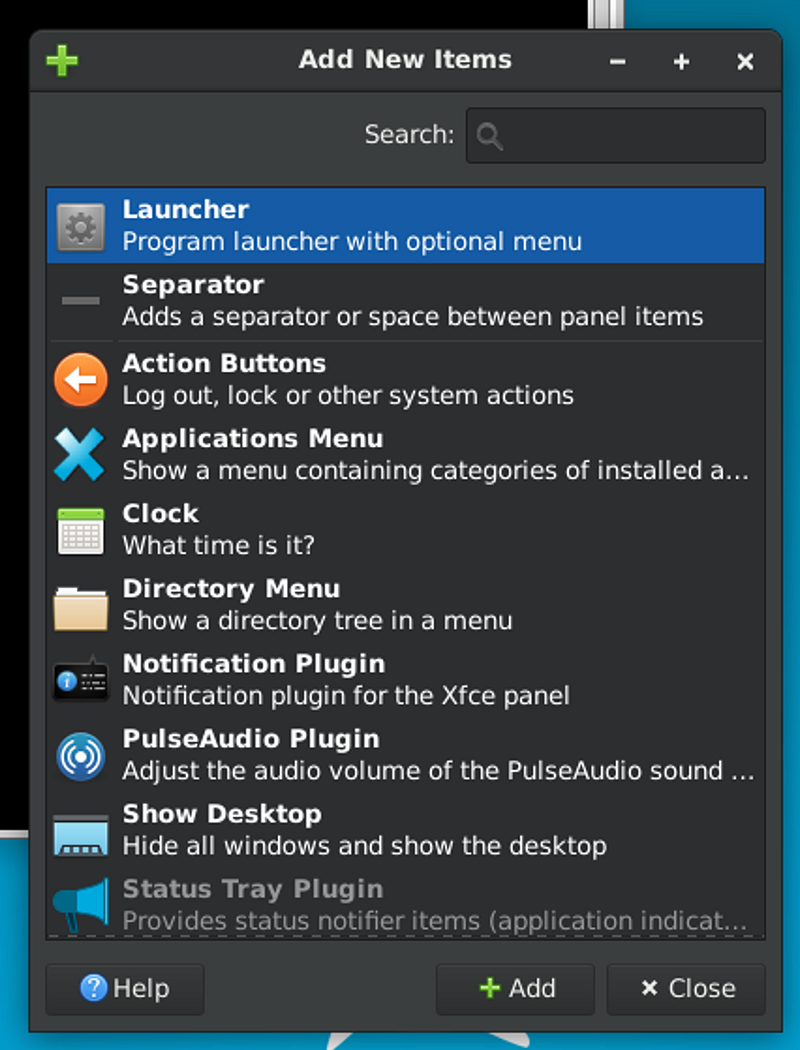
Choose Launcher > Click Add.
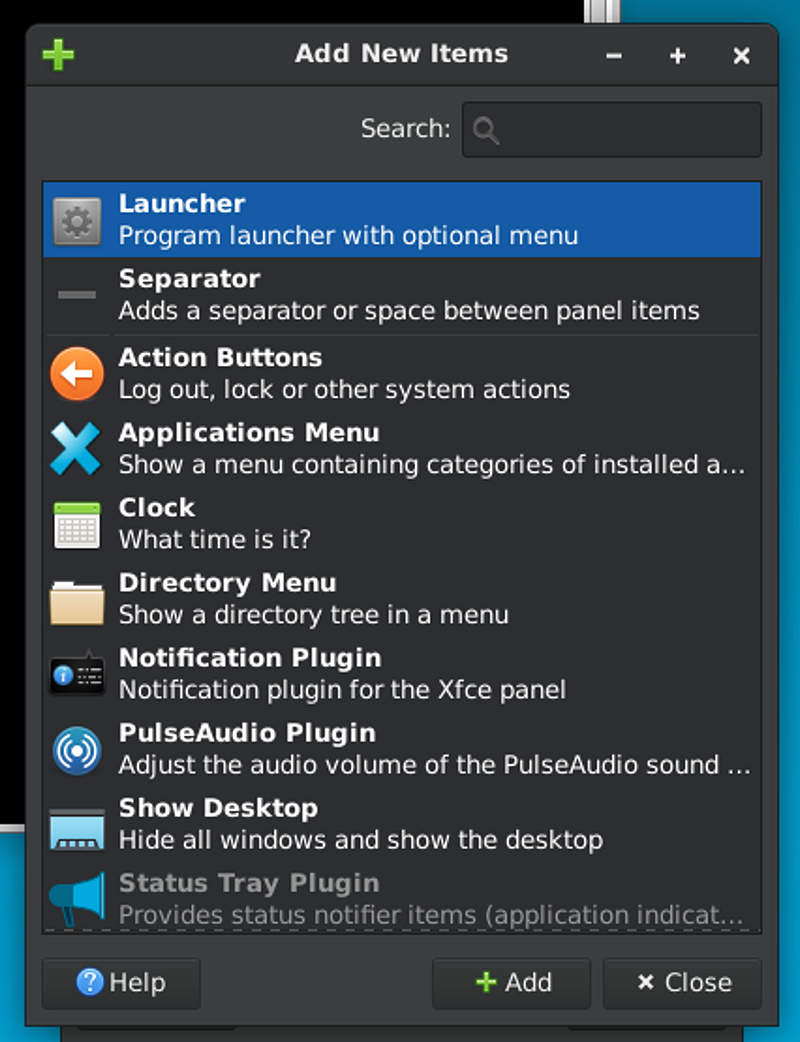
Right click on the panel > Add New Items
Choose Launcher. Click Add.
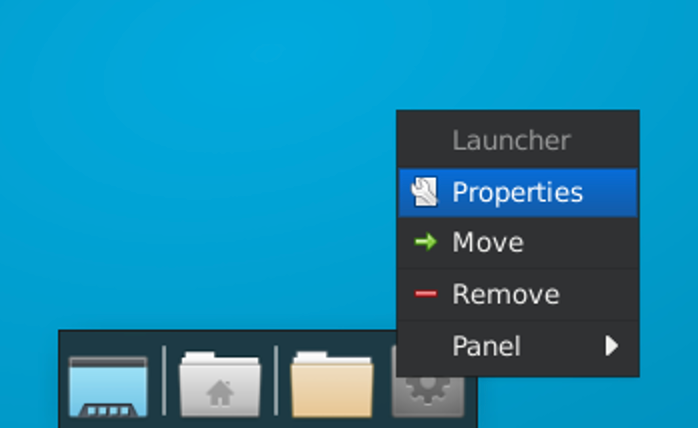
Right click on the new Launcher. Click Properties.
Click the plus button in the right menu.
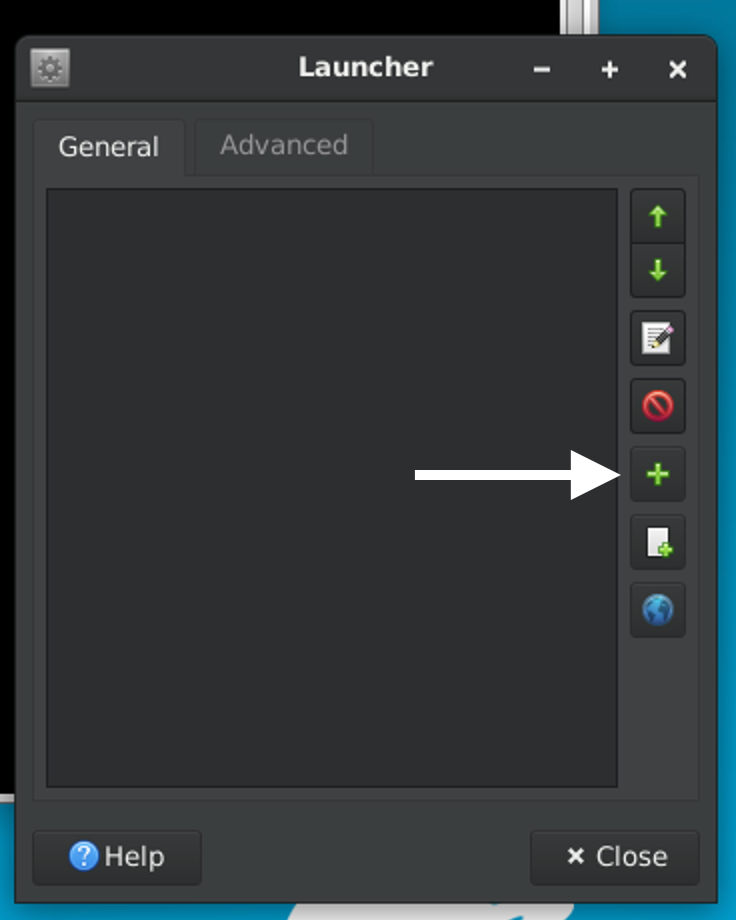
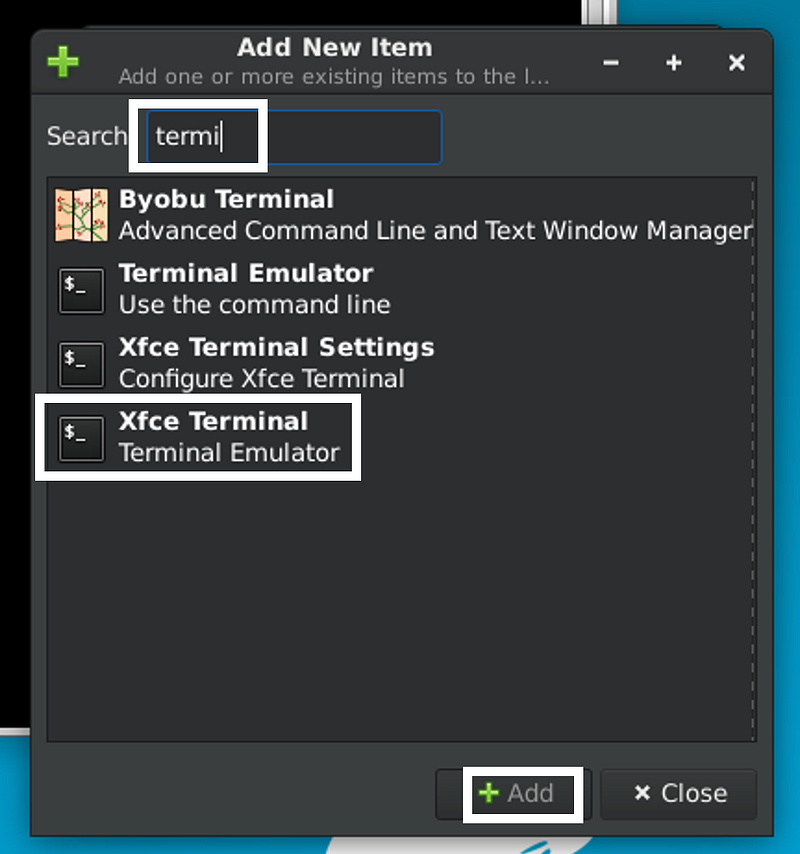
Search for and select the new terminal. Click Add.
Now you should have a terminal link in your toolbar that works.
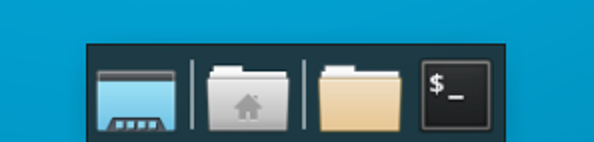
I accidentally deleted the search icon and the browser, but those can be restored. I wanted to replace the default browser with Chrome anyway.
Install Chrome
I installed Google Chrome:
wget https://dl.google.com/linux/direct/google-chrome-stable_current_amd64.deb
sudo dpkg -i google-chrome-stable_current_amd64.deb
Note: On an arm architecture, try chromium:
sudo apt install chromium-browserAt a later date I tried installing Chrome and got errors. This fixed it:
apt --fix-broken installWhen you use ARM you need to make sure the software you want to use works with it. In case you are interested in running Burp on Ubuntu arm that’s not currently supported at the time of this writing but is on the roadmap. Check here to see if it’s a available now:
Exit Ubuntu ~ SSH Command Line
To exit Ubuntu, on the command line, btw, type exit. This didn’t work the first time I tried it after switching back between root and the ubuntu user. I had to use a pkill command initially.
When the black screen appears…how to get back in…
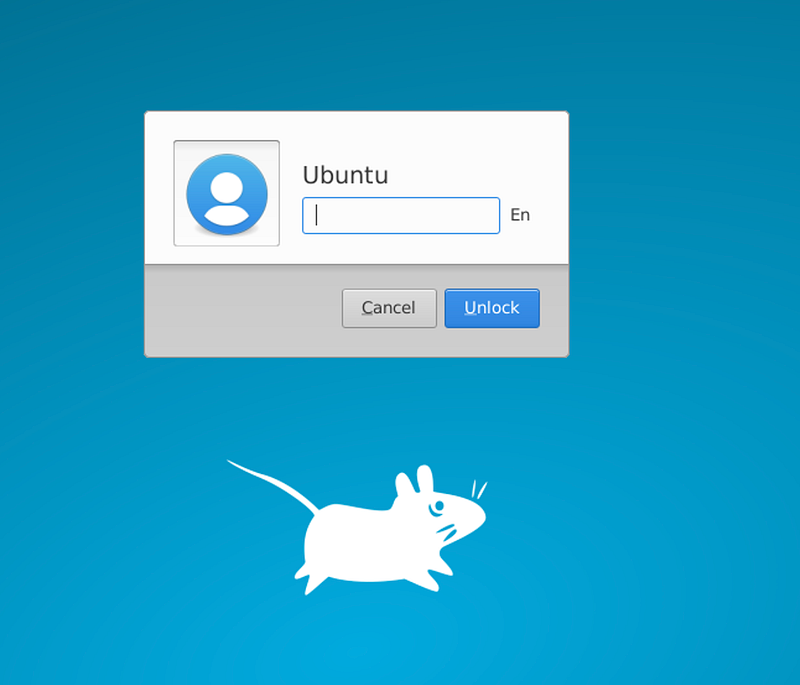
What I also noticed later is that the black screen appeared again. Clicking on it brings up an login prompt:
Initial configuration…more testing is needed
I don’t know how secure all this is at the moment but my immediate use case is very simple. Will have to try it out and monitor the network and other traffic.
The next thing I did was download some files. One of them was very large. My instance hung trying to open it. I eventually just disconnected from my terminal session and stopped it. When it would not terminate right away I used the force-stop option.
Will play around with it more later but might come in handy. We’ll have to see because the UI is a bit clunky and so is the version of Chrome for this OS.
Update 1/29/2023
The next day, my display looks completely different and I get a message that says something needs me to enter my password for a “color managed device.”
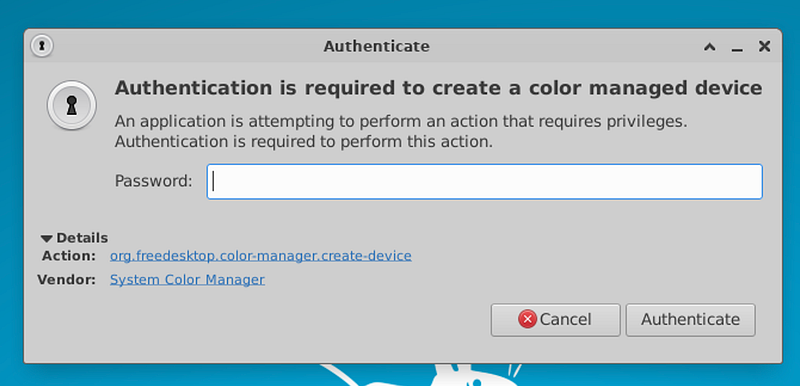
I did not enter my credentials because I don’t know what this is doing yet.
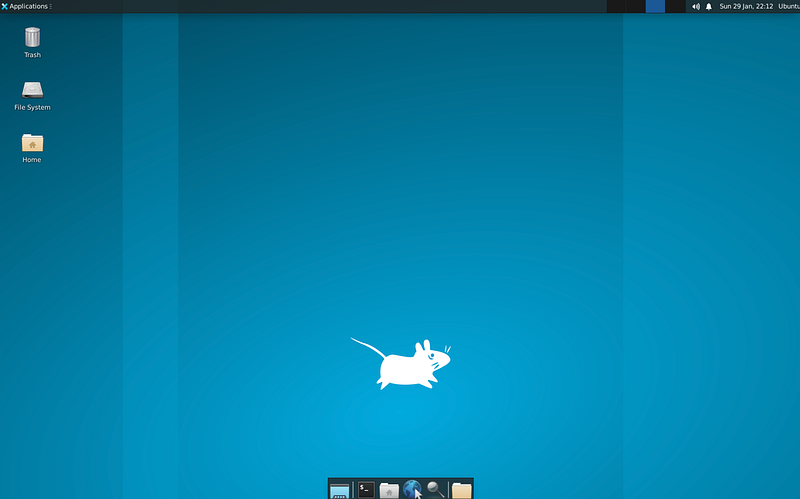
It seems like the Google Chrome functionality improved today.
Also in comparison to Windows, which I can’t seem to run on anything less than a Medium-sized EC2 instance, Ubuntu running on a small instance downloads files faster.
Another thing I tried — tcpdump — did not drop a bunch of packets at the kernel like Windows did.
One issue: I can’t seem to reboot and reconnect. I have to stop the and restart the instance. At some point copy and paste stopped working so I tried to reboot and didn’t work. [At some point, this started working correctly. Don’t ask me why.]
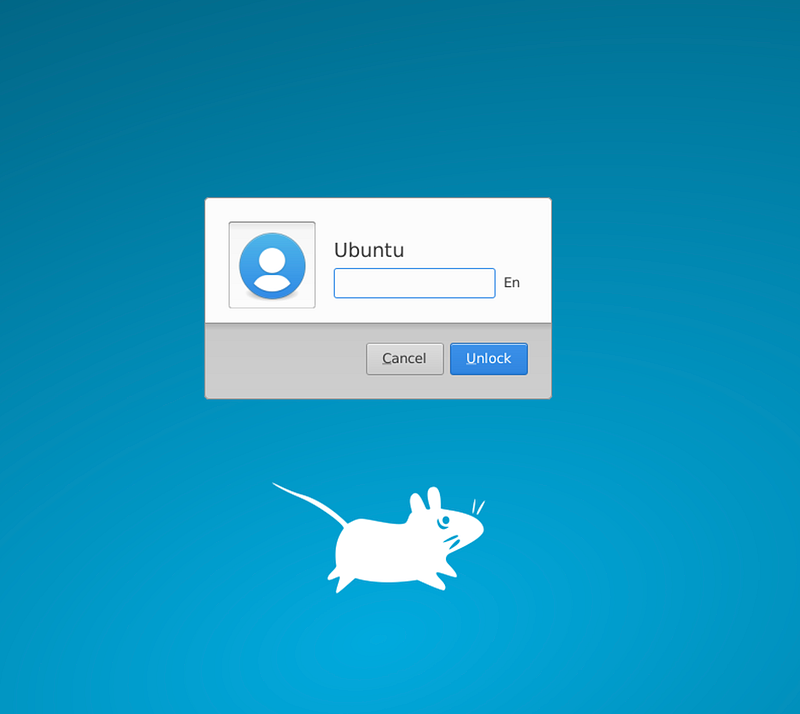
Also: I really wish I could copy and paste a password into the lock screen: #awswishlist — Update: I figured out that I can right click on the password on my local host and use Ctrl-V in this box below on a Mac.
Note: I later realized that depending on what you are doing, sometimes ctrl-x and then ctrl-p works. At other times, you have to right click and copy and then right click and paste. So try both options if you are having problems with a particular copy and paste option. Still hope can be fixed.
Follow for updates.
Teri Radichel | © 2nd Sight Lab 2023
About Teri Radichel:
~~~~~~~~~~~~~~~~~~~~
⭐️ Author: Cybersecurity Books
⭐️ Presentations: Presentations by Teri Radichel
⭐️ Recognition: SANS Award, AWS Security Hero, IANS Faculty
⭐️ Certifications: SANS ~ GSE 240
⭐️ Education: BA Business, Master of Software Engineering, Master of Infosec
⭐️ Company: Penetration Tests, Assessments, Phone Consulting ~ 2nd Sight Lab
Need Help With Cybersecurity, Cloud, or Application Security?
~~~~~~~~~~~~~~~~~~~~~~~~~~~~~~~~~~~~~~~~~~~~~~~~~~~~~~~~~~~~~
🔒 Request a penetration test or security assessment
🔒 Schedule a consulting call
🔒 Cybersecurity Speaker for PresentationFollow for more stories like this:
~~~~~~~~~~~~~~~~~~~~~~~~~~~~~~~~~~~~~~~~~~~~~~~~~~~~~~~~~~~~~
❤️ Sign Up my Medium Email List
❤️ Twitter: @teriradichel
❤️ LinkedIn: https://www.linkedin.com/in/teriradichel
❤️ Mastodon: @teriradichel@infosec.exchange
❤️ Facebook: 2nd Sight Lab
❤️ YouTube: @2ndsightlab