
Setting up RDP in an Ubuntu-18 AWS EC2 Instance
I have come across situations many times when I have intentions to run some graphical sessions for some of my work. Many times having a GUI setup in your Linux servers can come in handy at times when you wish to show certain features or components of your development work to someone who is not that well accustomed to the CLI universe ( trust me this could be a lifesaver, “been there, done that”). But at times it becomes a hectic task to install an RDP server on a remote machine.
Here, in this article, I have listed the steps I generally take to set up an xRDP server on Ubuntu 18.04 hosted as an AWS EC2 instance.
Please note that if you are using any of the later versions of Ubuntu such as Ubuntu 20 or something, this method may not work. Please follow the steps mentioned in the official Ubuntu website
Step 1: Connecting to the remote server
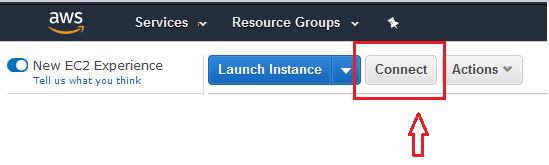
We need to login to the remote server via ssh in order to install various packages and prepare the environment. For this EC2 provides the command to connect to your instance. Just click on the “Connect” button towards to top right corner of the EC2 Service Page.
Step 2: Create a new User
This step is important as even though AWS provides you with a user “ubuntu”, but EC2 doesn’t provide a password for this user which will be required while login. You may try to follow the below approach of changing the password of “ubuntu” user but I prefer to create a new user and do all of my development under that user.
# Change to the super user
sudo su -
# Provide a password for the "ubuntu" user
passwd ubuntuTo create a new user you can follow this article.
Step 3: The actual Installation
Once we are connected to our remote instance, we are now ready to setup the xRDP server
sudo apt-get updatesudo apt-get install xrdpInstalling a desktop environment : XFCE in our case as xRDP has problems working with Unity and GNOME desktop environment.
sudo apt-get install xfce4
sudo apt-get install xfce4-terminal
Make xRDP to use the environment we just create
sudo sed -i.bak '/fi/a #xrdp multiple users configuration \n xfce-session \n' /etc/xrdp/startwm.shProvide the Firewall permissions, allowing RDP (running at port 3389) to go through the local firewall.
sudo ufw allow 3389/tcp# Restart xRDP
sudo /etc/init.d/xrdp restartStep 4: Done
The setting up is done and now you should be able to connect from your local laptops.
- If you are running a Windows machine, use the inbuilt RDP connection application.
- Mac users can use the Microsoft Remote Desktop
- Remmina can be used with any other platform.
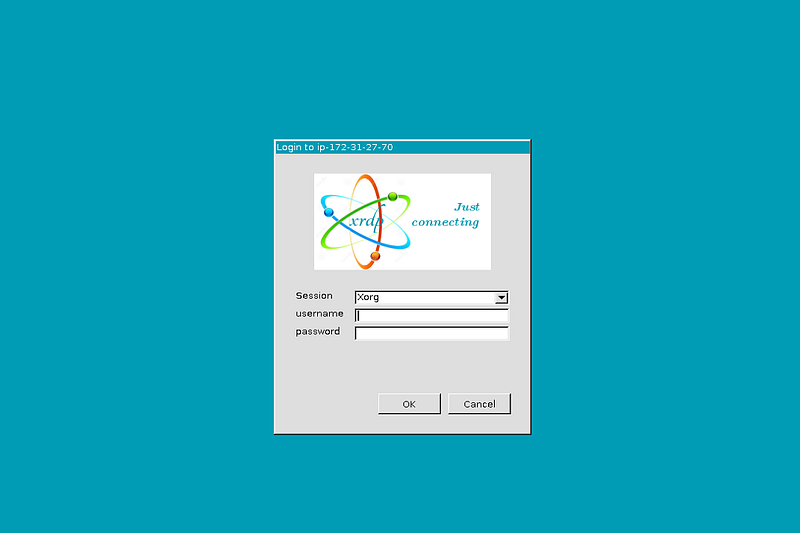
Provide the username and password created in step 2.
References:


