avatarKirti K

Free AI web copilot to create summaries, insights and extended knowledge, download it at here

4380

Abstract

lockquote id="d359"><p>p {</p></blockquote><blockquote id="8a9b"><p>margin: 0; /* remove default margins /</p></blockquote><blockquote id="e673"><p>}</p></blockquote><p id="b058"><b>iii) Magic Code with position only</b></p><p id="3b09">To Center the div with position, we will add position to parent div and as well child div</p><p id="31ee">Parent div will have position only — relative and child will have position absolute , left, top and transform</p><blockquote id="eee2"><p>/ Position approach /</p></blockquote><blockquote id="6a53"><p>.absolute {</p></blockquote><blockquote id="bdad"><p>position: relative;</p></blockquote><blockquote id="b3fa"><p>}</p></blockquote><blockquote id="93ef"><p>.absolute p {</p></blockquote><blockquote id="6b4b"><p>position: absolute;</p></blockquote><blockquote id="8e18"><p>top: 50%;</p></blockquote><blockquote id="9615"><p>transform: translate(-50%, -50%);</p></blockquote><blockquote id="7919"><p>left: 50%;</p></blockquote><blockquote id="97ee"><p>}</p></blockquote><figure id="e93f"><img src="https://cdn-images-1.readmedium.com/v2/resize:fit:800/1*LW_6GBHYm8Rmw_PY5dC19w.png"><figcaption></figcaption></figure><h1 id="6c6c">Method 2 — Center with Table</h1><p id="15a9">a) Open the index.html file and add below html code in the body tag</p><blockquote id="f240"><p></p><h2>Center with Table approach</h2><p></p></blockquote><blockquote id="d368"><p></p><div class="”table”"><p></p></div></blockquote><blockquote id="03a2"><p></p><p>I am center</p><p></p></blockquote><blockquote id="753e"><p></p></blockquote><p id="33ef">b) open the style.css and add below code</p><blockquote id="265e"><p>/ Display Table /</p></blockquote><blockquote id="763d"><p>.table {</p></blockquote><blockquote id="d41c"><p>display: table;</p></blockquote><blockquote id="85cb"><p>width: 100%;</p></blockquote><blockquote id="be83"><p>}</p></blockquote><blockquote id="4173"><p>.table p {</p></blockquote><blockquote id="f8bf"><p>display: table-cell;</p></blockquote><blockquote id="9a54"><p>vertical-align: middle;</p></blockquote><blockquote id="55c9"><p>text-align: center;</p></blockquote><blockquote id="99cb"><p>}</p></blockquote><figure id="16f0"><img src="https://cdn-images-1.readmedium.com/v2/resize:fit:800/1*EZKOGxbE8aKYF9C4CWBIEA.png"><figcaption></figcaption></figure><h1 id="7953">Method 3— Center with Flexbox</h1><p id="6bac">a) Open the index.html file and add below html code in the body tag</p><blockquote id="eedb"><p></p><h2>Center with Flexbox approach</h2><p></p></blockquote><blockquote id="f53b"><p></p><div class="”flexbox”"><p></p></div></blockquote><blockquote id="4bbc"><p></p><p>I am center</p><p></p></blockquote><blockquote id="50a4"><p></p></blockquote><p id="d69c">b) open the style.css and add below code</p><blockquote id="ce7d"><p>.flexbox {</p></blockquote><blockquote id="3145"><p>display: flex;</p></blockquote><blockquote id="3ca8"><p>align-items: center;</p></blockquote><blockquote id="7555"><p>justify-content: center;</p></blockquote><blockquote id="0fe7"><p>}</p></blockquote><figure id="b1b0"><img src="https://cdn-images-1.readmedium.com/v2/resize:fit:800/1*8Osa1_V2n-LFc8BanM7c0w.png"><figcaption></figcaption></figure><h1 id="f5ab">Method 4— Center with Grid</h1><p id="2423">a) Open the index.html file and add below html code in the body tag</p><p id="70e9">b) open the style.css and add below code</p><blockquote id="b19e"><p>.grid {</p></blockquote><blockquote id="a29c"><p>display: grid;</p></blockquote><blockquote id="1b47"><p>place-content: center;</p></blockquote><blockquote id="e46b"><p>}</p></blockquote><p id="179f">or</p><blockquote id="5810"><p>.grid{</p></blockquote><blockquote id="48a4"><p>display:grid;</p></blockquote><blockquote id="2ec8"><p>align-items:center;</p></blockquote><blockquote id="007f"><p>justify-content: center;</p></blockquote><blockquote id="caef"><p>}</p></blockquote><figure id="f9c8"><img src="https://cdn-images-1.readmedium.com/v2/resize:fit:800/1*DSymay26lWlaRy28AKH5hw.png"><figcaption></figcaption></figure><h1 id="1ad4">Method 5— Center with Grid with margins</h1><p id="26fa">a) Open the index.html file and add below html code in the body tag</p><p id="dddc">b) open the style.css and add below code</p><blockquote id="2554"><p>/ flexbox with margin approach*/</p></blockquote><blockquote id="72ff"><p>.marginsgrid {</p></blockquote><blockquote id

Options

="354a"><p>display: flex;</p></blockquote><blockquote id="3565"><p>}</p></blockquote><blockquote id="a17f"><p>.marginsgrid p {</p></blockquote><blockquote id="eabc"><p>margin: auto;</p></blockquote><blockquote id="0266"><p>}</p></blockquote><figure id="a50e"><img src="https://cdn-images-1.readmedium.com/v2/resize:fit:800/1*WnCkjQ6h1HW_ffHmVBjyNg.png"><figcaption></figcaption></figure><p id="d076">Github links to download code —</p><p id="9099"><a href="https://github.com/kirti/how-to-center-div-with-css"><b><i>Click here to download code</i></b></a></p><h1 id="3c86">Conclusion:</h1><p id="4c31">This is the medium story of Quickest Five Way to Center Div with CSS if you have any doubts, please mail me on [email protected]</p><p id="09fe">Follow me on the below articles :</p><div id="d734" class="link-block"> <a href="https://readmedium.com/how-to-add-docker-to-create-react-app-cra-run-unit-tests-439b3b25bd2c"> <div> <div> <h2>How to Add Docker to Create React App(CRA) + Run Unit Tests</h2> <div><h3>In this tutorial, we’ll be learning how to add a docker to Create-React App and run the unit tests.</h3></div> <div><p>medium.com</p></div> </div> <div> <div style="background-image: url(https://miro.readmedium.com/v2/resize:fit:320/1*P8bpYT2TtZDhlngHVKwfSQ.jpeg)"></div> </div> </div> </a> </div><div id="9a37" class="link-block"> <a href="https://kirtikau.medium.com/tools-screen-readers-browser-extension-color-contract-tools-for-website-accessibility-1f09480c5f4"> <div> <div> <h2>Tools: Screen Readers, Browser Extension, Color Contract tools for Website Accessibility</h2> <div><h3>Tools for Website Accessibility -</h3></div> <div><p>kirtikau.medium.com</p></div> </div> <div> <div style="background-image: url(https://miro.readmedium.com/v2/resize:fit:320/1*Xq0vvlN7H3V_iKGueXh4bQ.png)"></div> </div> </div> </a> </div><div id="6e79" class="link-block"> <a href="https://readmedium.com/how-to-create-a-rest-api-with-express-js-and-node-js-3de5c5f9691c"> <div> <div> <h2>How to create a REST API with Express.js and Node.js</h2> <div><h3>In this tutorial, we’ll be learning how to build a Rest API in Node.js and Express.js by building a simple crud user…</h3></div> <div><p>medium.com</p></div> </div> <div> <div style="background-image: url(https://miro.readmedium.com/v2/resize:fit:320/1*EvMSXAxkt3-7V6BB2jYwgA.png)"></div> </div> </div> </a> </div><div id="6f13" class="link-block"> <a href="https://levelup.gitconnected.com/android-react-native-window-setup-how-to-setup-android-environment-for-react-native-app-588aaa13c3a6"> <div> <div> <h2>Android React Native Window Setup</h2> <div><h3>How to Setup Android Environment for React Native App</h3></div> <div><p>levelup.gitconnected.com</p></div> </div> <div> <div style="background-image: url(https://miro.readmedium.com/v2/resize:fit:320/1*Ir97Hdkj_4irGmwSjj7dUw.png)"></div> </div> </div> </a> </div><div id="208a" class="link-block"> <a href="https://levelup.gitconnected.com/how-to-add-swagger-ui-to-existing-node-js-and-express-js-project-2c8bad9364ce"> <div> <div> <h2>How to add Swagger UI to an existing Node.js and Express.js project</h2> <div><h3>In this tutorial, we’ll be learning how to add swagger to existing Node Js and Express.js. As we already learned in…</h3></div> <div><p>levelup.gitconnected.com</p></div> </div> <div> <div style="background-image: url(https://miro.readmedium.com/v2/resize:fit:320/1*2tKCzmIJSz5xCiBCWYwTWA.png)"></div> </div> </div> </a> </div><p id="23bc"><b>Happy learning :)</b></p></article></body>

Quickest Five Way to Center Div with CSS
In this tutorial, we’ll be learning how to Center div with CSS :)

Before we start we should know first know about the CSS and terms which we are going to use to provide a solution.

CSS

CSS stands for Cascading Style Sheets

It allows us to create rules that specify how the content of an element should appear

It makes your web pages more attractive

It also control the design of element using with css.

a) CSS flexbox

It allows you to design a flexible responsive layout structure without using any float or positioning property of CSS

b) Positions :

The position - CSS property sets how an element is positioned in a document. If you want to learn more please go to below link https://developer.mozilla.org/en-US/docs/Web/CSS/position

There are seven different position values:

CSS syntax

position: static|absolute|fixed|relative|sticky|initial|inherit;

c) CSS Grid Layout

CSS Grid Layout excels at dividing a page into major regions or defining the relationship in terms of size, position, and layer, between parts of a control built from HTML primitives.

CSS Grid Layout is a two-dimensional layout system for the web

Grid- A grid is a collection of horizontal and vertical lines creating a pattern against which we can line up our design elements

If you want to learn more please go to below link

https://developer.mozilla.org/en-US/docs/Web/CSS/CSS_Grid_Layout

d). CSS display :

The display property specifies the display behavior (the type of rendering box) of an element.

Getting Started

  1. Open the any editor (visual studio code , sublime , notepad++) etc
  2. Create index.html and style.css
  3. Open the index.html and add below code
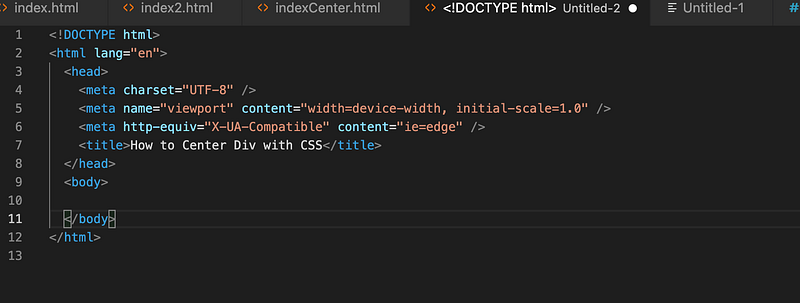
4. create folder css/style.css

5. And link css/style.css into your index.html file. Make sure the css should add into head tag .

for example
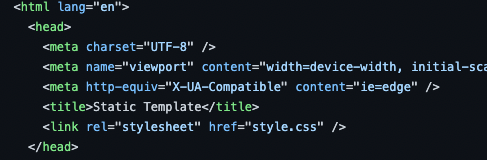
Let’s start with our first method

Method 1 — Center with Position

a) Open the index.html file and add below html code in the body tag

Center with Position approach

I am center

b) open the style.css and add below code

i) First we will add some generic css for all div’s (where we will add border , margin, background colour and height)

ii) We will also remove the default p tag margin to 0 .

Generic css

div {

height: 80px;

margin: 0px;

color: #000;

border: 1px solid #000;

background-color: #c2f2cf;

}

p {

margin: 0; /* remove default margins */

}

iii) Magic Code with position only

To Center the div with position, we will add position to parent div and as well child div

Parent div will have position only — relative and child will have position absolute , left, top and transform

/* Position approach */

.absolute {

position: relative;

}

.absolute p {

position: absolute;

top: 50%;

transform: translate(-50%, -50%);

left: 50%;

}

Method 2 — Center with Table

a) Open the index.html file and add below html code in the body tag

Center with Table approach

I am center

b) open the style.css and add below code

/* Display Table */

.table {

display: table;

width: 100%;

}

.table p {

display: table-cell;

vertical-align: middle;

text-align: center;

}

Method 3— Center with Flexbox

a) Open the index.html file and add below html code in the body tag

Center with Flexbox approach

I am center

b) open the style.css and add below code

.flexbox {

display: flex;

align-items: center;

justify-content: center;

}

Method 4— Center with Grid

a) Open the index.html file and add below html code in the body tag

b) open the style.css and add below code

.grid {

display: grid;

place-content: center;

}

or

.grid{

display:grid;

align-items:center;

justify-content: center;

}

Method 5— Center with Grid with margins

a) Open the index.html file and add below html code in the body tag

b) open the style.css and add below code

/* flexbox with margin approach*/

.marginsgrid {

display: flex;

}

.marginsgrid p {

margin: auto;

}

Github links to download code —

Click here to download code

Conclusion:

This is the medium story of Quickest Five Way to Center Div with CSS if you have any doubts, please mail me on [email protected]

Follow me on the below articles :

Happy learning :)

CSS
Flexbox
Grid
Css3
Interview
Recommended from ReadMedium
avatarThearakim
Advance CSS for Designers

6 min read