avatarMichael Swengel

Free AI web copilot to create summaries, insights and extended knowledge, download it at here

2387

Abstract

ystem update that will update core parts of your Mac’s software, bringing new features that new and veteran Mac users are sure to enjoy. If the update process goes as it should, your Mac will download and prepare the update and then take a bit to install it. When the process is finished, your system will reboot and you’ll be able to jump right in and enjoy the new OS.</p><div id="9b2e" class="link-block"> <a href="https://readmedium.com/these-are-the-macos-13-ventura-features-to-get-excited-about-bd4d15a25766"> <div> <div> <h2>These Are the macOS 13 Ventura Features To Get Excited About</h2> <div><h3>It looks like a great year for macOS.</h3></div> <div><p>medium.com</p></div> </div> <div> <div style="background-image: url(https://miro.readmedium.com/v2/resize:fit:320/1*oCo3D5hi0euv6PvQeH6jnQ.png)"></div> </div> </div> </a> </div><p id="75fe">But if that process is interrupted or if something doesn’t go as it should, it could leave your system in an unbootable state, requiring a reinstallation of macOS. While it’s unlikely that there will be a problem, it’s better to have a backup just in case.</p><h1 id="c5fe">Time Machine makes this easy</h1><p id="41fd">Time Machine is one of my favorite features of macOS. It’s a great built-in utility that makes backing up your Mac stupidly simple — so simple even the least tech-savvy person can use it with ease.</p><p id="3e19">Time Machine is designed to keep hourly backups for the past 24 hours, daily backups for the past month and weekly backups for all other months. This makes it great for restoring that file you accidentally deleted or for recovering from no-boot situation if</p><p id="b33f">Should it ever be necessary, you can restore your system from a Time Machine backup after reinstalling macOS or if you move to a different system.</p><div id="10a0" class="link-block"> <a href="https://support.apple.com/en-us/HT201250"> <div> <div> <h2>Back up your Mac with Time Machine</h2> <div><h3>Use Time Machine, the built-in backup feature of your Mac, to automatically back up your personal data, including apps…</h3></div> <div><p>support.apple.com</p></div>

Options

          </div>
          <div>
            <div style="background-image: url(https://miro.readmedium.com/v2/resize:fit:320/0*TJ7gTGvhYrHCOlch)"></div>
          </div>
        </div>
      </a>
    </div><h1 id="2106">Waiting a couple of days to upgrade</h1><p id="3a27">As a general rule, I recommend that people wait a few days to update to a new OS — whether that’s an OS from Apple, Google, Microsoft or anyone else. The reason is simple: There are bound to be bugs in the initial “final” versions. Even though there are typically beta versions and revisions to catch the big bugs, some can slip through.</p><p id="af3b">Windows users are no stranger to this song and dance. I personally have encountered issues after major updates that have left my machines unstable — or even unusable.</p><p id="ac48">While that is typically less of an issue in my experience with macOS, that’s not to say that it can’t happen. And it’s not a bad idea to wait a couple of days to see what — if any — issues other people have before you decide to update your own system, especially if it’s your main or only Mac.</p><div id="7664" class="link-block">
      <a href="https://readmedium.com/macos-13-ventura-includes-lockdown-mode-and-you-probably-shouldnt-use-it-f9cd4dd23314">
        <div>
          <div>
            <h2>macOS 13 Ventura Includes Lockdown Mode — And You Probably Shouldn’t Use It</h2>
            <div><h3>It might actually ruin the Mac experience</h3></div>
            <div><p>medium.com</p></div>
          </div>
          <div>
            <div style="background-image: url(https://miro.readmedium.com/v2/resize:fit:320/0*x2BNspDKDV8LDSoM)"></div>
          </div>
        </div>
      </a>
    </div><div id="5f1c" class="link-block">
      <a href="https://readmedium.com/my-journey-from-mac-to-windows-and-back-253cb9b35dea">
        <div>
          <div>
            <h2>My Journey From Mac to Windows and Back</h2>
            <div><h3>It’s been a wild ride.</h3></div>
            <div><p>medium.com</p></div>
          </div>
          <div>
            <div style="background-image: url(https://miro.readmedium.com/v2/resize:fit:320/0*47ChXNyvGSV8A53w)"></div>
          </div>
        </div>
      </a>
    </div></article></body>

PSA: Please Back Up Your Mac Before Installing macOS 13 Ventura

It’s always better to have a backup. Always.
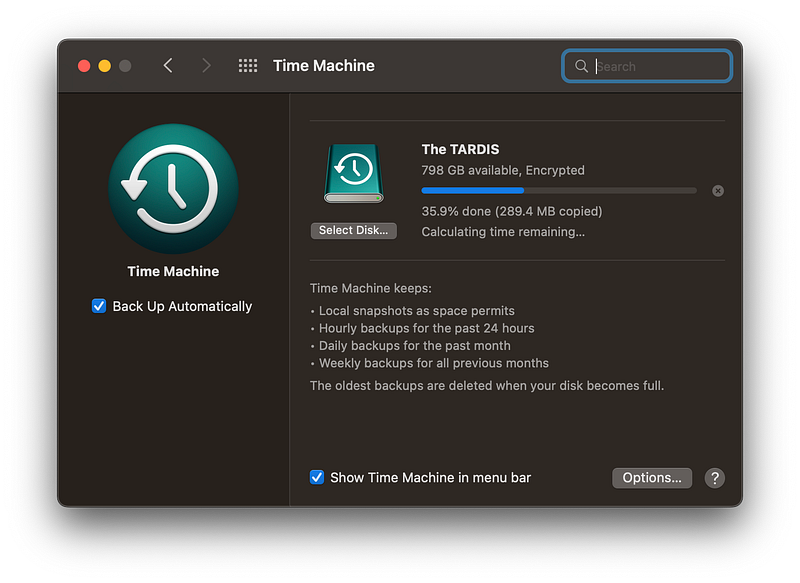
Image courtesy of the author

With the release of macOS Ventura, many Mac users with eligible devices are rushing to install the update and start using the new features we’re getting this year, and for good reason. I’m excited about this year’s macOS release, and I’m looking forward to using the full version myself, even though I’ve been following along with several of the beta versions.

If you’re eager to click that update button and throw caution to the wind, I get it. I’ve been there.

“It’ll probably be fine,” you tell yourself. “I’ll back up later,” you say.

Yup. Been there. Done that.

But that kind of thinking has also come back to bite me more than once. I’ve thought I don’t need a backup, tried to install a major update, had a problem, and then had nothing to get back up and going with after a problem.

I get that Macs are generally pretty reliable, and it’s easy to take that for granted. But I can’t recommend enough that you get a good backup — whether with Time Machine or another backup software.

As much as we’d love to think our computers are perfectly reliable, they can and do fail. Software can corrupt data. Hardware can fail. And those glitches and failures can happen suddenly and without warning.

Ventura is a major update for your Mac

macOS 13 Ventura is not a small point release. It’s a major system update that will update core parts of your Mac’s software, bringing new features that new and veteran Mac users are sure to enjoy. If the update process goes as it should, your Mac will download and prepare the update and then take a bit to install it. When the process is finished, your system will reboot and you’ll be able to jump right in and enjoy the new OS.

But if that process is interrupted or if something doesn’t go as it should, it could leave your system in an unbootable state, requiring a reinstallation of macOS. While it’s unlikely that there will be a problem, it’s better to have a backup just in case.

Time Machine makes this easy

Time Machine is one of my favorite features of macOS. It’s a great built-in utility that makes backing up your Mac stupidly simple — so simple even the least tech-savvy person can use it with ease.

Time Machine is designed to keep hourly backups for the past 24 hours, daily backups for the past month and weekly backups for all other months. This makes it great for restoring that file you accidentally deleted or for recovering from no-boot situation if

Should it ever be necessary, you can restore your system from a Time Machine backup after reinstalling macOS or if you move to a different system.

Waiting a couple of days to upgrade

As a general rule, I recommend that people wait a few days to update to a new OS — whether that’s an OS from Apple, Google, Microsoft or anyone else. The reason is simple: There are bound to be bugs in the initial “final” versions. Even though there are typically beta versions and revisions to catch the big bugs, some can slip through.

Windows users are no stranger to this song and dance. I personally have encountered issues after major updates that have left my machines unstable — or even unusable.

While that is typically less of an issue in my experience with macOS, that’s not to say that it can’t happen. And it’s not a bad idea to wait a couple of days to see what — if any — issues other people have before you decide to update your own system, especially if it’s your main or only Mac.

Apple
Mac
Macos
MacBook
Technology
Recommended from ReadMedium