
These Are the macOS 13 Ventura Features To Get Excited About
It looks like a great year for macOS.
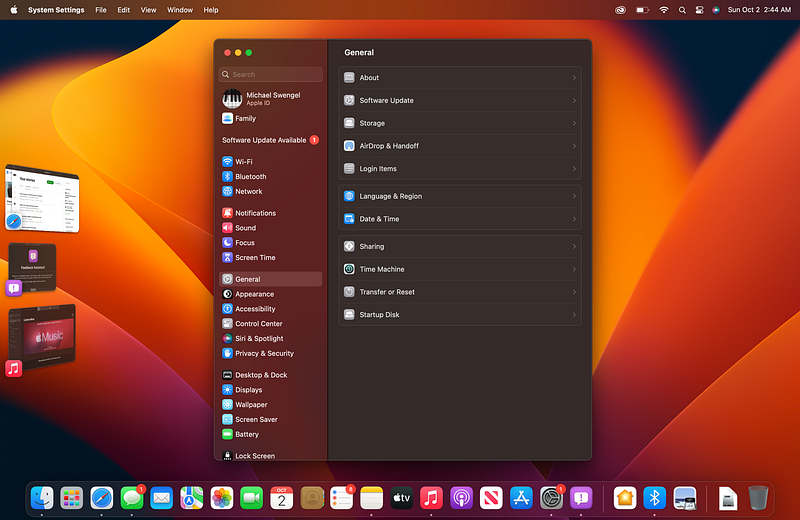
macOS 13 Ventura is Apple’s latest Mac operating system, and it brings with it a truck load of new features for desktop and notebook users. Like every version of macOS before it, Ventura brings updates to many different parts of the operating system from Safari to Spotlight to Mail, and beyond. While many of the changes and updates are indeed noteworthy, there are a few that I personally think are the most exciting.
Continuity Camera
Most computers have okay webcams, but most aren’t great. For most uses they don’t need to be amazing. But now, we have another option. macOS Ventura allows iPhone owners to use their iPhones as webcams instead of the built-in cameras in their Mac computers.
When you launch an app that can use the camera, simply bring your phone close to the Mac, and you’ll have an option to use the camera of the phone. One caveat here is that your phone must be running iOS 16, so those of you still running iOS 15 will need to upgrade in order to enjoy this feature.
Continuity Camera in macOS 13 offers several great features.
Center Stage, using the Ultra Wide camera, will keep you in the center of the frame even if you move around a bit. This can be helpful for those long, boring Zoom meetings to which many of us have grown accustomed over the past couple of years.
Studio Light and Portrait mode allow users to enjoy the cool photo effects that I’ve loved on the iPhone now on a Mac. While it’s not perfect, Portrait mode is one of my personal favorite iPhone camera features because it makes it easy to get a great-looking picture of a person or object — complete with depth of field — in a pretty much point and click interface.
Desk View simulates an overhead camera. If you follow many tech YouTubers, for example, you may appreciate the top-down camera setups that many of them have for showing off products. This mode can show objects on a desk, table, or floor and could be awesome for those who want to show off a product or even a piece of artwork.
Stage Manager
If you multitask a lot and frequently switch between the same few applications, you may appreciate Stage Manager. This cool new feature lets users easily switch between a few open apps in a less-distracting, intuitive interface and can be toggled on or off via the Control Center.
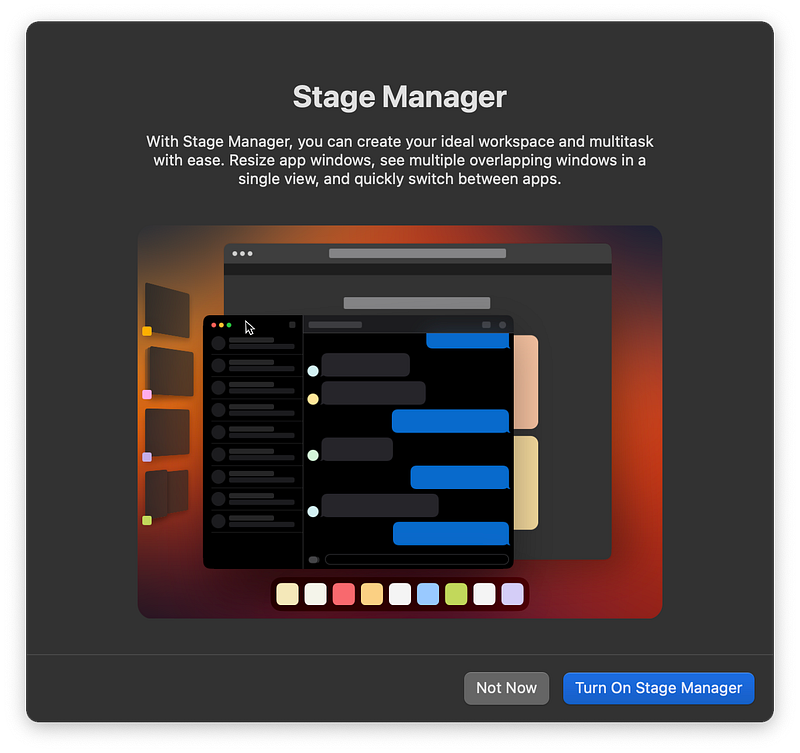
Stage Manager was also included in iPadOS 16 to bring more Mac-like multitasking to the iPad.
This isn’t a feature that I expect I’ll be using much, but I love the simple, easy-to-navigate interface. This could be a real help to those who, like me, tend to get distracted easily while trying to get work done.
Huh. Maybe I should use this after all.
New System Settings
In Monterey and prior versions, to change most OS settings, you’d head over to System Preferences. There you’d find a listing of categories — everything from Accessibility to Wallet & Apple Pay. If you need to make a change to your display settings, dock alignment, power options, or any of the other many options, System Preferences is where you’d go.
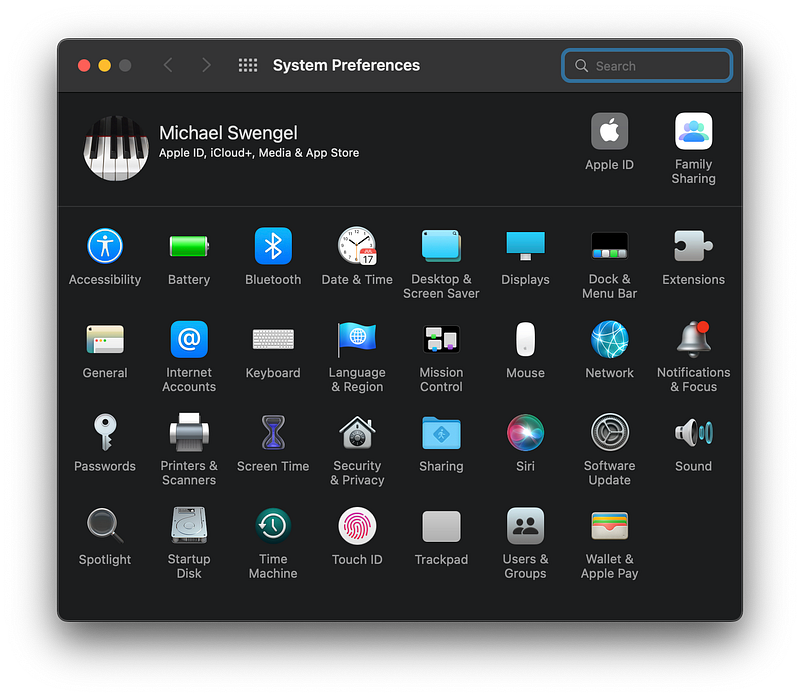
This style has been around for a few years, and it works, of course. It makes sense if you know where to look. But some settings are a little bit hidden and it feels a little more obtuse than it needs to be.
In Ventura, System Preferences has been revamped into System Settings. Users of iPad OS will find the new layout somewhat familiar — with the major categories listed on the left and the applicable settings and toggles to the right
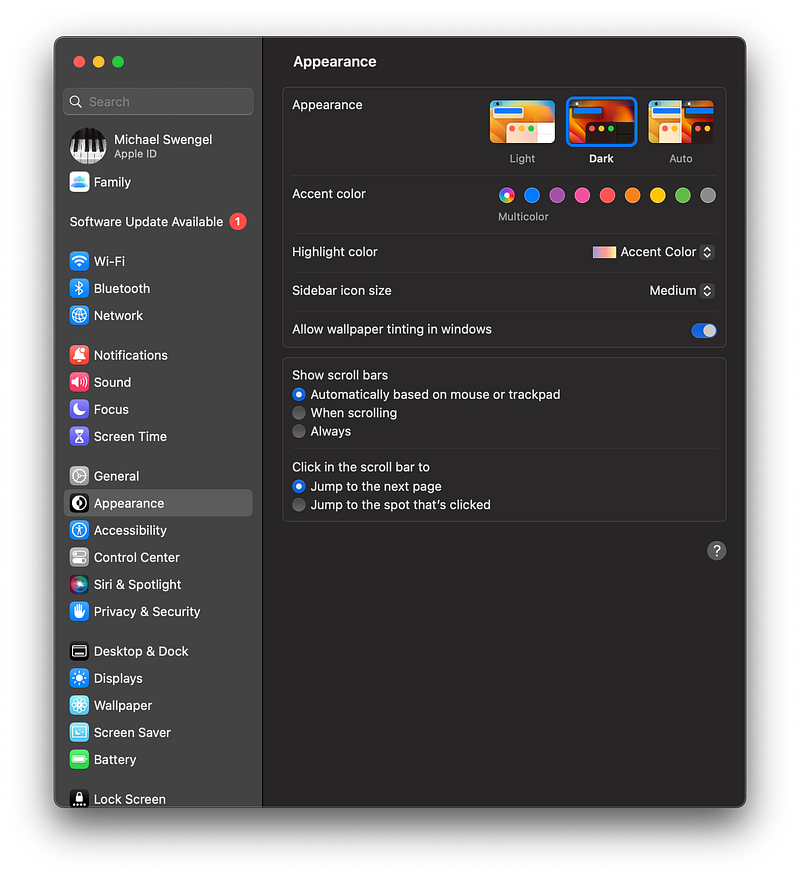
I suspect this new layout will take some a moment to get used to, but it feels like a more logical and manageable interface that just makes sense.
It’s nice to see this part of macOS getting some much-needed attention. The System Preferences interface was functional, but it wasn’t — in my opinion — the most intuitive or the most logically laid out. I’m sure some will disagree with me.
However, I think System Settings looks much more like what iPad and iPhone users have come to appreciate in their devices’ “Settings” applications, and I believe users of those platforms will have no trouble at all finding their way around the new interface.
Improved Dictation
Being able to type with your voice isn’t new to macOS Ventura, but it is greatly improved. Like in iOS 16, Dictation now tries to automatically add punctuation where appropriate, and you can even insert emoji — all with your voice.
As someone who types a lot, I appreciate anything that helps me get words on the screen faster. While I’ve been able to type at a decent pace since the days when my sixth grade teacher hounded on me (rightly) to do better, it’s usually faster to speak than to type.
I’m excited to see this tool set improving.
But I’m also excited to see this from an accessibility perspective. I know there are many who for one reason or another are unable to use a traditional keyboard, and the ability to type with voice can be a game changer.
Live Captions
I’m the kind of person who likes to watch movies and TV shows with captions. No, I can hear just fine, but I also like to read along. There’s just something about being able to “see” the audio as well as hear it.
In macOS Ventura, your Mac can generate captions for audio playing on your computer in real time — and it will even work for FaceTime calls.
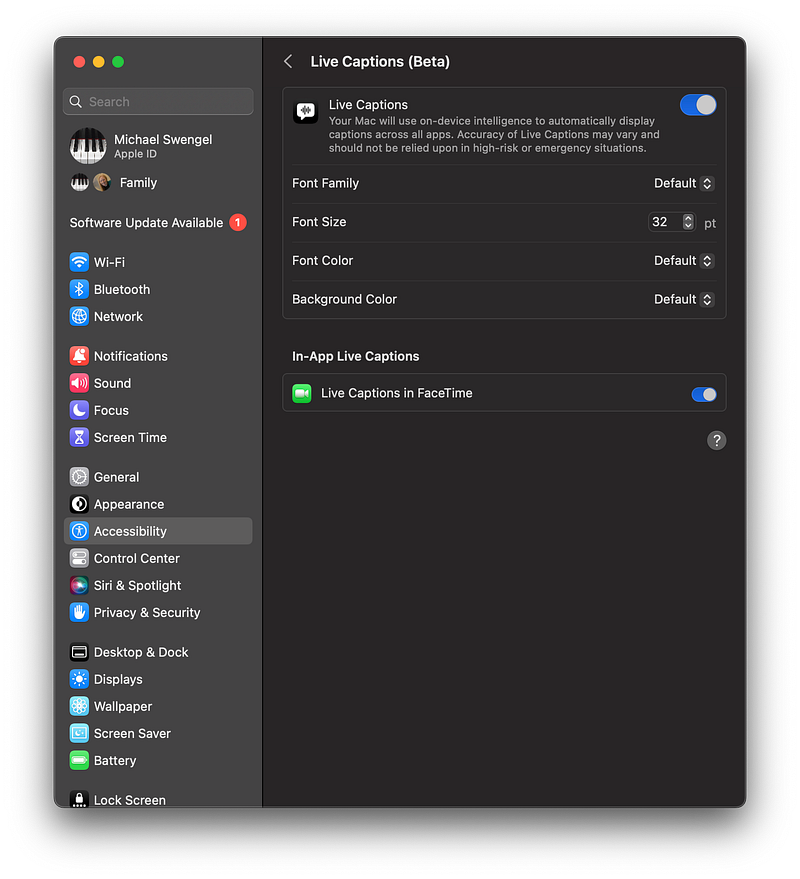
This opens up a world of usefulness from an accessibility perspective.
I can’t even count the number of times it would have been great to “read” an audio clip when listening wasn’t possible. For example, if I’m up late working and don’t have a pair of headphones nearby, it would be great to be able to get a text readout of a video or audio clip so I don’t disturb others in the house.
To test out Live Captions, I tested to see how it would handle a YouTube video and even a podcast on Spotify playing through a web browser. It handled both with ease.
Google added this feature to its Android OS with Android 10. Apple brought it to their users with iOS 16 and now macOS Ventura.
Live captions will make it possible to enjoy spoken audio content without needing to actually hear that, and whether that’s something you’d enjoy from an accessibility standpoint or a general usability standpoint, features like this are great to see.
macOS 13 Ventura has a lot to offer
Unlike some previous releases of macOS, Ventura doesn’t appear to offer many earth-shattering, groundbreaking new features, but there are some really nice improvements — like being able to use an iPhone as a webcam.
It seems that with this release Apple is working hard to ensure a decent amount of feature parity with iPadOS/iOS 16, which is nice to see. There is much more happening with the internals of Ventura that I find exciting, but I think that might be best left for another day.
But whether you use your Mac for work, content creation, gaming or even just casual use, I think macOS Ventura has something to offer everyone.
Sadly not every Mac will be able to run Ventura, but if your Mac was made in 2017 or later, you should be good to go.