
Packaging Your Angular App With NodeJS Backend For Production
A step by step Guide With Different Approaches

There are so many ways we can package and ship the Angular app to production. There are serverless and traditional architectures. In traditional architecture, we have different ways: Nodejs, Java, Python, etc.
In this post, we are going to discuss how we can package the Angular app with nodejs backend. Finally, we will deploy this packaged application on AWS Elastic Beanstalk.
- Prerequisites
- Example Project
- Manual Implementation
- With Webpack
- Packaging With Gulp
- With Docker
- Deploying on AWS Elastic Beanstalk
- Summary
- Conclusion
Prerequisites
Let’s see what are all the prerequisites for this. You can actually go through these links if you want to explore these tools on your own.
Server Technology
Angular
Editors
Build/ Task Runners
Container Technology
If you are new to this and want to know how to build an Angular app with Nodejs backend, here is a post for you. You can skip this if you are already familiar with this.
Example Project
This is a simple project which demonstrates developing and running Angular application with NodeJS. We have a simple app in which we can add users, count, and display them at the side, and retrieve them whenever you want.
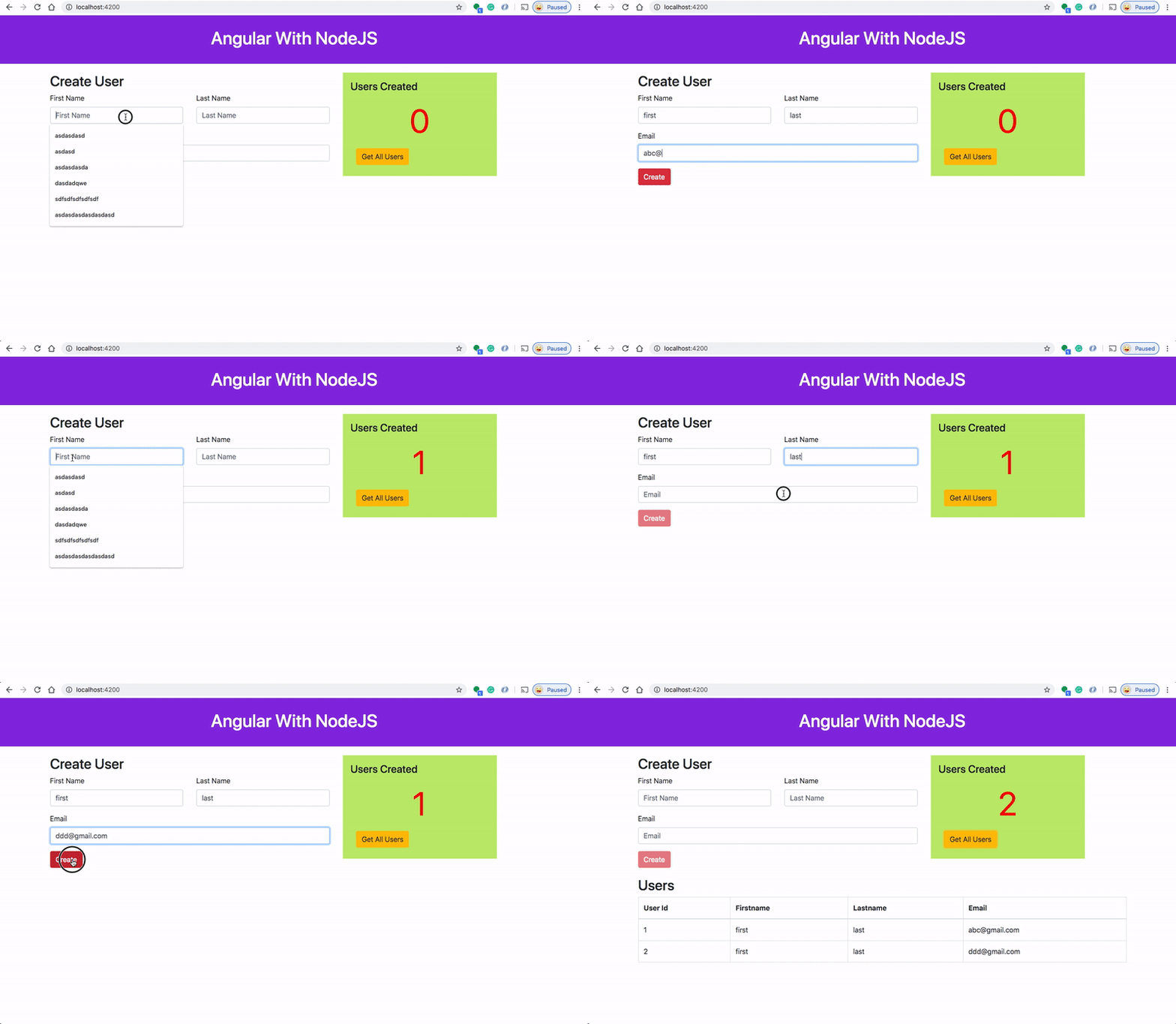
Here is a Github link to this project. You can clone it and run it on your machine.
// clone the project
https://github.com/bbachi/angular-nodejs-example.git// install and start the project
npm install
npm start
Manual Implementation
In this manual implementation, we build the Angular app and place the appropriate code into one folder and run or deploy the application. As a first step, we need to build the Angular app and all the static assets and built files are placed into the dist folder.
// change to my-app directory
cd my-app
// build the app
npm run buildAll the built and static assets are placed under this folder dist/angular-nodejs-example
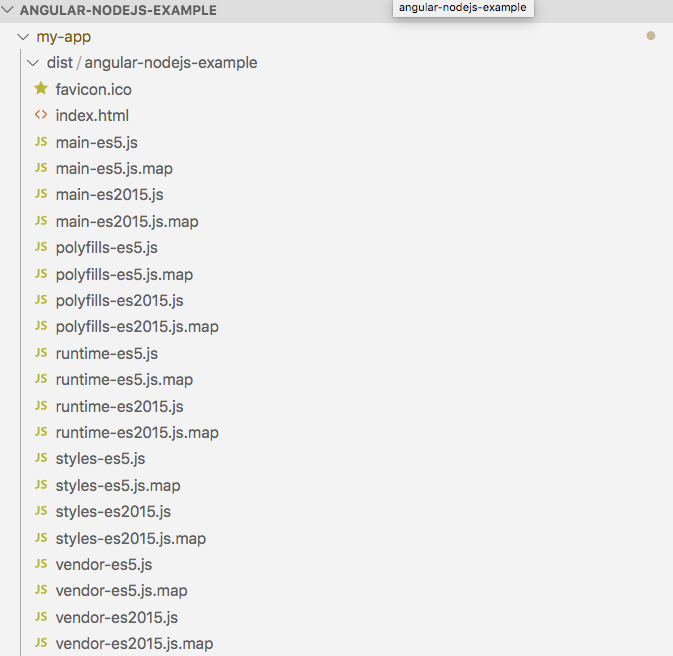
Once you built the application, all you need to do is create a separate folder and place the nodejs related stuff in that folder. Let’s create a folder called angular-nodejs and put server.js, package.json, and dist folder inside it.
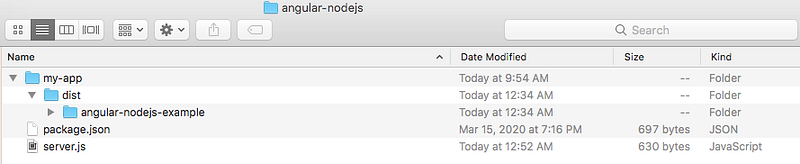
Run the application
Let's run the app by importing the whole folder angular-nodejs into VSCode editor and install the dependencies for the server.
// install dependencies
npm install
// run the app
npm start (node server.js)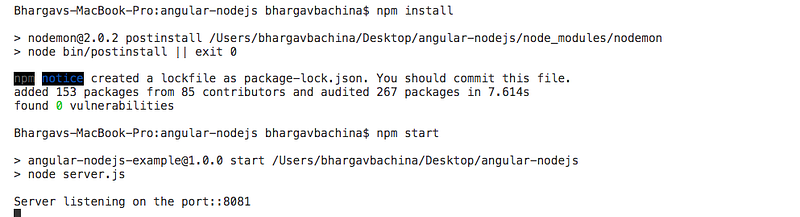
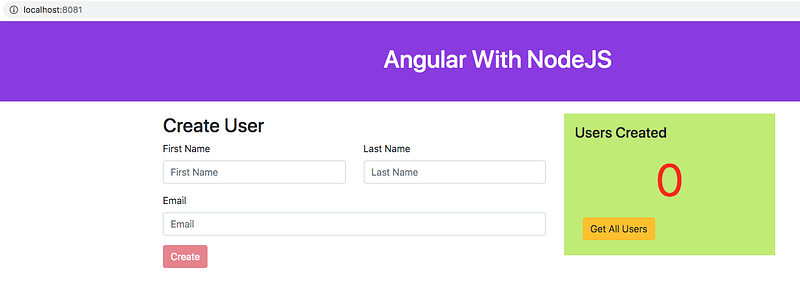
The app is running on the server port 8081.
Disadvantages
All the below steps should be done manually and these are time-consuming tasks.
- We have to build Angular code manually
- We have to place all the built files into a separate folder
- We need to install node dependencies before we run the app
With Webpack
In the above implementation, once we put everything in the folder we need to install dependencies for the nodejs server to run the app. This is an additional step we need to do before running the app.
We can skip this step with the webpack. When we build the Angular code, the Angular CLI uses a webpack internally to build and bundle the entire code into few files. We can use the same for the nodejs server as well.
First, we need to install a webpack globally and in the project as well.
// install webpack
npm install webpack -g
npm install webpack --save
We need to have a webpack.config.js in the root folder since a webpack looks for this file. Here is the file. We have an entry file and output file and it is placed in the root folder.
Let’s build and bundle it. All you need to do is to run this command webpack and the webpack looks for this file called webpack.config.js and build the entire server code and put it into one file called server.bundle.js. Here is the modified package.json file.
If the filename is different than webpack.config.js you need to pass that filename with the webpack command webpack <filename>. Once you build the server code all you need is server.bundle.js file. You don’t even need any packages, package.json, etc.

With this, we can skip the step npm install (installing dependencies) and you can just run node server.bundle.js and you can see the app running on port 8081.
Disadvantages
The only thing we have solved is to skipping node dependencies installation. There are still things we are doing here manually.
- We have to build Angular code manually
- We have to place all the built files into a separate folder
Packaging With Gulp
In the above sections, we have seen manual steps and these steps have to be eliminated. We can achieve complete automation with the gulp. All the following steps can be made automated with the gulp.
- Clean the directory if exists
- Create a directory if not exists to put all the production build
- Build Angular code with ng build
- Place the Angular code into production directory
- Build the server code with the webpack
- Place the server code into production directory
- Finally, zip all the code.
Let’s install all the required gulp packages to accomplish the above points.
// install gulp globally
npm install gulp -g
// install as dev dependency
npm install gulp gulp-zip fancy-log del webpack-stream --save-dev// gulp - core library
// gulp-zip - zipping the code
// fancy-log - logging
// del - deleting files/folders
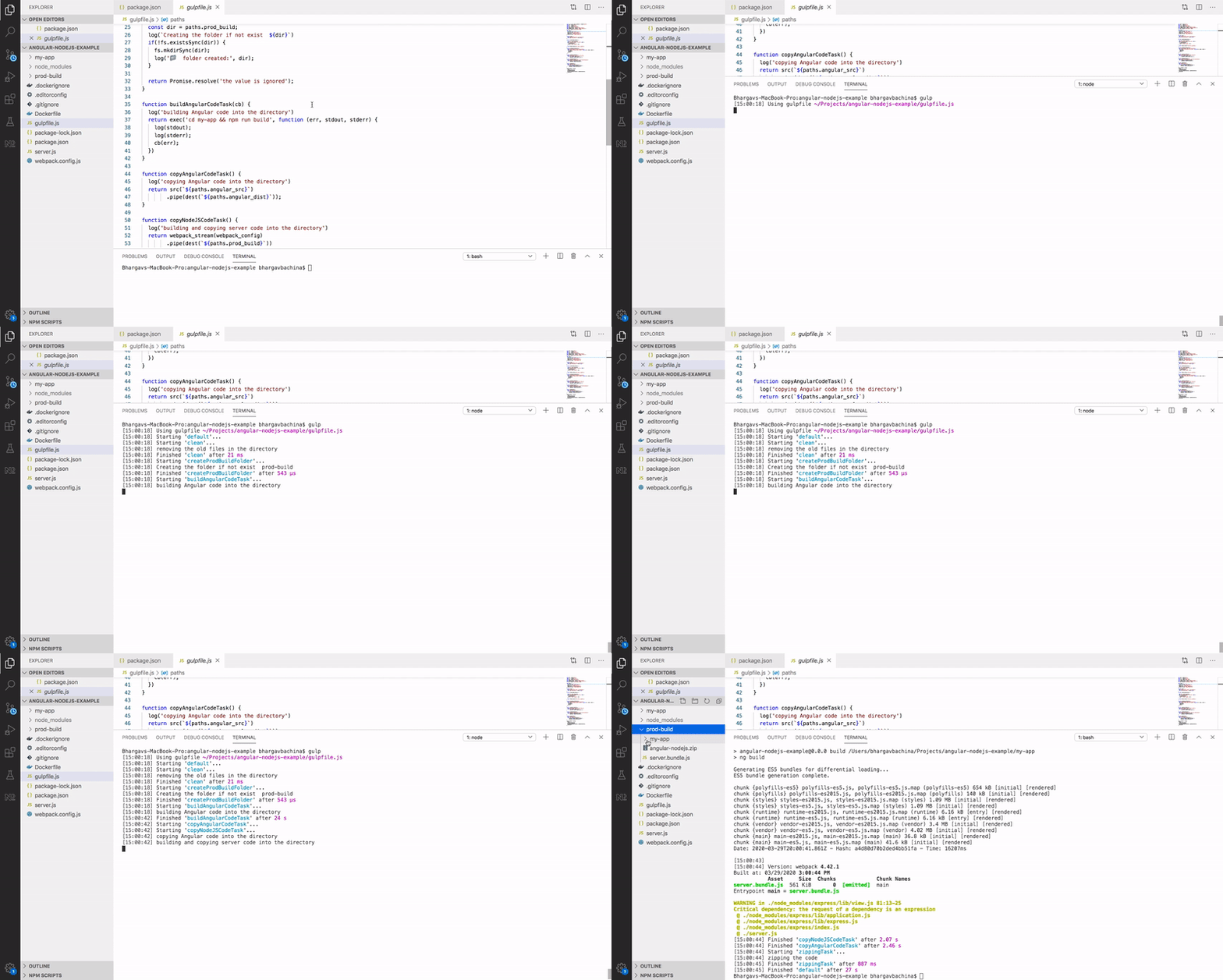
// webpack-stream - Build with webpackwhen you run the command gulp it looks for the gulpfile.js file and executes all the tasks mentioned in that file. We can execute these tasks one by one or in parallel with the help of these modules series, parallel. Here is the file gulpfile.js.
You can actually see some tasks are run one by one and others are in parallel. For example, copying Angular code and building server code (line 67) can be run in parallel because there is no dependency between these. With the gulpfile.js in place, all you need to do is issue this command gulp .
With Docker
We have seen different implementations so far. All these implementations include putting all the related files together and package it. We used different tools and bundlers to do that. But with Docker, we place all the files in the Docker file system and create a Docker image out of it.
Here is the complete post of how we can package with Docker.
Deploying on AWS Elastic Beanstalk
Packing your application is done now it’s time to deploy that on the servers. You can deploy this package on different platforms or server architectures but, covering all those is out of scope for this post. So, I just want to give one example of deployment of this application follow the below post if you want to learn how you can deploy this packaged app on AWS Elastic Beanstalk.
Summary
- In traditional architectures, there are so many ways we can package and ship the Angular app to production.
- If you are new to the Angular app with nodejs backend, please follow this link to get familiar with it.
- With the manual implementation, we have to build the Angular code, place the appropriate file and zipping the code manually.
- We can automate all these tasks with the help of gulp.
- Angular CLI uses a webpack internally to build the Angular code. We can use the same with the NodeJS code as well. In this way, we can skip installing all the dependencies.
- Docker is another way to package your application but you need to run those Docker images on some container platforms such as Docker, EKS, ECS, etc.
- Always use multi-stage builds while building your Docker images so that you can avoid unnecessary files packaged into your build.
- Always automate the tasks with some kind of tools such as gulp or grunt.
- Elastic Beanstalk from AWS is an easier and quicker way to deploy your packaged app and test it out.
Conclusion
Always automate packaging your app. In that way, you can save lots of time and be more productive.


