avatarTeri Radichel

Free AI web copilot to create summaries, insights and extended knowledge, download it at here

4389

Abstract

//cdn-images-1.readmedium.com/v2/resize:fit:800/1*SjuA2sHduyzkkHVfLLnoLg.png"><figcaption></figcaption></figure><p id="f88c">Because this code is not going to work the same way I’m going to create a new template. There is another reason why I want to separate out this code as well.</p><h2 id="17dc">Breaking the DRY Principle</h2><p id="ce52">I’m going to break out this code into a separate folder and manage it separately from the other IAM code. It will become clear why I’m doing this later. I’m going to call my new folder OrgRoot to match the user name we are creating in the management account and it indicate that these are resources created in the organization’s <i>root</i> or <i>management account</i>.</p><p id="0c31">I may have a bit of duplicative code which I told you that you should avoid for the most part when I wrote about the DRY principle.</p><div id="5a1b" class="link-block"> <a href="https://readmedium.com/dry-dont-repeat-yourself-30e7a582ea4"> <div> <div> <h2>DRY — Don’t Repeat Yourself</h2> <div><h3>Posts by Teri Radichel on applying the DRY Principal to Cybersecurity</h3></div> <div><p>medium.com</p></div> </div> <div> <div style="background-image: url(https://miro.readmedium.com/v2/resize:fit:320/1*wNIn_wrUH0nsO881QZyy0A.png)"></div> </div> </div> </a> </div><p id="12ce">The point where you would want to break this rule is when you have some very sensitive code that you want to change as little as possible to avoid inadvertent errors or introduction of security problems. Because this root code is so critical to the security of our entire AWS account, I’m going to put it in a separate directory. Changes to code that deploys resources to our management account should be few and far between.</p><h2 id="dd54">Create User Template</h2><p id="56cf">I made a few modifications to the user template to match the above design objectives and hardcoded things that should never change for this particular user.</p><p id="f32f">I need to get the ARN for the AWS Managed Administrator policy I want to attach. Let’s navigate to IAM, find that policy, and get the ARN.</p><figure id="6bf9"><img src="https://cdn-images-1.readmedium.com/v2/resize:fit:800/1*djWt-zHdozfRYOOedcOGzA.png"><figcaption></figcaption></figure><p id="1345">You can find the ARN when you click on the policy:</p><figure id="d1a3"><img src="https://cdn-images-1.readmedium.com/v2/resize:fit:800/1*i6LQ-VU8Gci6HATFGzDeAQ.png"><figcaption></figcaption></figure><p id="309e">Here’s my User.yaml template for the OrgRoot user at this point:</p><figure id="a314"><img src="https://cdn-images-1.readmedium.com/v2/resize:fit:800/1*-DEM_ax20AKxe9BqZ_KJuA.png"><figcaption></figcaption></figure><h2 id="d354">Deploy the Template</h2><p id="915f">I’m going to use a simple CloudFormation deploy command to deploy this template via CloudShell for reasons explained in a prior post. This is a step I will take once and then once the user is deployed, I will login as that new user and work via that user going forward. I’m going to run very few commands initially in this root account so the risk should be minimal. Then I will lock away these credentials and only use them if and when needed.</p><p id="3de7">Log into your AWS Management Account as the root user (we haven’t deployed a single thing to our AWS account yet and we have to start somewhere). Switch to the region where you want to maintain your organizational resources. Although AWS IAM is a global service, meaning a user is not deployed into any particular region, the CloudFormation stacks that result from this deployment will be in a particular region. You’ll probably want them all in one place. You can lock down which regions can be used for deployment with an SCP.</p><p id="0baf">The first thing I need to do is get the CloudFormation template into CloudShell. I’ve tried creating a new file with vi and copying and pasting it into AWS CloudShell but that fails miserably from a Mac, so I’m just going to upload the file instead. I was able to easily copy and paste my code from GitHub to my local laptop and then I can upload that file using the file upload functionality at the top right of CloudShell:</p><figure id="af56"><img src="https://cdn-i

Options

mages-1.readmedium.com/v2/resize:fit:800/1*HUgOHt7SbrtJAS4MZu0K-w.png"><figcaption></figcaption></figure><p id="161b">Select the file:</p><figure id="8a68"><img src="https://cdn-images-1.readmedium.com/v2/resize:fit:800/1*r3zAHO2jvuy8maRTSw4QvQ.png"><figcaption></figcaption></figure><p id="7e65">Type ls to verify your file exists:</p><figure id="d3f9"><img src="https://cdn-images-1.readmedium.com/v2/resize:fit:800/1*4ZAHuf32WxaxQSrvY_XejQ.png"><figcaption></figcaption></figure><p id="e144">Now run the following command to deploy the OrgRoot user:</p><div id="0277"><pre>aws cloudformation deploy --template-file User.yaml --stack-name ROOT-USER-OrgRoot --capabilities CAPABILITY_NAMED_IAM </pre></div><figure id="f94a"><img src="https://cdn-images-1.readmedium.com/v2/resize:fit:800/1*avJlGdgFfWJSZUpfFCud1w.png"><figcaption></figcaption></figure><p id="65e6">Once that completes you should have a successful CloudFormation stack:</p><figure id="8fcb"><img src="https://cdn-images-1.readmedium.com/v2/resize:fit:800/1*kcKlMbElGNyRuVMdkCsbEQ.png"><figcaption></figcaption></figure><p id="2b3b">You should also see the user in IAM.</p><figure id="7cee"><img src="https://cdn-images-1.readmedium.com/v2/resize:fit:800/1*uLJV3CJS5CHnRuTj8rt4Ig.png"><figcaption></figcaption></figure><p id="a9f2">Add MFA to the user as we did in prior posts.</p><p id="9739">Head over to Secrets Manager and get the password, same as we did for other users we created via CloudFormation in earlier posts:</p><figure id="b332"><img src="https://cdn-images-1.readmedium.com/v2/resize:fit:800/1*duh3TzgeW3P5_BH4Y0-lIw.png"><figcaption></figcaption></figure><p id="6108"><b>Logout</b> as the <b>root user </b>in the <b>management account</b>.</p><p id="600d"><b>Login</b> as the new <b>OrgRoot</b> user. <b>Change the password</b>.</p><p id="04fa">Remember to sign in as an <b>IAM User</b>, <i>not the root user</i>, using your management <i>account number or alias</i>:</p><figure id="e76a"><img src="https://cdn-images-1.readmedium.com/v2/resize:fit:800/1*WaRRLs84edj7yl3B1nBe_g.png"><figcaption></figcaption></figure><p id="813e">Once you change the password you can delete the OrgRoot secret as it is no longer relevant or needed. You may opt to store the OrgRoot password in Secrets Manager but as discussed in prior posts, you need to make sure that no one but the appropriate users can obtain that secret.</p><p id="b146">Now that we have a root user we can test logging in with the AWS Organizations default role in our new governance account, which we’ll do in the next post.</p><p id="6140">We’ll revisit our <a href="https://readmedium.com/aws-iam-permission-boundaries-83180a50c89e">permission boundary</a> later after we take a look at how Okta integration with IAM works.</p><p id="da61">Follow for updates.</p><p id="4a3a">Teri Radichel | <i>© <a href="https://2ndsightlab.com/?source=post_page---------------------------">2nd Sight Lab</a> 2023</i></p><div id="8b5f"><pre><span class="hljs-section">About Teri Radichel:

⭐️ Author: Cybersecurity Books
⭐️ Presentations: Presentations by Teri Radichel
⭐️ Recognition: SANS Award, AWS Security Hero, IANS Faculty
⭐️ Certifications: SANS ~ GSE 240
⭐️ Education: BA Business, Master of Software Engineering, Master of Infosec
⭐️ Company: Penetration Tests, Assessments, Phone Consulting ~ 2nd Sight Lab</pre></div><div id="caae"><pre><span class="hljs-section">Need Help With Cybersecurity, Cloud, or Application Security?
~~~~~~~~~~~~~~~~~~~~~~~~~~~~~~~~~~~~~~~~~~~~~~~~~~~~~~~~~~~~~</span>
🔒 Request a penetration test or security assessment
🔒 Schedule a consulting call
🔒 Cybersecurity Speaker for Presentation</pre></div><div id="5a42"><pre>Follow <span class="hljs-keyword">for</span> more stories like <span class="hljs-keyword">this</span>:

❤️ Sign Up my Medium Email List ❤️ Twitter: <span class="hljs-meta">@teriradichel</span> ❤️ LinkedIn: https:<span class="hljs-comment">//www.linkedin.com/in/teriradichel</span> ❤️ Mastodon: <span class="hljs-meta">@teriradichel</span><span class="hljs-meta">@infosec</span>.exchange ❤️ Facebook: 2nd Sight Lab ❤️ YouTube: @2ndsightlab</pre></div><figure id="faf5"><img src="https://cdn-images-1.readmedium.com/v2/resize:fit:800/0*H9Ew1KCl-29nZiPR.jpeg"><figcaption></figcaption></figure></article></body>

Organizational Root User for Initial Setup on AWS

ACM.157 Creating an initial user to manage our AWS Organizations and new AWS accounts

~~~~~~~~~~~~~~~~~~~~~~~~~~~~~~~~~~~~~~~~~~~~~~~~~~~~~~~~~~~

⚙️ Part of my series on Automating Cybersecurity Metrics. The Code.

🔒 Related Stories: AWS Organizations | IAM | Cloud Governance

💻 Free Content on Jobs in Cybersecurity | ✉️ Sign up for the Email List

~~~~~~~~~~~~~~~~~~~~~~~~~~~~~~~~~~~~~~~~~~~~~~~~~~~~~~~~~~~

In the last post, we looked at how we might limit risks associated with the default AWS Organizations role in new AWS accounts.

Considerations for running initial scripts in a new AWS account

In this post, I’m going to set up a new user to run our initial user in the Management Account to run initial scripts in a new account so we don’t have to login as root.

Now you might thing it’s a really simple thing to deploy the initial user but I thought about it a lot. Does it really matter or should we just deploy our initial scripts with the root user? Should we use the existing user creation scripts I created in prior posts? Should I just deploy the first user manually? Should I use CloudShell or not (a topic I already wrote about in a prior post).

The scenario is that we have a brand new AWS account and we don’t want to add long-lived credentials for the root user. I could easily manually create a new first user. But I decided it would be good to automate the creation of the initial user to have a consistent deployment process and steps that others can follow, if they want. Also, we may decide to make changes to this user or add alternate users down the line. I can easily follow my own directions to redeploy the account in the event of disaster recovery.

Here’s the process I came up with.

OrgRoot user (organizational administrative account)

This OrgRoot user serves the following purposes:

  1. Run the initial organizational scripts that deploy the Governance OU, accounts, and permissions with boundaries that prevent those users from changing their own permissions or making changes in the management account.
  2. Use an emergency backdoor should other permissions or accounts have issues, or in the event of a misconfiguration.
  3. We can make this user an administrator and test access to the default AWS Organizations role I wrote about in the last post.

Automate Deployment of the OrgRoot User

Now, I have some code created in earlier posts to create users with CloudFormation. We could use that code to create the OrgRoot user, but we’d have to modify it.

The OrgRoot user is not going to be in a group or have to assume a role once logged in. The OrgRoot user will simply have the AWS Administrator policy attached to it via a ManagedPolicyArn. We can also attack a Permissions Boundary to limit what the user can do, even though the admin policy is associated with the user.
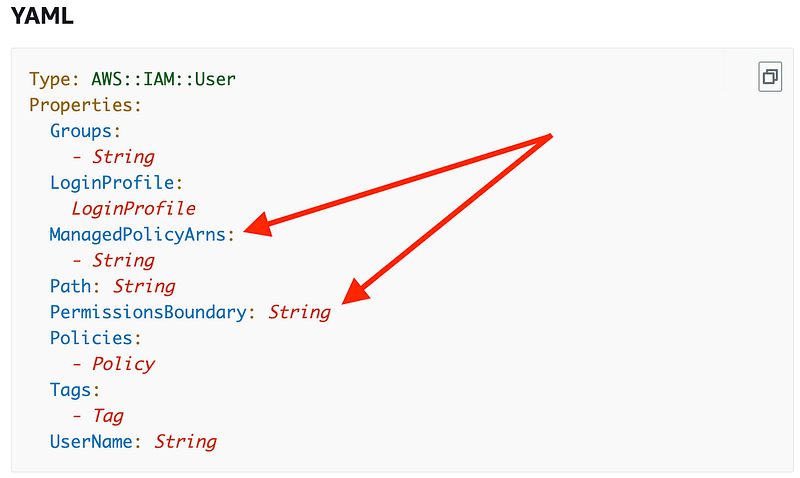
Because this code is not going to work the same way I’m going to create a new template. There is another reason why I want to separate out this code as well.

Breaking the DRY Principle

I’m going to break out this code into a separate folder and manage it separately from the other IAM code. It will become clear why I’m doing this later. I’m going to call my new folder OrgRoot to match the user name we are creating in the management account and it indicate that these are resources created in the organization’s root or management account.

I may have a bit of duplicative code which I told you that you should avoid for the most part when I wrote about the DRY principle.

The point where you would want to break this rule is when you have some very sensitive code that you want to change as little as possible to avoid inadvertent errors or introduction of security problems. Because this root code is so critical to the security of our entire AWS account, I’m going to put it in a separate directory. Changes to code that deploys resources to our management account should be few and far between.

Create User Template

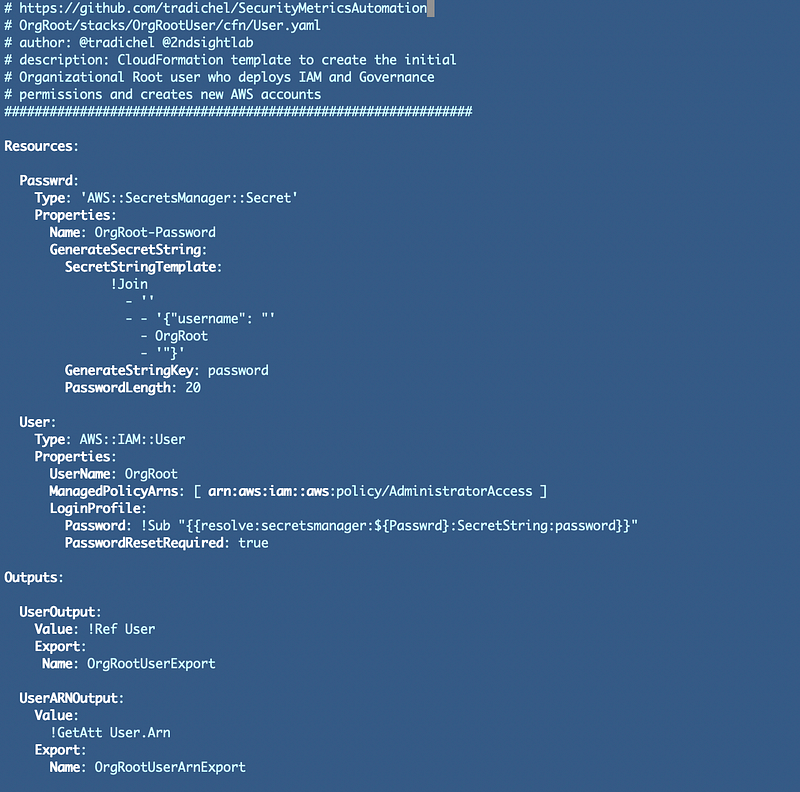
I made a few modifications to the user template to match the above design objectives and hardcoded things that should never change for this particular user.

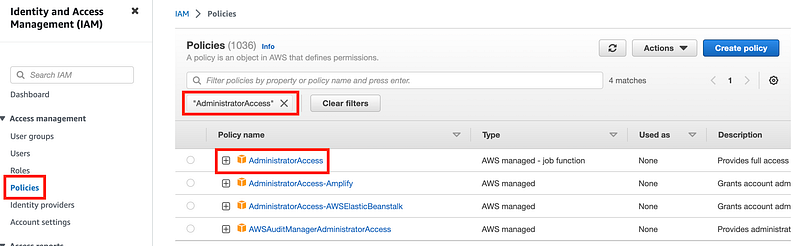
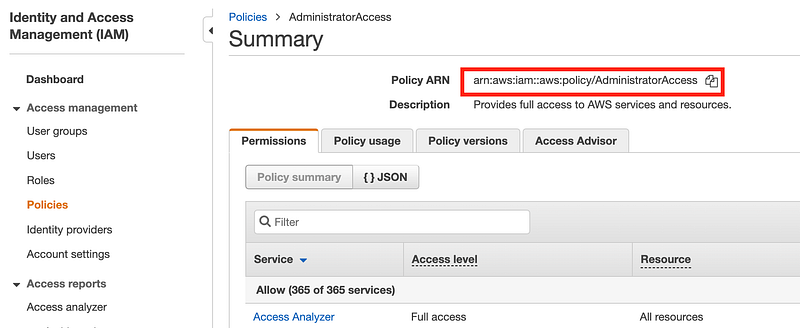
I need to get the ARN for the AWS Managed Administrator policy I want to attach. Let’s navigate to IAM, find that policy, and get the ARN.
You can find the ARN when you click on the policy:
Here’s my User.yaml template for the OrgRoot user at this point:
Deploy the Template

I’m going to use a simple CloudFormation deploy command to deploy this template via CloudShell for reasons explained in a prior post. This is a step I will take once and then once the user is deployed, I will login as that new user and work via that user going forward. I’m going to run very few commands initially in this root account so the risk should be minimal. Then I will lock away these credentials and only use them if and when needed.

Log into your AWS Management Account as the root user (we haven’t deployed a single thing to our AWS account yet and we have to start somewhere). Switch to the region where you want to maintain your organizational resources. Although AWS IAM is a global service, meaning a user is not deployed into any particular region, the CloudFormation stacks that result from this deployment will be in a particular region. You’ll probably want them all in one place. You can lock down which regions can be used for deployment with an SCP.

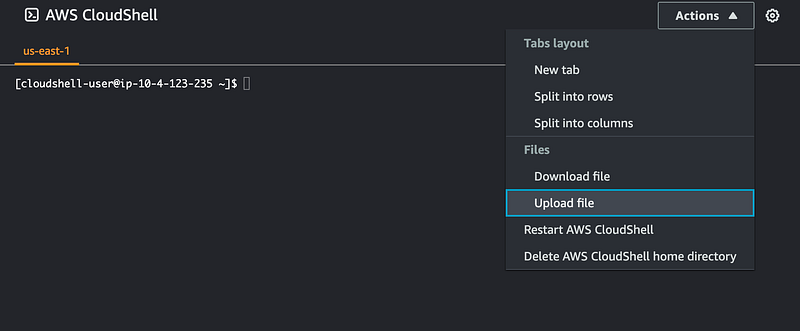
The first thing I need to do is get the CloudFormation template into CloudShell. I’ve tried creating a new file with vi and copying and pasting it into AWS CloudShell but that fails miserably from a Mac, so I’m just going to upload the file instead. I was able to easily copy and paste my code from GitHub to my local laptop and then I can upload that file using the file upload functionality at the top right of CloudShell:
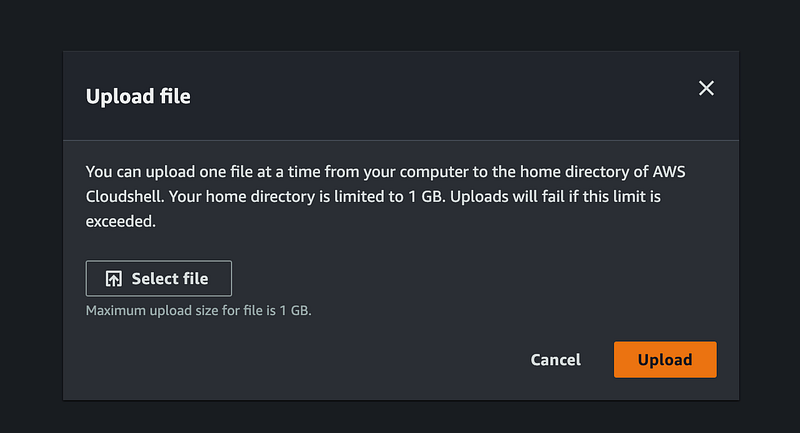
Select the file:
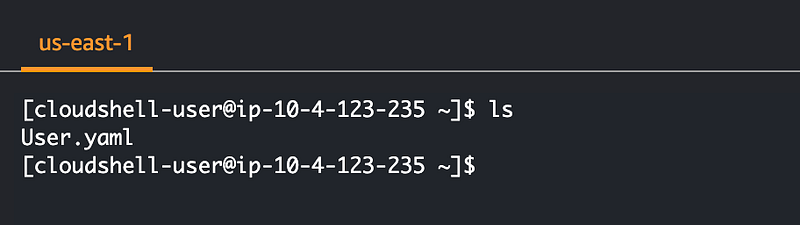
Type ls to verify your file exists:
Now run the following command to deploy the OrgRoot user:

aws cloudformation deploy --template-file User.yaml --stack-name ROOT-USER-OrgRoot  --capabilities CAPABILITY_NAMED_IAM 

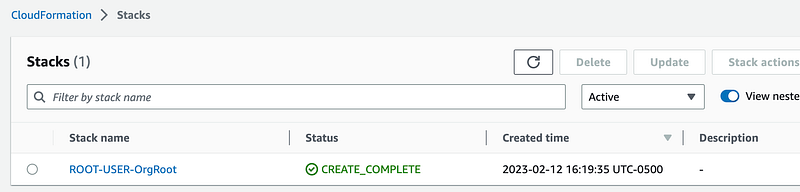
Once that completes you should have a successful CloudFormation stack:
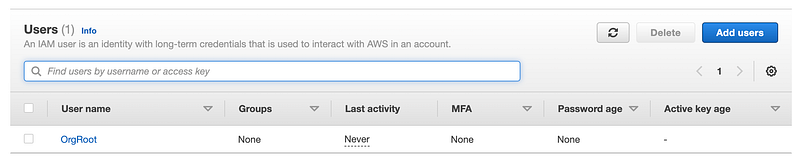
You should also see the user in IAM.
Add MFA to the user as we did in prior posts.

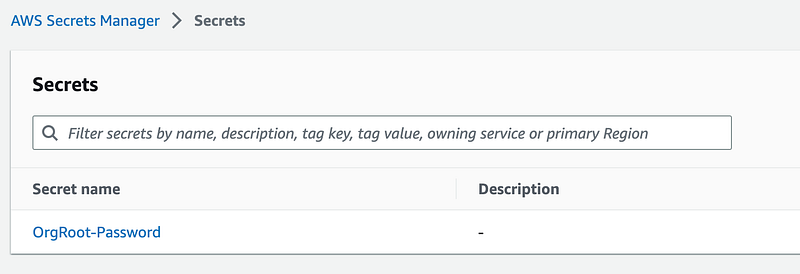
Head over to Secrets Manager and get the password, same as we did for other users we created via CloudFormation in earlier posts:
Logout as the root user in the management account.

Login as the new OrgRoot user. Change the password.

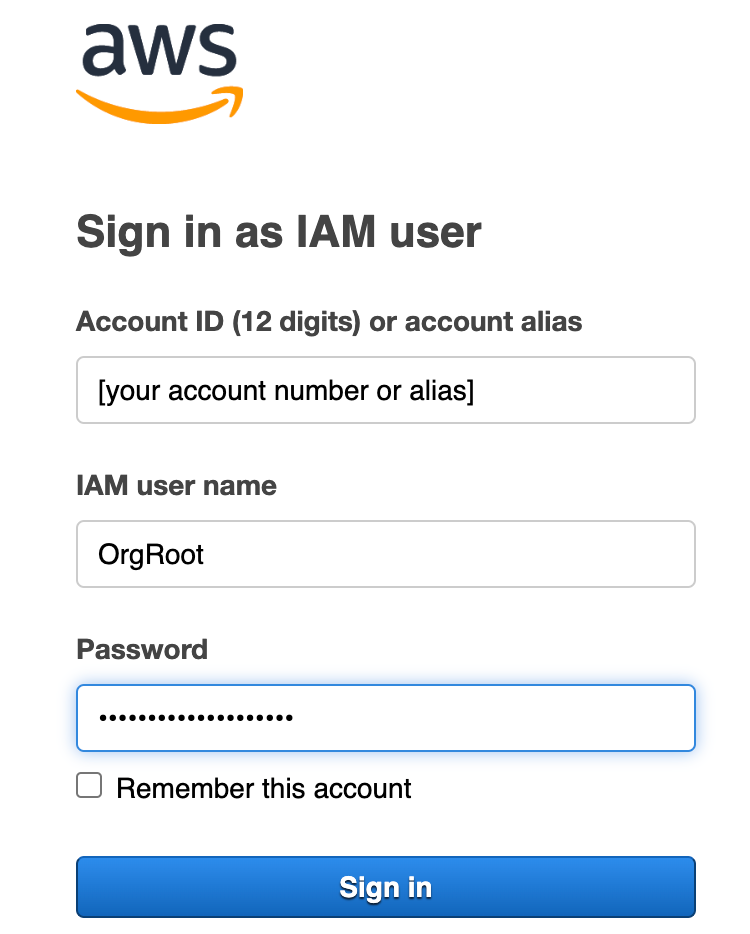
Remember to sign in as an IAM User, not the root user, using your management account number or alias:
Once you change the password you can delete the OrgRoot secret as it is no longer relevant or needed. You may opt to store the OrgRoot password in Secrets Manager but as discussed in prior posts, you need to make sure that no one but the appropriate users can obtain that secret.

Now that we have a root user we can test logging in with the AWS Organizations default role in our new governance account, which we’ll do in the next post.

We’ll revisit our permission boundary later after we take a look at how Okta integration with IAM works.

Follow for updates.

Teri Radichel | © 2nd Sight Lab 2023

About Teri Radichel:
~~~~~~~~~~~~~~~~~~~~
⭐️ Author: Cybersecurity Books
⭐️ Presentations: Presentations by Teri Radichel
⭐️ Recognition: SANS Award, AWS Security Hero, IANS Faculty
⭐️ Certifications: SANS ~ GSE 240
⭐️ Education: BA Business, Master of Software Engineering, Master of Infosec
⭐️ Company: Penetration Tests, Assessments, Phone Consulting ~ 2nd Sight Lab
Need Help With Cybersecurity, Cloud, or Application Security?
~~~~~~~~~~~~~~~~~~~~~~~~~~~~~~~~~~~~~~~~~~~~~~~~~~~~~~~~~~~~~
🔒 Request a penetration test or security assessment
🔒 Schedule a consulting call
🔒 Cybersecurity Speaker for Presentation
Follow for more stories like this:
~~~~~~~~~~~~~~~~~~~~~~~~~~~~~~~~~~~~~~~~~~~~~~~~~~~~~~~~~~~~~ 
❤️ Sign Up my Medium Email List
❤️ Twitter: @teriradichel
❤️ LinkedIn: https://www.linkedin.com/in/teriradichel
❤️ Mastodon: @teriradichel@infosec.exchange
❤️ Facebook: 2nd Sight Lab
❤️ YouTube: @2ndsightlab

Root User
Aws Organizations
Cloud Security
Governance
Cybersecurity
Recommended from ReadMedium