
My 3 Favourite Obsidian Themes, and Most Useful Plug-ins
I love that plain text productivity doesn’t have to be boring!
Plain text is the backbone of my productivity system, and Obsidian is the bespoke attire it loves to wear. I value Obsidian for its simplicity, its complexity, and the freedom it offers to choose between them.
One year since diving into this app my basic approach to plain text productivity hasn’t changed radically, but it is maturing. This story will focus on the themes I like to use and on the plugins that form the delicious-but-not-too-sweet icing on the top of my productivity cake.
Themes
My favourite theme in 2021 was Red Graphite. I still love it, though I’ve recently added Subtle Gold to the list and switch between them when I feel like a change.
That makes a grand total of three themes I enjoy using! The third — actually, the first — is the default purple theme. I’m open to adding more to the rotation, but those I’ve tried so far don’t fit my design preferences as well as my top three.
I like the contrast between the large date being flanked top and bottom with month and week links. Choosing which parts are bold, and which are coloured is another way to fine tune the appearance of my Obsidian planning pages.
These are design choices rather than Theme features, but different themes significantly affect how the look is pulled off.
Banners
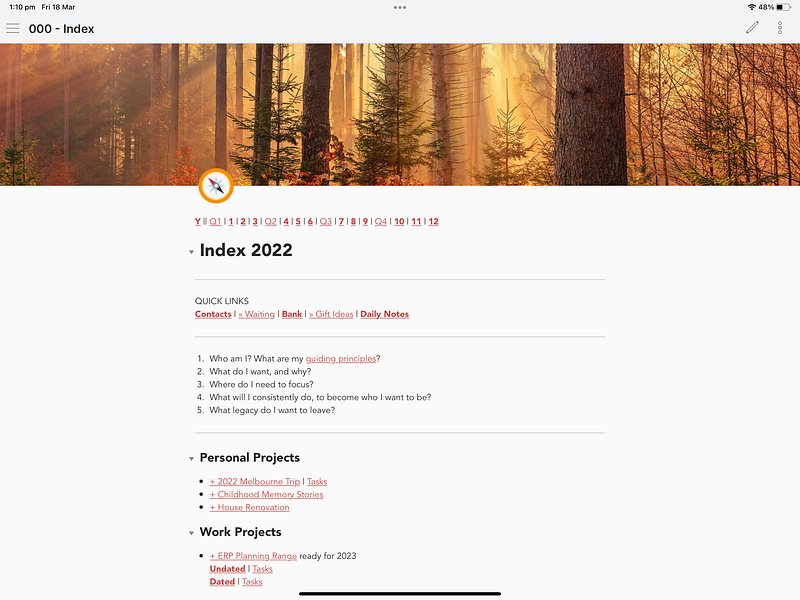
I’d used a pasted graphic at the head of my Index page from the beginning, but the Banners plugin is a more flexible option. Instead of screenshotting a crop from a picture, Banners takes care of that for me. It allows me to change which portion of the image displays, simply by Shift + dragging it.
The resulting banner stretches across the width of the page, instead of being confined to the width of the text as pasted images are.
There’s even the option of adding an icon to the lower portion of the banner, giving a Notion-esque vibe.
DataView
I’m new to DataView, using it very tentatively at this point.
My concern is that if I dive in too deeply I’ll fall in love with its power and convenience, and come to rely on it. I’m willing to take the long way round if it means not losing the connection to the plain text roots of my system.
The two things I’ve set DataView doing for me are to compile a master list of my contacts, and to compile a summary of the main things I do each day throughout the year.
Contacts
First, the contacts list. Why not just use the Contacts app on my devices? Because it’s not immune to corruption, that’s why!
I’ve noticed some strange data merges between contacts recently, so it makes good sense to keep a master list, in plain text, of the people I deal with regularly.
The naming convention I use for each person’s page is Surname, First Name/s. YAML front matter is where I write basic details like email, phone number, birthday, and address. Tags help to separate categories of people, and aliases make it quick and easy to link to them in a natural way.
Here’s the front matter for a sample person, Jane Doe. Her file is named Doe, Jane. Obsidian will suggest her file anytime I start typing Jane between double square brackets.
---

aliases: ["Doe, Jane", Jane Doe, Jane, JD]
email: [email protected]
phone: 0444 444 444
birthday: 1985-03-18
tags: family

---
DataView displays the information for each person in a separate file named Contacts Directory.
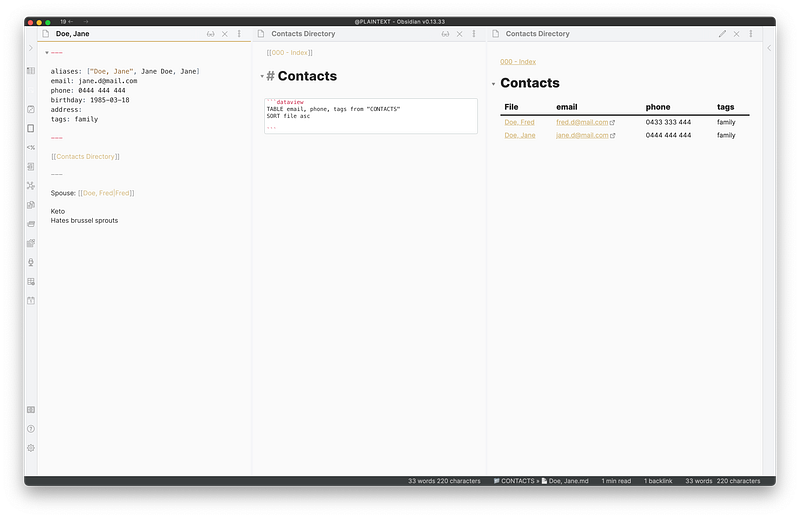
The rest of the note is for other information like allergies, food likes and dislikes, and gift ideas. I also include links to the contact page of other people they’re associated with, like family members or business associates.
Daily Note Summary
The second way I’m using DataView is to see, in one note, a very brief summary of each day and the places I was in on particular days of the year.
My YAML front matter on a typical daily note looks something like this:
---
locations: ["Gosford, NSW", "Cessnock, NSW"]
weather: Rain, localised flooding—we're ok
summary: Worked on interactive planner most of the day. Spent time with L and family in the evening.
---
The DataView code on my 2022 Daily Note Summary page could include all that information, but so far I’m keeping it to the date and summary.
```dataview
LIST summary FROM “CALENDAR/2022 CALENDAR NOTES/2022 DAYS”
SORT file.name DESC
```
As you can see from the second line, I like to organise my calendar notes into folders.
I’ve chosen to display the data as a list rather than a table because DataView does strange, squashy things with column widths. Hopefully this will be fixed in a future update.
Pros and Cons
- ✔️ When the Daily Note Summary page is in preview mode, you can search all the text at once and see it highlighted in real time
- ✔️ Seeing all the summaries in one place gives me a sense of accomplishment and perspective, and lets me see patterns that might not otherwise stand out
- ✖️ No control over column widths
This idea came from Jamie Rubin’s Practically Paperless blog post № 22.
Kanban
Obviously I’m late to the party with this one, as nearly 170,000 people have installed it before me!
I love how easy it is to move items from one list to the next, and I appreciate being able to edit my ‘cards’ in a plain Markdown list, if I want to. And I often do (want to).
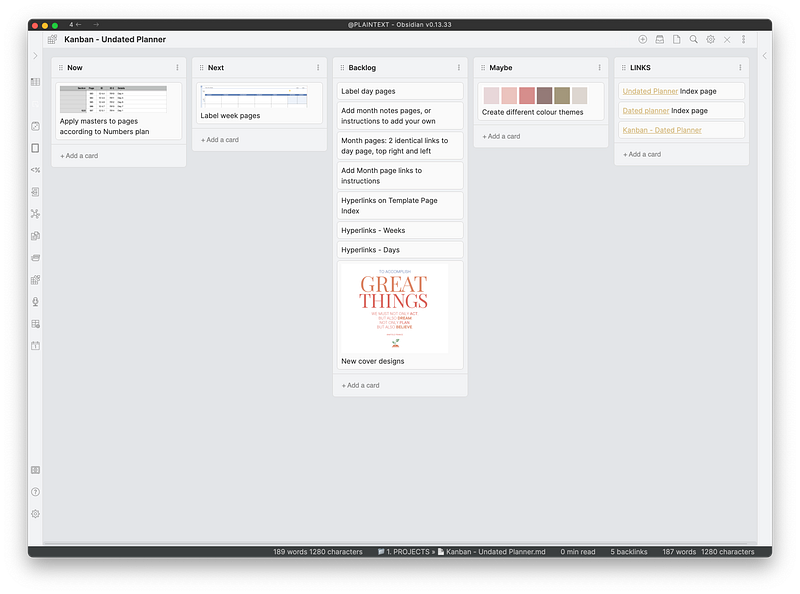
Each of my main projects now has a link to a Kanban board as one of the first things on the page. The headings I use the most are (left to right) —
- NOW — What I’m currently working on
- Next — The next thing in line for the NOW list, so I can see what’s coming up
- Backlog — Everything else, in rough order of when I’d like to do it
- Maybe — For ideas and possibilities
- Links — One link per card, for helpful documents — including the main project page for the current task list
I’m also using an Obsidian Kanban to prepare for my upcoming interstate trip, with the following headings:
- To Do — before leaving
- To Do — while there
- Toiletries
- Clothes
- Technology
- Other
- Links
I tried many packing list apps before realising I didn’t need any of them. Obsidian’s Kanban plug-in is simple, free, and it ticks all the right boxes (literally, haha): being able to move things around freely within and between lists, and mark things off as I complete them. Heck, I can even add pictures to tasks, Trello-style!
If you’re after a full-featured business management suite that includes an excellent Kanban, look no further than Plutio (affiliate link — use the code Plu20io19 for 10% lifetime discount) I have a lot of respect for the founders, and I’m amazed at how far they’ve come in a short time. Obsidian handles the smaller jobs beautifully, but Plutio is my go-to choice for serious collaborative and freelance work.
Auto Link Title
This little plug-in replaces pasted links with a tidier title from the web. So the link to my story on replacing the notch on my MacBook Pro looks like this in its raw form —
and like this with the Auto Link Title plug-in enabled —
How to Remove the M1 Mac Notch in Affinity Designer | Produclivity
Auto Link Title doesn’t do anything you can’t easily do yourself, but it’s a more convenient and time-saving way to create reader-friendly links than typing your own.
Other plugins I’d hate to lose
- Advanced Tables — Pretty alignment and basic formulas
- Advanced URI — Helps me get text from Drafts into Obsidian, in iCloud)
- Banners — Oh. So. Pretty.
- Calendar — It’s basic, it’s cool. Get it.
- HotKeys — I’ve designated Command + Option + k to toggle between Kanban and Markdown.
- Music Notation — See the story link below
- Note Refactor — Create new notes from existing ones. I use it almost daily.
- Periodic Notes — Rocketfuel for my plain text planner.
- Recent Notes — Shows what it says it does.
- Show Current File Path — The “You Are Here” plug-in
- Smart Random Notes — Allows you to set parameters for your random notes
- System Dark Mode — Uses your device settings to change to dark mode
- Tag Wrangler — Bulk tag editing, very helpful
- Templater — I’m out of my depth with this one, but destiny says we’ll be together someday
You may also like to read 3 things you didn’t know you could do with Obsidian, where I take you through the Music Notation plug-in, tables with calculations, and using queries for smart lists.


