
3 Cool Things You Didn’t Know You Could Do With Obsidian
Smart lists alone boosted the productivity of my digital workflow by 50%

If Obsidian was a movie character, it’d be a cross between MacGyver and the Genie from Aladdin. Stays out the way until you need it, doesn’t ask for a wage, and can do magical things with ordinary stuff.
Aside from my digital calendar and Reminders, Obsidian is the only productivity app I need. It works on the folder of plain text Markdown files kept locally on my triple cloud backed up, mobile synced hard drive, and I use it to run my digital life.
I’m using the free version, as I don’t currently have a need for their Sync or Publish options.
I’ve already written about how I use Obsidian as my master control centre and my goal and task-oriented daily planner (links at the end). So, what’s next? Some advanced tips to increase your productivity and have some fun along the way, that’s what!
In order of their usefulness to my daily workflow, may I present:
- Smart lists: bring scattered bits of information into one location
- Tables: auto aligned, with simple calculations
- Sheet music: easily import, write and share your own and others’ creations
Smart Lists
I rely on smart lists every day to get information where I want it in Obsidian, almost effort-free. They allow me to pull out organised lists of information — a real time-saver! It’s no exaggeration to say that smart lists have increased my productivity by at least 50%, and are one more reason I don’t need a dedicated task-management app.
Smart Lists in Obsidian rely on tags. Anything you’ve tagged can be compiled into one list, anywhere you want it, simply by referencing the tag. I use smart lists to track things I’m waiting for, from internet purchases to delegated tasks, and for listing all the books I’ve reviewed in one master list.
Every time I buy something online or I can’t move forward with a project until someone else completes a task, I make a note of that thing in my daily note in Obsidian. Then I preface the note with the tag waiting.
But notes of this sort aren’t of much use while they’re scattered across the thousands of text files in my Obsidian vault, so it’s lucky there’s an easy way to bring them together at will!
You have two main choices when it comes to consolidating the text immediately surrounding a particular tag into one list. The first method is the most straightforward.
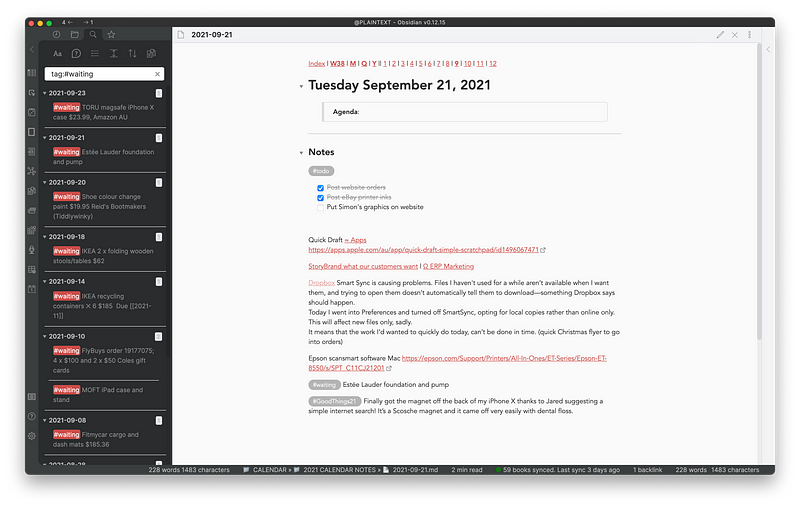
Method 1 Simply click on the tag wherever it appears, while in Preview mode. This automatically opens a list of search results on the upper left-hand side. From there you can scroll through to see each instance of that tag and choose whether to view the list in ascending or descending order. Other available options: collapsing the search results, showing more context, and copying the page titles on which the results appear.
Here you can see one of my daily lists, with one #waiting tag on it. The list on the left is what shows up when I click on that tag—all the things I’m waiting for at the moment, with links to their original page. Yes, I have been doing a lot of online shopping lately!
FYI, this beautiful, Bear-like Obsidian theme is called Red Graphite.
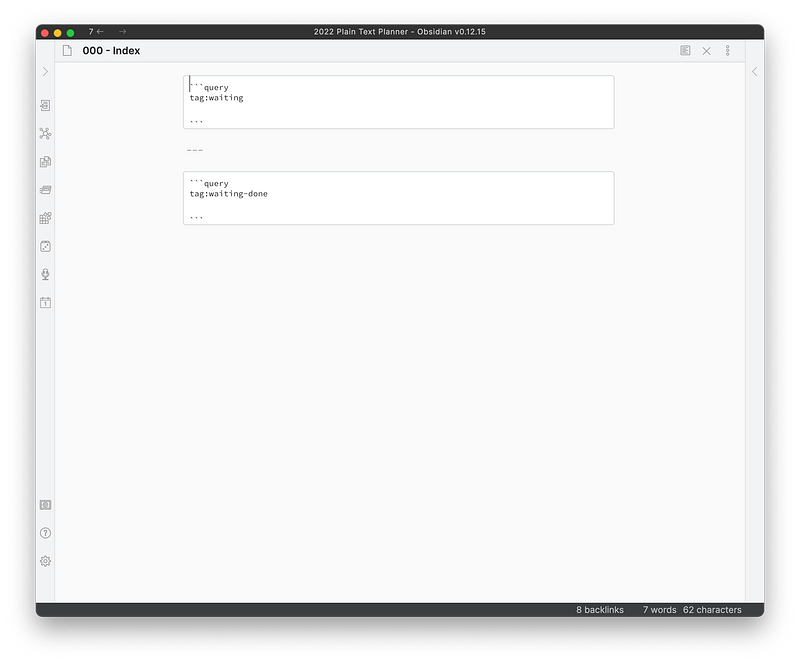
Method 2 Copy and paste the following onto the page you’d like to see it in a more permanent form (replacing “waiting” with your target tag):

Both methods will, by default, show you the line your tag sits on in the smart list and nothing more, so be concise with the information you include on that line. I add my tags to the beginning of the line rather than part way through, because the visual effect of neatly aligned tags makes the list easier to take in at a glance.
I review my #waiting list at least once a week, and change the tag on any completed items #waiting-done, followed by the date. Clicking on any item in the list will take you to the page it came from.
My dedicated » Waiting page appears as a link on my Obsidian master index page. This is what it looks like in Edit mode:
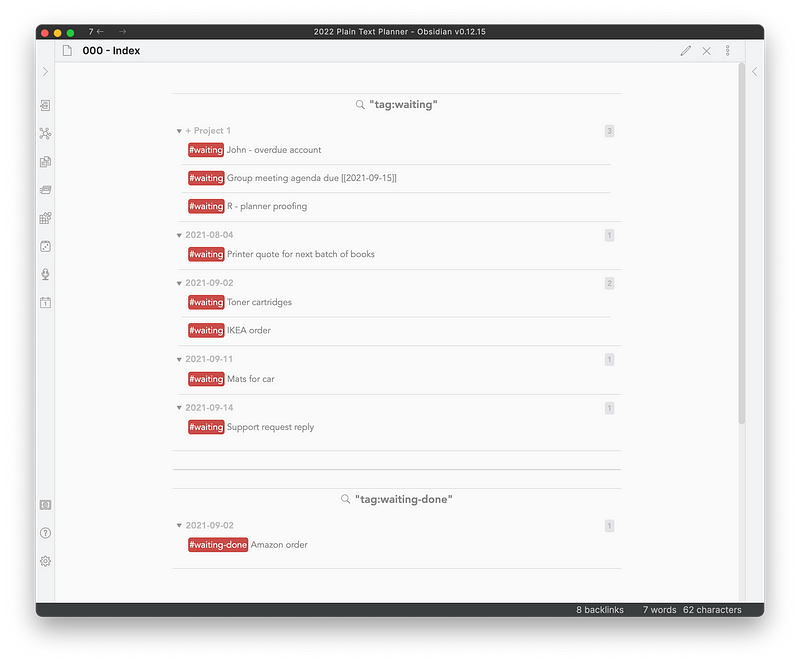
Here it is in Preview mode. Items are organised by page name, be that a project or a date.
Other uses for smart lists:
- Use a
#review-bookor#review-apptag to keep a running list of books or apps you’ve reviewed, by name. Access the details by clicking on the name of the book or app. - Use a
#gratitudetag to see all your daily note gratitude entries in one place. This year I’ve been using#GoodThings21as part of a goal to record three good things that happened each day. - Use a
#to-reador#to-watchtag to track books to read or shows to watch, written in your daily note as you come across them. - Use an
#ideatag wherever you have a lightbulb moment, and pull up all those sparks of genius any time you need inspiration.
Smart lists in Obsidian work similarly to the way Apple started organising apps on the iPhone from iOS 14 onward. Forget sorting them into categorised folders—the system now does that for you.
I find the Tag Wrangler plugin very helpful for renaming and merging my tags.
Tables With Calculations
You may enjoy the way the Advanced Tables plugin keeps your Markdown tables looking pretty, but do you know how to use the function button to make simple calculations?
This is no spreadsheet replacement, but I find it handy to keep track of what we’re spending on our house renovation, right there on the project page, without opening or linking to another app.
You can see how the plugin automatically makes the table line up:
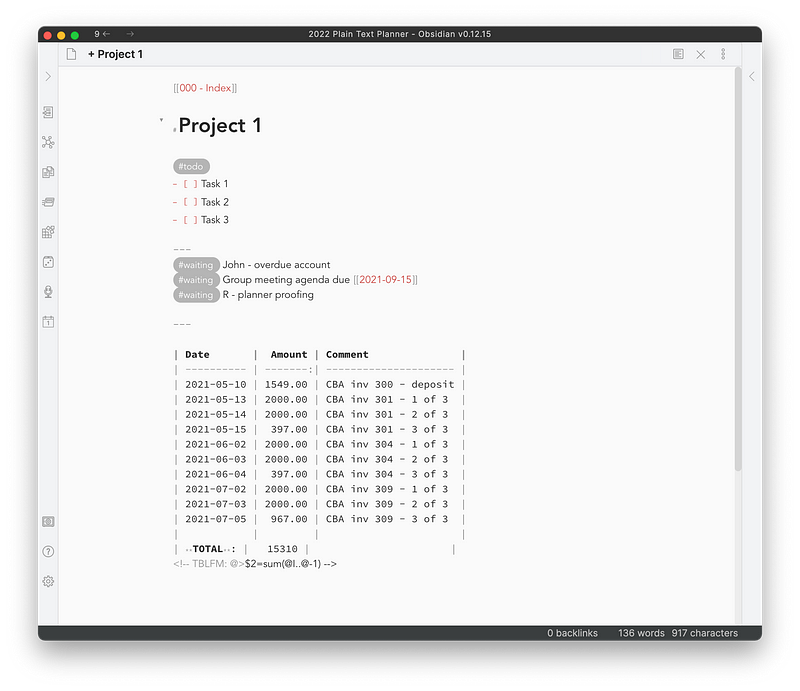
And in Preview mode it turns into a nicely formatted table with sum of the column of figures calculated.
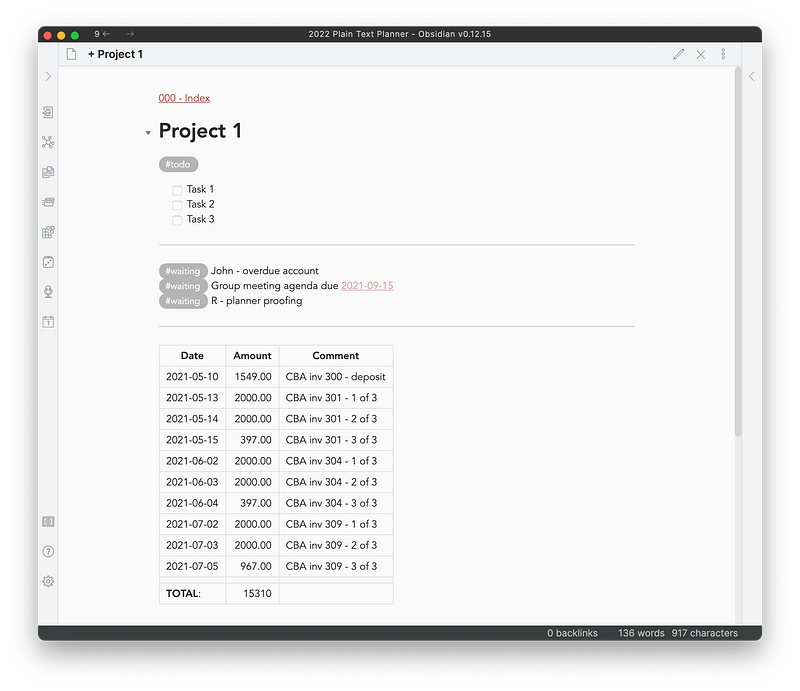
Once you’ve pasted the HTML comment
<!-- TBLFM: @>$2=sum(@I..@-1) -->at the bottom of your table, you’ll need to place the cursor anywhere inside the table before pressing the fx button on the Advanced Tables Toolbar.
If you’re trying to update the total but it doesn’t seem to change, delete the old total before trying again.
This formula is set up to calculate the sum of the second column from the left. To change the column that the calculation is performed on, change $2 to reflect the number of the target column. For example, for the third column from the left in you’d change it to $3.
For a complete explanation of this and other more complex formulas, see this excellent tutorial written by the creator of the Advanced Tables plugin.
Sheet Music
If only there was a way to download, write and share sheet music by simply copying and pasting plain text, right? I’ve got good news —there is!
First, find and install the Music Sheet Code Blocks plugin in the Community Plugins section of Obsidian. It uses music-abc, a very easy to learn coding language. Begin by typing—
```music-abc
Then type or paste in the text of the song.
X:1
T:You Are My Sunshine
C:Traditional
M:4/4
L:1/4
K:D
|A, D E|"D" F2 F2-| F F E F| D2 D2-
It will render these simple lines of text like this:
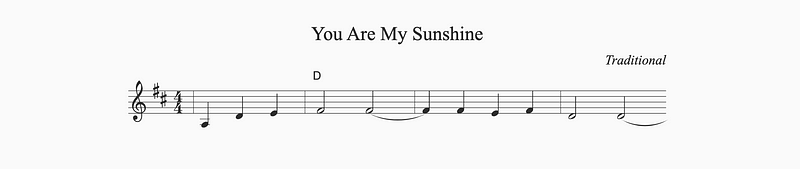
- X is for the tune number. It can’t be omitted.
- T is for the title of the piece
- C is for the composer
- M is for the meter, or timing, of the piece
- L is for the length of a note represented by a single letter
- K is for the key, which is D major in this example
It’s a lot of fun to share a small amount of text, knowing that with the right plugin it will render in a standard musical format. Remember this one?
```music-abc
X:435
T:Ghost Riders in the Sky
C:Stan Jones
M:C |
L:1/4
K:Am
E | AA AB | cc cA | GG GE | G3 E |
AA AB | cc cd | ee ec | e3 e |
ea aa | ae ee | ee ec | A3 A |
FF FF | cc c2- | c2 zc | cA AG | A4 ||
e>e eg- | g3 z | a>a aa | e3 z |
F2 FF | c3 c | cA3- | A2 z ||
This magically turns into—
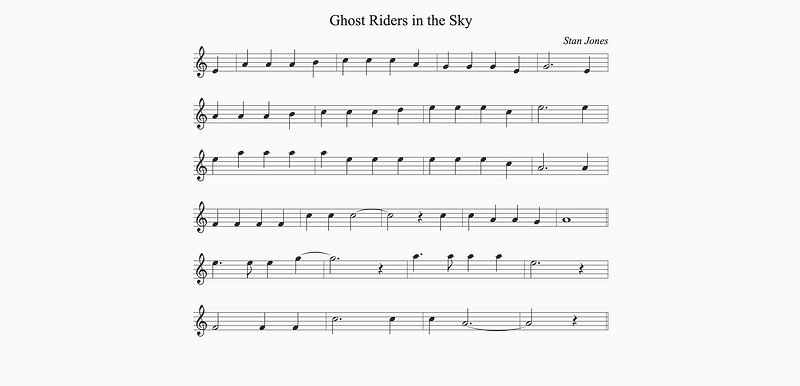
You can use an online midi converter like the one at mandonlintab.net to hear the music played.
While Chris Walshaw originally developed the ABC language to preserve and share folk tunes, it’s also possible to depict entire classical scores, like this transcription of Beethoven’s Symphony № 7, Movement 2.
There are some wonderful possibilities for learning the fundamentals of music and a simple coding language at the same time! Whether you’re teaching children or just yourself, there’s a whole new world of free music to discover.
You can learn how to write in ABC music notation with video tutorials at abcnotion.com, or read about the basics on John Chambers’ site, here.
In Brief
Smart Lists let you merge scattered information into a single list, using tags. Use the Tag Wrangler plugin to edit your tags if needed. Enter this code wherever you want a smart list to appear:
```query
tag:your-tag
```
Tables with formulas can be handy for simple calculations when you don’t want to open or link to another app. Paste this HTML comment at the bottom of your table, and use the Advanced Tables plugin to make the calculation: <!-- TBLFM: @>$2=sum(@I..@-1) -->
Sheet music is simple to write and share as plain text using the ABC music notation language. You’ll need the Music Sheet Code Blocks plugin. Get a head-start with the primer videos at abcnotion.com.
More tips for how to use Obsidian to organise your digital life:
Not a Medium member yet? Join up at this link to help support Ellane’s work, and that of other wonderful writers on this platform!


