
Create Your Own Delicious Slice of Text-Based Productivity in Obsidian—A Step-By-Step Guide
I’ve regained control of my data and my life with a new, more efficient way to capture and find the text that matters

Last month I wrote about how to open channels of communication between Drafts and Obsidian, the two darlings of my digital workflow. While my solution worked, it required some fiddling about and a $40 piece of software to get it up and running. Even with all that in place, it was far from perfect.
You know the type of person who, when visiting a foreign country, uses a phrase book for essential communication rather than learning the language? That’s how I am with coding. I may never be fluent, but I’m happy for my native-speaking friends to teach me how to say dignity-preserving things like, “où sont les toilettes”, and goal-setting phrases such as, “je ne dois pas parler français comme une vache espagnole.”
So I was delighted when Matt Edwards reached out to me on Twitter after reading my jerry-rigged solution for getting Drafts and the Obsidian mobile app to play nicely. His suggestions have caused me to completely changed my approach, giving me the workflow I’d been looking for all along – hooray!
Matt is a freelance Front End Web Developer based in Adelaide, Australia. He knows what he’s doing, and I’m ecstatic with the solution he’s helped me to craft! It works almost exactly the way it used to when Dropbox housed my Obsidian vault.
What Matt suggested looked scary at first, but he helped me through the setup and now my daily note entry machine is purring along smoothly once again.
Step-by-step instructions are coming, but bear with me while I zoom out for a few seconds and look at the big picture.
The Aim: Capture and Find
The crux of an effective notes and productivity system is to make text quick to capture and easy to find. If those were the only two criteria I was interested in, Evernote, Roam, Notejoy or even Apple Notes — all excellent at what they do — would have been enough.
But I wanted more! Or might that be, less?
I wanted more (read: complete) control of my data, and less of the constraints and risks of trusting my hard work to a proprietary app.
The crux of an effective notes and productivity system is to make text quick to capture and easy to find.
You already know what my favourite tools are to get that job done, but allow me to make the introduction official.
Presenting…
Drafts: the fastest, most elegantly minimal way to enter text into your Mac or iOS device, then get it where it needs to go. It’s about capture.
and…
Obsidian: the most flexible, non-proprietary way to create an infinitely useful knowledge base, or second brain. It’s about finding.
If you’re new to these apps, chances are you’re either underwhelmed or overwhelmed. You may be underestimating your ability to use them, or their potential to streamline a personal knowledge management system. Your personal knowledge management system.
Take heart! It only takes minutes to learn all you’ll need to implement the following workflow and reclaim control of your data and your life.
Here are some resources to get you up to speed:
- Drafts’ own Getting Started guide
- The Obsidian help vault, available within the app
- Work. Life. Win. Repeat.’s beginner’s guide to Obsidian
The Workflow: a Map For Joyful Text Capture and Organisation
So, back to capture and find. Here’s how it works for me.
- When words need to be written, I open Drafts and start typing or dictating. Adding a note hands-free with Siri works well too.
- Next I choose an action in Drafts to get that text where it needs to go in Obsidian. If I’m not sure where to put it, I add it to my daily note or simply leave it in Drafts. That annoying numbered red notification dot on the Drafts app icon nags me to take care of it fairly quickly.
- As the Drafts action conveniently teleports me directly to the target location in Obsidian, I try to add links to related pages while I’m there and add double square brackets to set up links to pages that might not exist yet, but probably should.
- Finding in Obsidian is simply a matter of using the search bar, or following a link from my Maps Of Content pages, or pulling up a random note for serendipitous inspiration.
You will need the following apps installed on your Mac and iOS devices:
- Obsidian (free, but so life-changingly good I’m regularly beset by a desire to throw money at the developers)
- Drafts, pro version ($19.99 US a year — I generally eschew subscriptions, but this one is 154% worth it)
Create and append text to your daily note
The following instructions are for setting up a Drafts action that creates a daily note in Obsidian as a blank page, or with the template you’ve specified in Obsidian’s Settings. If the note already exists, using this action will append to it the text you enter in Drafts. (Yes, this is much more straightforward to do in Dropbox, but the Obsidian mobile app uses iCloud only and that comes with a big bag of restrictions.)
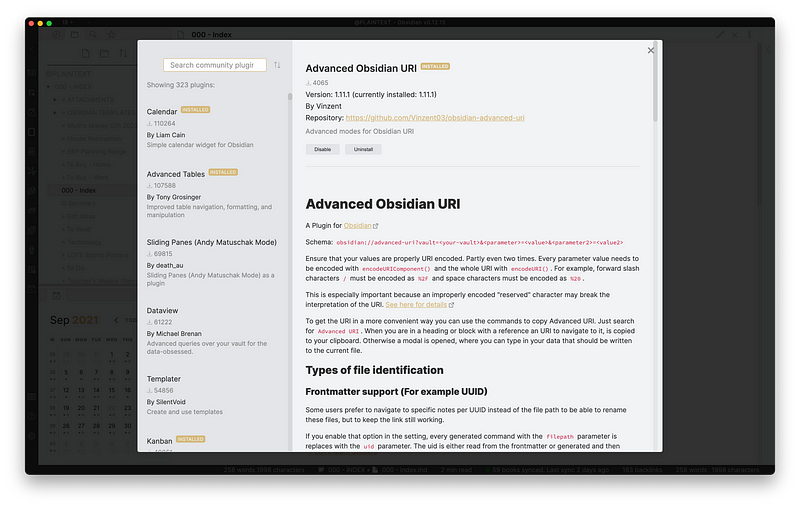
Step 1 Install and enable the Advanced Obsidian URI plugin in Obsidian.
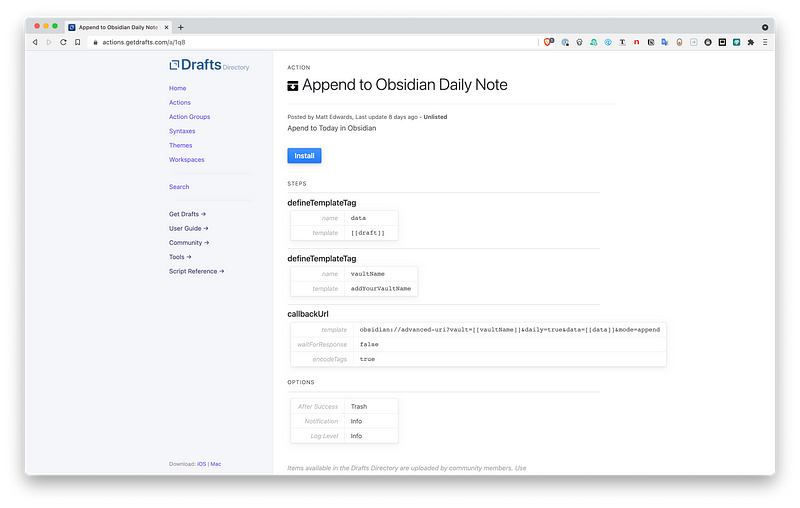
Step 2 Install this action into Drafts on either Mac or iOS.
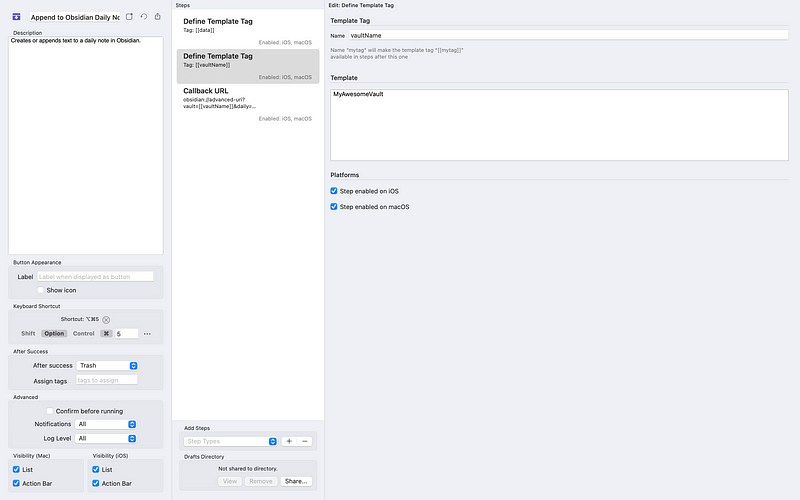
Step 3 Right/Control click (Mac) on the action or slide it to the right (iOS) to edit it. Select Steps and replace the text in step 2 with the name of your Obsidian vault. Don’t edit steps 1 or 3.
Step 4 Enter text into Drafts. Choose the Append to Obsidian Daily Note action.
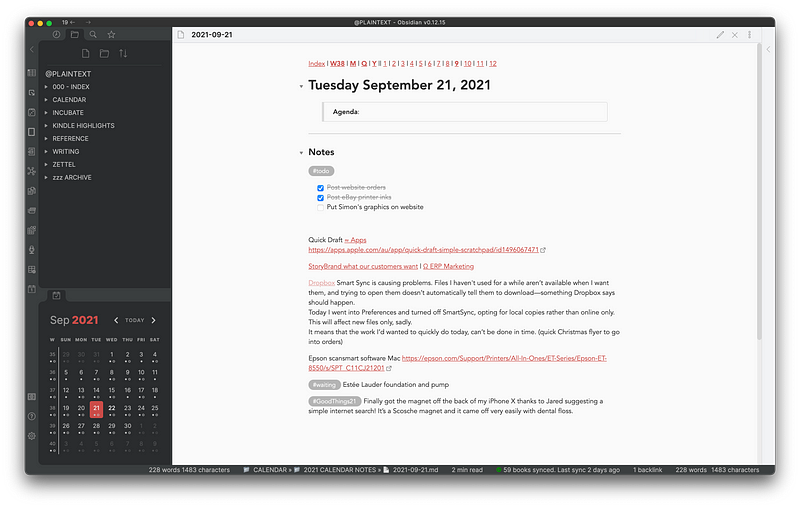
The next screenshot shows one of my daily notes. I entered almost everything below the to do list into Drafts first before sending it to Obsidian via this action.
This represents a significant saving of time from a navigational perspective, but it also means I’m no longer distracted by other shiny objects on my way to where I want my notes to go.
Create a file anywhere in your Obsidian vault
Drafts can easily create files within subfolders in your Obsidian vault without first having to navigate to the right spot. Taking away the friction from entering and adding to text in Obsidian not only saves time, it can keep you focused on the product (the thing you’re making), not the process (the way it’s made).
Step 1 Install and enable the Advanced Obsidian URI plugin in Obsidian, as above.
Step 2 Install this action into Drafts
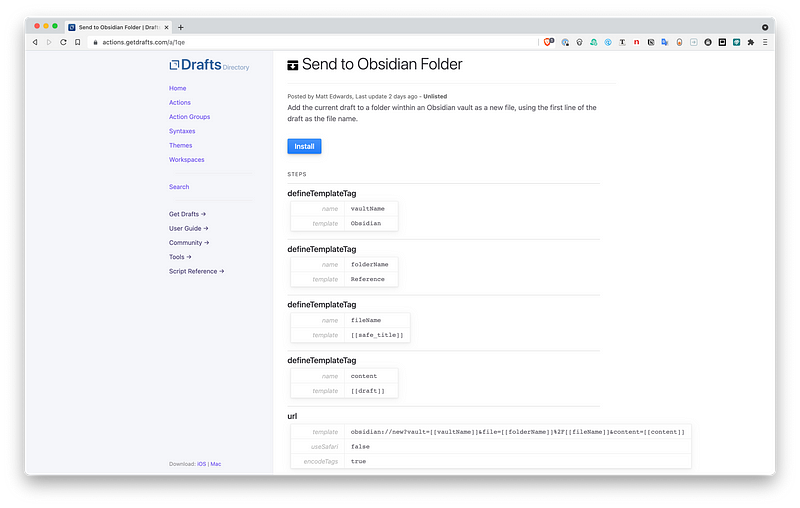
Step 3 Control click on the action, or slide it to the right (iOS) to edit it. Select Steps and replace the text in the Template section of the first step with the name of your Obsidian vault. Leave the name at the top as vaultName.
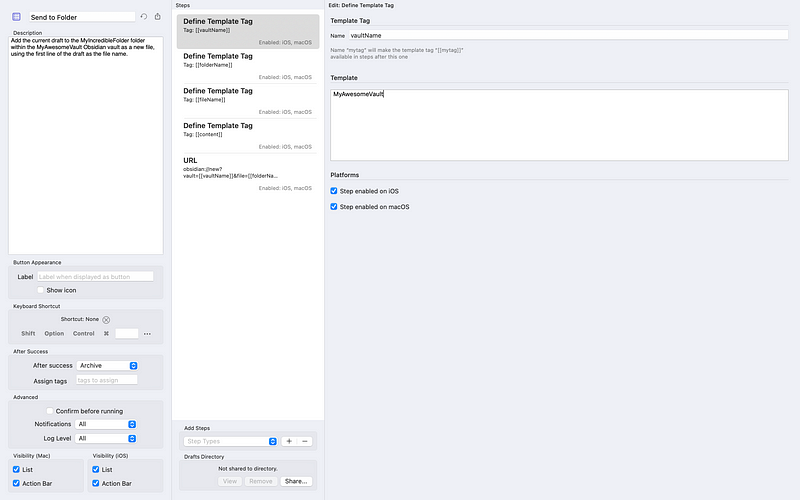
Step 4 Select the second step and replace the text in the Template section with the name of the folder within your vault that you want the file created in. If you want it to go into a folder within a folder, separate the names of the folders with a forward slash. Eg. MyIncredibleFolder/Subfolder1. Leave the name at the top as folderName. Don’t edit the last three steps.
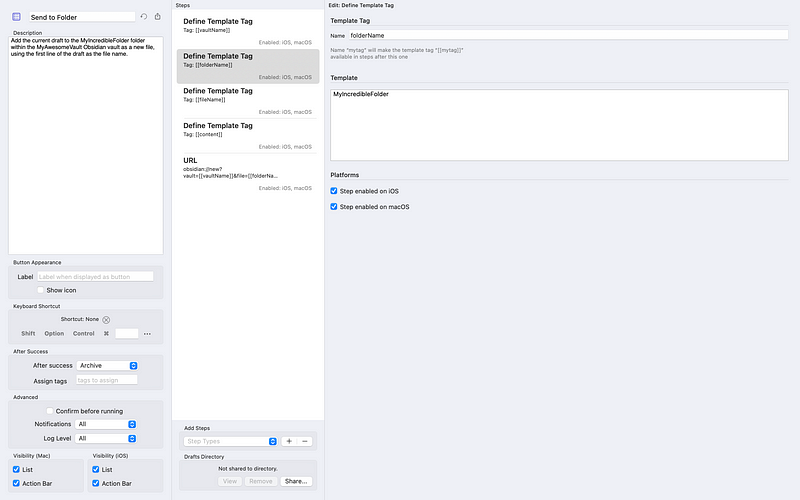
Step 5 Start writing in Drafts, remembering that the first line will be the title of the file when it’s sent to Obsidian. Choose the Send to Folder action to be magically transported to that exact spot in Obsidian.
Wrap Up and Extra Tips
For a distraction-free portal to capture plain text in a way that makes it easy to find when needed, the Drafts + Obsidian combination is hard to beat.
I’m no longer distracted by other shiny objects on my way to where I want my notes to go.
To set up Drafts as your Obsidian text portal, first install the Advanced Obsidian URI plugin in Obsidian, then install and modify these two actions:
Extra Tip 1 Keep Drafts open on your Mac in its own full-screen space, so you can access a new note any time just by swiping with 3 or 4 fingers (depending on how your gestures are set up). Drafts sits on the dock of both my iPad and iPhone, so it’s always within easy reach. I love how it automatically presents me with a new note every time I open it.
Extra Tip 2 Assign keyboard shortcuts to your main Drafts actions for an even quicker way to get text into Obsidian while the idea is still hot.
Other apps in my productivity workflow:
- Apple’s Reminders
- BusyCal (because of its supremely useful integration with Reminders)
- DEVONthink and DEVONthink To Go (just started exploring these and very impressed so far)
I hope I’ve explained everything clearly, but if you’re confused about any of the steps please leave a comment and I’ll try to help.
You might also enjoy—
Not a Medium member yet? Join up at this link to help support Ellane’s work, and that of other wonderful writers on this platform!


