avatarEllane W

Free AI web copilot to create summaries, insights and extended knowledge, download it at here

3857

Abstract

</i> use Drafts. I came awfully close to dropping the new mobile app, I can tell you! That’s how important Drafts is to streamlining my workflow.</p><p id="af37">Even Obsidian sync (at US4 a month) can’t solve this problem.</p><p id="1df8">The excellent Obsidian Discord community has links to proposed solutions, but most of those were outside my limited tech experience.</p><p id="7bec">As often happens, at 3:00 am one morning my subconscious cleared its throat and gave a full report on possible workarounds. Instantly awake, I got up and started working on the problem.</p><p id="c872">It took a couple of frustrating weeks of trial and error, but I’m happy to report that I got there! Cue the joyful strains of sweet, sweet productivity music. Different theme to the opening number, but still the same symphony.</p><h1 id="827c">The Ingredients, and the Solution</h1><p id="d508">You will need —</p><ul><li>Drafts (19.99/year)</li><li>Obsidian (free)</li><li>Hazel ($42.00—expensive, but worth it if you like the idea of having a digital valet)</li></ul><p id="30ef">I realise it’s not a free solution, but I was already using Drafts and Hazel so putting this solution in place didn’t leave me out of pocket. If you’re new to Hazel, check out the clever people at Asian Efficiency for some cool workflows.</p><p id="707c">Now to set up Hazel to bridge the gap between Drafts and Obsidian. We’ll use my <i>Incubate</i> Drafts action as an example.</p><p id="fc8f">When my Obsidian vault was in Dropbox, the flow looked like this:</p><ul><li>Text entry in Drafts</li><li>Drafts action adds a new file to the <i>Incubate</i> folder within my Obsidian vault in Dropbox</li></ul><p id="a12f">In iCloud, the flow has some extra steps:</p><ul><li>Text entry in Drafts</li><li>Drafts action adds a new file to the <i>Drafts</i> folder in iCloud</li><li>Hazel detects that the file meets set criteria</li><li>Hazel moves the file to the <i>Incubate</i> folder within the Obsidian vault in iCloud</li></ul><figure id="fcf4"><img src="https://cdn-images-1.readmedium.com/v2/resize:fit:800/1*OnrDIuGlHd_-iejV6f0e8w.png"><figcaption>Drafts rule for Incubate folder in Obsidian. Screenshot by author.</figcaption></figure><p id="41a2">The symbols under the date in the Drafts action are there as an identifier so the Hazel rule knows where this file should go. What the symbol is doesn’t matter. You just need some sort of character combination that’s unlikely to be anywhere in the text of an unrelated file.</p><figure id="9db5"><img src="https://cdn-images-1.readmedium.com/v2/resize:fit:800/1*pZDRP9YAxynABzHcjws1qw.png"><figcaption>Hazel rule for Incubate folder in Obsidian. Screenshot by author.</figcaption></figure><p id="41a8">Simple! Despite the extra steps, the time and effort I expend remains the same.</p><p id="0caa">What about appending text to a file? That one took longer to solve. I wanted to continue what I’d being doing in Dropbox: writing quick notes in Drafts that instantly appeared at the bottom of my daily note in Obsidian.</p><p id="3eb3">With the vault in Dropbox, the flow looked like this:</p><ul><li>Text entry in Drafts</li><li>Drafts action appends text to that day’s note in the Obsidian vault in Dropbox</li></ul><p id="5bd5">In iCloud:</p><ul><li>Text entry in Drafts</li><li>Drafts action creates daily note file in the Drafts folder in iCloud, with additional uses of the action appending text to this same file</li><li>Daily note file remains in the Drafts folder in iCloud. A copy is placed in the Calendar folder in Obsidian vault in iCloud, replacing the file with an updated version if it already exists</li><li>Appended note appears in today’s daily note in Obsidian via transclusion</li></ul><figure id="7693"><img src="https://cdn-images-1.readmedium.com/v2/resize:fit:800/1*OnrDIuGlHd_-iejV6f0e8w.png"><figcaption

Options

Daily note Drafts action. Screenshot by author.</figcaption></figure><p id="c974">I’ve made a similar action to add to my Monthly Note in Obsidian.</p><figure id="23be"><img src="https://cdn-images-1.readmedium.com/v2/resize:fit:800/1*cPUKLQuxsx14tvFhs9wHRA.png"><figcaption>Daily note Hazel rule. Screenshot by author.</figcaption></figure><p id="3421">It’s important to have this rule at or near the top of the list in Hazel. I found that when it was further down, the rule didn’t work as expected. I also found it works better when you add a second daily note rule beneath the first:</p><figure id="7351"><img src="https://cdn-images-1.readmedium.com/v2/resize:fit:800/1*lSRFanENuSqkU9LqUsemKw.png"><figcaption>Daily note, modified rule in Hazel. Screenshot by author.</figcaption></figure><p id="44b2">There may be a better way to set up these rules, but for now, they work. I can enter text in Drafts and have it show up within seconds in Obsidian—all within iCloud. Of course this relies on having a Mac open and running Hazel, even when working solely on an iOS device.</p><figure id="6b19"><img src="https://cdn-images-1.readmedium.com/v2/resize:fit:800/1*[email protected]"><figcaption>Obsidian daily note, showing transcluded note from Drafts. Screenshot by author.</figcaption></figure><p id="5597">You may have noticed that “Captain’s Log” has been added to the name of my Drafts daily note. It’s important to use a different name to the regular daily note so Obsidian knows which to open and which to transclude.</p><p id="cd51">I’ve created another Hazel rule to archive previous days’ Captain’s Logs in a subfolder within the Drafts folder in iCloud.</p><h1 id="ce7c">Now go set the world on fire!</h1><p id="156e">You don’t have to be an Obsidian user to apply the power of Drafts and Hazel in your life, or to successfully run a second brain. What matters is what you do with the information you’re recording; what’s it for, and how will you access it again?</p><p id="5edc">I recommend reading Tiago Forte’s <a href="https://fortelabs.co/blog/category/types/free/">Praxis blog</a>. If you like what you see, consider signing up for a month to read the paywalled posts. It’s well worth it, if only to get the full picture on his PARA method for organising your digital life.</p><p id="e970">If you need a primer on Obsidian, check out <a href="undefined">Brooke Harrison</a>’s excellent work here on Medium. Her newsletter is well worth signing up for if you’d prefer a small amount of easily digestible information delivered regularly (but not annoyingly often).</p><p id="9cf5">Once the technical side of things is running smoothly, it’s time to focus on what you’re going to build with all that out-sourced brainpower. The beautiful part of this is that it’s ok not to know, when you’re starting out, where you’ll end up—many beautiful, serendipitous surprises await. If you have a working Zettelkasten, you’ll know exactly what I mean.</p><p id="2029">Go forward, my friend! Go forward and record the thought fragments, the sparks that fire up your brain when you read inspiring books and articles, and let them form into infinite, magical bubbles of world-changing light!</p><div id="3699" class="link-block"> <a href="https://readmedium.com/3-vital-mac-apps-in-my-plain-text-productivity-system-d92ebb095728"> <div> <div> <h2>3 Vital Mac Apps in My Plain Text Productivity System</h2> <div><h3>How Drafts, Obsidian and Hook bring it all together</h3></div> <div><p>medium.com</p></div> </div> <div> <div style="background-image: url(https://miro.readmedium.com/v2/resize:fit:320/0*XIVmEzEDwNvQAGtX)"></div> </div> </div> </a> </div></article></body>

How to Use Obsidian Mobile With Drafts (and Why You Should)

Find out how I streamlined my second brain and simplified my life ☆ Updated—new method ☆

Image by Julius Silver from Pixabay. Icons courtesy Apple App Store.

This method outlined below still works, but since publishing it I’ve come across what I believe is a much better, cheaper and more elegant solution. Click here and prepare to be amazed!

I’m an Apple user and a former app addict, on a journey toward simplifying my physical and digital life.

Earlier this year the simplicity and autonomy of plain text files called my name, and I answered — joyfully! Notion, Notejoy and their cousins are still my servants, but no longer my masters.

Obsidian is a powerful knowledge base on top of a local folder of plain text Markdown files. (Source: obsidian.md)

I’m currently using Obsidian on top of a folder — or vault, in Obsidian terms — for these things, and more:

  • Project management
  • Fully hyperlinked year, quarter, month, week and day planner
  • Goal planning and tracking
  • Wishlists
  • Writing ideas and drafts
  • Literature notes
  • Zettelkasten (second brain)

Until recently I was using Dropbox to store my Obsidian vaults. Drafts was the starting point for almost everything I wrote, and the two integrated seamlessly. I could write or dictate a quick note in Drafts from any of my Apple devices and send it to the correct Obsidian folder (or append it to the right document) in one fluid motion, via a bespoke list of Actions.

Before the Obsidian mobile app came along I used 1Writer on my iPhone and iPad to access my vault, and that worked well enough for most things. It did take longer to navigate due to incompatibility with sub folders, so I always preferred working in Obsidian on my Mac.

Still, it was a beautiful system and I loved it.

Then came the announcement that the Obsidian mobile app was at last ready for public consumption, to great rejoicing! If things flowed before, this new setup would surely bring about a flood, nay, a deluge of productivity, right?

Uh …wrong. Resoundingly and heartbreakingly, wrong.

The problem with the Obsidian mobile app

You see, if you’re as intent on going the free route as I was, your Obsidian vaults must live in iCloud in order to be accessed by the mobile app.

Blithely I moved my vaults over to their new home, and tried to continue as before. Everything was fine and dandy except for one thing: Drafts could no longer communicate with my Obsidian folders.

Gasp!

It was cut off. Doomed to radio silence.

It was like moving house, then realising I’d have to walk to work through the bush because the Council hadn’t built any roads (and didn’t intend to).

Thanks for nothing, iCloud! Why why why won’t you let Drafts actions add and update files to locations other than their original app folder?? I know, I know; walled garden Appley security stuff.

I seemed to be faced with an ultimatum: use the Obsidian mobile app, or use Drafts. I came awfully close to dropping the new mobile app, I can tell you! That’s how important Drafts is to streamlining my workflow.

Even Obsidian sync (at US$4 a month) can’t solve this problem.

The excellent Obsidian Discord community has links to proposed solutions, but most of those were outside my limited tech experience.

As often happens, at 3:00 am one morning my subconscious cleared its throat and gave a full report on possible workarounds. Instantly awake, I got up and started working on the problem.

It took a couple of frustrating weeks of trial and error, but I’m happy to report that I got there! Cue the joyful strains of sweet, sweet productivity music. Different theme to the opening number, but still the same symphony.

The Ingredients, and the Solution

You will need —

  • Drafts ($19.99/year)
  • Obsidian (free)
  • Hazel ($42.00—expensive, but worth it if you like the idea of having a digital valet)

I realise it’s not a free solution, but I was already using Drafts and Hazel so putting this solution in place didn’t leave me out of pocket. If you’re new to Hazel, check out the clever people at Asian Efficiency for some cool workflows.

Now to set up Hazel to bridge the gap between Drafts and Obsidian. We’ll use my Incubate Drafts action as an example.

When my Obsidian vault was in Dropbox, the flow looked like this:

  • Text entry in Drafts
  • Drafts action adds a new file to the Incubate folder within my Obsidian vault in Dropbox

In iCloud, the flow has some extra steps:

  • Text entry in Drafts
  • Drafts action adds a new file to the Drafts folder in iCloud
  • Hazel detects that the file meets set criteria
  • Hazel moves the file to the Incubate folder within the Obsidian vault in iCloud
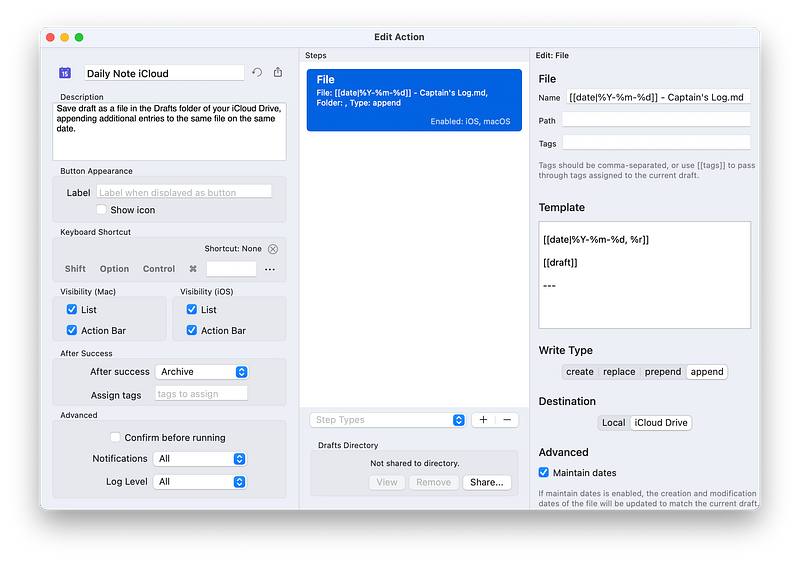
Drafts rule for Incubate folder in Obsidian. Screenshot by author.

The symbols under the date in the Drafts action are there as an identifier so the Hazel rule knows where this file should go. What the symbol is doesn’t matter. You just need some sort of character combination that’s unlikely to be anywhere in the text of an unrelated file.
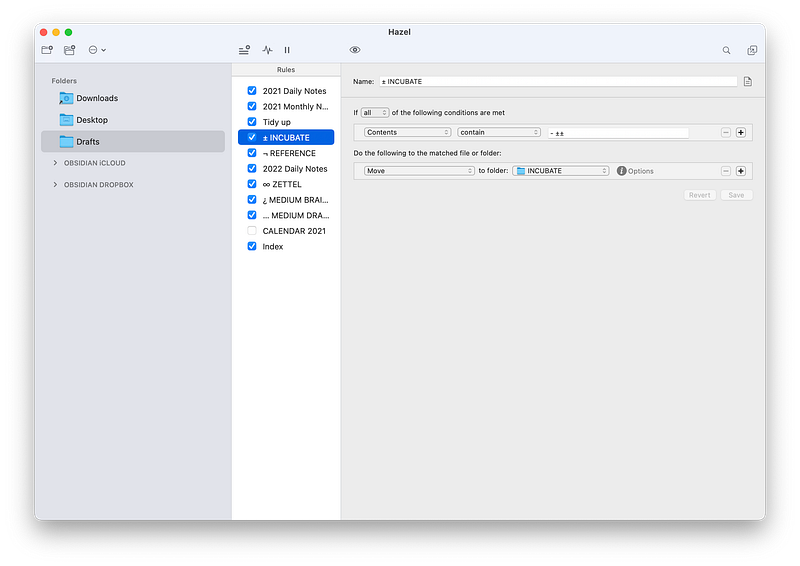
Hazel rule for Incubate folder in Obsidian. Screenshot by author.

Simple! Despite the extra steps, the time and effort I expend remains the same.

What about appending text to a file? That one took longer to solve. I wanted to continue what I’d being doing in Dropbox: writing quick notes in Drafts that instantly appeared at the bottom of my daily note in Obsidian.

With the vault in Dropbox, the flow looked like this:

  • Text entry in Drafts
  • Drafts action appends text to that day’s note in the Obsidian vault in Dropbox

In iCloud:

  • Text entry in Drafts
  • Drafts action creates daily note file in the Drafts folder in iCloud, with additional uses of the action appending text to this same file
  • Daily note file remains in the Drafts folder in iCloud. A copy is placed in the Calendar folder in Obsidian vault in iCloud, replacing the file with an updated version if it already exists
  • Appended note appears in today’s daily note in Obsidian via transclusion
Daily note Drafts action. Screenshot by author.

I’ve made a similar action to add to my Monthly Note in Obsidian.
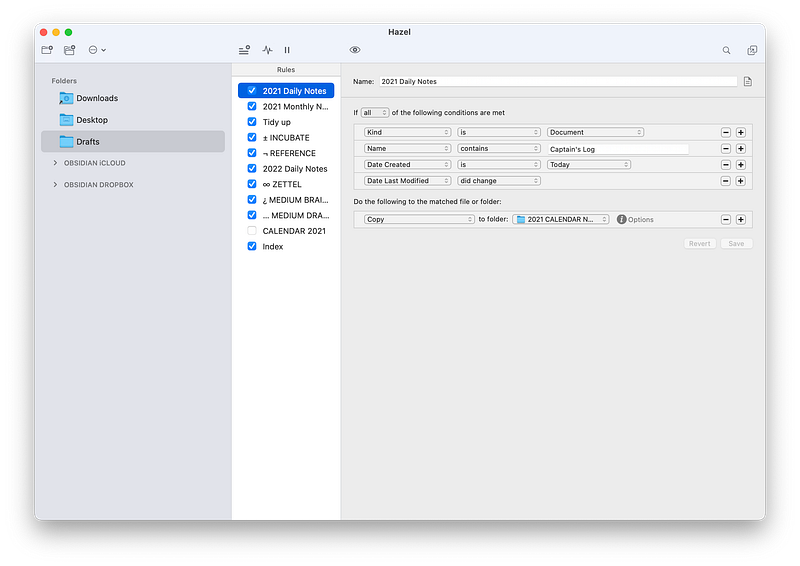
Daily note Hazel rule. Screenshot by author.

It’s important to have this rule at or near the top of the list in Hazel. I found that when it was further down, the rule didn’t work as expected. I also found it works better when you add a second daily note rule beneath the first:
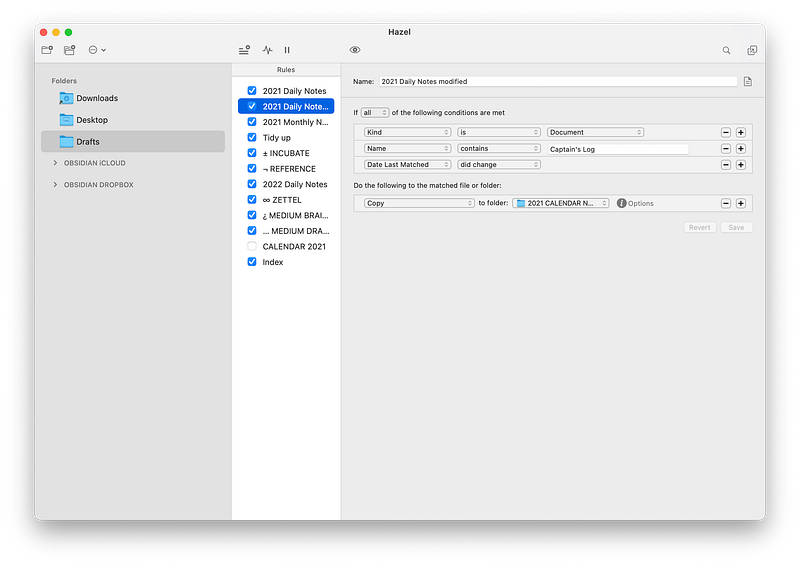
Daily note, modified rule in Hazel. Screenshot by author.

There may be a better way to set up these rules, but for now, they work. I can enter text in Drafts and have it show up within seconds in Obsidian—all within iCloud. Of course this relies on having a Mac open and running Hazel, even when working solely on an iOS device.
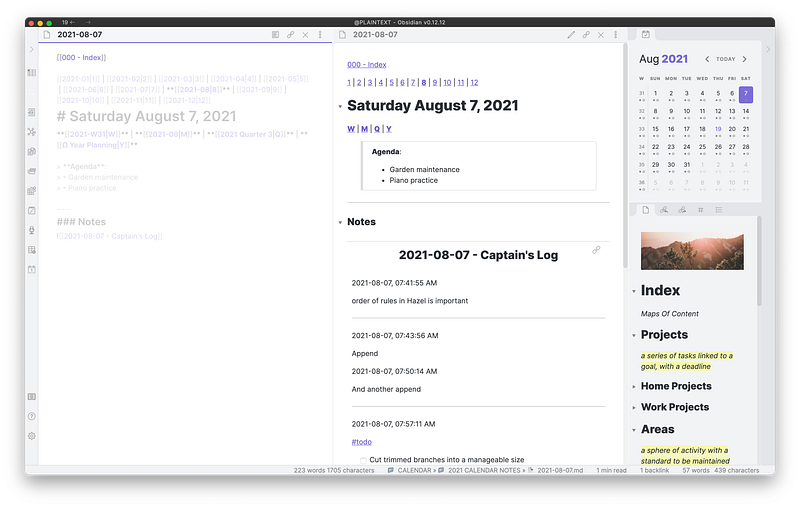
Obsidian daily note, showing transcluded note from Drafts. Screenshot by author.

You may have noticed that “Captain’s Log” has been added to the name of my Drafts daily note. It’s important to use a different name to the regular daily note so Obsidian knows which to open and which to transclude.

I’ve created another Hazel rule to archive previous days’ Captain’s Logs in a subfolder within the Drafts folder in iCloud.

Now go set the world on fire!

You don’t have to be an Obsidian user to apply the power of Drafts and Hazel in your life, or to successfully run a second brain. What matters is what you do with the information you’re recording; what’s it for, and how will you access it again?

I recommend reading Tiago Forte’s Praxis blog. If you like what you see, consider signing up for a month to read the paywalled posts. It’s well worth it, if only to get the full picture on his PARA method for organising your digital life.

If you need a primer on Obsidian, check out Brooke Harrison’s excellent work here on Medium. Her newsletter is well worth signing up for if you’d prefer a small amount of easily digestible information delivered regularly (but not annoyingly often).

Once the technical side of things is running smoothly, it’s time to focus on what you’re going to build with all that out-sourced brainpower. The beautiful part of this is that it’s ok not to know, when you’re starting out, where you’ll end up—many beautiful, serendipitous surprises await. If you have a working Zettelkasten, you’ll know exactly what I mean.

Go forward, my friend! Go forward and record the thought fragments, the sparks that fire up your brain when you read inspiring books and articles, and let them form into infinite, magical bubbles of world-changing light!

Productivity
Technology
How To
Apple
Geek
Recommended from ReadMedium