ad8">
<div>
<div>
<img class="ratio" src="http://placehold.it/16x9">
<iframe class="" src="https://cdn.embedly.com/widgets/media.html?src=https%3A%2F%2Fwww.youtube.com%2Fembed%2FP3r8o-bGA24%3Ffeature%3Doembed&url=http%3A%2F%2Fwww.youtube.com%2Fwatch%3Fv%3DP3r8o-bGA24&image=https%3A%2F%2Fi.ytimg.com%2Fvi%2FP3r8o-bGA24%2Fhqdefault.jpg&key=d04bfffea46d4aeda930ec88cc64b87c&type=text%2Fhtml&schema=youtube" allowfullscreen="" frameborder="0" height="480" width="854">
</div>
</div>
</figure></iframe></div></div></figure><h2 id="8d00">BTW, What is MIT App Inventor 2?</h2><p id="f6ba">MIT App Inventor is an innovative beginner’s introduction to programming and app creation that transforms the complex language of text-based coding into visual, drag-and-drop building blocks. The simple graphical interface grants even an inexperienced an novice the ability to create a basic, fully functional app within an hour or less.</p><p id="aee0">…</p><p id="94ef">There you go!!!</p><p id="5407">Till the next episode of #kidSerie!!!</p><p id="eb76">Bye!!!</p><p id="acc0"><a href="https://drive.google.com/drive/folders/0B2jJGfEnJNN6TUstdHRpR0VFdUk?usp=sharing">Download All Project Archives</a></p><h2 id="c946">Troubleshooting:</h2><p id="801c">When you press the <b>Upload </b>Button on the Arduino IDE, hold the <b>Blue </b>Wire and give a <b>pulse </b>on the <b>GND</b>; this has to be done seconds before the Arduino indicates <b>Uploading</b>; Make sure the <b>Orange </b>Wire is on the <b>GND</b>. When the <b>Upload </b>finishes, remove the <b>Orange </b>Wire from the <b>GND</b>, let it <b>float </b>and then with the <b>Blue </b>Wire give a <b>pulse </b>on the <b>GND</b>. The <b>Serial Monitor</b> should acknowledge the:</p><div id="2f87"><pre>Connecting to <your_wifi_ssid>
……
<span class="hljs-built_in">WiFi</span> connected
<span class="hljs-built_in">Server</span> started
<your_port_number></pre></div><p id="e4f8">Do not forget to edit the code according to your WiFi network;) <your_wifi_ssid> and <your_port_number></your_port_number></your_wifi_ssid></p><h2 id="7eb0">References:</h2><p id="d524"><a href="http://www.appinventor.org/bookChapters/chapter24.pdf">Communicating with the Web</a></p><p id="3ded"><a href="http://appinventor.mit.edu/explore/ai2/setup.html">Setting Up App Inventor</a></p><p id="00c4"><a href="https://readmedium.com/arduino-headless-setup-esp-8266-wifi-cheap-chip-16-arduserie-ffaecf77729a#.wq2nzmoza">ESP8266 Flashing Tutorial</a></p><div id="8b33" class="link-block">
<a href="https://tttapa.github.io/ESP8266/Chap01%20-%20ESP8266.html">
<div>
<div>
<h2>A Beginner's Guide to the ESP8266</h2>
<div><h3>Pieter P, 08-03-2017 Some time ago, I wrote a Beginner's Guide to Arduino that seems to be very popular, so I decided…</h3></div>
<div><p>tttapa.github.io</p></div>
</div>
<div>
<div style="background-image: url(https://miro.readmedium.com/v2/resize:fit:320/)"></div>
</div>
</div>
</a>
Options
</div><h2 id="9b76">Related Posts</h2><p id="8a55"><a href="https://readmedium.com/arduino-uno-quick-intro-94c7c682740a"><b>Arduino UNO — Quick Intro</b> </a>— A Workshop in <a href="https://en.wikipedia.org/wiki/Federal_District_(Brazil)">BSB</a> with the Kids :) — <a href="https://github.com/giljr/kidSeries">kidSerie#10</a></p><p id="f3d1"><a href="https://readmedium.com/j3-resistance-wheel-f7b7095c16bf"><b>J3 Resistance wheel </b></a>— The Best Methods to Reading Resistors 4Kids — Tell Me Quickly What The Value Of Resistance! — kidSerie#11</p><p id="7a11"><a href="https://readmedium.com/arduino-uno-quick-intro-94c7c682740a"><b>Arduino UNO — Quick Intro</b> </a>— A Workshop in <a href="https://en.wikipedia.org/wiki/Federal_District_(Brazil)">BSB</a> with the Kids :) — <a href="https://github.com/giljr/kidSeries">kidSerie#10</a></p><p id="f839"><a href="https://readmedium.com/mit-app-inventor-2-meets-esp8266-03-kidserie-fa92cc8ae8a2"><b>MIT App Inventor 2 Meets Esp8266!!!</b></a><b> </b>— Playing With ESP826 — kidSerie#03</p><p id="4675"><a href="https://readmedium.com/park-assist-i-w-mit-app-inventor-2-eee908a15543"><b>Park Assist I w/ MIT App Inventor 2 </b></a>— Bluetooth + Arduino + MIT App + HC-SR04 Sonar — kidSerie # 09</p><h1 id="a02b">More Related Posts</h1><p id="6317">Meet IoT Boards: <a href="https://readmedium.com/meet-iot-boards-esp8266-esp32-ba12e41c1a3b"><b>ESP8266 & ESP32 - Which are the best?</b></a> ESPs or RPis or Arduinos Boards? IoT — Episode #01</p><p id="d257"><a href="https://readmedium.com/adafruit-io-meets-esp8266-arduino-mit-app-inventor-2-14dc7737cc7b"><b>Adafruit-IO Meets ESP8266, Arduino & MIT App Inventor 2 — Hello World for Adafruit-io & MQTT Protocol</b></a><b> </b>— 05 #kidSerie</p><p id="162d"><a href="https://readmedium.com/mit-app-inventor-2-meets-esp8266-03-kidserie-fa92cc8ae8a2"><b>MIT App Inventor 2 Meets Esp8266!!!</b> </a>— Playing With ESP8266–03 #kidSerie</p><p id="8cac"><a href="https://readmedium.com/arduino-headless-setup-esp-8266-wifi-cheap-chip-16-arduserie-ffaecf77729a"><b>Arduino Headless Setup & ESP8266</b></a> (WIFI cheap chip!) — Rather Stunning MCU!!! — #arduSerie 16</p><p id="5e97"><a href="https://readmedium.com/flashing-the-official-espressif-firmware-in-esp8266-arduserie-17-2234fc088076"><b>Flashing The Official ESPRESSIF Firmware in ESP8266 !!! — Easy ESP8266 Flashing!!!</b></a> — #arduSerie 17</p><p id="7bb9"><a href="https://readmedium.com/get-started-using-at-commands-w-esp8266-arduserie-19-a09f20571b08"><b>Get Started Using AT Commands w/ ESP8266 — Multiple Connection as TCP Server </b></a>— #arduSerie 19</p><p id="47bc"><a href="https://readmedium.com/your-first-nodemcu-lua-script-flash-on-esp8266-e614b33a6de1"><b>Your First NodeMCU/Lua Script Flash on ESP8266!!!</b> </a>— Let’s get our feet wet with NodeMCU/Lua and sees what happens !!- #arduSerie 20</p><p id="889f"><i>— Reviewed at 24/04/2017 at 4:17 PM — Added Step 2 —</i></p><p id="c465"><i>— Edited at Nov 2018 — Grammar corrections w/ <a href="http://www.grammarly.com/">Grammarly </a>— Review Fritz: add Arduino Bypass wire and LED—</i></p><p id="41ac"><i>— Edited at Dez 2018 —Step 3 added—</i></p><p id="9fc2">-</p></article></body>
MIT App Inventor 2 Meets Esp8266!!!
Playing With ESP8266–03 #kidSerie
This application demonstrates how to control an LED via the smartphone app using MIT App Inventor 2 and Arduino and ESP8266.
Now take your IoT thing ESP8266 and the following components:
3 x 10k resistors,
1 x 1k resistor,
1 x resistor of 330 ohms,
1 x led
1 x breadboard
Some jumpers
and, of course, Arduino UNO.
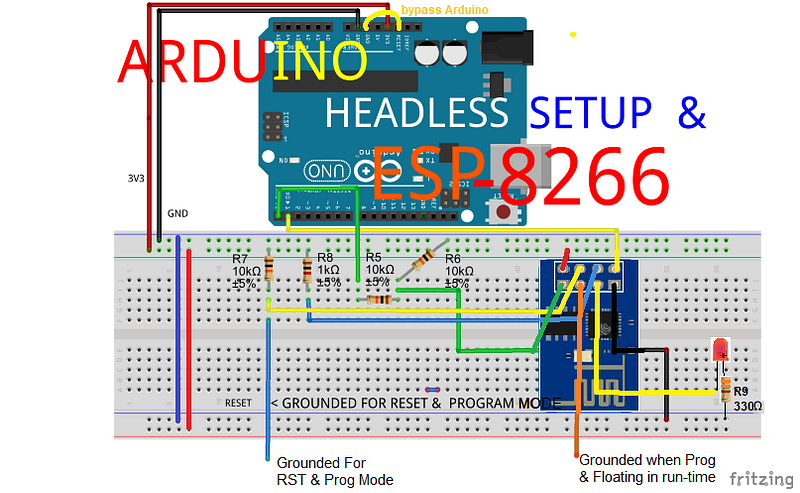
Here is the schematic:
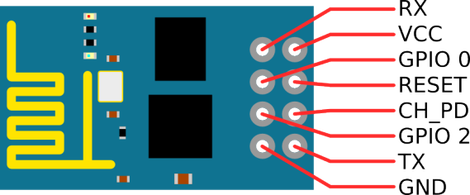
ESP82266 Pinout
Step 02 — Install ESP8266 Plugin on your Arduino IDE
Go to Arduino IDE, File>Preference and add the address below into the Additional URL Boards Manager:
Then go to the Tools menu> Board> Board Manager … Install the ESP8266 Plugin. There you go! Next: (See this post: https://goo.gl/AW4utX)
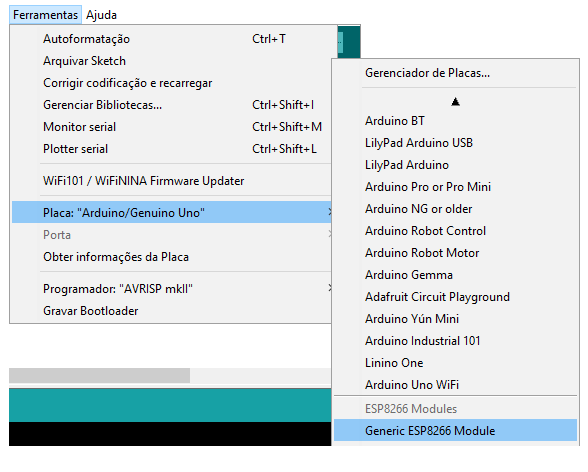
Step 03 — Then go to Tools menu > Board > Change from Arduino/Genuino Uno to Generic ESP8266 Module
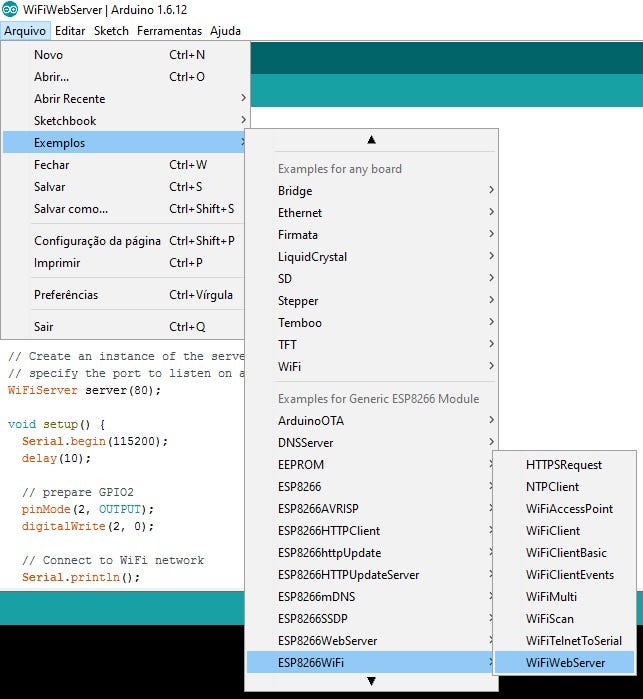
Step 04 — Run Example > ESP8266WiFi > WiFiWebServer code and flash it to the chip
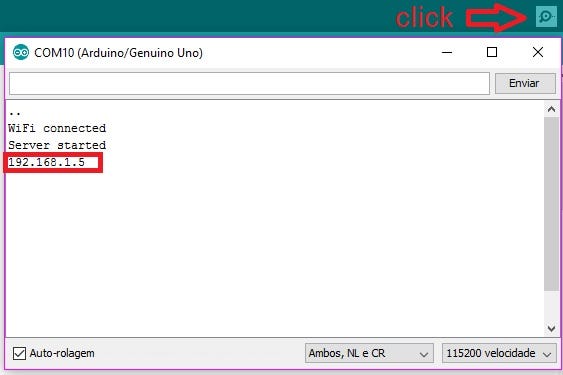
Step 05 — Find out which IP using the serial Arduino
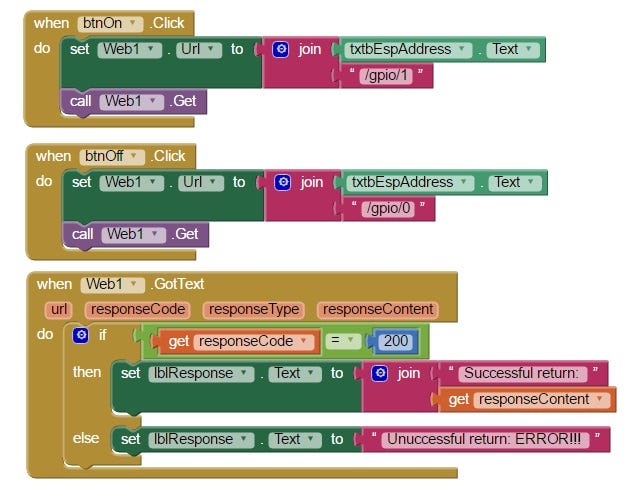
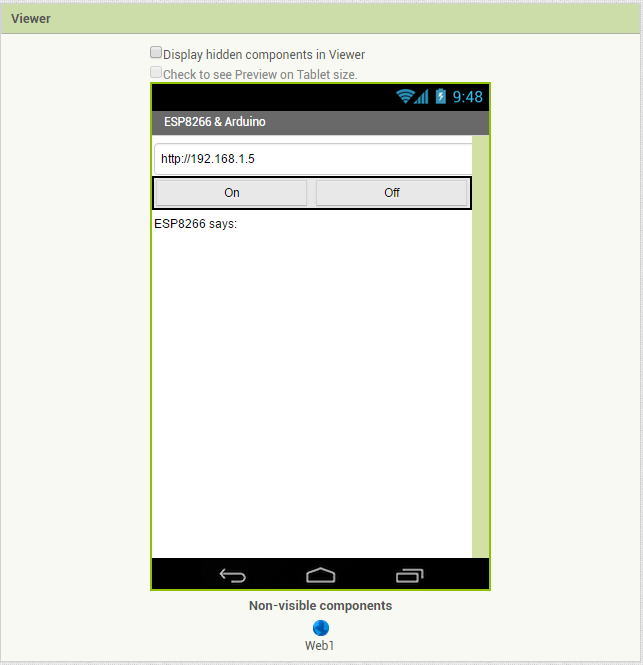
Step 06 — Create MIT App Inventor 2 app using this images as guideline:
Step 07— Run It!!!
Build apps with an Android device and WiFi Connection (preferred):
Instructions: If you have a computer, an Android device, and a WiFi connection, this is the easiest way to test your apps.
Here is the video:
BTW, What is MIT App Inventor 2?
MIT App Inventor is an innovative beginner’s introduction to programming and app creation that transforms the complex language of text-based coding into visual, drag-and-drop building blocks. The simple graphical interface grants even an inexperienced an novice the ability to create a basic, fully functional app within an hour or less.
When you press the Upload Button on the Arduino IDE, hold the Blue Wire and give a pulse on the GND; this has to be done seconds before the Arduino indicates Uploading; Make sure the Orange Wire is on the GND. When the Upload finishes, remove the Orange Wire from the GND, let it float and then with the Blue Wire give a pulse on the GND. The Serial Monitor should acknowledge the:
Connecting to <your_wifi_ssid>
……
WiFi connected
Server started
<your_port_number>
Do not forget to edit the code according to your WiFi network;) and