
Midjourney: Why should you love the default image file names?
Make a copy before renaming them.
This is one of the stories in the “Midjourney Mini Tutorials” series. The mini-tutorials are designed to help new Midjourney users perform specific tasks by providing simple, easy-to-follow instructions.

Have you ever wondered why the file name of an image you downloaded from the Midjourney website or Discord server is so long and cryptic?
Perhaps you think it’s just a bunch of meaningless random numbers. That was also my first thought.
But, wrong.
The truth is that a page in the Midjourney User Guide explains the file name.
However, many users, including myself, ignored it because the file name is not a sexy topic to think about, especially for those who, like me, are terrible at naming their files.
Remember those Photoshop tutorials that asked the users to name their layers? I surrender.
So, which page of the Midjourney User Guide? Read it here.
That’s right. We are going to talk about the/show command in relation to the file name.
This is the file name format for an image:
[username]_[your-prompt]_[job-id-36-characters].png
- For example: myname_a_poster_art_advertisement_of_lady_holding_a_blank_signa_a1234567-a123–1234-a123–123456abcdef.png
- The filename can be up to 100 characters long (including underscore symbols).
- [username] is your name in the Discord server. E.g. “myname”
- [your-prompt] is the prompt that generated the image. If it is too long, it will be cut off. E.g. “a_poster_art_advertisement_of_lady_holding_a_blank_signa_”
- Job ID consists of 36 alphanumeric characters connected by hyphens. It can be found right before the file extension (.png). E.g. “a1234567-a123–1234-a123–123456abcdef”
- The Job ID is the most critical part of the file name.
- Job ID can be found on the Midjourney website or by referring to the image’s file name.
- To keep it simple, I’ll focus our discussion today on the file name.
- Some articles, including the official Midjourney User Guide) show that the Job ID can be found on the Midjourney website. If you remember the prompt of a specific image or haven’t generated many images, that’s fine. Otherwise, finding that specific image from thousands of images to find its job ID will take time.
What can you do with the Job ID?
- You can “refresh it” to access new features such as Outpainting and Inpainting, as well as potential future features.
- You can use it to retrieve the file’s seed number and the original prompt that was used to generate the image by retrieving them from Discord.
Problem statement
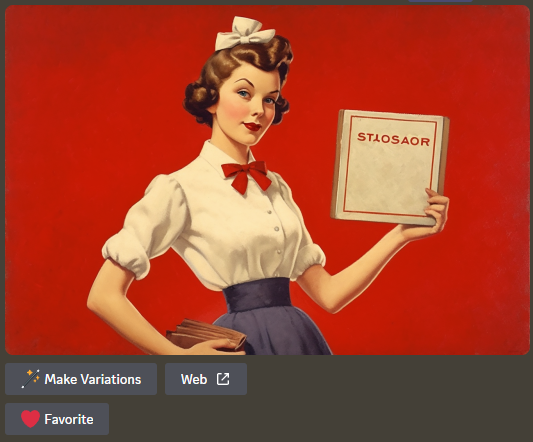
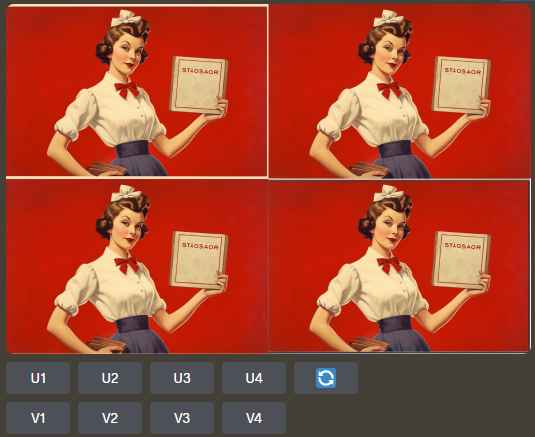
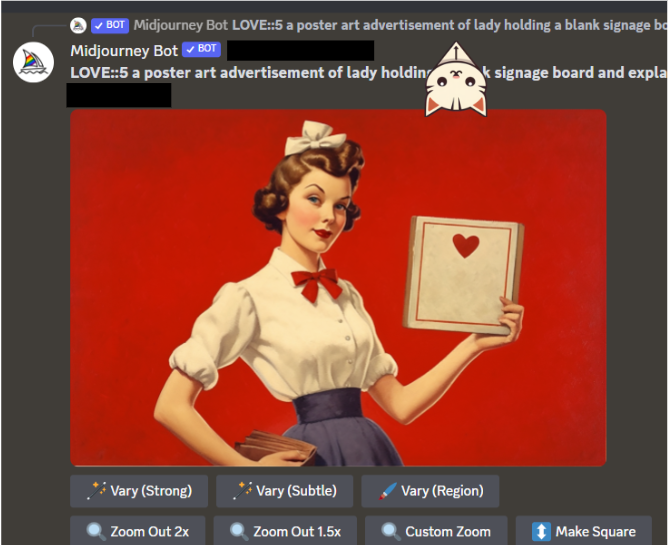
The image below was created prior to the introduction of Outpainting.
There is no button for the Outpainting and Inpainting features under the image.
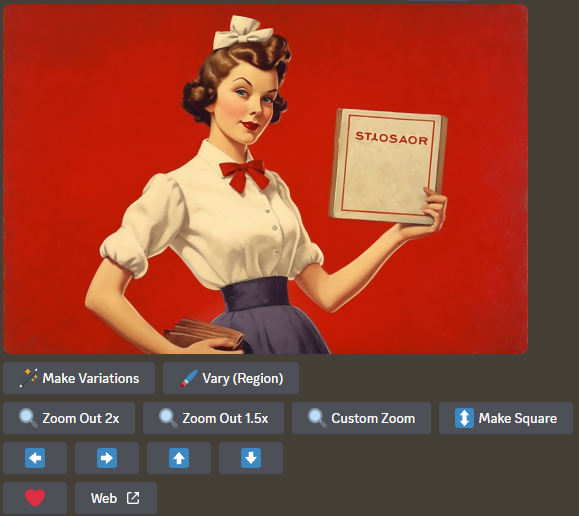
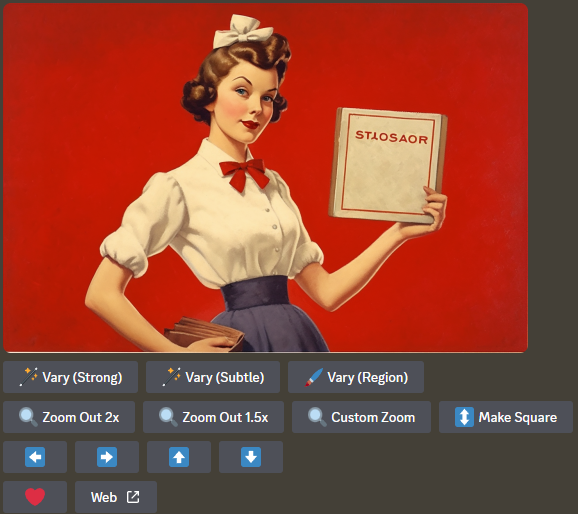
- Outpainting features are [Zoom Out 2x], [Zoom Out 1.5x], [Custom Zoom], [Make Square], and all the [Pan] arrow buttons.
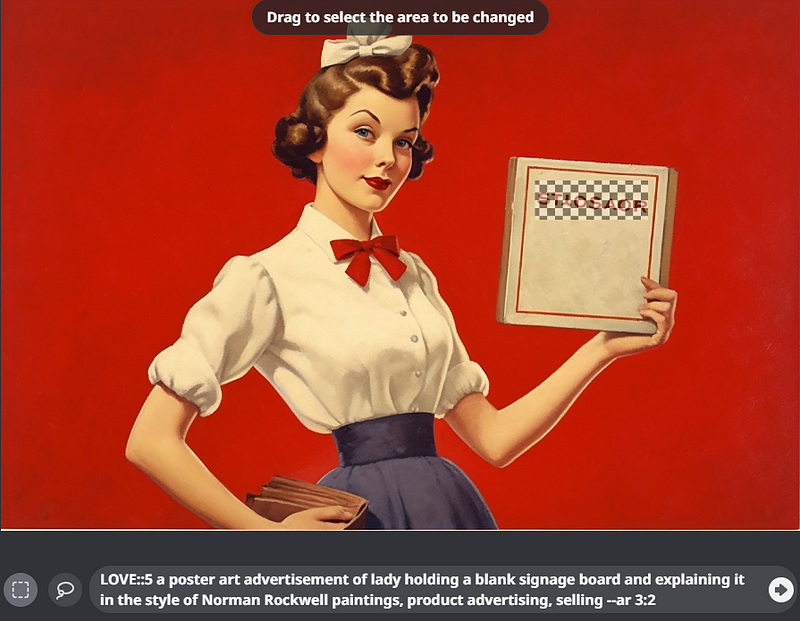
- The inpainting feature is the Vary (Region) button.
- You want to access to all newer features for this old image.
/imagine prompt: a poster art advertisement of lady holding a blank signage board and explaining it in the style of Norman Rockwell paintings, product advertising, selling --ar 3:2
Solution: 3 simple steps
- In Discord, look for an old image. Skip to Step 3 if you already have a copy of the old image with its default file name.
- Right-click on an image and select “Save Image” from the menu that appears. Find the Job ID from its default file name.
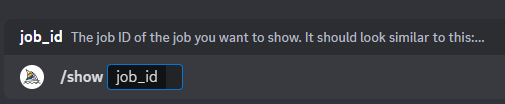
- Type
/showin Discord. Then copy and paste the Job ID.
The image will now have Outpainting and Inpainting buttons.
Bonus content: Access to all buttons
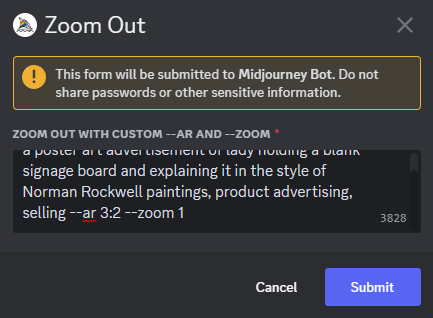
If you also want access to Vary (Strong) and Vary (Subtle) buttons, use the [Custom Zoom] method discussed in the previous story: Midjourney: Inpainting for upscaled images before the introduction of Vary (Region).
No time to read? Here’s a quick overview.

Use Job ID to retrieve the file seed number and original prompt
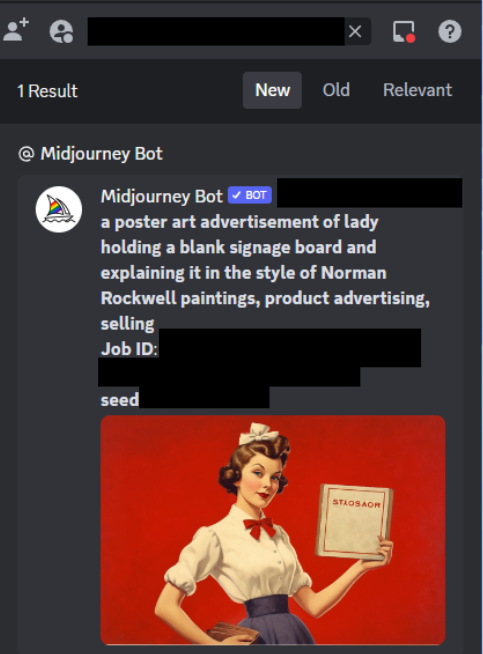
Assuming you saved a copy of the image with its default file name, you can enter its Job ID into the Discord search box to search for its seed number and original prompt.
Here’s how:
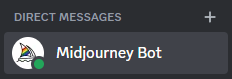
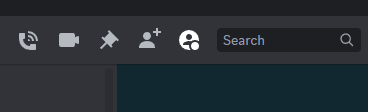
- Go to Direct Messages (top left corner) in Discord (or directly click the Midjourney Bot icon).
- Click “Midjourney Bot” and paste the Job ID into the Search Box at the top right corner.
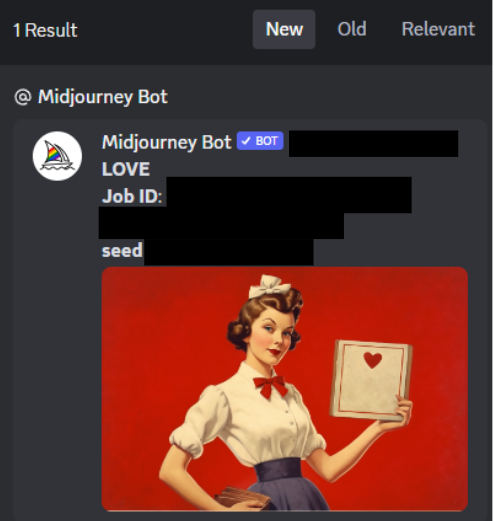
- The search result will show the original prompt and the seed number for that image.
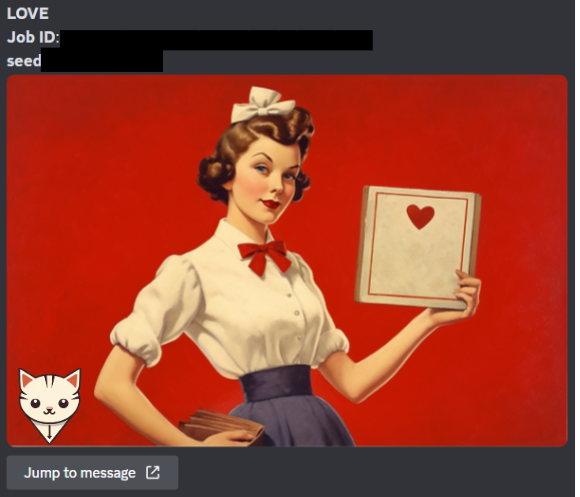
Be aware that after inpainting, the bot will delete the original prompt. This is not a problem because the original image can still be found using the link at the top of the image (see below). Click on that link to the original image and prompt. Or you can scroll up the search result a bit as the original image is usually nearby.

Practical tips
- Save or download a copy of the image with its default name. You can “refresh it” with its Job ID to gain access to future new features.
- Rename your working files. Keep the files with their default names as backup references.
- To re-use the original prompt and seed number, use its Job ID to retrieve them.
Related stories
Conclusion
- The default file name contains a Job ID, which is extremely useful.
- To access new features such as Outpainting and Inpainting, use
/show+ Job ID to refresh an old image. - To access the Vary (Strong) and Vary (Subtle) buttons, use the [Custom Zoom] method by setting the zoom level to 1.
- You can search for the original prompt and seed number using the file’s Job ID.
- Always save a copy of the file with the default name so you can refer to its Job ID later.
I hope you like this story!
Please give me a clap or leave a positive comment to let Medium’s algorithm know that this story is helpful and has contributed to its platform’s success.
Your support inspires me to create higher-quality content in the future!
Never miss a story. Follow me on Medium for updates, stories, and tips about Midjourney.
Sign up here for a free email alert when I post a new story.


