
Making an AlertDialog in Flutter
This is a repost of an answer I wrote on Stack Overflow.
If you need to display a message to a user and give them time to read it or request a response from them, you can use an AlertDialog. This is the equivalent of an Android AlertDialog or an iOS UIAlertController. The examples below show a basic setup for one, two, and three buttons.
One Button
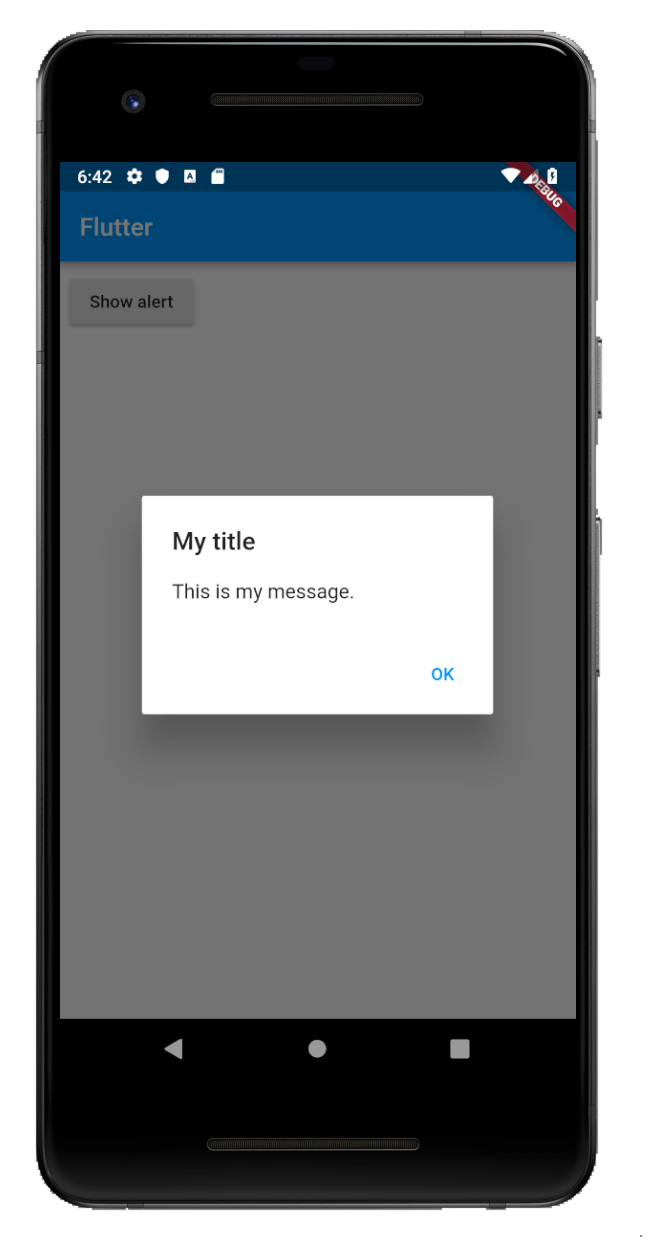
showAlertDialog(BuildContext context) { // set up the button
Widget okButton = FlatButton(
child: Text("OK"),
onPressed: () { },
); // set up the AlertDialog
AlertDialog alert = AlertDialog(
title: Text("My title"),
content: Text("This is my message."),
actions: [
okButton,
],
); // show the dialog
showDialog(
context: context,
builder: (BuildContext context) {
return alert;
},
);
}Two Buttons
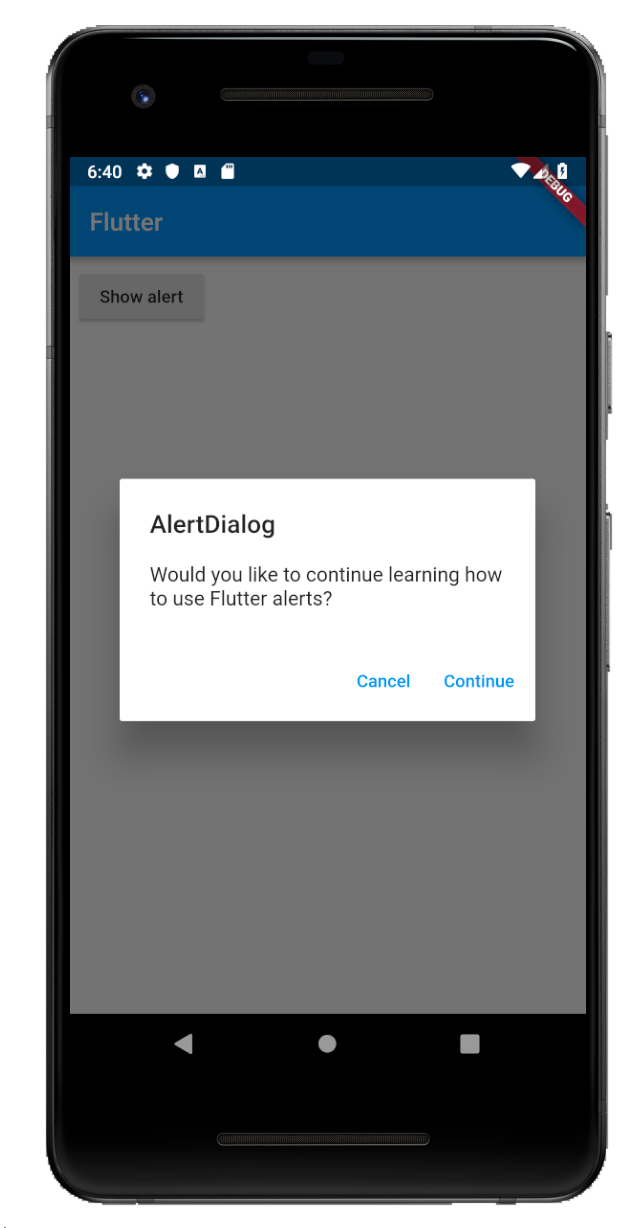
showAlertDialog(BuildContext context) { // set up the buttons
Widget cancelButton = FlatButton(
child: Text("Cancel"),
onPressed: () {},
);
Widget continueButton = FlatButton(
child: Text("Continue"),
onPressed: () {},
); // set up the AlertDialog
AlertDialog alert = AlertDialog(
title: Text("AlertDialog"),
content: Text("Would you like to continue learning how to use Flutter alerts?"),
actions: [
cancelButton,
continueButton,
],
); // show the dialog
showDialog(
context: context,
builder: (BuildContext context) {
return alert;
},
);
}Three Buttons
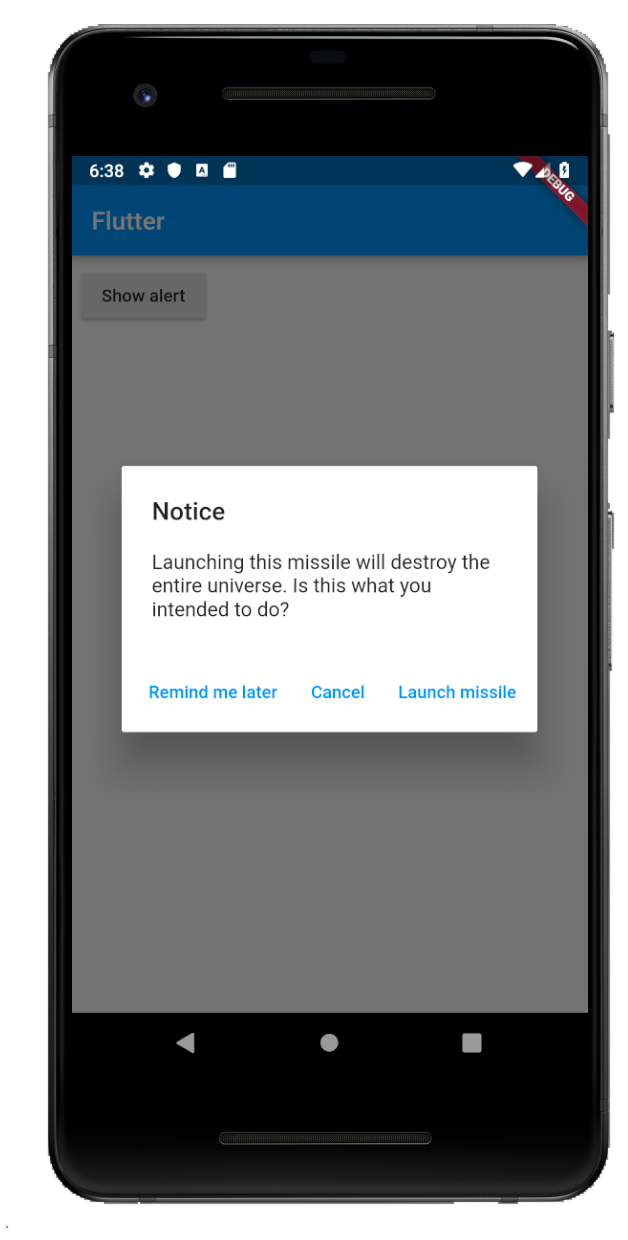
showAlertDialog(BuildContext context) { // set up the buttons
Widget remindButton = FlatButton(
child: Text("Remind me later"),
onPressed: () {},
);
Widget cancelButton = FlatButton(
child: Text("Cancel"),
onPressed: () {},
);
Widget launchButton = FlatButton(
child: Text("Launch missile"),
onPressed: () {},
); // set up the AlertDialog
AlertDialog alert = AlertDialog(
title: Text("Notice"),
content: Text("Launching this missile will destroy the entire universe. Is this what you intended to do?"),
actions: [
remindButton,
cancelButton,
launchButton,
],
); // show the dialog
showDialog(
context: context,
builder: (BuildContext context) {
return alert;
},
);
}Handling button presses
The onPressed callback for the buttons in the examples above were empty, but you could add something like this:
Widget launchButton = FlatButton(
  child: Text("Launch missile"),
  onPressed:  () {
    Navigator.of(context).pop(); // dismiss dialog
    launchMissile();
  },
);
If you make the callback null, then the button will be disabled.
onPressed: null,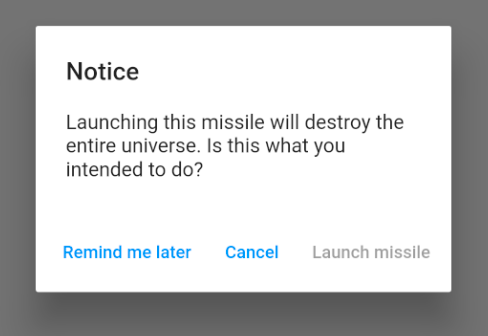
Supplemental code
Here is the code for main.dart in case you weren't getting the functions above to run.
import 'package:flutter/material.dart';void main() => runApp(MyApp());class MyApp extends StatelessWidget {
@override
Widget build(BuildContext context) {
return MaterialApp(
title: 'Flutter',
home: Scaffold(
appBar: AppBar(
title: Text('Flutter'),
),
body: MyLayout()),
);
}
}class MyLayout extends StatelessWidget {
@override
Widget build(BuildContext context) {
return Padding(
padding: const EdgeInsets.all(8.0),
child: RaisedButton(
child: Text('Show alert'),
onPressed: () {
showAlertDialog(context);
},
),
);
}
}// replace this function with the examples above
showAlertDialog(BuildContext context) { ... }