avatarSuragch

Free AI web copilot to create summaries, insights and extended knowledge, download it at here

5166

Abstract

tended to do?"</span>);</pre></div><div id="43da"><pre> // <span class="hljs-keyword">add</span> the buttons builder.setPositiveButto<span class="hljs-meta">n</span>(<span class="hljs-string">"Launch missile"</span>, <span class="hljs-keyword">null</span>); builder.setNeutralButto<span class="hljs-meta">n</span>(<span class="hljs-string">"Remind me later"</span>, <span class="hljs-keyword">null</span>); builder.setNegativeButto<span class="hljs-meta">n</span>(<span class="hljs-string">"Cancel"</span>, <span class="hljs-keyword">null</span>);</pre></div><div id="d45b"><pre> <span class="hljs-comment">// create and show the alert dialog</span> AlertDialog dialog = builder.create<span class="hljs-comment">()</span>; dialog.show<span class="hljs-comment">()</span>; } }</pre></div><p id="e2d4">If the button text it too long to all fit horizontally, then it will automatically get laid out in a vertical column of three buttons.</p><figure id="1bdb"><img src="https://cdn-images-1.readmedium.com/v2/resize:fit:800/0*U09UTa-ZdrBSd-5p.png"><figcaption></figcaption></figure><h1 id="88c0">Handling Button Clicks</h1><p id="689f">The <code>OnClickListener</code> was <code>null</code> in the above examples. You can replace <code>null</code> with a listener to do something when the user taps a button. For example:</p><div id="297c"><pre>builder.setPositiveButton(<span class="hljs-string">"Launch missile"</span>, <span class="hljs-keyword">new</span> DialogInterface.OnClickListener() { <span class="hljs-meta">@Override</span> <span class="hljs-keyword">public</span> <span class="hljs-function"><span class="hljs-keyword">void</span> <span class="hljs-title">onClick</span><span class="hljs-params">(DialogInterface dialog, <span class="hljs-keyword">int</span> which)</span> </span>{</pre></div><div id="8a32"><pre> <span class="hljs-comment">// do something like...</span> <span class="hljs-built_in">launchMissile</span>(); } });</pre></div><h1 id="289d">Changing the button color</h1><p id="28f0">By default the button colors are the same color as the <code>colorAccent</code> in the base application theme, which is set in your <i>styles.xml</i> file.</p><div id="c088"><pre><span class="hljs-tag"><<span class="hljs-name">style</span> <span class="hljs-attr">name</span>=<span class="hljs-string">"AppTheme"</span> <span class="hljs-attr">parent</span>=<span class="hljs-string">"Theme.AppCompat.Light.DarkActionBar"</span>></span><span class="language-xml"> <span class="hljs-tag"><<span class="hljs-name">item</span> <span class="hljs-attr">name</span>=<span class="hljs-string">"colorPrimary"</span>></span>@color/colorPrimary<span class="hljs-tag"></<span class="hljs-name">item</span>></span> <span class="hljs-tag"><<span class="hljs-name">item</span> <span class="hljs-attr">name</span>=<span class="hljs-string">"colorPrimaryDark"</span>></span>@color/colorPrimaryDark<span class="hljs-tag"></<span class="hljs-name">item</span>></span> <span class="hljs-tag"><<span class="hljs-name">item</span> <span class="hljs-attr">name</span>=<span class="hljs-string">"colorAccent"</span>></span>@color/colorAccent<span class="hljs-tag"></<span class="hljs-name">item</span>></span> </span><span class="hljs-tag"></<span class="hljs-name">style</span>></span></pre></div><p id="afd5">You can change the color as simply as changing the <code>colorAccent</code> hex value in your <i>colors.xml</i> file.</p><div id="909d"><pre><<span class="hljs-built_in">color</span> <span class="hljs-keyword">name</span>=<span class="hljs-string">"colorAccent"</span>>#D81B60</<span class="hljs-built_in">color</span>></pre></div><p id="daa3">However, this will change the accent color all across your app. If you only want to change it for the dialog, you can make a custom theme. Add the following to your <i>styles.xml</i> file:</p><div id="4055"><pre><span class="hljs-tag"><<span class="hljs-name">style</span> <span class="hljs-attr">name</span>=<span class="hljs-string">"AlertDialogTheme"</span> <span class="hljs-attr">parent</span>=<span class="hljs-string">"Theme.AppCompat.Light.Dialog.Alert"</span>></span><span class="language-xml"> <span class="hljs-tag"><<span class="hljs-name">item</span> <span class="hljs-attr">name</span>=<span class="hljs-string">"colorAccent"</span>></span>@color/dialogButtonText<span class="hljs-tag"></<span class="hljs-name">item</span>></span> </span><span class="hljs-tag"></<span class="hljs-name">style</span>></span></pre></div><p id="cd36">This overrides <code>colorAccent</code>. Next define the <code>dialogButtonText</code> color in <i>colors.xml</i>:</p><div id="9544"><pre><<span class="hljs-built_in">color</span> <span class="hljs-keyword">name</span>=<span class="hljs-string">"dialogButtonText"</span>>#<span class="hljs-number">008577</span></<span class="hljs-built_in">color</span>></pre></div><p id="7156">Now whenever you create a dialog you can just pass in the custom theme. Replace the <code>AlertDialog.B

Options

uilder</code> line in the examples above with the following code:</p><div id="8cf9"><pre>AlertDialog.Builder builder = <span class="hljs-keyword">new</span> <span class="hljs-type">AlertDialog</span>.Builder(<span class="hljs-built_in">this</span>, R.style.AlertDialogTheme);</pre></div><figure id="93ab"><img src="https://cdn-images-1.readmedium.com/v2/resize:fit:800/1*aGnK-eKtBQbnYb6znp2iUw.png"><figcaption>Dialog button text with a custom color</figcaption></figure><p id="ff62">If you want more control over the color of individual buttons, see the answers to <a href="https://stackoverflow.com/questions/27965662/how-can-i-change-default-dialog-button-text-color-in-android-5">this Stack Overflow question</a>.</p><h1 id="3354">Notes</h1><ul><li>Use string resources rather than hard coded strings.</li><li>You can wrap everything in a class that extends <code>DialogFragment</code> for easy reuse of a dialog. (See <a href="https://developer.android.com/guide/topics/ui/dialogs.html#DialogFragment">this</a> for help.)</li><li>These examples used the support library to support versions prior to API 11. So the import should be <code>import android.support.v7.app.AlertDialog;</code></li><li>I omitted the <code>onCreate</code> method in the examples above for brevity. There was nothing special there.</li></ul><h1 id="5cee">Going On</h1><p id="0b40">There are many more varieties of dialogs that you can make. See the <a href="https://developer.android.com/guide/topics/ui/dialogs.html">documentation</a> for help with this.</p><p id="7c22">Since only three buttons are supported in an <code>AlertDialog</code>, here is an example of a dialog with a list.</p><figure id="9280"><img src="https://cdn-images-1.readmedium.com/v2/resize:fit:800/0*OkiXsUZ2mNG_hOHI.png"><figcaption></figcaption></figure><div id="3cc7"><pre>public <span class="hljs-class"><span class="hljs-keyword">class</span> <span class="hljs-title">MainActivity</span> <span class="hljs-keyword">extends</span> <span class="hljs-title">AppCompatActivity</span> </span>{</pre></div><div id="0b17"><pre> <span class="hljs-built_in">public</span> <span class="hljs-type">void</span> showAlertDialogButtonClicked(<span class="hljs-keyword">View</span> <span class="hljs-keyword">view</span>) {</pre></div><div id="4f13"><pre> <span class="hljs-comment">// setup the alert builder</span> AlertDialog.Builder builder = <span class="hljs-keyword">new</span> <span class="hljs-type">AlertDialog</span>.Builder(<span class="hljs-built_in">this</span>); builder.setTitle(<span class="hljs-string">"Choose an animal"</span>);</pre></div><div id="2202"><pre> <span class="hljs-comment">// add a list</span> <span class="hljs-title class_">String</span>[] animals = {<span class="hljs-string">"horse"</span>, <span class="hljs-string">"cow"</span>, <span class="hljs-string">"camel"</span>, <span class="hljs-string">"sheep"</span>, <span class="hljs-string">"goat"</span>}; builder.<span class="hljs-title function_">setItems</span>(animals, <span class="hljs-keyword">new</span> <span class="hljs-title class_">DialogInterface</span>.<span class="hljs-title class_">OnClickListener</span>() { <span class="hljs-meta">@Override</span> <span class="hljs-keyword">public</span> <span class="hljs-built_in">void</span> <span class="hljs-title function_">onClick</span>(<span class="hljs-params">DialogInterface dialog, int which</span>) { <span class="hljs-keyword">switch</span> (which) { <span class="hljs-keyword">case</span> <span class="hljs-number">0</span>: <span class="hljs-comment">// horse</span> <span class="hljs-keyword">case</span> <span class="hljs-number">1</span>: <span class="hljs-comment">// cow</span> <span class="hljs-keyword">case</span> <span class="hljs-number">2</span>: <span class="hljs-comment">// camel</span> <span class="hljs-keyword">case</span> <span class="hljs-number">3</span>: <span class="hljs-comment">// sheep</span> <span class="hljs-keyword">case</span> <span class="hljs-number">4</span>: <span class="hljs-comment">// goat</span> } } });</pre></div><div id="fe2f"><pre> <span class="hljs-comment">// create and show the alert dialog</span> AlertDialog dialog = builder.create<span class="hljs-comment">()</span>; dialog.show<span class="hljs-comment">()</span>; } }</pre></div><p id="7261">See <a href="https://readmedium.com/adding-a-list-to-an-android-alertdialog-e13c1df6cf00">this answer</a> for similar examples of a radio button list and a checkbox list.</p><h1 id="e94d">See also</h1><ul><li><a href="https://stackoverflow.com/a/40669929/3681880">How to disable the positive button</a></li><li><a href="https://readmedium.com/adding-a-list-to-an-android-alertdialog-e13c1df6cf00">Single-choice list, radio button list, and checkbox list</a></li><li><a href="https://readmedium.com/creating-a-custom-alertdialog-bae919d2efa5">How to implement a custom AlertDialog View</a></li></ul></article></body>

Making an AlertDialog in Android

This is an expansion of an answer I wrote on Stack Overflow.

AlertDialogs are useful for displaying a message to a user and optionally giving them a chance to respond to it. This is the equivalent of an iOS UIAlertController (or a Flutter AlertDialog). The examples below show a basic setup for one, two, and three buttons.

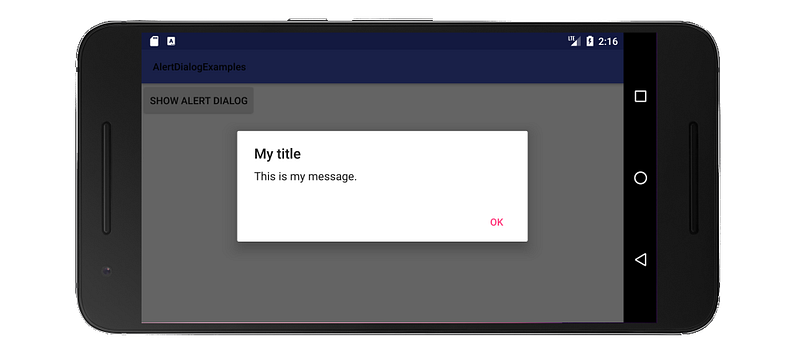
One button
import android.support.v7.app.AlertDialog;
public class MainActivity extends AppCompatActivity {
    public void showAlertDialogButtonClicked(View view) {
        // setup the alert builder
        AlertDialog.Builder builder = new AlertDialog.Builder(this);
        builder.setTitle("My title");
        builder.setMessage("This is my message.");
        // add a button
        builder.setPositiveButton("OK", null);
        // create and show the alert dialog
        AlertDialog dialog = builder.create();
        dialog.show();
    }
}

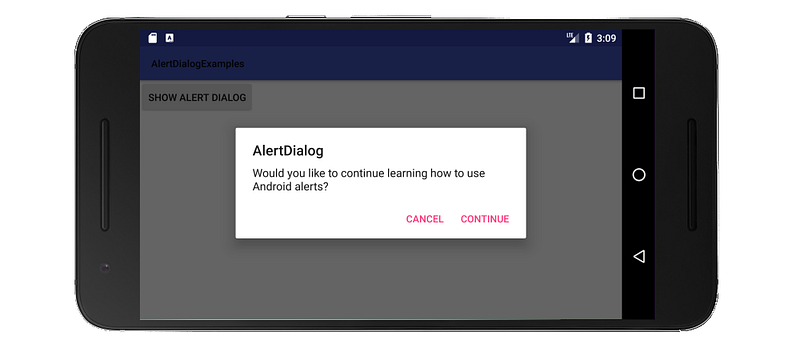
Two buttons

public class MainActivity extends AppCompatActivity {
    public void showAlertDialogButtonClicked(View view) {
        // setup the alert builder
        AlertDialog.Builder builder = new AlertDialog.Builder(this);
        builder.setTitle("AlertDialog");
        builder.setMessage("Would you like to continue learning how to use Android alerts?");
        // add the buttons
        builder.setPositiveButton("Continue", null);
        builder.setNegativeButton("Cancel", null);
        // create and show the alert dialog
        AlertDialog dialog = builder.create();
        dialog.show();
    }
}

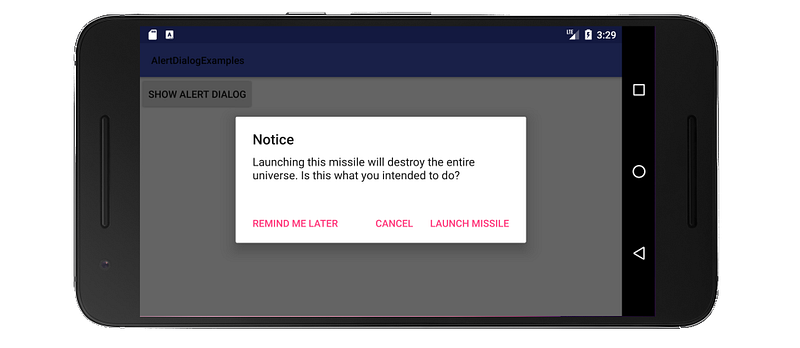
Three buttons

public class MainActivity extends AppCompatActivity {
    public void showAlertDialogButtonClicked(View view) {
        // setup the alert builder
        AlertDialog.Builder builder = new AlertDialog.Builder(this);
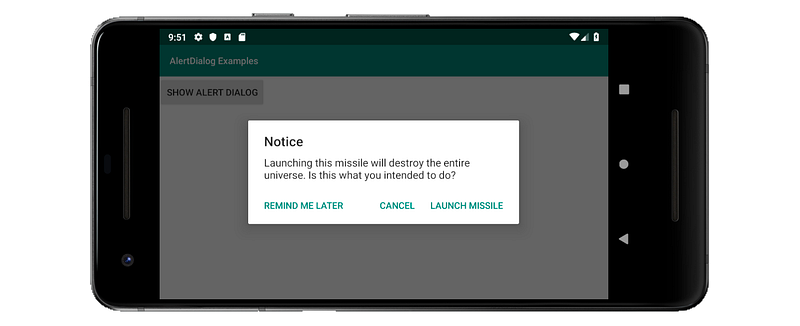
        builder.setTitle("Notice");
        builder.setMessage("Launching this missile will destroy the entire universe. Is this what you intended to do?");
        // add the buttons
        builder.setPositiveButton("Launch missile", null);
        builder.setNeutralButton("Remind me later", null);
        builder.setNegativeButton("Cancel", null);
        // create and show the alert dialog
        AlertDialog dialog = builder.create();
        dialog.show();
    }
}

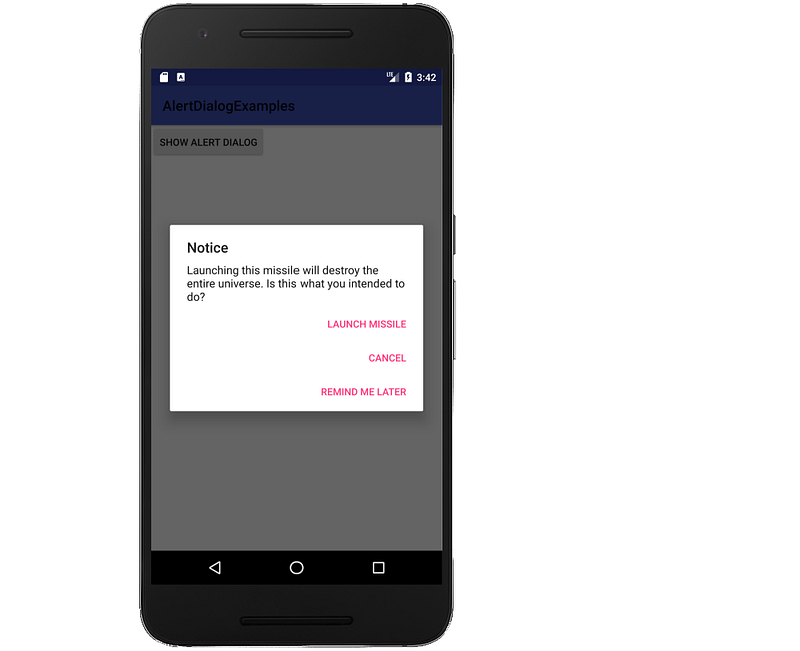
If the button text it too long to all fit horizontally, then it will automatically get laid out in a vertical column of three buttons.
Handling Button Clicks

The OnClickListener was null in the above examples. You can replace null with a listener to do something when the user taps a button. For example:

builder.setPositiveButton("Launch missile", new DialogInterface.OnClickListener() {
    @Override
    public void onClick(DialogInterface dialog, int which) {
        // do something like...
        launchMissile();
    }
});

Changing the button color

By default the button colors are the same color as the colorAccent in the base application theme, which is set in your styles.xml file.

<style name="AppTheme" parent="Theme.AppCompat.Light.DarkActionBar">
    <item name="colorPrimary">@color/colorPrimary</item>
    <item name="colorPrimaryDark">@color/colorPrimaryDark</item>
    <item name="colorAccent">@color/colorAccent</item>
</style>

You can change the color as simply as changing the colorAccent hex value in your colors.xml file.

<color name="colorAccent">#D81B60</color>

However, this will change the accent color all across your app. If you only want to change it for the dialog, you can make a custom theme. Add the following to your styles.xml file:

<style name="AlertDialogTheme" parent="Theme.AppCompat.Light.Dialog.Alert">
    <item name="colorAccent">@color/dialogButtonText</item>
</style>

This overrides colorAccent. Next define the dialogButtonText color in colors.xml:

<color name="dialogButtonText">#008577</color>

Now whenever you create a dialog you can just pass in the custom theme. Replace the AlertDialog.Builder line in the examples above with the following code:

AlertDialog.Builder builder = new AlertDialog.Builder(this, R.style.AlertDialogTheme);
Dialog button text with a custom color

If you want more control over the color of individual buttons, see the answers to this Stack Overflow question.

Notes

  • Use string resources rather than hard coded strings.
  • You can wrap everything in a class that extends DialogFragment for easy reuse of a dialog. (See this for help.)
  • These examples used the support library to support versions prior to API 11. So the import should be import android.support.v7.app.AlertDialog;
  • I omitted the onCreate method in the examples above for brevity. There was nothing special there.

Going On

There are many more varieties of dialogs that you can make. See the documentation for help with this.

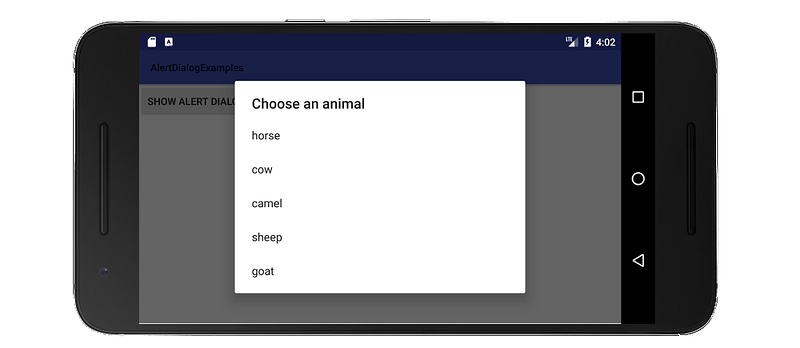
Since only three buttons are supported in an AlertDialog, here is an example of a dialog with a list.
public class MainActivity extends AppCompatActivity {
    public void showAlertDialogButtonClicked(View view) {
        // setup the alert builder
        AlertDialog.Builder builder = new AlertDialog.Builder(this);
        builder.setTitle("Choose an animal");
        // add a list
        String[] animals = {"horse", "cow", "camel", "sheep", "goat"};
        builder.setItems(animals, new DialogInterface.OnClickListener() {
            @Override
            public void onClick(DialogInterface dialog, int which) {
                switch (which) {
                    case 0: // horse
                    case 1: // cow
                    case 2: // camel
                    case 3: // sheep
                    case 4: // goat
                }
            }
        });
        // create and show the alert dialog
        AlertDialog dialog = builder.create();
        dialog.show();
    }
}

See this answer for similar examples of a radio button list and a checkbox list.

See also

Android
Alertdialog
Recommended from ReadMedium