avatarMariam Manzoor

Free AI web copilot to create summaries, insights and extended knowledge, download it at here

2889

Abstract

he following command:</p><div id="b9e1"><pre>passwd <span class="hljs-tag"><<span class="hljs-name">username</span>></span></pre></div><p id="d1b3">Type in the current password, followed by a new password to change it as shown in the image below.</p><figure id="51e6"><img src="https://cdn-images-1.readmedium.com/v2/resize:fit:800/1*vQpJvHOgb47zGLHIT8Kj4Q.png"><figcaption>image courtesy author</figcaption></figure><h2 id="9ed1">Adding and Removing users</h2><p id="1388">To add a new user use the following command:</p><div id="58ab"><pre>sudo useradd <span class="hljs-tag"><<span class="hljs-name">username</span>></span></pre></div><p id="c974">To force the user to add/change password on their first login type in the following command:</p><div id="de3e"><pre>sudo passwd -e <<span class="hljs-keyword">user</span> <span class="hljs-type">name</span>></pre></div><p id="db77">Finally, to delete a user account the command used is:</p><div id="84a0"><pre>sudo userdel <<span class="hljs-keyword">user</span> <span class="hljs-type">name</span>></pre></div><figure id="fa53"><img src="https://cdn-images-1.readmedium.com/v2/resize:fit:800/1*EExWrPXvc5KYjcZKwQQMtA.png"><figcaption>image courtesy author</figcaption></figure><h1 id="ba4c">Permissions</h1><h2 id="9e16">Viewing Permissions of a File</h2><p id="7825">To view permission of files within a directory, the command used is:</p><div id="30f9"><pre>ls -l <span class="hljs-tag"><<span class="hljs-name">path</span> <span class="hljs-attr">of</span> <span class="hljs-attr">directory</span>></span></pre></div><figure id="d073"><img src="https://cdn-images-1.readmedium.com/v2/resize:fit:800/1*MTSxuRxENxiOEvkJh-epEg.png"><figcaption>image courtesy author</figcaption></figure><p id="e947">In the example shown above, the first field represents a set of permission, followed by the user and group. Let's analyze the set of permission i.e.</p><div id="f5c6"><pre>- rw- rw- r<span class="hljs-comment">--</span></pre></div><p id="b774">which are grouped as follows:</p><div id="13dc"><pre>Group: <span class="hljs-number">1</span> <span class="hljs-number">2</span> <span class="hljs-number">3</span> <span class="hljs-number">4</span> <span class="hljs-comment">(-)</span> <span class="hljs-comment">(rw-)</span> <span class="hljs-comment">(rw-)</span> <span class="hljs-comment">(r--)</span></pre></div><ol><li>Group 1 contains a single bit which represents if it’s a file or directory. A file is represented by a <b>dash ‘-’ </b>while a directory is represented by the <b>letter ‘d’</b>.</li><li>Group 2 contains 3 bits, that define the<i> permission group</i> of <b>user (u)</b>.</li><li>Group 3 contains 3 bits, that define the <i>permission group</i> of <b>group(g)</b>.</li><li>Group 4 contains 3 bits, that define the<i> permission group</i> of <b>others(o)</b>.</li></ol

Options

<p id="0f08">Each bit of the last three groups represents <i>permission type</i> for <b>read(r)</b>,<b> write(w)</b>, and <b>execute(x)</b> respectively. If permission is not given to a user, group, or other, its bit is replaced by a <b>dash ‘-’</b>.</p><p id="0812">For example, in the above scenario, the first <b>‘-’ </b>bit represents that <i>myflowers.txt</i> is a file. The next three bits<b> ‘rw-’</b> show that the user <i>mariam</i> is given permission to read and write, but not execute. Similarly, the next three bits <b>‘rw-’</b> tell us that the group <i>mariam</i> is given permission to read and write, but not execute. Lastly, the last 3 bits <b>‘r--’ </b>represent that all other users and groups can only read the file.</p><h2 id="3ced">Changing Permissions of a File</h2><p id="cd92">The permissions of a file or directory can be changed. To increase permission ‘+’ is used, and to decrease permission ‘-’ is used. The command used can be defined as follows:</p><div id="3368"><pre>chmod <span class="hljs-attribute">&lt;permission group&gt;</span> <span class="hljs-attribute">&lt;+/-&gt;</span> <span class="hljs-attribute">&lt;permission type&gt;</span> <span class="hljs-attribute">&lt;path of file&gt;</span></pre></div><p id="bc7e">where <b>chmod</b> stands for <i>change mode</i>.</p><figure id="b9ff"><img src="https://cdn-images-1.readmedium.com/v2/resize:fit:800/1*NP97qGvHVlSPaPV0sILy5Q.png"><figcaption>image courtesy author</figcaption></figure><p id="7f05">For example, to give the user permission to execute a file, we’ll use the command</p><div id="7365"><pre>chmod u+x &lt;path <span class="hljs-keyword">of</span> <span class="hljs-built_in">file</span>&gt;</pre></div><p id="888e">Similarly, to decrease a user’s permission to execute the following command can be used:</p><div id="0352"><pre>chmod u-x &lt;path <span class="hljs-keyword">of</span> <span class="hljs-built_in">file</span>&gt;</pre></div><p id="2c83">Note that the permission group and permission type can be changed and concatenated depending on the user’s need as you can see in the following image:</p><figure id="1168"><img src="https://cdn-images-1.readmedium.com/v2/resize:fit:800/1*cGOEy6e8RW_MfnocmpWSkw.png"><figcaption>image courtesy author</figcaption></figure><h1 id="6d42">Conclusion</h1><p id="a9f1">Above we discussed a number of beginner commands for Ubuntu-Linux terminal to set up users and change permissions. You’ll often use the command line, especially if you are a programmer or an IT support personnel. If you are new to Linux do check out the following links to learn more about <a href="https://readmedium.com/learning-linux-basic-commands-39461355fe30">Basic Commands of Linux</a> and how to excel in <a href="https://readmedium.com/learning-linux-file-text-manipulation-a3f022418a20">Files &amp; Text manipulation</a>. Happy Learning :)</p></article></body>

Learning Linux- Setting up Users, Groups, and Permissions

Beginner’s Guide to Learning Linux/Ubuntu-Operating System
image courtesy author

Computers can have multiple users. You and your brother may be sharing your first computer, but have different user accounts set up. Similarly, in school, you and your colleagues may have individual accounts set up on the same desktop. Users and groups have different permissions to access files and programs on a computer to ensure the privacy and security of individuals on that device. In the following article, we’ll discuss users, groups and their permissions in Linux based operating system-Ubuntu, and explore their respective commands for Linux Terminal.

Users and Groups

Listing Users and Groups on a Linux Computer

The file that stores information of users on a Linux machine is /etc/passwd. To view user information, use the following command:

cat /etc/passwd
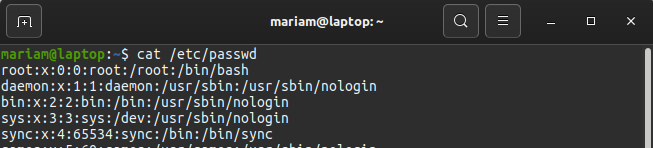
image courtesy author

Most of the rows represent processes running on your computer and not actual users. However the first row represents the root user: root:x:0:0:root:/root:/bin/bash.

The first field is the username, followed by the password and user Id. Note that the password isn’t stored in this file. It’s encrypted and stored in some other file.

To view groups on your computer run the following command:

cat /etc/group

image courtesy author

Similar to the user’s file, the first field in the group file represents the group name, followed by the password, and lastly the group ID. Note that the Group Id and User Id for root are always set to 0.

To use the computer as a root user (superuser), you can either use the flag sudo (stands for superuser do) at beginning of every command or simply type in the following command once:

sudo su -
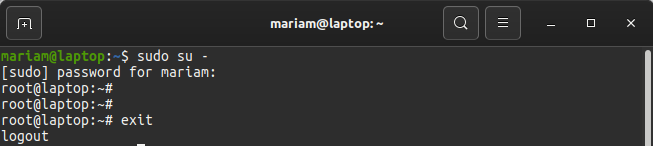
image courtesy author

Change User Password

To change the user password type in the following command:

passwd <username>

Type in the current password, followed by a new password to change it as shown in the image below.

image courtesy author

Adding and Removing users

To add a new user use the following command:

sudo useradd <username>

To force the user to add/change password on their first login type in the following command:

sudo passwd -e <user name>

Finally, to delete a user account the command used is:

sudo userdel <user name>
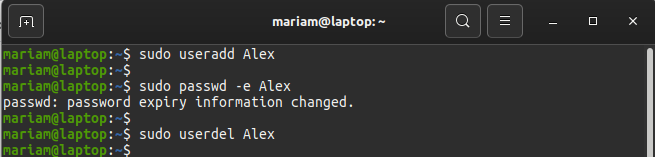
image courtesy author

Permissions

Viewing Permissions of a File

To view permission of files within a directory, the command used is:

ls -l <path of directory>
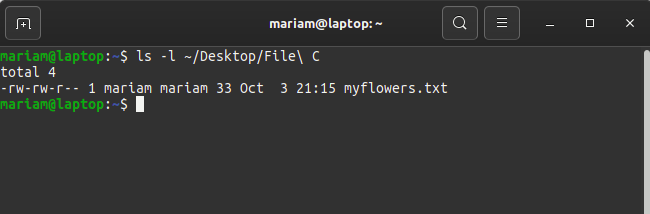
image courtesy author

In the example shown above, the first field represents a set of permission, followed by the user and group. Let's analyze the set of permission i.e.

- rw- rw- r--

which are grouped as follows:

Group:  1    2     3     4 
       (-) (rw-) (rw-) (r--)
  1. Group 1 contains a single bit which represents if it’s a file or directory. A file is represented by a dash ‘-’ while a directory is represented by the letter ‘d’.
  2. Group 2 contains 3 bits, that define the permission group of user (u).
  3. Group 3 contains 3 bits, that define the permission group of group(g).
  4. Group 4 contains 3 bits, that define the permission group of others(o).

Each bit of the last three groups represents permission type for read(r), write(w), and execute(x) respectively. If permission is not given to a user, group, or other, its bit is replaced by a dash ‘-’.

For example, in the above scenario, the first ‘-’ bit represents that myflowers.txt is a file. The next three bits ‘rw-’ show that the user mariam is given permission to read and write, but not execute. Similarly, the next three bits ‘rw-’ tell us that the group mariam is given permission to read and write, but not execute. Lastly, the last 3 bits ‘r--’ represent that all other users and groups can only read the file.

Changing Permissions of a File

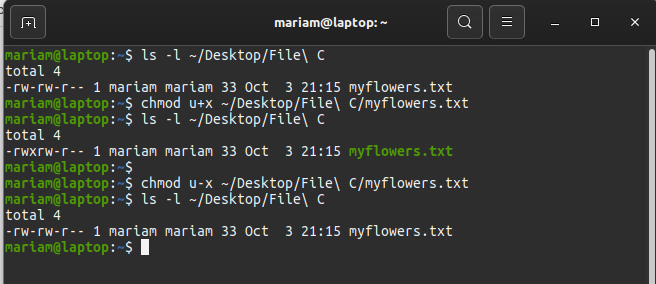
The permissions of a file or directory can be changed. To increase permission ‘+’ is used, and to decrease permission ‘-’ is used. The command used can be defined as follows:

chmod <permission group> <+/-> <permission type> <path of file>

where chmod stands for change mode.

image courtesy author

For example, to give the user permission to execute a file, we’ll use the command

chmod u+x <path of file>

Similarly, to decrease a user’s permission to execute the following command can be used:

chmod u-x <path of file>

Note that the permission group and permission type can be changed and concatenated depending on the user’s need as you can see in the following image:
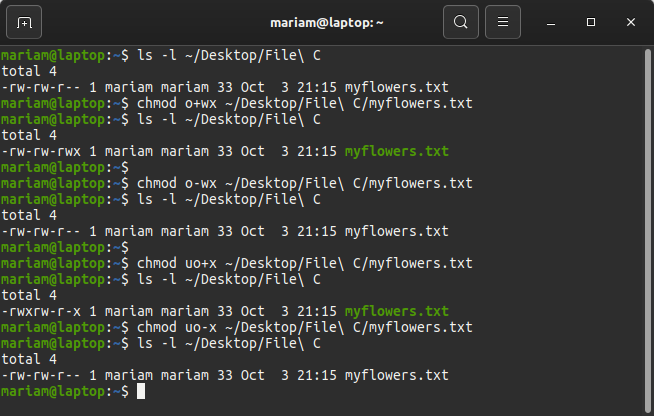
image courtesy author

Conclusion

Above we discussed a number of beginner commands for Ubuntu-Linux terminal to set up users and change permissions. You’ll often use the command line, especially if you are a programmer or an IT support personnel. If you are new to Linux do check out the following links to learn more about Basic Commands of Linux and how to excel in Files & Text manipulation. Happy Learning :)

Linux Commands
Ubuntu
Technology
Operating Systems
Beginners Guide
Recommended from ReadMedium