avatarMariam Manzoor

Free AI web copilot to create summaries, insights and extended knowledge, download it at here

1711

Abstract

is used.</p><p id="b2cf">To display them as a list, the flag -l is added: <b><i>ls -l</i></b>.</p><p id="c1cd">To display the contents of another directory <b><i>ls -l <path> </i></b>is used.</p><h2 id="19ee">Changing Directories</h2><figure id="a340"><img src="https://cdn-images-1.readmedium.com/v2/resize:fit:800/1*CVgFQmlye3qcF2YUSVmnRg.png"><figcaption>image courtesy author</figcaption></figure><p id="5dd5">In order to move into a sub-directory, the command used is <b><i>cd <directory name></i></b>.</p><p id="967e">To go back to the parent folder, <b><i>cd ..</i></b> is used. And to return to <i>home </i>directory <b><i>cd ~</i></b><i> </i>is used.</p><p id="786c">Another command to change directory is <b><i>cd <path></i></b>.</p><h2 id="c676">Making a New Directory and File</h2><figure id="569f"><img src="https://cdn-images-1.readmedium.com/v2/resize:fit:800/1*Y0YYfDbDwW3OVIZ0zwXpwg.png"><figcaption>image courtesy author</figcaption></figure><p id="9736">To make a new folder, <b><i>cd </i></b>into the directory you want to create the new folder in, and type: <b><i>mkdir <Folder Name></i></b></p><p id="30c4">Incase file name contains spaces, enclose the name in <b><i>‘ ’</i></b>.</p><figure id="2f8b"><img src="https://cdn-images-1.readmedium.com/v2/resize:fit:800/1*SDu-nOUz5MWIDlXseHbIIQ.png"><figcaption>image courtesy author</figcaption></figure><p id="8c52">To make a new file, <b><i>cd </i></b>into the directory you want to create the file in, and type: <b><i>touch <File Name></i></b></p><h2 id="9c07">Deleting a Directory and Files</h2><figure id="eb0f"><img src="https://cdn-images-1.readmedium.com/v2/resize:fit:800/1*u3tnFO3MAw5bg7oC6F-OfA.png"><fi

Options

gcaption>image courtesy author</figcaption></figure><p id="265f">To delete a file, <b><i>cd </i></b>into the directory you want to delete the file from and type the command: <b><i>rm <File Name></i></b>.</p><p id="b2cb">To delete a folder you may use either of these two commands: <b><i>rmdir ‘File B’ </i></b>or<b><i> rm -r ‘File A’</i></b>.</p><h2 id="a5a4">Copying a File</h2><figure id="d2b3"><img src="https://cdn-images-1.readmedium.com/v2/resize:fit:800/1*k0vfNFA6mcbg5t2DMWRgkA.png"><figcaption>image courtesy author</figcaption></figure><p id="4bcc">To copy a file,<b><i> cd</i></b> into its directory and use the command <b><i>cp <File Name> <New Path></i></b>.</p><h2 id="e64b">Renaming and Moving the File</h2><figure id="5ade"><img src="https://cdn-images-1.readmedium.com/v2/resize:fit:800/1*Xu5qjw5GIqY26adO4RzHgw.png"><figcaption>image courtesy author</figcaption></figure><p id="b7d4">To rename a file, use command <b><i>mv <Old Name> <New Name></i></b></p><figure id="15a9"><img src="https://cdn-images-1.readmedium.com/v2/resize:fit:800/1*g7OkPAUQgjAZxiqncd4Mzw.png"><figcaption>image courtesy author</figcaption></figure><p id="21a5">To move a file, use the command <b><i>mv <File Name> <New Path></i></b></p><h2 id="5583">Conclusion</h2><p id="585c">These were some basic Linux commands. Further, <b><i>clear </i></b>command can be used to clean the terminal,<b> CTRL +C</b> to cancel the current process in the terminal, <b>CTRL + SHIFT + C</b> to copy from the terminal, and <b>CTRL + SHIFT + V </b>to paste to the terminal.</p><p id="7787">Practice these commands on your machine, and master Linux the commands for beginners.</p></article></body>

Learning Linux- Basic Commands

Beginner Guide to Learning Ubuntu
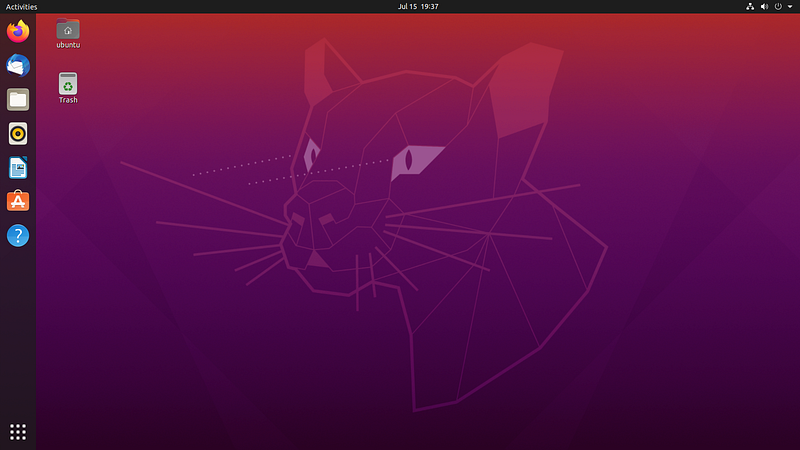
Photo from https://en.wikipedia.org/wiki/Ubuntu

Linux is an operating system, just like Windows and macOS. It’s free and perfect for programmers. Linux shell is one of the many features that add to the operating system's worth. In this article, we’ll dive into some basic shell commands of a Linux distro, Ubuntu.

Opening Command-Line
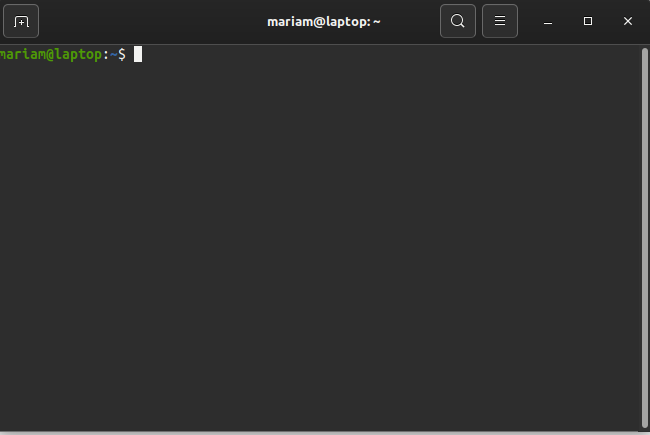
image courtesy author

To open the Terminal press CTRL + ALT + T or navigate to Show Application and search Terminal

Finding Current Directory
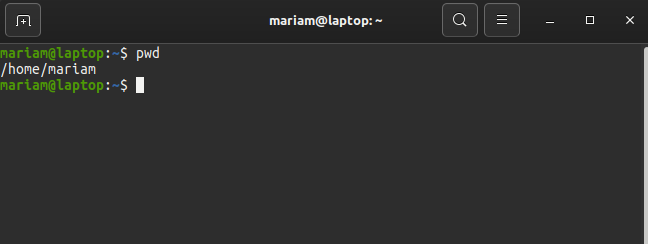
image courtesy author

By default, when you open the terminal, you are in home directory of a user.

To find which directory you are currently in, the command pwd is used.

Listing File/Folders in a Directory
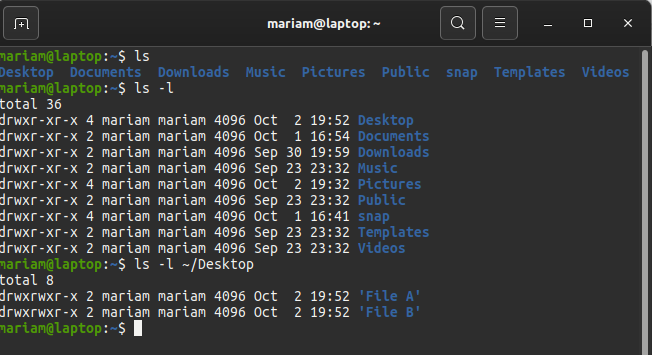
image courtesy author

To display all the files and folders in the current directory, the command ls is used.

To display them as a list, the flag -l is added: ls -l.

To display the contents of another directory ls -l <path> is used.

Changing Directories
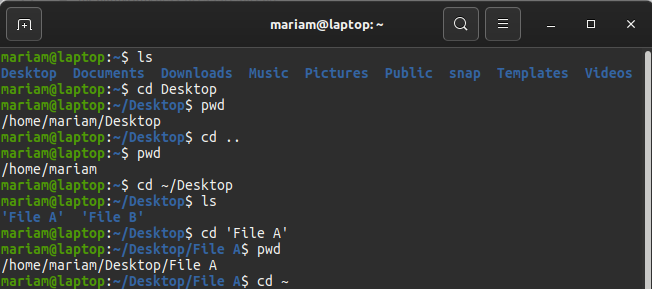
image courtesy author

In order to move into a sub-directory, the command used is cd <directory name>.

To go back to the parent folder, cd .. is used. And to return to home directory cd ~ is used.

Another command to change directory is cd <path>.

Making a New Directory and File
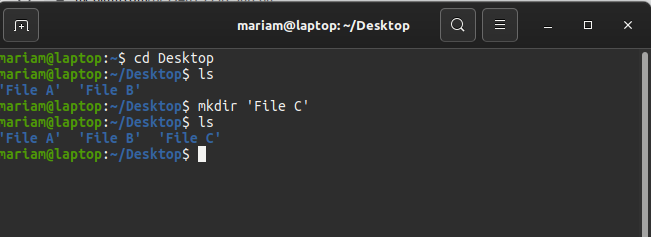
image courtesy author

To make a new folder, cd into the directory you want to create the new folder in, and type: mkdir <Folder Name>

Incase file name contains spaces, enclose the name in ‘ ’.
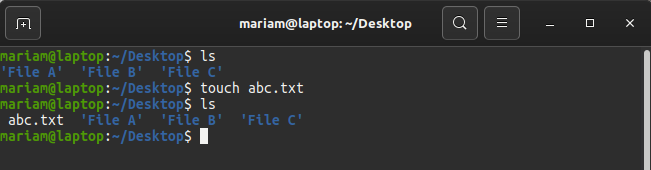
image courtesy author

To make a new file, cd into the directory you want to create the file in, and type: touch <File Name>

Deleting a Directory and Files
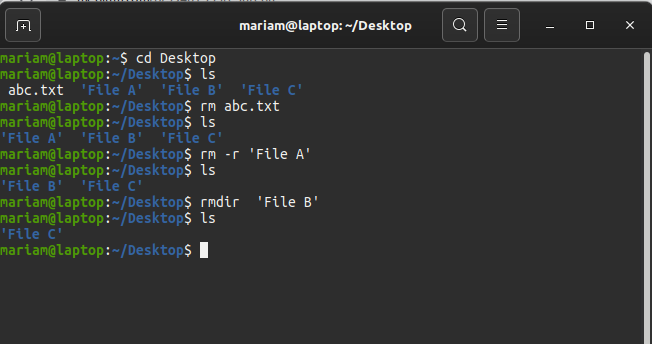
image courtesy author

To delete a file, cd into the directory you want to delete the file from and type the command: rm <File Name>.

To delete a folder you may use either of these two commands: rmdir ‘File B’ or rm -r ‘File A’.

Copying a File
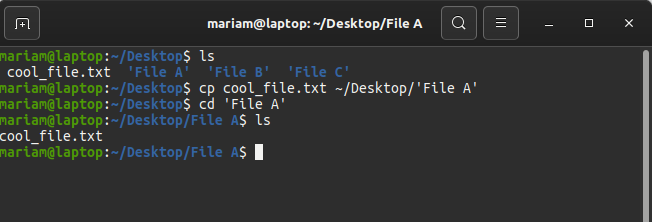
image courtesy author

To copy a file, cd into its directory and use the command cp <File Name> <New Path>.

Renaming and Moving the File
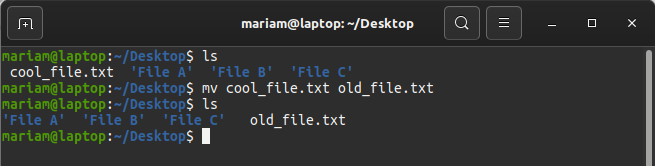
image courtesy author

To rename a file, use command mv <Old Name> <New Name>
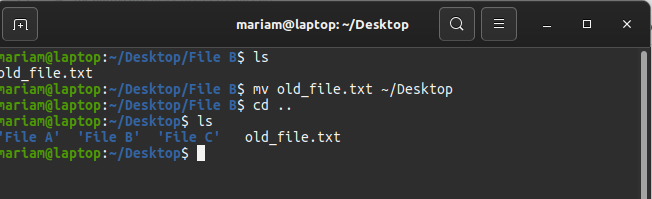
image courtesy author

To move a file, use the command mv <File Name> <New Path>

Conclusion

These were some basic Linux commands. Further, clear command can be used to clean the terminal, CTRL +C to cancel the current process in the terminal, CTRL + SHIFT + C to copy from the terminal, and CTRL + SHIFT + V to paste to the terminal.

Practice these commands on your machine, and master Linux the commands for beginners.

Linux
Beginner
Ubuntu
Command Line
Terminal
Recommended from ReadMedium