
Configure an EC2 Instance to Assume a Role With MFA on Startup and Pass it to a Container
ACM.345 Modify assume role script to get credentials from secrets manager, pull an image from ECR, use a role that requires MFA and run in a private network
~~~~~~~~~~~~~~~~~~~~~~~~~~~~~~~~~~~~~~~~~~~~~~~~~~~~~~~
⚙️ Check out my series on Automating Cybersecurity Metrics | Code.
🔒 Related Stories: AWS Security | EC2 | Application Security
💻 Free Content on Jobs in Cybersecurity | ✉️ Sign up for the Email List
~~~~~~~~~~~~~~~~~~~~~~~~~~~~~~~~~~~~~~~~~~~~~~~~~~~~~~~
In the last post I built out the resources I need for this test. I also realized I needed two sets of user credentials and explained why.
Now that I can spin up an EC2 instance that has the user role assigned to it, I can modify my script that assumes a role as follows and try to run it when I start the EC2 instance.
Modifications to my container with MFA assumed role script
I need to make the following changes to my script:
- Install docker.
- Pass the token into the EC2 instance at start up.
- Obtain the credentials to assume the role from the secret.
- Pull down the desired container from my Elastic Container Registry.
Existing code in my script:
The rest of the code is in my existing script:
- Assume the role with MFA.
- Obtain the temporary credentials.
- Start a container and pass the credentials to the container.
Reusing the same SSH key for different EC2 isntances
Just a note that if you’re reusing an SSH key for a different instance as I’m doing below, you’re likely going to get an error like this:
One way to resolve it is to clear your known_hosts file.
rm /Users/[your_user_name]/.ssh/known_hostsMore info in the above post.
About EC2 User data
When you launch an EC2 instance you can provide User data, which I wish was just named “initialization script” because that’s what it is. It runs once when you start your EC2 instance and that’s it.
When you launch an EC2 instance manually click on Advanced details and scroll to the bottom. This is where you can enter your script.
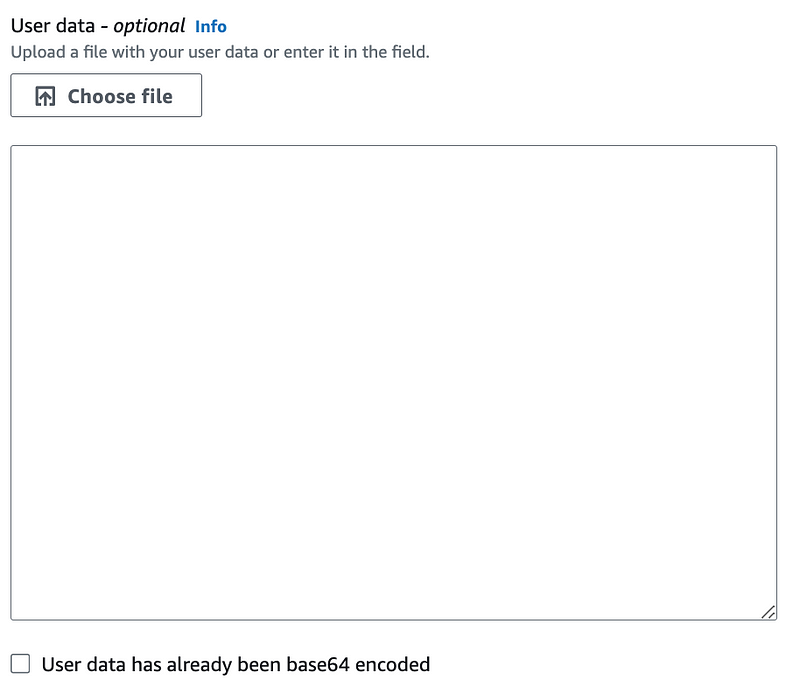
User data must be base64 encoded when passed to the AWS CLI or other automated tools. However, when you enter the information in the AWS Console it can encode the data for you.
I’m going to store my user data script in a file and copy and paste it here.
The first thing I need to do is pass in a token. I’ll do this differently in the future but for now I can hard code the token and copy and paste in my existing script to see if that works.
Recall that this is my current script:
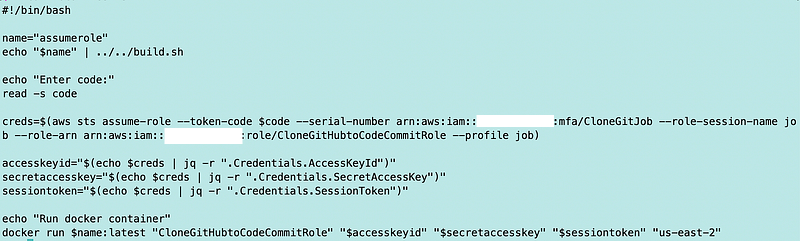
I’m going to create some new scripts as follows:
image.sh — build and push the image to ECR.
userdata.sh — the code that will end up in my EC2 user data configuration.
image.sh is pretty simple using the files I described in prior posts. I did modify the push.sh file to take an image name as an input.
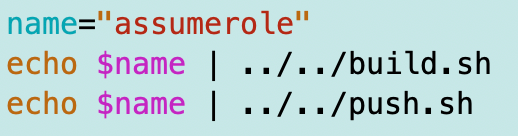
The first thing I want to do in the userdata.sh script is test retrieving the secret with the AWS credentials.

I’m going to store my script so I can copy and paste it into the user data without typos once I have a working command. I can replace hardcoded account numbers and regions later.
Now recall when I start my EC2 instance it needs to have the correct role assigned from the last post:
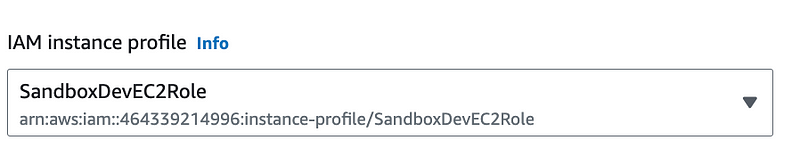
I use existing credentials and networking that will allow me to log into the host to verify and troubleshoot issues. In a production environment you would want to use log shipping — storing all the logs written by the instance to a log repository for review — rather than log in manually to production instances whenever possible.
Scroll to the bottom and add the user data init script.
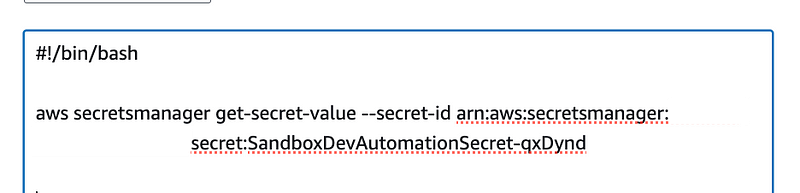
Launch the instance.
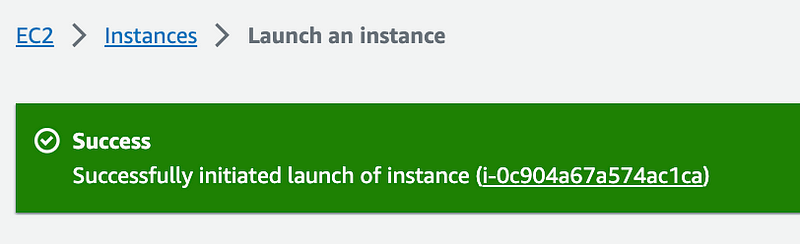
Click the instance ID link to view the instance details.
I can see the instance is initializing:

Here’s an interesting piece of history. There’s a way to get a screenshot of the EC2 instance by choosing
Actions > Monitor and troubleshoot > Get instance screenshot
Now it used to be that this included anything on the screen during start up and initialization.
I know this because I was working at Capital One at the time and every single instance logged into the Chef server on startup. And anyone who had access to the options in the screen below (though the screen looked different at the time) could view the screen and get the credentials. In addition, developers were starting up and logging into databases and using all other sources of credentials in startup scripts.
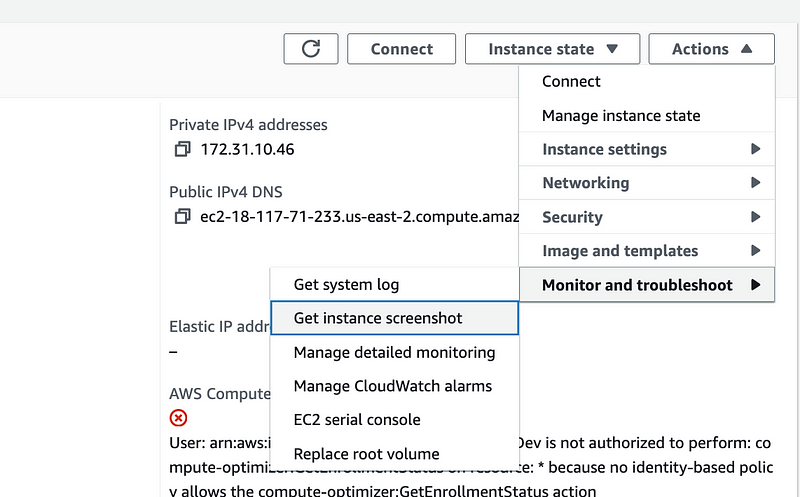
I didn’t have a security title at the time but was well versed in security as I’ve written about on my blog. It was hard to affect change in my role at the time, but I pushed out a blog post on our internal blog demonstrating this problem and the implications. Along came someone who wrote a simple comment:
“This is gold.”
I presume it was someone on the red team….
Since then, AWS has blocked this view during initialization of an EC2 instance, which is a good thing. We won’t be able to see the secret output by our command, if it works.
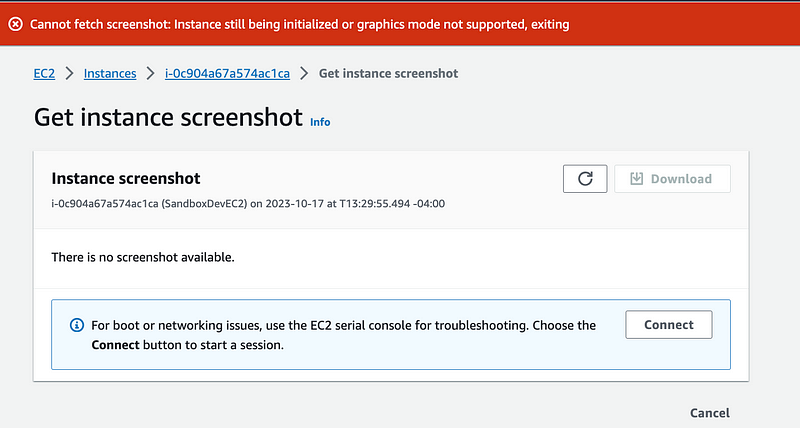
Be aware, however, that if you are writing secrets to the screen while your system is running you may have an issue I described above but at a later point in the instance lifecycle.
cloud-init-output.log
For our purposes, to see if our command worked, we need to check a specific log found at this location on the EC2 instance:
/var/log/cloud-init-output.logYou can read more about that log file here:
We will need to log into our EC2 instance and check what is in that log - successful execution or error messages.
Well, would you look at that. Amazon 2023 instances have pretty pictures.
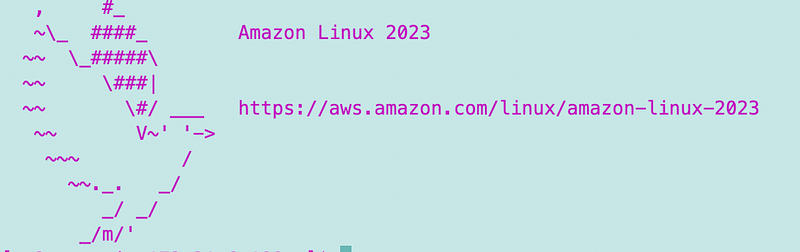
I wouldn’t have noticed this on my custom built AMIs since I add my own banners but I’m using a default image for this test.
We can run this command to see what’s in the init log:
sudo cat /var/log/cloud-init-output.log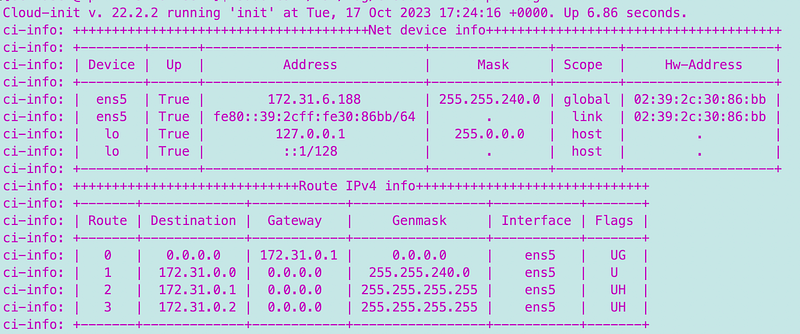
Scroll the end and you can see if the script ran successfully or had an issue. In my case, the issue is that the EC2 instance can’t reach Secrets Manager on the network.

Notice that it also says it failed to run the scripts located in a particular folder in that error message above. Let’s see what’s in that folder:
/var/lib/cloud/instance/scriptsWhat is in that folder?
ls /var/lib/cloud/instance/scripts
What’s in the part-001 file?
sudo cat /var/lib/cloud/instance/scripts/part-001There’s our script:

Can we execute our script?
sudo /var/lib/cloud/instance/scripts/part-001 As a matter of fact, we can. And it works.
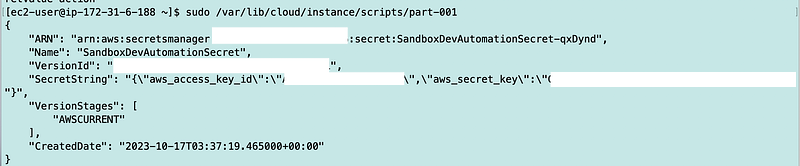
So I think what happened here is that I initially used the wrong security group. Then I fixed the security group so I could log into the instance. Now the command runs properly as well because it can access the endpoint it needs.
Ok now that I know I can test the script I’m going to start modifying it and testing here before I try to run another EC2 instance.
I am using vi to edit the script:
sudo vi /var/lib/cloud/instance/scripts/part-001First I’m going to set some variables:

In addition to those values I need to set the secretid that is at the end of the ARN. Recall that when you deploy a secret a random value is tacked on to the end of the secret, so in my case:

Yours will be different.
I’m going to try to retrieve the secret values. Recall that I already did for our batch container test with a couple of functions:
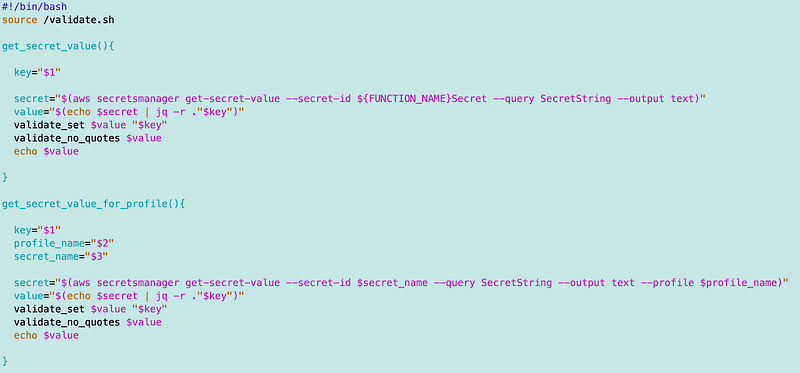
I can use that code slightly altered, and without the validation for this test.
First I set some variables.

Next I retrieve the secret:

That works.
NOTE: If you do not use text output you’ll have all sorts of problems trying to use jq due to escaped values in the JSON.
OK now I can assume the role the way I did in this post:
The only difference is that these are not temporary credentials. I don’t need to set the session token.

Next I add the code to get the temporary credentials from my prior script:
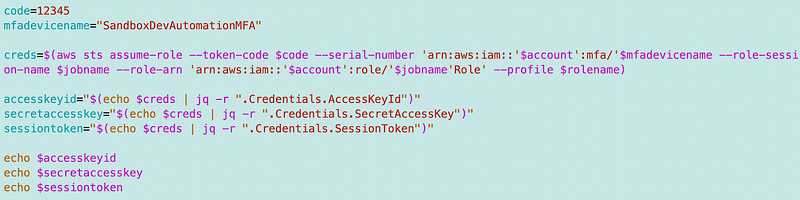
Now I need to pull the container from my Elastic Container Registry and then I need to run it with Docker. So first of all I am going to install docker.
I try to run these commands to install and start docker, allow the ec2-user to manage it, and add it to startup. I plan to write more about docker security in the future. This gets us up and running.
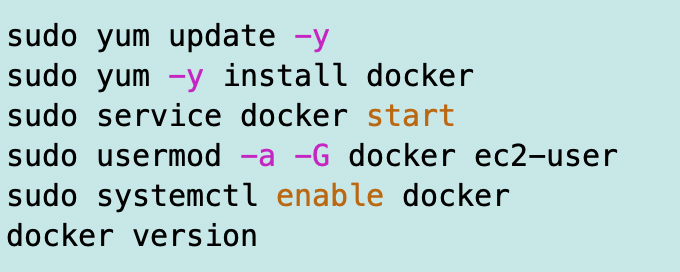
Initially I got an error because as I’ve written about before the AWS Amazon Linux 2023 repositories are not available from private IP addresses.
My instance was trying to reach this domain and it failed to connect.
al2023-repos-us-east-2-de612dc2.s3.dualstack.us-east-2.amazonaws.com. 300 IN CNAME s3-r-w.dualstack.us-east-2.amazonaws.com.
That domain resolves to the following IP addresses:

Even with a VPC endpoint I do not get private IP addresses.
I need to make sure my NACLs and Security Groups allow outbound access to those IPs.
I hope that AWS will provide access to this via a private IP range soon. #awswishlist
Now I need to pull the container from ECR. Make sure the container was successfully pushed to the repository.
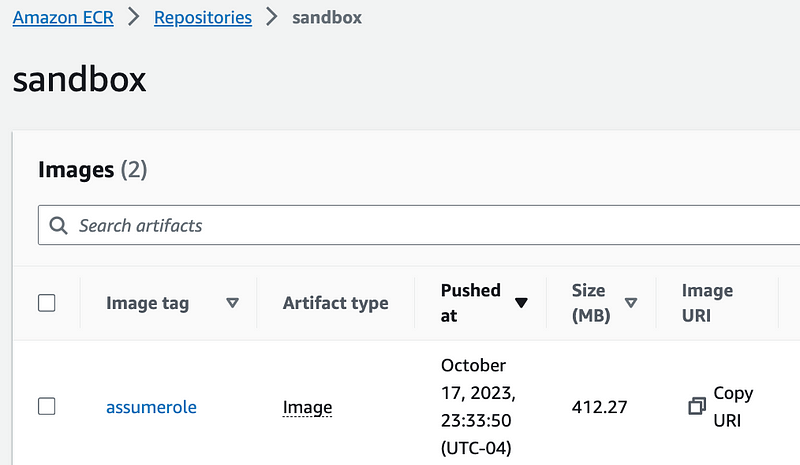
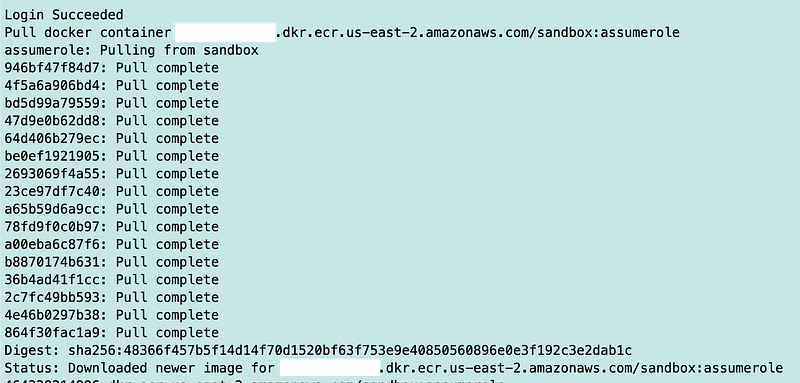
We can use some of what we did for pushing images, but change it to the pull command.

Run the script and we can see the new container is downloaded successfully.
Next I can run the existing command to start the container and pass the short term credentials to it with the same script I used before.

Now as you can see the container runs the same way it did before with no changes. It starts up and uses the credentials to create a CLI Profile.

There are numerous enhancements we can and should make to this code. For example:
- I added the -e directive at the top to stop the script on any error. If the MFA role assumption fails or anything else, stop the script.
- Add in the validation functions and routines and other error checking to see that values are property set before proceeding and write a user-friendly error.
- We can clear out any credential values as soon as we are done with them.
- We can unset the AWS CLI values with the long term credentials.
Testing on EC2 Launch
The question is: Will this work in AWS user data when the instance is launched? The problem may be that the instance takes too long to start and the MFA token expires. The time definitely varies by type of instance. A Windows instance likely won’t work.
Well, let’s try it.
I launch a new instance and paste in the user data.
Note that I am using the smallest possible instance with x86 architecture and the Amazon Linux 2023 OS.
I waited for the MFA token to switch to a new number to give me the longest possible chance of success.
I update the MFA token and hit launch.
Then I have to wait for the instance to start so I can login and check the results.
I login and check the cloud-init logs:
sudo cat /var/log/cloud-init-output.logNo joy.

I ran the script once more with a micro instance to validate my findings further and I got a different error:

Odd. I have the correct security groups assigned. I use the dig command to check the IP address:
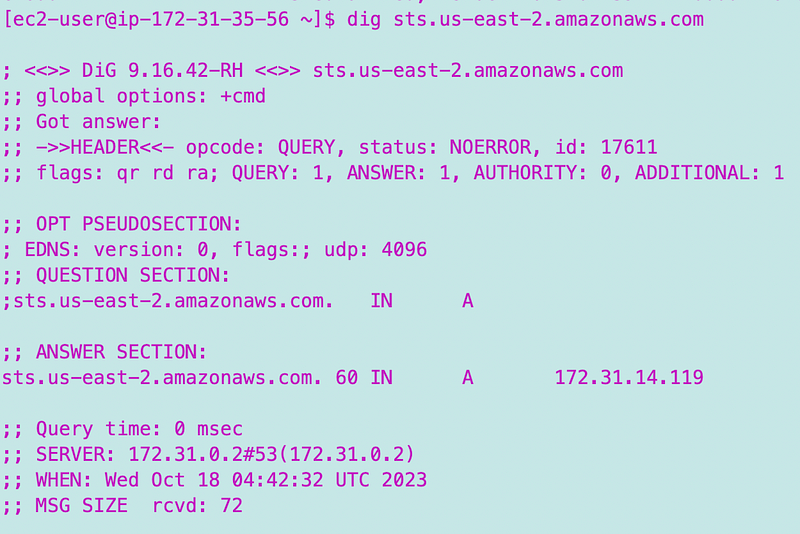
Looks good.
I try to run my init script again locally. It is hanging and waiting for the network connection.
I look at my security groups again. I don’t see the problem. I have a security group that allows outbound access on port 443 to the Endpoint security group. I have a security group on the endpoint that allows access from the EC2 security group on port 443.
Now it took me a while to remember what is going on here. Do you remember? My VPC has three subnets. The EC2 instance is in a different subnet than the endpoint. If I put the endpoint in all three subnets, I also had issues in a prior post. The time it took a Lambda function to complete was something like 10 minutes!
So my only solution is to redeploy the instance in the subnet where the VPC Endpoint exists.
One more time…
I select the proper subnet for my EC2 instance:
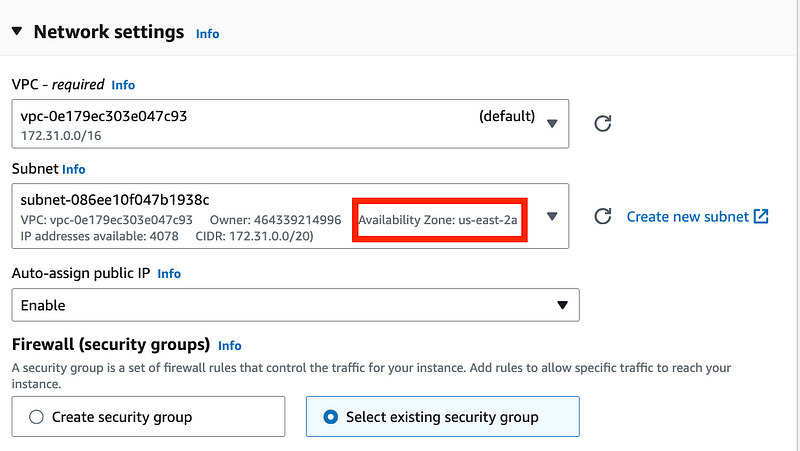
That matches my VPC Endpoint subnet:
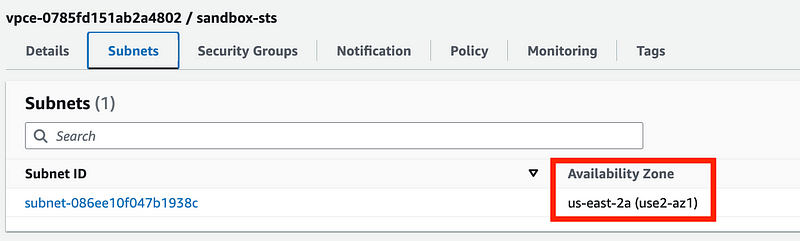
Select the proper security group. Click advanced. Choose the role. Enter the user data. Change the code. Click Launch instance.
And amazingly, it works. Kind of.

We got past the MFA error, assumed a role, and passed it to our container. Now there’s some issue here about conflicting architecture in the container but I’m not going to troubleshoot that right now because that is not the purpose of this test. If you want to read more about container architectures, I wrote about taht here:
For the current objective, mission accomplished.
And now I’m wondering if something like the above caused my Lambda issue, but I kind of like this approach better anyway. The only issue we are going to have is starting the instance in the window while the code is still valid. If AWS is having a bad day or we want to use post instances we may need an alternate approach.
Follow for updates.
Teri Radichel | © 2nd Sight Lab 2023
About Teri Radichel:
~~~~~~~~~~~~~~~~~~~~
⭐️ Author: Cybersecurity Books
⭐️ Presentations: Presentations by Teri Radichel
⭐️ Recognition: SANS Award, AWS Security Hero, IANS Faculty
⭐️ Certifications: SANS ~ GSE 240
⭐️ Education: BA Business, Master of Software Engineering, Master of Infosec
⭐️ Company: Penetration Tests, Assessments, Phone Consulting ~ 2nd Sight Lab
Need Help With Cybersecurity, Cloud, or Application Security?
~~~~~~~~~~~~~~~~~~~~~~~~~~~~~~~~~~~~~~~~~~~~~~~~~~~~~~~~~~~~~
🔒 Request a penetration test or security assessment
🔒 Schedule a consulting call
🔒 Cybersecurity Speaker for PresentationFollow for more stories like this:
~~~~~~~~~~~~~~~~~~~~~~~~~~~~~~~~~~~~~~~~~~~~~~~~~~~~~~~~~~~~~
❤️ Sign Up my Medium Email List
❤️ Twitter: @teriradichel
❤️ LinkedIn: https://www.linkedin.com/in/teriradichel
❤️ Mastodon: @teriradichel@infosec.exchange
❤️ Facebook: 2nd Sight Lab
❤️ YouTube: @2ndsightlab