🔥 8 Ways I Use HomeBrew on macOS to Increase Productivity
The following is how I use HomeBrew on macOS to install, update, uninstall apps, and much more.

1. Install Every App through HomeBrew
Say I want to try a new app like the Orion web browser. In the old days of shire, I would go to their website, find the download page, choose my operating system (macOS Monterey) and click Download. Then I would receive a file that I’d need to install manually.
- If the file is
*.pkgI’d double-click it and click “Next” until it’s installed on my system. In most cases, the installer asks for my password/touchID. - If the file is
*.dmgit’s not going to damage my system (bad naming by Apple)—it simply means that it’s a disk image, that is, when I open it, a new drive will be added to my system (and on desktop) and the app/installer is inside that. After I’m done installing the app, I’d have to manually Eject this drive. If I have opened many*.dmgfiles, then I’d have to manually right-click on each drive and eject it… - If the downloaded file is neither
*.pkgnor*.dmg, then it’s an*.appfile that I need to drag to the Applications folder.
HomeBrew takes care of all these things and installs apps with just one command. In the case of the Orion browser, I simply type this in my terminal and I’m done:
brew install --cask orion--cask simply indicates that the app has a GUI. In fact, I actually type less than the line above. If you know your way around zsh or bash, you can simply assign an alias to the commands you use frequently. In this case I just type:
,bic orion- It’s good practice to start all your own custom commands and aliases with a special character like
,so you can search for them easily. Also it helps avoiding overlap with future renaming of commands. - In most cases, this method doesn’t even ask for your password. I only encountered a few apps like Zoom that needed my password to install.
- Note that HomeBrew automatically installs the version of Orion that suits my version of macOS (Monterey). Normally, you’d have to do it on your own.


2. Uninstalling Apps is just One Command Away
Similar to the previous command, we also have the uninstall command as follows:
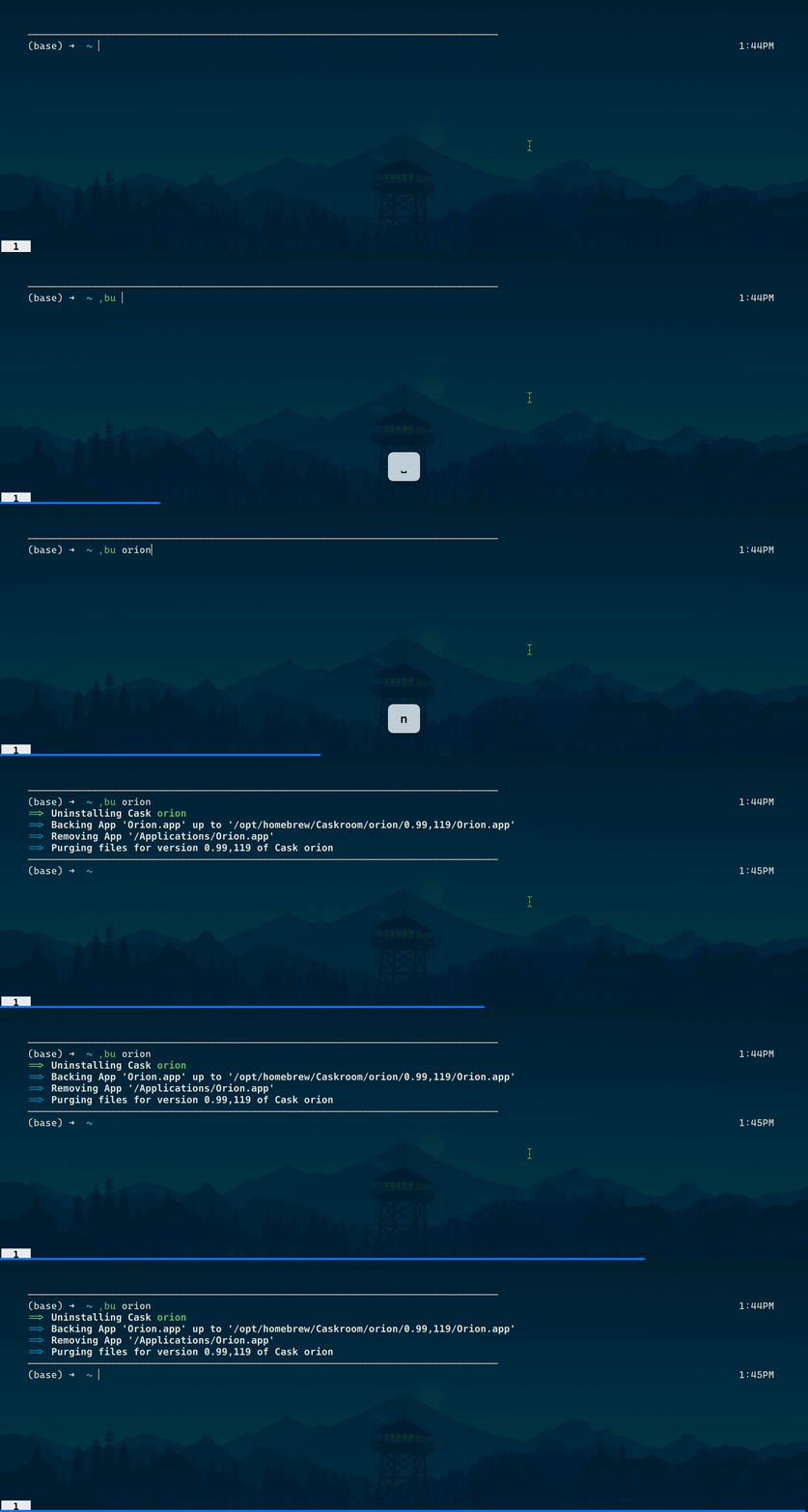
brew uninstall orionOnce again, I’ve set a neat alias for this command, so I just type this:
,bu orionand Orion is gone!
3. Not sure if HomeBrew has an app? Just Search.
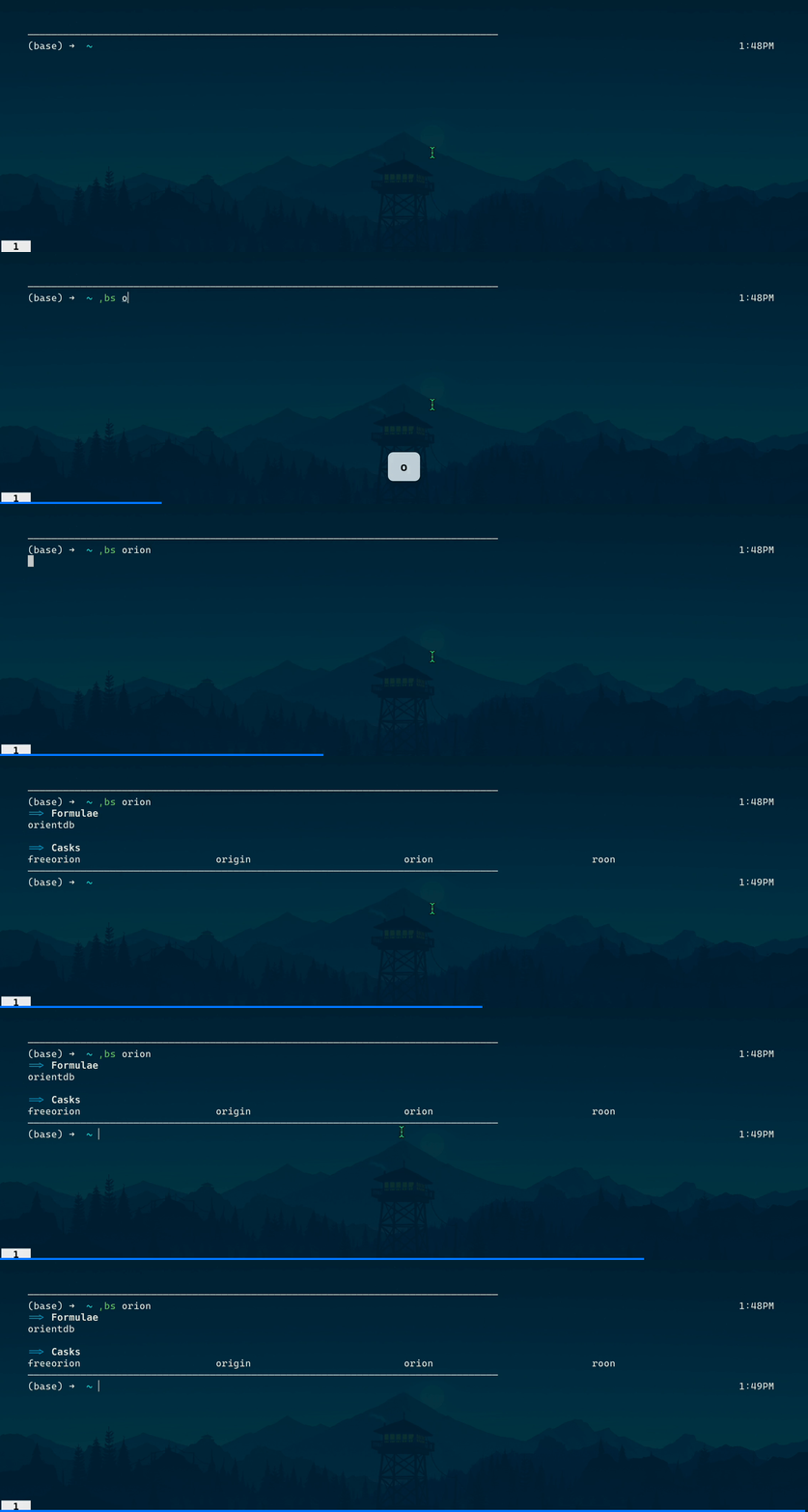
Every time I see an app that I want to install, I quickly search HomeBrew to see if they have it there. More often than not, an internet legend has created a “formula” for the app, which means the app can be installed using the previous commands. To do search, just type:
brew search orionI actually type the following because I search HomeBrew a lot:
,bs orionAs you can see in the gif, Orion is available in HomeBrew Casks:
4. Want to make sure of the app? Get its Info.
Okay, just because a formula exists for an app doesn’t necessarily mean that it’s not a malware. When I install apps (esp. the Cask ones), I usually double-check the HomeBrew formula to make sure the file that is installed is exactly the app I’m looking for, not some shady virus. This is just some extra precaution—I’ve never seen anything suspicious in HomeBrew formulae.
To make sure about the app safety, simply do:
brew info orionYou can either look at the URL (called Origin) or click on the formula link and see where the app is downloaded from. In this case, Orion is part of the Kagi organization and is downloaded from the right source.
- As Andrés points out in the comments, you can open a package’s URL directly by using
brew home orion. This opens the Orion website. But my method shows you exactly where the binary files are downloaded from. A malicious attacker might use a different URL for binaries.
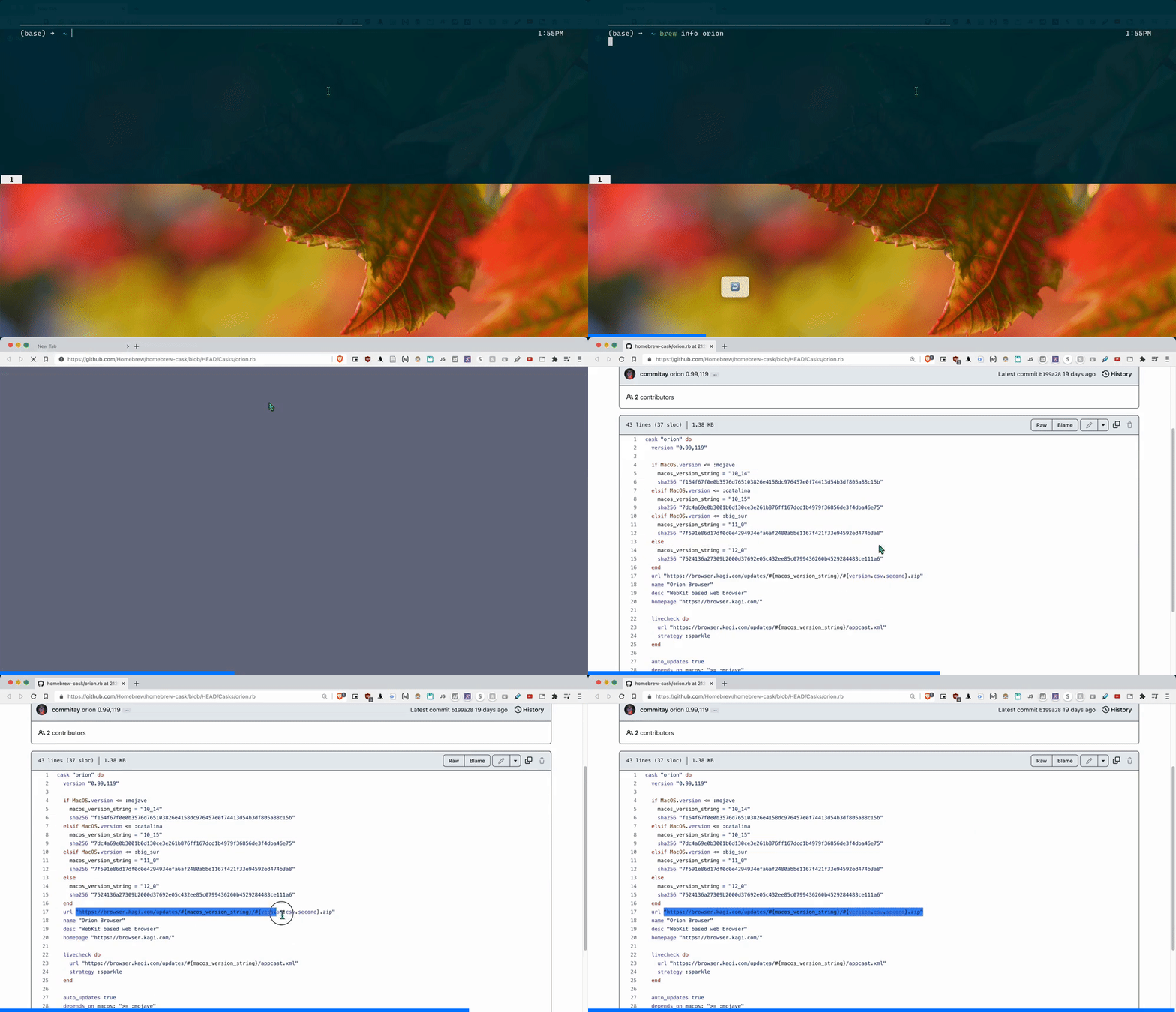
- If we just want to see the download URL:
brew info orion | grep -E '^https?:'- If we want to open the download URL in a browser:
open -a "brave browser.app" "$(brew info orion | grep -E '^https?:')"5. Install a Specific Version of Apps
Say I want to install PostgreSQL. HomeBrew tells me that several versions of the package are available. I can choose to only install version 10 by specifying @10 :
,bi postgresql@10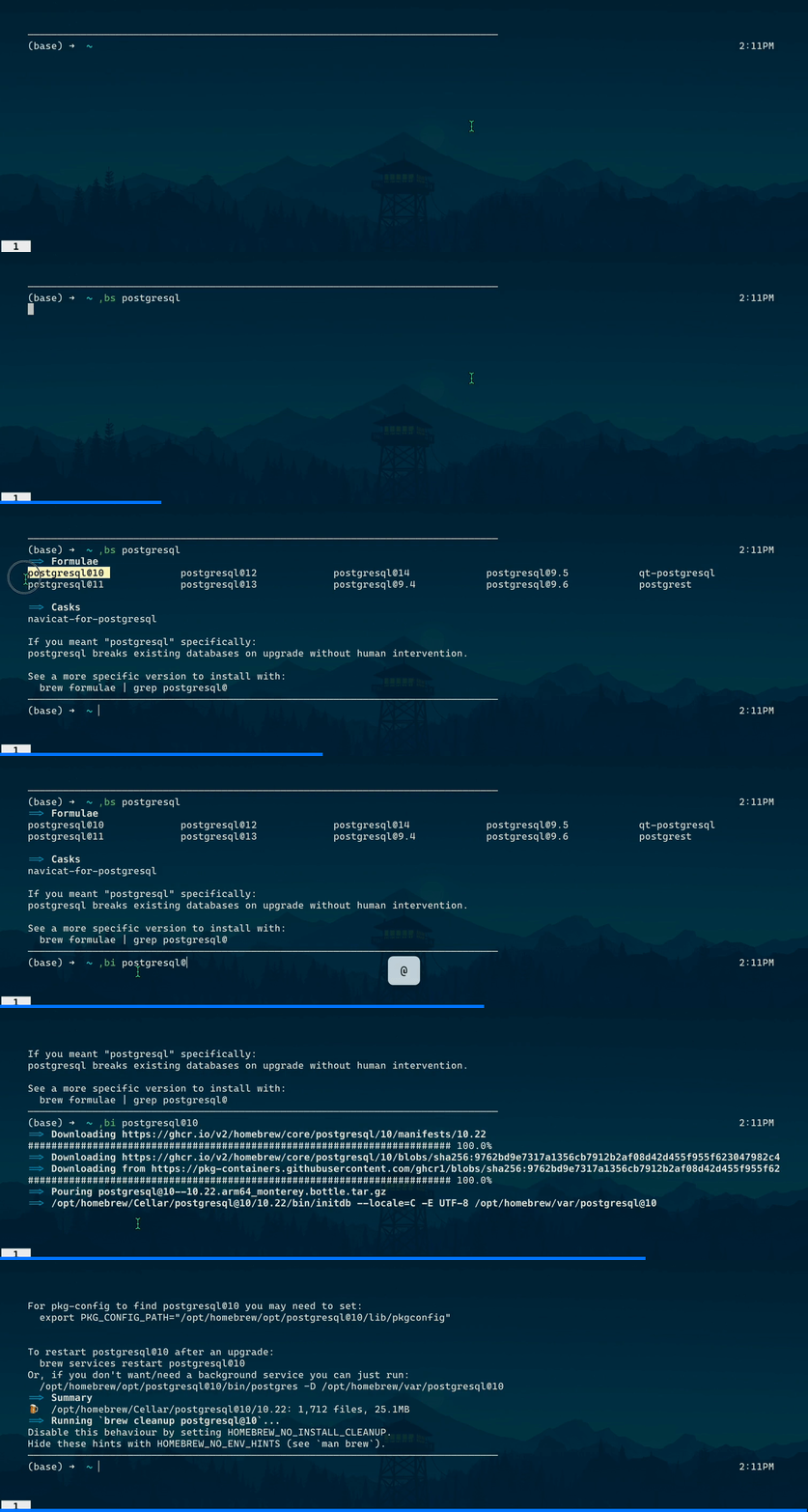
6. Update All Apps at Once (or individually)
Using HomeBrew, updating all your apps at once feels like a breeze! No more manual checking for the latest version of the apps; one HomeBrew command takes care of it all. This is as easy as:
brew upgradeBefore doing an upgrade, you might want to see what updates are available:
brew updatewhich then tells you which apps need an upgrade. You can even just get a list of such apps by doing:
brew outdatedand just upgrade apps individually.

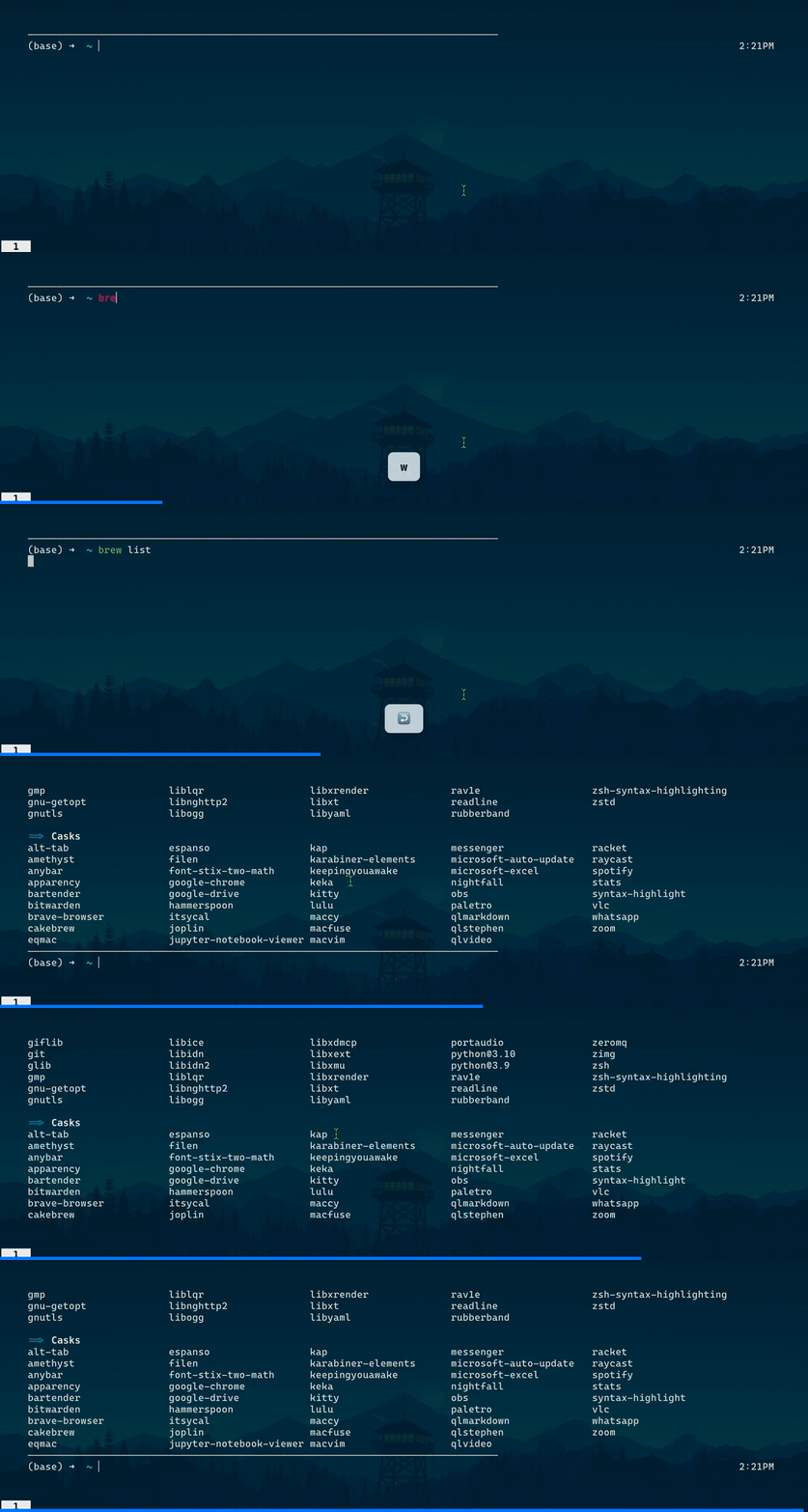
7. List all Installed Apps
It’s as easy as:
brew listApps with a GUI are usually under Casks.
8. Not sure if you installed an app through HomeBrew?
HomeBrew can only uninstall/upgrade apps that were installed using HomeBrew itself; it cannot touch your other apps. But sometimes we get sloppy and use the old ways to install apps. In case you wonder whether or not an app was installed through HomeBrew, you can either list all installed apps and see if your app is in there, or simply type the following:
brew list -l joplinIn this case, I want to check if the note-taking app Joplin was installed through HomeBrew, and the answer is yes. By the way, I use an alias for this command:
,bl joplin
Side Notes
1. How to Erase Shell History
To record these gifs and avoid making you confused, I had to erase my shell history. I did that by:
history -cThis one also works:
history -p2. How to Erase HomeBrew’s Download Cache
Since I had already installed Orion, the installer file was downloaded and cached by HomeBrew. If I wanted to install it again, it would simply run the installer from cache. But to show you how HomeBrew downloads and installs apps, I had to clear the cache using this:
brew cleanup --prune=0where --prune=0 means any file older than 0 days must be deleted.
3. How to install HomeBrew?!
Just google it.
4. How to set aliases for commands?
In zsh, I simply open ~/.zshrc and add a line like this to the file:
alias ,bic="brew install --cask"Don’t forget to source your shell after saving changes to ~/.zshrc .
Takeaway
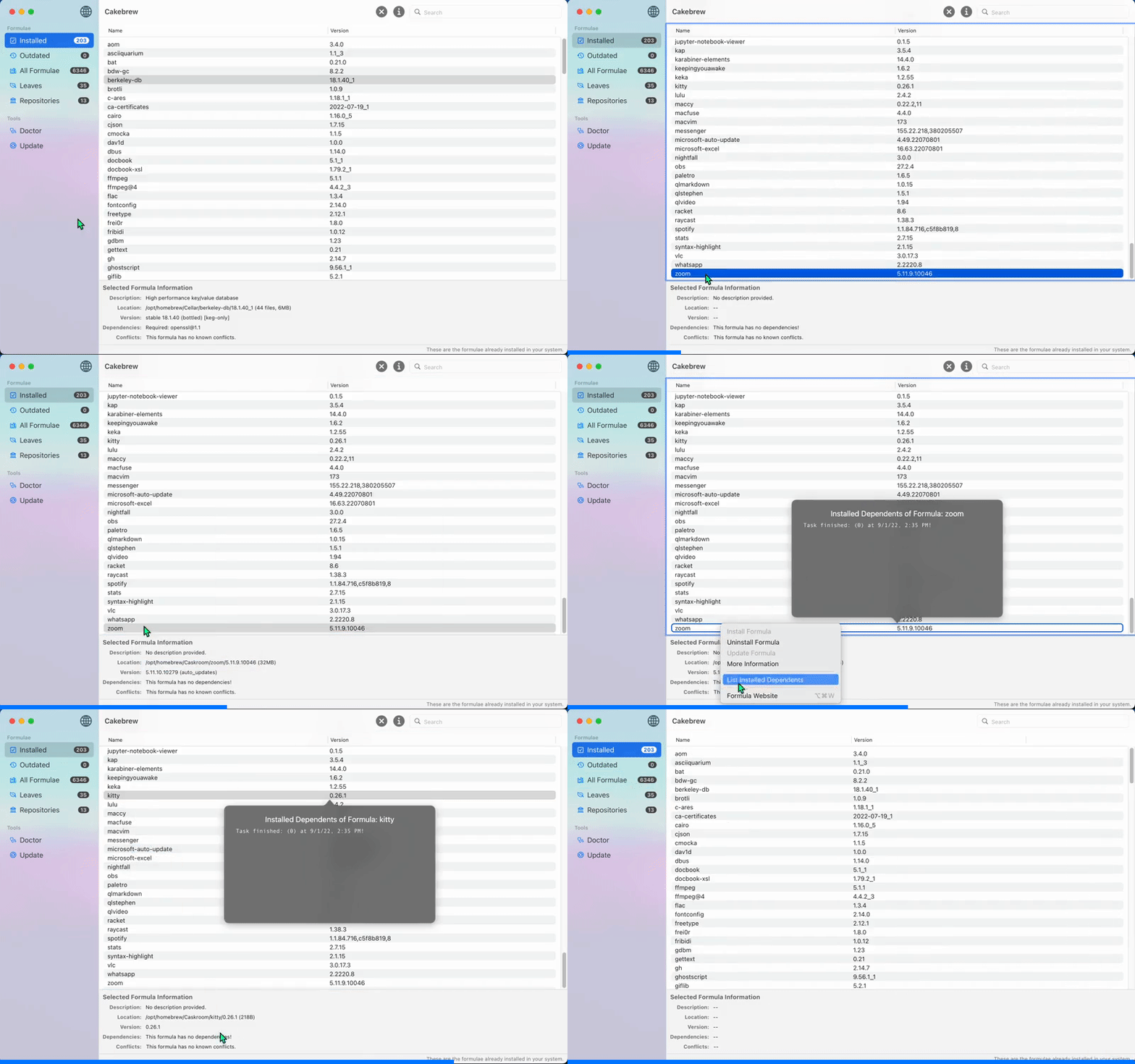
HomeBrew is the first app I install on a new Mac. It has almost all the apps you’ll ever need and manages them using simple commands. If you don’t like the terminal commands, there’s an app called CakeBrew with a graphics user interface that you might want to check out (install it through HomeBrew!!)