
How to Migrate from Google Container Registry to Artifact Registry
Learn a simple way to perform smooth transitions

Container Registry has been deprecated since May 15, 2023. In order to get the latest updates, features, and support for the services, we should transition from Container Registry to Artifact Registry.
In this post, we will first introduce the differences between Container Registry and Artifact Registry and then the procedures and commands to perform the transition.
Difference between Container Registry and Artifact Registry
There are two main differences between Google Container Registry and Artifact Registry:
- More artifacts can be stored in Artifact Registry, not just Docker images. The “build artifacts” in different languages like Python, NPM, Maven, etc can also be also stored in Artifact Registry.
- Multiple repositories can be created for the Docker images (and other artifacts). More fine-grained control can be done for locations and permissions.
Preparation
It’s recommended to use the Google Cloud Shell to run the commands in this post because the environment has been set up properly there already and you can run the commands directly.
Create gcr.io repositories directly
In many cases, we would want to create gcr.io repositories in Artifact Registry directly which correspond to the Container Artifact counterparts. In this way, we don’t need to change the existing code and CI/CD pipelines and everything will still work properly after the transition.
If you have Docker images in the Container Registry, you can create gcr.io repositories in the Artifact Registry by a shortcut as shown below. Just click the “CREATE GCR.IO REPOSITORIES” button to create them automatically.

The following page is then shown after the button is clicked. As you see the hostnames (such as eu.gcr.io) in Container Registry corresponds to the repository names in Artifact Registry:

Click the “CREATE” button to create these gcr.io repositories automatically:

After the gcr.io repositories are created, you will see they all have a warning icon next to them. If you hover it, instructions will be shown about what to do next.
Copy Docker images to Artifact Registry
After creating the gcr.io repositories in Artifact Registry, the next step is to copy the Docker images from the corresponding Container registry.
We can copy the images directly if there are a small number of them, for example:
docker pull eu.gcr.io/PROJECT-ID/IMAGE

docker push europe-docker.pkg.dev/PROJECT-ID/eu.gcr.io/IMAGE
However, if there are only a handful of Docker images, a better way would be to create a standard repository, which has more fine-grained control over regions and permissions.
A better way is to use gcrane to copy all the images in Container Registry to the corresponding gcr.io Artifact Registry repository.
We can install gcrane in the Cloud Shell directly:
go install github.com/google/go-containerregistry/cmd/gcrane@latest
Then we can use it to copy all the images from Container Registry by region:
gcrane cp -r eu.gcr.io/PROJECT_ID europe-docker.pkg.dev/PROJECT_ID/eu.gcr.ioMore commands for different regions can be found here.
All the images in different regions of the Container Registry will be copied to corresponding gcr.io repositories in Artifact Registry.
Enable route to Artifact Registry
After the images have been copied to Artifact Registry, we can route all gcr.io traffic to Artifact Registry, which means the requests to the original Docker images in Container Registry will now to routed to the corresponding ones in Artifact Registry.
Normally, you can click on the “ROUTE TO ARTIFACT REGISTRY” button directly in Artifact Registry after copying all Docker images from Container Registry. However, if it’s grayed out, it may mean you lack the corresponding permissions:

You can ask your system administrator to grant you the required permissions:
gcloud projects add-iam-policy-binding PROJECT_ID \
    --member='user:PRINCIPAL' \
    --role='roles/artifactregistry.admin'

gcloud projects add-iam-policy-binding PROJECT_ID \
    --member='user:PRINCIPAL' \
    --role='roles/storage.admin'
PRINCIPAL is your username, which is normally your Google account (with @gmail.com).
After the permissions are granted, you can fresh the page and click the “ROUTE TO ARTIFACT REGISTRY” button which should be enabled now.
However, sometimes the button will still be buggily disabled even when the permissions have been granted. In this case, you can run the following command in the Cloud Shell to enable the routing redirection:
gcloud beta artifacts settings enable-upgrade-redirection \
    --project=PROJECT_ID
When the command is run successfully, you will see this message:
legacyRedirectionState: REDIRECTION_FROM_GCR_IO_ENABLED
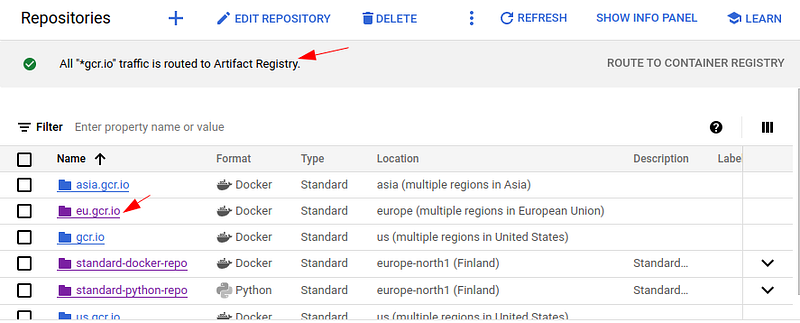
And now when you refresh Artifact Registry, you will see all “gcr.io” traffic is routed to Artifact Registry, and the warning icons are gone as well:
Check the Docker images in Artifact Registry
We would normally want to check the Docker images in Artifact Registry after they are copied from Container Registry. However, we cannot do it directly on the command line, but need to set the location and repository first:
gcloud config set artifacts/location LOCATION

gcloud config set artifacts/repository REPOSITORY_NAME
In our example, LOCATION is europe, and REPOSITORY_NAME is eu.gcr.io.
When the above commands are run, you can check the Docker images in the Artifact Registry repository with the following commands:
gcloud artifacts docker images list

gcloud artifacts docker tags list
Clean up Container Registry
After the images are copied and the routing redirection is set up properly, all the requests to the Container Registry Docker images will be redirected to the corresponding Artifact Registry ones now.
To save cost, we can get rid of all the Docker images in Container Registry now. However, for safety, it’s better to test all the code and CI/CD pipelines before cleaning up Container Registry. You can click the “ROUTE TO CONTAINER REGISTRY” in Artifact Registry to route the traffic back to Container Registry if anything goes wrong.
Also, make sure the proper permissions of Artifact Registry are granted to relevant accounts or service accounts. For interacting with Docker immediately locally, you would need to run the following command to set up the authentication:
gcloud auth configure-docker \
    europe-docker.pkg.dev


