
How to Store Docker Images in Google Artifact Registry
Learn a new way to store Docker images on the Google Cloud Platform

We used to store Docker images in the Container Registry on the Google Cloud Platform (GCP). However, it’s deprecated now and we should instead store Docker images in the Artifact Registry which is a central location for storing and managing “build artifacts” such as Docker images, Python packages, NPM packages, and many more.
In this post, we will introduce the basics of how to store Docker images in Artifact Registry with step-by-step instructions.
Create an Artifact Registry repository
First, we need to create an Artifact Registry repository that will serve as the container for different Docker images.
Try to find “Artifact Registry” in the GCP console. Enable the API if it’s not enabled yet. Then click “CREATE REPOSITORY” to create a new one:


Note that multiple Docker images can be stored in the same repository and thus the repository should have a more generic name. You can have multiple Docker repositories in the same project. Different modes, regions, or permissions can be set for these repositories depending on the practical use cases.
The remote mode repository can be more suitable since we will store an official Docker image in the Artifact Registry in this post. However, the remote mode is still in preview mode at the time of writing. Therefore, we will stick to the standard mode which will work just fine in our example.
Authentication with Artifact Registry Docker Repository
After the repository is created, you need to authenticate the gcloud command on your local computer so that it can push or pull images from it.
Now let’s click on the “SET UP INSTRUCTION” button in the Artifact Registry repository and reveal the command for configuring Docker on your computer:

Run this command on your local computer:
gcloud auth configure-docker europe-north1-docker.pkg.dev
Note that region (europe-north1) would be different for your own case and needs to be changed accordingly.
Push a Docker image to Artifact Registry
Now that our local computer is authenticated properly. We can push a Docker image to the Artifact Registry repository created above.
Inside the Artifact Registry repository, click on the copy button as shown below to copy the full name of the repository:

The full name of an Artifact Registry Docker repository has the format of:
- LOCATION-docker.pkg.dev/PROJECT-ID/REPOSITORY
Normally we would store custom Docker images in Artifact Registry. However, sometimes we would also need to store third-party or official Docker images for security and efficiency considerations. For example, we can store the Splash image in Artifact Registry and then use it to create a microservice for scraping JavaScript-rendered webpages.
Let’s pull the official Splash Docker image from DockerHub and assign custom tags for it so it can be pushed to our Artifact Registry repository:
docker pull scrapinghub/splash:3.5

docker tag scrapinghub/splash:3.5 europe-north1-docker.pkg.dev/superdataminer/standard-docker-repo/scrapinghub/splash:3.5
docker tag scrapinghub/splash:3.5 europe-north1-docker.pkg.dev/superdataminer/standard-docker-repo/scrapinghub/splash:latest
Note the Docker image has the following format for its name and tag in the Artifact Registry:
- LOCATION-docker.pkg.dev/PROJECT-ID/REPOSITORY/IMAGE:TAG
Especially, the IMAGE can contain a slash, as in our example scraping/splash.
Now we can push the Splash Docker image to Artifact Registry. We will push all tags at the same time using the--all-tags option:
docker push europe-north1-docker.pkg.dev/superdataminer/standard-docker-repo/scrapinghub/splash --all-tags
The Splash image is pretty big and will take some time to be pushed 😴.
After the Docker image is successfully pushed, you can refresh the Artifact Registry repository page and see it there:
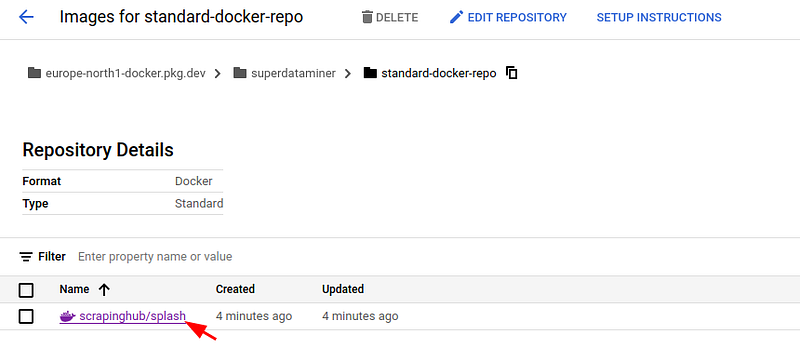

The above information can also be shown by this command:
gcloud artifacts docker images list europe-north1-docker.pkg.dev/superdataminer/standard-docker-repo --include-tags
Now the image is available, you can start to use it in the GCP services like Compute Engine, Cloud Run or Composer/Airflow.


